 ChatGPT,
  Claude,
  Gemini,
  Grok — all four for
 How to Set Up a Mailing List Using phpList
Setting up a mailing list lets you email multiple recipients at once while keeping everyone’s email address private. If you regularly send newsletters or updates, using a dedicated mailing list manager is safer and more efficient than using CC or BCC.
For Bluehost customers, we recommend using phpList, a reliable open‑source mailing list tool that can be installed quickly through Softaculous.
Install phpList via Softaculous
- Log in to your Bluehost Portal.
- In the left-hand menu, click Hosting, then select My Plans.
- On the hosting details page, click the cPanel button.

- Your cPanel will open in a new tab.

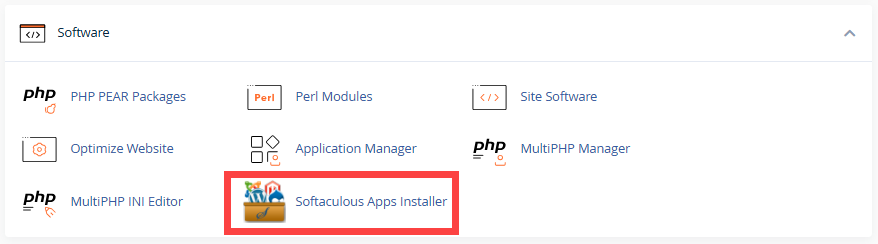
- In the Software section, click Softaculous Apps Installer.
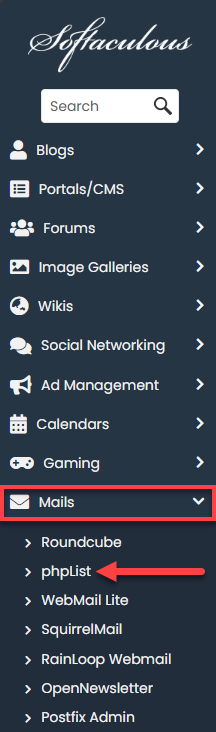
- On the left menu, click Mails and select phpList.
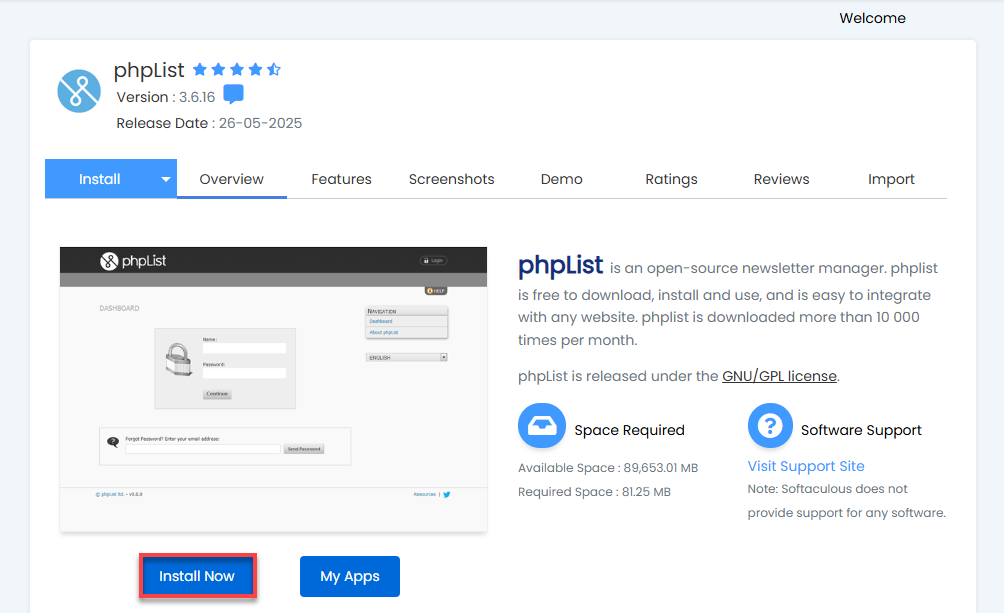
- Click Install Now.
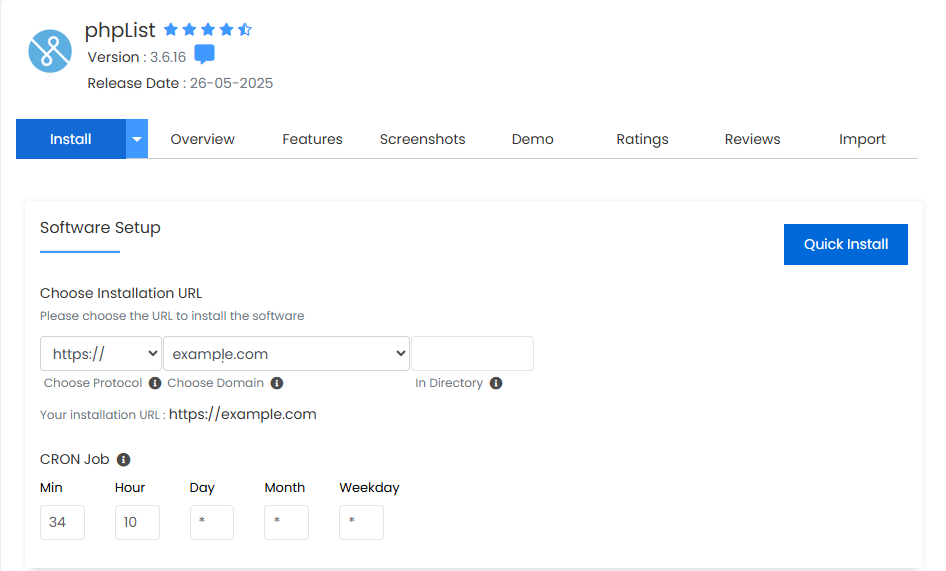
- Select the domain you want phpList installed on.
- Make sure the installation directory does not already contain another website or CMS.
- Configure CRON Job (Optional). Softaculous will automatically select a default schedule. You can leave this as-is or customize the CRON timing.
- Set up the admin account, enter the following details:
- Site Name
- Admin Username
- Admin Password
- Real Name
- Admin Email
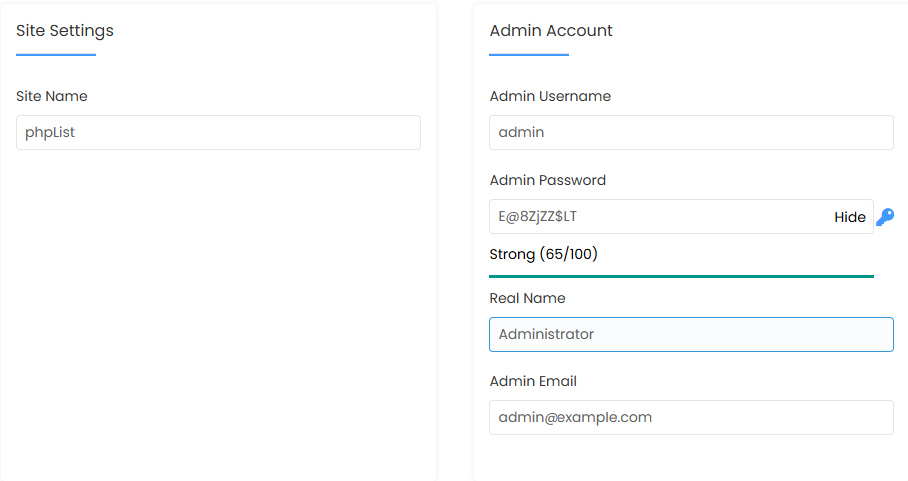
You can then access your phpList admin area using the provided Administrative URL.
- Advanced Options (Optional). Type the name of the database and table prefix to be created for the installation.
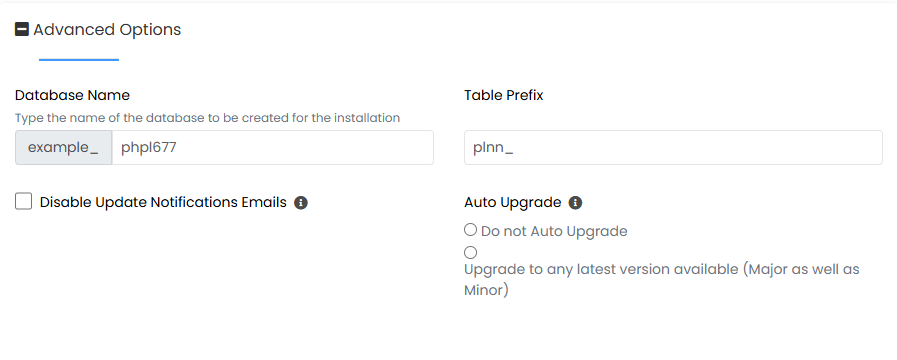
- Click Install.
Softaculous will complete the setup and display a confirmation page once done. You can then access your phpList admin area using the provided Administrative URL.
Best Practices for Using Mailing Lists
- Avoid CC for bulk emails — recipients will see each other’s email addresses.
- Use BCC sparingly — it works but isn’t ideal for managing large or growing lists.
- Use phpList for automation & privacy — a mailing list tool manages subscribers safely and efficiently.
For additional guidelines on proper email throttling and sending limits, check phpList’s documentation and Bluehost’s email policies.
Summary
Setting up a mailing list in cPanel using phpList is a fast and secure way to manage bulk communications. With Softaculous, installation takes just a few clicks, and phpList provides reliable tools for subscriber management, email privacy, and campaign control. Whether you're sending newsletters or team updates, this setup gives you a professional and efficient way to reach multiple recipients safely.
If you need further assistance, Bluehost Chat Support is available 24 hours a day, 7days a week while Bluehost Phone Support is available 7 days a week from 7 am-12 midnight EST.
- Chat Support - While on our website, you should see a CHAT bubble in the bottom right-hand corner of the page. Click anywhere on the bubble to begin a chat session.
- Phone Support -
- US: 888-401-4678
- International: +1 801-765-9400
You may also refer to our Knowledge Base articles to help answer common questions and guide you through various setup, configuration, and troubleshooting steps.