 ChatGPT,
  Claude,
  Gemini,
  Grok — all four for
How to Turn Memory On or Off in Bluehost AI All-Access Pack
The Bluehost AI All-Access Pack Memory feature allows the assistant to remember helpful details and preferences from your conversations and use them to provide personalized responses. Instead of starting from scratch in every chat, your assistant retains key context to streamline your everyday workflows.
On the Standard Plan, you can turn Memory on or off from your settings at any time. On the Secure Plan (Privacy+), an administrator must first enable Memory for the organization before you can manage it from your own settings. You can also review or remove stored context in the Manage Memory section.
Memory Availability by Plan
Memory is available across plans, but how it is managed depends on whether your organization is on the Standard Plan or the Secure Plan (Privacy+):
- Standard Plan: Memory is enabled by default. Individual users can turn Memory on or off and manage their saved memories directly from their personal settings.
- Secure Plan (Privacy+): Memory is not compatible with Chat Sanitization, so administrators must choose one or the other for the organization. See Memory and Chat Sanitization below for details.
When Memory is enabled by an administrator on the Secure Plan, it is enabled by default for all users in the organization. Users can then turn Memory on or off and manage saved memories based on their individual preferences.
How to Turn Memory On or Off
To manage your individual Memory setting:
- Log in to your Bluehost Portal.
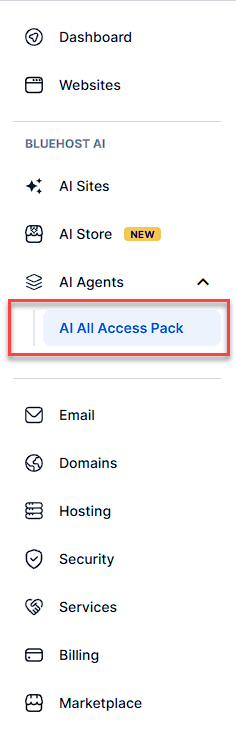
- From the left-hand menu, under the AI Agents tab, click AI All-Access Pack.
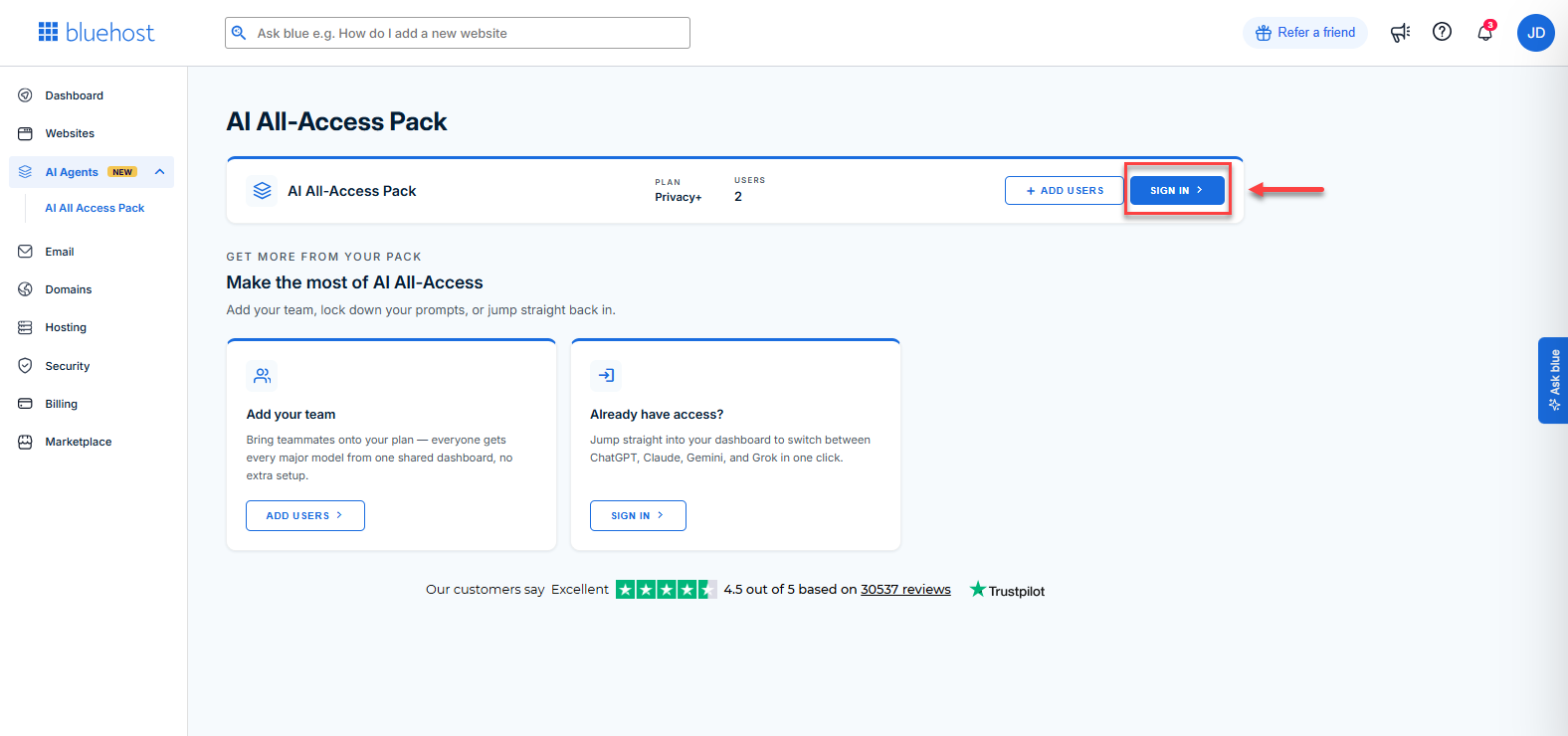
- Click the Sign In button.
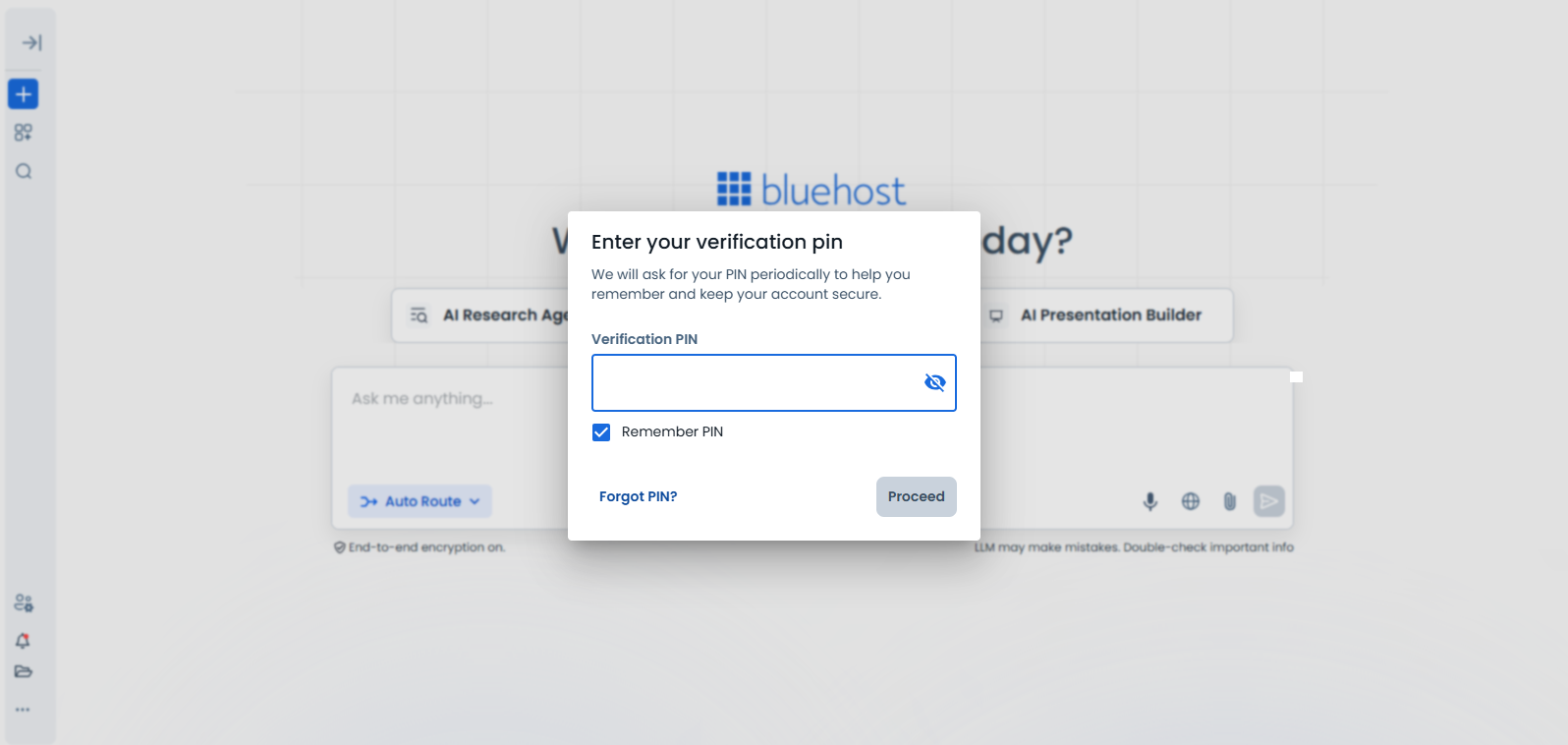
- Enter your Verification PIN when prompted.
Note: A Verification PIN is not required on the Standard Plan.
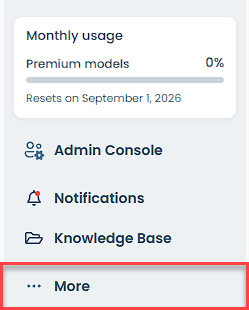
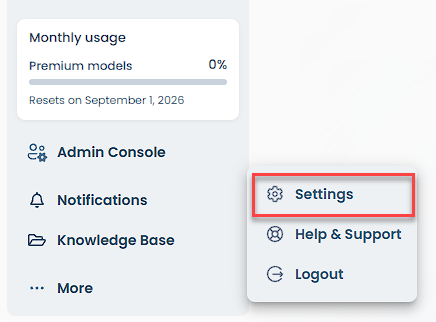
- In the lower-left corner, click More.
- Click Settings.
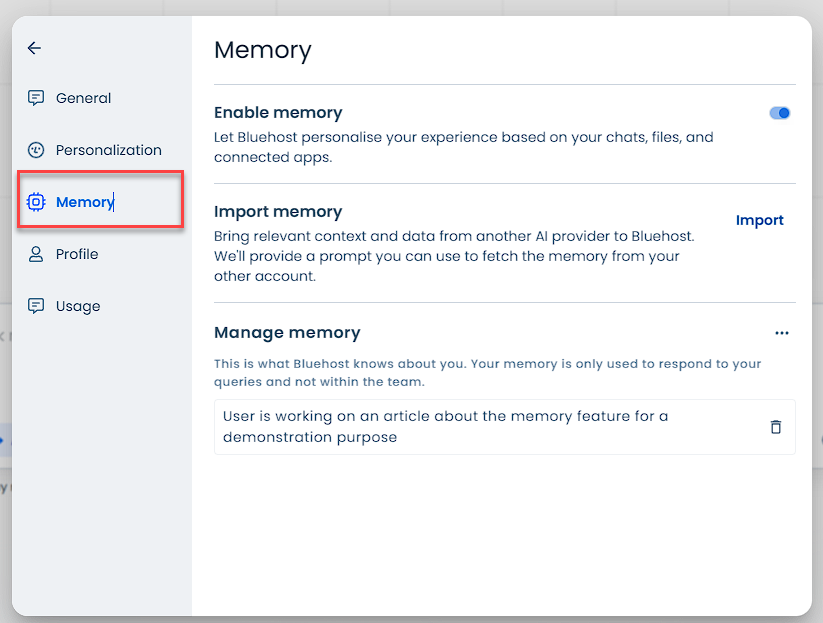
- Select Memory.
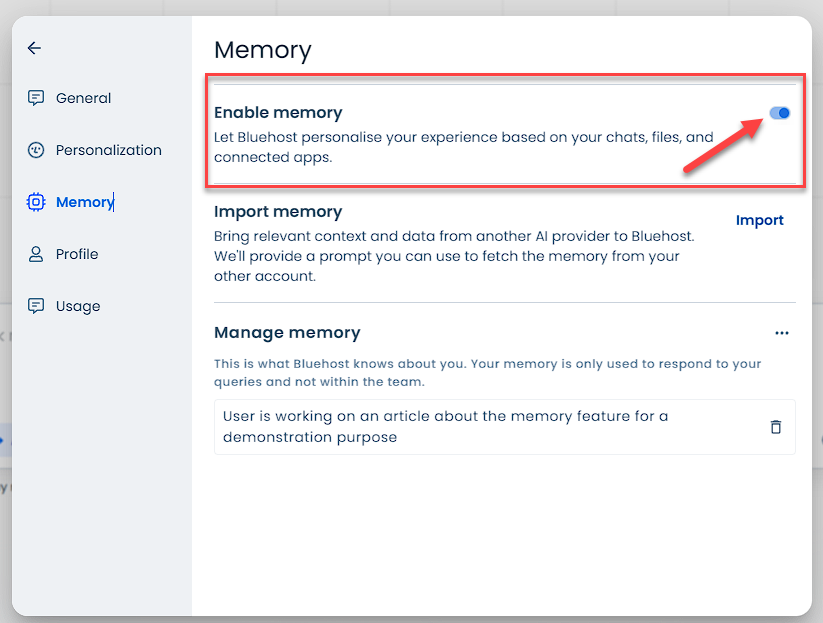
- Under Enable Memory, use the toggle to turn Memory On or Off.
Memory Status Details
- Enabled: The assistant saves helpful context from your discussions and uses it to personalize future conversations.
- Disabled: The assistant stops saving new information and stops referencing saved memories in future conversations. Previously stored memories remain saved in your account until you delete them, subject to applicable data retention timelines.
How Secure Plan Administrators Manage Memory
On the Secure Plan, administrators manage whether conversation memory is accessible across the organization from the Admin Console.
To enable or disable Memory for your organization:
- Log in to your Bluehost Portal using an administrator account.
- From the left-hand menu, under the AI Agents tab, click AI All-Access Pack.
- Click the Sign In button.
- Enter your Verification PIN when prompted.
Note: A Verification PIN is not required on the Standard Plan.
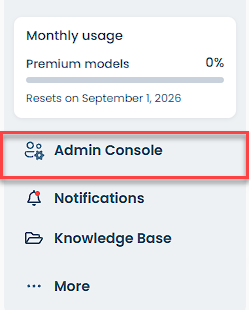
- In the lower-left corner of the dashboard, click Admin Console.
- On the Admin Console page, use the left-hand menu to click Admin Settings.
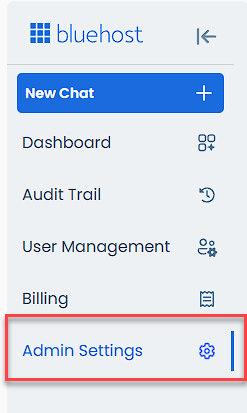
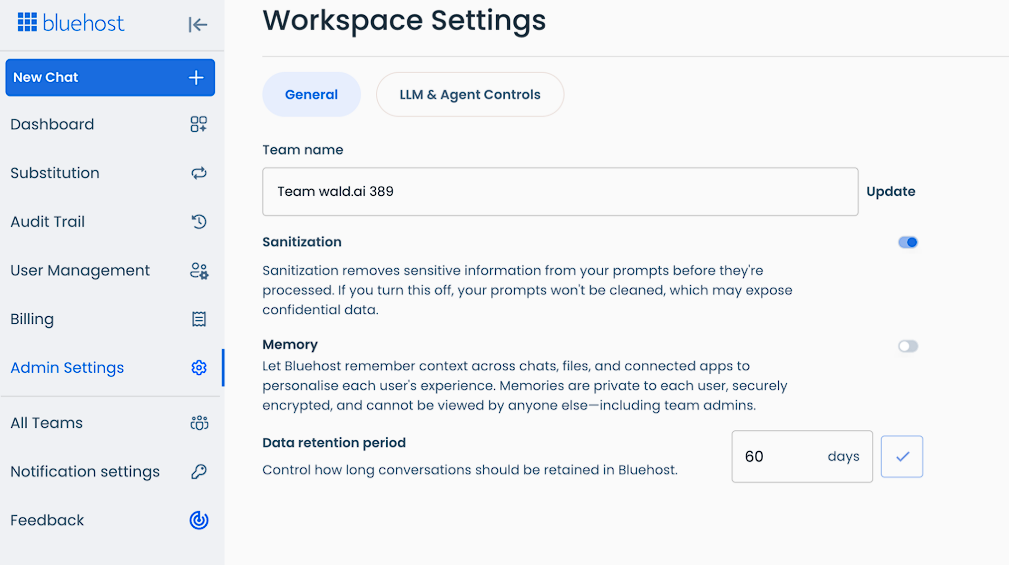
- In the General tab, locate Memory.
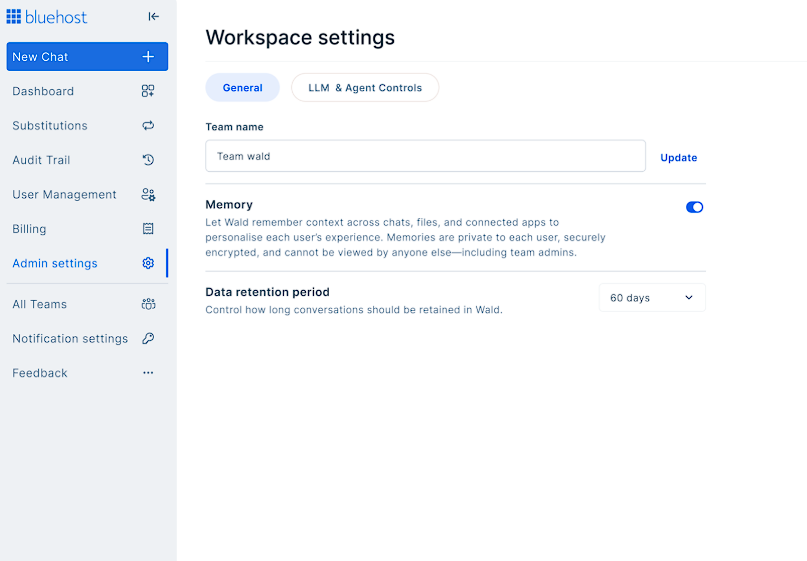
- Toggle Memory On or Off.
- When enabling Memory on the Secure Plan, follow the prompt to turn off Chat Sanitization for the organization.
Once the administrator enables Memory in Admin Settings, it is enabled by default for all users in the organization. Users can then turn Memory on or off and manage their individual settings from Settings → Memory.
Administrators control organization-wide availability only. For what administrators can and cannot see in individual accounts, see Admin Visibility on the Secure Plan below.
- Secure Plan:
- Standard Plan:
Memory and Chat Sanitization
Memory is not compatible with Chat Sanitization on the Secure Plan (Privacy+). The organization must choose between these two features:
- If you want sanitization, Memory must remain off.
- If you want Memory, Chat Sanitization must be turned off.
The two features cannot be enabled at the same time on the Secure Plan.
Privacy and Security Considerations
If your administrator enables Memory on the Secure Plan, Chat Sanitization is turned off organization-wide. This allows the assistant to retain relevant information across chats to provide a more personalized experience.
Turning off Chat Sanitization does not remove foundational security controls:
- Chat storage within our dedicated workspace environment is protected by encryption in transit and at rest.
- Bluehost maintains Zero Data Retention (ZDR) agreements with its third-party large language model (LLM) providers to govern how conversational data is handled outside the application environment.
- Data encryption and applicable ZDR provider agreements remain in effect whether Chat Sanitization or Memory is selected.
How to Manage Saved Memories
The Manage Memory section allows you to review your saved memories and delete them. You can delete all saved memories at once or remove individual memories.
To manage your saved memories:
- Log in to your Bluehost Portal.
- From the left-hand menu, under the AI Agents tab, click AI All-Access Pack.
- Click the Sign In button.
- Enter your Verification PIN when prompted.
Note: A Verification PIN is not required on the Standard Plan.
- In the lower-left corner, click More.
- Click Settings.
- Select Memory.
- Go to Manage Memory.
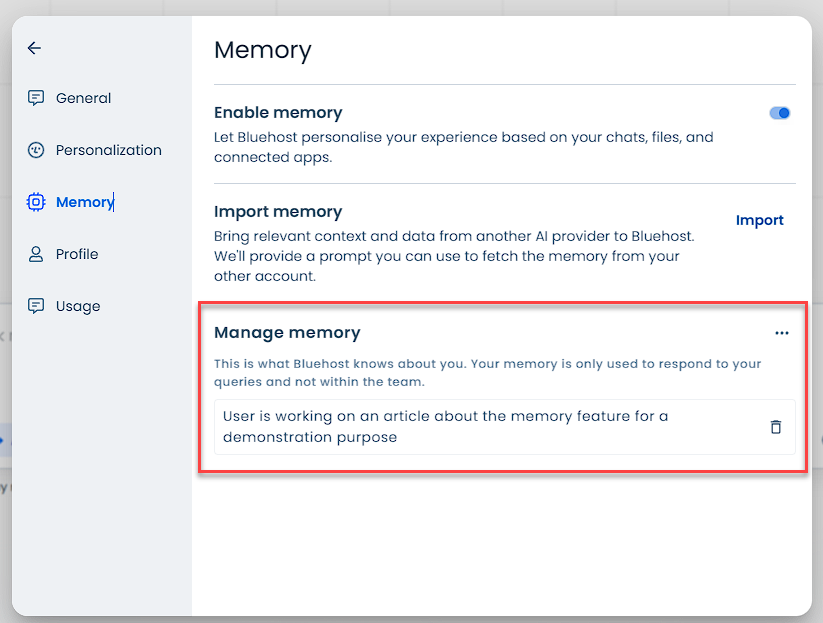
- Choose how to delete saved context:
- Delete all memories: Click the three-dot menu and select Delete all memory.
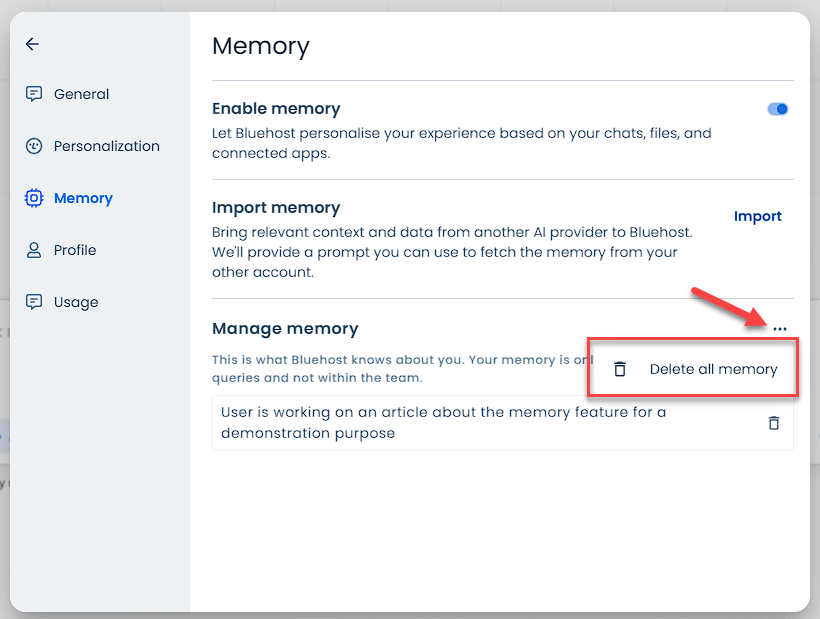
- Delete an individual memory: Find the specific memory in the list and click the Delete (trash can) icon next to it.
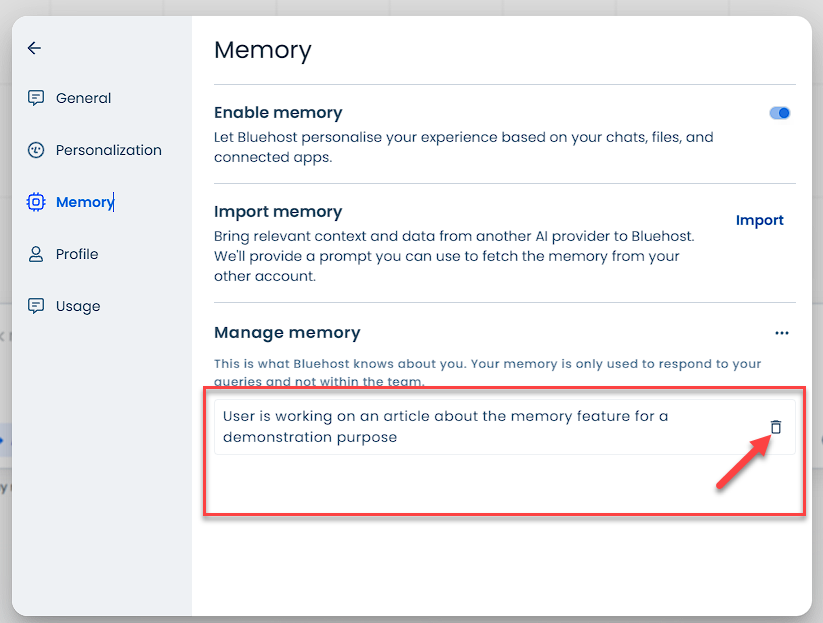
- Delete all memories: Click the three-dot menu and select Delete all memory.
Turning Memory Off vs. Deleting Memories
Turning Memory off and deleting saved memories are two separate actions:
- Turn Memory off: Stops the assistant from saving new information and stops it from referencing existing memories in future conversations.
- Delete memories: Removes saved entries from your assistant's context so they can no longer be accessed or referenced.
- Turn Memory off and delete memories: Stops ongoing memory capture and clears your previously stored entries from the assistant's context.
If you want to stop using Memory and remove previously saved information, make sure to both turn Memory off and delete your saved memories.
Summary
The AI All-Access Pack Memory feature allows the assistant to personalize responses across your conversations. You can manage your preferences directly from More → Settings → Memory, while administrators manage organizational availability from Admin Console → Admin Settings → General. On the Secure Plan (Privacy+), Memory is not compatible with Chat Sanitization—if you want sanitization, you will need to turn Memory off, and vice versa. Turning Memory off does not immediately delete saved memories, so use the Manage Memory section whenever you want to remove entries from your assistant's saved context.
If you need further assistance, Bluehost Chat Support is available 24 hours a day, 7days a week while Bluehost Phone Support is available 7 days a week from 7 am-12 midnight EST.
- Chat Support - While on our website, you should see a CHAT bubble in the bottom right-hand corner of the page. Click anywhere on the bubble to begin a chat session.
- Phone Support -
- US: 888-401-4678
- International: +1 801-765-9400
You may also refer to our Knowledge Base articles to help answer common questions and guide you through various setup, configuration, and troubleshooting steps.