 ChatGPT,
  Claude,
  Gemini,
  Grok — all four for
Purchase a Virtual Dedicated Server with Coolify Installation
Coolify is an open-source, self-hosted platform that simplifies the deployment and management of applications, databases, and websites. Designed as a self-hosted alternative to services like Heroku, Netlify, and Vercel, Coolify enables developers and businesses to transform their own servers into a powerful cloud hosting environment. It streamlines the deployment process with built-in automation, making it easy to deploy, manage, and scale multiple projects from a single dashboard. By hosting applications on your own infrastructure, Coolify provides greater control, flexibility, and cost savings while maintaining a modern and efficient development workflow.
This article explains how to purchase a Bluehost Virtual Dedicated Server (VDS) hosting plan and set up and manage it with Coolify.
Why Choose Coolify?
Coolify is an open-source, self-hosted platform that makes it easy to deploy and manage websites, applications, and databases on your own server. With automated deployments, an intuitive dashboard, and full control over your infrastructure, Coolify provides a cloud-like hosting experience without the high recurring costs of managed platforms.
Running Coolify on a Virtual Dedicated Server (VDS) provides dedicated resources, enhanced performance, and greater control over your hosting environment. This allows you to deploy, manage, and scale applications more efficiently while maintaining reliable operation as your projects and business needs grow.
Uses of Coolify
Coolify supports a wide range of web hosting and application management use cases, including:
- Application Hosting: Deploy and manage websites and applications built with popular frameworks such as Next.js, Laravel, Vue, Python, and Go.
- Database Management: Create and manage databases, including PostgreSQL, MySQL, MongoDB, and Redis, from a centralized dashboard.
- Self-Hosted Services: Host open-source applications such as WordPress, Ghost, analytics platforms, and other business tools on your own infrastructure.
- Automated Deployments: Connect Git repositories to automatically build and deploy updates whenever code changes are pushed.
- Multi-Server Management: Monitor and manage applications, services, and deployments across multiple servers from a single interface.
With its automation features and centralized management capabilities, Coolify provides a flexible and cost-effective solution for hosting and managing modern applications on your own infrastructure.
How to Purchase a Virtual Dedicated Server with Coolify Installation
Coolify can be installed on a Bluehost Virtual Dedicated Server (VDS). You can choose to have Coolify installed during the initial VDS purchase or install it manually at a later time.
- In your browser, go to https://www.bluehost.com.
- Click Hosting in the top menu, then select Virtual Dedicated Server.
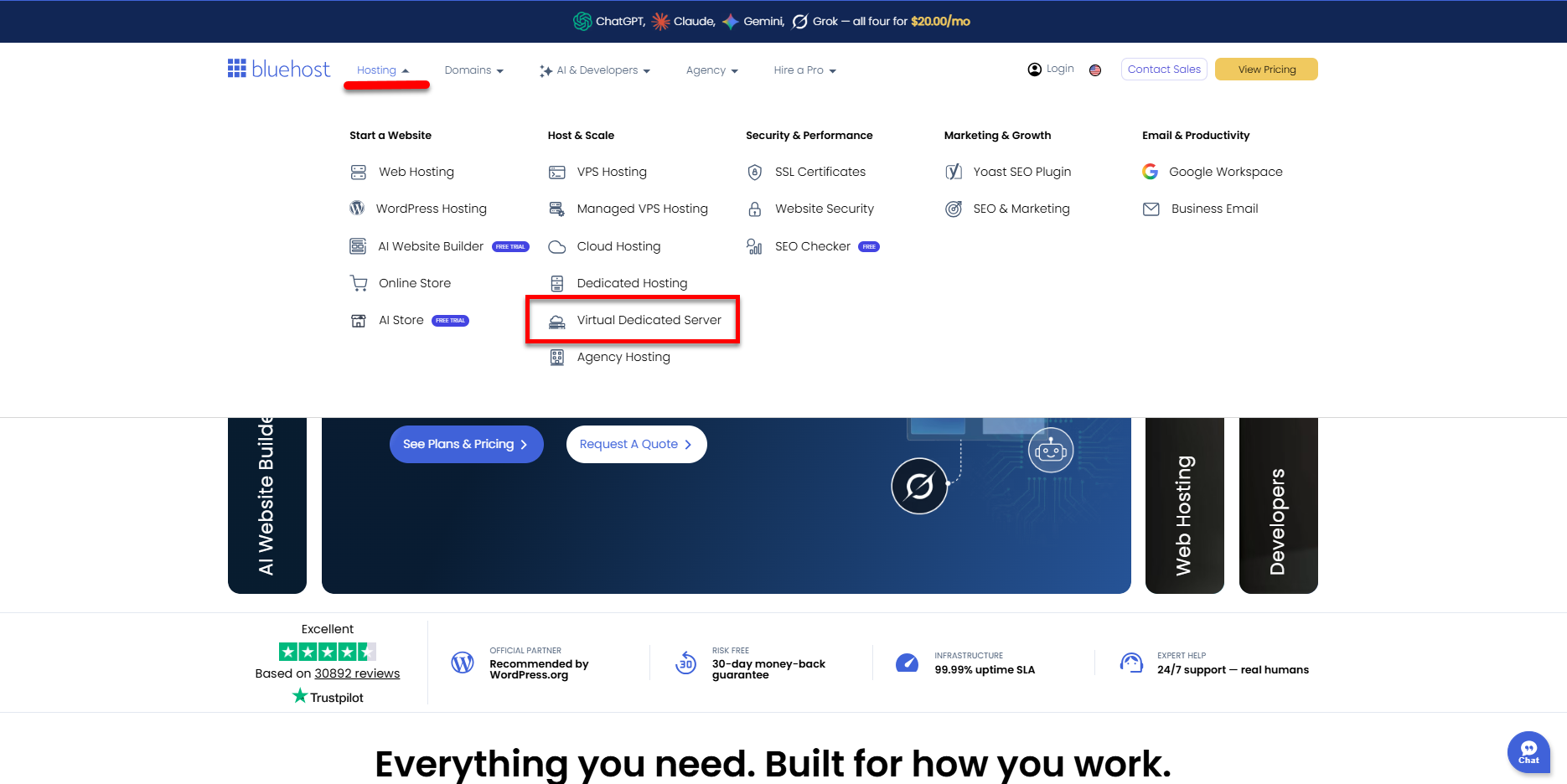
You can also go to this link directly: https://www.bluehost.com/vds-hosting.
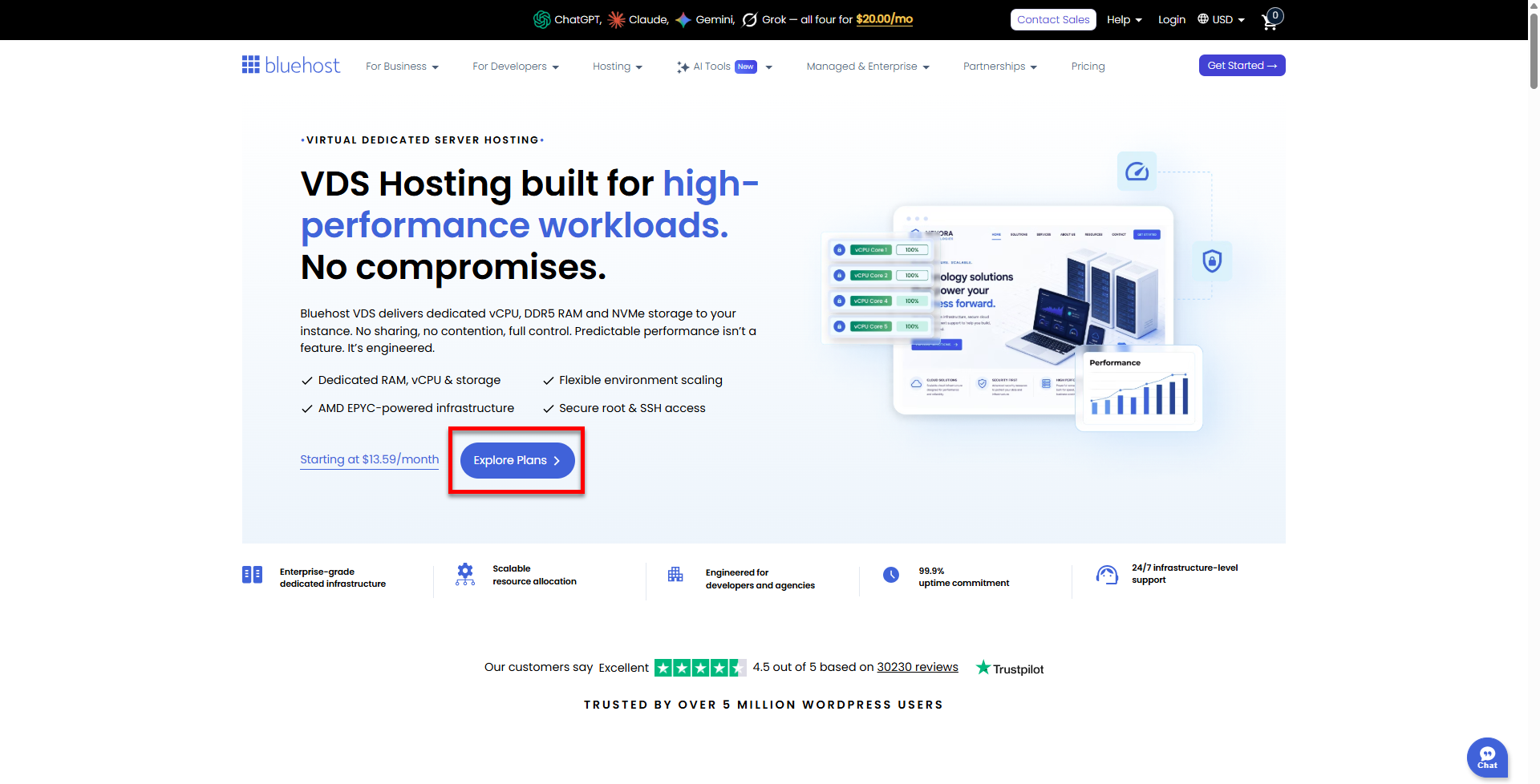
- On the Virtual Dedicated Server Hosting page, click Explore Plans. You can also scroll down to the hosting plans section.
- Choose a plan from either tab — Standard or High Performance — by clicking Choose Plan.
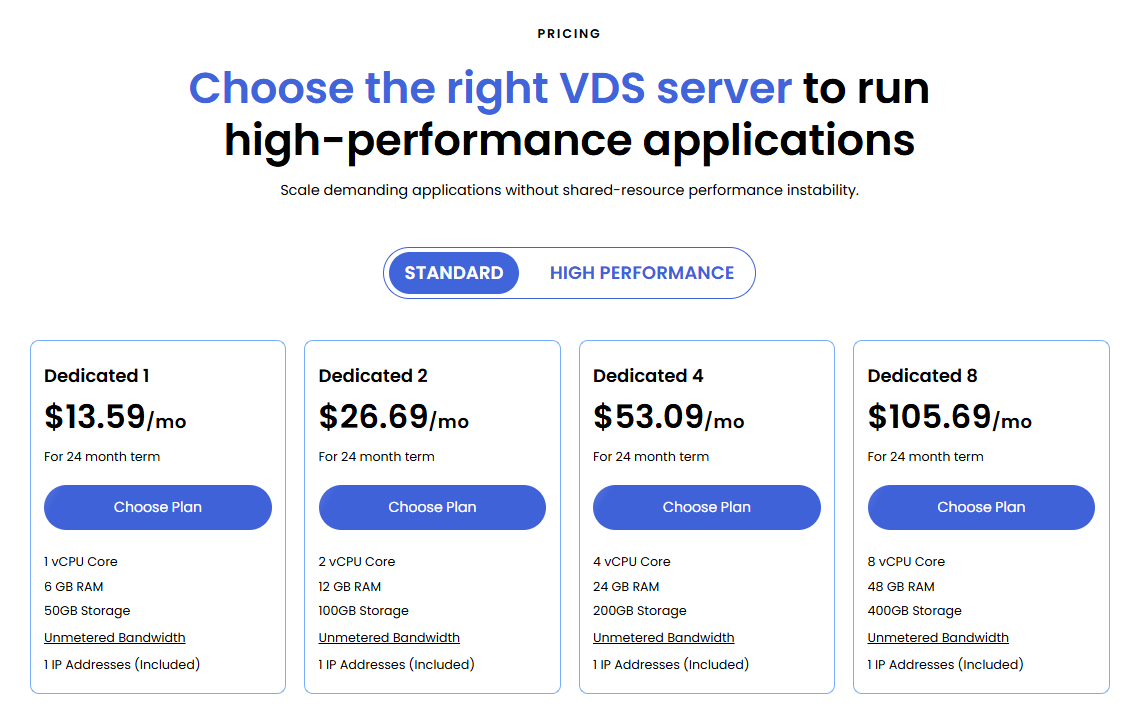
Pricing is subject to change. Please visit https://www.bluehost.com/vds-hosting for the current introductory/sign-up offer for the Bluehost Virtual Dedicated Server hosting. For the most up-to-date renewal pricing, visit your Bluehost Portal's Renewal Center. - On the next page, configure your VDS hosting to meet your requirements. The configuration options are divided into the following sections:
- Location: Select your data center in this section.
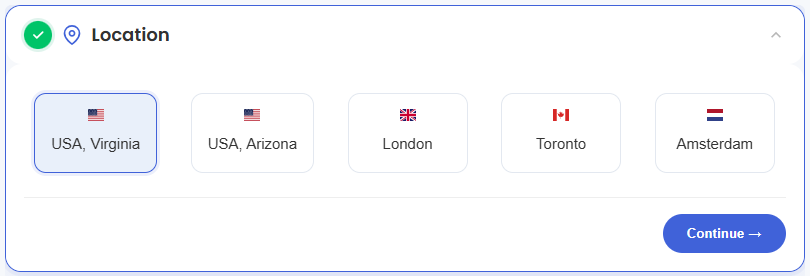
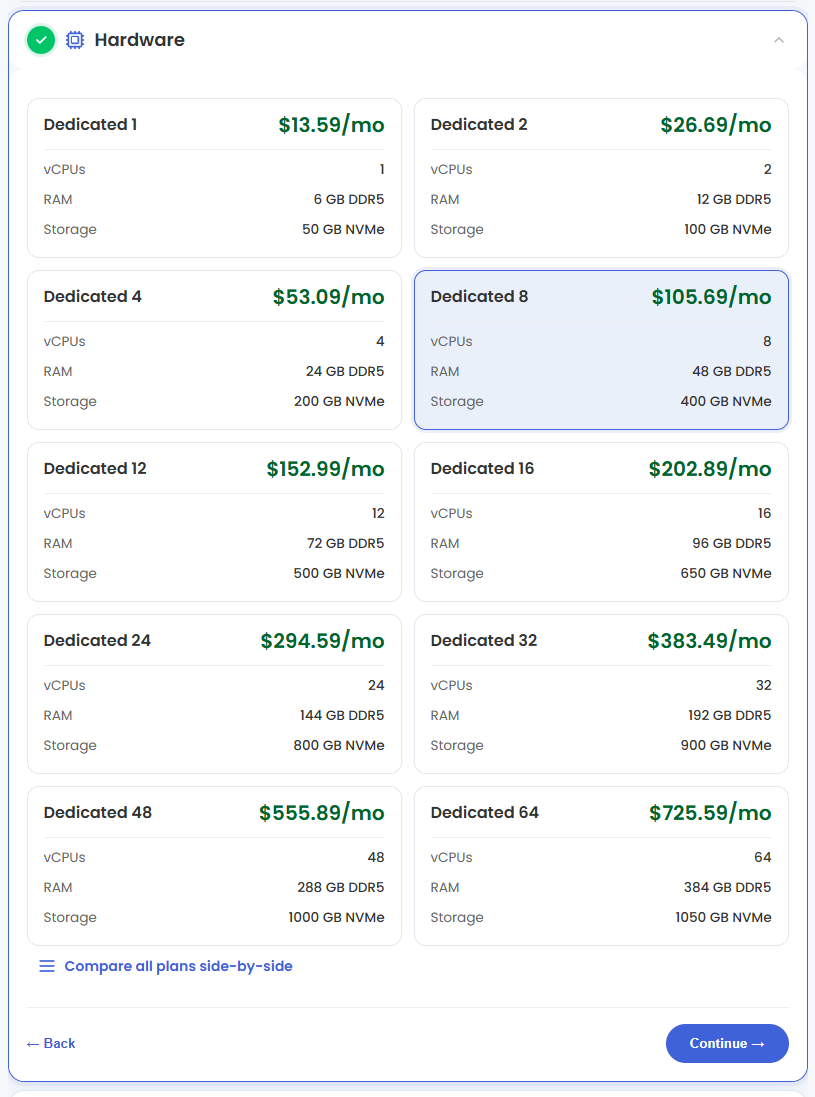
- Hardware: This section shows your pre-selected plan. You can also switch to another Virtual Dedicated Server plan in this section
- Software:
- Under the Application tab, click on Coolify.
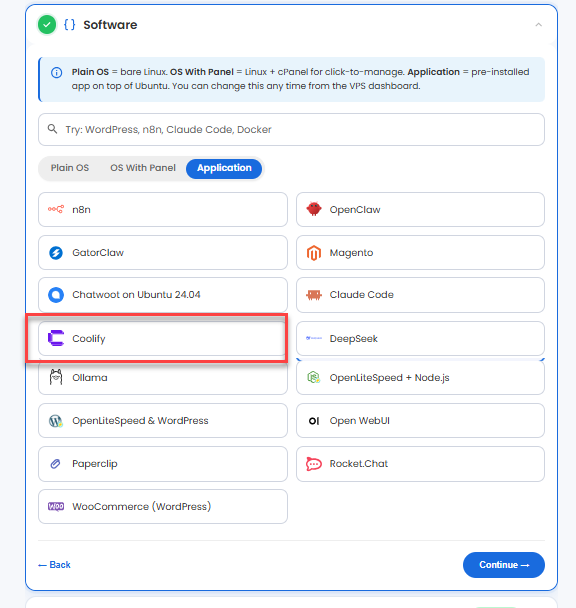
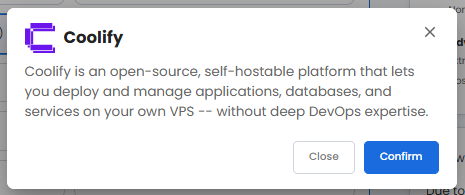
You can install only one application per purchase; the system will automatically select the best operating system for it. - In the pop-up, click Confirm.
- Under the Application tab, click on Coolify.
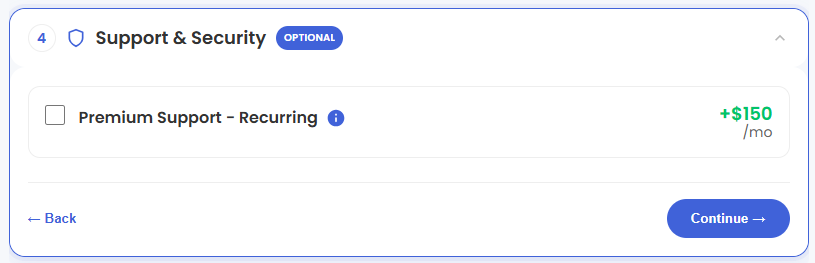
- Support & Security: You can add Premium Support - Recurring, which provides priority access to expert assistance and faster response times.
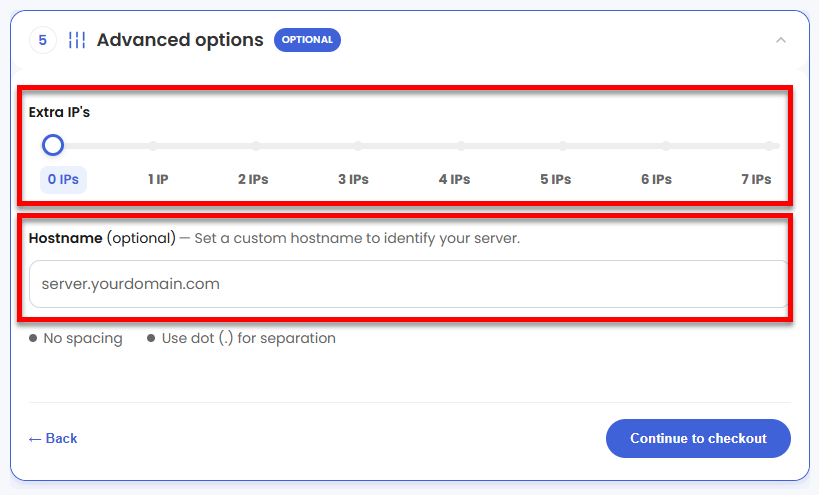
- Advanced Options:
- Extra IP's: You can add IP addresses for an additional fee. Pricing changes based on how many IPs you add.
- Hostname: Assign a custom hostname to identify your server. This is optional.
- Location: Select your data center in this section.
- Select your billing term and review your selected items on the right pane, along with the summarized total cost.
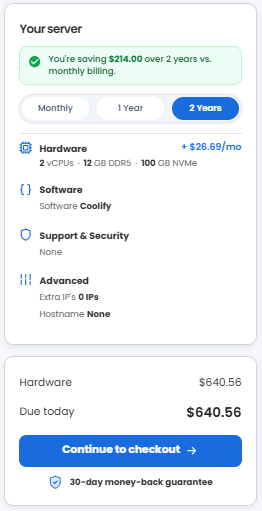
- Click Continue to checkout.
- Do the following on the Checkout page:
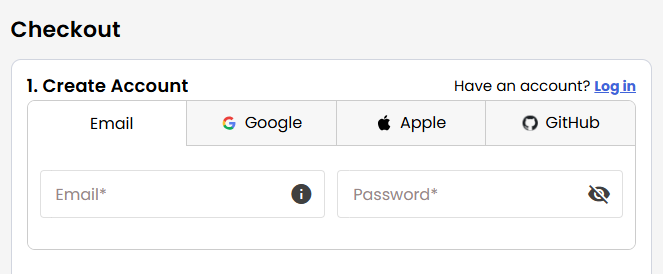
If you're new to Bluehost:- Create your Bluehost account by using your email address or by connecting with your Google, Apple, or GitHub account — whichever you prefer!
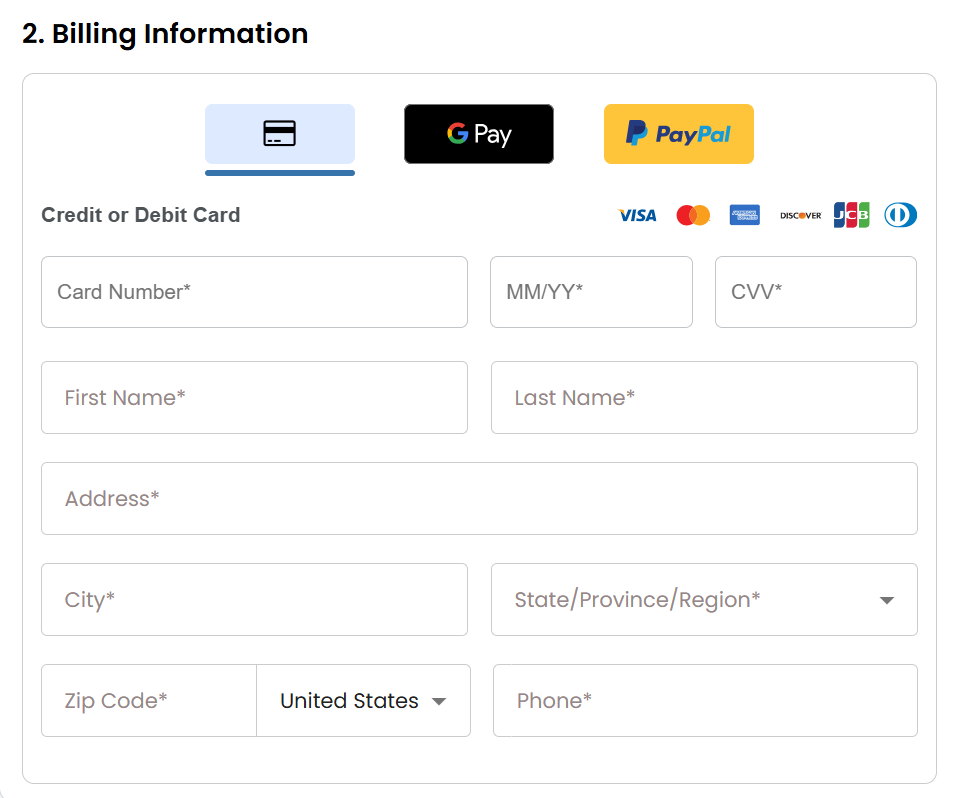
- Select your preferred payment method: credit card, Google Pay, or PayPal. Enter your billing information.
If you have an account with us, you will see your Bluehost login details when you are logged into your Bluehost Portal. If you are not logged in, please click the Log In link.
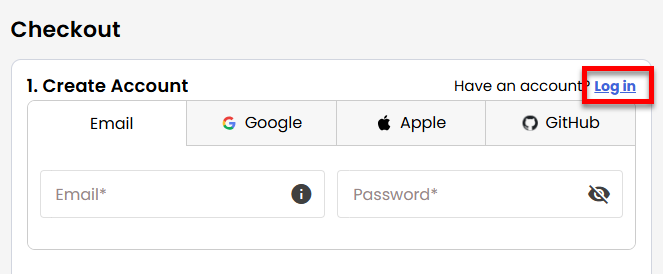
- Create your Bluehost account by using your email address or by connecting with your Google, Apple, or GitHub account — whichever you prefer!
- In the Shopping Cart, choose your billing term if you did not choose one on the previous page.
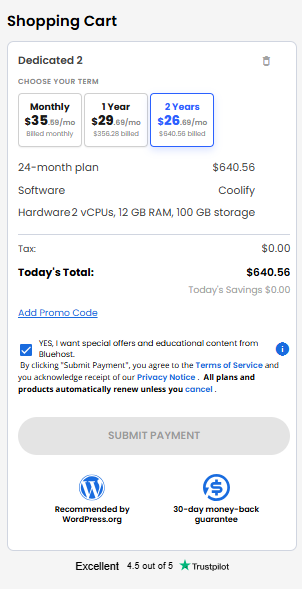
- Add a Promo code if you have one and then click Submit Payment to complete your purchase.
After completing the purchase, your VDS hosting will begin provisioning. You can access and manage your new VDS hosting in the Hosting tab of your Bluehost Portal.
Summary
Coolify simplifies the deployment and management of websites, applications, and databases on your own servers. With its intuitive interface, automation capabilities, and support for a wide range of technologies, it helps developers and businesses streamline operations while maintaining full control over their infrastructure. Combined with self-managed VPS hosting, Coolify provides a scalable, reliable, and cost-effective solution for hosting modern web applications and services.