 ChatGPT,
  Claude,
  Gemini,
  Grok — all four for
 How to Upgrade Your Xcitium Backup Storage Plan
Upgrade your Xcitium Backup plan at any time to increase storage capacity and ensure your backups continue running without interruption. This article explains how to review your available plans and upgrade your storage from your Bluehost account.
Why Upgrade Your Storage Plan?
When your Xcitium Backup storage reaches 100% of its allocated capacity:
- Automatic backups stop running.
- New changes to your websites are not backed up.
- Recent website changes may not be recoverable if an issue occurs.
- Backup protection will resume once additional storage is available.
To avoid interruptions, we recommend upgrading before you reach your storage limit.
Available Backup Plans
| Plan | Storage | Websites | Databases | Monthly Price |
|---|---|---|---|---|
| Xcitium Deluxe | 5 GB | 10 | Unlimited | $4.99/mo |
| Xcitium Professional | 10 GB | 25 | Unlimited | $8.99/mo |
| Xcitium Pro+ | 25 GB | 100 | Unlimited | $19.99/mo |
How to Upgrade Your Storage Plan
- Log in to your Bluehost Portal.
- In the left-hand menu, click Websites.
- Click the Manage Site button located next to the website you want to manage.

- Navigate to the Backups tab and locate the Xcitium backup card.
- Click Upgrade.
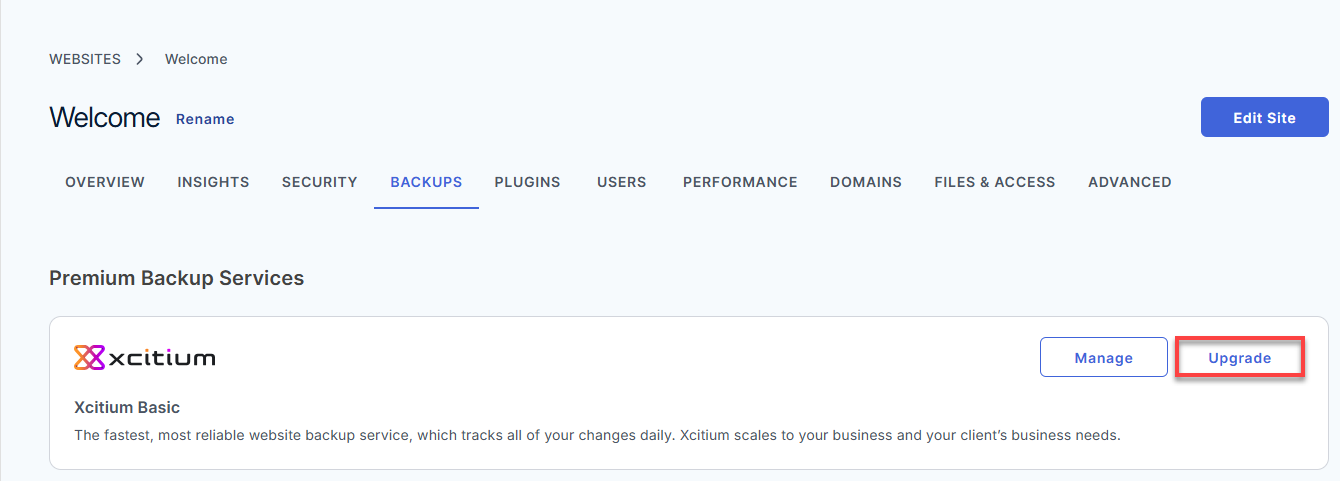
Optional: If you'd like to review your current backup status, storage usage, or backup history before upgrading, click Manage to open the Xcitium dashboard.Within the Xcitium dashboard, you'll see your:
- Current storage usage
- Total storage allocation
- Backup history
- Protection status
If your usage is near or at capacity, proceed with upgrading.
- Review the available backup plans.
- Choose the plan that best fits your storage requirements.
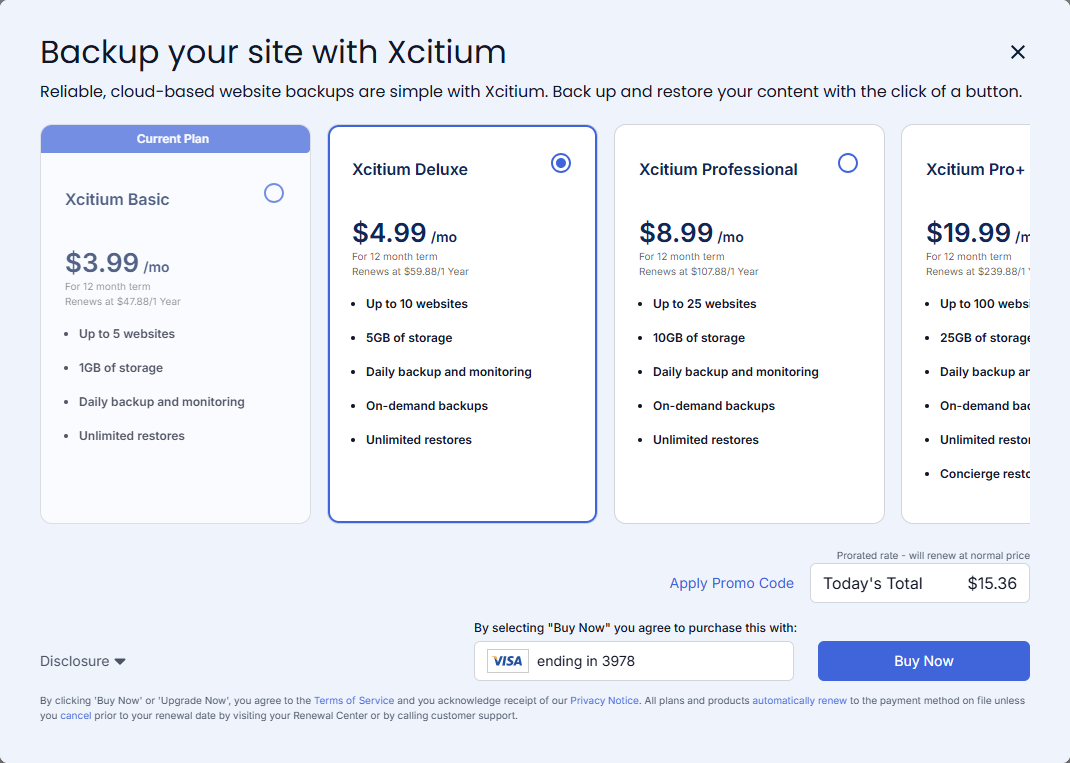
- Click Buy Now.
What Happens After Upgrading?
After a successful upgrade:
- Additional storage becomes available.
- Scheduled backups can resume automatically.
- Your existing backup settings remain unchanged.
- No website changes are required.
If your backups had stopped because your account reached 100% capacity, backup protection will resume once the upgrade is applied.
Already on the Highest Plan?
If you're currently using Xcitium Pro+ (25 GB), there may not be a higher self-service upgrade option available.
To free storage space:
- Remove backups you no longer need.
- Delete outdated website backups.
- Remove unused files or media where applicable.
For help managing storage, see: How to View and Manage Backup History in Xcitium.
If your account requires more storage than our standard plans provide, contact our support team for assistance.
Frequently Asked Questions
Q: Will my backups stop at exactly 100% usage?
A: Yes. Once your storage allocation is fully utilized, new backups will no longer run until additional storage becomes available.
Q: Will upgrading delete my existing backups?
A: No. Upgrading only increases your available storage. Existing backups remain intact.
Q: How long does an upgrade take?
A: Most upgrades are applied within minutes after the purchase is completed.
Q: Do I need to reconfigure my backup settings?
A: No. Your backup configuration remains unchanged after the upgrade.
Q: How can I view my backup usage?
A: You can review storage usage and backup history from the Xcitium Backup dashboard within your Bluehost account.
Summary
Upgrading your Xcitium Backup plan is a straightforward way to increase available storage and maintain uninterrupted backup protection for your website. From the Bluehost Backups section, simply locate your Xcitium subscription, select Upgrade, choose the plan that best fits your needs, and complete the purchase. Once the upgrade is applied, additional storage becomes available immediately, allowing backups to continue without requiring any changes to your existing configuration.
If you need further assistance, Bluehost Chat Support is available 24 hours a day, 7days a week while Bluehost Phone Support is available 7 days a week from 7 am-12 midnight EST.
- Chat Support - While on our website, you should see a CHAT bubble in the bottom right-hand corner of the page. Click anywhere on the bubble to begin a chat session.
- Phone Support -
- US: 888-401-4678
- International: +1 801-765-9400
You may also refer to our Knowledge Base articles to help answer common questions and guide you through various setup, configuration, and troubleshooting steps.