 ChatGPT,
  Claude,
  Gemini,
  Grok — all four for
 How to Check Service Status and Server Info in WHM
WHM provides built-in tools to monitor your server’s health, track active services, and review key system details. By using the Service Status and Server Information features, you can quickly identify running services, check performance metrics, and view hardware specifications. This guide walks you through accessing and interpreting these tools, making it easier to manage your server and troubleshoot potential issues efficiently.
Viewing the services currently running on the server
To check which services are currently active on your server:
- Log in to your Bluehost Portal.
- In the left-hand menu, click Hosting, then select My Plans.
- On the hosting details page, click the WHM button.

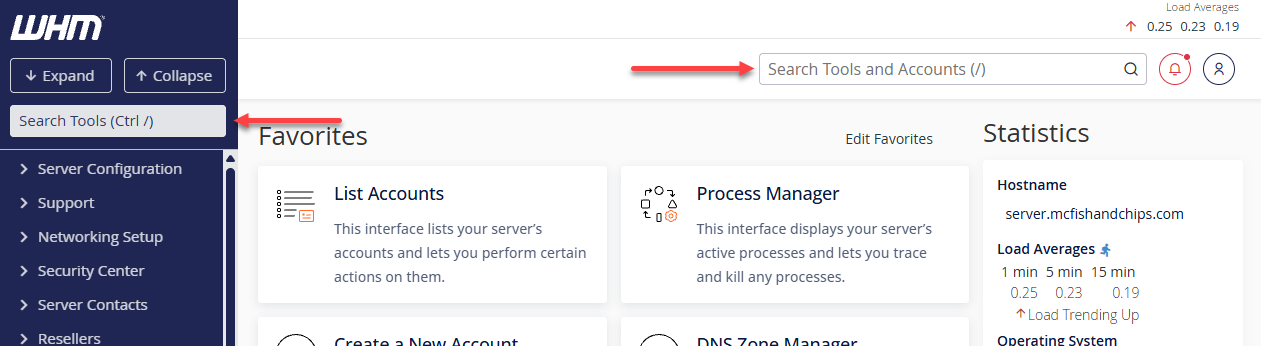
- Use the search bar in the left panel or at the top of the page to find the Service Status tool.
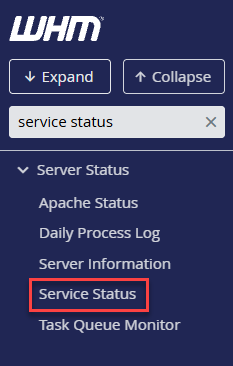
You may also expand the Server Status category on the left-side menu and choose Service Status from the list.
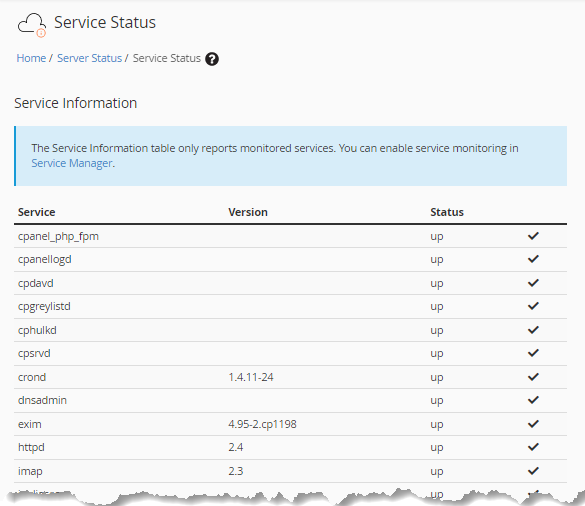
- The Service Status page displays details in three sections — Service Information, System Information, and Disk Information.
Service Information
The Service Information area lists the server's main services, their versions, and their current status. This section may show one of the following indicators:
- up — The service is functioning normally.
- down — The service is not currently running.
- pending — The system is temporarily checking the service status, often during restarts or updates.
Some examples of services you may encounter include:
- exim — Manages email delivery.
- pop — Handles POP3 connections for retrieving email.
- imap — Manages IMAP connections for email access.
- httpd — Processes website traffic.
- ftpd — Handles file transfers to and from the server.
System Information
The System Information section displays system load, memory usage, swap space usage, and overall performance indicators.

If your server seems slow or unresponsive, the Server Load value can indicate whether too many processes are running at once.
Disk Information
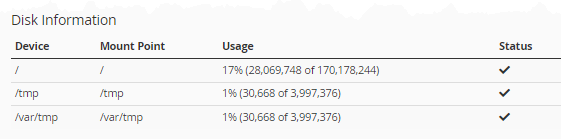
The Disk Information section lists disk devices, where they are mounted, and how much space each device currently uses.
Viewing the information of the server
To view details about your server hardware:
- Log in to your Bluehost Portal.
- In the left-hand menu, click Hosting, then select My Plans.
- On the hosting details page, click the WHM button.
- Use the search field on the left panel or at the top of the page to locate the Server Information option.
- Select Server Information from the search results.
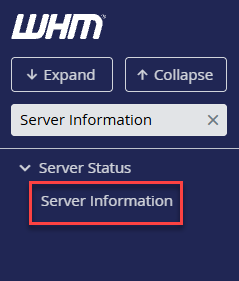
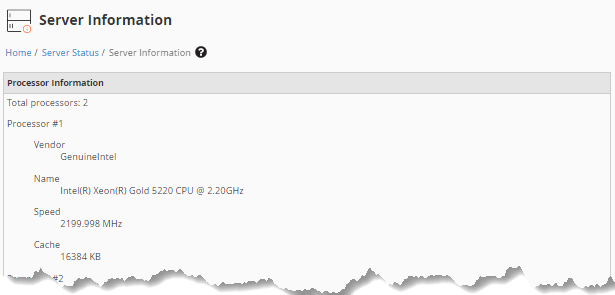
- The Server Information page displays hardware details, including the installed processor, number of cores, total RAM, and disk partitions.
For example, you can review the server’s processor specifications.
- Dual-core processors will appear as two identical entries.
- Quad-core processors will appear as four identical entries—and so forth.
You can also see the amount of RAM installed on the server.
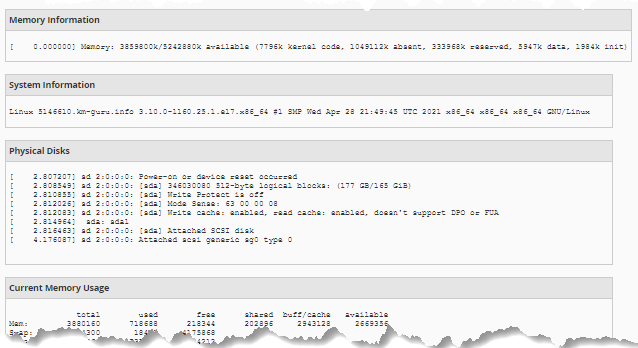
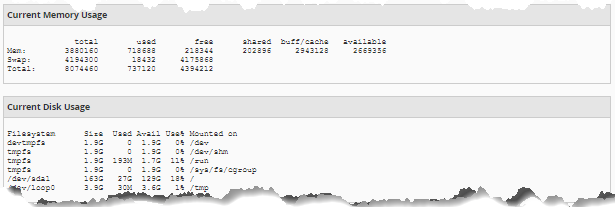
The page also provides details on how disk space is partitioned and how much is used in each partition.
Summary
The Service Status and Server Information tools in WHM give you a quick way to monitor server performance, review active services, and check hardware specifications. These sections help you understand how your server is running and pinpoint potential issues more easily.
If you need further assistance, Bluehost Chat Support is available 24 hours a day, 7days a week while Bluehost Phone Support is available 7 days a week from 7 am-12 midnight EST.
- Chat Support - While on our website, you should see a CHAT bubble in the bottom right-hand corner of the page. Click anywhere on the bubble to begin a chat session.
- Phone Support -
- US: 888-401-4678
- International: +1 801-765-9400
You may also refer to our Knowledge Base articles to help answer common questions and guide you through various setup, configuration, and troubleshooting steps.