 ChatGPT,
  Claude,
  Gemini,
  Grok — all four for
How to Remove a Backup Using Softaculous
If you’re managing your website with Bluehost and using Softaculous, you may notice that backups can quickly fill up your storage space. Deleting old or unnecessary backups helps keep your hosting environment clean and optimized.
What is Softaculous Backup?
Softaculous is an auto-installer available in cPanel that helps you install and manage web applications such as WordPress. It also allows you to create full or partial backups of your website. Over time, these backups can accumulate and use significant disk space.
Before You Delete Backups
Make sure to:
- Confirm the backup is no longer needed.
- Download a copy if you want to keep it locally.
- Double-check you’re not deleting your latest working backup.
Steps to Delete Backups in Softaculous
- Log in to your Bluehost Portal.
- In the left-hand menu, click Hosting, then select My Plans.
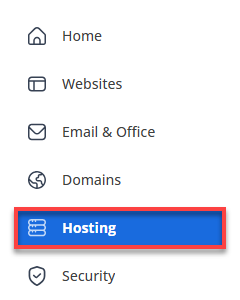
- Click the cPanel button on the hosting package you wish to manage.

- Scroll down to the Software section, then click Softaculous Apps Installer to open it.
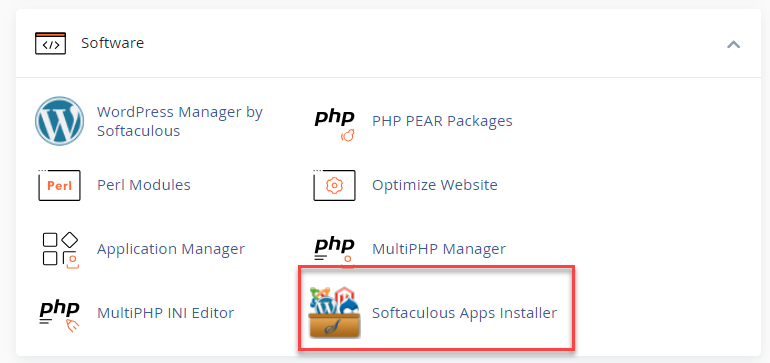
- In Softaculous, click the Backups and Restore icon found in the upper-right menu.

- Find the backup you want to remove under the Backups and Restore list.
Keep in mind that deleted backups cannot be recovered, so make sure you’ve selected the correct one.
- To proceed with deletion, click the trash bin icon next to the backup.
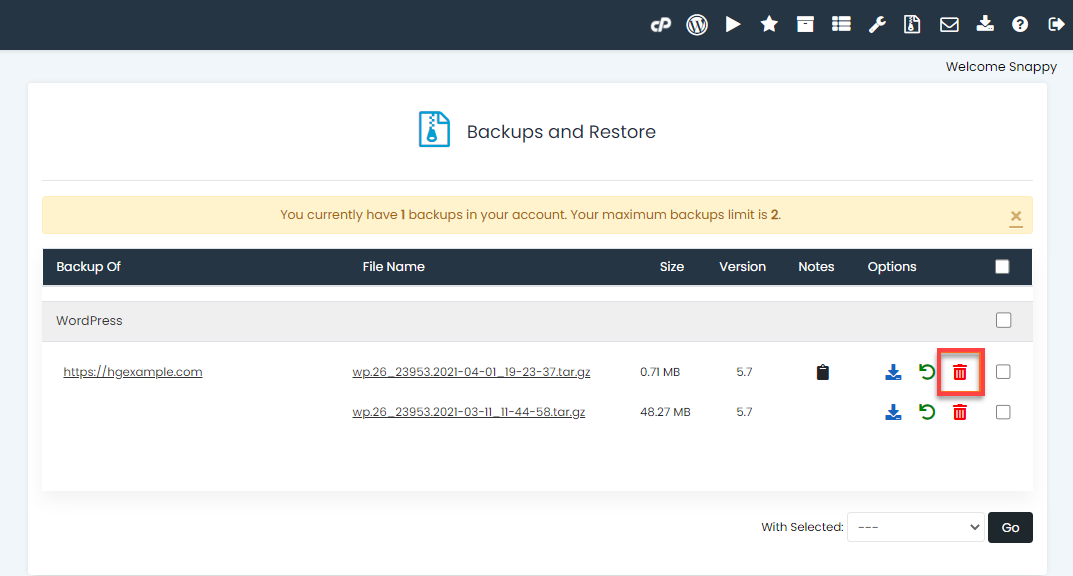
- A pop-up window will appear asking you to confirm your action; click Ok to continue.
Summary
Deleting backups in Softaculous on Bluehost is a simple way to manage storage and keep your hosting account organized. You can access this through your Bluehost cPanel, open Softaculous, and navigate to the Backups section to review and remove any unnecessary files. Always double-check before deleting, since backups cannot be restored once removed. Regular cleanup helps maintain better performance and ensures you keep only the backups you truly need.
If you need further assistance, Bluehost Chat Support is available 24 hours a day, 7days a week while Bluehost Phone Support is available 7 days a week from 7 am-12 midnight EST.
- Chat Support - While on our website, you should see a CHAT bubble in the bottom right-hand corner of the page. Click anywhere on the bubble to begin a chat session.
- Phone Support -
- US: 888-401-4678
- International: +1 801-765-9400
You may also refer to our Knowledge Base articles to help answer common questions and guide you through various setup, configuration, and troubleshooting steps.