 ChatGPT,
  Claude,
  Gemini,
  Grok — all four for
 Associating Files or Folders to Installation with Softaculous
Associating Files or Folders to Installation with Softaculous lets you link additional files or directories to your script setup. Once connected, these items are automatically included whenever you back up or clone your installation, ensuring complete and consistent copies every time.
Softaculous gives you the ability to pick additional files or directories and associate them with your script installation. These selections will be used for both backup and cloning processes.
This feature is available only when the installation is located within the document root of your domain.
- Log in to your Bluehost Portal.
- In the left-hand menu, click Hosting, then select My Plans.
- On the hosting details page, click the cPanel button.

- Your cPanel will open in a new tab.

- Inside cPanel, navigate to the Software section and click on the Softaculous Apps Installer.
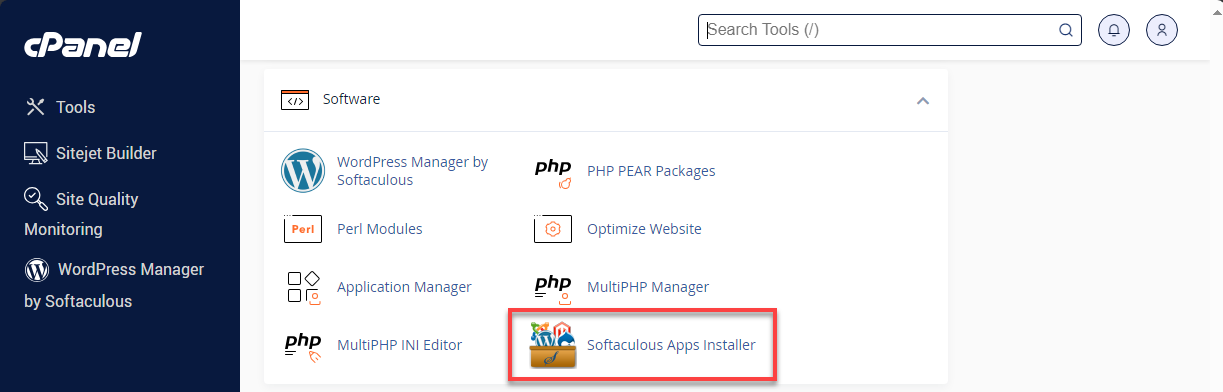
- Select the Installation box on the dashboard.
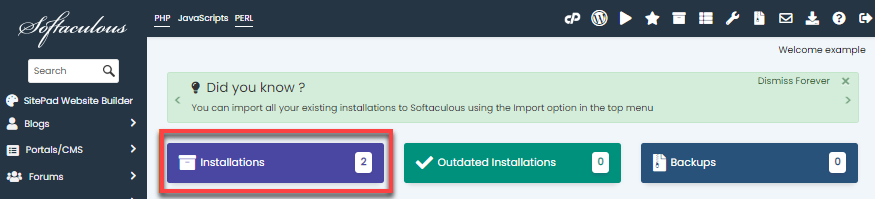
Alternatively, you may click the All Installations icon located in the upper-right corner.

- On the Scripts Installations page, find your website and click the Edit Details icon.

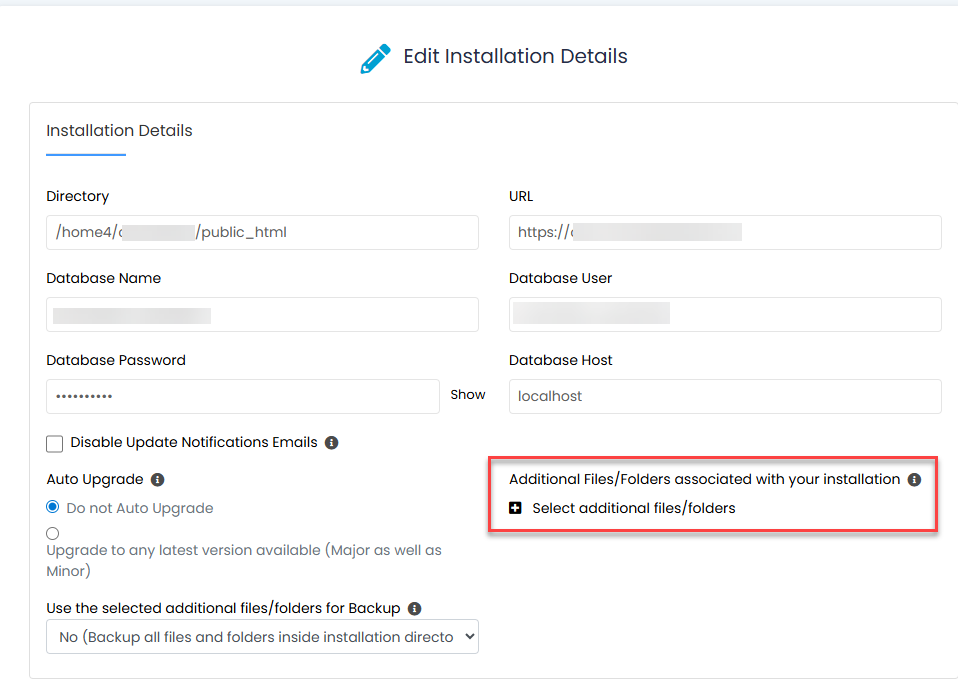
- You will be taken to the Edit Installations Details page, where you can update your installation settings. Scroll down to find Select additional files/folders from the following list.
-
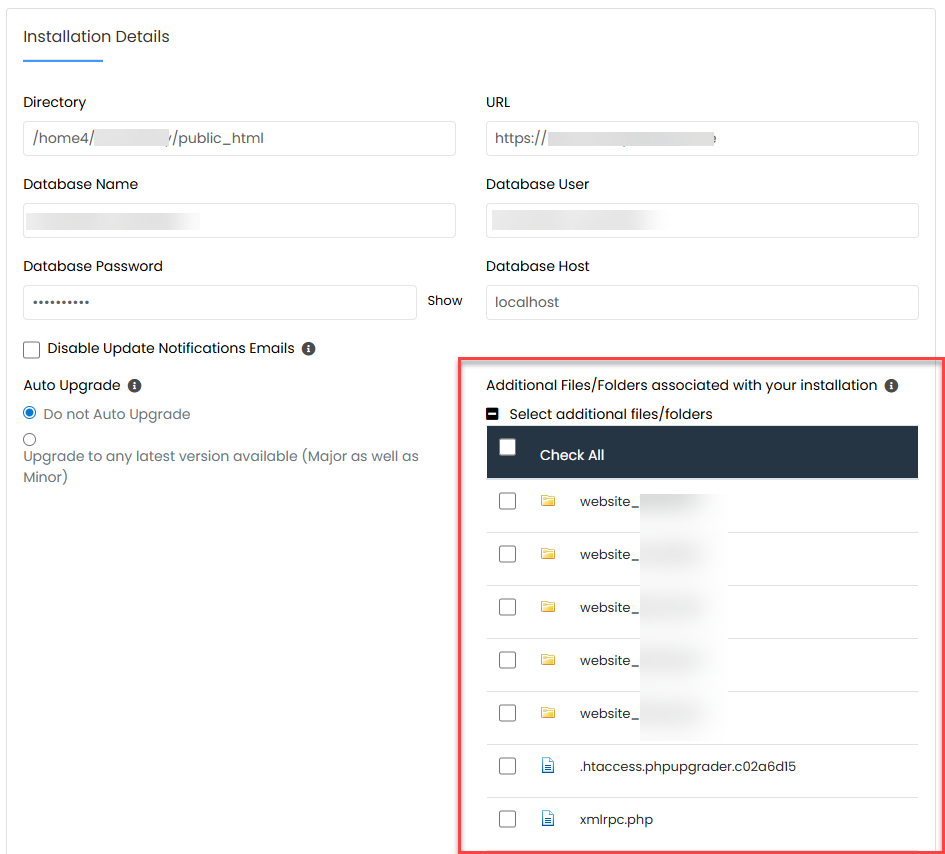
Click the + icon next to Select additional files/folders from the following list to expand the section.
- Choose the file(s) or folder(s) you want to connect to your installation from the list provided.
- When you've finished selecting, scroll down and click the Save Installation Details button.
Summary
This guide explains how to use Softaculous to associate extra files or folders with your script installation. These additional items become part of your backups and cloning operations. The instructions walk you through accessing Softaculous via cPanel, locating your script installation, expanding the additional files/folders section, selecting the items you want, and saving your updated installation details.
If you need further assistance, Bluehost Chat Support is available 24 hours a day, 7days a week while Bluehost Phone Support is available 7 days a week from 7 am-12 midnight EST.
- Chat Support - While on our website, you should see a CHAT bubble in the bottom right-hand corner of the page. Click anywhere on the bubble to begin a chat session.
- Phone Support -
- US: 888-401-4678
- International: +1 801-765-9400
You may also refer to our Knowledge Base articles to help answer common questions and guide you through various setup, configuration, and troubleshooting steps.