 ChatGPT,
  Claude,
  Gemini,
  Grok — all four for
How to Reimage Your Self-Managed VPS to AlmaLinux
Reimaging your Self-Managed VPS is like starting fresh with your VPS. It wipes your existing operating system and replaces it with AlmaLinux. It wipes out everything on the server so you can rebuild in a clean, stable environment.
When you choose to reimage, the system will automatically install the latest available version of AlmaLinux. Unlike during the initial purchase, there isn’t an option to select a specific OS version.
Why Reimage a Server?
Reimaging is typically the best approach when resolving issues through troubleshooting is impractical or time-consuming. Besides the reasons you listed, also consider reimaging if:
- You want to standardize the environment after multiple manual changes caused inconsistencies.
- Your server may be compromised, and you need to ensure complete removal of malware or security risks.
- There are persistent compatibility issues with applications or services.
- You want to reclaim disk space by removing unnecessary files and outdated data.
- The server has ongoing errors that are difficult to resolve.
- Performance has noticeably slowed down.
- You’re preparing the server for a new project or your current setup no longer meets your needs.
Advantages of Reimaging to AlmaLinux
Switching to AlmaLinux comes with several practical benefits:
- Clean, optimized system: Removes clutter, unused files, and broken configurations, giving you a fresh and efficient environment.
- Improved performance: A clean and optimized setup helps your server run more smoothly.
- Enhanced security: Eliminates hidden vulnerabilities while benefiting from strong, regularly updated security policies.
- Stable and reliable platform: AlmaLinux is an enterprise-grade, 1:1 binary-compatible replacement for RHEL, ensuring consistent performance and wide software compatibility.
- Long-term support: Updates make it suitable for production environments.
- Cost efficiency: As a free, open-source OS, it reduces or eliminates licensing costs.
- Control panel compatibility: Works seamlessly with popular tools like cPanel and Plesk, making it ideal for web hosting setups.
Common Scenarios
Here are a few real-world situations where reimaging makes sense:
- Performance or stability issues:
When your server becomes slow, unresponsive, or crashes due to failed upgrades or system corruption. - Security concerns:
If you suspect malware, unauthorized access, or hidden vulnerabilities. - Upgrade or compatibility needs:
When moving to a newer or more compatible operating system. - Configuration complexity or errors:
When settings become too complicated or problematic to fix manually. - Testing and development:
To create a clean environment for deploying and testing applications without legacy conflicts. - Migration or role changes:
When preparing for data/application migration or when the server’s purpose changes significantly, requiring a fresh setup.
Planning Ahead
Before starting the reimage process, a little preparation goes a long way.
Backups
Since everything will be deleted, backing up your data is critical:
- Full system backup – A complete copy of your server.
- Data backup – Important files like: Website content, Databases, Emails, and Custom scripts.
Make sure your backups are stored safely outside the server.
Check Your Installed Applications
Take note of anything you’ve installed manually, such as:
- Custom applications
- Third-party tools
- Special configurations or scripts
Anything not included in the Bluehost purchase flow or the Reimage > Applications section must be reinstalled after the reimage.
Choosing the Right OS
AlmaLinux is a great choice for most users, but it's still important to consider:
- Whether it supports your applications.
- Your performance needs.
- Updates and Security.
- Your knowledge of the system.
(You can refer to OS comparison guides for more details.)
How to Reimage Your VPS to AlmaLinux in your Bluehost Portal
Follow these steps to start the process:
Reimaging will permanently delete everything on your server, including applications, settings, and data. Make sure you’ve backed up everything important before proceeding.
- Log in to your Bluehost Portal.
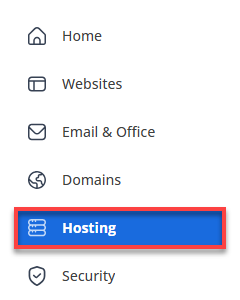
- In the left-hand menu, click Hosting, then select My Plans.
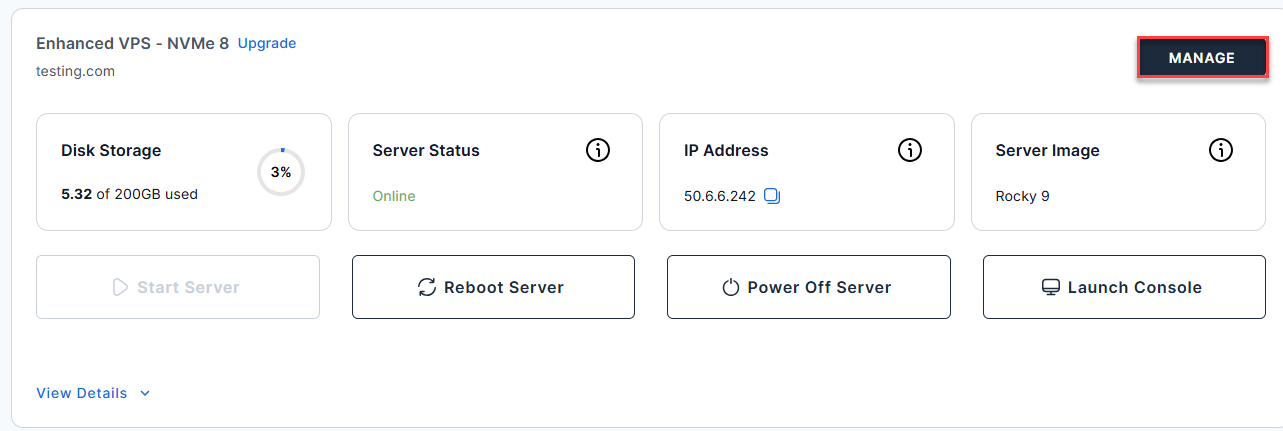
- Click the Manage button on the Self-Managed VPS package.
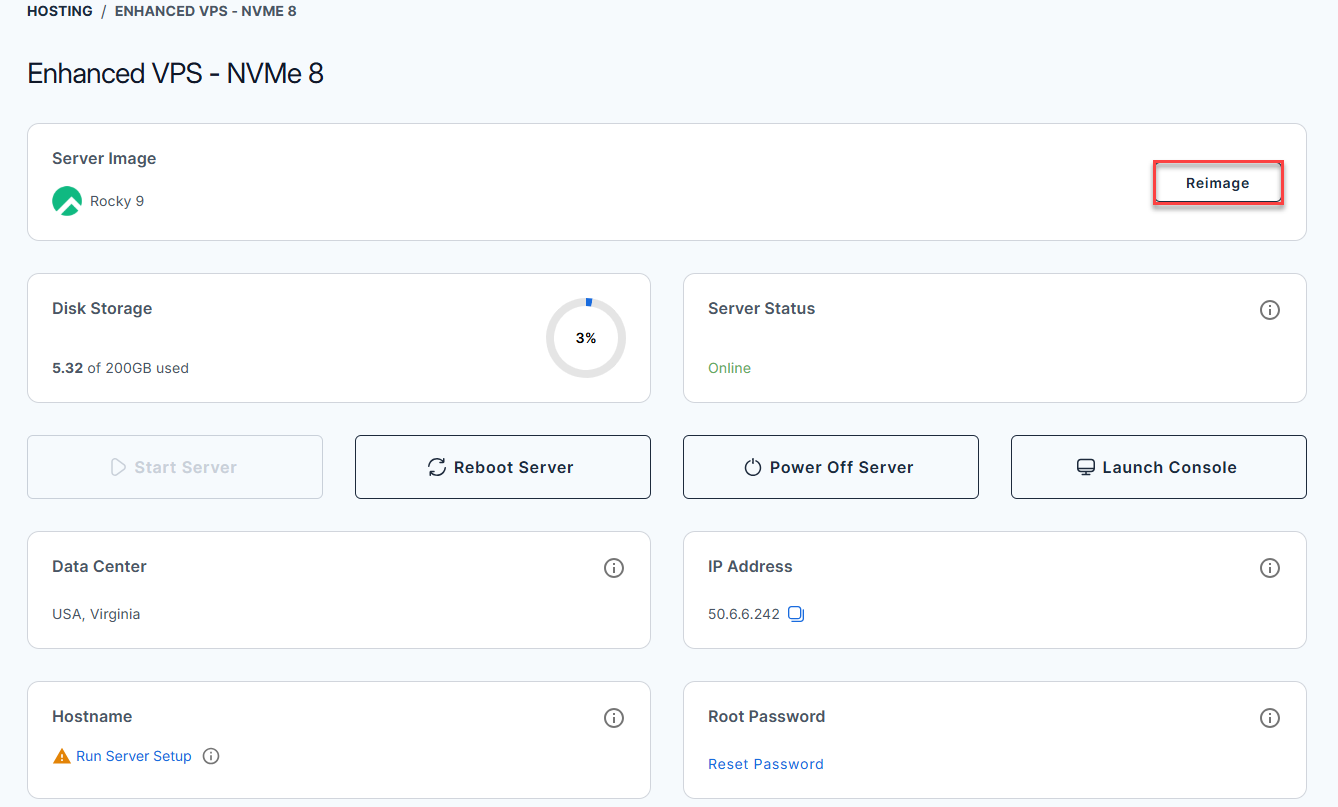
- Click the Reimage button.
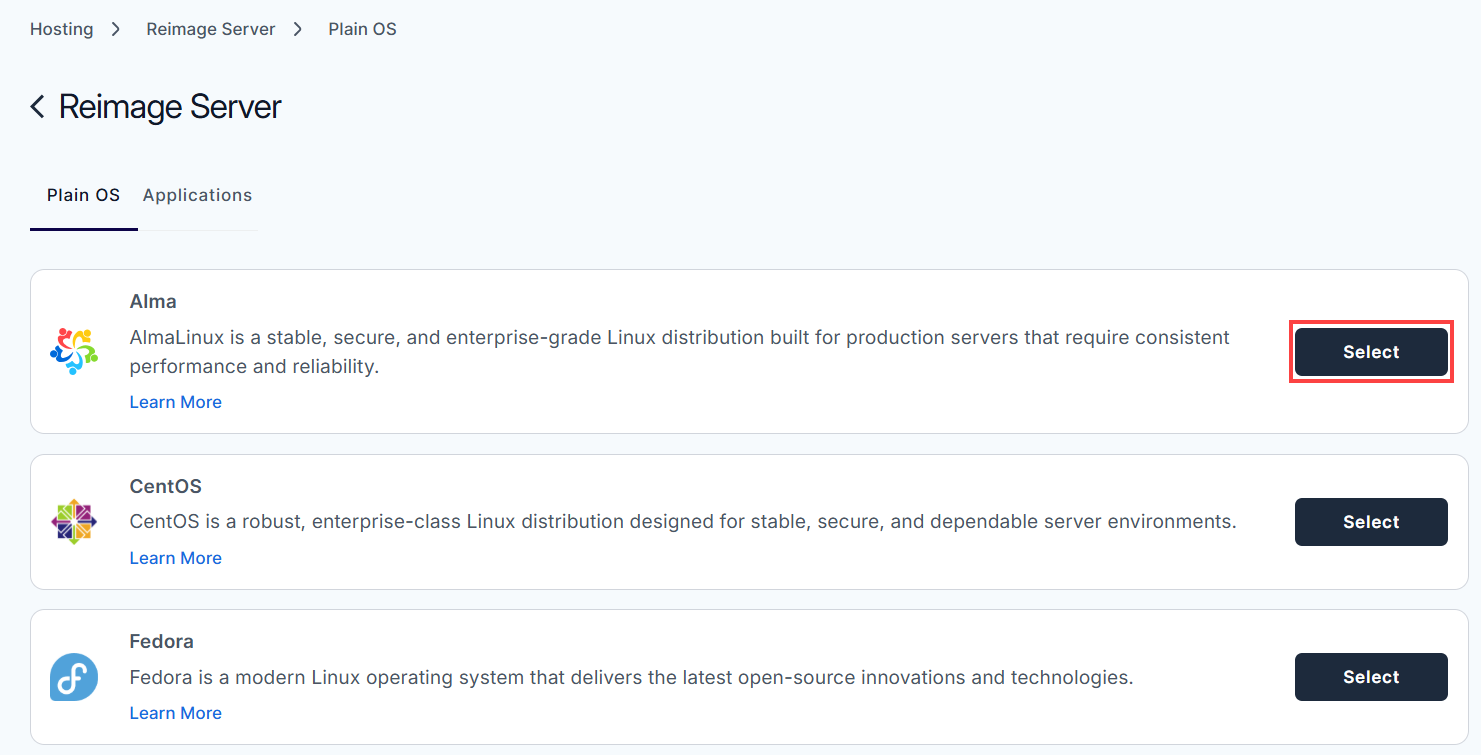
- In the Plain OS tab. Find AlmaLinux and click Select.
- To confirm, please type "reimage" and then click Proceed to start the process.

- Wait a few moments while the installation completes.

- Once completed, you will see Alma (version of the application) listed in the Server Image section.

After Reimaging
Once the process is complete, take a moment to make sure everything is working as expected:
- Access your server and confirm it’s online
- Reinstall any required applications
- Restore your backups
- Test your websites and services
- Double-check configurations
Summary
AlmaLinux is a stable and secure operating system for hosting websites and applications. It’s built to last, and we keep it regularly updated so your server stays safe. It is easy to administer and is also familiar to a lot of users, as it is compatible with enterprise Linux environments. All in all, it offers a good, low-maintenance base you can depend on.