 ChatGPT,
  Claude,
  Gemini,
  Grok — all four for
Self Managed VPS: How to Change Hostnames in the Bluehost Portal
Managing your Bluehost Self-Managed VPS effectively requires a clear and identifiable hostname. The hostname is essential as it helps you and others identify the specific server within your network or hosting environment. If you are using a self-managed VPS from Bluehost and need to change the hostname, this guide will walk you through the simple steps to update it via the Bluehost Portal.
What is a Hostname?
A hostname is a unique label assigned to a server or device on a network. It is part of the network identification process and helps in communication and management between servers and clients. For VPS users, setting a proper hostname can improve server management and troubleshooting.
Why Change the Hostname?
- Better Identification: Helps distinguish between multiple servers you may have.
- Branding: Reflects your company’s brand or project name.
- Organization: Easier for teams to recognize the purpose or role of each server.
- Compliance: Meets the naming conventions or policies of your organization.
How to Change the Hostname in the Bluehost Portal
- Log in to your Bluehost Portal.
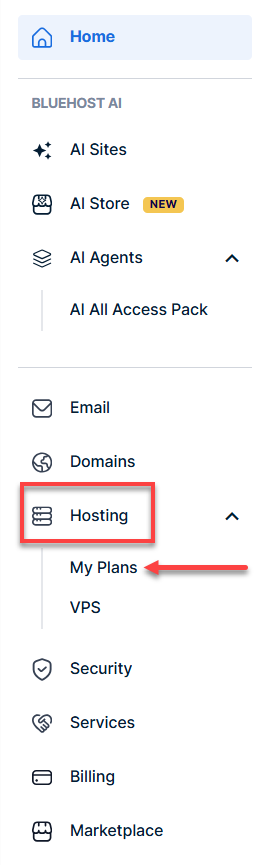
- In the left-hand menu, click Hosting, then select My Plans.
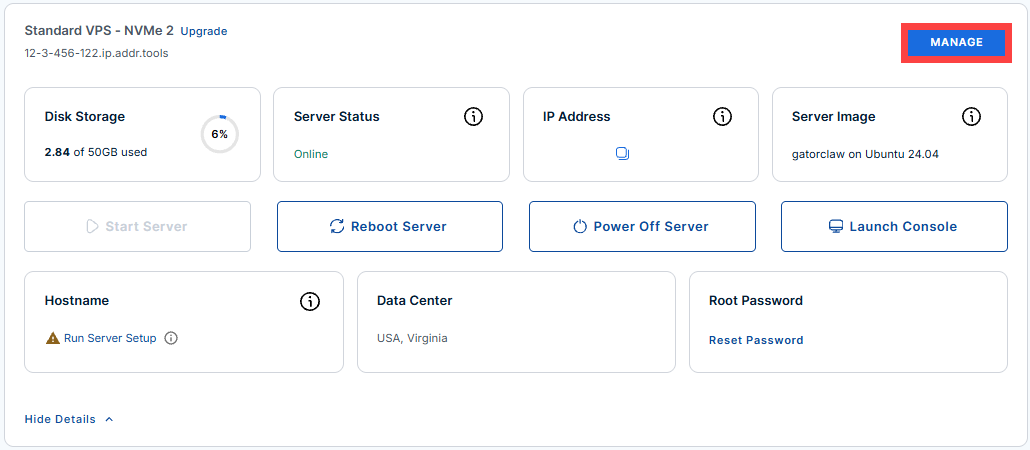
- Locate the server you want to make the changes to, then click Manage.
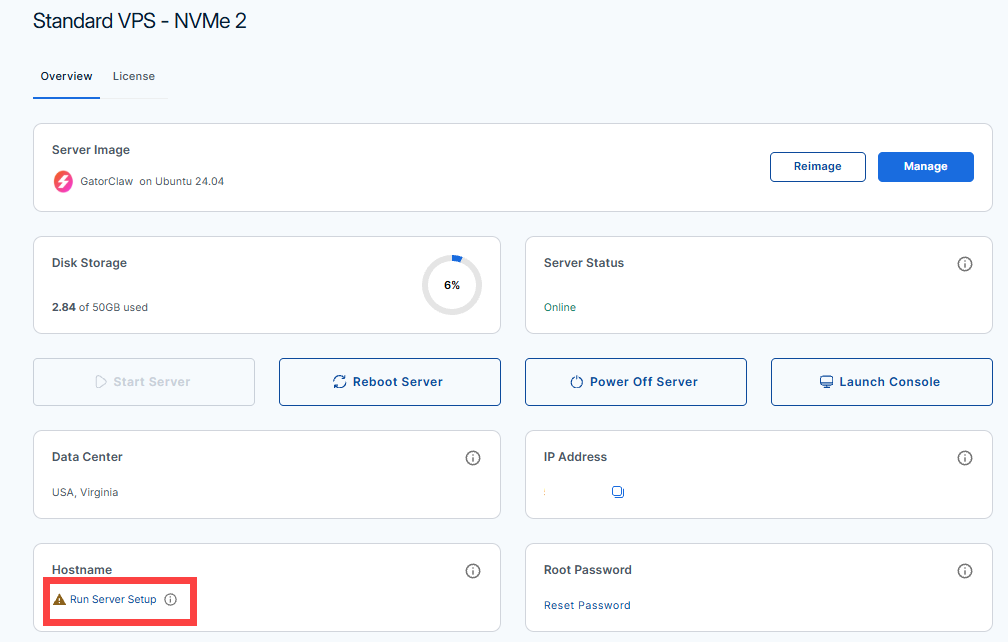
- Click Run Server Setup under the Hostname section.
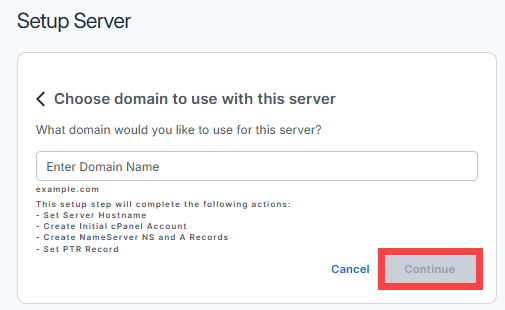
- Enter your desired server hostname, then click Continue.
- Uses only letters (a-z), numbers (0-9), and hyphens (-).
- Does not begin or end with a hyphen.
- Is generally less than 64 characters long.
Example hostname:
myvpsserver.example.com. - You will receive a confirmation that the changes have been saved.

Additional Tips
- DNS Updates: If your hostname change includes a domain or subdomain, make sure your DNS records reflect the new hostname IP address.
- Server Restart: In some cases, it might be necessary to reboot your Bluehost Self-Managed VPS to apply the hostname change fully.
- Configuration Files: For Linux VPS, consider updating
/etc/hostsand/etc/hostnamefiles manually if required.
Summary
Updating the hostname of a Bluehost Self-Managed VPS in the Bluehost Portal is quite easy and helps with managing the server. Using the method discussed above, you can easily change your VPS hostname to one that perfectly fits your requirements. It is important to double-check all the changes in both the portal and on your VPS.