 ChatGPT,
 Claude,
 Gemini,
 Grok — all four for
Key highlights
- Check your current WordPress PHP version to identify if an update is needed.
- Upgrade to the recommended PHP version for WordPress to improve speed and security.
- Test changes on a staging site to avoid plugin or theme conflicts.
- Monitor your site after updates to ensure smooth performance.
- Maintain updated WordPress core, themes and plugins for long-term stability.
Your WordPress PHP version is the engine behind your website’s speed, security and reliability. Get it right and your site loads faster, runs smoother and stays protected. Get it wrong and you could be dealing with slow pages, security risks and frustrating plugin errors.
Choosing the best PHP version isn’t just a developer task anymore – it’s a smart move for any WordPress site owner who cares about performance and SEO. Newer PHP releases bring major speed boosts and stronger security updates. But upgrading blindly can break themes, clash with plugins or disrupt your site if your WordPress PHP settings aren’t configured correctly.
In this guide, we’ll break down the WordPress recommended PHP version, explain why your WordPress PHP version matters and show you how to manage your WordPress PHP settings the right way.
Quick overview: Minimum vs. recommended PHP versions for WordPress
Before diving deeper, here’s a simple snapshot of where WordPress PHP versions stand today. This quick overview shows the difference between what technically works and what’s actually safe and recommended for performance, security and long-term stability.
| Use case | PHP version | What it means for your site |
| Minimum required | PHP 7.4 | Runs WordPress but is unsupported and risky |
| Recommended | PHP 8.1 | Best balance of stability, speed and compatibility |
| Performance-optimized | PHP 8.2 | Faster execution for modern WordPress sites |
| Future-ready (after testing) | PHP 8.3+ | Long-term support and latest features |
If you’re still on the minimum version, your site may function – but it won’t be fully secure, fast or future-proof. Let’s understand it in more detail below.
Understanding WordPress PHP Version: The Engine Behind Your Website
PHP is the server-side language that powers WordPress. Every time someone visits your site, PHP processes requests, pulls data from the database and builds the pages your visitors see.
Your WordPress PHP version determines how fast and efficiently this happens. Newer versions are quicker, more secure and better optimized for modern WordPress features. Older versions can slow your site down and cause compatibility issues with themes and plugins.
With so many versions available, it’s important to know which one is recommended and currently supported – let’s take a look at the current WordPress PHP version landscape.
Current WordPress PHP version landscape
Not all PHP versions are created equal – and not all of them are safe to use with WordPress today. PHP releases follow a lifecycle, which means older versions eventually stop receiving security updates and bug fixes. Once a PHP version reaches end of life (EOL), continuing to use it puts your site at risk.
Today, the WordPress performance PHP version is a modern 8.x release, as it offers better performance, improved security and stronger compatibility with newer WordPress features. Older versions like PHP 7.4 and below may still work, but they are no longer supported and should be avoided.
If your WordPress PHP version is outdated, your site may run slower, trigger plugin warnings or fail security checks. More importantly, unsupported PHP versions expose your site to known vulnerabilities, increase the risk of hacking and can break plugins or themes without warning.
PHP 8.x versions compared for WordPress
| PHP version | Support status | Compatibility level | Best For |
|---|---|---|---|
| PHP 8.0 | Near EOL | Moderate | Short-term fallback |
| PHP 8.1 | Actively supported | High | Safe default |
| PHP 8.2 | Actively supported | High | Performance-focused sites |
| PHP 8.3 | Actively supported | Very high | Well-maintained sites |
| PHP 8.4 | Latest release | Emerging | Future-proofing (after testing) |
So what does this mean for your site right now? Understanding why your WordPress PHP version matters, beyond just compatibility, is the next step.
Why your WordPress site needs the right PHP version?
Your WordPress PHP version affects three key areas: performance, security and compatibility. Choosing the best PHP version ensures your site runs faster, stays protected and works seamlessly with themes and plugins. Here are the three parameters to consider when choosing the right PHP version for WordPress:
Performance: Modern PHP versions are significantly faster than older ones. Switching to the recommended PHP version for WordPress can reduce page load times, improve server response and enhance user experience.
Security: Unsupported PHP versions no longer receive security updates, leaving your site vulnerable to attacks. Running the recommended PHP version keeps your WordPress site protected from known threats.
Compatibility: Themes and plugins rely on PHP features. Using an outdated WordPress PHP version can cause conflicts, errors or even site crashes. Proper WordPress PHP settings help prevent these issues and ensure smooth operation.
Now that the benefits are clear, let’s see how Bluehost makes PHP version management simple and safe.
How Bluehost handles PHP version updates?
At Bluehost, we make it easy to manage your WordPress PHP version using built-in tools in your hosting dashboard. You don’t need deep technical knowledge to choose, switch or test different PHP versions.
What we offer for PHP version management:
- MultiPHP Manager: Switch your WordPress PHP version with a few clicks.
- Multiple PHP versions: Test the best PHP version for your site before going live.
- Quick rollback: Revert to a previous PHP version if something breaks.
- WordPress-friendly environment: Optimized for modern WordPress PHP versions to reduce errors.
- Backups and staging (on select plans): Safely test changes on a staging environment before applying them to your live site.
How this helps your site:
- Makes it easier to move to the best PHP version for WordPress.
- Reduces the risk of downtime or compatibility issues.
- Gives you more control over your WordPress PHP settings.
Ready to update your WordPress PHP version?
Log in to your Bluehost dashboard and switch to a supported PHP version in just a few clicks.
How to check your current PHP version?
Before updating anything, you need to know which WordPress PHP version your site is currently running. This helps you decide whether you’re already on the recommended PHP version for WordPress or if an upgrade is needed.
Method 1: From the WordPress dashboard
This is the easiest option for most users.
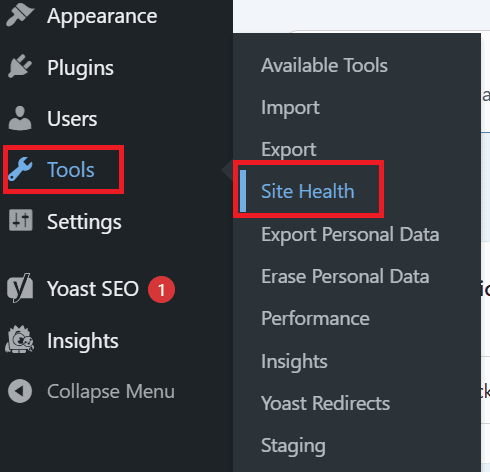
1. Go to Tools and then choose Site Health in your WordPress admin.
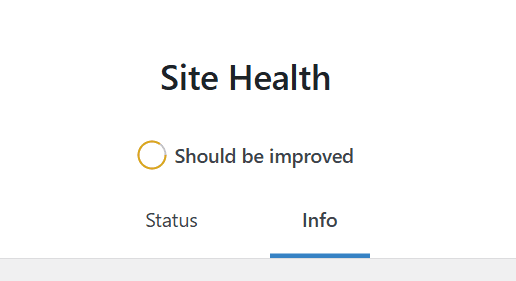
2. Click the Info tab.
3. Expand the Server section.
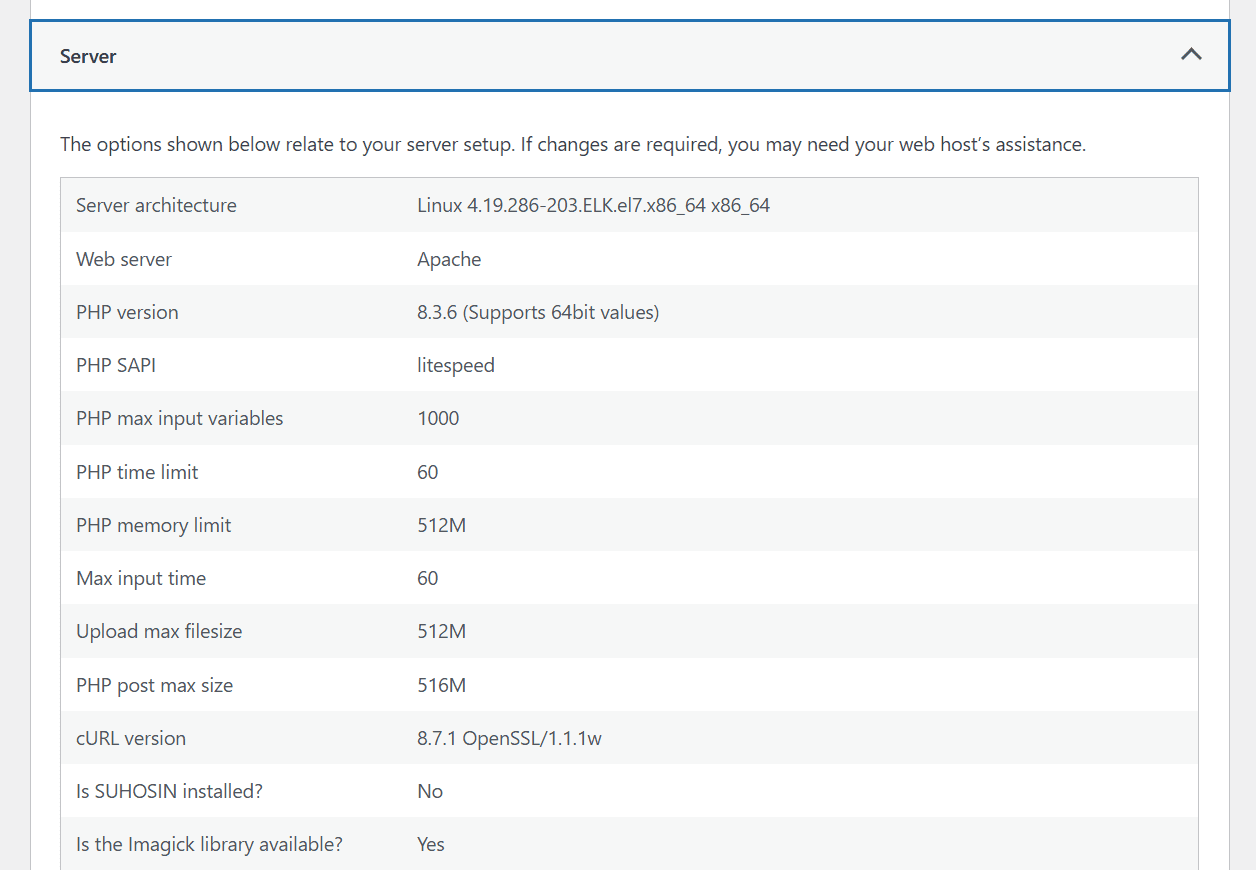
4. Look for the PHP version field.
This shows the active PHP version your site is using.
Method 2: From your hosting control panel
Most hosting dashboards (like cPanel, hPanel or custom panels) display your PHP version under PHP settings or server configuration. This method is useful if you manage multiple sites.
Method 3: Using a plugin or phpinfo()
You can use a site health plugin or create a simple phpinfo() file to display server details, including your PHP version.
Once you’ve confirmed your WordPress PHP version, you’re ready to update it safely. Now, you can update your version accordingly.
How to update your PHP version safely?
Updating your WordPress PHP version can significantly improve your site’s performance and security. But because PHP affects how WordPress, themes and plugins run, upgrading without preparation can cause errors or downtime. Following a safe process helps you move to the best PHP version with minimal risk.
Step 1: Take a full backup
Before changing your WordPress PHP settings, back up your entire site – including files and your database. This gives you a quick recovery option if something breaks.
Step 2: Update WordPress, themes and plugins
Outdated plugins or themes are the most common cause of PHP compatibility issues. Make sure everything is running on the latest versions before switching to the recommended PHP version for WordPress.
Step 3: Test on a staging site (if available)
If your host offers staging, change the PHP version there first. This lets you check compatibility without affecting your live site.
Step 4: Change the PHP version from your hosting dashboard
Use your host’s PHP manager (such as MultiPHP Manager or a PHP configuration tool) to select the best PHP version for your site.
Step 5: Test your site thoroughly
After updating, check your pages, forms and plugins to confirm everything works as expected.
If something goes wrong, roll back to your previous WordPress PHP version and fix compatibility issues before trying again. You can also keep an eye on common issues when updating your PHP.
Common issues after upgrading PHP and how to fix them?
Even when you move to the recommended PHP version for WordPress, some sites may run into problems after upgrading. Most issues are caused by outdated plugins, themes or incompatible WordPress PHP settings – and they’re usually fixable.
1. White screen of death or fatal errors
This often happens when a theme or plugin isn’t compatible with your new WordPress PHP version.
How to fix it:
- Disable all plugins and re-enable them one by one.
- Switch to a default WordPress theme to test for theme conflicts.
- Roll back to your previous PHP version if needed.
2. Deprecated warnings and notices
Some plugins use older PHP functions that are no longer supported.
How to fix it:
- Update the affected plugins or themes.
- Replace plugins that aren’t compatible with the best PHP version.
- Suppress notices temporarily while you fix compatibility issues.
Also read: How to Manage WordPress Themes and Plugins
3. Site not loading or broken pages
Your site may partially load or display errors after the update.
How to fix it:
- Clear your site and server cache.
- Re-save permalinks in WordPress settings.
- Check error logs to identify the exact cause.
4. Forms or dynamic features not working
Contact forms, checkout pages or scripts may fail.
How to fix it:
- Update the plugin handling that feature.
- Test alternative plugins that support modern PHP versions.
Most of these issues can be resolved by updating plugins, adjusting WordPress PHP settings or temporarily switching to a slightly older supported PHP version. To avoid running into these problems in the first place, it helps to follow a few proven best practices when choosing and managing your WordPress PHP version.
Best practices for choosing the right PHP version
Following some simple best practices can help you choose and manage the right WordPress PHP version while avoiding common issues:
- Use the recommended PHP version for WordPress
- Avoid end-of-life (EOL) PHP versions
- Test updates on a staging site before going live
- Keep WordPress, themes and plugins updated
- Don’t rush to the newest PHP release
- Monitor your site after upgrades
By following these guidelines, you can ensure your WordPress PHP version stays secure, stable and optimized for performance.
Final thoughts
A fast, secure and reliable WordPress site starts with the right PHP version. Every update brings better performance, stronger security and smoother plugin compatibility – giving your visitors the experience they expect.
Take control of your site today: make sure you’re running the recommended WordPress PHP version, test updates safely and keep your plugins and themes ready for the future. With Bluehost, managing your PHP version is effortless, letting you focus on building and growing your website with confidence.
Ready to optimize your WordPress PHP version? Check your PHP settings now with Bluehost and keep your site fast, secure and future-ready.
FAQs
How do I check my current PHP version in WordPress?
You can check your PHP version by navigating to your WordPress dashboard, going to Tools > Site Health > Info and expanding the Server section to find your PHP version. Alternatively, many hosting control panels display this information prominently or you can install a simple plugin that shows your current PHP version in the dashboard.
What’s the safest way to update my WordPress PHP version?
The safest approach is to first backup your entire site, then test the update on a staging environment before applying it to your live site. Update WordPress core, all themes and plugins to their latest versions first, then change your PHP version through your hosting control panel and immediately test your site’s key functionality.
What should I do if a plugin breaks after updating PHP?
If a plugin stops working after updating PHP, first deactivate the problematic plugin to restore site functionality. Contact the plugin developer for an updated version or temporarily switch to a compatible alternative plugin until a fix is available. As a last resort, you can roll back to your previous PHP version while you find a permanent solution.
What PHP version is recommended for WordPress?
WordPress officially recommends using the latest stable version of PHP for optimal security and performance. Currently, PHP 8.1 or newer provides the best balance of compatibility and modern features, though you should verify that your specific themes and plugins support the version you choose.
Can I update PHP without breaking my WordPress site?
Yes, you can safely update PHP by following proper preparation steps, including creating backups, updating all WordPress components first and testing thoroughly. Most modern WordPress sites handle PHP updates smoothly when plugins and themes are kept current.

Write A Comment