 ChatGPT,
 Claude,
 Gemini,
 Grok — all four for
Key highlights
- Learn how to quickly diagnose ISP and firewall issues causing slow FTP speeds and resolve them efficiently.
- Discover how to switch to Secure FTP (SFTP) for faster, more reliable file transfers with enhanced security.
- Understand how to configure FileZilla with multi-threading to upload up to 10 files simultaneously for faster transfers.
- Know when to use Active versus Passive FTP mode to overcome firewall restrictions and improve connection speeds.
- Uncover simple settings adjustments that can instantly boost your FTP transfer performance without upgrading your hosting.
Are you frustrated with slow FTP transfer speeds and wondering “why is FTP so slow?” You’re not alone. Many users experience sluggish file transfers that can turn a simple upload task into a time-consuming ordeal. Whether you’re dealing with FileZilla upload speed slow issues or general FTP (File Transfer Protocol) performance problems, this comprehensive guide will help you identify the root causes and implement effective solutions to make your file transfers significantly faster.
Slow FTP connections can stem from various factors including network limitations, server constraints, client configuration issues or simply transferring the wrong types of files inefficiently. Understanding these factors and knowing how to optimize your setup can dramatically improve your FTP transfer speed and overall productivity.
Why FileZilla transfers can be slow?
Understanding what causes FTP slow transfer rates is the first step to solving them. FileZilla performance depends on multiple factors working together, from your network setup to your server configuration.
1. Internet connection limitations
Your internet connection sets the maximum speed for all FTP transfers. Most residential plans offer asymmetric speeds. If you have 100 Mbps download, your upload might only reach 10 Mbps. This directly limits how fast files reach remote servers.
Network congestion during peak hours, Wi-Fi interference and distance from your router can further reduce these speeds. Run a speed test and compare results with your actual FTP transfer rates to identify if your connection is the bottleneck.
2. Large vs small files behave differently
File size and quantity significantly impact FTP performance. Large files transfer more efficiently than numerous small files because each file requires connection setup, commands and confirmations. This is why you might notice that file transfer starts fast then slows down when uploading hundreds of small files.
Transferring one 100MB file is far more efficient than transferring 1,000 files of 100KB each, even though the total data size is identical. Consider compressing multiple small files into archives before transferring to reduce protocol overhead.
3. Server resource and hosting constraints
Your web hosting provider plays a crucial role in FTP performance. Shared hosting environments often implement speed limits and connection restrictions to ensure fair resource distribution. Outdated server hardware and geographic distance between your location and the server can further impact transfer speeds.
If you consistently experience slow speeds across different networks and devices, your hosting infrastructure may be limiting your transfers. Bluehost WordPress hosting offers optimized server resources, SSD storage and strategically located data centers designed to deliver faster, more reliable FTP connections for WordPress sites.
Ready to eliminate FTP bottlenecks? Migrate to Bluehost WordPress hosting and experience optimized server performance, faster file transfers and infrastructure built specifically for WordPress. So, you can manage your site more efficiently without frustrating upload delays.
How to diagnose slow FTP connections?
Identifying the root cause of slow FTP transfer speeds is essential for implementing the right fix. Here are three key diagnostic methods to pinpoint whether your FileZilla upload speed issues stem from your internet connection, network configuration or server-side limitations.
- Test your internet & FTP speed
- Check client vs server bottleneck
- Use network tools (ping, traceroute)
Let’s explore each of these diagnostic methods in detail.
1. Test your internet & FTP speed
Start by establishing baseline measurements for both your internet connection and actual FTP performance. Use online speed test tools like Speedtest.net or Fast.com to measure your current upload and download speeds. Record these numbers as they represent your theoretical maximum FTP transfer speeds.
Next, perform actual FTP transfers using FileZilla while monitoring the transfer speeds displayed in the client. Test with both small files (under 1MB) and larger files (over 10MB) to see how file size affects performance. Document the speeds for comparison.
Try transferring the same files at different times of day to identify patterns. If speeds vary significantly between peak and off-peak hours, network congestion might be affecting your transfers.
2. Check client vs server bottleneck
Determining whether the limitation is on your end (client-side) or the server-side helps focus your troubleshooting efforts. Try connecting to different FTP servers if possible. If you achieve significantly different speeds across various servers, the issue likely involves server-side limitations.
Use multiple devices on the same network to test FTP speeds. If all devices experience similar slow speeds, the problem might be network-related or server-side. However, if only one device shows poor performance, focus on client-side optimizations.
Consider testing with different FTP clients like WinSCP or Cyberduck to see if the issue is specific to FileZilla. Sometimes, different clients handle connections more efficiently depending on your specific setup.
3. Use network tools (ping, traceroute)
Network diagnostic tools provide valuable insights into connection quality and potential routing issues. The ping command measures the round-trip time between your computer and the FTP server, indicating basic connectivity quality.
Open your command prompt and type “ping [server-address]” to test latency. High ping times (over 100ms) can significantly impact FTP performance, especially for small file transfers. Consistent timeouts or packet loss indicate network connectivity problems.
Traceroute shows the path your data takes to reach the server, revealing potential bottlenecks along the route. Use “tracert [server-address]” on Windows or “traceroute [server-address]” on Mac/Linux. Look for hops with unusually high response times or timeouts, which might indicate routing issues beyond your control.
5 ways to improve FileZilla transfer speed with the right settings
Optimizing FileZilla’s configuration settings is essential for maximizing your FTP transfer speeds. Here are the five proven strategies to help you overcome common performance bottlenecks and make the most of your available bandwidth.
- Enable multi-threading & concurrent transfers
- Adjust simultaneous connection limits
- Switch between passive vs active FTP mode
- Configure firewall & security settings
- Disable FTP speed limits
Note: To troubleshoot slow FTP connection on Windows/Mac/Linux, use Secure FTP. To use it on a shared hosting account, you must enable SSH Access for your account. For VPS/Dedicated hosting, SFTP is enabled by default.
Let’s explore each of these optimization methods in detail.
1. Enable multi-threading & concurrent transfers
One of the most effective ways to make FileZilla transfer faster is enabling concurrent transfers. By default, FileZilla transfers files one at a time, but you can configure it to handle multiple files simultaneously, significantly reducing total transfer time.
To adjust concurrent transfer settings per connection:
- Open FileZilla and connect to your FTP server.
- Navigate to the ‘Transfer’ menu and select ‘Transfer Settings’. Set the ‘Maximum Number of Connections’ to ’10’.
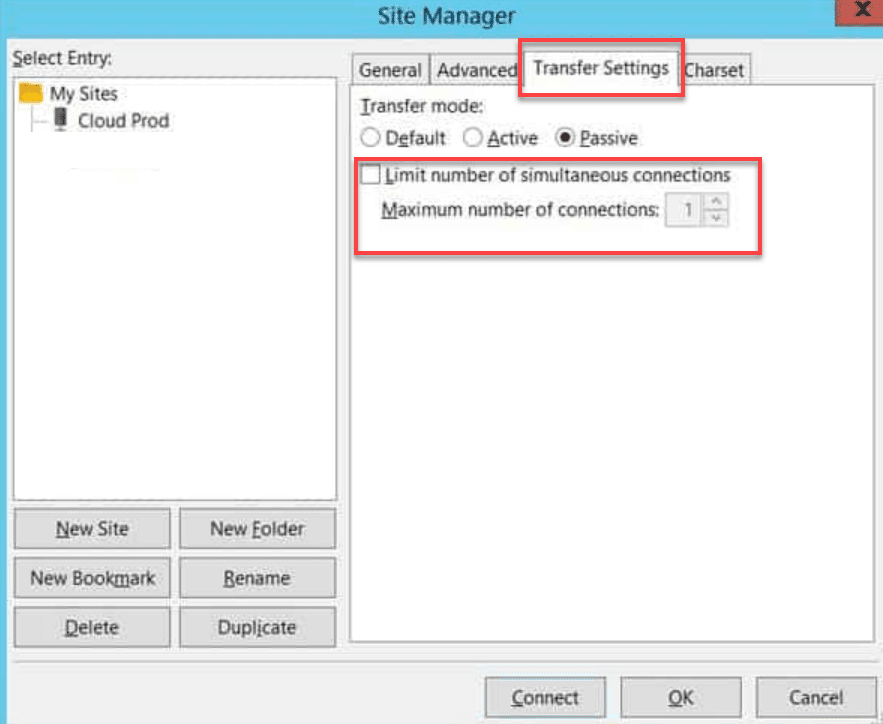
This allows FileZilla to download or upload 10 files simultaneously in parallel threads. We recommend not exceeding 10 connections as this may overload your remote FTP server.
To update your default concurrent transfer settings:
- Go to ‘Edit’, then ‘Settings’.
- Select ‘Transfers’, then edit the ‘Maximum simultaneous transfers’ box to ’10’.
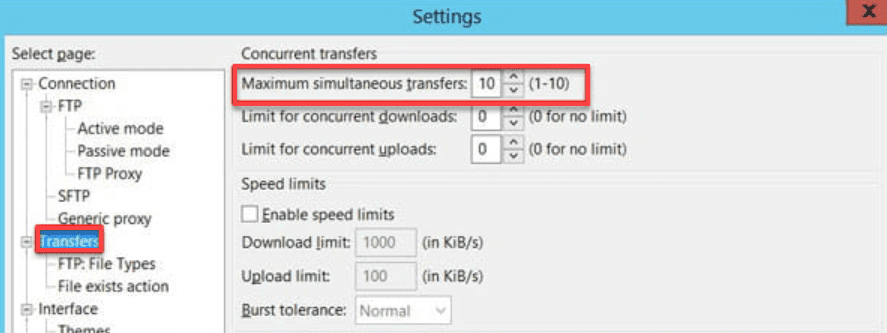
Also, check if there are no restrictions under the Limit for concurrent downloads/uploads options.
Start with 3-4 concurrent transfers and gradually increase if you see improved performance. Monitor your network usage to ensure you’re not saturating your connection.
2. Adjust simultaneous connection limits
FileZilla allows you to control how many connections it establishes to the server simultaneously. This setting works in conjunction with the transfer limit but controls the actual network connections rather than file operations.
Most servers allow 2-8 simultaneous connections per user. Setting this number too high may cause the server to refuse connections or implement rate limiting. Start with 2 connections and gradually increase while monitoring performance.
Some users experience issues where connections get dropped frequently. In these cases, reducing simultaneous connections to 1 might actually improve overall transfer reliability, even if individual file speeds are lower.
3. Switch between passive vs active FTP mode
FTP mode configuration significantly impacts transfer performance and connection reliability. Most modern setups work best with Passive Mode, which is FileZilla’s default setting. However, some networks and firewalls work better with Active Mode.
To change this setting in FileZilla:
- Go to ‘Edit’ → ‘Settings’ → ‘Connection’ → ‘FTP.’
- Toggle the Use passive mode for transfers option.
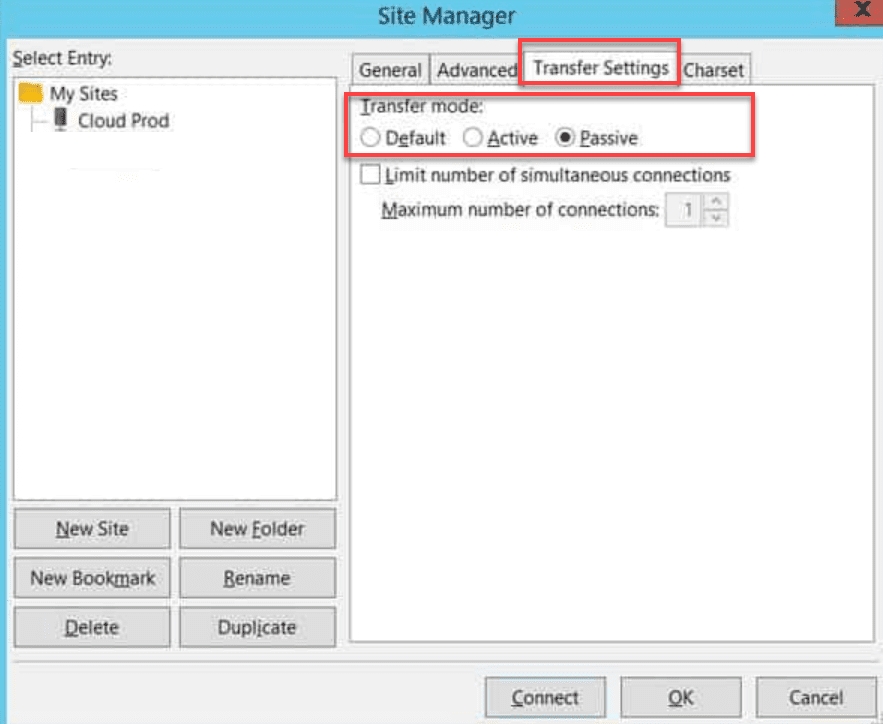
Test both modes to see which works better for your specific setup.
Passive mode works better when you’re behind NAT routers or firewalls, which is common in home and office environments. Active mode might provide better performance on some server configurations but requires proper firewall configuration on your end.
4. Configure firewall & security settings
Windows Firewall, antivirus software and router firewalls can significantly impact FTP performance by scanning transfers or limiting connections. Configure your firewall to allow FileZilla full network access, or add specific exceptions for FTP ports.
If you’re experiencing frequent disconnections or slow speeds, temporarily disable your antivirus real-time scanning to test if it’s interfering with transfers. Many antivirus programs scan uploaded and downloaded files in real-time, which can severely impact large file transfers.
Router-level firewalls might also need configuration. Ensure ports 20 and 21 (for FTP) are not being blocked or throttled. Some routers have Quality of Service (QoS) settings that can prioritize or limit FTP traffic.
5. Disable FTP speed limits
FileZilla includes built-in speed limiting features that may be restricting your transfer speeds. If your upload or download speed seems capped at a specific value, you should check whether speed limits are enabled.
To disable speed limits:
- Go to ‘Edit’, then ‘Settings’.
- Select ‘Transfers’ from the left menu. Check if the ‘Enable speed limit’ checkbox is enabled. To improve your upload or download speed, uncheck this option.
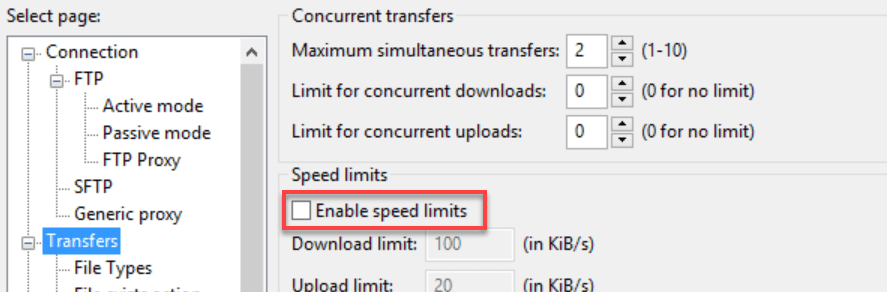
With speed limits disabled, FileZilla can utilize your full available bandwidth for transfers. This is particularly important if you have a fast internet connection but FileZilla transfer speeds remain slow.
Quick tip: After optimizing these settings, test your transfer speeds with a few files before uploading large batches. Start with moderate values and adjust gradually based on performance to find the optimal configuration for your specific server and network setup.
Troubleshoot network and system problems behind slow FileZilla uploads
When FileZilla settings alone don’t resolve performance issues, the problem often lies in network configuration or system-level constraints. Systematic troubleshooting of these areas can reveal hidden bottlenecks affecting your transfer speeds.
1. Client-side fixes (your computer/network)
Several computer and network settings can limit FTP performance. If you’re using a VPN or proxy service, try disabling it temporarily to test FTP speeds. VPNs often route traffic through distant servers, adding latency and reducing available bandwidth.
Check your network adapter settings and ensure you’re using the fastest available connection method. Ethernet connections typically provide more stable performance than Wi-Fi, especially for large file transfers. If you must use Wi-Fi, ensure you’re connected to the 5GHz band rather than 2.4GHz for better performance.
Close bandwidth-intensive applications like streaming services, cloud backup software or file sharing programs while performing large FTP transfers. These applications compete for your available bandwidth and can significantly slow down FileZilla.
Update your network drivers and ensure your computer isn’t running background processes that consume significant CPU or disk resources. Sometimes, an outdated network driver or system maintenance tasks can impact transfer performance.
2. Server-side fixes (hosting/FTP server)
While you have limited control over server-side configurations, understanding common server issues helps you work with your hosting provider to resolve performance problems. Many shared hosting providers implement throttling during peak hours to manage server resources.
If you consistently experience slow speeds, contact your hosting provider to check for server-side issues like high CPU usage, disk I/O bottlenecks or network congestion. Bluehost’s 24/7 support team can diagnose these issues and optimize your FTP configuration. Our infrastructure includes performance monitoring to identify bottlenecks quickly.
Consider the server’s geographic location when evaluating hosting performance. Servers closer to your location typically provide better FTP speeds due to reduced latency. Bluehost operates multiple data centers with global CDN integration, ensuring fast file transfers regardless of your location. If you regularly transfer files from different geographic regions, this infrastructure can significantly improve your workflow.
For users with demanding FTP requirements, exploring upgraded hosting plans can provide substantial performance improvements. Bluehost VPS and Dedicated hosting solutions offer enhanced bandwidth allocations, SSD storage and dedicated server resources. These higher-tier plans deliver better performance guarantees and eliminate the resource sharing limitations common in shared hosting environments.
How to handle slow FileZilla upload speed in different scenarios?
Different types of file transfers require specific optimization strategies. Understanding these scenarios helps you apply the most effective techniques for your particular use case, whether you’re dealing with many small files, large media files or unstable connections.
1. If you transfer many small files
Transferring numerous small files is particularly inefficient due to FTP protocol overhead. Each file requires separate commands and confirmations, creating significant delays when multiplied across thousands of files. Consider compressing multiple small files into ZIP or TAR archives before transferring.
When compression isn’t feasible, increase FileZilla’s concurrent transfer limit to 6-8 for small files. This helps offset the per-file overhead by processing multiple files simultaneously. However, monitor your connection stability as some servers may struggle with too many concurrent small file transfers.
Enable FileZilla’s “Keep alive” feature to prevent connections from timing out during long transfers involving many files. Go to ‘Settings’ → ‘Connection’ → ‘FTP’ and enable “Send FTP keep-alive commands” to maintain active connections.
Consider using Safe FTP instead of standard FTP for small file transfers, as it can be more efficient with protocol overhead. Many modern servers support SFTP, which provides better performance for multiple small file scenarios.
2. If you transfer very large files
Large file transfers benefit from different optimization strategies. Reduce the number of simultaneous transfers to 1 or 2 to dedicate maximum bandwidth to each large file. Multiple concurrent large file transfers often result in slower overall performance due to bandwidth competition.
Enable resume capability for large files to handle connection interruptions gracefully. FileZilla automatically attempts to resume interrupted transfers, but ensure this feature is enabled in your settings to avoid restarting large uploads from the beginning.
For extremely large files (over 1GB), consider using specialized transfer protocols like SFTP or setting up dedicated transfer windows during off-peak hours when network congestion is minimal.
Monitor your connection stability during large transfers and avoid other network-intensive activities. Large file transfers are more susceptible to interruption from network fluctuations or competing applications.
3. If connection is unstable/intermittent
Unstable connections require specific strategies to maintain transfer reliability. Reduce simultaneous connections to 1 and enable automatic retry options in FileZilla’s settings. This prevents overwhelming an unstable connection while ensuring transfers complete eventually.
Increase FileZilla’s timeout settings to accommodate temporary connection drops. Go to ‘Settings’ → ‘Connection’ and increase the timeout values to give unstable connections more time to recover before timing out.
Consider transferring during different times of day to identify patterns in connection stability. Some networks experience congestion during peak hours, leading to dropped connections and poor performance.
For consistently unstable connections, consider alternative transfer methods like cloud storage services or splitting large transfers into smaller chunks that can recover more easily from interruptions.
Common mistakes that slow down FileZilla
Even experienced users can unknowingly configure FileZilla in ways that significantly hurt performance. Understanding and avoiding these common configuration mistakes can provide immediate improvements to your FTP transfer speed without requiring advanced troubleshooting or technical expertise.
1. Setting too many simultaneous transfers
While concurrent transfers can boost performance, configuring too many simultaneous connections overwhelms your network bandwidth and causes slower speeds overall. Start with conservative settings (2-3 simultaneous transfers) and gradually increase based on performance testing. Monitor your actual transfer speeds to find the optimal balance for your specific connection.
2. Using incorrect transfer modes for file types
Binary mode is essential for images, videos, compressed files and executables, while ASCII mode should only be used for plain text files. Using the wrong transfer mode can corrupt files and significantly reduce transfer efficiency. Set FileZilla to “Auto” mode or manually select binary mode for most modern website files.
3. Running outdated FileZilla versions
Newer versions of FileZilla often include critical performance improvements, bug fixes and security enhancements that can significantly impact transfer speeds. Regularly check for updates or enable automatic update notifications. Always use the latest stable version to benefit from these ongoing optimizations.
4. Misconfiguring firewall and antivirus settings
Improperly configured security software leads to frequent connection drops, timeouts and slow transfers as packets are unnecessarily scanned or blocked. Take time to properly configure firewall exceptions and antivirus exclusions specifically for FileZilla. This ensures your security tools work efficiently with your FTP client rather than hindering its performance.
Quick tip: Audit your current FileZilla settings against these common mistakes to identify quick wins. Often, simply adjusting one or two of these configurations can double your upload speeds without any additional tools or technical knowledge.
Final thoughts
Dealing with FileZilla transfer speed slow issues doesn’t have to be a constant headache. The five proven fixes we’ve covered from compression settings to connection limits can dramatically reduce transfer times and restore the efficiency your workflow demands. Best of all, most of these adjustments take only minutes to implement and deliver immediate, noticeable results.
If you’re looking for a long-term solution that eliminates these FTP challenges altogether, Bluehost’s WordPress hosting offers a streamlined alternative. With intuitive file manager, automatic WordPress updates and lightning-fast servers optimized specifically for WordPress, you’ll experience seamless site management that simply works, backed by 24/7 expert support whenever you need it.
Ready to leave slow transfers behind? Make the switch to Bluehost WordPress hosting today.
FAQs
FileZilla slowness typically results from internet connection limitations, improper configuration settings, server constraints or transferring many small files inefficiently. Check your internet speed, adjust concurrent transfer settings and optimize for your specific file types.
Yes, FTPS encryption can slightly reduce transfer speeds due to the computational overhead of encrypting and decrypting data. However, the security benefits usually outweigh the minor performance impact, especially on modern systems with adequate processing power.
Absolutely. Your FTP transfer speeds cannot exceed your internet connection’s upload or download limits. If you have a 10 Mbps upload connection, your FTP uploads will be limited to approximately that speed, regardless of other optimizations.
Test FTP transfers to different servers and from multiple devices on your network. If speeds are consistently slow across all servers, the issue is likely your network. If only specific servers are slow, the problem is server-side.
Maximum FTP speed depends on your internet connection, server capabilities and network conditions. In ideal conditions, FTP can achieve speeds close to your raw internet bandwidth, but real-world speeds are typically 70-90% of your connection’s theoretical maximum.

Write A Comment