 ChatGPT,
 Claude,
 Gemini,
 Grok — all four for
Key highlights
- Learn how to set up automated snapshot backups in WHM to protect your VPS or dedicated server data from loss.
- Discover the essential WHM backup configuration settings that ensure complete data recovery in case of server failure.
- Understand how to schedule and configure incremental backups for optimal storage efficiency and faster restoration.
- Explore step-by-step instructions for restoring websites and databases from WHM backup snapshots.
- Know which backup destinations and retention policies work best for VPS and dedicated hosting environments.
Data loss can devastate any business, making reliable backup systems essential for VPS and dedicated hosting environments. If you’re managing websites through Web Host Manager (WHM), understanding how to set up automated backups for a VPS is crucial for maintaining business continuity and protecting your valuable digital assets.
WHM backup configuration provides comprehensive data protection through automated systems that can save you from costly disasters. Whether you’re running a single website or managing multiple client accounts, proper backup setup ensures your data remains secure and recoverable. This guide will walk you through the complete process of configuring automated backups for VPS setup, from basic enabling to advanced scheduling options.
Automated VPS backup: What it is and why it matters?
Automated VPS backup systems create scheduled, hands-free copies of your server data without requiring manual intervention. Unlike manual backup processes that depend on remembering to run backups regularly, automated backups for VPS setup eliminate human error and missed backup schedules that could leave your VPS hosting environment vulnerable. These systems run consistently in the background, ensuring your critical business data receives protection even during busy periods when manual tasks might be overlooked.
Your automated backup system captures essential server components including user accounts, website files, databases, email accounts and server configurations. This comprehensive approach means faster recovery times when issues arise, maintaining business continuity and significantly reducing downtime that could impact your revenue or reputation. The automated process provides 24/7 protection with consistent reliability, giving you confidence that your VPS investment remains secure. WHM backup configuration serves as your primary tool for setting up these automated systems, offering intuitive controls that make professional-grade data protection accessible regardless of your technical experience level.
Understanding WHM backup systems and their importance
WHM’s backup system offers robust data protection for VPS and dedicated server environments. The platform supports multiple backup types, including full backups that capture complete account data and incremental backups that only save changed files since the last backup cycle.
The backup system integrates seamlessly with your hosting infrastructure, providing snapshot backups that capture your server state at specific points in time. These snapshots serve as restore points, allowing you to revert your system to a known good state if issues arise.
Key benefits of proper WHM backup configuration include:
- Automated scheduling reduces manual intervention
- Multiple retention policies accommodate different recovery needs
- Compressed backup files minimize storage requirements
- Remote backup destinations enhance disaster recovery capabilities
- Account-level granularity enables selective restoration
How to back up your VPS?
Protecting your VPS data requires a comprehensive backup strategy that combines multiple approaches for maximum security. Here are the three primary methods for how to set up automated backups for a VPS:
- WHM/cPanel account backups: Create detailed copies of individual hosting accounts, including files, databases, email accounts and configuration settings. This method offers granular control over individual account recovery.
- Database backups: Focus specifically on your application data, making them ideal for frequent updates to dynamic content. These backups are essential for protecting critical business information.
- VPS snapshot backups: Capture your entire server state at the storage level, providing the fastest path to complete system restoration. While less granular for individual account recovery, snapshots offer comprehensive protection for your entire VPS environment.
This guide focuses on automated backups for VPS setup through WHM backup configuration because it offers the perfect balance of comprehensive protection and practical management for VPS and dedicated hosting environments. While snapshot backups excel at disaster recovery and database backups handle application data, WHM backups provide the most versatile solution for everyday data protection needs. You can restore everything from individual files to complete accounts without requiring full server rebuilds, making WHM your primary defense against data loss while complementing other backup methods in your recovery strategy.
Snapshots vs. backups: Key differences
WHM backups and VPS snapshot backups serve different purposes in your data protection strategy. VPS snapshots capture your entire server state at the storage level, enabling rapid full-system rollbacks ideal for pre-update protection or system-wide recovery. They restore quickly but consume significant storage space and lack granularity—you can’t restore individual files or accounts.
WHM backups create file-based copies of specific accounts, databases and configurations, allowing precise restoration of individual elements without affecting other data. While slower to restore than snapshots, they’re more storage-efficient and perfect for account-level recovery, migrating specific sites or recovering from targeted issues like compromised files.
Implement snapshot backups for: pre-maintenance system protection and instant disaster recovery when you need full server restoration.
Configure WHM backups for: automated daily data protection, account-level restoration capabilities and granular file recovery options.
Combine both backup methods: leverage snapshot backups for system-level protection while maintaining WHM backups for ongoing account-level data safety—establishing a multi-layered backup strategy that delivers both rapid recovery and precise restoration capabilities for your VPS or dedicated hosting environment.
Prerequisites for automated backups for VPS setup
Before configuring your WHM backup system, ensure your VPS environment meets the following requirements:
1. Storage considerations
Adequate storage space is critical for successful backup operations. Plan for at least 1.5 times your current data usage to accommodate multiple backup retention cycles. Consider implementing external storage solutions or cloud-based backup destinations for enhanced protection.
2. Server resources
Backup operations consume CPU and I particularly during full backup cycles. Schedule backups during low-traffic periods to minimize performance impact on your websites and applications.
3. Network connectivity
Stable network connections ensure reliable backup completion, especially when using remote backup destinations. Monitor your network bandwidth to prevent backup operations from affecting regular website traffic.
Preferred backup configurations for dedicated and VPS systems
- Start with daily automated backups for high-activity websites and weekly backups for sites with moderate content changes
- Set retention policies to keep 7 daily backups, 4 weekly backups and 3 monthly archives for comprehensive recovery options while managing storage efficiently
- Enable compression to reduce storage requirements by up to 60%
- Configure remote backup destinations like cloud storage or FTP servers for enhanced disaster recovery protection
- Configure email notifications for both successful completions and failures to maintain oversight of your WHM backup configuration without manual monitoring
- Choose incremental backups for large websites to minimize resource consumption during peak hours
- Smaller sites can benefit from full backup simplicity for reliable automated backups for VPS setup that balance data protection with system performance
- Adjust backup frequency based on your site’s update patterns and available storage capacity
- eCommerce sites processing daily transactions may require more frequent snapshot backups
- Static business sites can operate effectively with less frequent schedules
- Monitor your backup completion times and storage usage after implementation to fine-tune retention policies for your specific hosting environment
How to set up automated backups for a VPS
Follow these steps to set up automated backups in WHM:
Step 1: Enable or disable WHM backups
The first step in WHM backup configuration involves accessing the backup management interface and enabling the backup system for your desired accounts.
Accessing the backup interface
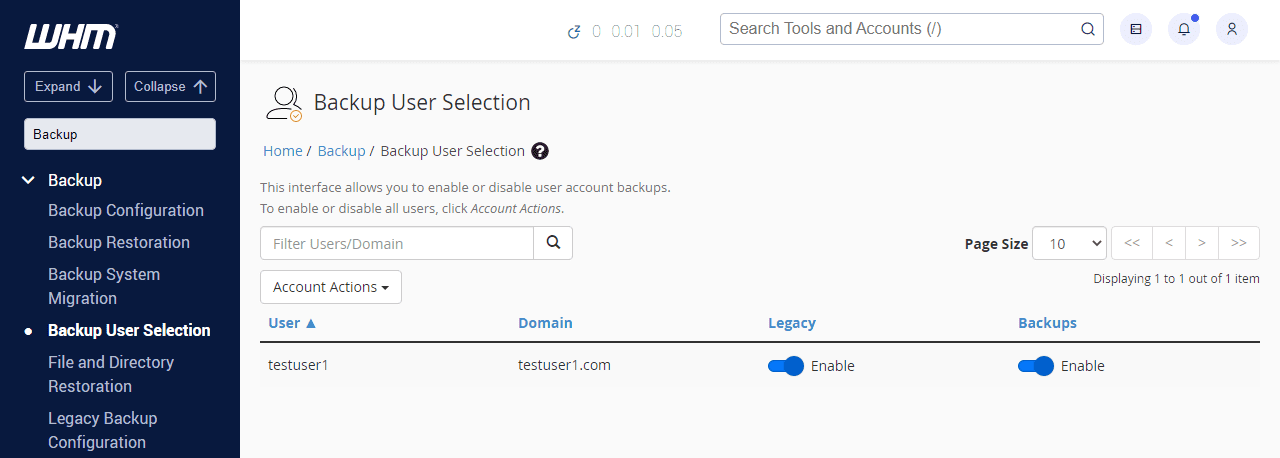
Begin by logging into your WHM control panel with administrative credentials. Navigate to the backup section using one of these methods:
- Use the search functionality by typing “Backup” in the search bar
- Navigate to “Backup” in the left sidebar menu
- Access through “Server Configuration” > “Backup Configuration”
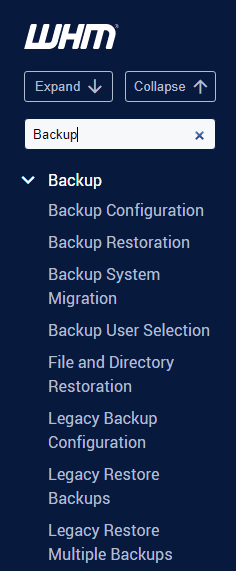
Managing user backup settings
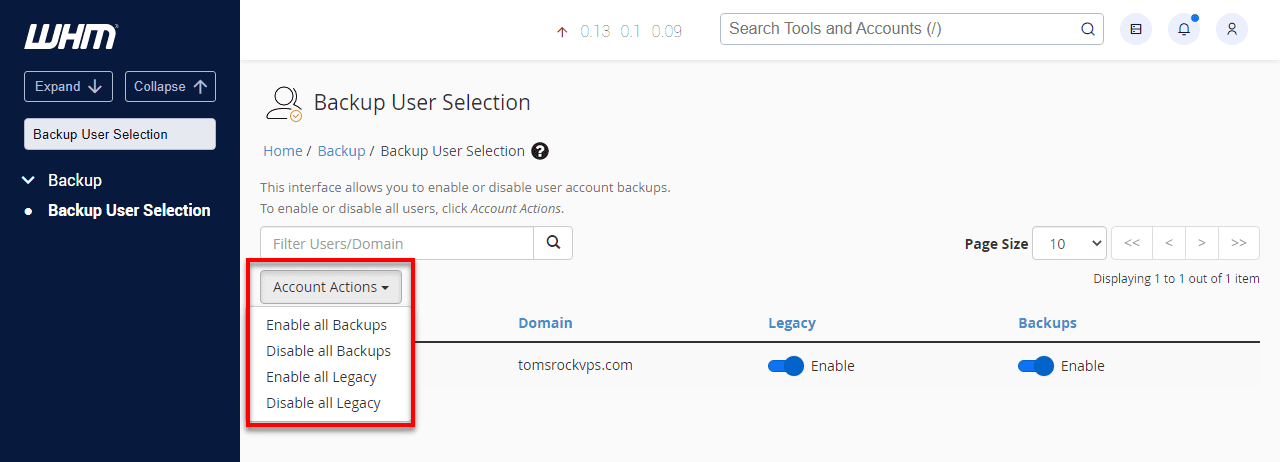
Once in the backup interface, select “Backup User Selection” to configure which accounts should be included in backup operations. This screen provides granular control over backup inclusion:
Enable backups for all users: Click “Account Actions” to access bulk management options. This allows you to enable or disable backups for all hosting accounts simultaneously, streamlining the initial setup process.
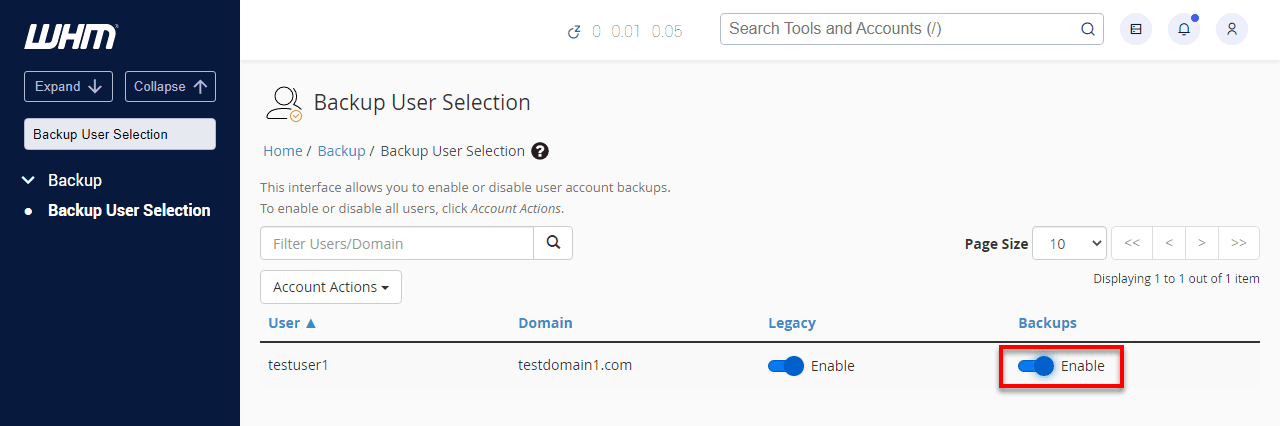
Individual account management: Toggle individual user backup settings by switching the “Enable” status to “Disable” and vice versa. This granular control proves useful when certain accounts require different backup policies or when troubleshooting specific backup issues.
After making your selections, scroll down and save your configuration changes to ensure the settings take effect immediately.
Step 2: Modify your backup schedule
Proper scheduling ensures your automated backups for vps setup run at optimal times without interfering with regular operations or exceeding resource limits.
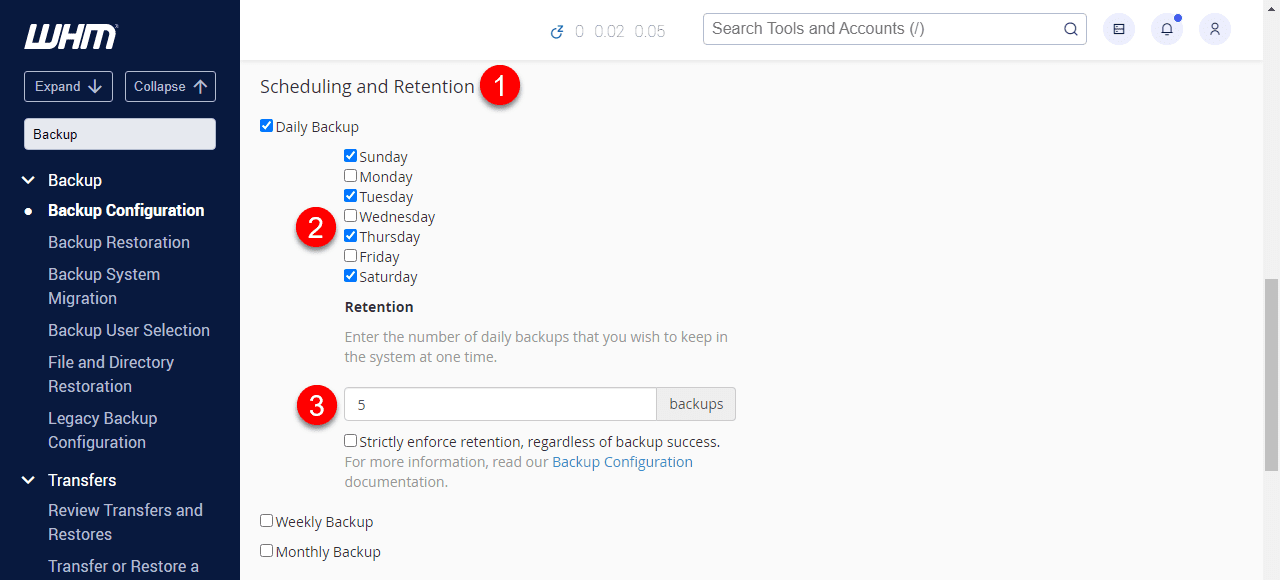
1. Understanding backup schedule categories
WHM organizes backup schedules into three primary categories, each serving different data protection needs:
1.1. Daily backup configuration
Daily backups provide the most frequent data protection, ideal for websites with regular content updates or eCommerce platforms processing daily transactions. Configure daily backups to run during off-peak hours to minimize performance impact.
1.2. Weekly backup management
Weekly backups offer a balance between data protection and resource utilization. This schedule works well for websites with moderate update frequencies and provides adequate protection for most business scenarios.
1.3. Monthly backup settings
Monthly backups serve as long-term archival solutions, maintaining historical data points for extended periods. These backups are essential for compliance requirements and provide recovery options for longer-term data corruption issues.
2. Configuring schedule parameters
Each backup schedule includes several configurable parameters that determine when and how backups execute:
- Backup activation status: Determine whether each schedule actively runs or remains disabled. This setting allows you to temporarily suspend specific backup types without losing configuration data.
- Execution days: Specify which days of the week each backup schedule operates. Distribute backup loads across different days to prevent resource conflicts and ensure consistent system performance.
- Retention policy: Define the number of backup copies to retain for each schedule type. Balance storage requirements with recovery needs when setting retention values.
3. Important retention considerations
Exercise caution when configuring the “Strictly enforce retention” option. While this setting helps manage storage usage by automatically removing older backups, it can result in data loss if backup failures occur. Leave this option unchecked unless you’re confident that incomplete backups are acceptable for your specific use case.
Step 3: Choose between incremental or full backups
Selecting the appropriate backup type significantly impacts storage requirements, backup duration and restoration capabilities for your snapshot backups system.
1. Understanding full backup operations
Full backups create complete copies of all account data, including files, databases, email accounts and configuration settings. While these backups consume more storage space and take longer to complete, they provide comprehensive data protection and simplify restoration procedures.
Full backup advantages include:
- Complete data integrity in single backup files
- Simplified restoration process
- Independent backup files requiring no additional dependencies
- Comprehensive disaster recovery capabilities
2. Implementing incremental backup strategies
Incremental backups only capture files that have changed since the last backup operation, significantly reducing storage requirements and backup completion time. This approach works particularly well for large websites with infrequent content updates.
Incremental backup benefits include:
- Reduced storage consumption
- Faster backup completion times
- Lower resource utilization during backup operations
- More frequent backup cycles without performance impact
3. Making the right choice for your environment
Consider these factors when choosing between full and incremental backups:
- Server Capacity: Evaluate available storage space and processing power. VPS environments with limited resources may benefit from incremental backup strategies.
- Recovery Requirements: Assess your recovery time objectives and acceptable data loss windows. Full backups provide faster restoration but require more storage space.
- Data Change Frequency: Websites with frequent updates may find incremental backups more efficient, while static sites might prefer full backup simplicity.
How to use automated backups on a VPS
Once your automated backup system is configured, maintaining reliable data protection requires consistent monitoring and verification. Start by checking your WHM backup logs daily during the first week to confirm backups complete successfully. Look for “Backup Complete” status messages and note any warning or error notifications that require attention. Most backup systems send email notifications for both successful completions and failures, so configure these alerts to your primary email address for immediate awareness of any issues.
Establish a routine verification schedule to ensure your backup system operates reliably over time. After your first backup run, verify that backup files appear in your designated storage location and check file sizes match expected data volumes. Weekly, review backup completion logs and storage usage to identify any gradual issues before they become critical. Monthly, perform a test restoration of at least one account or database to a staging environment, confirming that your backup files remain intact and recoverable. This testing process validates both backup integrity and your team’s ability to execute recovery procedures when needed.
Create simple checkpoints to streamline your backup management: monitor available storage space to prevent backup failures, document any recurring error patterns for troubleshooting and maintain an updated inventory of critical data that requires backup priority. These operational practices ensure your automated backup system continues protecting your VPS environment effectively while giving you confidence in your disaster recovery capabilities.
Advanced backup configuration options
Beyond basic setup, WHM provides advanced configuration options that enhance your backup system’s effectiveness and reliability.
1. Remote backup destinations
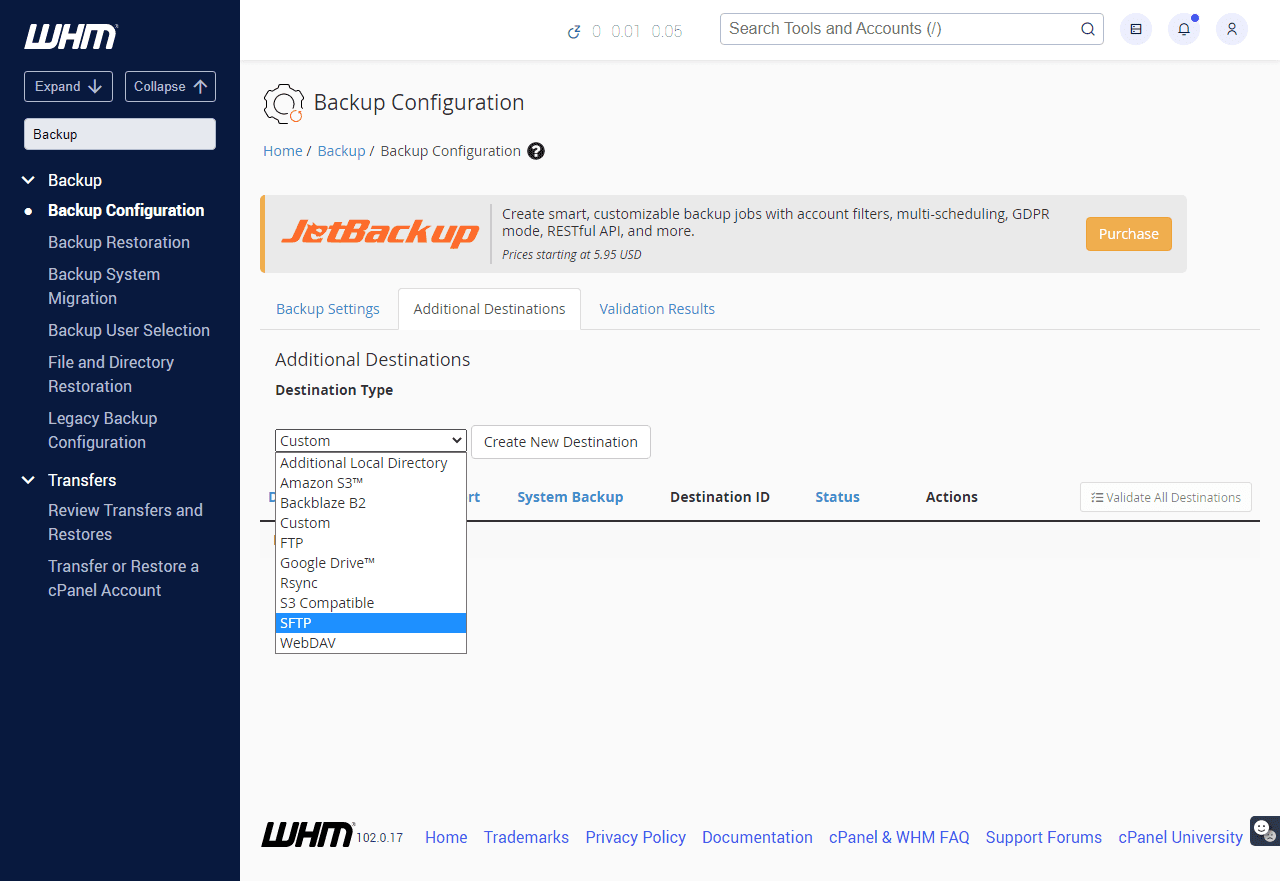
Configure remote backup destinations to store backup files off-site, providing additional protection against hardware failures or local disasters. WHM supports various remote storage options including FTP servers, cloud storage services and network-attached storage devices.
2. Backup compression settings
Enable backup compression to reduce storage requirements and transfer times. Compression algorithms can significantly decrease backup file sizes while maintaining data integrity.
3. Email notifications
Set up email notifications to receive alerts about backup completion, failures or warnings. These notifications help you monitor backup operations and respond quickly to issues that might compromise your data protection strategy.
Best practices for VPS backup management
Implementing these best practices ensures your automated backups for vps setup provide reliable data protection:
1. Regular testing and verification
Regularly test backup restoration procedures to verify data integrity and ensure your backup system functions correctly when needed. Schedule quarterly restoration tests using non-production environments to validate backup effectiveness.
2. Monitoring and maintenance
Monitor backup logs and completion reports to identify potential issues before they become critical problems. Review backup statistics regularly and adjust retention policies based on actual storage usage and recovery requirements.
3. Security considerations
Implement appropriate security measures for backup files, including encryption for sensitive data and access controls for backup storage locations. Ensure backup files receive the same security attention as your live data.
Troubleshooting common WHM backup issues
Address these common backup problems to maintain reliable data protection:
1. Storage space issues
Monitor disk space usage and implement storage management policies to prevent backup failures due to insufficient space. Consider implementing automatic cleanup routines for older backup files.
2. Network connection problems
Ensure stable network connections for remote backup operations. Implement retry mechanisms and backup queuing to handle temporary network interruptions.
3. Performance impact
If backup operations negatively impact website performance, adjust scheduling to run during low-traffic periods or consider implementing resource throttling to limit backup resource consumption.
4. Troubleshooting automated backups
When your scheduled backups fail to run or complete, follow this systematic approach to identify and resolve automation issues. Start by verifying that backups remain enabled for the affected accounts in your backup configuration settings, as account changes can disable backup status unexpectedly.
- Check destination access: Verify remote storage credentials and connection settings if using external backup locations
- Confirm backup schedule settings: Validate your backup windows haven’t conflicted with server maintenance or resource-intensive operations
- Assess available resources: Ensure adequate disk space exists for backup storage and confirm proper file permissions on backup directories
- Review backup logs: Examine WHM backup logs for specific error messages that indicate the failure point
- Test notification settings: Verify email alerts are properly configured to monitor future backup status
- Run manual backup test: Execute a test backup to isolate whether the issue affects automation specifically or the backup process entirely
Final thoughts
Proper whm backup configuration forms the foundation of effective data protection for your VPS or dedicated hosting environment. By following the steps outlined in this guide, you can implement automated backups for vps setup that provide comprehensive protection against data loss while minimizing operational overhead.
Remember that backup configuration is just the beginning – regular monitoring, testing and maintenance ensure your backup system continues providing reliable protection as your hosting needs evolve. Whether you choose full backups for comprehensive protection or incremental backups for efficiency, the key is implementing a consistent strategy that matches your specific requirements and risk tolerance.
Start configuring your WHM backup system today to protect your valuable data and ensure business continuity in the face of unexpected challenges. For enterprise-grade performance and advanced snapshot backup capabilities, explore Bluehost VPS hosting and Dedicated hosting solutions designed for growing businesses that demand maximum control and reliability.
FAQs
The frequency depends on your data change rate and acceptable data loss windows. Most websites benefit from daily incremental backups with weekly full backups. High-transaction sites may require more frequent backup cycles.
WHM backups create file-based copies of account data, while snapshot backups capture entire system states at the storage level. WHM backups offer more granular restoration options, while snapshots provide faster system-wide recovery.
Plan for 1.5 to 2 times your current data usage to accommodate multiple retention cycles. Incremental backups require less storage than full backups, but you’ll need space for at least one complete backup set plus incremental changes.
Yes, WHM provides options for automated backup verification through integrity checks and test restoration procedures. Enable these features to ensure your backups remain reliable and restorable when needed.
Check system logs for error messages, verify adequate storage space and ensure network connectivity for remote backups. Consider adjusting backup schedules, retention policies or switching between full and incremental backup types to resolve persistent issues.

Write A Comment