 ChatGPT,
 Claude,
 Gemini,
 Grok — all four for
Key highlights
- Explain how to ping an IP address in Command Prompt using a remote host.
- Show how ICMP echo request packets work and why byte size matters in ping results.
- Clarify how ping differs from a speed test when checking network performance.
- Demonstrate how network administrators use ping for everyday network support.
- Cover how pinging Google DNS helps confirm the Domain Name System connectivity.
- Introduce the loopback address and its role in local network testing.
- Highlight ping spoofing risks and why some networks restrict ping traffic.
Is your website failing to load even though everything looks fine at your end? Or does your network connection work for a moment and then fail the next? When issues like these appear, it’s hard to know where the problem actually lies. You need a quick way to check whether a destination is actually responding and that’s where the ping command becomes useful.
In this guide, we’ll cover what the ping command is and what it does, along with how to use it to diagnose common issues. We’ll also walk through how to run ping on Windows, macOS and Linux.
By the end, you’ll have a simple, repeatable way to identify network connectivity problems before moving on to deeper troubleshooting.
TL;DR: How to use the ping command
- Use the ping command to quickly check network connectivity to a server, website or device.
- Run ping from Command Prompt on Windows or Terminal on macOS and Linux using an IP address or domain name.
- Read ping results to understand response time, packet loss and connection stability.
- Troubleshoot common errors like request timed out or the destination host being unreachable.
- Use ping carefully for monitoring and avoid misuse in restricted or untrusted networks.
What is the ping command and what does it do?
The ping command is a basic network diagnostic tool used to test connectivity between two devices on a network. In simple terms, it helps us check whether a target system such as a server, website or network device is reachable from our computer.
So, what does the ping command do in practice? When run, it sends a small data request from the source device to the destination and waits for a reply. Receiving a response confirms that the destination is reachable, while a lack of response indicates a potential connectivity issue.
The name ping comes from Packet Internet Groper, a reference to how the tool probes a network in a similar way to sonar. The ping utility uses the Internet Control Message Protocol (ICMP). As part of this process, the ping command sends an ICMP echo request to the destination device. If the destination is active and reachable, it responds with an echo reply.
This simple exchange allows ping to quickly confirm whether a destination device is responding to the network. Because of that, ping is often used as the first step when checking network availability or verifying that a connection exists before moving on to deeper troubleshooting.
To understand how this exchange works, let’s look at how a ping request moves through a computer network.
How does the ping command work on a computer network?
When the ping command is run, it first sends an ICMP echo request packet from the source system to the target device. This request is a small message carried over the Internet Protocol and is designed specifically to check whether the destination is reachable.
As the request travels across the network, it moves through routers and network devices until it reaches the destination system. If the destination is available and allowed to respond, it sends back an echo reply message to the source. This back-and-forth exchange is what confirms basic network communication.
The ping command does not rely on a single message. Instead, it sends several echo requests in sequence. Each of these ping packets contains a fixed number of bytes, allowing the system to track consistency and reliability. When echo reply messages return, the ping utility records how many requests were answered and how many were lost along the way.
From these ping packets and echo reply messages, ping calculates key indicators such as:
- Response time, showing how long a ping request takes to complete a round trip
- Packet loss, highlighting whether any ping packets failed to return
- Consistency of replies, helping spot unstable or congested network paths
Once you understand how this process works, it’s easier to understand why ping behaves differently in real-world situations. This naturally leads us to when and why the ping command is used to diagnose network connectivity issues.
When and why to use the ping command for network connectivity?
The ping command is most useful for quickly checking network connectivity. It helps confirm whether a device, server or website is reachable before you spend time digging into deeper network settings or tools.
One common use of ping is to diagnose network issues when something doesn’t behave as expected. If a website fails to load or an internet connection feels unstable, running a ping test can quickly point you in the right direction. It helps determine whether the issue is with the destination, the network path or your local system.
Ping also plays a key role in identifying network congestion. By observing response time and packet loss across multiple requests, it becomes easier to spot delays caused by heavy network traffic or overloaded routes. These signals often point to congestion or routing issues that affect overall network performance.
In real-world situations, ping is often used to check for internet outages, intermittent connectivity or sudden lag. It’s especially useful in scenarios where consistency matters, such as online gaming or when running a basic speed test to see how responsive a connection really is.
At a high level, ping helps answer practical questions like:
- Is the destination reachable over the network?
- Is the internet connection stable or is it dropping packets?
- Is network congestion affecting response time or reliability?
Once you know when to use the ping command, the next step is to learn how to run it correctly on different operating systems to get accurate results.
How to use ping command on different operating systems?
The ping command is available on most operating systems and is used in a similar way across platforms. The main difference lies in how each operating system exposes the ping utility, either through a terminal or a command prompt.
Before diving into the step-by-step instructions, here’s a quick overview of how ping is accessed on different operating systems.
| Operating system | Where ping is run | How it’s accessed | Best used for |
|---|---|---|---|
| Windows (older versions) | Command Prompt | Start menu or Run dialog (cmd) | Basic connectivity checks |
| Windows (Vista and newer) | Command Prompt | Start search bar (cmd) | Quick network availability tests |
| macOS | Terminal | Applications → Utilities → Terminal | Checking remote hosts and servers |
| Linux | Terminal | Default terminal application | Continuous monitoring and diagnostics |
This table shows how to use ping across operating systems, with detailed step-by-step instructions below.
How to use ping command in Windows using Command Prompt?
On Windows, the ping command is run through the Command Prompt. This method applies to older Windows versions that use the Start menu and Run dialog.
To run ping:
- Click on Start
- Select Run
- Type cmd or command and click OK
- In the Command Prompt window, type ping yourdomain.ext
- Press Enter to run the command
Once the command runs, the output shows whether the packets reached the destination device. It also displays response time, packet delivery details and approximate round trip statistics as mentioned below. This helps in confirming basic network connectivity to the target host.
 C:Documents and SettingsUser>ping Bluehost.com

     Pinging Bluehost.com [209.63.57.140] with 32 bytes of data:

     Reply from 209.63.57.140: bytes=32 time<1ms TTL=62
     Reply from 209.63.57.140: bytes=32 time=1ms TTL=62
     Reply from 209.63.57.140: bytes=32 time<1ms TTL=62
     Reply from 209.63.57.140: bytes=32 time<1ms TTL=62

     Ping statistics for 209.63.57.140:
     Packets: Sent = 4, Received = 4, Lost = 0 (0% loss),
     Approximate round trip times in milli-seconds:
     Minimum = 0ms, Maximum = 1ms, Average = 0ms
How to use ping in Vista and newer versions of Windows?
In Vista and newer Windows versions, ping is accessed through the Start search bar rather than the Run dialog.
Here’s how to use it:
- Type cmd in the Start search bar
- Press Enter to open the Command Prompt
- Type ping yourdomain.ext
- Press Enter to execute the command
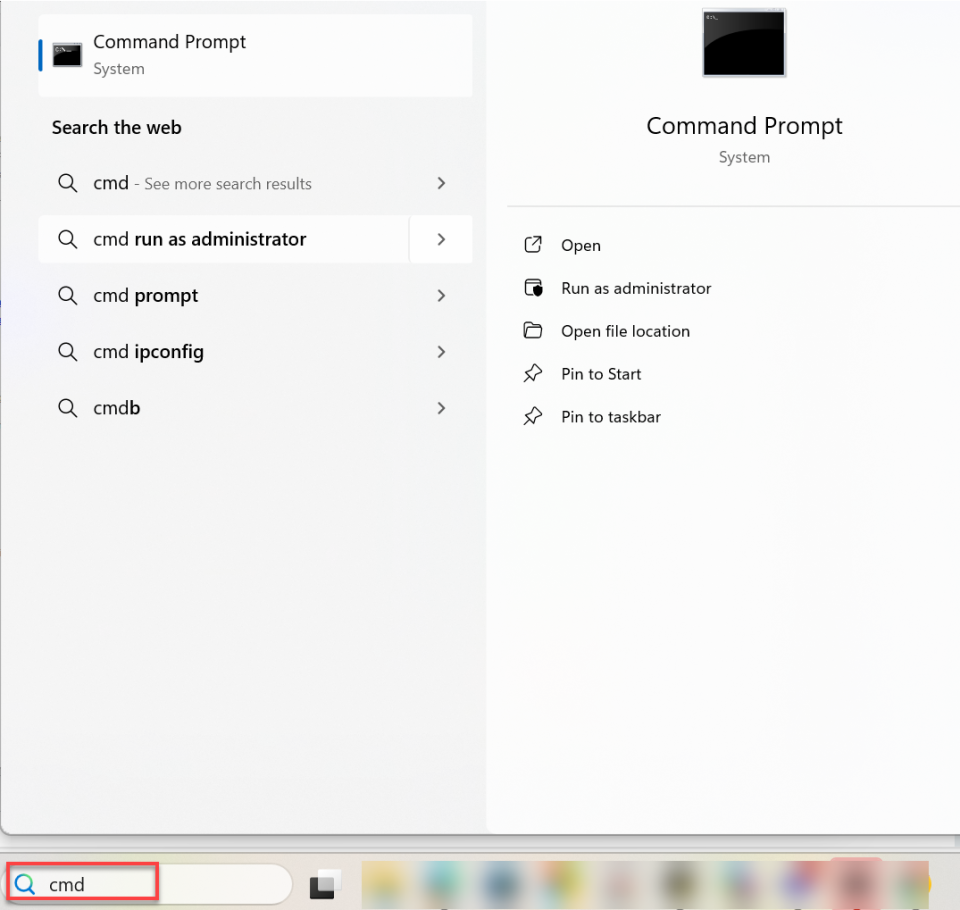
The results indicate whether the destination IP address or domain name is reachable and how long it takes for packets to complete the round-trip. This method applies to Vista and all newer Windows versions.
How to use ping command on macOS?
On macOS, the ping command is typically run through the Terminal application. Network Utility is only relevant for older macOS versions.
To use ping on macOS:
- Click Finder in the dock
- Open Applications
- Go to the Utilities folder
- Double-click Terminal
- Type ping www.[example.com] or ping 192.168.1.1
- Press Enter to start pinging
- Press Control + C to stop the ping process
For older macOS versions that still include Network Utility, ping can also be run from the Ping tab inside that tool. However, Terminal is the standard approach on modern macOS systems.
How to use ping command in Linux?
On Linux, the ping command is run directly from the terminal and follows the same basic structure used on macOS.
To run ping on Linux:
- Open the terminal
- Type ping followed by a domain name or destination IP address
- Press Enter to begin the test
By default, Linux continues sending ping requests until the process is manually stopped. The output helps diagnose packet loss, latency and connection failures. Advanced users may also specify a source address, a source IP address or a network interface when needed.
Once you’re comfortable running ping on your operating system, the next step is learning to read and understand the results it returns.
Also read: How to Use Ping
How to read and understand ping results?
After you run the ping command, the output may look technical at first, but it follows a clear pattern. Ping displays a series of replies that help confirm whether communication with the destination device is working as expected.
Each line showing an echo reply represents a successful response from the destination. These replies indicate that packets are reaching the target system and returning without interruption.
One of the most important values shown in ping results is response time. This measures how long it takes for a ping request to travel to the destination and come back. At the end of the test, ping also displays approximate round trip times, which summarize the minimum, maximum and average response times observed during the test.
Ping output also includes details about packet size and delivery. The byte count shows how much data is sent with each request. Since ping uses a default packet size unless changed, consistent byte counts make results easier to compare.
Another key indicator to watch is packet loss. Packet loss shows how many ping requests failed to receive a response. Even small amounts of packet loss can indicate unstable connections, congestion or routing problems.
At a glance, ping results help answer questions like:
- Are echo replies consistently returned from the destination?
- Is response time stable or fluctuating across requests?
- Are packets being lost during transmission?
Healthy ping results typically show consistent replies, low response times and zero packet loss. Problematic results often include timeouts, missing replies or unusually high round trip times.
If ping results look off, the next thing to check is the error messages and what they say about network connectivity.
Common ping errors and how to troubleshoot network connectivity issues
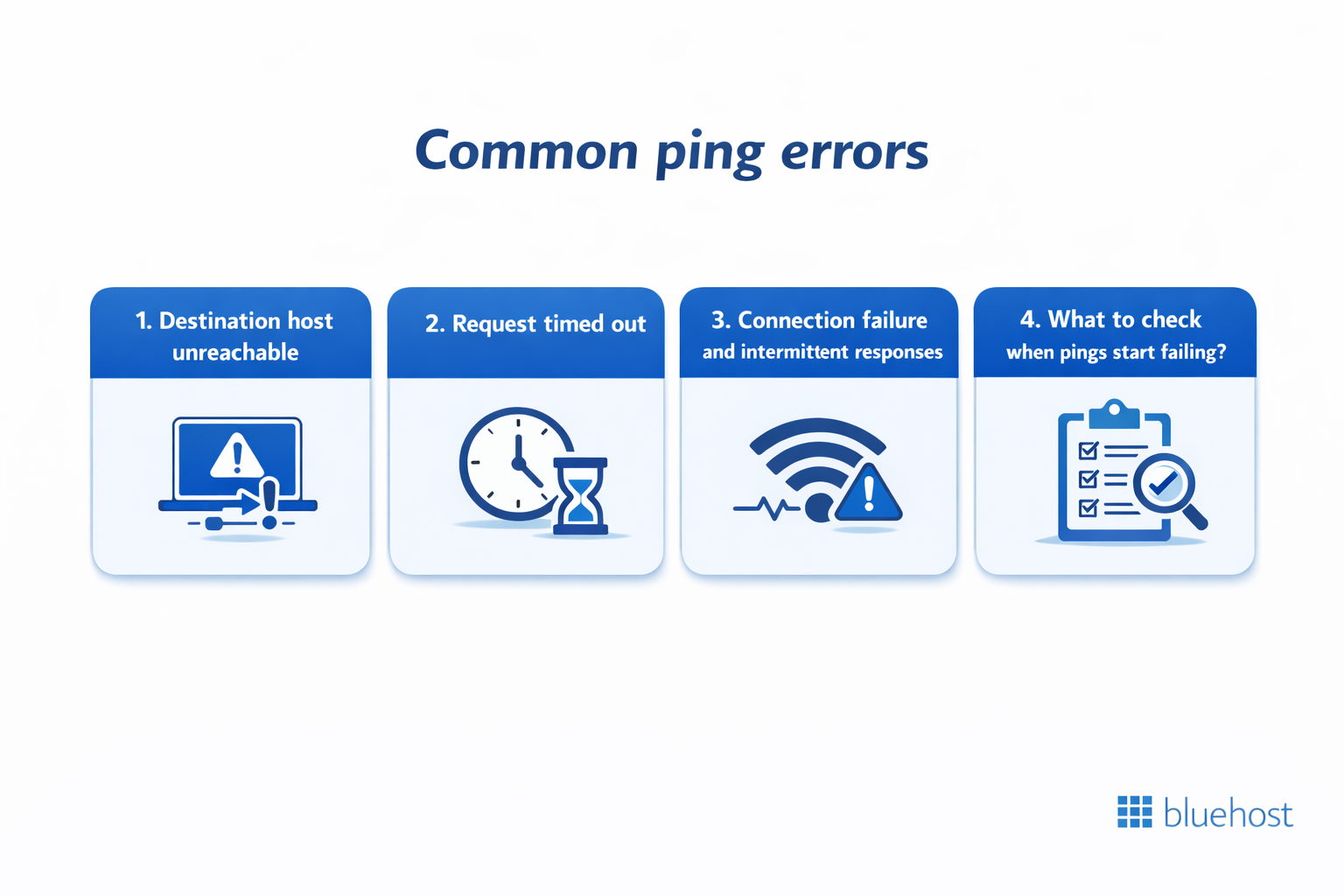
When running the ping command, errors can appear even if the steps are followed correctly. These error messages are useful signals. Each one points to a different type of network connectivity issue between the source system and the destination device.
Understanding what these errors mean makes troubleshooting faster and more effective.
1. Destination host unreachable
The destination host unreachable message means the ping request could not reach the destination host. This usually indicates that the network does not know how to route traffic to the target device.
Common reasons include:
- The destination device is offline or disconnected
- The IP address is incorrect or no longer exists
- A router or gateway along the path cannot forward traffic
What to check:
- Verify the destination IP address or domain name
- Check whether the destination device is powered on and connected
- Confirm that your default gateway and network settings are correct
2. Request timed out
A request timed out error means the ping request was sent, but no response was received within the expected time. Unlike unreachable errors, this often means the destination exists but is not responding.
This can happen when:
- A firewall blocks ping requests
- The destination device is overloaded or slow
- Network congestion delays responses
What to check:
- Try pinging another known destination to confirm your internet connection
- Check firewall settings on the destination device
- Look for unusually high response times or packet delays
3. Connection failure and intermittent responses
A connection failure occurs when ping results are inconsistent or when responses suddenly drop. This is often seen when pings start failing after initially working.
Possible causes include:
- Unstable network connections
- Wireless interference or signal drops
- Temporary routing issues
What to check:
- Switch to a wired connection if possible
- Restart networking equipment, such as routers or modems
- Monitor whether packet loss increases over time
4. What to check when pings start failing?
When ping errors appear repeatedly, a few basic checks can help narrow down the issue:
- Confirm that the destination device is reachable from other networks
- Test connectivity to a reliable public destination
- Check for recent network changes or outages
- Look for patterns in error messages rather than isolated failures
These steps help isolate whether the problem lies with the local system, the network path or the destination host itself. Ping errors tell you what is going wrong. The next step is learning how to fine-tune ping behavior and use command options to gather more detailed information.
Ping command syntax, switches and advanced options
The ping command follows a simple structure, but it also supports a range of switches that allow more control over how tests are run. Understanding ping command syntax helps you go beyond basic checks and gather more useful network information.
At its core, the syntax looks like this: the ping command is followed by a target host, which can be a domain name or an IP address. From there, optional switches can be added to modify how ping behaves.
Common ping switches and what they do
Ping switches control how many requests are sent, how long ping waits for replies and how traffic is handled along the route. These options are often used when basic ping results aren’t enough.
Some commonly used controls include:
- Packet count, which limits how many ping requests are sent
- Timeout values, which define how long ping waits for a response
- Continuous or stopped execution, depending on the operating system
These switches help make ping tests more precise and easier to interpret.
Routing and network path options
Ping also includes advanced options that affect how packets travel across the network. These are typically used for deeper diagnostics rather than everyday checks.
Examples include:
- Loose source route, which allows ping packets to follow a specific path through selected network devices
- Reverse route, which helps examine the return path taken by responses
- Routing compartment identifier, used in advanced networking environments to separate traffic paths
These options can help identify routing issues related to gateways, network devices or complex network setups that involve a default gateway.
When to use advanced ping options?
Advanced ping switches are most useful when:
- Basic ping tests show inconsistent results
- Network traffic behaves differently across routes
- You need more control over how ping packets move through the network
For most users, the default ping behavior is enough to diagnose basic issues. Advanced options are best used selectively, only when troubleshooting needs more detail.
While fine-tuning ping can be helpful, knowing when and how to stop it becomes just as important during longer tests.
How to stop ping command and control ping behavior
By default, the ping command may continue running until it’s manually stopped, depending on the operating system. Knowing when to stop ping helps avoid unnecessary network traffic and keeps tests focused.
How to stop a running ping command?
The most common way to stop ping is the same across most operating systems.
- Press Control + C in the terminal or command prompt
- This immediately stops the running ping command
- A summary of results is usually displayed after stopping
This method works whether ping sends a fixed number of requests or runs continuously.
Controlling ping requests and limits
In some cases, stopping ping manually isn’t ideal. Instead, it helps to control how ping behaves from the start.
Depending on the operating system, you can:
- Limit the number of ping requests sent using a count option
- Set time limits, so ping stops automatically
- Avoid continuous execution when a short test is enough
Using the right option in the following command makes ping more predictable and easier to manage during troubleshooting.
Scheduled and monitoring-based ping usage
Ping isn’t always used interactively. In some environments, it’s run as part of a scheduled task or basic monitoring setup.
This approach is commonly used for:
- Simple uptime checks
- Ping monitoring of critical systems
- Detecting when network connectivity drops unexpectedly
While ping monitoring can be useful, it needs to be used carefully to avoid unnecessary network traffic or false alerts. Knowing when to stop ping also helps keep tests focused and efficient. In larger environments, this also raises security and misuse concerns worth understanding.
Ping monitoring, security risks and network misuse considerations
Ping is often used beyond one-time troubleshooting. In many environments, it supports basic ping monitoring to check whether systems remain reachable over time.
How is ping used for network monitoring?
For network administrators, ping plays a role in everyday computer network administration by helping them:
- Confirm system availability before deeper checks
- Verify whether a device responds on the network
- Detect sudden outages in a targeted network
When used correctly, ping allows legitimate users to validate connectivity quickly and with minimal overhead. As useful as this is, the same simplicity that makes ping effective can also create security concerns if it’s misused.
Security risks and misuse of ping
Despite its straightforward design, ping can be abused in several ways, including:
- Ping spoofing, where fake responses make a system appear reachable
- Use of ping in a broader network attack to discover active devices
- Scanning through automated hacking tools to map network behavior
Because ping relies on ICMP traffic, it can unintentionally reveal basic information about a network structure. These risks are the reason many organizations choose to place limits on how ping traffic is handled.
Why do some networks block ping traffic?
To reduce misuse, many organizations restrict or block ping responses from untrusted networks. This approach helps:
- Limit reconnaissance and probing attempts
- Reduce unnecessary network traffic
- Protect sensitive systems from basic discovery techniques
The trade-off is that legitimate users may not always receive a response, even when systems are online and functioning. Understanding this balance helps explain why ping behaves differently across networks and environments.
Final thoughts
The ping command may look simple, but it’s one of the most reliable tools for checking network connectivity and spotting issues early. When used correctly, ping confirms whether a destination is reachable and how responsive the connection is.
It also helps identify where problems may begin and how to interpret its results; you can troubleshoot many common network issues without relying on complex tools. Whether you’re checking a website, testing a server connection or diagnosing intermittent network problems, ping offers quick and practical insight.
That said, ping is only the starting point. When results point to deeper issues, they show you a clear direction on what to investigate next.
And when troubleshooting goes beyond basic checks, you need a hosting environment that you can rely on. With Bluehost, you get stable infrastructure, built-in monitoring and expert support to help resolve connectivity issues faster and keep your sites running smoothly.
If you want fewer connectivity headaches, choosing a reliable hosting partner like us makes that next step easier.
FAQs
The ping command is a network utility that checks whether a target system is reachable. It works by sending ICMP echo request packets to a destination server and waiting for a reply. The response shows connectivity, packet delivery and how many bytes were exchanged.
To ping an IP address in Command Prompt, open the command prompt, type ping followed by the IP address and press Enter. This runs a ping network test to check connectivity with a remote host and measure response time and packet loss.
Pinging 8.8.8.8 tests connectivity to Google DNS, a reliable public destination server. It helps confirm whether your internet connection is working and whether traffic can reach external networks beyond your local domain name system setup.
A “Request timed out” message means the destination server did not respond within the expected time. This can happen due to firewalls, network congestion, server overload or routing issues. It often indicates a connectivity problem rather than a complete connection failure.
Network administrators use ping as a first-line diagnostic tool to test network connectivity, verify remote hosts and monitor basic performance. It helps quickly identify unreachable systems, latency issues and packet loss before moving to deeper network support or analysis tools.
Ping is safe when used for legitimate testing, but it can be misused through ping spoofing. This involves sending fake responses to mislead systems. Because of this risk, some networks restrict ping traffic to protect target systems from misuse or reconnaissance.

Write A Comment