 ChatGPT,
 Claude,
 Gemini,
 Grok — all four for
Key highlights
- Step-by-step guide on how to add internal links in WordPress to boost SEO, enhance site navigation and improve user engagement.
- How to add internal links in WordPress across block editor, classic editor and navigation menus
- Best practices for adding internal links in WordPress to improve SEO crawlability and boost visitor engagement.
- Common WordPress internal linking mistakes and how to add internal link in WordPress correctly to boost SEO rankings and improve site navigation.
- How to add internal links in WordPress with the block editor and plugins for better SEO and site navigation
Did you know that 55% of websites struggle and overlook internal linking best practices, directly impacting their search rankings and user engagement? If you’re wondering how to add internal links in WordPress, you’re taking a crucial step toward improving both your SEO performance and visitor experience on your website.
Learning how to add internal links in WordPress is one of the most underutilized yet powerful SEO strategies available to WordPress users. When you add internal links correctly, they help search engines understand your content better, keep visitors engaged longer and distribute page authority throughout your site. Whether you’re a blogger, business owner or content creator, understanding how to add internal links in WordPress can significantly boost your website’s performance and search visibility.
In this comprehensive guide, you’ll learn everything about how to add links in WordPress, from basic techniques to advanced strategies that professional SEO experts use. We’ll cover step-by-step instructions, best practices and common mistakes to avoid, ensuring you can implement effective internal linking immediately.
Understanding internal links in WordPress and why they’re essential for your site
Internal links are clickable connections between pages and posts within your own website domain. Unlike external links that point to other websites, internal links create a web of connections that guide both users and search engines through your content.
These links serve multiple critical purposes for your WordPress website:
- SEO benefits of WordPress internal linking: Search engines crawl and index your WordPress content more effectively when you add internal links strategically
- User experience: Internal linking in WordPress helps visitors discover related content easily, keeping them engaged longer on your site
- Page authority distribution: Adding internal links in WordPress strategically directs ranking power from established, high-authority pages to newer content across your site
- Lower bounce rates with strategic internal linking: When you add internal links in WordPress, you guide visitors to relevant pages and help them discover more valuable content on your site
- Content hierarchy: Internal links in WordPress help search engines understand which pages are most important on your site
Studies indicate that websites implementing strategic internal linking structures can boost organic traffic by up to 40%. Mastering how to add internal link in WordPress is crucial for maximizing your site’s visibility and driving sustainable growth.
Also read: How to Add Internal Links in WordPress for SEO
WordPress internal links vs. backlinks
Internal links are connections between pages on your own WordPress website, like linking from one blog post to another within [yoursite].com. Backlinks, on the other hand, are links from external websites pointing to your site, such as when [anothersite].com links to your content. Both play crucial roles in your WordPress site’s success, but they serve completely different purposes in your SEO and user experience strategy.
How internal links benefit your WordPress site
- Guide visitors and search engine bots through your site’s pages, helping them discover related content
- Improve your site’s navigation structure and help search engines understand your site hierarchy
- You have complete control over internal links and can add them immediately as you create content
- Strengthen the connection between related pages and distribute link equity across your site
How backlinks benefit your WordPress site
- Influence your site’s authority and credibility signals in search engine rankings
- Act as votes of confidence from reputable external sites, potentially boosting your domain authority
- Increase your search visibility when quality websites link to your WordPress content
- Require outreach, relationship-building and creating content that others naturally want to reference
When to focus on each linking strategy
Focus on internal links when:
- You’re building out your WordPress content library and want to improve site structure
- You need to improve user engagement and help visitors find related content
- You want to help search engines understand your site hierarchy and crawl your pages more effectively
- You need immediate results you can control without external dependencies
Pursue backlinks when:
- You have quality content worth sharing and want to increase your domain authority
- You’re ready to invest in a longer-term strategy that complements your internal linking foundation
- You want to increase referral traffic from other websites in your niche
- You’re prepared to build relationships and create content others naturally want to reference
Types of internal links you can create in WordPress
Before learning how to add internal links in WordPress, it’s essential to understand the various types of internal links you can create within your WordPress site:
1. Contextual links within content
These are the most valuable type of internal links, appearing naturally within your blog posts and pages. They provide relevant context and help readers find additional information on related topics.
2. Navigation menu links
Understanding how to add internal links in WordPress is essential. As your main navigation, footer links and sidebar menus all serve as internal links that guide users to navigate your site structure seamlessly and help search engines crawl your WordPress website more effectively.
3. Related posts sections
Most WordPress themes offer built-in “Related Posts” or “You Might Also Like” sections. They automatically generate internal links in WordPress by analyzing your content’s categories, tags or similarity. This makes it easy to add internal links in WordPress without manual effort.
4. Call-to-action (CTA) links
Mastering how to add internal links in WordPress enables you to create strategic connections that direct visitors toward essential pages, including your services, products and contact information.
5. Breadcrumb navigation
Breadcrumbs help users navigate your site structure by displaying their current page location and providing clickable internal links back to parent pages in WordPress.
Also read: WordPress Internal Linking Guide
Quick internal linking checklist:
Internal linking is one of the most powerful yet underutilized SEO strategies in WordPress. When done correctly, it helps search engines understand your site structure, distributes page authority and guides visitors to your most important content.
To maximize the impact of your internal links, follow these proven best practices:
- Identify 3-5 key pages to promote
- Link related posts to important pages
- Use clear, descriptive anchor text
- Avoid “click here” or duplicate anchors
- Place links early, contextually and at post end
- Keep links opening in the same tab
- Aim for about one internal link per 100 words (roughly)
Step-by-step guide: how to add links in WordPress
Now let’s explore the practical methods for adding internal links to your WordPress content. We’ll cover both the classic editor and the newer Gutenberg block editor.
How to add internal links in WordPress using the Block Editor
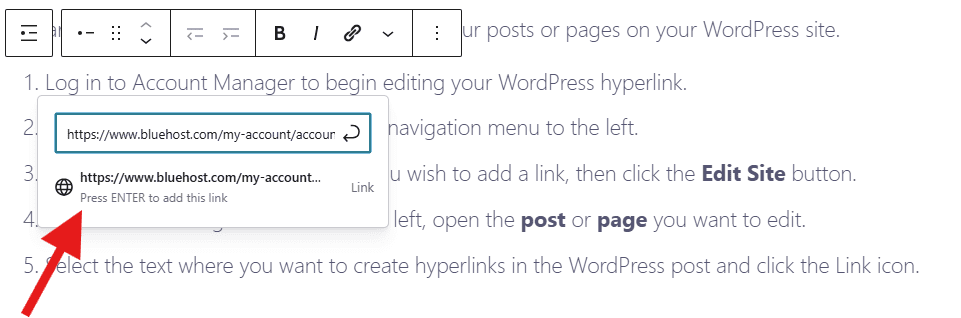
- Select the WordPress text you want to link in your post or page.
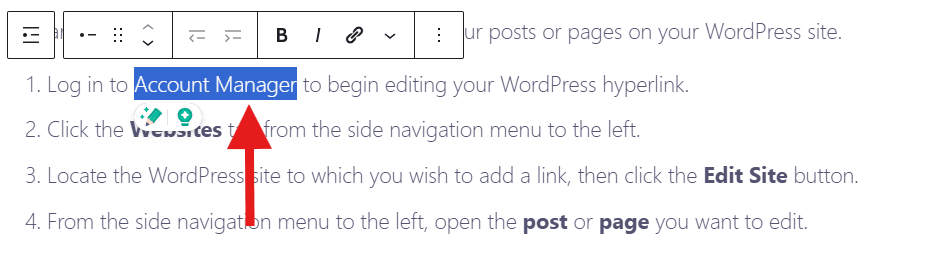
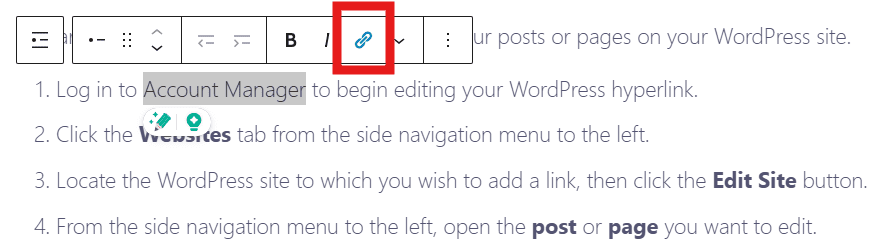
- Access the WordPress link tool by clicking the chain icon in the editor toolbar or using the keyboard shortcut Ctrl+K (Cmd+K on Mac) to add internal links.
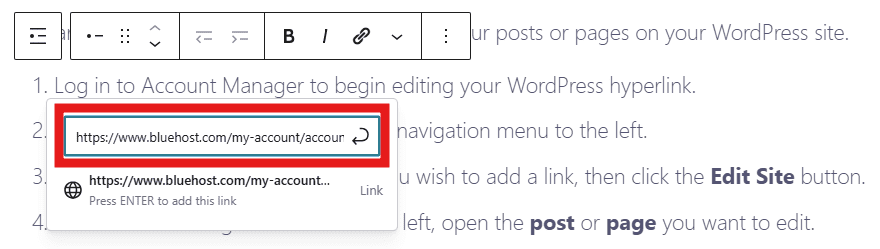
- Enter the internal link URL in WordPress or search by page title to find existing content.
- Access the link settings in WordPress and enable Open in new tab when adding internal links to enhance navigation.
- Press Enter or click Apply to create the link.
How to add internal links in WordPress using the classic editor
- Select the text you want to convert into a link.
- Click the link (chain) icon in the editor toolbar.
- Enter the internal page URL in WordPress to add your link.
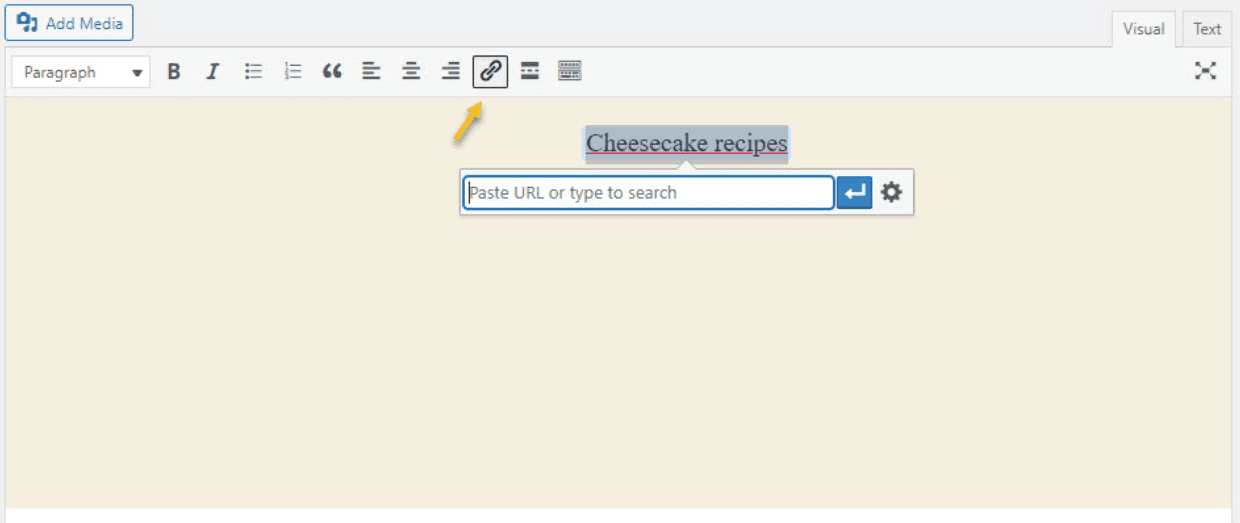
- Access the gear icon in WordPress link settings to configure the Open in new tab option for your internal link.
- Click Add Link to complete the process.
How to add internal links in WordPress menus for classic themes
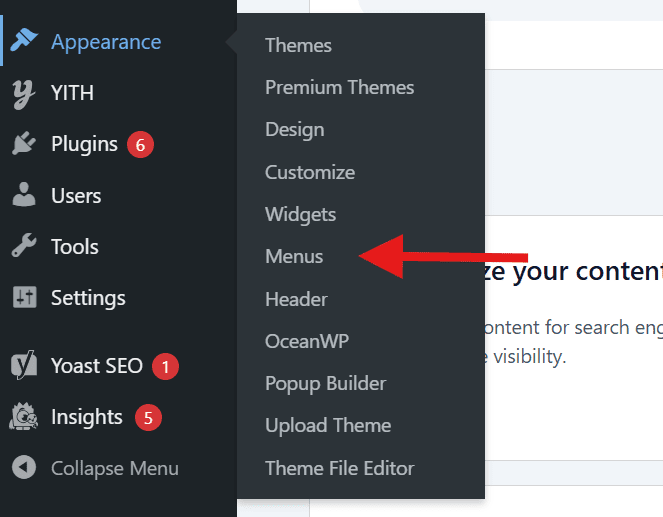
- Go to Appearance → Menus in the WordPress dashboard.
- Select pages, posts or add custom links.
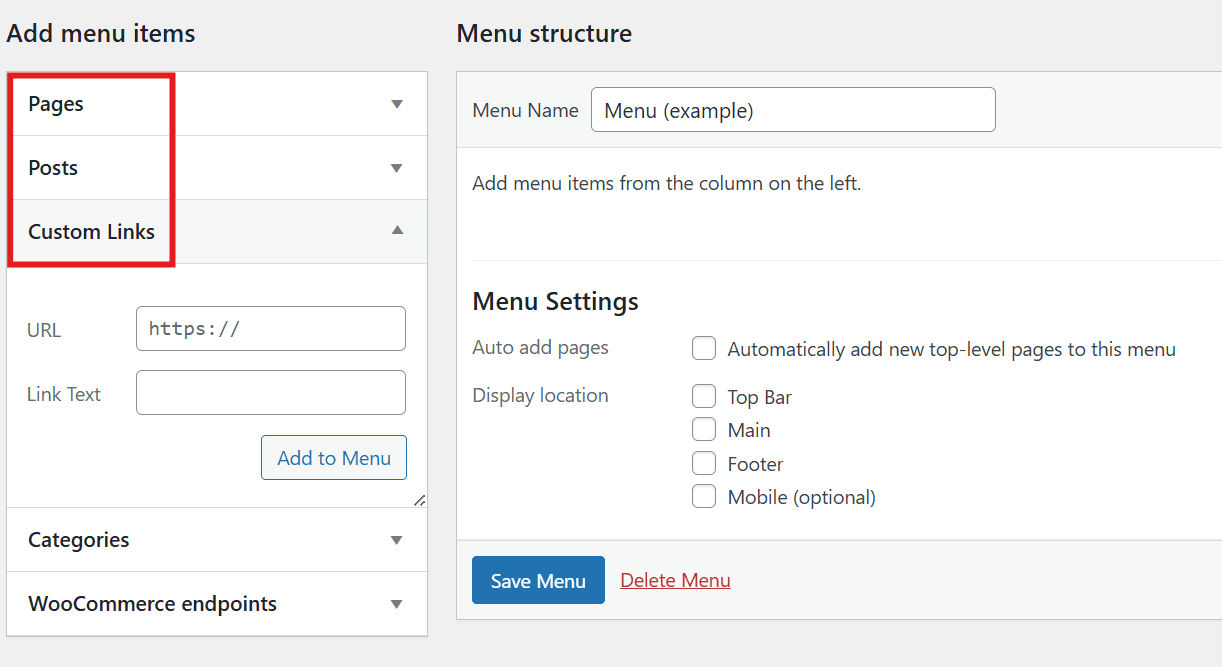
- Organize your WordPress menu structure by dragging and dropping items to add internal links in your preferred sequence
- Click Save Menu to finalize and apply your internal link changes in WordPress.
How to add internal links in WordPress menus for Block Themes (Alternative)
- Go to Appearance → Editor.
- Access Navigation settings in the WordPress editor to add internal links to your menu.
- Click Add (+) and choose pages or insert custom links.
- Click Save to apply and finalize your internal link addition in WordPress
Best practices for WordPress internal linking
Implementing effective internal linking goes beyond just knowing how to add internal links in WordPress. Here are the essential best practices:
1. Use descriptive anchor text
Your anchor text should clearly describe what readers will find when they click the link. Instead of using generic phrases like “click here” or “read more,” use specific, keyword-rich descriptions.
Example of good anchor text: “learn about WordPress hosting options” instead of “click here for more information.”
2. Link to relevant content only
Every internal link should provide genuine value to your readers. Link to content that naturally complements or expands on the current topic.
3. Maintain optimal link density
Aim for approximately one internal link per 100 words of content. This provides good coverage without overwhelming readers or appearing spammy to search engines.
4. Prioritize important pages
Link more frequently to your most important pages – those you want to rank higher in search results. This helps distribute page authority and signals their importance to search engines.
5. Create a logical linking hierarchy
Structure your internal links to flow from general topics to more specific ones. This creates a logical user journey and helps search engines understand your content organization.
6. Use varied anchor text
Avoid using identical anchor text for different pages. This can confuse search engines and dilute the effectiveness of your internal linking strategy.
Common internal linking mistakes to avoid
Understanding what not to do is just as important as learning proper techniques. Avoid these common mistakes when working on WordPress internal linking:
1. Over-optimizing anchor text
When you add internal links in WordPress, diversify your anchor text instead of repeating the same keyword-heavy phrases. Using varied, natural anchor text for your WordPress internal linking helps avoid appearing manipulative to search engines while maintaining relevance to your target pages.
2. Linking to irrelevant content
When learning how to add internal link in WordPress, remember that quality matters more than quantity. Only include internal links where they naturally enhance the reader’s experience and provide genuine value—forced or irrelevant links can harm both user experience and SEO performance.
3. Using too many links in a single post
While internal linking is beneficial, overdoing it can overwhelm readers and dilute link equity. Focus on quality over quantity.
4. Ignoring broken internal links
Regularly audit your site for broken internal links, which create poor user experiences and waste crawl budget.
5. Opening internal links in new tabs
Internal links should typically open in the same tab to maintain user flow within your website. Reserve new tabs for external links only.
WordPress plugins and tools for better internal linking
Several tools can help automate and improve your WordPress internal linking strategy:
1. Yoast SEO plugin
Yoast SEO helps website owners improve visibility in search engines by making SEO easier to manage directly inside WordPress. For internal linking, Yoast SEO Premium stands out with built-in tools that guide you toward a clearer site structure and better content connections.
With Yoast SEO Premium, you get:
- Internal linking suggestions that proactively recommend relevant pages to link to while you write, helping search engines understand your site structure
- Orphaned content detection through SEO Workouts, making it easier to find and fix pages that lack internal links
- Redirect management to automatically handle moved or deleted content and prevent 404 errors
- SEO and readability analysis that helps you create search-friendly, easy-to-read content
Together, these features help you build a stronger internal linking framework while supporting your overall SEO strategy.
2. Link Whisper
An AI-powered plugin that automatically suggests relevant internal linking opportunities as you write content.
3. Internal Link Juicer
This plugin automatically adds internal links based on keywords and phrases you specify, helping maintain consistent linking across your site.
4. Rank Math SEO
Another comprehensive SEO plugin that provides internal linking suggestions and tracks your linking performance.
Also read: SEO guide to ranking your WordPress site
How to add WordPress internal links automatically
When you add links to posts automatically in WordPress, it’s particularly beneficial for large content libraries that need to keep older articles connected to new ones.
Automation helps ensure every post receives relevant internal links, reducing the chance of orphaned content. However, it’s important to monitor these automated systems carefully—irrelevant or excessive linking can harm both user experience and your site’s SEO performance by diluting the value of each link.
When using a plugin to automate internal linking in WordPress, start by selecting the priority pages you want to promote most. Configure keyword rules or matching criteria within the plugin settings, then carefully review all suggested links before accepting them.
Verify each WordPress link’s relevance to the surrounding post content, ensure you’re not using duplicate anchor text for different destination URLs and confirm all internal links remain dofollow and open in the same tab when you add link to post.
Before publishing, follow this quick checklist:
- Confirm all link destinations are correct
- Check spacing—avoid clustering multiple links too closely; maintain natural placement
- Run a spot-check for broken links after making changes to ensure functionality
Measuring your internal linking success
Once you know how to add internal links in WordPress and implement your linking strategy, monitor key performance metrics to evaluate how effectively your internal links. This helps you improve site navigation, SEO rankings and user engagement across your WordPress website
- Page views per session: Monitoring this metric helps evaluate whether your WordPress internal linking strategy is successfully guiding users to explore additional content on your site
- Average session duration: Strategic internal linking in WordPress guides visitors through related content, increasing time on site
- Bounce rate: Strategic internal linking should reduce single-page visits
- WordPress internal linking performance tracking: Monitor ranking improvements with SEO tools like Ahrefs or SEMrush to measure page authority gains
- Crawl efficiency: Monitor how search engines crawl your WordPress internal links through Google Search Console to optimize site structure
Advanced internal linking strategies
Once you’ve mastered the basics of how to add links in WordPress, consider these advanced techniques:
1. Topic clusters and pillar content
Build comprehensive WordPress pillar pages on broad topics and strategically link them to detailed cluster content covering specific subtopics, showing readers exactly how to add internal links in WordPress to strengthen your site structure.
2. Strategic homepage linking
Since your homepage carries the highest authority on your site, learning how to add internal links in WordPress from this strategic page helps direct visitors efficiently to your most important content and drives better engagement across your website.
3. Category and tag page optimization
When learning how to add internal links in WordPress effectively, don’t overlook category and tag pages – these can serve as powerful hub pages that strategically link to related content and strengthen your site’s internal linking structure.
4. Internal link building campaigns
Regularly audit and update your existing WordPress posts by adding internal links to your latest related content—this ongoing practice for how to add internal link in WordPress ensures your site’s linking architecture stays current and helps distribute authority to newer pages.
Also read: Our beginner-friendly WordPress tutorial
Why reliable WordPress hosting matters for internal linking
Learning how to add internal link in WordPress will help improve your user engagement and SEO — but your internal linking strategy becomes even more effective when your website is hosted on reliable WordPress hosting. Strong hosting ensures website speed improvements, consistent uptime and smooth navigation, all of which support better user experience and search engine crawling.
Bluehost WordPress hosting is a popular choice among WordPress users and is officially recommended by WordPress.org, reflecting its compatibility and long-standing support for the WordPress platform.
Here’s how dependable hosting like Bluehost supports your internal linking and overall site performance:
- Official WordPress recommendation: Bluehost is listed on WordPress.org as a recommended hosting provider, highlighting its reliability and WordPress compatibility.
- Easy WordPress setup: You can use one-click WordPress installation to launch your site quickly and start publishing content with internal links right away.
- Performance-focused infrastructure: Bluehost uses SSD storage and performance optimizations to improve page load times, helping visitors navigate your site more smoothly.
- Essential security and support: You get a free SSL certificate and access to 24/7 customer support, helping keep your site secure and your internal links consistently accessible.
- Beginner-friendly management: You can manage your WordPress site easily through a user-friendly dashboard, making content updates and internal linking simple — even if you’re new to WordPress.
When you combine a strong internal linking strategy with our dependable WordPress hosting, you create a site that’s easier to navigate, more reliable for users and better positioned for long-term SEO performance. If you’re ready to strengthen your site’s foundation, the next step is simple — check out our WordPress hosting today and choose the plan that fits your website goals.
Final thoughts
Now that you understand how to add internal links in WordPress, it’s time to put this knowledge into practice. Start by auditing your existing content for linking opportunities and gradually implement these best practices across your site.
Internal linking is an ongoing process, not a one-time task. As you create new content, connect it with existing pages to build a stronger, more cohesive website that both users and search engines will appreciate.
Effective internal linking, combined with reliable WordPress hosting, forms the foundation of a successful website. Fast loading speeds and well-connected content create the optimal environment for user engagement and search engine success.
Start implementing these strategies today to see improvements in user engagement, search rankings and overall performance. Your investment in mastering WordPress internal linking will deliver increased traffic and better user experiences for years to come.
Ready to take your WordPress site to the next level? Get started with Bluehost WordPress hosting for optimized performance, expert support and seamless integration with all your internal linking strategies.
FAQs
To add an internal link in WordPress, open a post or page, highlight the text you want to link, click the link (chain) icon and paste the URL of another page on your website. You can also search for an existing page by typing its title, then press Enter or click Apply to add the link.
The easiest way to add links in WordPress is using the built-in link tool in the block editor. Simply select the text you want to link, press Ctrl+K (or Cmd+K on Mac) and either paste a URL or type to search for existing pages and posts on your site. This method works for both internal and external links.
Adding links in WordPress is straightforward using the block editor. Simply highlight your text, click the link icon in the toolbar, paste your URL and publish. This simple method for how to add links in WordPress works for both internal navigation and external references, requiring zero coding skills to enhance your content.
When learning how to add links in WordPress, aim for 2-5 relevant internal links per 1,000 words of content to enhance navigation and SEO without overwhelming readers. Focus on quality and relevance rather than hitting a specific number, ensuring each link adds genuine value to your WordPress site.
Place internal links naturally throughout your content where they provide value to readers. The best locations include within the introduction to relevant foundational content, in the body when referencing related topics and near the conclusion to guide readers to next steps. Avoid clustering multiple links too closely together.
No, internal links should typically open in the same tab to maintain user flow within your website. Only external links should open in new tabs.
<span data-mce-annotation=”gutenberg” data-annotation-uid=”conv-1768997929562-274tc5m” class=”gutenberg-annotation”>Yes, excessive internal linking can appear spammy and overwhelm users. Follow the guideline of approximately one link per 100 words of content.</span>
To edit or remove an existing link in WordPress, click on the linked text to reveal the link toolbar. You can click the edit icon to change the URL or click the unlink icon to remove the link entirely while keeping the text. You can also select the linked text and press Ctrl+K (or Cmd+K) to modify it.
Use plugins like Broken Link Checker to identify broken internal links, then either update the URLs or remove the broken links entirely.
When adding links in WordPress, keep internal links as dofollow to help search engines distribute authority across your site pages. Reserve nofollow attributes only for special cases like <a href=”https://www.bluehost.com/blog/how-to-craft-the-ultimate-user-generated-content-marketing-strategy-to-increase-brand-loyalty/” target=”_blank” title=”What Is User-Generated Content? + Tips for UGC Marketing”>user-generated content</a> or untrusted external sources.

Write A Comment