 ChatGPT,
 Claude,
 Gemini,
 Grok — all four for
Key highlights
- Learn how to identify which database connection fix to try first based on the issue affecting your WordPress site.
- Understand how to safely check credentials, repair database tables, replace core files and restore a working backup.
- Know when server downtime, resource limits or hosting-side issues may be disrupting your database connection.
- Explore practical maintenance habits that can reduce recurring connection problems and make recovery easier.
- Uncover how hosting tools and support can help you troubleshoot database issues and recover your WordPress site.
Your WordPress site was working, and now all you see is “Error establishing a database connection.” It can look serious, but the message simply means WordPress cannot connect to the MySQL or MariaDB database it needs to load your website.
Since your database stores important site information such as posts, pages, settings and user data, the connection issue can prevent your site from displaying properly.
The error is commonly caused by incorrect database credentials, an incorrect database host, database corruption or a temporary database server issue. Less commonly, damaged WordPress core files may also contribute to the problem. The good news is that many of these problems can be identified and fixed without rebuilding your website.
In this guide, we’ll start with the quickest checks you can make, then walk you through each troubleshooting step in detail.
Quick overview: How to fix the error establishing a database connection
If WordPress cannot connect to its database, start with the simplest checks before making changes to your site files or database. The table below can help you identify which troubleshooting step to try first.
| Quick fix | When to check it | What to do |
| Check database credentials | The error appeared after a migration, password change or database update | Verify the database name, username and password in your wp-config.php file |
| Verify the database host | Your credentials are correct but WordPress still cannot connect | Confirm that the DB_HOST value in wp-config.php is correct |
| Check database or server availability | Your credentials and DB_HOST are correct but the error continues or appears intermittently | Check whether the database server is available and review hosting resource usage |
| Repair the WordPress database | Database tables may be corrupted or /wp-admin/ reports that tables are unavailable | Use WordPress’s built-in database repair feature to check and repair the database |
| Restore a database backup | The issue started after a recent database change | Restore a recent working database backup |
| Replace WordPress core files | Database, credentials and server checks are clear but WordPress files may be damaged | Replace the core files with a clean copy while keeping your site content and configuration intact |
| Contact your hosting provider | The error continues after the previous checks | Ask your hosting provider to check for supported hosting or database service issues |
Use the table to narrow down the likely cause, then follow the detailed fixes below to check each possibility and make the right changes safely.
How to fix “error establishing a database connection” in WordPress
Several issues can break the connection between WordPress and its database. The best approach is to rule out each possibility one at a time.
Before making changes to your database or WordPress files, create a recent backup of your website. This gives you a restore point if something goes wrong while troubleshooting.
1. Check your database login credentials
Incorrect database credentials are one of the first things to check when WordPress cannot connect to its database. This can happen after a site migration, password change or database update.
WordPress stores its database connection details in the wp-config.php file. For this step, focus on these three values:
- Database name
(DB_NAME) - Database username
(DB_USER) - Database password
(DB_PASSWORD)
Open your website’s File Manager and locate the wp-config.php file in your WordPress installation folder.
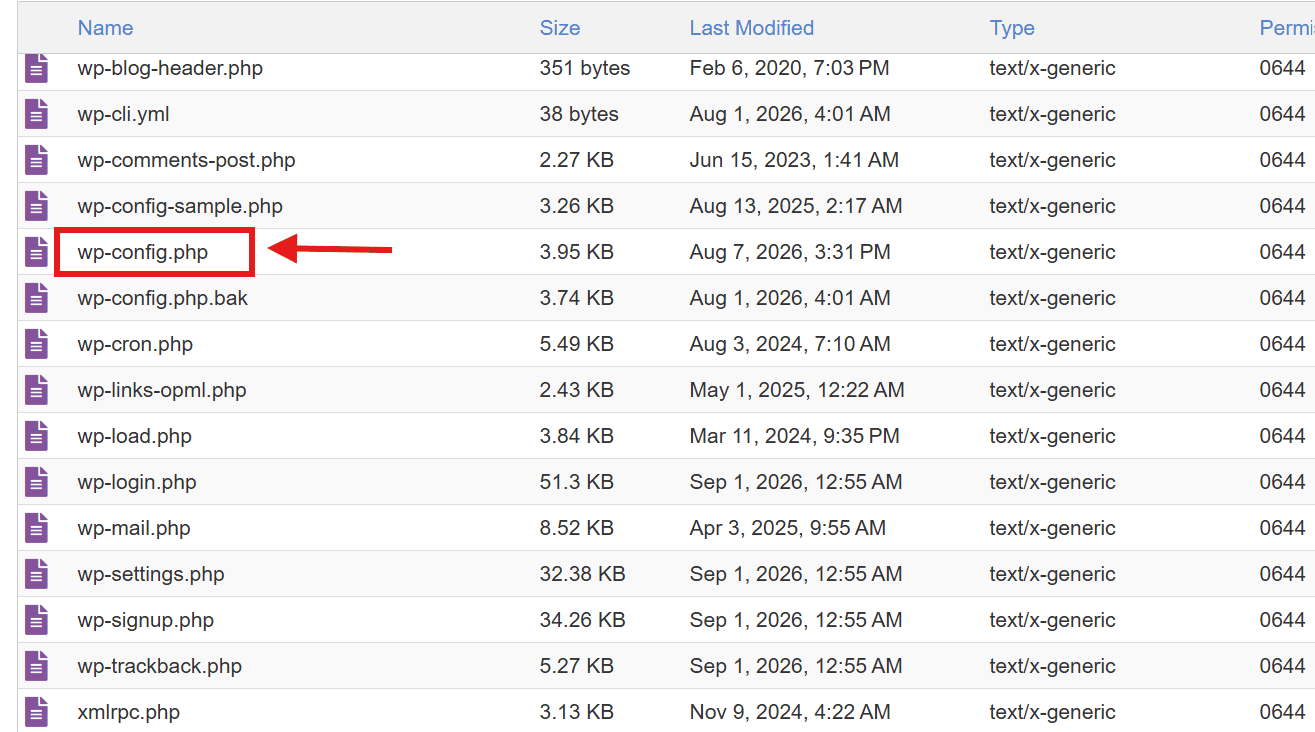
If you’re using Bluehost, go to Websites → Manage Site → Files & Access to open File Manager.
In the wp-config.php file, look for these database settings:
define( 'DB_NAME', 'database_name_here' );
define( 'DB_USER', 'username_here' );
define( 'DB_PASSWORD', 'password_here' );
define( 'DB_HOST', 'localhost' );
Compare the database name and username with the details in your hosting account. Bluehost users can check these under Websites → Manage Site → Overview → Databases. Here, you can also confirm that the database user is linked to the correct database and has permission to access it.
If the database name or username is incorrect, update the value carefully and save the file. In case the database password was recently changed, make sure the same password is reflected in wp-config.php.
Reload your website after saving the changes. If the credentials are correct and the error remains, verify the database host setting.
Also read: How to find WordPress database?
2. Check if your database host information is correct
If your database credentials are correct but WordPress still cannot connect, check the DB_HOST value in your wp-config.php file. This tells WordPress where to find the database server.
Look for this line:
define( 'DB_HOST', 'localhost' );For Bluehost-hosted WordPress sites, the database host is typically set to localhost. If you recently migrated your website or changed its database configuration, confirm that the value has not been altered.
If you use another hosting provider, the database host may be different. Check with your host before changing the value.
Update DB_HOST only if it is incorrect, save the file and reload your website. If WordPress still cannot connect, check whether the database server itself is available before changing your database or WordPress files.
3. Check for database server downtime or resource issues
If your WordPress settings are correct, the problem may be coming from the hosting environment rather than your site.
On shared hosting, database availability can sometimes be affected by temporary server load, maintenance or account-level resource limits. In these situations, a database connection error on shared hosting may appear even when your database credentials and WordPress files are correct.
Check for:
- Database reachability: Try opening phpMyAdmin through your hosting account. If you can access your database there, the database service is likely available. If you cannot access it, check with your hosting provider.
- Service interruptions: Look for maintenance notices or server-status alerts from your hosting provider.
- Resource usage: Review your database usage and account limits in your hosting dashboard.
- Sudden errors: If the problem appeared without any recent WordPress or database changes, it may point to a temporary hosting-side issue.
If the database server is available and the error remains, check whether corrupted database tables are preventing WordPress from loading correctly.
4. Repair your WordPress database
If your credentials, database host and server availability are all correct, corrupted database tables could be preventing WordPress from working properly. WordPress includes a built-in repair tool that can check and repair these tables.
Before running the repair tool, check both your public website and /wp-admin/. If the front end shows the connection error while /wp-admin/ reports that one or more database tables are unavailable or need repair, database corruption is a more likely cause.
To use it:
1. Open your wp-config.php file.
2. Add the following line before the line that says ‘That’s all, stop editing! Happy publishing.’
define( 'WP_ALLOW_REPAIR', true );
/* That's all, stop editing! Happy publishing. */
3. Save the file and visit: https://[yourdomain].com/wp-admin/maint/repair.php
4. Once the page loads, you’ll see two options. Select ‘Repair Database’. WordPress will check your database tables and attempt to repair any problems it finds.
You do not need to log in to use the repair page while this setting is enabled. For security, remove the WP_ALLOW_REPAIR line from wp-config.php once the repair is complete.
Reload your website after the repair. If the error remains and it began after a recent database change, restoring a known working backup may be the safer recovery option.
5. Restore your WordPress database from a backup
If the error started after a recent database change or repair did not work, restore a known working backup.
Use a backup created before the error appeared. Keep in mind that restoring an older database may overwrite newer posts, orders, comments or form submissions.
If you have an .sql backup, import it through phpMyAdmin. Bluehost users can access phpMyAdmin from Websites → Manage Site → Overview → phpMyAdmin.
After the restore is complete, reload your website. If the error remains and the credentials, database host and server are all working correctly, corrupted WordPress core files can be checked as a later fallback.
Also read: How to Import or Export a MySQL Database using phpMyAdmin
6. Replace corrupted WordPress core files
WordPress core-file corruption is a less common cause of this error. If you’ve already ruled out incorrect credentials, database host issues, server availability and database corruption, replacing the core files can help identify a broader WordPress file issue. Core files can become damaged after a failed update or security incident.
To replace the core files safely:
- Download a fresh copy of WordPress from WordPress.org. Use the same WordPress version your site is currently running unless you intend to update it.
- Unzip the downloaded file.
- Open your website files using File Manager, FTP or SFTP.
- Replace the existing
wp-adminandwp-includesfolders with the fresh copies. - Replace the WordPress core files in the root directory with the new copies.
Do not delete or replace the existing wp-content folder or wp-config.php file. These contain your themes, plugins, uploads and site-specific database settings.
Once the files are replaced, reload your website. If the connection error still appears after all of these checks, your hosting provider can help confirm whether a supported hosting-side issue is involved.
Also read: How to Reinstall WordPress Core Files Safely & Fix Your Site
7. Contact your hosting provider
If none of the fixes above restore the connection, contact your hosting provider. They can help confirm whether there is a known hosting or database service issue and guide you to the appropriate troubleshooting resources.
Share the error message and the steps you have already tried. This gives the support team useful context and helps avoid repeating basic checks.
Once you’ve worked through the fixes, it helps to understand how to prevent the connection failure from happening again. A few preventive steps can help lower that risk.
How to prevent WordPress database connection errors
A few simple maintenance habits can reduce avoidable database connection problems. They can also make recovery easier if an issue occurs.
- Keep regular backups: Maintain recent backups of your website and database so you can restore a working version when needed.
- Keep WordPress updated: Regularly update WordPress core, plugins and themes to maintain compatibility and site stability.
- Be careful with database changes: Back up your site before changing database credentials, migrating your website or editing
wp-config.php. - Monitor your hosting resources: Watch for recurring resource-limit warnings, slow database performance or unexpected spikes in usage.
- Remove unnecessary plugins: Outdated or poorly maintained plugins can add unnecessary database load and contribute to database performance issues.
- Investigate recurring errors: If the connection error keeps returning, identify the underlying cause instead of relying on temporary fixes.
These preventive steps can help you catch potential problems earlier and recover faster if the database connection fails again.
How Bluehost helps with database connection errors
A database connection error can come from your WordPress configuration, database or hosting environment. If you host your website with us, you get tools to troubleshoot the issue and recover your site without managing everything separately.
- Find and manage database settings faster: Use Bluehost Portal to access your WordPress files and open phpMyAdmin to review, import or manage your database.
- Recover from problematic database changes: If corruption or a recent change caused the error, you can restore a working database backup using phpMyAdmin or the backup options available with your plan.
- Keep an eye on database usage: Use our hosting dashboard to monitor database usage and account limits. This can help you spot resource-related problems before they affect your site.
- Get guidance on hosting-side issues: If your WordPress settings look correct, our support team can help with supported hosting issues or direct you to the right troubleshooting resources for further diagnosis.
- Seek troubleshooting help 24/7: Connect with our live chat support when the usual WordPress fixes do not restore the database connection.
Together, these tools give you a clearer path from identifying the problem to restoring your database connection.
Final thoughts
A database connection error can take your WordPress site offline, but a clear troubleshooting process can make the problem easier to identify and resolve. Having reliable backups, site management tools and expert support also makes recovery less stressful when technical issues arise.
With Bluehost WordPress Hosting, we bring the tools and support you need to manage your WordPress site in one place. This gives you a more reliable setup for maintaining your site and responding when something goes wrong.
Ready to give your WordPress site the hosting and support it needs? Explore Bluehost WordPress Hosting.
FAQs
The error usually occurs when WordPress cannot reach or authenticate with its database. Common causes include incorrect credentials, an incorrect DB_HOST, database server downtime, resource limits or corrupted database tables. Damaged core files are a less common cause.
If your database credentials are correct, verify the DB_HOST value in wp-config.php and confirm the database server is available. If both are correct, investigate corrupted tables, damaged core files or hosting resource limits.
Yes. A database connection error on shared hosting can be temporary if the server is undergoing maintenance, experiencing heavy load or reaching resource limits. If it recurs, ask your hosting provider to investigate.
Usually, no. Themes and most plugins are not direct causes of this error. If it started after a plugin change, disable that plugin and test your site again. Also check for plugins creating unusually high database activity.
Yes. The repair tool checks and fixes corrupted database tables that can stop WordPress from reading site data correctly. Enable WP_ALLOW_REPAIR only while using it, then remove the setting immediately afterward.

Write A Comment