 ChatGPT,
 Claude,
 Gemini,
 Grok — all four for
Key highlights
- Explore 10 free and paid WordPress caching plugins, with the key features, pros and cons of each.
- Learn which caching plugin fits your site, whether you need simple page caching, Core Web Vitals tuning or advanced control.
- Understand how to choose a plugin by checking hosting compatibility, setup effort and WooCommerce support.
- Know when you don’t need a caching plugin at all, and how duplicate caching can cause conflicts.
- Uncover how built-in caching speeds up your WordPress site without extra plugins.
A slow website can frustrate visitors before they even get a chance to explore your content. But speeding up your WordPress site doesn’t always require technical expertise or expensive upgrades.
Sometimes, the right caching plugin can make a noticeable difference.
The challenge? There are dozens of WordPress caching plugins, each offering different features, pricing and compatibility requirements. Some handle basic page caching, while others include image optimization, database cleanup and advanced performance tools.
So, which one should you choose?
In this guide, we’ll compare the 10 best WordPress caching plugins, including free and premium options, to help you find the right fit for your website.
Before installing one, check whether your hosting provider already offers built-in caching. We manage caching automatically at Bluehost and recommend avoiding third-party caching plugins that could interfere with our built-in caching setup.
Best WordPress caching plugins at a glance
Not every WordPress website needs the same caching setup. A personal blog may only need basic page caching, while an online store requires careful handling of dynamic content such as shopping carts and checkout pages.
Here’s a quick comparison of the best WordPress cache plugins and what they offer.
| Plugin | Best for | Free or paid | Key features |
| 1. WP Rocket | Easy premium caching | Paid | Page caching, cache preloading, lazy loading, CSS and JavaScript optimization |
| 2. LiteSpeed Cache | LiteSpeed-powered websites | Free | Server-level caching, image optimization, object cache integration |
| 3. WP Fastest Cache | Beginners on a budget | Freemium | Page caching, cache preloading, minification, CDN integration |
| 4. W3 Total Cache | Advanced users | Freemium | Page, browser, database and object caching |
| 5. FlyingPress | Core Web Vitals optimization | Paid | Page caching, unused CSS optimization, script delay, lazy loading |
| 6. WP Super Cache | Simple page caching | Free | Static HTML caching, cache preloading, CDN support |
| 7. WP-Optimize | Caching and database cleanup | Freemium | Page caching, database optimization, image compression |
| 8. Cache Enabler | Lightweight websites | Free | Static HTML caching, automatic cache clearing, WebP support |
| 9. Hummingbird | Performance monitoring and optimization | Freemium | Page caching, performance reports, asset optimization |
| 10. NitroPack | All-in-one performance optimization | Freemium | Caching, CDN, image optimization, script optimization |
Note: Available features depend on the plugin version, subscription and hosting environment. Some optimization features require additional configuration. Before choosing a plugin, confirm that your hosting provider supports third-party caching.
10 best WordPress caching plugins in 2026
The best caching plugin for WordPress depends on what your website needs and how much control you want over its performance.
Let’s look at what makes each option worth considering, along with its limitations.
1. WP Rocket: Best premium WordPress caching plugin
WP Rocket is a premium WordPress caching plugin that automatically enables core performance features with minimal configuration. It’s a good choice for website owners who want faster loading without managing complex caching settings.
Key features:
- Page caching to serve pre-generated website content.
- Cache preloading to prepare pages before visitors request them.
- Lazy loading for images, videos and iframes.
- CSS and JavaScript optimization, including options to delay JavaScript execution.
- Automatic exclusion of common WooCommerce cart, checkout and account pages.
Pros:
- Beginner-friendly interface with automated caching.
- Combines caching with several performance optimization tools.
- Works with many WordPress themes, plugins and hosting environments.
Cons:
- No permanently free version.
- Some optimization settings may require testing to avoid layout or functionality issues.
- Certain features may overlap with existing hosting optimizations.
Pricing: Paid licenses based on the number of websites. Check the official website for current trial availability and licensing terms.
Who should choose WP Rocket?
WP Rocket is worth considering if you want a premium WordPress cache plugin that handles common performance improvements without extensive manual setup.
2. LiteSpeed Cache: Best for LiteSpeed-powered websites
LiteSpeed Cache is a free WordPress performance plugin offering server-level caching and optimization tools. Its full-page caching works with compatible LiteSpeed infrastructure or QUIC.cloud, while several other optimization features work across different servers.
Key features:
- Server-level full-page caching on compatible infrastructure.
- CSS, JavaScript and HTML minification.
- Image optimization and lazy loading.
- Object caching support through Redis, Memcached or compatible services.
- Integration with QUIC.cloud CDN.
- WooCommerce-compatible caching controls.
Pros:
- Free plugin with extensive performance features.
- Deep integration with LiteSpeed caching technology.
- Offers caching, image optimization and CDN-related features in one plugin.
Cons:
- Full-page caching requires compatible infrastructure.
- The large number of settings can feel overwhelming for beginners.
- Incorrect configuration may cause compatibility or display issues.
Pricing: Free plugin. Certain external services or server configurations may involve additional costs.
Who should choose LiteSpeed Cache?
LiteSpeed Cache is a good option if your website runs on compatible LiteSpeed infrastructure and you want detailed control over caching and optimization. Check your server compatibility before installing it. If your WordPress website runs on Bluehost shared hosting, we recommend avoiding LiteSpeed Cache because it may conflict with our built-in caching.
3. WP Fastest Cache: Best free caching plugin for beginners
WP Fastest Cache simplifies WordPress page caching by creating static HTML files that reduce repeated server processing. Its straightforward dashboard makes it a practical option for beginners who want basic caching without complicated setup.
Key features:
- Static HTML page caching.
- Cache preloading and scheduled cache clearing.
- HTML and CSS minification.
- Browser caching and GZIP compression controls.
- CDN integration, including Cloudflare support.
- Options to exclude specific pages or users from caching.
Pros:
- Simple interface suitable for beginners.
- Useful caching features in the free version.
- Supports more advanced configurations through its premium version.
Cons:
- Some optimization features require a paid upgrade.
- Advanced settings may need manual testing.
- May conflict with hosting-level caching if both systems manage the same content.
Pricing: Free version available, with premium upgrades.
Who should choose WP Fastest Cache?
If you’re looking for a free WordPress cache plugin that doesn’t require extensive configuration, WP Fastest Cache is a practical starting point. It’s especially suitable for smaller websites that need basic caching and straightforward controls. For Bluehost shared hosting users, we advise against installing WP Fastest Cache because it may interfere with our existing caching system.
4. W3 Total Cache: Best for advanced caching customization
W3 Total Cache offers extensive control over page, browser, database and object caching. It’s designed for developers and experienced WordPress users who want to customize how different website resources are cached.
Key features:
- Page caching to reduce repeated page generation.
- Browser caching for static website resources.
- Database and object caching options.
- CSS, JavaScript and HTML minification.
- CDN integration.
- Additional performance features through W3 Total Cache Pro.
Pros:
- Extensive control over caching behavior.
- Supports different server configurations and caching methods.
- Free version includes several advanced features.
Cons:
- Configuration can be complicated for beginners.
- Incorrect settings may cause website errors or performance problems.
- Some advanced capabilities are available only in the Pro version.
Pricing: Free version available, with a paid Pro upgrade.
Who should choose W3 Total Cache?
W3 Total Cache is a good fit for developers and technically experienced users who need to customize caching at multiple levels. For beginners, a simpler plugin may be easier to manage. If you’re using Bluehost shared hosting, we don’t recommend W3 Total Cache because it may conflict with our built-in caching.
5. FlyingPress: Best for caching and Core Web Vitals optimization
FlyingPress combines WordPress page caching with tools for improving Core Web Vitals and loading performance. It focuses on optimizing scripts, stylesheets, images and other resources that can slow down a website.
Key features:
- Page caching and automatic cache preloading.
- Unused CSS optimization.
- JavaScript deferral and delayed execution.
- Lazy loading for images, videos and iframes.
- Font optimization and resource prioritization.
- Core Web Vitals tracking and performance-related tools.
Pros:
- Combines caching and broader performance optimization.
- Provides controls for common Core Web Vitals issues.
- Designed for users who prefer managing caching and performance settings without complicated setup.
Cons:
- Requires a paid subscription after the trial.
- Aggressive optimization settings may affect interactive website elements.
- Actual improvements depend on the site’s existing performance issues.
Pricing: Paid plans start at $59 per year for one website, with a 14-day trial that includes access to all features.
Who should choose FlyingPress?
FlyingPress is worth considering if your website needs more than basic page caching and you’re looking to address loading issues related to scripts, images and other resources.
6. WP Super Cache: Best for simple page caching
WP Super Cache is a free WordPress caching plugin developed by Automattic. It generates static HTML pages to reduce repeated PHP processing and database requests, making it a straightforward option for content-focused websites.
Key features:
- Static HTML page caching.
- Simple and Expert caching modes.
- Cache preloading.
- Automatic cleanup of expired cached files.
- CDN support.
- Controls for logged-in visitors and other dynamic content.
Pros:
- Free to use.
- Focused on reliable page caching.
- Suitable for blogs and content-heavy websites.
Cons:
- Fewer built-in optimization features than premium alternatives.
- Advanced caching modes require technical understanding.
- Does not replace dedicated image or database optimization tools.
Pricing: Free.
Who should choose WP Super Cache?
WP Super Cache is a sensible choice if your hosting environment supports third-party caching and you want a simple solution for caching WordPress pages. It’s particularly useful for blogs and informational websites with mostly static content. For websites on Bluehost shared hosting, we advise against using WP Super Cache because it may conflict with our built-in caching.
7. WP-Optimize: Best for caching and database optimization
WP-Optimize combines page caching with database cleanup, image compression and file optimization. It’s useful for website owners who want to handle several WordPress maintenance and performance tasks through one plugin.
Key features:
- Page caching and cache preloading.
- WordPress database cleanup and optimization.
- Image compression.
- CSS and JavaScript minification.
- GZIP compression support.
- Advanced optimization features in the premium version.
Pros:
- Combines caching with database maintenance.
- Free version includes useful optimization tools.
- Reduces the need for separate plugins for certain maintenance tasks.
Cons:
- Some advanced capabilities require a premium subscription.
- Back up your database before running a cleanup.
- Caching features may duplicate your hosting provider’s existing setup.
Pricing: Free version available, with premium plans.
Who should choose WP-Optimize?
WP-Optimize is a good option if you want to combine basic caching with database cleanup and image optimization. If your host already manages caching, check whether you can use the other optimization features without enabling overlapping caching functions.
8. Cache Enabler: Best lightweight caching plugin
Cache Enabler is a free, lightweight WordPress caching plugin developed by KeyCDN. It generates static HTML files to reduce server processing and focuses on essential caching functionality rather than advanced optimization tools.
Key features:
- Static HTML page caching.
- Automatic and manual cache clearing.
- Cache expiration settings.
- HTML minification.
- WebP image support.
- GZIP and Brotli pre-compression support.
Pros:
- Lightweight and relatively easy to configure.
- Free to use.
- Suitable for websites that need basic page caching.
Cons:
- Lacks advanced features available in broader performance suites.
- Does not provide built-in database optimization.
- Some features depend on server configuration and compatible image formats.
Pricing: Free.
Who should choose Cache Enabler?
Cache Enabler is worth considering if you prefer a lightweight WordPress cache plugin with minimal configuration. It works well for smaller blogs, portfolios and informational websites where straightforward page caching is the main requirement.
9. Hummingbird: Best for combined caching and performance optimization
Hummingbird by WPMU DEV combines caching, performance monitoring and asset optimization. It helps identify potential speed issues while providing tools to optimize how CSS, JavaScript and other website resources load.
Key features:
- Full-page and browser caching.
- Performance scans and recommendations.
- CSS and JavaScript minification.
- File compression and asset optimization.
- Font optimization.
- Additional CDN and advanced optimization features through Hummingbird Pro.
Pros:
- Combines caching and performance diagnostics.
- Free version provides several useful tools.
- Offers recommendations to help identify optimization opportunities.
Cons:
- Some advanced features require Hummingbird Pro.
- Certain optimization settings may require troubleshooting.
- Performance reporting does not guarantee faster loading without addressing the underlying issues.
Pricing: Free version available, with paid Pro features.
Who should choose Hummingbird?
Hummingbird is a useful option if you want to review WordPress performance and make caching and file optimization changes within the same plugin. It’s especially relevant for users who prefer guided performance recommendations.
10. NitroPack: Best for all-in-one website performance optimization
NitroPack is an all-in-one performance optimization service that combines caching, CDN delivery, image optimization and code optimization. It automates many performance tasks, making it suitable for website owners who prefer a managed approach.
Key features:
- Advanced page caching and cache management.
- CDN-based content delivery.
- Image compression and modern image formats.
- CSS and JavaScript optimization.
- Lazy loading and resource prioritization.
- Automated performance optimization workflows.
Pros:
- Combines multiple performance tools in one service.
- Automates many optimization tasks.
- Includes a limited free plan for smaller websites or testing.
Cons:
- The free plan includes up to 1,000 pageviews and 1GB of CDN bandwidth monthly.
- Paid plans increase costs as usage grows.
- Some optimized scripts or resources may require compatibility adjustments.
- Requires integration with NitroPack’s external service.
Pricing: Limited free plan available. Paid subscriptions vary according to traffic, features and CDN usage.
Who should choose NitroPack?
NitroPack is worth considering if you want an all-in-one optimization service and prefer automation over managing multiple performance plugins. It’s better suited to websites that can justify the subscription cost and need more than basic caching.
Now that we’ve explored the 10 best WordPress caching plugins, let’s look at the key factors to consider when choosing one for your website.
How to choose the best WordPress caching plugin
Choosing the best caching plugin for WordPress involves checking its features, compatibility with your hosting environment and ability to meet your website’s performance needs.
Here are five factors to consider before installing a plugin.
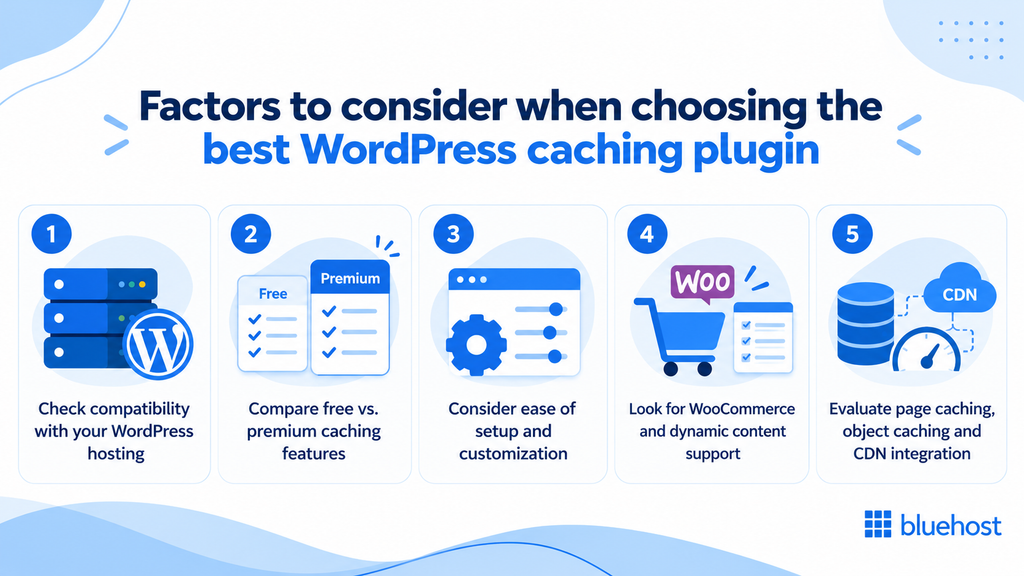
1. Check compatibility with your WordPress hosting
Some hosting providers already include page caching, object caching or CDN integration. Check what’s available before installing another plugin, as overlapping caching systems can cause conflicts. Also, confirm any server-specific requirements, especially for plugins like LiteSpeed Cache.
2. Compare free vs. premium caching features
Free plugins such as WP Super Cache and WP Fastest Cache can handle basic caching for smaller websites. Premium options like WP Rocket and FlyingPress offer additional optimization features and automation. Choose a plugin based on the features your website needs and your budget.
3. Consider ease of setup and customization
Beginners may prefer plugins with simple dashboards and minimal configuration, such as WP Fastest Cache. Advanced users might benefit from the detailed controls offered by W3 Total Cache. Choose a plugin you can comfortably configure and maintain.
4. Look for WooCommerce and dynamic content support
Online stores need caching that handles dynamic content correctly. Make sure your plugin supports WooCommerce and excludes customer-specific pages, including carts, checkout and account areas, from shared caching. Always test these pages after making changes.
5. Evaluate page caching, object caching and CDN integration
Page caching reduces repeated page generation, while object caching helps minimize database queries. Browser caching reuses downloaded files, and CDNs deliver content from locations closer to visitors. Check which features your host already provides before adding them through a plugin.
Before adding a caching plugin, it’s worth checking what your hosting provider already offers.
Do you need a WordPress caching plugin if your host provides caching?
Not always. If your hosting provider already includes caching, installing another plugin may be unnecessary.
Hosting-level caching can serve stored pages without requiring WordPress to regenerate the same content for every visitor. Some providers also include object caching and CDN integration to improve performance.
Adding a plugin that duplicates these functions may cause problems, including:
- Visitors seeing outdated content after website updates.
- Conflicting cache-clearing rules.
- Incorrectly cached personalized pages.
- Unexpected website behavior or unnecessary processing.
However, this doesn’t mean every performance plugin is incompatible with hosting-level caching. Tools that focus on image optimization, database maintenance or other non-caching functions may still be useful, provided they don’t conflict with your existing setup.
Before installing a WordPress caching plugin, check what your hosting provider already offers. You may already have the caching functionality your website needs.
How Bluehost helps optimize WordPress website performance
At Bluehost, we help your WordPress website load faster with built-in caching that works automatically. Our WordPress hosting combines multiple caching technologies to reduce server workload and improve content delivery without additional caching plugins.
Here’s what you get with our WordPress hosting:
- Page caching: It stores ready-to-load web pages to reduce repeated server processing and improve loading times.
- Redis object caching: Stores frequently accessed database information in memory to reduce database queries and improve responsiveness.
- Browser caching: Saves static files in visitors’ browsers, so they load faster on return visits.
- Cloudflare CDN integration: Delivers static content through geographically distributed servers to reduce loading delays.
- 99.99% uptime guarantee: Provides an uptime commitment for eligible shared hosting plans, helping support website reliability.
- 24/7 chat support: You get access to our support team through chat whenever you need assistance. Phone support is available on eligible plans and international calling charges may apply.
You can manage caching levels and clear outdated content through the Performance tab in our Bluehost Portal or through our Bluehost plugin. We handle caching automatically, so you don’t need additional caching plugins.
Our Cloud hosting includes always-on page caching, edge caching and persistent object caching. Features may vary by hosting plan.
Learn more about caching at Bluehost or explore our WordPress hosting plans to get started.
Final thoughts
A faster WordPress website creates a better experience for your visitors. Start by identifying what affects your site’s speed and prioritizing improvements that deliver measurable results.
With Bluehost WordPress hosting, you don’t have to worry about managing caching yourself. We handle it automatically, helping your website run smoothly while you focus on creating content, engaging visitors and growing your business.
Ready to spend less time managing your website and more time growing it? Explore Bluehost WordPress hosting and get started with built-in caching and reliable hosting.
FAQs
WP Rocket is a popular premium option for easy setup, while LiteSpeed Cache is well suited to compatible LiteSpeed environments. W3 Total Cache offers advanced customization, and WP Fastest Cache provides simpler controls. The best choice depends on your hosting infrastructure, budget and performance requirements. For websites on Bluehost shared hosting, we manage caching automatically and advise against installing third-party caching plugins that may conflict with our setup.
WP Super Cache and WP Fastest Cache are good free options for basic page caching. LiteSpeed Cache offers additional optimization features on compatible servers, while Cache Enabler is suitable for lightweight websites. Check your hosting compatibility before choosing. If you’re using Bluehost shared hosting, we recommend relying on our built-in caching instead of installing additional caching plugins.
Yes, caching plugins can improve website loading speed by serving stored content instead of generating pages repeatedly. However, the improvement depends on your hosting setup, theme, images and other website resources. Test performance before and after making changes using tools such as Google PageSpeed Insights.
WP Rocket and LiteSpeed Cache offer WooCommerce-related caching controls, but the right choice depends on your server and hosting configuration. Whichever solution you use, make sure cart, checkout and customer account pages are handled correctly so visitors don’t see another customer’s information. For WooCommerce websites on Bluehost shared hosting, we recommend using our built-in caching to avoid conflicts with third-party caching plugins.
Using two plugins that perform the same page-caching functions is generally not recommended. They can conflict, show outdated content or create unnecessary processing. You may be able to combine tools with different functions but check compatibility and avoid overlapping settings. If your hosting provider already manages caching, follow its recommendations before installing additional caching plugins.
If you use a caching plugin, look for a Clear Cache, Purge Cache or Delete Cache option in its settings. If your host manages caching, use the hosting dashboard instead. At Bluehost, we let you clear your website’s cache through our Bluehost plugin or the Performance tab in your hosting dashboard.

Write A Comment