


Key highlights
- Understand what website malware is and how malicious code affects sites, devices and computer systems.
- Learn how to protect website from malware and reduce major security threats across your web environment.
- Discover common malware types, including spyware, adware, viruses and Trojan horse programs.
- Find practical steps on how to prevent malware attacks and how to avoid malware long-term.
- Improve security for WordPress sites with built-in protection from Bluehost WordPress hosting.
Waking up to a hacked website is a nightmare.
Pages change, strange links appear and visitors see pop-up ads you never added.
Behind this, hidden malicious code may already be crawling through your files and computer systems. It can steal sensitive information, damage brand reputation and even lock you out of your own account.
The good news is that you can protect websites from malware with clear, consistent security habits.
In this guide, you will learn how to prevent malware attacks and how to avoid malware in simple steps. We will also cover security for WordPress sites so that you can keep visitors, data and resources safer long term.
Let’s learn and protect your website!
TL;DR – How to protect website from malware?
- Keep everything updated and use HTTPS, security headers and secure protocols like SFTP or SSH to help protect website from malware.
- Use strong unique passwords and 2FA, limit login attempts and regularly prune admin accounts to strengthen security for WordPress sites.
- Secure uploads with safe file types, block PHP in upload folders and avoid suspicious emails, downloads and plugins if you’re learning how to avoid malware.
- Use a WAF with bot protection and SiteLock for malware scans, DDoS protection, file integrity checks and traffic monitoring as part of how to prevent malware attacks.
- Set automated offsite backups, test restores, train your team and follow an incident response plan with secure Bluehost WordPress hosting.
What is website malware?
Website malware is any malicious code that infects your site, server or connected computer systems. It is designed to damage files, steal sensitive data or give hackers remote access to your resources.
In many cases, malware runs silently while it injects malicious content and creates hidden security issues. Search engines may flag infected sites, block visitors and warn users that your website is unsafe.
That is why learning how to protect a website from malware should be a top priority.
How does website malware work?
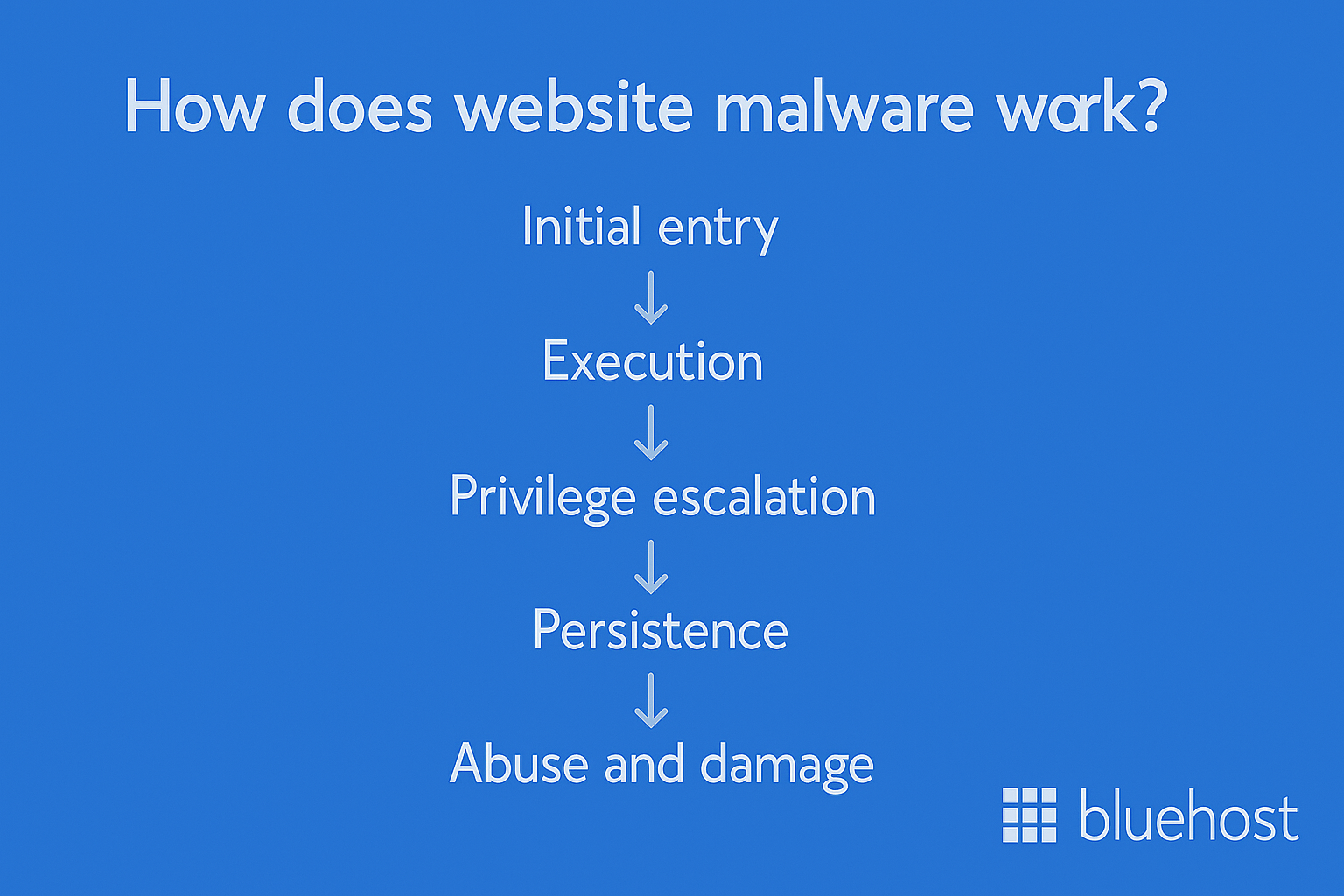
As previously stated, website malware works by sneaking malicious code into your site, then executing it on your server or device.
Attackers usually exploit outdated software, weak passwords or insecure configurations in your operating systems and plugins.
For better clarity, here’s how it typically behaves:
- Initial entry: Malware often enters through vulnerable plugins, themes, forms or unsafe downloads and email attachments.
- Execution: Once inside, the code runs on your website or computer systems and starts changing files or settings.
- Privilege escalation: It may create new admin accounts or gain remote access so hackers can control your site.
- Persistence: Malware hides in core files, database entries or browser toolbars to survive basic cleanup attempts.
- Abuse and damage: It can inject malicious content, steal sensitive information or redirect users to unfamiliar websites.
- Spread: Some threats move to other sites on the same host, increasing overall security risks and cyber threats.
Understanding this lifecycle helps you protect website from malware and plan how to prevent malware attacks in the future effectively.
Also read: How to Protect Your Site Against Hackers
What are the common types of website malware?
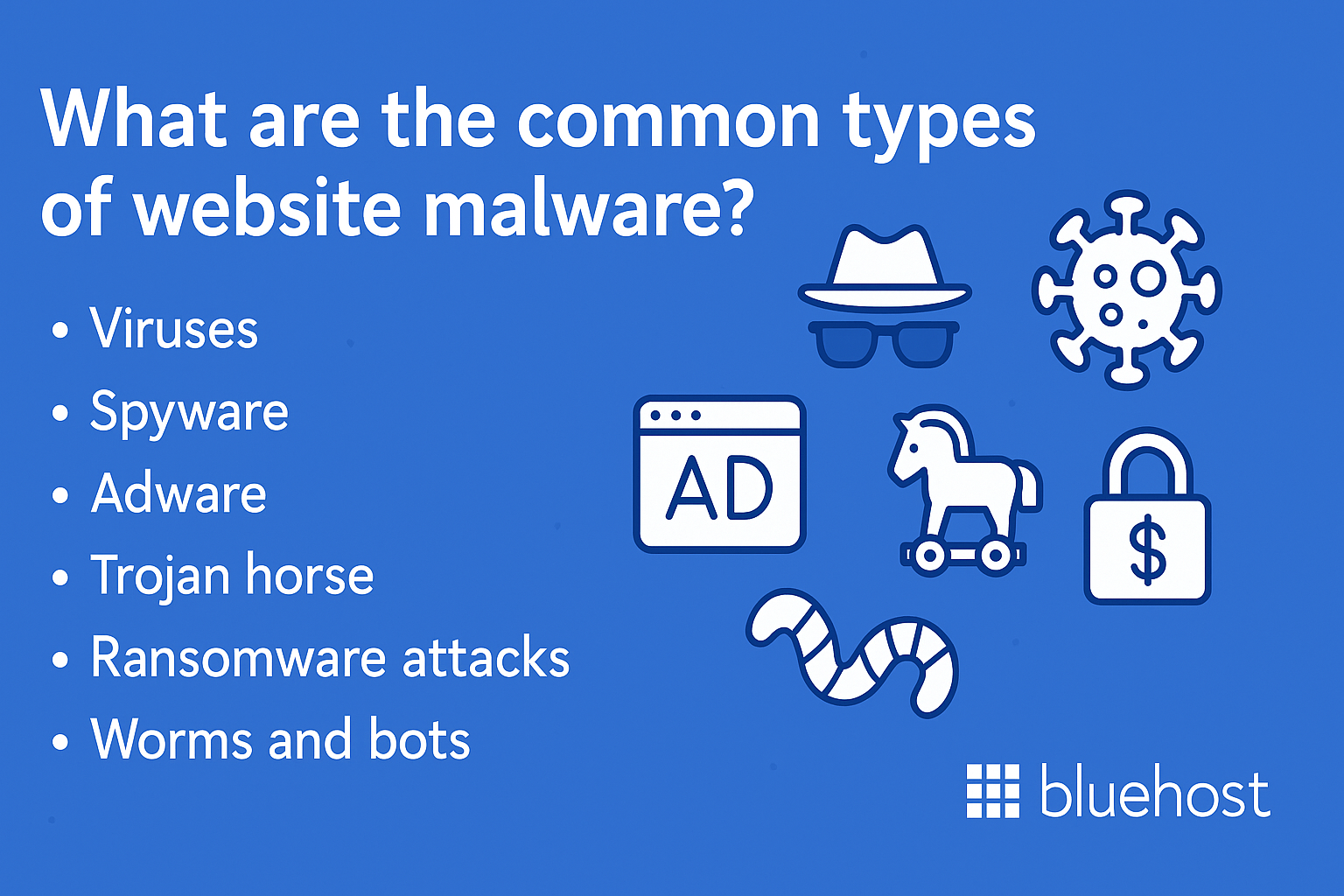
Website malware comes in several common forms, each causing different security threats and levels of harm.
Here are the main types you should know:
- Viruses: Attach to legitimate files, then spread across systems whenever infected programs run or users install software.
- Spyware: Secretly records activity, keystrokes and browsing, then sends sensitive data to hackers without users noticing.
- Adware: Floods visitors with pop-up ads, redirects and intrusive banners that damage trust and brand reputation.
- Trojan horse: Looks like safe software or resources but hides malicious code that grants deep system or account access.
- Ransomware attacks: Encrypt files and data, then demand payment before offering a decryption key or malware removal help.
- Worms and bots: Automatically scan the web for weak sites, spread quickly and may help launch DDoS attacks later.
Knowing these common types makes it easier to spot infections early and learn how to avoid malware on your own site.
Why protect your website from malware?
Malware can impact far more than your website.
It can damage files, expose sensitive information and hurt long-term brand reputation.
When you protect a website from malware early, you reduce cyber threats, security issues and costly recovery work. Strong protection also improves trust, search performance and overall stability across your systems, devices and resources.
Below are the key reasons this protection matters.
1. Protect user data, transactions and sensitive information
Malware often targets sensitive data stored in your website or connected computer systems.
Attackers may steal account credentials, payment details or private user information through malicious code or spyware. This exposure increases major security risks and affects how visitors trust your site.
A strong plan for how to prevent malware attacks protects every user interaction and reduces long-term harm.
Why this matters:
- Malware can capture logins and session data.
- Spyware may track browsing and collect sensitive information.
- Stolen data leads to serious security threats and compliance issues.
- Users lose trust when security warnings appear in search engines or browsers.
2. Prevent downtime, revenue loss and costly cleanups
A single infection can slow your website, delete files or overload systems.
Malware attacks often create spam pages, unfamiliar websites or hidden scripts that drain server resources. In severe cases, hackers gain remote access and cause widespread harm.
Removing malware later requires time, tools and professional support, increasing cleanup costs.
Why this matters:
- Downtime leads to fewer visitors and lost revenue.
- Malware removal takes longer when malware spreads across sites.
- Infected pages reduce search visibility and affect conversions.
- Backups become essential when malware deletes or corrupts data.
3. Avoid SEO penalties, blacklisting and long-term reputation damage
Search engines monitor hacked websites and warn users when malware appears.
If your site hosts malicious content, search engines may blacklist it. This severely affects rankings, traffic and overall brand reputation.
Learning how to avoid malware protects your site and keeps search performance stable.
Why this matters:
- Visitors see browser warnings and stop engaging with your site.
- Google may drop infected sites from search results.
- Spam pages harm domain trust and long-term authority.
- Clean, secure websites maintain better visibility and credibility.
Also read: What is Website Security – How to Protect Your Site
How do websites get infected with malware?
Websites become infected when attackers find weaknesses in software, settings or user behavior.
Malicious code enters through outdated systems, unsafe downloads, weak passwords or vulnerable plugins. Once inside, it spreads through files, themes or database entries and creates long-term security issues.
Understanding these entry points helps you protect website from malware and reduce future cyber threats.
Below are the most common infection paths.
1. Outdated CMS core, plugins, themes and vulnerable code
Old software is one of the biggest security risks for any site.
Attackers scan for outdated operating systems, themes and plugins with known vulnerabilities. Malware can then enter through insecure code and infect your computer systems or server files.
Common risks include:
- Missing security patches or latest versions
- Disabled automatic updates
- Unmaintained plugins with malicious content
- Vulnerable themes that allow remote access
Keeping your software updated is a major step in how to prevent malware attacks.
Also read: How to Fix Issues with WordPress Themes and Plugins
2. Weak passwords, stolen credentials and brute-force attacks
Weak passwords make it easy for hackers to access your account and install malicious code.
Stolen logins often come from phishing attacks, unsafe browsing or infected devices. Brute-force bots keep guessing passwords until they break into your dashboard.
Common risks include:
- Reused passwords across multiple sites
- No strong passwords or two-factor authentication
- Shared accounts with broad permissions
- Insecure admin URLs visible to bots
Stronger access practices improve security for WordPress sites and other platforms.
3. Malicious uploads, phishing emails and unsafe downloads
Unsafe files are a frequent source of malware infections.
Attackers trick users into downloading harmful software or opening suspicious attachments. Even one infected file can introduce spyware, adware or Trojan horse scripts.
Common risks include:
- ZIP files hiding malicious code
- Fake plugin downloads from unfamiliar websites
- Attachments that trigger pop-up ads or browser toolbars
- Phishing emails pretending to be trusted services
Avoiding unsafe downloads is a key part of how to avoid malware.
4. Misconfigurations and insecure default settings
Many websites run with default settings that expose unnecessary access points.
Attackers use these weak configurations to inject malicious content or modify files. These errors increase security threats and make malware removal harder.
Common risks include:
- Open directory permissions
- Unrestricted file uploads
- Disabled firewalls or scanning tools
- Default accounts with full access
Proper configuration helps protect website from malware and long-term harm.
5. Bad bots probing for vulnerabilities and automated abuse
Automated bots constantly scan the internet for weak sites.
They look for outdated software, exposed login pages and other security issues. Once they find a gap, bots deploy malicious code or prepare for DDoS attacks.
Most DDoS defenses operate at the network/CDN level before requests even hit your server.
Common risks include:
- Continuous login attempts
- Automated scans for vulnerable plugins
- Bot-generated spam pages
- Resource overload affecting visitors and performance
A firewall blocks these bots early and reduces overall cyber threats.
What are some warning signs that your website may be infected?
Malware infections often hide in the background, but certain changes can reveal real security issues.
You may notice strange behavior, unusual files or alerts from search engines and hosting providers. Identifying these early signs helps you protect website from malware before it spreads.
Here are the most common warning indicators.
1. Visual changes, defacement and strange on-site behavior
Malware can alter your site’s appearance or add malicious content without permission.
You may see odd pages, unwanted pop-up ads or redirects to unfamiliar websites. Some infections add hidden links, spam texts or suspicious browser toolbars that confuse visitors.
Watch for:
- Modified layouts or strange design elements
- New pages promoting harmful or unrelated content
- Unexpected banners, pop-up window elements or intrusive ads
- Deleted files or unusual changes within your theme folders
These signs often require immediate malware removal to prevent deeper harm.
2. Security warnings from browsers, Google and hosting providers
Browsers may block your site when they detect malicious code or phishing attacks.
Google can mark infected sites as unsafe and display prominent security warnings. Hosting providers may also alert you when scans detect malware or unusual access attempts.
Common alerts include:
- “This site may harm your computer” warnings
- Red security screens in Chrome or Firefox
- Search engines showing unsafe labels
- Notifications about infected files or suspicious processes
These alerts usually appear after malware attacks have already affected your systems.
3. Unusual traffic patterns, slow performance and spam pages
Malware often drains your resources and harms performance.
Your website may load slowly, crash often or show unfamiliar URLs created by attackers. Large spikes in traffic may signal bots preparing DDoS attacks or probing for weaknesses.
Look for:
- Sudden drops in visitors or engagement
- Spam pages indexed in search engines
- Increased server load or unstable systems
- Frequent redirects to unknown sites
These patterns suggest someone has gained remote access or added harmful scripts to your website.
Also read: How to Secure a Website in 2025: 18 Proven Ways to Stay Safe
How to check your website for malware?
Checking your website for malware is critical when you notice unusual files, security warnings or traffic changes.
A proper scan helps you detect malware early, prevent malware attacks and protect website from malware before serious damage occurs. You can use manual checks, online tools and automated scanners to find malicious code in your files, database and operating systems.
Here are the most reliable ways to check your site.
1. Manual checks of files, database and source code
Manual reviews help you find suspicious activity that automated scanners may overlook.
You can inspect core files, theme folders and plugin directories for malicious content. Attackers often hide harmful code inside PHP files or upload folders.
Check for:
- Recently changed or deleted files
- Unknown scripts inside theme or plugin folders
- Suspicious database entries or unfamiliar accounts
- Redirect scripts causing pop-up ads or strange browsing behavior
Using your task manager or file manager can reveal processes using unusual resources.
These checks help you understand how to avoid malware and reduce long-term security risks.
2. Scanning with free online malware tools
Online scanners review your website externally and quickly highlight infected pages.
They help detect viruses, spyware, defacement, spam pages and other common types of malware. These tools also show warnings for phishing attacks, unsafe downloads and attachments.
Benefits include:
- Fast detection of obvious security threats
- Alerts for malicious code indexed by search engines
- Simple scans without installing software
- Quick insight into basic malware issues
These scanners are helpful, but deeper infections often hide inside system files.
3. Automated scans with security plugins and professional services
Automated security plugins perform regular scans and detect malware across your files, database and server.
They search for malicious code, Trojan horse scripts, ransomware and adware that affect performance and user trust.
This is where SiteLock becomes extremely valuable.
Using cloud-based technology, SiteLock defends your website, visitors and reputation from malicious cyberattacks. It performs daily scans for threats, removes any malware it finds and uses automatic monitoring to keep your site functioning and visitor-friendly.
With features like malware scans and removals, blacklist monitoring, the SiteLock Trust Seal, a web application firewall with CDN and comprehensive site checkups, you get a real-time view of your site’s health and can act quickly when issues appear.
Moreover, Bluehost WordPress hosting includes built-in security features such as free malware scanning, a web application firewall and DDoS protection on all WordPress plans to secure your website from the core.
Why automated scans matter:
- They detect hidden malware inside system files
- They help prevent malware attacks before they spread
- They include the latest security features and active protection
- They provide ongoing monitoring that manual checks often miss
If you want consistent protection and less manual work, combining automated scanning with SiteLock and robust hosting-level security makes a huge difference.
Also read: How to Remove Website Malware Using SiteLock
Top 12 tips on how to protect website from malware
To protect website from malware, you need consistent habits, secure tools and regular checks.
These tips will help you prevent malware attacks, improve security for WordPress sites and keep visitors safer.
Here’s the full list:
- Keep your CMS, plugins and themes updated
- Use strong passwords, 2FA and limit login attempts
- Manage user roles, permissions and access control
- Secure file uploads and block PHP in upload folders
- Install a web application firewall (WAF) with bot protection
- Enable HTTPS and install an SSL certificate
- Configure security headers and use secure connections
- Set up automated, off-site backups and test restores
- Use file integrity monitoring and security logs
- Monitor traffic and run regular malware and vulnerability scans
- Train admins, editors and stakeholders on security basics
- Create an incident response and recovery plan
Now, let’s break each one down with clear actions.
1. Keep your CMS, plugins and themes updated
When your CMS or plugins are outdated, attackers already know which holes to target. They scan thousands of sites each day, looking for specific versions with public vulnerabilities.
By updating quickly, you close those gaps before malicious code has a chance to run. Remove any themes or plugins that are no longer maintained, even if they seem harmless.
Smart ways to handle updates:
- Set a weekly reminder to review available updates and changelogs.
- Turn on automatic updates for trusted plugins and minor releases.
- Update PHP and server software regularly to reduce security threats and improve performance.
2. Use strong passwords, 2FA and limit login attempts
Login pages are one of the most popular targets for bots and hackers. Weak passwords make it easy for automated tools to gain remote access to your dashboard.
Strong, unique passwords and two-factor authentication add serious friction for attackers. Limiting login attempts prevents brute-force attacks from overwhelming your systems.
Practical improvements you can make:
- Use a password manager to create and store long, unique passwords.
- Enable two-factor authentication on all administrator and hosting accounts.
- Change default usernames like “admin” to harder-to-guess alternatives.
Also read: What is Multi-Factor Authentication? A Simple Guide to Stronger Account Protection
3. Manage user roles, permissions and access control
Every extra administrator account increases the damage a single breach can cause. Following the “least privilege” rule helps limit the spread of malware.
Give each person only the access they truly need for their work. Remove old accounts from agencies, freelancers or staff who no longer need access.
Access control checklist:
- Review user roles every few months and downgrade unnecessary admins.
- Create individual accounts rather than sharing one login across teams.
- Log important actions, like plugin installs, theme changes and new admin users.
4. Secure file uploads and block PHP in upload folders
Upload fields are a classic way for attackers to slip in Trojan horse files. Malicious code often hides inside images, archives or fake documents that look safe.
If PHP or scripts can run in upload folders, a single file can infect your website. Scanning attachments and restricting file types reduces many silent security risks.
Safer upload practices:
- Allow only specific file types, like JPG, PNG or PDF, wherever possible.
- Block script and PHP execution inside upload directories on your server.
- Limit maximum file sizes to stop abuse and reduce resource strain.
Also read: What is WP-Content Uploads and How to Upload Files in WordPress
5. Install a web application firewall (WAF) with bot protection
A WAF is like a security guard sitting in front of your website. It filters incoming traffic, blocks SQL injection attacks and stops many automated exploits.
Bot protection reduces constant login attempts, scraping and early stages of DDoS attacks. This is one of the most effective steps for preventing malware attacks.
How to get more from a WAF:
- Enable CMS-specific hardening rules, especially for WordPress installations.
- Turn on rate limiting for login pages, search endpoints and forms.
- Review WAF reports regularly to see which cyber threats target your sites.
6. Enable HTTPS and install an SSL certificate
Without HTTPS, anyone on the same network can intercept unencrypted data.
That includes logins, contact forms and other sensitive information traveling between the browser and the server. HTTPS makes these connections private and helps users trust your website.
Search engines and modern browsers now expect secure connections by default.
Steps to strengthen encryption:
- Install an SSL certificate and make sure it renews automatically.
- Redirect all HTTP URLs to HTTPS using permanent 301 redirects.
- Fix mixed content warnings by loading images, scripts and styles over HTTPS only.
Also read: How to Get an SSL Certificate (Free or Paid) for WordPress in 2025
7. Configure security headers and use secure connections
Security headers tell the browser how strictly it should treat scripts, frames and other resources. They help block malicious content, clickjacking attempts and some script-based attacks.
At the server level, using SFTP or SSH instead of FTP keeps your file transfers encrypted.
Together, these measures protect website from malware delivered through insecure protocols and browser exploits.
Helpful configuration ideas:
- Add headers like Content-Security-Policy, X-Frame-Options and X-Content-Type-Options.
- Disable plain FTP and enforce SFTP or SSH for all server access.
- Use online header checkers to confirm your settings are applied correctly.
8. Set up automated, offsite backups and test restores
Even with great defenses, no website is completely immune to malware attacks. Backups turn a potential disaster into a problem you can fix.
Storing backups offsite protects them if your main server or account becomes infected. Testing restore procedures ensures you are not learning the process during a crisis.
Reliable backup habits:
- Schedule daily backups for your database and important files.
- Keep multiple backup versions in case malware stays hidden for weeks.
- Encrypt backup archives that contain sensitive data and store them securely.
Also read: 5 WordPress Website Backup Methods to Protect Your Site
9. Use file integrity monitoring and security logs
Malware often works by quietly changing files and processes in the background. File integrity monitoring alerts you when important files change unexpectedly.
Security logs show who logged in, which files changed and when it all happened. This information is vital for accurate malware removal and future hardening.
Visibility boosts you can add:
- Monitor core folders like wp-admin, wp-includes and configuration files.
- Store key logs outside the main web root so attackers cannot easily delete them.
- Review logs after updates or incidents to understand what changed.
10. Monitor traffic and run regular malware and vulnerability scans
Unusual traffic patterns are often your first sign that something is wrong. Spikes from unfamiliar locations or strange URLs can indicate bots or infected pages.
Regular malware scans help detect spyware, adware and other common types of threats. Vulnerability scans highlight weak plugins, themes and server settings before attackers find them.
Ongoing checks to schedule:
- Review analytics weekly for odd referrers and suspicious pages.
- Run automated malware scans on files and database at least once a week.
- Perform monthly or quarterly vulnerability scans, depending on site size and importance.
Also read: Understanding Your Analytics: How to Track and Improve Performance
11. Train admins, editors and stakeholders on security basics
Many infections start with a simple human action, not a complex exploitation. Someone clicks a phishing email, downloads an infected attachment or trusts a fake login page.
Teaching people how to avoid malware is as important as installing security plugins. A little awareness dramatically lowers the chance of successful phishing attacks.
Simple awareness ideas:
- Share examples of real phishing emails and explain the warning signs.
- Remind staff to never enter passwords on links from unexpected messages.
- Encourage everyone to report strange pop-up ads, redirects or browser toolbars immediately.
12. Create an incident response and recovery plan
When malware hits, confusion and panic make recovery slower and more painful. An incident response plan gives you a clear, step-by-step roadmap to follow.
It should cover isolation, investigation, malware removal and restoring clean backups. Planning ahead protects brand reputation and reduces downtime when your website is under attack.
What to include in your plan:
- Contact details for hosting, security providers and internal decision makers.
- A list of backup locations and instructions to verify they are clean.
- Communication steps for informing customers or stakeholders when necessary.
Together, these twelve tips create a practical roadmap to protect website from malware, reduce security threats and support safer growth online.
Also read: How to Survive Site Downtime and Recover Fast
Best practices for long-term website security
Long-term website security goes beyond quick fixes.
You protect website from malware more effectively when your hosting, backups, monitoring and tools work together. Strong foundations reduce cyber threats, keep sensitive information safe and help you avoid malware over many years.
Below are the best practices that support ongoing protection.
1. Choose a secure web hosting provider
Your hosting provider is the core of your security stack.
If the server is weak or outdated, malware and other security threats become much harder to detect and remediate.
At Bluehost, security is built into the foundation of our WordPress hosting platform. Instead of relying on manual fixes or add-on tools, our infrastructure is designed to help protect WordPress websites at the platform level, so site owners can focus on creating content and growing their sites.
Bluehost WordPress hosting includes multiple layers of protection to help keep websites secure and running smoothly. From automatic updates to built-in monitoring and recovery tools, the platform is optimized to reduce risk and simplify ongoing site maintenance.
With Bluehost WordPress hosting, you get:
- Automatic WordPress installation and core updates, helping keep your site on the latest, most secure version of WordPress
- Free SSL certificates to encrypt data and protect visitor information
- Built-in malware detection and removal, included with Managed WordPress plans
- Multi-layered security protections, including firewall and DDoS mitigation at the platform level
- Daily backups with easy restore options, so you can recover quickly if issues arise
- Global content delivery via Cloudflare CDN, helping improve performance while supporting site stability
- WordPress-specific support, available to help address platform and security-related concerns
Security features may vary by plan tier.
By combining performance optimization with built-in security and scalability, Bluehost WordPress hosting provides a reliable and secure foundation for WordPress websites—helping protect your site today while supporting long-term growth.
Get started with Bluehost WordPress hosting and build your WordPress site on a secure, dependable platform.
2. Ensure reliable backup, restore and disaster recovery options
Backups are your safety net when your website is hit by malware, corrupted files or unexpected system issues.
A clean backup lets you recover quickly and avoid long downtime.
What to prioritize in your backup strategy:
- Automatic daily or weekly backups stored in a separate location
- Multiple restore points in case malware stays hidden for weeks
- Offsite storage to protect data from server-level infections
- Fast, one-click restore options
- Regular tests restore to ensure backups actually work
Reliable backups keep your data, files and resources safe even after major malware attacks or deleted content.
3. Use hosting with built-in malware scanning and server-level protection
Malware often hides deeper than your WordPress dashboard.
It can sit in system folders, temporary files or server-level processes that plugin scanners never touch.
This is why server-level protection matters. Your hosting should detect malware early and block harmful traffic before attackers reach your code.
Key security features to look for:
- Daily malware scans across files and system directories
- Automatic removal of known malicious code
- Web Application Firewall (WAF) filtering SQL injection attacks
- DDoS protection for large-scale traffic spikes
- Up-to-date server software and hardened configurations
- Monitoring for suspicious scripts or remote access attempts
Hosting with these features helps you protect website from malware at the deepest layers of your system.
4. Look for 24/7 security-focused support and monitoring
Security problems rarely happen at the perfect moment.
You may notice redirects, pop-up ads, strange visitors or unfamiliar files late at night. Having support available 24/7 ensures you always have someone to help.
Monitoring also catches DDoS attacks, malicious content and unusual processes before they create severe damage.
Support and monitoring features worth having:
- Security-trained WordPress experts available anytime
- Help diagnosing malware infections or harmful scripts
- Assistance with SSL issues, firewalls and cleanup tasks
- Real-time monitoring for sudden traffic spikes
- Alerts for suspicious login attempts or account changes
This reduces panic, speeds up recovery and helps you understand how to avoid malware more confidently.
5. Evaluate performance, uptime and infrastructure reliability
Good performance is a security advantage.
Slow or overloaded servers make it harder to detect malware, spyware or hidden background processes.
A strong infrastructure keeps your systems stable and helps you spot unusual behavior faster.
What strong infrastructure should include:
- High uptime guarantees with proactive monitoring
- Fast NVMe SSD storage for quicker file access
- LiteSpeed or optimized server software
- Global CDN for better performance and reduced load
- Efficient resource allocation across accounts
- Updated operating systems and modern hardware
Stable infrastructure protects your website, your visitors and your brand reputation all year long.
Also read: Top 10 Web Hosting Security Best Practices You Can’t Ignore in 2025
Final thoughts
Protecting your website from malware is never a one-time fix.
You need regular updates, safe logins, strong backups and continuous scans working together. These habits help you protect website from malware, safeguard sensitive data and keep visitors’ trust over time.
A security solution like SiteLock adds an extra layer by scanning for threats, spotting malicious code early and helping clean infections quickly. Ready to build a more secure website?
Get started with Bluehost WordPress hosting today!
FAQs
To prevent malware from websites, keep your browser and plugins updated, avoid suspicious links and use a reputable antivirus on every device. This basic hygiene helps protect the website from malware, blocks common viruses and reduces infections before they reach your computer.
Yes, a hacked site can silently install malware on your device, especially if your browser, plugins or Windows system are outdated. To reduce this risk, keep software patched, use real-time protection against viruses and follow basic tips on how to avoid malware while browsing.
Yes, Chrome includes safe-browsing features that warn you about dangerous pages and block many viruses before they reach your device. However, you still need robust hosting and security tools to protect your website from server-side malware, especially for WordPress or eCommerce sites.
To make your website secure, keep software updated, use HTTPS, strong passwords and regular scans from a clean device. For blogs and stores, focus on layered security for WordPress sites and clear policies on how to avoid malware. Also, schedule periodic security reviews so you always know the last audit date and can quickly spot issues from any trusted computer.
You can detect malware by running trusted security scans, checking changed files and reviewing unusual logins on your site and device. For blogs and stores, use plugins, hosting tools and dedicated security for WordPress sites to automate malware removal and keep your installation clean.
Check for outdated plugins, weak passwords, missing HTTPS, misconfigured permissions and unused admin accounts as top security risks and security issues. Regular scans, log reviews and prompt updates help close these gaps before attackers exploit them.
Security threats like Trojans infect a website when someone uploads or installs a file that appears safe but contains hidden malicious code. Once installed, it can create backdoors, change content and give attackers ongoing access to your site.
To protect your site from ransomware attacks, frequently backup data on your website and servers, apply security updates quickly and restrict high-level access to only trusted accounts. Combine this with strong authentication, least-privilege permissions, reputable antivirus software on all admin devices and servers and a tested recovery plan so you can restore quickly if your data is ever encrypted by ransomware or affected by other types of serious security threats.
Malware enters through outdated plugins, vulnerable themes, weak passwords, misconfigured servers or malicious uploads.
Yes. HTTPS encrypts data but does not stop malware from entering through insecure plugins, weak passwords or outdated software.
Bluehost WordPress hosting includes malware scanning at the server level and supports SiteLock for deeper scans and automated removal.
No. WordPress does not automatically remove malware. You need security plugins, hosting tools or professional cleanup.
Choose plugins with recent updates, high ratings, active support and a large install base.
Immediately isolate the site, create a backup, scan files, review logs and reset passwords before cleaning infected code.



Write A Comment