 ChatGPT,
 Claude,
 Gemini,
 Grok — all four for



Key highlights
- Learn how to set up a Gmail custom domain and use Gmail with custom domain to create a professional email account for your business.
- Understand how Google Workspace seamlessly integrates with your custom email domain for enhanced productivity.
- Explore how linking your domain name to Gmail with custom domain helps you manage your email service and boost your web property’s credibility.
- Know how to configure DNS records, verify your domain ownership using DNS verification (such as a TXT or CNAME record) and ensure your custom domain Gmail works smoothly with your chosen email host.
- Uncover how Bluehost simplifies the process with detailed instructions to register your domain name, set up email hosting through Gmail and check mail easily from one dashboard.
Your domain name is more than a web address, it’s your brand’s digital identity. It helps customers find and contact you easily while making your business look credible and trustworthy.
Now, imagine combining that identity with the power of Gmail. By learning how to use Gmail with custom domain, you can create a professional mail address that perfectly matches your website name. With email hosting through Gmail, you get all the familiar tools such as Google Drive, Google Meet and Calendar, while keeping your brand front and center.
In this blog, we’ll walk through how to set up Gmail with a custom domain, verify your domain ownership and update DNS records so everything works smoothly. You’ll also learn how email hosting fits into a growing business setup and how to avoid common mistakes that slow things down.
Let’s get started and turn your regular Gmail into a custom domain email that looks professional, works reliably and grows with your business.
What is a Gmail custom domain?
A Gmail custom domain is a business email setup that lets you use your own domain name with Gmail instead of the default @gmail.com address. So rather than emailing from [yourbusiness]@[gmail].[com], you can send and receive messages from something like [hello]@[yourbusiness].[com], which instantly looks more professional.
This setup works through Google Workspace (formerly G Suite). Google Workspace connects your domain to Gmail and powers email for business use, along with tools like Google Drive, Calendar and Google Meet. Gmail handles your inbox and email delivery, while your domain stays with your domain provider.
To create a Gmail custom domain, you’ll need to verify that you own the domain and update a few DNS records, such as MX and TXT records. These records tell the internet where your email should be delivered and help Google confirm that your domain belongs to you.
In simple terms, a Gmail custom domain combines branded email addresses with the familiar Gmail experience. It’s a popular choice for small businesses, freelancers and growing teams who want a professional email without switching to a completely new email platform.
How to set up your Gmail custom domain?
Creating a Gmail custom domain is mostly about connecting three pieces: your domain name, Google Workspace and the right DNS settings. Once those are in place, Gmail takes care of email delivery while your domain stays under your control.
If your domain is registered with Bluehost, you can manage your domain settings and DNS records in one place, then connect everything to Google Workspace for email.
- Set up your Google Workspace account
- Register or connect your domain
- Verify your domain ownership
- Add users as your team grows
Here’s how the process works, step by step.
Step 1: Set up your Google Workspace account
To use Gmail with your business domain, you’ll need a Google Workspace plan. Bluehost offers Google Workspace plans designed specifically for businesses that want professional email, built-in collaboration tools and an easier setup process.
When you add Google Workspace through Bluehost, you get:
- A custom email address using your domain
- Access to Gmail, Drive, Docs, Calendar and Meet
- Centralized billing and account management
- Help with setup and troubleshooting if needed
The first step is to set up your Google Workspace, which provides access to the entire Gmail world for your customized domain. The process is as follows:
The Bluehost Google Workplace Plans come with different options and pricing tiers to suit your requirements. You can select from the following:
- Business Starter: This plan includes a custom business email with your domain, essential Google tools like Gmail, Drive, Docs, Calendar and Meet and 30 GB of cloud storage per user. It also comes with basic Gemini AI features in Gmail to help with writing and organizing emails. It is ideal for solo users, freelancers and small businesses getting started with professional email.
- Business Standard: This plan offers more cloud storage per user, enhanced collaboration tools and broader access to Gemini AI across apps like Docs, Sheets, Drive and Gmail. It also includes expanded Google Meet features for team collaboration. It is ideal for growing teams and small to mid-sized businesses that need better storage and real-time collaboration as they scale.
- Business Plus: This plan is designed for larger organizations and businesses with advanced security and compliance needs. It includes higher storage limits, larger video meetings, Vault for data retention and archiving and advanced admin controls. You also get the most advanced Gemini AI features across Google Workspace apps to support productivity at scale.
Once you have selected and purchased your desired plan, Bluehost makes it easy to configure your Google Workspace account.
Step 2: Register or connect your domain
Next, you’ll need a domain name for your email address.
If you already own a domain, you can connect it to your Google Workspace plan without moving it. When your domain is registered with Bluehost, Google Workspace setup is streamlined through a guided flow that helps you configure the required DNS and MX records for Gmail directly from your Bluehost account. If your domain is registered with another provider, you’ll update the DNS records manually at that registrar.
If you don’t have a domain yet, you can register one with Bluehost during setup and manage it alongside Google Workspace. You can use Bluehost’s domain registration service to brainstorm a domain name or seek assistance from AI to customize one for you. Choosing a domain through Bluehost also simplifies the rest of the setup. You can manage your domain and DNS settings in one place, which makes domain verification and email configuration easier.
If you’re purchasing a Bluehost hosting plan, many plans include a free domain for the first year. This can be a convenient way to secure your domain and get started without an additional upfront cost.
Once your domain is registered or connected, you’re ready to move on to domain verification and DNS configuration.
Step 3: Verify your domain ownership
Before Google Workspace can start using your domain for email, you’ll need to prove you own the domain. This isn’t done by a “verification email”. It’s usually done by adding a DNS verification record (most often a TXT record, sometimes CNAME) that Google gives you during setup.
Domain verification for Google Workspace is done through DNS records (TXT or CNAME). If your domain is registered with Bluehost, the verification and MX record setup are streamlined through a guided setup flow, allowing you to add the required records directly from your Bluehost account without switching providers.
In most cases, the setup flow will point you to exactly what to add, then you paste the record, save it and go back to Google Workspace to confirm.
If your domain is with another registrar, no problem, you can still use Bluehost Google Workspace. You’ll just add the same TXT/CNAME record in your current registrar’s DNS settings, wait a bit and then click verify.
Also read: Transfer a Domain from Google Domains to Bluehost (2026 Guide)
Quick heads-up: DNS updates can take a little time to show up (sometimes it’s fast, sometimes it’s annoyingly slow). Also, some domain extensions aren’t supported for Google Workspace setup (like .cn, .tk, .ml, .ga, .cf, .gq), so if you’re picking a new domain, it’s worth avoiding those.
If your domain is registered with Bluehost:
- Log in to your Bluehost Account Manager and open Google Workspace.
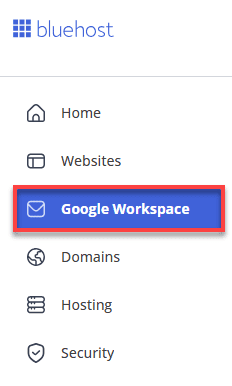
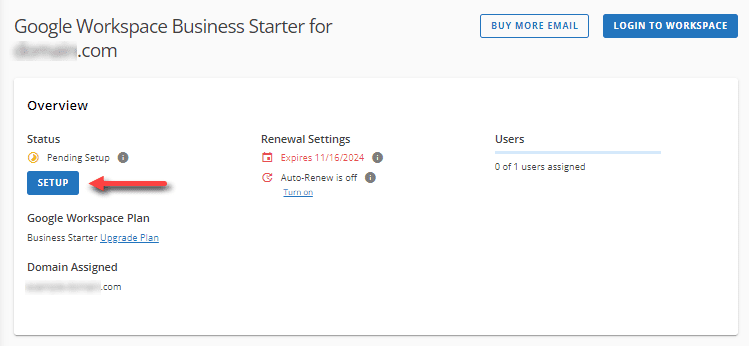
2. From the setup prompt, click ‘Setup’ (or continue setup if you’re already in progress).
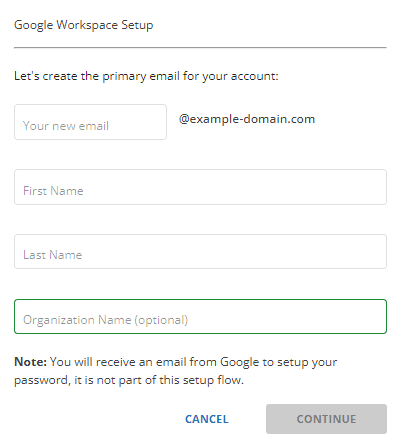
3. Go to set up window to add recovery email address.
4. If your domain was previously using another email service, you’ll be prompted to confirm DNS changes. Select ‘Yes’, reconfigure my DNS for Google Workspace to continue.
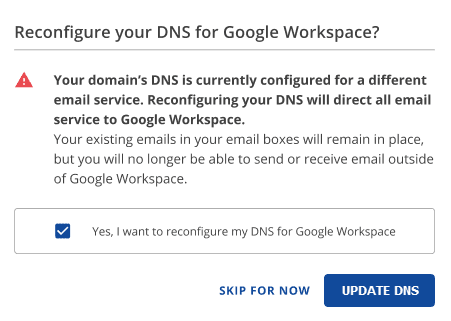
Once this is done, Bluehost automatically updates the required DNS records. You’ll see a confirmation message and all that’s left is to allow some time for DNS changes to fully propagate.
If your domain is not registered with Bluehost:
If your domain is with another registrar, you’ll need to manually verify ownership before email can be activated. Here’s how that works:
- In your Bluehost Account Manager, locate the Google Workspace plan with Pending Setup and click “Set up” to get started.
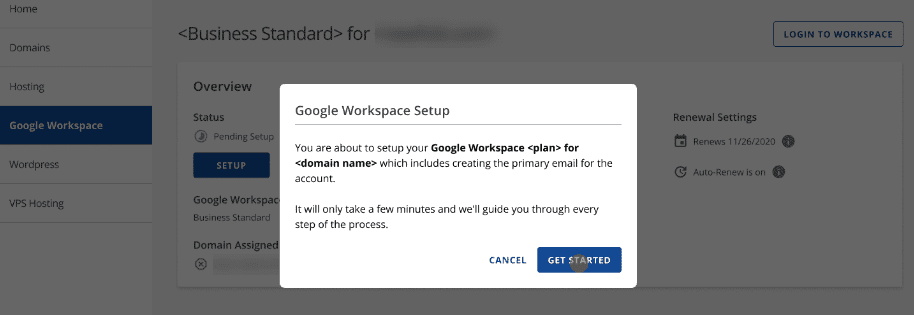
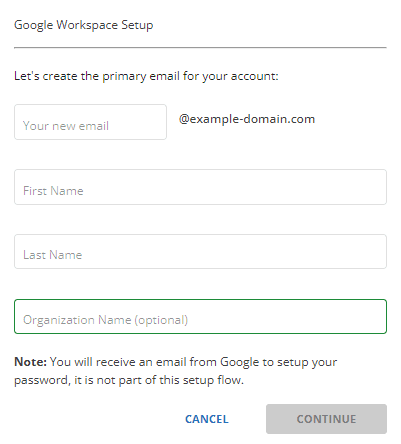
2. Enter your primary email details and recovery email address.
3. Google Workspace will generate a TXT verification code. Copy this code.
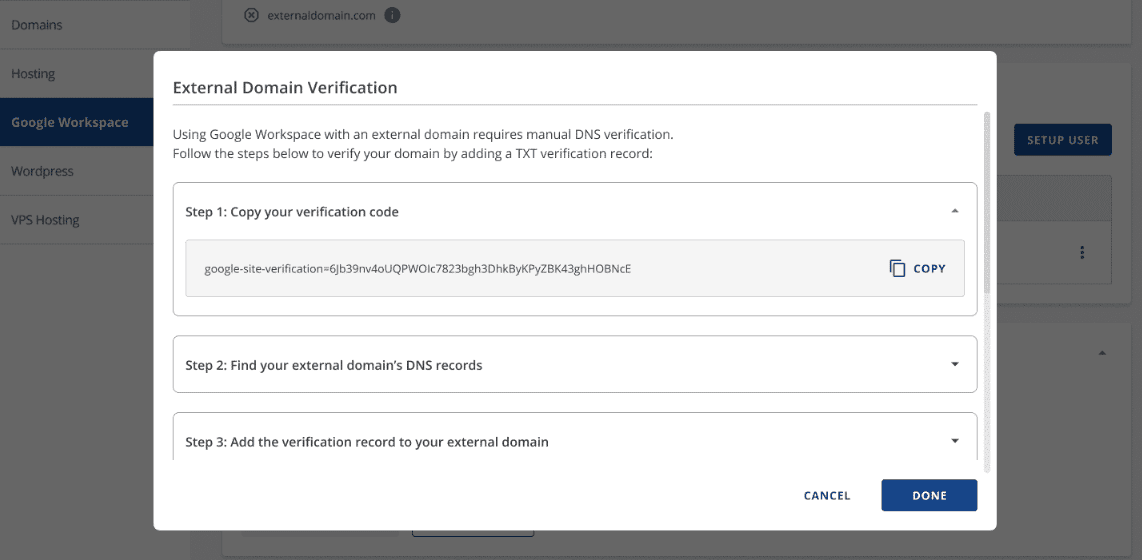
4. Log in to your domain registrar’s DNS management area and add the TXT record exactly as provided.
5. Wait a short while (DNS updates can take a few hours).
6. Return to your Account Manager and click “Verify my domain”.
If verification doesn’t work right away, don’t panic—it usually just needs more time. You can retry verification once the DNS changes have had time to propagate.
After verification is successful, you’ll move on to updating MX records so Gmail can start receiving email for your domain.
| Signup timing | Name / Host / Alias | Priority | Value / Destination |
|---|---|---|---|
| On or after April 2023 | @ or blank | 1 | SMTP.GOOGLE.COM |
| Before April 2023 | @ or blank | 1 | ASPMX.L.GOOGLE.COM |
| Before April 2023 | @ or blank | 5 | ALT1.ASPMX.L.GOOGLE.COM |
| Before April 2023 | @ or blank | 5 | ALT2.ASPMX.L.GOOGLE.COM |
| Before April 2023 | @ or blank | 10 | ALT3.ASPMX.L.GOOGLE.COM |
| Before April 2023 | @ or blank | 10 | ALT4.ASPMX.L.GOOGLE.COM |
Quick note: If your domain is registered with Bluehost, these MX records are usually configured automatically during Google Workspace setup. For external domains, you’ll need to add them manually and allow time for DNS propagation.
Also read: What is an MX Record? Email Routing & Setup Guide for 2026
Step 4: Add users as your team grows
Once your Gmail custom domain is live, you can easily add more users to your Google Workspace account as your business expands. Each user requires a separate seat, which gives them their own mailbox and access to Google Workspace tools, while also allowing multiple email aliases if needed.
When you purchase Google Workspace through Bluehost, you can manage user seats from your Bluehost Account Manager and then create or update users in the Google Admin console, making it simple to scale your email and collaboration setup without switching providers or reconfiguring your domain.
Also read: Adding Users to Google Workspace
Benefits of creating a Gmail custom domain for your business
Setting up a Gmail custom domain isn’t just about having a personalized email address, it’s about building credibility, improving communication and managing your mail account more efficiently through your Google account.
With Gmail’s SMTP server and mobile-friendly setup, you can send mail securely and stay connected wherever you go!
Here are the key benefits that matter most in real-world use.
1. Professional business identity
A custom email address using your domain helps establish trust right away. When customers see emails coming from [name]@[yourbusiness].[com], it feels more legitimate than a free email address and reinforces your brand with every interaction.
This consistency matters as your business grows. Whether you’re sending invoices, proposals or support emails, a branded address makes your communication look polished and reliable.
2. Familiar Gmail experience
One of the biggest advantages is that you don’t have to change how you work. You still use the Gmail interface you already know, which means less time adjusting to new tools and fewer mistakes during day-to-day communication.
This is especially helpful for teams. New users can get started quickly without training and everyone stays productive from the first login.
3. Built-in collaboration tools
Google Workspace goes beyond email by including tools like Drive, Docs, Sheets, Calendar and Meet. These tools make it easier to share files, collaborate in real time and keep projects moving without long email threads.
Having everything connected in one ecosystem reduces friction. Files, meetings and conversations stay in sync, which helps teams work faster and stay aligned.
4. Improved security and control
A Gmail custom domain gives you more control than free email services. You can manage users, reset passwords, apply security settings and control access as your team changes.
This level of control helps protect business data and keeps communication organized, especially as more people join your organization.
5. Simplified setup with Bluehost
Setting up Google Workspace through Bluehost makes the process easier to manage. Your domain, DNS settings and Workspace subscription are handled together, so you’re not jumping between multiple providers.
If something doesn’t work as expected, having one place to manage everything and a support team to help can save time and frustration during setup and beyond.
Why choose Bluehost to create your Gmail custom domain?
Setting up a Gmail custom domain is easier and more effective when you do it through Bluehost. Instead of managing your domain, email and collaboration tools across multiple providers, Bluehost brings everything together in one place while still using Google’s trusted infrastructure behind the scenes.
- Domain lock: Bluehost offers domain lock to help prevent unauthorized domain transfers. This adds an extra layer of protection so your domain can’t be moved or transferred without your approval.
- Auto-renewal: Bluehost’s auto-renewal option helps reduce the risk of your domain expiring unexpectedly, as long as your billing details are up to date. This ensures your domain and email setup continue running without interruption.
- Expert 24/7 support: Bluehost provides 24/7 expert support to help with domain management, Google Workspace setup and DNS-related questions. Whether you prefer chat or phone support, help is available when you need it.
- Domain privacy: Domain privacy ensures yourdomain and its related information will be safe from spammers, identity thieves and hackers.
- Geo-location domain: You can let your audience know where your business is located. For example: [xyz].[us].
Also read: Google Domains: Buy & Register Your Perfect Domain in 2026
Final thoughts
Setting up a Gmail custom domain is one of those small upgrades that quietly makes your business feel more real. A professional email address builds trust, keeps your brand consistent and makes everyday communication feel a bit more polished.
With Google Workspace through Bluehost, you’re not just getting Gmail with your domain. You’re getting a full set of tools to help you work, share and collaborate, plus a simpler way to manage your domain, DNS and subscription in one place. It takes some setup, yes, but once it’s done, everything runs smoothly in the background.
If you’re ready to move away from free email and set up something that can grow with your business, Bluehost makes it easier to get started.
Set up your Gmail custom domain with Bluehost Google Workspace today for enhanced professionalism and security.
FAQs
Setting up a custom domain in Gmail offers numerous advantages, particularly for businesses, professionals and organizations aiming for a more polished online presence. A customized domain enhances brand identity and credibility by replacing generic email addresses like [example]@[gmail].[com] with professional ones, such as [xyz]@[example].[com]. This strengthens trust among clients and customers and improves brand consistency across all communications.
If you encounter any issues, troubleshooting typically involves a few key areas like domain verification issues where you have to add a TXT or CNAME record to your domain registrar’s DNS settings. Another issue is the configuration of your MX records, where Gmail requires specific MX records to be configured within your domain’s DNS settings. Email deliverability problems is another problem where there are no misconfigured SPF, DKIM or DMARC records in your domain settings.
Yes, you can use your existing domain with Gmail by integrating it with Google Workspace, which allows you to send and receive emails using your custom domain while leveraging Gmail’s interface and features.
While setting up a custom domain in Gmail does require some technical steps, extensive technical knowledge is not necessarily required. Bluehost simplifies the process of registering a custom domain for you so you can focus on more important things.
Yes, you can set up multiple custom domains within a Google Workspace account. Google allows businesses to add primary domains, alias domains and secondary domains. However, Google Workspace accounts can only have one primary domain and additional domains must be managed through the Admin Console.
You can use Gmail with custom domain by connecting your business domain name to Google Workspace. After updating your DNS records and verifying ownership, you’ll be able to send and receive emails using your professional mail address—all from your familiar Gmail inbox.
A custom domain Gmail setup lets you use your own business domain instead of the default @[gmail].[com], making your emails look more trustworthy. It also includes extra features for teams, like shared calendars, more online storage and admin tools for better account management.
Email hosting through Gmail combines reliability and convenience by letting you access your mail, chats and meetings through one Google account. You can easily send messages, receive emails and stay connected across devices without worrying about server setup or maintenance.

Write A Comment