 ChatGPT,
 Claude,
 Gemini,
 Grok — all four for
Key highlights
- Know the common warning signs that can reveal when your WordPress site has been compromised.
- Learn the essential steps to contain a hack, remove malware and recover your website safely.
- Understand how threats like backdoors, SQL injections, XSS and brute-force attacks can compromise your site.
- Explore security tools and manual checks that can help detect suspicious activity and hidden threats.
- Discover practical ways to strengthen WordPress security and reduce the risk of future attacks.
As WordPress is widely used by businesses and entrepreneurs, it is also a frequent target for cyberattacks. A compromised site can lead to data loss, reputational damage and a significant drop in website traffic.
Knowing the warning signs can help you act quickly and limit further damage. In this guide, we’ll cover 10 signs your WordPress site may be compromised. You’ll also learn what to do if it’s hacked, how these attacks happen and how to reduce the risk of future incidents.
Quick overview: Signs your WordPress site may be compromised
Here’s a quick way to evaluate suspicious activity before we look at each warning sign in detail.
| Warning sign | How to verify it | What to do first |
| Unexpected content changes | Compare pages with recent backups or revisions | Preserve evidence and scan the site |
| Unknown users or login activity | Check Users > All Users and login logs | Remove unauthorized access and reset credentials |
| Malicious redirects or pop-ups | Test the site in incognito and from search results | Contain the site and run a malware scan |
| Browser or Google warnings | Check Google Search Console > Security Issues | Identify and remove malicious content |
| SEO spam or cloaking | Search site:[yourdomain].com and review indexed pages | Find injected pages, links or redirects |
| Slowdowns or unusual resource usage | Review CPU, memory, bandwidth and processes | Investigate suspicious scripts or processes |
| Suspicious server requests | Review access and error logs | Identify repeated or unauthorized requests |
| Missing or rogue plugins | Compare installed plugins with your expected setup | Disable suspicious software and investigate |
| Unfamiliar WordPress files | Review recent file changes and suspicious PHP files | Quarantine suspicious files before deleting |
| Login lockout or changed credentials | Try account recovery and inspect user settings | Contact your host and regain control |
Keep in mind that one warning sign alone does not always mean your WordPress site has been compromised. However, multiple unexplained changes or suspicious activities appearing together are a strong reason to investigate further. Below, we’ll look at each warning sign in more detail, including how to verify it and what to do next.
10 signs your WordPress site may be compromised: Detailed explanation with fixes
A WordPress site may be compromised if you notice unexpected content changes, suspicious user activity, unusual redirects or unfamiliar files. Some warning signs are obvious, while others may only appear in your site activity, server logs or search results. Let’s check each of them:
1. Unexplained content changes
Unexpected changes to your pages, posts, images or links can indicate unauthorized access. Attackers may replace legitimate content, insert spam or add malicious links that direct visitors to phishing, scam or malware-infected websites.
Changes may be obvious, such as a defaced homepage or subtle enough to go unnoticed during normal site management.
Common examples include:
- Text or images you didn’t publish.
- Links to unfamiliar or irrelevant websites.
- Missing pages, images or product information.
- New code or scripts embedded within otherwise legitimate content.
How to verify it: Compare the affected page with a known clean backup or WordPress revision history. Review recently modified posts and pages, particularly high-traffic content.
What to do now: Avoid simply deleting the visible spam and assuming the problem is solved. Scan the website for malware and unauthorized files because the visible change may only be one symptom of a larger compromise.
2. Suspicious user accounts or login activity
Attackers who gain access to WordPress may create a new administrator account or modify an existing user so they can maintain control.
Warning signs include:
- Administrator accounts you didn’t create.
- Unexpected changes to usernames, email addresses or roles.
- Successful logins from unfamiliar locations or devices.
- Password reset messages you didn’t request.
- Accounts gaining administrator privileges without authorization.
How to verify it: In WordPress, go to Users > All Users and review every administrator account. If your security or hosting tools provide an activity log, review recent logins and account changes.
What to do now: Remove or downgrade unauthorized users, reset credentials and enable two-factor authentication. If you’re unsure whether an account is legitimate, investigate before deleting it.
3. Unwanted pop-ups or redirects
A compromised site may send visitors to phishing pages, spam websites or other destinations you don’t control. Attackers can also inject scripts that display unwanted ads or pop-ups.
Redirects can be difficult to diagnose because some malware only activates for certain visitors. For example, an infected site may behave normally for an administrator but redirect visitors arriving from a search engine.
How to verify it: Open the website in an incognito browser window, test it from a mobile device and visit it through a Google search result. Check multiple pages instead of testing only the homepage.
What to do now: If visitors are being sent to dangerous destinations, consider placing the site in maintenance mode or working with your hosting provider to temporarily limit public access while you investigate.
4. Browser and search engine security warnings
Browsers and search engines can flag a website when they detect malware, deceptive pages or other unsafe content.
You may see:
- A malware or unsafe-site warning in a browser.
- A security warning in Google search results.
- Security issues reported in Google Search Console.
- A sudden loss of important pages from search results.
These warnings can quickly damage user confidence and reduce website traffic.
How to verify it: Check the Security Issues section in Google Search Console and review any examples Google provides. Test your site in a clean browser session.
What to do now: Identify and remove the underlying security issue before requesting a review. Removing the warning without cleaning the site does not solve the compromise.
5. SEO spam or cloaked content
SEO spam is a particularly damaging type of WordPress compromise because attackers use your domain’s authority to publish or promote content you didn’t create.
You might discover:
- Pages for pharmaceuticals, gambling, counterfeit products or unrelated services.
- Search snippets containing titles or descriptions you didn’t write.
- Hidden links in legitimate pages.
- URLs that exist in Google but not in your WordPress page list.
- Different content shown to search engines and ordinary visitors.
This last technique is known as cloaking, where attackers show malicious or spam content only under certain conditions.
How to verify it: Search Google for site:[yourdomain].com
Review the results for unfamiliar pages, titles or descriptions. Compare them with pages listed in your WordPress dashboard and sitemap.
What to do now: Scan your WordPress files and database for injected content, redirects and malicious code. After cleanup, review affected URLs in Google Search Console and make sure legitimate pages and sitemaps are being indexed correctly.
6. Slow loading, downtime or unexplained resource usage
A hacked site may run malicious scripts, send spam, perform unauthorized tasks or participate in automated attacks. These activities can consume CPU, memory and bandwidth.
Watch for:
- Sudden CPU or memory spikes.
- Unusual bandwidth consumption.
- Persistent slowdowns unrelated to legitimate traffic.
- Unexpected server processes.
- Frequent website crashes or downtime.
Performance problems alone do not prove your WordPress site has been hacked. A traffic spike, plugin conflict or hosting limitation can cause similar symptoms.
How to verify it: Review resource usage in your hosting dashboard and compare the timing with legitimate traffic, recent updates and deployments.
What to do now: Investigate any process or script consuming unusual resources and run a full malware scan.
7. Unusual server log activity
Server logs can reveal activity that never appears inside the WordPress dashboard.
Potential warning signs include:
- Repeated attempts to access wp-config.php.
- Large volumes of login attempts.
- Requests targeting unfamiliar PHP files.
- Repeated requests to unusual endpoints.
- Suspicious POST requests.
- Unexpected activity at times when no authorized user was working on the site.
Not every suspicious request means your site is compromised. Automated bots routinely probe websites for weaknesses. The greater concern is evidence that one of those attempts succeeded.
How to verify it: Review server access and error logs for repeated patterns, unfamiliar files and successful requests following attack attempts.
What to do now: Correlate suspicious requests with file changes, user activity and malware scan results.
8. Missing, disabled or unfamiliar plugins
Attackers sometimes disable security plugins so malicious activity is less likely to be detected. They may also install rogue plugins that provide persistent access.
Look for:
- Security plugins that have been deactivated unexpectedly.
- Plugins that disappeared without an authorized change.
- New plugins nobody on your team installed.
- Plugins with unfamiliar names or unusual files.
- Premium plugins or themes obtained from unofficial sources.
How to verify it: Compare your installed plugins with a recent backup, staging site or change log.
What to do now: Do not activate an unfamiliar plugin simply to find out what it does. Investigate it first and replace legitimate software with clean copies from trusted sources when necessary.
9. Suspicious files in WordPress directories
Attackers frequently add or modify files to preserve access to a compromised site.
Pay particular attention to:
- Recently created files with unfamiliar names.
- PHP files in locations that normally contain media.
- Modified WordPress core files.
- Obfuscated or unreadable code.
- Files with timestamps that don’t match a legitimate update or deployment.
The wp-content/uploads directory deserves particular attention because it is normally used to store uploaded media rather than executable PHP scripts.
How to verify it: Check recent file modifications using your hosting file manager, SFTP or a security tool with file-integrity monitoring.
What to do now: Quarantine suspicious files before deleting them. Never delete WordPress core files solely because they look unfamiliar. Compare them with a clean installation or have a security professional review them.
10. You’re locked out or your credentials changed unexpectedly
Being unable to access the WordPress dashboard can be one of the clearest signs that an attacker has taken control, especially if your password, email address or administrator privileges changed without your authorization.
Other signs include:
- Your password suddenly stops working.
- Password-reset emails go to an unfamiliar address.
- Your administrator account no longer has the correct permissions.
- Your account has disappeared entirely.
How to verify it: Attempt the normal WordPress password-recovery process and review the account information through your hosting tools if available.
What to do now: Contact your hosting provider if you cannot regain access safely. Once control is restored, reset affected credentials, review administrator accounts and check the site for malware.
If you notice one or more of these warning signs, acting quickly can help limit further damage.
What to do if your WordPress site is hacked?
If your WordPress site is hacked, act quickly to contain the issue, remove malicious content and prevent further unauthorized access. Follow these steps to begin recovering and securing your site.
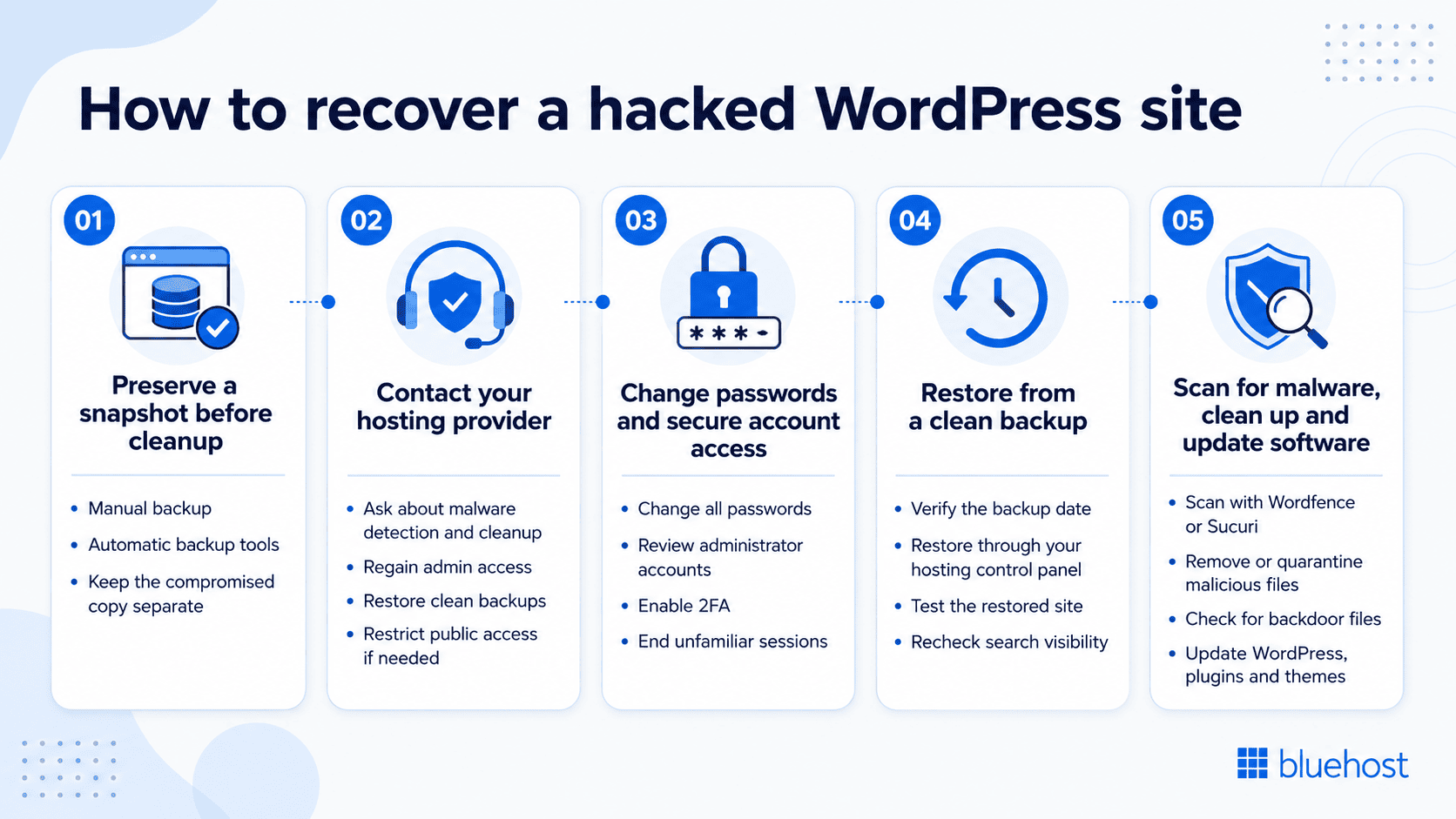
Step 1: Preserve a snapshot before cleanup
Before making changes to your hacked WordPress site, preserve a copy of its current state. This compromised snapshot can be useful for investigation and identifying what changed, but it should not be treated as the clean backup you ultimately restore to your live website.
- Manual backup: Use your hosting control panel (such as cPanel) to download copies of your WordPress files and database. Save these locally on your computer or cloud storage.
- Automatic backup tools: Use backup tools provided within your hosting account if you have access to them. These tools can automatically create backups and store them offsite, offering a secure way to preserve your site’s data.
- Keep the compromised copy separate: Do not overwrite known-clean backups with the infected version of your website.
Also read: 5 WordPress Website Backup Methods to Protect Your Site
Step 2: Contact your hosting provider
After creating a backup, reach out to your hosting provider for support. Hosting providers often have tools and expertise that can assist with malware detection and removal, making them a valuable resource during recovery.
- Ask about malware detection and cleanup options: If you use Bluehost, contact support to help identify the malware protection and recovery options available with your plan.
- Regain access to your admin area: If you’re locked out of your WordPress admin area due to password changes by hackers, your hosting provider can help you reset your login credentials.
- Request assistance with restoring backups: Many hosting providers maintain automatic backups. They may help you restore your site from a recent, clean backup, minimizing the impact of the hack.
- Contain the affected site where appropriate: If malicious redirects, phishing pages or malware are actively affecting visitors, ask your host whether temporarily restricting public access or using a maintenance page is appropriate while cleanup is underway.
Step 3: Change passwords and secure account access
Once you have preserved the affected site and contacted your hosting provider, secure your accounts so an attacker cannot continue using compromised credentials while you clean the website.
- Change all passwords: Update passwords for your WordPress admin area, database and hosting account. Choose strong, unique passwords and store them securely using a password manager.
- Review administrator accounts: Remove unauthorized users and confirm that the email addresses and roles assigned to legitimate administrators are correct.
- Enable two-factor authentication (2FA): Adding 2FA to your WordPress login provides an additional layer of security, making it harder for attackers to regain access.
- End unfamiliar sessions: If your security or hosting tools allow it, sign out active sessions you do not recognize.
Step 4: Restore from a clean backup
If your WordPress site remains unstable or you’re unable to clean it thoroughly, restoring from a backup can be the most effective way to recover. Make sure to select a backup that was created before the hack occurred.
- Verify the backup date: Choose a backup from a date when your WordPress site was functioning properly. Using an infected backup can reintroduce malware.
- Restore through your hosting control panel: If your hosting plan includes backups, your provider may be able to help you restore a recent, clean version of your site.
- Test the restored site: After restoring, check your website’s functionality and run another malware scan to ensure no malicious code is present.
- Recheck search visibility: After the site is confirmed clean, review Google Search Console again for security warnings or unexpected indexed pages that may have been created during the compromise.
Step 5: Scan for malware, clean up and update software
Next, run a thorough malware scan using a trusted WordPress security tool to identify any remaining malicious code or unauthorized changes.
- Recommended plugins: Use tools like Wordfence or Sucuri for scanning. These plugins can provide reports on suspicious files, security issues and other anomalies.
- Manual cleanup: If the scan identifies specific malicious files, delete or quarantine them using your hosting control panel or FTP access. Be cautious and verify changes before deleting WordPress core files to avoid breaking your website.
- Check for backdoor files: Hackers often leave backdoors to regain access later. Check directories such as wp-content/uploads and wp-includes for hidden files or unauthorized PHP scripts.
- Update WordPress, plugins and themes: Outdated software can contain known vulnerabilities. Update WordPress core and all trusted plugins and themes after cleanup, and remove software you no longer use.
Once your site is secure again, understanding how the breach may have happened can help you address the underlying security gaps and reduce the risk of another attack.
How do WordPress sites get hacked?
WordPress websites can be vulnerable if security measures are not in place. Common risks include outdated plugins, weak passwords and poorly secured databases. Knowing how these attacks work can make suspicious activity easier to recognize and investigate.
1. Backdoors
Backdoors are hidden access points that hackers use to maintain control of a WordPress site. Attackers often embed backdoors in modified plugins, themes or uploaded files. Unlike typical login methods, backdoors allow attackers to enter the WordPress site without using standard credentials.
This makes them difficult to detect and remove, even after initial malware is addressed. Backdoors can remain active for a long time, allowing ongoing unauthorized access to the site.
2. SQL injections
SQL injections exploit vulnerabilities in a site’s database. Hackers inject malicious SQL code through forms, URLs or comment sections. This code can access, manipulate or delete data in the database. SQL injections can lead to the creation of unauthorized user accounts, changes in site content or access to sensitive data. It’s a serious threat, as it directly targets the core data structure of the website.
3. Cross-site scripting (XSS)
Cross-site scripting (XSS) attacks occur when hackers inject harmful JavaScript into WordPress site pages. When a user visits the affected page, the script runs without their knowledge. This can result in stolen cookies, session tokens or other sensitive information.
XSS attacks often target users rather than the website itself. They exploit the trust users have in a website, potentially leading to further data breaches and compromised user accounts.
4. Brute-force attacks
Brute-force attacks use automated methods to guess login credentials. Hackers run scripts that try different username and password combinations until they find the right one. This can give them access to a site’s admin area. These attacks often target the login page and can overwhelm a website’s resources, causing slowdowns or temporary outages.
Brute-force attacks are common because they require minimal technical skills but can cause significant damage if successful.
Because some attacks can remain hidden, the right security tools and manual checks can help uncover suspicious activity that may not be immediately visible.
Tools for detecting WordPress security threats
Security tools are essential for scanning, detecting and mitigating threats on a WordPress website. They offer real-time protection and alert you when unusual activity occurs. Popular options include:
| Security tool | Key security capabilities | Best suited for |
| Bluehost Malware Protection | Continuous malware scanning, automatic malware removal, blacklist monitoring and real-time security insights from one dashboard. | Bluehost users who want proactive, built-in protection that detects threats early and simplifies malware cleanup. |
| Wordfence Security | Malware scanning, file-change detection, vulnerability checks and firewall protection. | Users who want detailed WordPress security monitoring. |
| Sucuri Security | Malware checks, file-integrity monitoring, security activity tracking and optional firewall protection. | Users who want website monitoring and external security checks. |
| Jetpack Protect | Scans WordPress core, plugins and themes for known vulnerabilities, with optional malware protection. | Users who want simple vulnerability monitoring. |
| MalCare | Malware scanning, firewall protection, activity monitoring and one-click malware removal on paid plans. | Users who want easy malware detection and cleanup. |
| Patchstack | Detects plugin and theme vulnerabilities and can apply virtual patches against known threats. | Users focused on plugin and theme vulnerability protection. |
You can easily identify threats using these tools and take the necessary actions. However, make sure to follow ongoing security practices to further reduce your site’s exposure to attacks.
How to prevent future attacks on your WordPress site?
Recovering your website fixes the immediate problem, but it is equally important to address the weakness that allowed the compromise in the first place. Once your site is clean, take these additional steps to reduce the risk of reinfection:
- Identify the original entry point: Review security logs, vulnerable plugins, compromised accounts and recent changes to understand how attackers gained access. Restoring a backup without fixing the underlying vulnerability can leave your site exposed again.
- Rotate WordPress security keys: Generate new WordPress security keys and salts after a compromise to invalidate existing authentication cookies and sessions.
- Add firewall and login protection: Use a web application firewall (WAF), brute-force protection and two-factor authentication to help block suspicious requests and unauthorized login attempts.
- Automate security monitoring: Schedule malware scans and monitor unexpected file changes, login activity and new administrator accounts so suspicious activity can be detected earlier.
- Keep a tested backup strategy: Store recent backups separately from your live website and periodically confirm that they can be restored successfully.
- Maintain an update routine: Keep WordPress core, trusted plugins and themes updated and remove software that is no longer maintained or required.
Combining these practices with reliable security tools can help keep your WordPress site better protected over time.
How Bluehost helps with website security?
Bluehost helps strengthen website security with protections such as free SSL, website backups and Bluehost Malware Protection. All hosting plans include continuous malware scanning and removal, Google blacklist monitoring and a live security dashboard. Higher tier and business hosting plans include AI Malware Defense, adding AI-powered file scanning and a smart web application firewall (WAF) to help block more advanced threats before they reach your site. Together, these features help detect security issues early, secure your website and simplify recovery if it is compromised.
Final thoughts
Keeping your WordPress site secure requires ongoing monitoring, regular updates and strong security practices. By recognizing the warning signs early and knowing how to respond, you can limit the impact of a compromise and reduce the risk of future attacks.
For added protection, Bluehost combines WordPress hosting with built-in security features designed to help safeguard your website. Depending on your plan, features such as malware scanning and removal, DDoS protection, a web application firewall (WAF), SSL and website backups can help strengthen your site’s security and simplify recovery if something goes wrong.
Explore Bluehost WordPress hosting plans to find the right fit for your website. to find the right fit for your website.
FAQs
One of the biggest security risks for a WordPress site is using outdated plugins, themes or core software. These outdated components often contain known vulnerabilities that hackers can exploit. Regular updates and security patches are crucial for protecting your site from these risks.
A WordPress website can be very secure if properly managed. With strong passwords, regular updates, security plugins, and secure hosting, WordPress sites can be well protected against many common cyber threats. However, neglecting these best practices can make any site vulnerable to attacks.
Websites using outdated software, weak passwords or lacking basic security measures are the most vulnerable to hacking. WordPress sites can be targeted frequently due to their popularity, but proper security practices can significantly reduce this risk.
WordPress can be vulnerable if it’s not kept up-to-date or lacks security measures like two-factor authentication or firewalls. While it’s not inherently insecure, poor maintenance or outdated software can make a WordPress site an easy target for hackers.

Write A Comment