


Key highlights
- Understand why your WordPress site fails to deliver emails to recipients’ inboxes.
- Learn how SMTP authentication improves email deliverability over the default PHP mail() function.
- Discover the step-by-step process to configure WP Mail SMTP plugin on your WordPress site.
- Explore how email service providers like Gmail filter emails and prevent spam.
- Know the difference between WordPress email and professional email marketing platforms.
Are you struggling with WordPress not sending emails? You’re not alone. Email delivery issues are among the most common WordPress problems, affecting everything from contact form submissions to new user notifications and WooCommerce order confirmations. When your WordPress emails stop working, it can seriously impact your business operations and customer relationships.
This comprehensive guide will walk you through diagnosing and fixing WordPress email issues. Whether you’re dealing with emails going to spam, complete delivery failures or specific plugin problems like Contact Form 7 not sending emails, you’ll find proven solutions that work.
Most WordPress email problems stem from server configuration issues, plugin conflicts or inadequate email authentication. The good news? These issues are fixable, and you don’t need advanced technical skills to resolve them. Let’s start by understanding why WordPress email problems occur in the first place.
TL;DR: Fix WordPress email delivery
- Configure SMTP using a reputable email service
- Use proper “from” email addresses from your domain
- Implement email authentication (SPF, DKIM, DMARC)
- Regularly test email delivery and monitor for issues
- Keep plugins and themes updated to prevent conflicts
Why WordPress is not sending emails?
Understanding the root cause of your email delivery problems is crucial before implementing solutions. WordPress email issues typically fall into several categories, each requiring different troubleshooting approaches.
1. Emails are sent but end up in spam
If your WordPress emails are being sent but recipients find them in spam folders, you’re dealing with deliverability issues rather than complete sending failures. This commonly affects:
- Contact form notifications from plugins like Contact Form 7
- New user registration emails
- WooCommerce order confirmations
- Password reset notifications
Spam filtering occurs because email providers can’t verify your server’s authenticity. Without proper email authentication records (SPF, DKIM, DMARC), your emails appear suspicious to spam filters.
2. WordPress uses PHP mail ()
By default, WordPress uses PHP’s mail() function to send emails. This basic method works on some servers but fails frequently because:
- Many hosting providers disable or restrict PHP mail for security reasons.
- Shared hosting environments often block outgoing mail to prevent spam.
- The PHP mail function lacks authentication and encryption.
- No delivery confirmation or error handling exists.
This explains why you might see the error message “The email could not be sent. Your site may not be correctly configured to send emails.” The PHP mail function simply isn’t reliable for modern email delivery requirements.
3. Hosting or server email restrictions
Web hosting providers implement various restrictions that can block WordPress email sending:
- Outbound port blocking: Hosts may block port 25 (standard email port) to prevent spam.
- Rate limiting: Restrictions on how many emails you can send per hour.
- Authentication requirements: Some hosts require SMTP authentication for all outgoing mail.
- Blacklisted IPs: Shared hosting IPs may be blacklisted by email providers.
These restrictions are particularly common with budget hosting providers and shared hosting environments.
4. Contact form plugins sending improper emails
Popular contact form plugins like Contact Form 7, Gravity Forms and WPForms can contribute to email delivery problems when:
- Form notifications use generic “from” addresses like noreply@[yourdomain].com.
- Email headers are improperly configured.
- Multiple forms send emails simultaneously, triggering spam filters.
- Plugin updates change email sending methods.
These issues often manifest as intermittent delivery failures or emails that suddenly stop working after plugin updates.
5. Plugin or theme conflicts affecting email delivery
WordPress email functionality can be disrupted by:
- WordPress security plugins that block email sending functions
- Caching plugins interfering with email processes
- Theme functions that override WordPress email settings
- Multiple email-related plugins competing for control
Plugin conflicts are often the culprit when WordPress emails stop working suddenly after installing new plugins or themes.
Quick checklist to identify the email issue
Before diving into solutions, you need to understand exactly what’s happening with your WordPress email delivery. This diagnostic checklist will help you identify the specific problem.
1. Determine if WordPress emails failing completely or partially
Determine the scope of your email problems:
- Complete failure: No emails are being sent from your WordPress site.
- Partial failure: Some emails work while others don’t.
- Intermittent issues: Emails work sometimes but not consistently.
- Delivery delays: Emails are sent but arrive hours or days late.
Document which specific email types are affected (contact forms, user registrations, WooCommerce notifications, etc.) to help narrow down the cause.
2. Test if your site can send emails
Testing your WordPress email functionality helps isolate the problem. Here’s how to check if WordPress can send emails:
- Use a test email plugin: Install plugins like “Check Email” or “WP Mail SMTP” that include testing features.
- Test different email types: Send test emails to various email providers (Gmail, Outlook, Yahoo).
- Check server logs: Review your hosting control panel’s email logs for error messages.
- Monitor delivery timing: Note if emails are delayed or arrive immediately.
If test emails fail completely, you’re dealing with a server or configuration issue. If they’re delivered but go to spam, you have a deliverability problem.
3. Check the default ‘from’ email address
WordPress uses default email addresses that can cause delivery problems. Check your current settings:
1. Go to Settings > General in your WordPress admin.
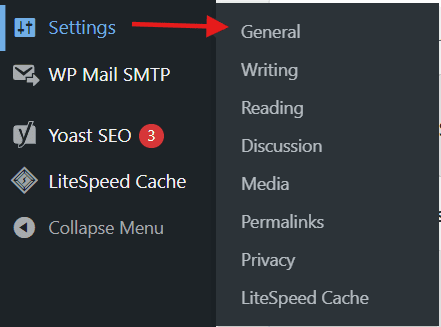
2. Note the “Email Address” field – this is your default “from” address.

Verify this email address actually exists and can receive mail. Also, check if it uses your domain name (preferred) or a generic address. Using non-existent email addresses or generic addresses like admin@[yourdomain].com often triggers spam filters or causes delivery failures.
How to fix WordPress not sending email issue? (recommended solution)
The most effective solution for WordPress email delivery issues is implementing SMTP (Simple Mail Transfer Protocol). This method replaces WordPress’s unreliable default email system with professional email sending.
What is SMTP and why WordPress needs it?
SMTP is the standard protocol for sending emails across the internet. Unlike WordPress’s basic PHP mail function, SMTP provides:
- Authentication: Verifies your identity to email servers
- Encryption: Secures your email content during transmission
- Delivery confirmation: Reports successful delivery or errors
- Better deliverability: Reduces spam filtering and improves inbox placement
SMTP works by connecting your WordPress site to a dedicated email server that handles the actual sending process, bypassing the limitations of your web hosting server.
How SMTP improves WordPress email deliverability?
Implementing SMTP addresses the core issues that cause WordPress email problems:
- Server independence: Emails are sent through dedicated mail servers rather than your web host
- Proper authentication: SMTP servers provide legitimate sender credentials
- Enhanced security: Encrypted connections protect your email content
- Professional routing: Emails are routed through established, trusted mail networks
This dramatically improves your email deliverability rates and reduces the likelihood of messages ending up in spam folders.
How to set up SMTP in WordPress using WP Mail SMTP?
WP Mail SMTP is the most popular and reliable plugin for fixing WordPress email issues. It’s used by over 3 million websites and provides easy SMTP integration. Follow the below steps to installing a WordPress plugin.
Install and activate the WP Mail SMTP plugin
Setting up WP Mail SMTP is straightforward:
- Navigate to ‘Plugins’ > ‘Add New’ in your WordPress admin.
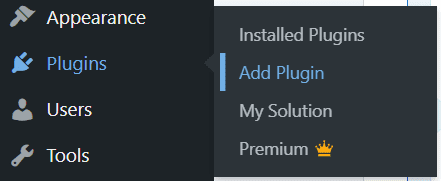
2. Search for ‘WP Mail SMTP by WPForms’. Click ‘Install Now’ and then ‘Activate’.
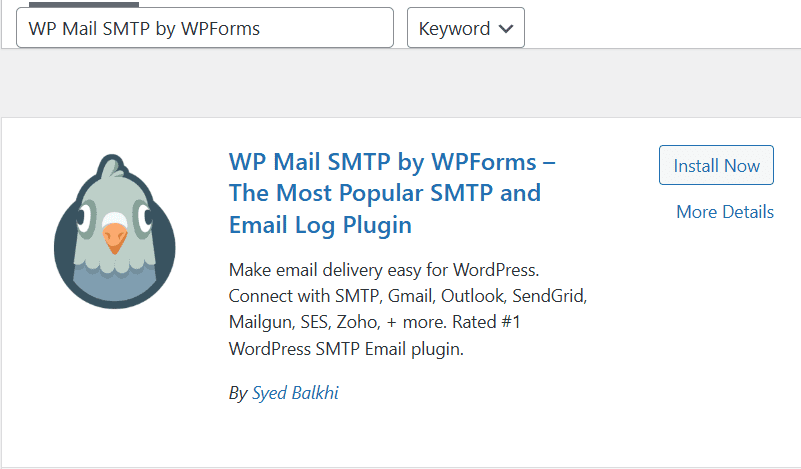
The plugin offers both free and pro versions. The free version includes essential SMTP functionality that resolves most WordPress email delivery issues.
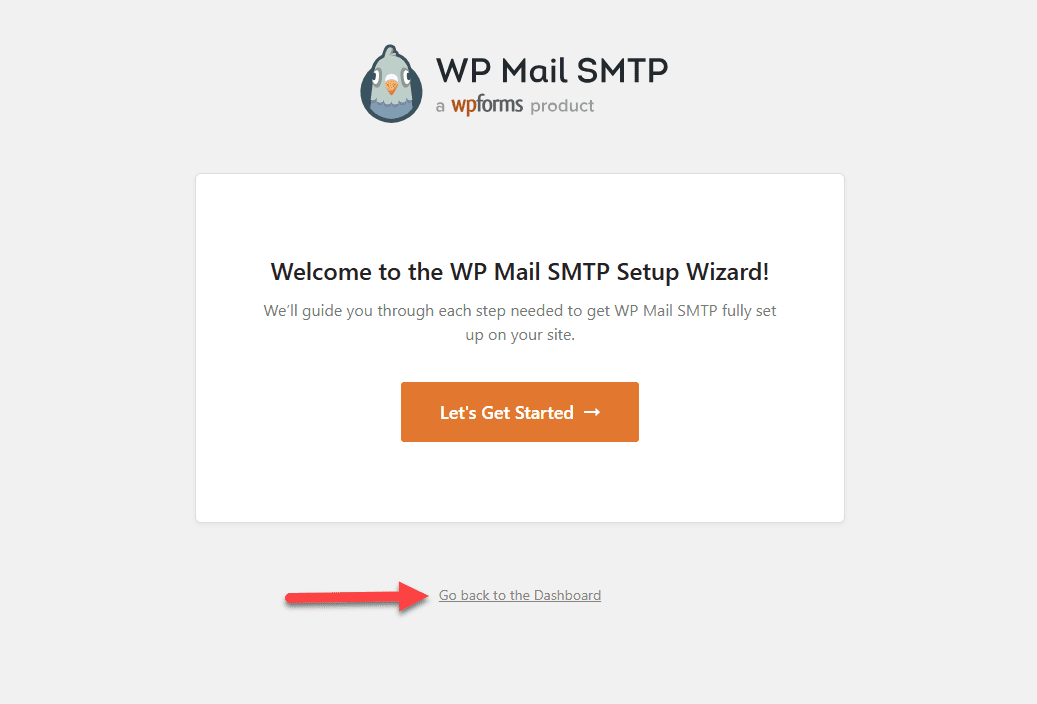
3. The setup wizard will appear after activation. You can bypass the setup wizard because we’ll show you how to configure WP Mail SMTP manually. Click the Go back to the Dashboard link.
4. Next, go to Settings, then select WP Mail SMTP to configure the plugin settings.
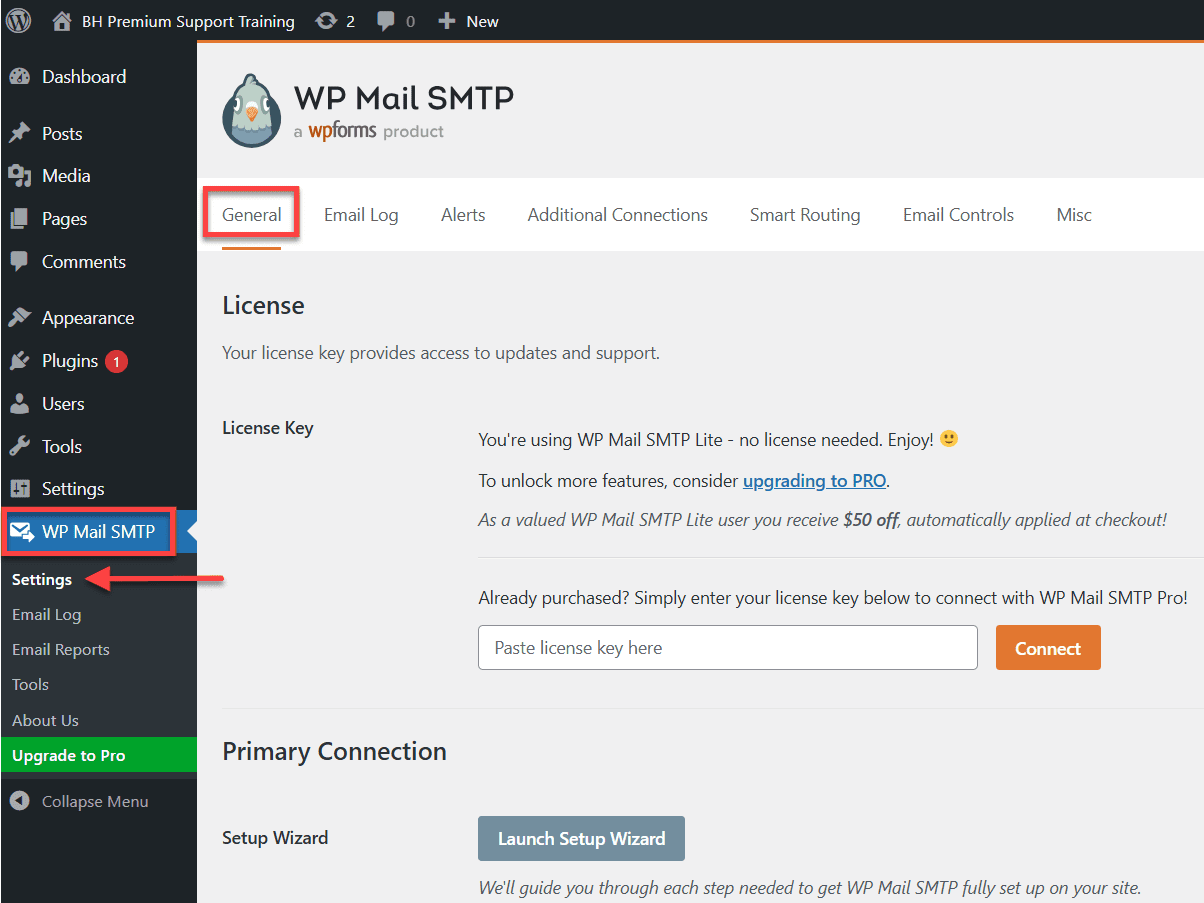
5. To use WP Mail SMTP, first enter your SMTP settings. The steps will be the same regardless of your hosting provider. It has the following options:
- From Email: This is the email address to which all WordPress emails will be sent.
- Name: We suggest that you use the title of your website as the name of the form.
- Mailer: Choose Other SMTP here because you will send emails through your host’s SMTP server.
- Return Path: Select this option to receive delivery notifications or bounced messages.
6. To keep using your host, select Other SMTP and enter the SMTP server settings given by your hosting provider.
- SMTP Host: The SMTP host address given by your hosting provider.
- Encryption: The encryption method used by your mail server to send emails. TLS is usually used.
- The outgoing mail server uses the SMTP port. Once the Encryption (other than none) is selected, the SMTP port will get automatically updated.
- Auto TLS: This option should be enabled.
- Authentication: This must be set to On.
- SMTP Username: This is the email address you use to send emails.
- SMTP Password: Your email account password from which you send emails. It is recommended to keep your password in the wp-config.php file.
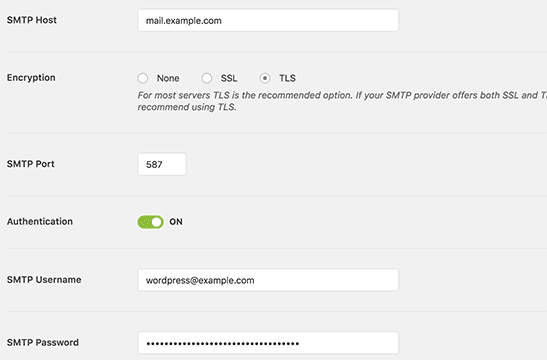
Updating these settings is required to connect to any SMTP server. Their values, however, may differ from one WordPress hosting company to the next.
Configure an SMTP mailer (Gmail, Outlook or transactional email)
WP Mail SMTP supports multiple email services. Here are the most reliable options:
1. Gmail SMTP configuration:
- SMTP Host: smtp.gmail.com
- Encryption: TLS
- Port: 587
- Authentication: Yes
- Username: Your Gmail address
- Password: App-specific password (not your regular Gmail password)
2. OutlookHotmail SMTP:
- SMTP Host: smtp-mail.outlook.com
- Encryption: STARTTLS
- Port: 587
- Authentication: Yes
- Username: Your Outlook email address
- Password: Your Outlook password
3. Professional email services:
When you’re experiencing email delivery issues with WordPress, switching to a dedicated professional email service can be a game-changer for your business communications. Unlike default WordPress email functions that rely on shared server resources, Bluehost Professional email provides a robust infrastructure designed specifically for business email needs. With advanced spam protection, reliable delivery rates and seamless integration with your WordPress site, you’ll eliminate the common email problems that plague standard configurations.
Ready to ensure your important messages reach their destination every time? Upgrade to Bluehost Professional email and experience the peace of mind that comes with enterprise-grade email reliability built right into your hosting environment.
How to prevent WordPress emails from going to spam?
Even with SMTP configured, your emails might still end up in spam folders. These additional steps ensure optimal email deliverability.
1. Use a proper “from” email address
Your email’s “from” address significantly impacts deliverability:
- Use your domain: From addresses should match your website domain (e.g., contact@[yourdomain].com)
- Avoid generic addresses: Don’t use noreply@, admin@ or webmaster@ addresses
- Ensure existence: The from address should be a real, working email account
- Match your brand: Use recognizable addresses like support@[yourdomain].com or hello@[yourdomain].com
Configure this in WP Mail SMTP under the “From Email” settings.
2. Add email authentication (SPF, DKIM, DMARC)
Email authentication protocols verify your legitimacy to email providers:
- SPF (Sender Policy Framework): Add an SPF record to your DNS settings specifying which servers can send emails from your domain.
- DKIM (DomainKeys Identified Mail): Provides a digital signature that proves your emails haven’t been tampered with.
- DMARC (Domain-based Message Authentication): Tells email providers what to do with emails that fail SPF or DKIM checks.
Most professional email services (like those mentioned earlier) automatically handle these authentication methods when you use their SMTP servers.
3. Avoid email spoofing issues in contact forms
Contact form emails often trigger spam filters due to spoofing concerns:
- Don’t use visitor emails as “from” addresses: Use your domain’s email as the sender
- Include visitor details in the message body: Put the visitor’s email in the email content, not the headers
- Set proper reply-to addresses: Configure reply-to headers to direct responses to the appropriate address
Steps to fix Contact Form emails not sending in WordPress
Contact forms are particularly prone to email delivery issues. Here’s how to troubleshoot the most common contact form email problems.
Why Contact Form emails fail more often?
Contact form notifications face unique challenges:
- High volume: Forms can generate many emails quickly, triggering spam filters
- Variable content: Each submission contains different content that may trigger filters
- User-generated headers: Visitor email addresses in headers can cause spoofing concerns
- Generic messaging: Form emails often use templates that appear automated
How to fix Contact Form 7 not sending emails?
Contact Form 7 is WordPress’s most popular contact form plugin, but it frequently has email delivery issues:
- Check the Mail tab: In your form settings, verify the “To” address is correct and exists
- Fix the “From” field: Use a legitimate email from your domain, not the visitor’s email
- Update message templates: Ensure your email templates don’t contain spam trigger words
- Configure SMTP: CF7 uses WordPress’s default mail system, so SMTP configuration applies automatically
For CF7 SMTP settings, the WP Mail SMTP plugin automatically improves Contact Form 7 email delivery without additional configuration.
How to fix Gravity Forms or WPForms email issues?
Premium form plugins like Gravity Forms and WPForms offer more email control:
Gravity Forms:
- Check notification settings in each form’s configuration
- Verify conditional logic isn’t preventing email sending
- Test with simple notifications before adding complex rules
- Use Gravity Forms’ built-in SMTP settings if available
WPForms:
- Review notification settings in the form builder
- Ensure multiple notifications don’t conflict
- Check that required fields are properly configured
- Use WPForms’ email logs to track delivery attempts
What to do if WordPress emails still don’t work?
When standard SMTP solutions don’t resolve your email issues, deeper server-level problems may be causing the failures.
1. Check hosting email limits and server settings
Contact your hosting provider to verify:
- Email sending limits: How many emails you can send per hour/day
- Port restrictions: Whether ports 25, 465 or 587 are blocked
- Authentication requirements: If your host requires specific SMTP authentication
- Server configuration: Whether PHP mail functions are enabled
Some hosting providers offer their own SMTP services or have specific requirements for email sending that override plugin settings.
2. Disable conflicting plugins or themes
Plugin conflicts can prevent email sending even with proper SMTP configuration:
- Deactivate all plugins except WP Mail SMTP
- Test email sending with only essential plugins active
- Reactivate plugins one by one to identify conflicts
- Check security plugins that might block email functions
- Temporarily switch themes to rule out theme-related issues
Common problematic plugin types include security plugins, caching plugins and other email-related plugins that might interfere with WP Mail SMTP.
When to contact your hosting provider?
Contact your hosting support when:
- SMTP configuration is correct but emails still fail
- Server logs show email-related errors
- The error message mentions server configuration issues
- Email worked previously but stopped after server changes
Provide your hosting support with specific error messages and your troubleshooting steps for faster resolution.
Final thoughts
WordPress not sending emails is a common challenge, but now you’re equipped with solutions to fix WordPress not sending email issue effectively. Whether you’re experiencing WordPress not sending email to new users or WordPress mail not working entirely, configuring SMTP through the WP Mail SMTP plugin ensures reliable email delivery. By following the steps outlined in this guide, you can prevent emails from landing in spam and guarantee they reach your recipients successfully.
Integrating Bluehost Professional Email enhances this reliability further by providing a custom domain-based email solution with advanced security, high deliverability and expert 24/7 support. This combination helps prevent your emails from landing in spam and guarantees they reach your recipients successfully. If you encounter any difficulties or need expert assistance with your WordPress email configuration, don’t hesitate to reach out to Bluehost customer support for professional help and seamless email management.
Choose Bluehost Professional Email today to elevate your business communication with a trusted, secure and efficient email platform tailored for your needs.
FAQs
WordPress doesn’t send emails directly. It relies on your hosting server’s mail function. Most hosting providers block or restrict outgoing mail to prevent spam. Your emails might get caught in spam filters, or your server might lack proper authentication like SPF and DKIM records.
Install an SMTP plugin like WP Mail SMTP or Post SMTP to route emails through a reliable mail service. Configure it with your email provider’s SMTP settings; Gmail, SendGrid or Mailgun work well. Test the connection, and new user registration emails should start delivering properly.
Use a dedicated SMTP plugin. Download WP Mail SMTP from the plugin directory, activate it and connect your email account using the setup wizard. This bypasses your server’s mail function entirely and dramatically improves email deliverability. You’ll see results within minutes.
Yes, most SMTP plugins include a test email feature. After configuring your plugin, send a test message to your personal email address. Check both your inbox and spam folder. If it doesn’t arrive, review your SMTP settings and ensure your credentials are correct.
Not really. Modern SMTP plugins guide you through the setup with simple forms. You’ll need your email provider’s SMTP server address, port number and login credentials: all available in your email account settings. The whole process takes about 10 minutes, even for beginners.
WordPress uses PHP’s mail() function by default, which lacks authentication and relies on your web server’s mail configuration. Many hosting providers disable or restrict this function for security reasons, causing email delivery failures. SMTP provides authenticated, encrypted email sending that bypasses these server limitations.
Yes, your hosting provider significantly impacts email delivery. Shared hosting environments often have IP addresses flagged by spam filters, restrictive email policies and limited server resources for email sending. Bluehost offers better email infrastructure and fewer restrictions on outgoing mail.
While it’s possible to configure SMTP manually through WordPress functions, using a plugin like WP Mail SMTP is much easier and more reliable. Manual configuration requires coding knowledge and ongoing maintenance, while plugins provide user-friendly interfaces and automatic updates. For most users, a plugin is the recommended approach for fixing WordPress email problems.





Write A Comment