



Key highlights
- Post Types Order plugin and Simple Custom Post Order offer drag-and-drop interfaces to reorder posts without affecting SEO or publish dates.
- WordPress displays posts in reverse chronological order by default, making it difficult to highlight evergreen content or important announcements.
- Manual reordering methods like changing publish dates or using sticky posts work for small sites but can impact RSS feeds and search rankings.
- Custom WP_Query modifications give developers precise control to sort posts by date, title, comment count or custom fields across archive pages.
- Bluehost WordPress hosting with Oracle Cloud Infrastructure loads reordered posts in under 2 seconds with automatic backups and 24/7 support included.
Managing post order WordPress displays is frustrating when you need specific content at the top.
By default, WordPress shows your newest content first. This works for news blogs. However, it fails when you want to highlight evergreen articles, featured products or important announcements.
You can control exactly where each post appears. This guide shows you three proven methods: simple plugins with drag and drop, manual tweaks without installing anything and advanced code for developers.
You’ll learn how to reorder posts without breaking your SEO or confusing your visitors.
What makes WordPress post ordering challenging?
WordPress has been around for over a decade, yet it still lacks a built-in reorder interface for posts. By default, WordPress orders posts showing the newest post first. This default order works for news sites but creates problems when you need to:
- Keep a few posts pinned to the top
- Organize all the posts by topic or importance
- Control how recent posts appearing in widgets display
- Manage reordering posts across post types
Requirements
To follow this guide, you need:
- Access to your WordPress dashboard
- Basic familiarity with the post editing screen
- (Optional) FTP access for custom code methods
- A WordPress theme that supports standard post queries
Tools and plugins mentioned
Throughout this guide, we’ll use:
- Post order plugin options like Simple Custom Post Order
- The built-in sticky post feature for highlighting specific posts
- The post settings panel in WordPress
- Following code snippet examples you can copy directly
Quick comparison: All methods to reorder posts in WordPress
Before diving into detailed instructions, here’s a summary of all methods to help you choose the right approach for your needs:
| Method | Difficulty | Best for | Requires plugin | Preserves publish date | SEO safe |
|---|---|---|---|---|---|
| Plugin (Simple Custom Post Order) | Easy | Beginners, visual learners | Yes | Yes | Yes |
| Plugin (Post Types Order) | Easy | Advanced users, multiple post types | Yes | Yes | Yes |
| Manual: Change Publish Date | Easy | A few posts, quick fixes | No | No | Risky |
| Manual: Sticky Posts | Easy | Highlighting specific posts | No | Yes | Yes |
| Manual: Enable Menu Order | Medium | Clean custom order, no dates changed | No | Yes | Yes |
| Custom Code: WP_Query | Advanced | Developers, custom query needs | No | Yes | Yes |
| Custom Code: Alphabetical | Advanced | Directories, glossaries | No | Yes | Yes |
Method 1: Using plugins to reorder posts (easiest way)
For those new to WordPress or looking for a quick solution, reordering posts is easiest with plugins. WordPress provides several user-friendly options with drag and drop functionality.
Below are the most efficient plugin methods to order posts.
1. Simple Custom Post Order (best for drag & drop)
Simple Custom Post Order is one of the most popular post order plugin options. It offers a drag-and-drop interface. You don’t need any coding knowledge.
This plugin works with posts, pages and custom post types. It’s perfect for beginners who want an easy way to reorder posts in WordPress.
Here’s how to use Simple Custom Post Order:
- Log into your WordPress dashboard by navigating to [yourwebsite].com/wp-admin.
- In the dashboard, go to Plugins > Add New.
- Search for Simple Custom Post Order in the search bar.
- Click Install Now next to the plugin.
- After installation, click Activate.
- Once activated, navigate to Posts > All Posts from the left-hand menu in the posts section.
- You’ll see all the posts listed. You can now drag and drop posts into your desired order.
- Simply click on a post, hold and drag it to the position you want.
- Release the mouse button to drop posts into the new position.
- The changes save settings automatically.
The plugin is lightweight and won’t slow down your site. It also supports custom post type management. This makes it versatile for different kinds of content, including archive pages and special post types.
2. Post Types Order plugin
Post Types Order is another excellent post order plugin. It offers similar drag-and-drop functionality. However, it provides more options for advanced users who need to reorder multiple posts efficiently.
This plugin allows you to reorder posts and also manage pages, custom post types and taxonomies. It’s particularly useful if you work with WooCommerce products or other multiple post types.
Here’s how to use Post Types Order:
- Go to Plugins > Add New in your WordPress dashboard.
- Search for Post Types Order.
- Click Install Now and then Activate.
- After activation, navigate to Settings > Post Types Order to access the plugin’s settings.
- Here you can enable reordering posts for different post types, including posts, pages and custom post type options.
- Check the boxes next to the post types you want to reorder.
- Click Save Settings.
- Now go to Posts > All Posts (or the relevant post type).
- You’ll see your posts in a list where you can use the reorder interface and drag and drop them into your preferred order.
- The new custom order saves automatically.
Post Types Order gives you more control over which post types can be reordered. This makes it ideal for sites with complex content structures that need to manage a few posts or hundreds of entries across different categories.
Performance matters when reordering content. Whether you’re using drag-and-drop plugins or manual methods, your hosting environment affects how quickly these changes appear to visitors.
Bluehost’s WordPress hosting is built on Oracle Cloud Infrastructure with integrated CDN, ensuring your reordered posts load fast. This performance boost keeps visitors engaged regardless of which ordering method you choose.
Plus, with automatic WordPress updates and security features included, you can focus on organizing content rather than maintaining your site infrastructure.
Method 2: How to reorder posts without a plugin (manual fixes)
If you prefer not to install additional plugins, you can re-order posts manually. WordPress provides several built-in options. These methods don’t require code knowledge. They’re perfect if you want to avoid plugin bloat.
This section shows you exactly how to customize your custom post order without plugin installations.
1. Changing the publish date (the “hack” method)
One of the simplest ways to reorder posts in WordPress is by changing the post’s published date. This method allows you to control where each post appears in the reverse chronological order that WordPress uses by default.
Here’s how to do it:
- Log into your WordPress dashboard by navigating to [yourwebsite].com/wp-admin and entering your username and password.
- In the WordPress dashboard, look at the left-hand menu and access the posts section.
- Click on Posts > All Posts to view the posts page. This will bring up a list of all the posts.
- Scroll through the list to find the post you want to move.
- Hover over the post title and click Edit to open the post editing screen.
- Once in the post edit screen, look to the Publish box, usually on the right-hand side within the post settings panel.
- Click on the Edit link next to the publish date. This is labeled as either Publish immediately or will show the current published date.
- A date and time picker will appear, allowing you to adjust the publication date.
- Adjust the date and time to reflect where you want the post to appear in the post order. For example, to move a post to the top, set a future date. To move it further down, set an earlier date.
- Once done, click OK to confirm the new date and click Update to save settings.
If you need to reorder multiple posts, repeat this process for each one.
Pro tip: Changing publish dates can affect your RSS feeds. Subscribers might see “new” content in the recent posts widget that’s actually old. Use this method sparingly for specific posts only.
Also read: Custom WordPress RSS: How to Customize Your RSS Feeds
3. Using the sticky post feature (to highlight content)
WordPress has a built-in Sticky Posts Feature. This allows you to make a post sticky at the top of your blog without changing its post’s publish date.
Sticky posts remain at the top of your homepage or blog feed. This is useful for announcements, featured content or important updates you want visitors to see first. It’s one of the best methods for highlighting specific posts.
Here’s how to make a post sticky:
- Navigate to Posts > All Posts in your WordPress dashboard.
- Find the post you want to make post sticky and click Edit.
- In the post editing screen, look for the Visibility option in the Publish box on the right-hand side.
- Click Edit next to Visibility within the post settings.
- Check the box that says Stick to the top of the blog to make WordPress posts sticky.
- Click OK to save settings for your visibility.
- Update the post by clicking the Update button.
Now, your selected post will always appear at the top of your blog as recent posts appearing first, regardless of when it was published. This is a great way to keep important content visible without having to manually adjust publish dates.
4. Enabling “menu order” for posts (code snippet)
By default, WordPress only allows Pages to use the “Menu Order” feature. However, you can enable this for Posts with a simple code snippet. This gives you a clean way to assign order numbers (1, 2, 3) to posts without changing dates or using plugins.
Here’s how to enable Menu Order for posts:
- Log into your WordPress dashboard.
- Navigate to Appearance > Theme File Editor (or use an FTP client to access your WordPress theme files).
- Important: Before making any changes, create a backup of your theme files.
- Open your theme’s functions.php file.
- Add this following code snippet at the end of the file:
function add_post_order_support() {
    add_post_type_support( 'post', 'page-attributes' );
}
add_action( 'init', 'add_post_order_support' );
- Click Update File to save settings.
- Now go to Posts > All Posts and edit any post.
- You’ll see a new “Order” field in the sidebar (usually under “Post Attributes” in the post settings).
- Enter numbers (0, 1, 2, 3, etc.) to set the custom order. Lower numbers appear first in ascending order.
- Update your post to save settings.
- To display posts in this custom order, you’ll need to modify your WordPress theme query using custom code:
$args = array(
    'post_type' => 'post',
    'orderby' => 'menu_order',
    'order' => 'ASC'
);
$query = new WP_Query( $args );
This method is cleaner than changing publish dates. It doesn’t affect your content’s perceived freshness or RSS feeds with recent posts appearing incorrectly. However, it does require some basic code comfort.
Also read: Bluehost’s Ultimate Guide to WordPress Code Snippets: What, How, and Why To Use Them (Plus Examples)
Method 3: Advanced custom post order using code
For developers or advanced users, reordering posts using custom code gives you complete control. This method is ideal if you need specific sorting criteria that plugins don’t provide.
WordPress uses the WP_Query class to retrieve posts. By modifying the custom query parameters, you can change how WordPress posts are ordered.
The orderby parameter explained
The orderby parameter in the WordPress query determines how posts are sorted. Common values include:
- date: Orders posts by publish date
- title: Orders posts alphabetically by post title
- menu_order: Orders posts by the Menu Order field
- rand: Orders posts randomly
- meta_value or meta_value_num: Orders posts by custom field values
- comment_count: Orders posts by comment count
You can also specify the order parameter:
- DESC: Descending order (newest to oldest, Z to A)
- ASC: Ascending order (oldest to newest, A to Z)
Here’s how to change the listing order to post_date descending using a custom query function:
If you want to ensure your WordPress posts display by date in descending order (newest post first), you can add this code snippet to your WordPress theme’s functions.php file or a custom plugin:
function custom_post_order( $query ) {
    if ( $query->is_home() && $query->is_main_query() ) {
        $query->set( 'orderby', 'date' );
        $query->set( 'order', 'DESC' );
    }
}
add_action( 'pre_get_posts', 'custom_post_order' );
This custom query specifically targets the main query on your homepage. It sets the orderby parameter to ‘date’ and the order parameter to ‘DESC’ (descending). This ensures WordPress posts appear with the newest post first.
To change the listing order to post_date descending for all queries across your entire site, simply remove the is_home() condition from the custom query function:
function custom_post_order_all( $query ) {
    if ( $query->is_main_query() ) {
        $query->set( 'orderby', 'date' );
        $query->set( 'order', 'DESC' );
    }
}
add_action( 'pre_get_posts', 'custom_post_order_all' );
This gives you precise control over post order site-wide using the main query modifications.
How to sort WordPress posts alphabetically (A-Z)
If you’re building a directory, glossary or resource library, alphabetical sorting by post title is essential. Here’s exactly how to sort WordPress posts from A to Z using a custom query.
Add this code snippet to your WordPress theme’s functions.php file:
function sort_posts_alphabetically( $query ) {
    if ( $query->is_archive() && $query->is_main_query() ) {
        $query->set( 'orderby', 'title' );
        $query->set( 'order', 'ASC' );
    }
}
add_action( 'pre_get_posts', 'sort_posts_alphabetically' );
This custom query does three things:
- Checks if the query is for archive pages (category, tag, etc.)
- Sets the ordering to ‘title’ (alphabetical by post title)
- Sets the order to ‘ASC’ (ascending order, meaning A to Z)
For reverse alphabetical order (Z to A), change ‘ASC’ to ‘DESC’.
You can also target specific category archives. For example, to sort custom “Resources” posts alphabetically:
function sort_resources_alphabetically( $query ) {
    if ( $query->is_post_type_archive( 'resources' ) && $query->is_main_query() ) {
        $query->set( 'orderby', 'title' );
        $query->set( 'order', 'ASC' );
    }
}
add_action( 'pre_get_posts', 'sort_resources_alphabetically' );
This approach works perfectly for:
- Knowledge base articles displayed in archive pages
- Product catalogs on your shop page
- Team member directories
- FAQ sections
- Any content that makes more sense alphabetically than chronologically
You can also use the query loop block in the WordPress block editor. This block allows you to display posts with custom sorting without writing code. Simply:
- Add a Query Loop Block to your page
- Configure the block settings
- Set the “Order by” option to “Post Title“
- Set “Order” to “Ascending order“
- Save settings
Troubleshooting: Why your custom post order isn’t saving?
You’ve set up custom post order, but the changes aren’t appearing on your site. This is frustrating. However, the problem usually has a simple fix.
Here are the three most common issues when trying to easily reorder posts and their solutions.
1. Theme conflicts
Some WordPress theme templates hardcode the post order directly into their template files. This overrides any custom order you set up through plugins or custom code.
How to check:
- Temporarily switch to a default WordPress theme (like Twenty Twenty-Four).
- Check if your custom post order now works properly.
- If yes, your WordPress theme is the culprit.
Solution: Contact your theme developer or modify the theme’s archive.php or index.php files. Look for any WP_Query instances and ensure they respect your custom order parameters when they display posts.
Also read: How to Fix Issues with WordPress Themes and Plugins
2. Caching issues
Your changes saved correctly, but you’re seeing an old cached version of your site with recent posts appearing in the old order.
Most common with:
- Server-side caching
- CDN caching (Cloudflare, etc.)
- WordPress caching plugins (WP Rocket, W3 Total Cache)
Solution:
- Clear your WordPress cache
- Clear your browser cache (Ctrl+Shift+Del on Windows, Cmd+Shift+Del on Mac).
- If using a CDN, purge the CDN cache from your provider’s dashboard.
- Check again in an incognito/private browser window to verify the post order changes.
3. Multiple reordering plugins
Using two plugins that both try to control post order creates conflicts. For example, running Simple Custom Post Order AND Post Types Order simultaneously can cause issues when you try to easily reorder posts.
Symptoms:
- Order changes revert after save settings
- Drag-and-drop interface doesn’t work
- WordPress posts appear in random order
- The reorder interface becomes unresponsive
Solution:
- Deactivate all post order plugin options.
- Choose ONE plugin that fits your needs.
- Reactivate only that plugin.
- Reconfigure your post order settings.
Pro tip: Before deactivating plugins, take screenshots of your current post order so you can easily restore it after resolving the conflict.
The SEO impact of re-ordering posts
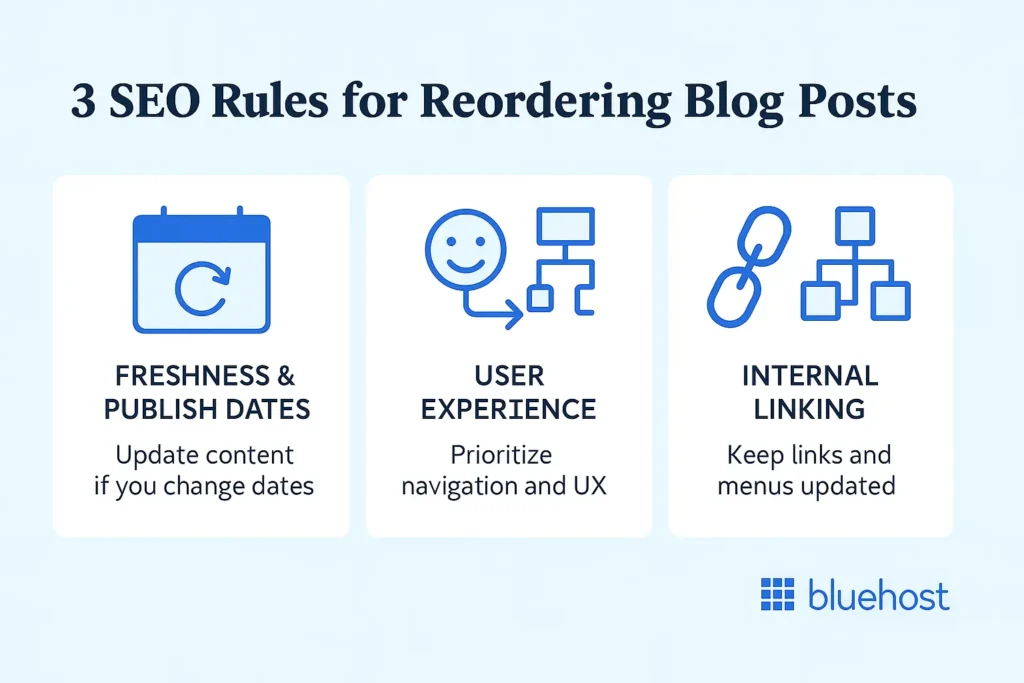
Reordering posts can significantly affect your site’s SEO. While some methods are SEO-friendly, others can harm your rankings if not done carefully.
Understanding the SEO implications helps you make informed decisions when you order WordPress posts.
1. Impact on post’s published date and content freshness
Search engines value fresh content. When you change a post’s published date to reorder posts, you’re signaling to search engines that the content is new.
This can boost your rankings if the content has been updated. However, if you’re merely changing the published date without updating the content, search engines might eventually recognize this as manipulation.
Best practice: If you change publish dates, also update the content. Add new information, refresh statistics or improve the article. This way, the updated publication date accurately reflects content freshness.
2. Chronological order and user experience
While SEO is important, user experience should be your priority. If reordering posts improves how visitors navigate your site, the SEO benefits will follow.
Search engines reward sites that provide good user experiences. Lower bounce rates and longer session times signal quality to search engines.
Therefore, reorder posts in a way that makes sense for your visitors. Don’t prioritize SEO tactics over usability when deciding how to display posts on your blog page.
3. Internal linking and broken links
When you reorder posts, ensure that your internal linking structure remains intact. Broken internal links confuse both users and search engines.
Check the following:
- Verify that links between WordPress posts still work correctly.
- Update any navigation menus that reference specific post order arrangements.
- Review your sitemap to ensure it reflects the current post order.
Maintaining a strong internal linking structure helps search engines understand your site’s hierarchy. It also distributes page authority throughout your site when you display posts effectively.
Considerations for custom post types and WooCommerce
If you’re reordering posts for custom post types or WooCommerce products, SEO considerations are slightly different.
For WooCommerce products on your shop page, reordering posts based on popularity or sales can actually improve conversions. Higher conversions signal to search engines that your site provides value.
For custom post types, ensure that reordering posts doesn’t disrupt the logical flow of content. For example, if you have a series of tutorial posts, keep them in an order that makes sense for learners.
Final thoughts
Reordering posts in WordPress gives you greater control over how your content is displayed. Whether you choose to use plugins, manual methods or custom code, each approach has its benefits.
Remember to consider your audience and site goals. Re-order posts in a way that enhances user experience while maintaining SEO best practices.
That said, no matter which method you choose, your hosting environment determines how quickly changes appear and how smoothly visitors navigate your organized content.
Bluehost’s WordPress hosting delivers consistent sub-2-second load times through Oracle Cloud Infrastructure, ensuring your carefully curated post order displays instantly. With features like automatic daily backups, free SSL and 24/7 expert support, you can focus on content strategy while we handle the technical foundation.
Explore our WordPress hosting plans to find the right fit for your site.
FAQs
Yes, you can reorder posts without a plugin using three methods:
1. Change the publish date to move WordPress posts up or down in chronological order using the post edit screen.
2. Use the Sticky Post Feature to pin important blog posts to the top of your blog feed.
3. Enable Menu Order for posts by adding a code snippet to functions.php in your WordPress theme, then assign order numbers manually through the post settings.
These methods work well for sites with a few posts. However, a post order plugin offers easier management for sites with many posts.
You can use a post order plugin like Simple Custom Post Order or Post Types Order to reorder posts without affecting the original published date. These plugins allow you to drag and drop posts into the desired order through a user-friendly reorder interface. This is perfect for maintaining your SEO strategy while you order posts exactly how you want them displayed on your blog page.
Yes, reordering posts can have both positive and negative effects on SEO. Changing the post’s published date signals freshness to search engines. This can boost rankings. However, frequently changing dates without updating content could confuse search engines. Using a post order plugin to reorder posts without changing the publication date is a better approach to avoid SEO penalties when you re order WordPress posts.
Yes, you can reorder posts for custom post types in WordPress. These include WooCommerce products on your shop page or portfolio items. Use a post order plugin like Post Types Order. You can also reorder posts for custom post type content programmatically by modifying the WordPress query with custom code that targets multiple post types.
The Simple Custom Post Order plugin is one of the best for re-ordering posts, pages and custom post types in WordPress. It’s easy to use with a drag-and-drop interface in the WordPress dashboard. It doesn’t require any coding knowledge to reorder posts directly from the posts page, making it perfect for beginners who want to easily reorder posts.
Yes, WordPress has a built-in Sticky Posts Feature. This allows you to make a post sticky at the top of your blog without changing its post’s publish date. You can find this option in the Visibility settings of the post editing screen within the post settings panel. This creates WordPress posts sticky at the top for highlighting specific posts.


Write A Comment