


Key highlights
- Understand when disabling themes or plugins is the right move.
- Learn how to delete WordPress theme and start over safely.
- Explore different methods using WordPress and hosting tools.
- Avoid common mistakes that cause downtime or data loss.
- Discover how Bluehost simplifies WordPress recovery workflows.
Struggling with a broken WordPress layout or mysterious site errors? You’re not alone. Themes and plugins control your WordPress site’s appearance and functionality. If they are outdated or misconfigured, they can significantly slow performance, create compatibility issues, or disrupt your site’s layout. Many WordPress users face frustrating situations where theme incompatibilities or plugin conflicts disrupt their site’s appearance and functionality.
For WordPress users, knowing how to delete themes in WordPress safely and start fresh is an essential troubleshooting skill that can restore site stability.
Whether you’re dealing with broken layouts or performance issues, understanding proper theme and plugin management ensures your WordPress site stays secure, fast and performing at its best.
Now that you understand why proper theme and plugin management matters, let’s walk through the step-by-step process of safely disabling and deleting them from your WordPress site.
How do you delete WordPress themes safely?
Deleting WordPress themes safely involves a systematic process to prevent site functionality issues and ensure data protection. Follow these essential steps to deactivate, backup and permanently remove unused themes from your WordPress dashboard without compromising your website’s performance.
What steps are required before deleting a theme?
Switch to a default WordPress theme: Before you delete themes from WordPress, activate one of the built-in default themes (such as Twenty Twenty-Four or Twenty Twenty-Three) to maintain site functionality and prevent potential display issues during the theme removal process.
Create a complete backup: Always backup your WordPress website files and database before deleting any themes. Use your hosting control panel or a reliable backup plugin to create a restore point that protects your site data and configuration.
Verify theme status: Check that the theme you want to remove is not currently active on your WordPress site. Navigate to Appearance > Themes in your dashboard to confirm, as deleting an active theme can cause critical errors and site downtime.
How do you delete wordpress theme and start over?
- Navigate to Appearance and select Themes.
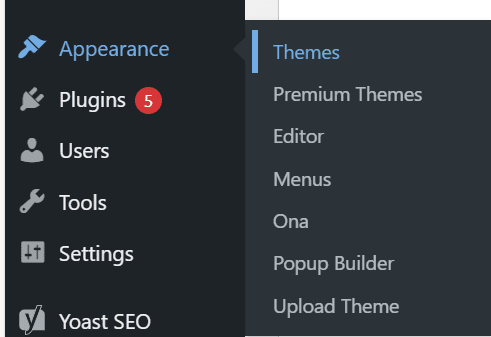
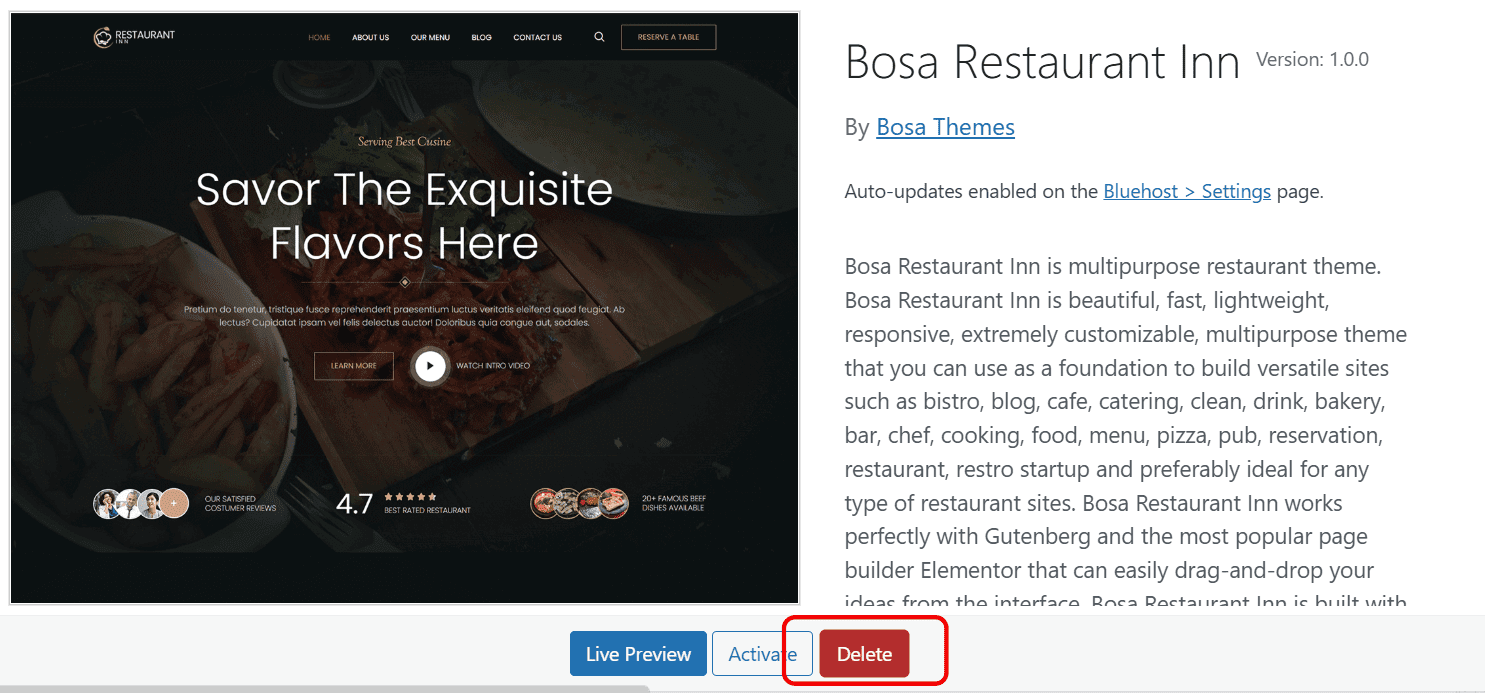
- Choose the inactive theme.
- Click Delete to remove it completely.
Remove the theme via FTP
Use FTP when your WordPress dashboard is inaccessible due to theme conflicts or errors. Before starting, ensure you have FTP credentials from your hosting provider, an FTP client installed and a complete site backup. Connect to your server and navigate to the /wp-content/themes/ directory where all theme folders are stored.
Identify the problematic theme folder by name (it typically matches the theme name from your dashboard). Instead of deleting immediately, rename the folder by adding “-disabled” to the end—this safely deactivates the theme while preserving files for potential recovery. Only permanently delete after confirming your site works properly. Never remove your currently active theme or all installed themes, as this can break your site. Always keep a default WordPress theme available as a fallback. If FTP isn’t available, most hosting control panels offer File Manager tools that provide similar functionality through a web interface.
Deleting a theme via WP-CLI
WP-CLI is a command-line interface for WordPress that enables advanced users to manage sites efficiently through terminal commands. This method proves particularly valuable when your WordPress dashboard is inaccessible due to theme conflicts or when you need to perform bulk cleanup operations across multiple sites.
Before proceeding, ensure you have SSH access to your hosting account and create a complete site backup. First, switch to a default WordPress theme using wp theme activate twentytwentyfour (or another default theme), as you cannot delete an active theme. Next, verify the exact theme slug with wp theme list, then delete the unwanted theme using wp theme delete theme-slug-name. Always confirm your site loads properly after deletion. This command-line approach offers precise control and eliminates the risk of browser-related issues that might occur when deleting themes through the dashboard interface.
Also read: Best WordPress Themes for Blogs s
What happens when you delete themes from WordPress?
Before learning how to delete themes from WordPress, it’s important to understand the difference between disabling and deletion. Disabling (deactivating) themes in WordPress temporarily halts their functionality while keeping all files and settings intact on your server. This method is perfect for troubleshooting conflicts, testing site performance or pausing features without losing your configurations and you can reactivate them anytime without reinstallation.
TL:DR; Deleting WordPress themes or plugins permanently removes all associated files from your server, freeing up valuable storage space. This irreversible action eliminates the theme or plugin completely and any stored settings or customizations may be lost unless backed up beforehand. Delete unused elements to maintain a clean, optimized WordPress installation.
When learning how to delete themes from WordPress, it’s important to understand that WordPress includes a built-in safety mechanism that prevents you from deleting your currently active theme. This protective feature safeguards your site from breaking by requiring you to activate an alternative theme first before removing the old one. By enforcing this theme-switching step, WordPress ensures your website maintains continuous functionality and prevents the accidental deletion of active components that are critical to your site’s appearance and operation.
Disabling WordPress plugins is a reversible maintenance technique that preserves all your site data, posts, pages and settings while stopping plugin functionality. While some WordPress users may want to permanently remove elements and learn how to delete themes from WordPress, temporarily deactivating plugins offers a safer alternative for troubleshooting conflicts, optimizing performance and conducting site maintenance without risking data loss.
Also read: Understanding WordPress Themes
When should you delete a WordPress theme and rebuild your site
You should delete a WordPress theme and rebuild your site when theme conflicts disrupt essential functionality such as page layouts, navigation menus or responsive design features. Removing conflicting themes prevents compatibility issues with plugins and ensures your website operates smoothly and reliably.
Outdated WordPress themes create dangerous security vulnerabilities that expose your website to potential attacks. Deleting old, unmaintained themes protects your site from hackers and malware exploiting known security flaws in outdated code.
Some poorly optimized WordPress themes dramatically slow down your website’s loading speed and overall performance. Removing unnecessary themes improves page load times, boosts your SEO rankings and enhances user experience, leading to better engagement and conversions.
Deleting unused or problematic themes from your WordPress installation improves overall site stability and gives you complete design control. Maintaining a clean theme directory simplifies website management, minimizes potential conflicts and ensures optimal WordPress performance for your online presence.
Why you should delete unused WordPress themes
You should delete Unused themes as they pose significant security risks even when inactive, as abandoned or outdated theme files often contain unpatched vulnerabilities that hackers can exploit. These dormant themes create unnecessary entry points for malicious attacks, expanding your site’s attack surface without providing any benefit. Removing unused themes dramatically reduces these security risks and eliminates potential backdoors that cybercriminals could use to compromise your website.
Beyond security, learning how to delete themes from WordPress helps maintain only essential themes, which streamlines your update workload and simplifies troubleshooting when issues arise. You’ll have fewer files to monitor, update and investigate during problem-solving, making WordPress site maintenance more efficient and less time-consuming.
As a best practice, always keep one default WordPress theme installed as an emergency fallback. If your active theme encounters problems, you can quickly switch to this reliable backup to restore your site’s functionality while you resolve the issue.
Also read: WordPress backup methods before deleting themes
When to delete a WordPress theme
Delete a WordPress theme when you’ve permanently switched to a new theme and confirmed the old one is completely inactive. When the theme is no longer maintained by its developer or lacks security updates, it can cause site conflicts or performance issues. If you’re cleaning up bloat on a production website or you’re starting fresh with a complete redesign, it’s advisable to delete a WordPress theme.
Before deleting any theme, confirm these essential points: the theme is currently inactive and not being used by any part of your site, you have a complete backup of your website files and database and you’ve tested the deletion on a staging site when possible. Never delete your active theme without switching to another one first, as this can break your site’s appearance and functionality.
When to not delete a WordPress theme
You should not remove themes if they’re currently active, as this can break your site completely. Never delete a theme that’s being used on a staging website you plan to sync with your live site or you’ll face deployment issues. Hold off if the theme contains critical customizations like child theme modifications or custom templates that haven’t been migrated elsewhere. You might also need the theme temporarily for troubleshooting or rolling back changes if something goes wrong with your current setup.
If you’re uncertain whether specific functionality comes from your theme or plugins, investigate first to avoid accidentally removing essential features. The safest approach is to switch to a reliable fallback theme first, then thoroughly test your site’s functionality. When possible, perform these changes on a staging environment before affecting your live website.
How do hosting tools help manage themes and plugins?
Managing WordPress themes safely requires proper server-level preparation. Your hosting control panel provides essential file access tools that allow you to manage theme files directly through FTP or the file manager. This access becomes crucial when you need to manually remove problematic themes that can’t be deleted through the WordPress dashboard.
Reliable hosting solutions like Bluehost WordPress hosting offer built-in file managers, FTP access, and WordPress-optimized environments, making it easier to troubleshoot theme and plugin issues without relying solely on the admin dashboard. Before making any theme changes, creating comprehensive backups protects your site from potential data loss or configuration errors. Hosting-level backup tools ensure you can quickly restore your website if something goes wrong during the theme deletion process.
Additionally, maintaining secure server configurations and proper SSL certificate management helps minimize errors and safeguards admin access during maintenance activities. These server hygiene practices create a stable environment for safely removing unused themes, reducing the risk of downtime or security vulnerabilities.
What common issues occur when deleting themes or plugins?
Deleting themes or plugins incorrectly can cause website malfunctions, broken functionality and lost customizations. Understanding these potential problems helps prevent costly mistakes and ensures smooth WordPress maintenance.
What errors should you watch for?
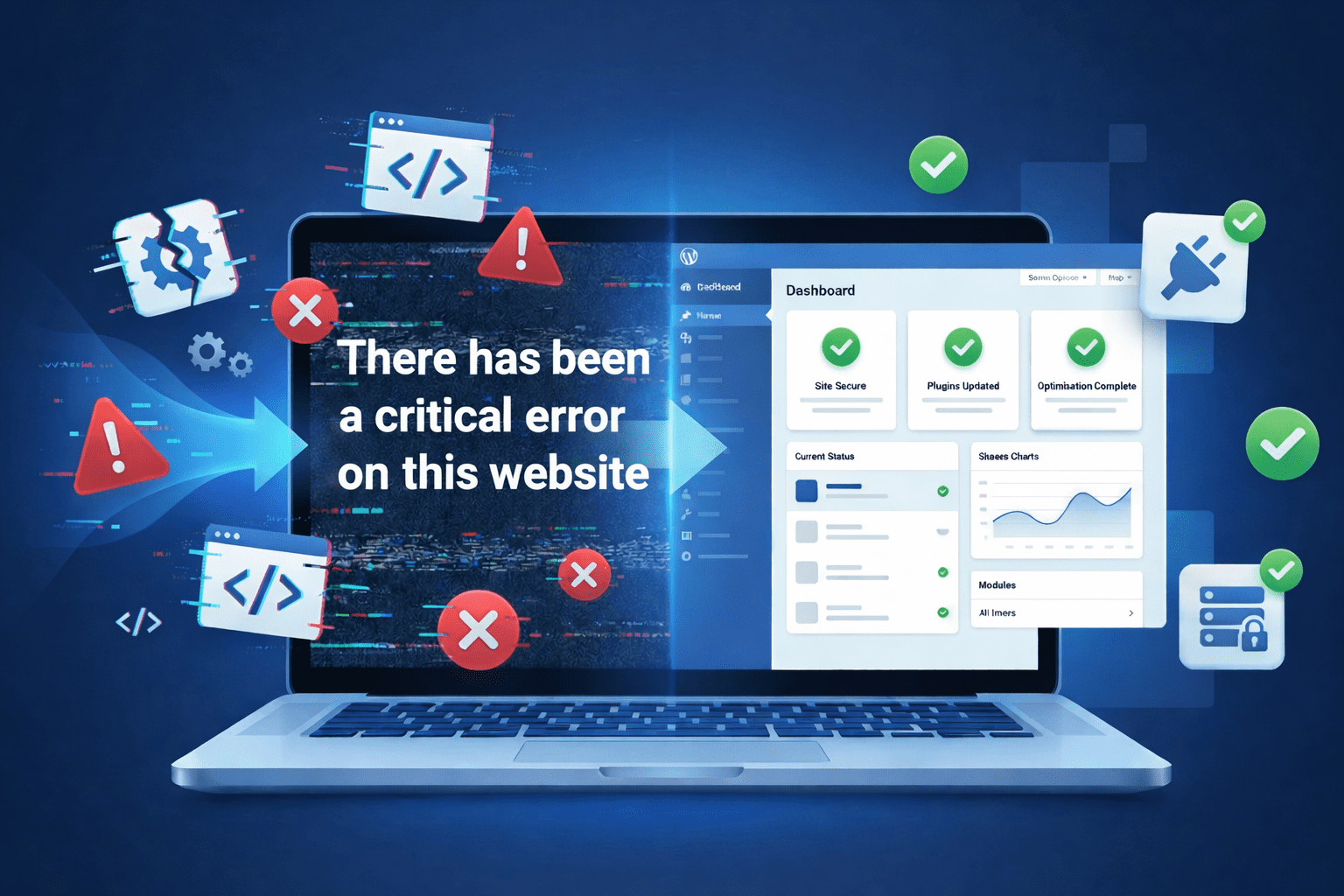
White screen of death (WSOD) occurring when incompatible or corrupted themes and plugins conflict with your WordPress installation.

This critical error prevents site access and typically requires immediate theme or plugin removal through file manager or database to restore functionality.
Missing styles or broken layouts caused by theme conflicts, outdated plugins or CSS incompatibilities. When WordPress themes clash with active plugins, your site’s visual presentation becomes distorted, affecting user experience and requiring you to disable problematic themes or delete conflicting plugins to restore proper design.
Plugin dependency conflicts when multiple WordPress plugins require different versions of the same library or when themes depend on specific plugin functionality. These conflicts can crash your site, making it essential to identify and remove incompatible themes and plugins to maintain WordPress stability and performance.
How can you recover from theme or plugin issues?
- Restore backups from hosting tools: If you accidentally delete an essential WordPress theme or plugin, your hosting provider’s backup system can be a lifesaver. Most hosting platforms like Bluehost offer automated daily backups through tools like CodeGuard. Access your hosting control panel, navigate to the backup section and restore your website to a previous working state before the deletion occurred.
- Reinstall default themes: WordPress comes with default themes that serve as reliable fallbacks. If you delete themes from WordPress and your site breaks, you can quickly reinstall Twenty Twenty-Four or other default themes through the WordPress dashboard. Navigate to Appearance > Themes > Add New, search for official WordPress themes and install them with one click to restore your site’s functionality.
- Contact hosting support when needed: When theme or plugin deletion causes unexpected issues, don’t hesitate to reach out to your hosting provider’s support team. Professional hosts offer 24/7 assistance to help troubleshoot WordPress problems, guide you through recovery processes and ensure your website remains secure and operational throughout the cleanup process.
Why choose Bluehost for managing WordPress themes and plugins?
Managing WordPress themes and plugins efficiently is essential for maintaining a fast, secure website. With Bluehost’s WordPress-optimized hosting platform, you get powerful tools and expert support to safely remove unnecessary themes and plugins from your site.
Why choose Bluehost for WordPress theme and plugin management
When it comes to managing WordPress themes and plugins effectively, Bluehost provides a comprehensive hosting environment specifically optimized for WordPress users. Our infrastructure is designed to make theme and plugin management seamless, whether you’re installing new extensions or removing outdated ones.
Optimized WordPress hosting environment
Bluehost offers optimized WordPress hosting environments that are specifically configured to handle theme and plugin operations efficiently. This optimization ensures faster load times and smoother installations when you add or remove themes and plugins from your WordPress dashboard.
Automatic backups and file recovery
We at Bluehost provide automatic backups on eligible plans, giving you peace of mind when deleting themes or plugins. Our File Manager access simplifies plugin recovery if you need to restore something you’ve removed. This built-in safety net means you can confidently clean up your WordPress installation without worrying about permanent data loss.
Enhanced security and 24/7 support
Free SSL certificates improve both admin and frontend security, protecting your site during theme and plugin modifications. Our 24/7 support team assists with theme and plugin issues, ensuring you have expert help available whenever you encounter challenges while managing your WordPress components.
Best practices before you delete WordPress theme and start over
Before you delete themes from WordPress, implementing essential safety measures protects your website from potential issues. These preparatory steps create a secure foundation when you need to disable or delete themes, minimizing risks while maintaining optimal site performance.
- Create a complete site backup to restore your WordPress installation if problems arise during the theme deletion process.
- Test any modifications on a staging site to identify conflicts before affecting your live environment.
- Remove unused plugins and keep your WordPress core updated to support safer theme management.
- Maintain robust server security and SSL hygiene to safeguard your WordPress website against vulnerabilities.
- Follow preventive maintenance practices to optimize your WordPress installation for better speed, security and functionality.
Final thoughts
Learning how to delete WordPress themes properly is essential for maintaining a healthy, secure website. By removing unused themes and plugins, you prevent potential security vulnerabilities, improve site performance and keep your WordPress installation clean. Understanding when and how to disable or delete themes from WordPress ensures your site runs smoothly without unnecessary clutter slowing it down.
Remember that reliable hosting plays a crucial role in your website’s stability and recovery process. With the right hosting provider like Bluehost, you get access to powerful tools for safe WordPress management, automatic backups and expert support whenever you need it. Whether you’re starting fresh or cleaning up an existing site, having dependable hosting ensures your WordPress journey is smooth and secure from start to finish.
FAQs
Secure hosting provides automatic backups, malware protection and reliable infrastructure preventing data loss during WordPress theme and plugin cleanup processes.
Delete WordPress themes when experiencing critical errors, severe conflicts, corrupted files or when repair costs exceed reinstallation time and effort.
Disable plugins via FTP by renaming the plugins folder, through cPanel File Manager or using WP-CLI commands for safe deactivation.
Deleting WordPress themes doesn’t affect posts or pages, but removes theme-specific settings, widgets, customizations and custom post types permanently.
Create complete backups, export settings, deactivate first, check dependencies, document customizations and test on staging environment before deletion.


Write A Comment