 ChatGPT,
  Claude,
  Gemini,
  Grok — all four for
How to Add a Trusted Phone Number for Enhanced Security
In today's digital age, protecting your online accounts is more important than ever. One of the best ways to secure your account is to add a trusted phone number for enhanced security. Doing so adds an extra layer of protection, making it harder for unauthorized users to access your accounts. This trusted phone number can be used in two-factor authentication or as a backup phone number for account security when you need help from customer support.
Whether adding a trusted phone number to the account for the first time or updating an existing one, follow these simple steps to strengthen your account security.
Add a Trusted Phone Number
When you first log in to your account, you will be prompted to add a trusted phone number for security. You can skip this step and add it later on your My Profile & Security page.
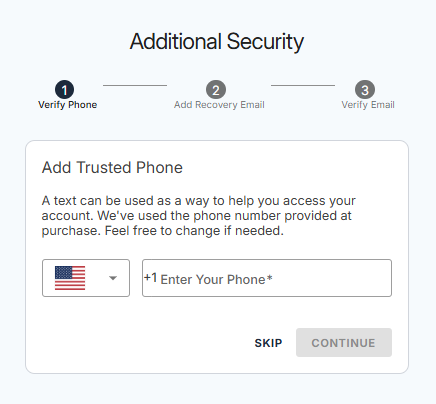
Here are the steps for adding a Trusted Phone Number to your Bluehost Portal.
- Log in to your Bluehost Portal.
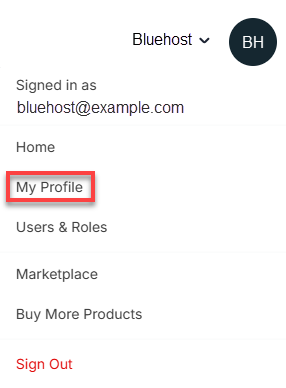
- Click your Profile icon in the top-right corner, then select My Profile from the list of options.
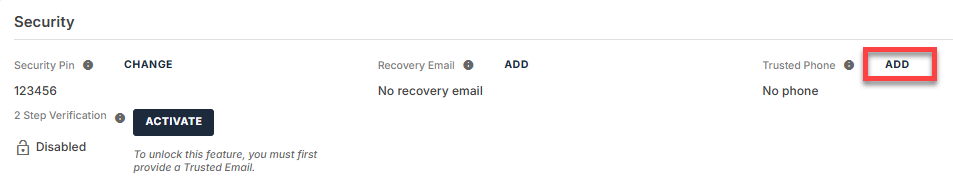
- Scroll down to the Security section, then click Add next to Trusted Phone.
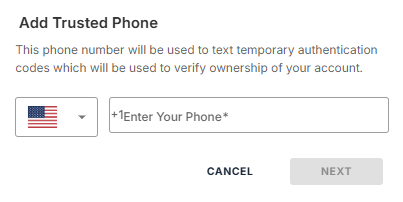
- In the pop-up window, add your phone number and then click Next.
- Enter the verification code sent to your phone number, then click the Verify button.
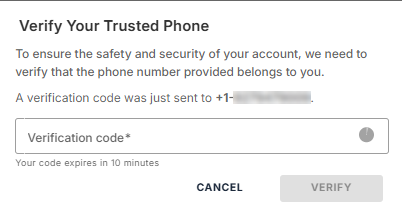
Your Trusted Phone was successfully added!
Change Your Trusted Phone Number
If you need to update your trusted phone number, you can easily do so anytime within your Bluehost Portal.
Here are the steps for changing your Trusted Phone Number in your Bluehost Portal.
- Log in to your Bluehost Portal.
- Click the Profile icon, then select My Profile from the drop-down menu.
- Scroll down to the Security section, tap Change next to Trusted Phone.

- Enter the new phone number, then click Next.
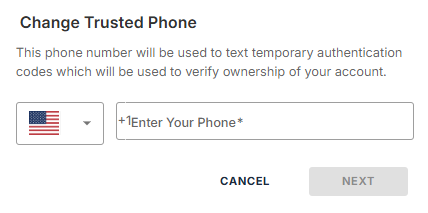
- Enter the verification code sent to the new phone number you provided, then click the Verify button.
Your Trusted Phone was successfully updated!
Unsupported Countries for Adding a Trusted Phone
At the moment, certain countries do not support the ability to add a trusted phone number due to regional security policies or technical limitations. Below is a list of unsupported countries:
| A-F | G-L | M-R | S-Z |
|---|---|---|---|
| Afghanistan | Gabon | Madagascar | Saint Kitts and Nevis |
| Algeria | Gambia | Malawi | Saint Lucia |
| American Samoa | Georgia | Mali | Saint Martin French |
| Angola | Ghana | Marshall Islands | Saint Pierre and Miquelon |
| Anguilla | Greenland | Martinique | Saint Vincent and the Grenadines |
| Antigua and Barbuda | Grenada | Mauritius | Samoa |
| Azerbaijan | Guadeloupe | Micronesia (Federated States of) | San Marino |
| Bangladesh | Guernsey | Monaco | São Tomé and Príncipe |
| Belize | Guinea | Mongolia | Senegal |
| Benin | Guinea-Bissau | Montserrat | Serbia |
| Bermuda | Guyana | Morocco | Seychelles |
| Bolivia | Holy See (Vatican City State) | Myanmar | Sierra Leone |
| British Indian Ocean Territory | Honduras | Nauru | Slovenia |
| Burundi | Indonesia | Nepal | Solomon Islands |
| Cambodia | Iran | Niger | South Sudan |
| Cameroon | Iraq | Nigeria | Sri Lanka |
| Central African Republic | Israel | Niue | Sudan |
| Chad | Jersey | Northern Mariana Islands | Syrian Arab Republic |
| China | Jordan | Oman | Tajikistan |
| Comoros | Kazakhstan | Pakistan | Timor-Leste (East Timor) |
| Congo | Kiribati | Palau | Tonga |
| Cook Islands | Kosovo | Palestinian Territory (Occupied) | Turkmenistan |
| Democratic People's Republic of Korea | Kuwait | Papua New Guinea | Turks and Caicos Islands |
| Democratic Republic of the Congo | Kyrgyzstan | Philippines | Tuvalu |
| Dominica | Lao People's Democratic Republic | Rwanda | Uganda |
| El Salvador | Lebanon | Uzbekistan | |
| Equatorial Guinea | Lesotho | Vanuatu | |
| Eritrea | Liberia | Vietnam | |
| Estonia | Libyan Arab Jamahiriya | Virgin Islands British | |
| Ethiopia | Liechtenstein | Virgin Islands US | |
| Falkland Islands (Malvinas) | Wallis and Futuna Islands | ||
| Faroe Islands | Yemen | ||
| FrenchGuiana | Zambia | ||
| Zimbabwe |
Summary
Adding or changing your trusted phone number is a simple yet essential step to secure your online account. Whether you're using it for two-step verification or as a backup method for contacting support, a trusted phone number provides an extra layer of security for your account. Follow the steps above to easily add or update your number and protect your personal information.
Remember, account security is an ongoing priority. Secure your account today by adding or updating your trusted phone number.
If you need further assistance, Bluehost Chat Support is available 24 hours a day, 7days a week while Bluehost Phone Support is available 7 days a week from 7 am-12 midnight EST.
- Chat Support - While on our website, you should see a CHAT bubble in the bottom right-hand corner of the page. Click anywhere on the bubble to begin a chat session.
- Phone Support -
- US: 888-401-4678
- International: +1 801-765-9400
You may also refer to our Knowledge Base articles to help answer common questions and guide you through various setup, configuration, and troubleshooting steps.