 ChatGPT,
  Claude,
  Gemini,
  Grok — all four for
 Bluehost AI All- Access Pack: Using the AI Article Writer
Bluehost AI Article Writer is a powerful tool designed to simplify workflows directly from your web hosting environment. Because content creation is a fundamental pillar of building an online presence, consistently generating high-quality text can often be time-consuming. To solve this, Bluehost has expanded its ecosystem by introducing dedicated artificial intelligence tools.
We’ve created this short video to help you explore the AI tools available in your Bluehost AI All-Access Pack.
Step 1: Navigate to the AI Agents Suite
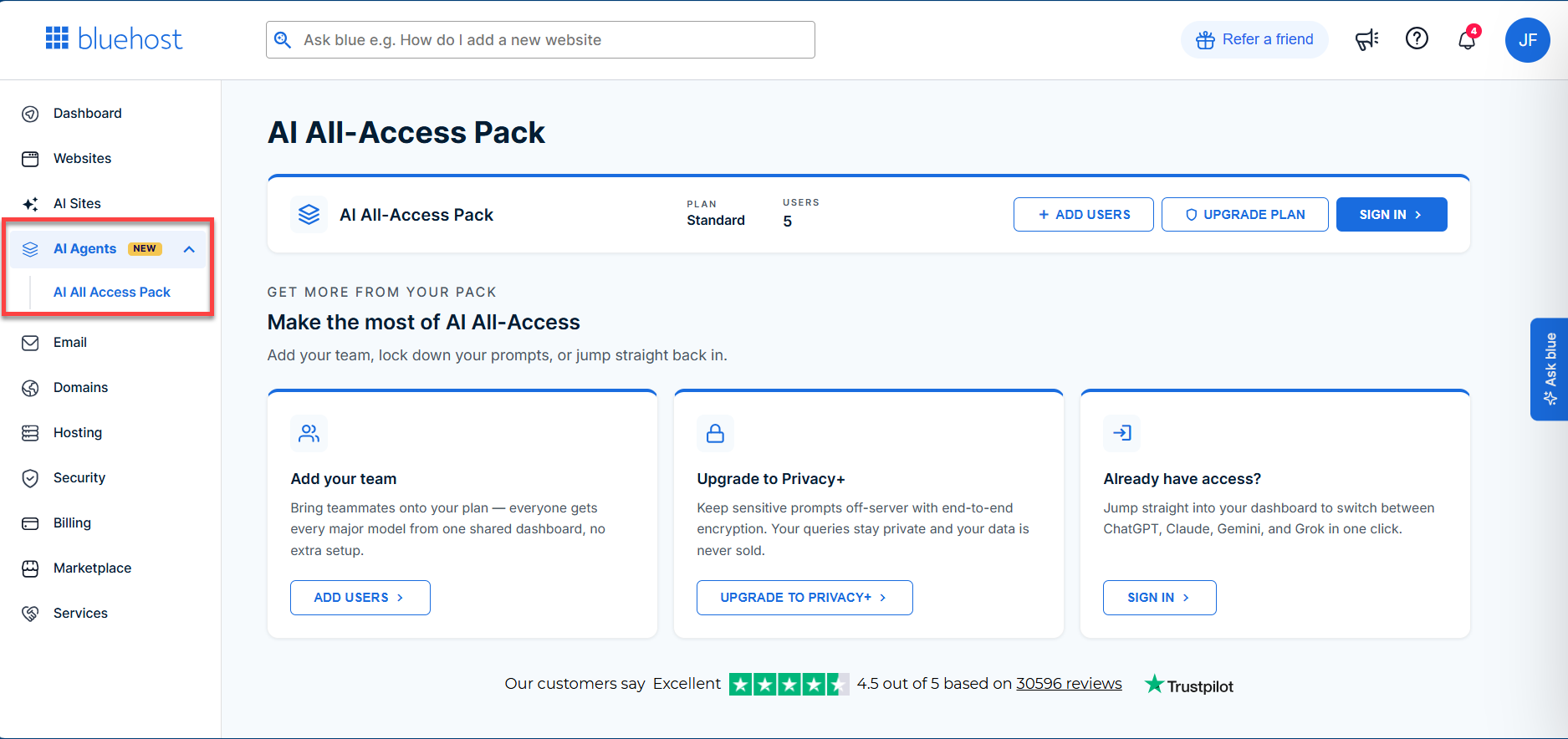
To begin, log in to your Bluehost Portal. In the left-hand sidebar, you will find AI Agents. Clicking on this option reveals the AI All Access Pack submenu, which serves as your gateway to Bluehost’s AI tools.
Step 2: Sign in to your AI All-Access Pack
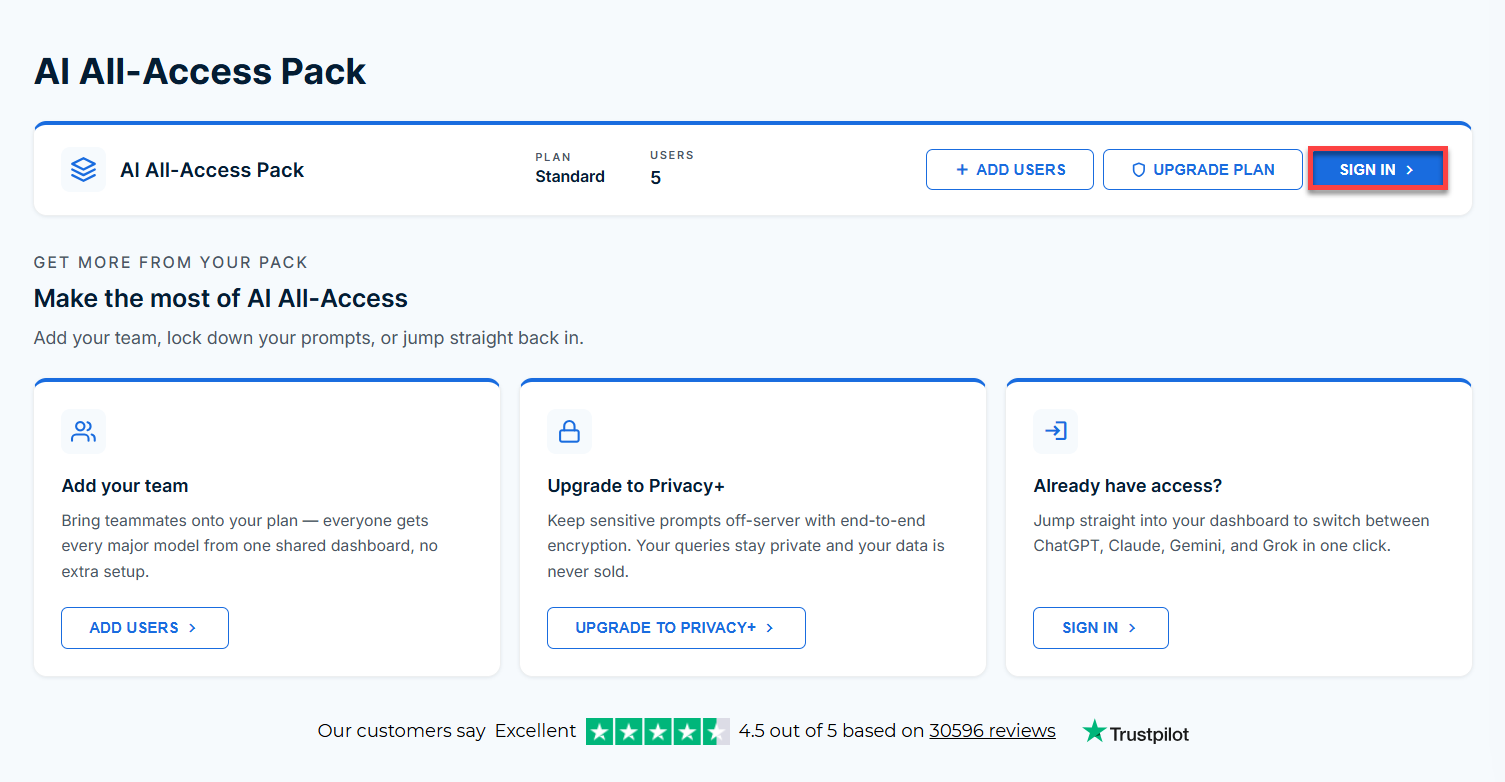
To launch the platform, click the Sign in button located at the top right of the panel, as highlighted below.
Step 3: Select the AI Article Writer Agent
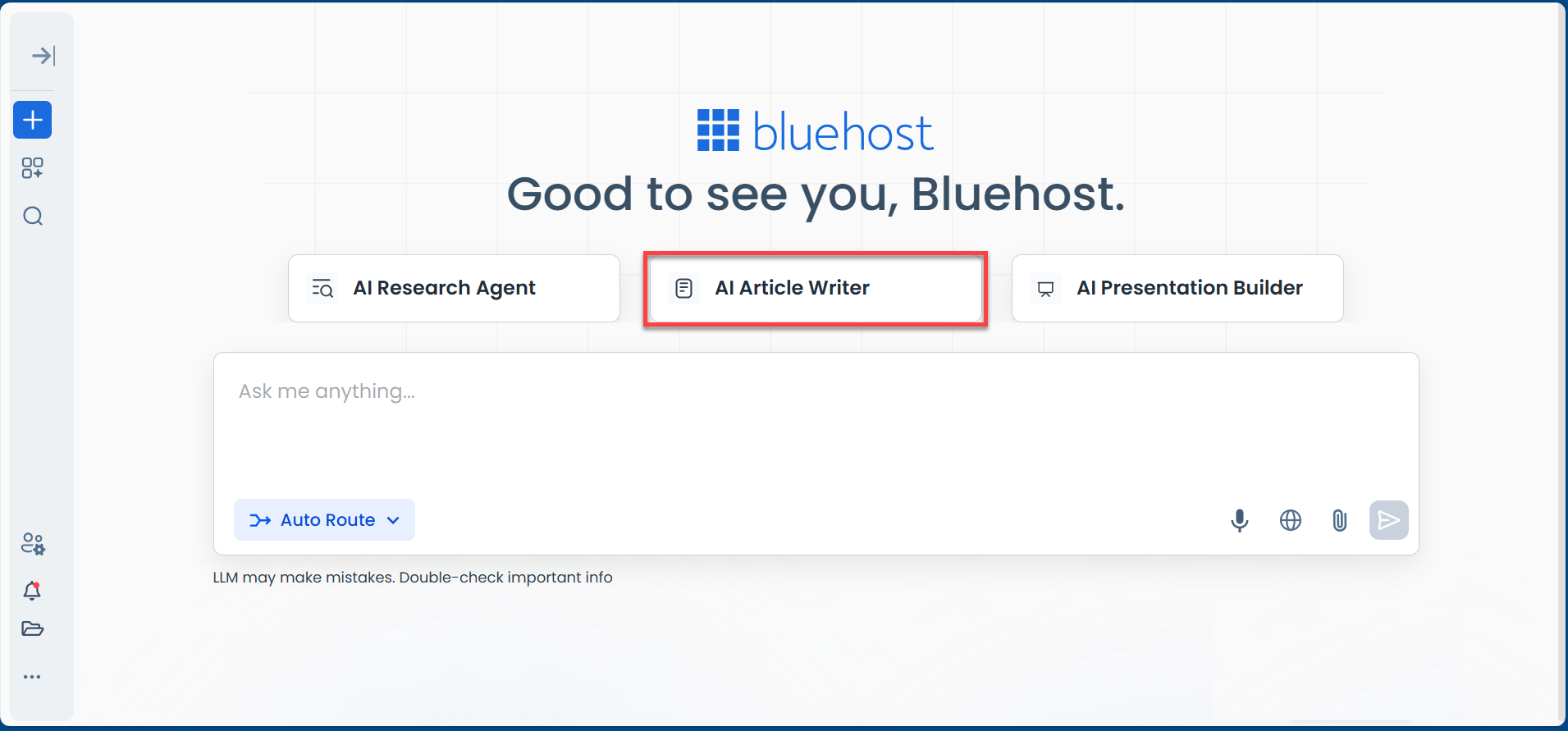
Once inside the central hub, select the AI Article Writer option positioned in the center, as shown below.
Step 4: Preparing Your Content Requirements
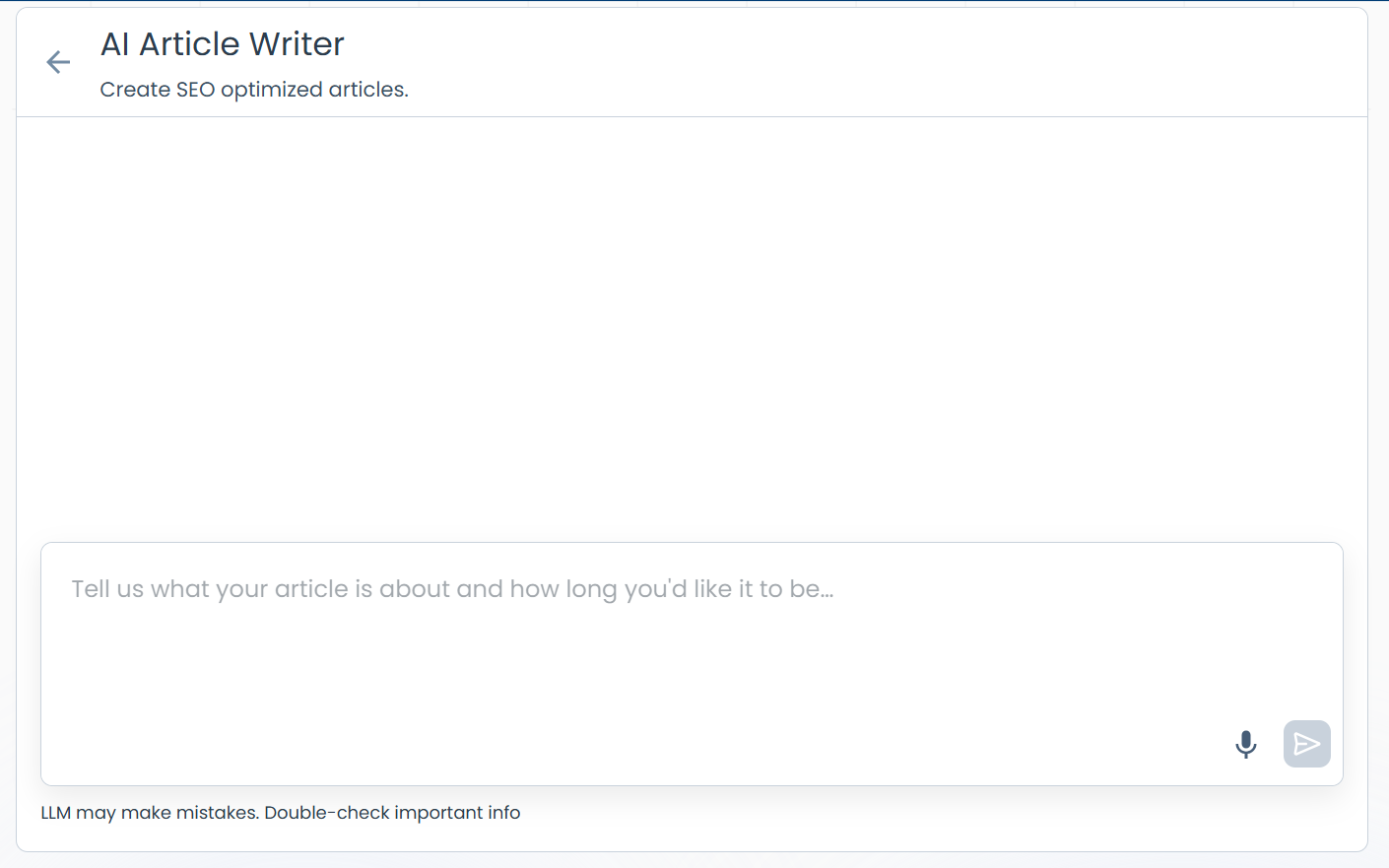
The dedicated writing assistant interface is purpose-built to Create SEO optimized articles. The execution process is straightforward: you simply input your requirements into the conversational text prompt field at the bottom.
As seen below, the system prompts you to "Tell us what your article is about and how long you'd like it to be..."
Step 5: Enter Your Detailed Prompt
Once you have crafted a comprehensive prompt, simply paste it in to the AI Article Writer's main input field. Providing specific instructions about word count, target audience, tone, keywords, and structural elements gives the AI the exact context it needs to generate highly targeted content.
After pasting your text, click the blue send arrow on the right side of the text box to submit your request.
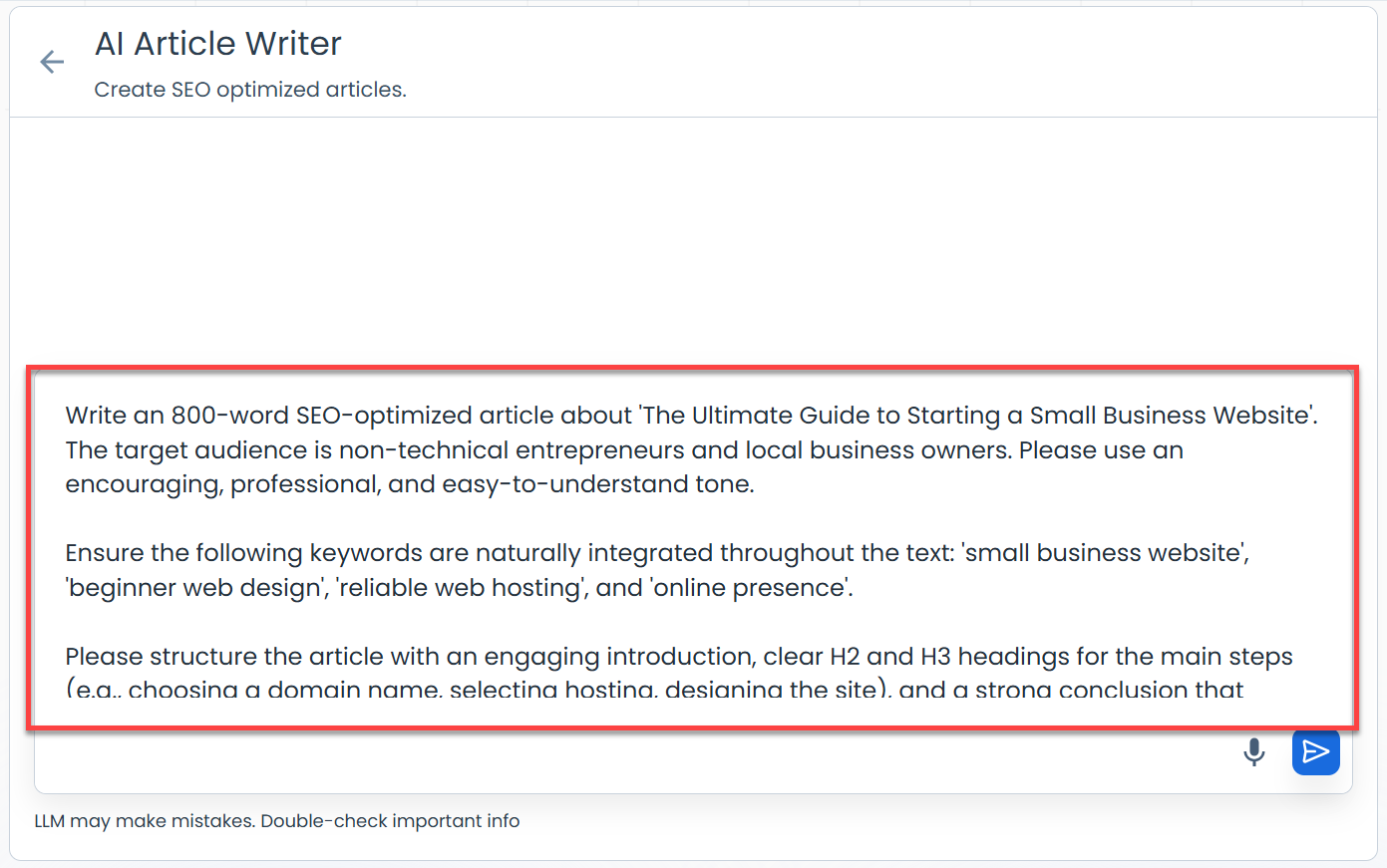
To get the best results, always include these key elements in your prompts:
- Be Specific: Define the exact topic and angle rather than using broad concepts.
- Target Your Audience: Tell the AI exactly who will be reading to ensure the right vocabulary and complexity.
- Set the Tone: State whether the article should be professional, encouraging, or witty.
- Define Structure and Length: Provide a target word count and request specific formatting.
- Include Keywords: List the exact SEO phrases you want the AI to naturally integrate.
Step 6: Review the Generated Result and Refine with Follow-Up Commands
Check the generated result and utilize the "Ask follow up..." if you think that the initial draft isn't completely perfect on the first try.
You can use this field to iteratively refine and expand the content without having to rewrite the entire article. For example, you might use this follow-up box to ask the AI to:
- Make the introduction slightly more energetic and punchy.
- Expand on the H2 section about choosing a domain name.
- Add a bulleted list summarizing the key takeaways at the end.
This conversational flow allows you to continuously tweak and polish the text directly within the Bluehost dashboard until it is ready for publication.
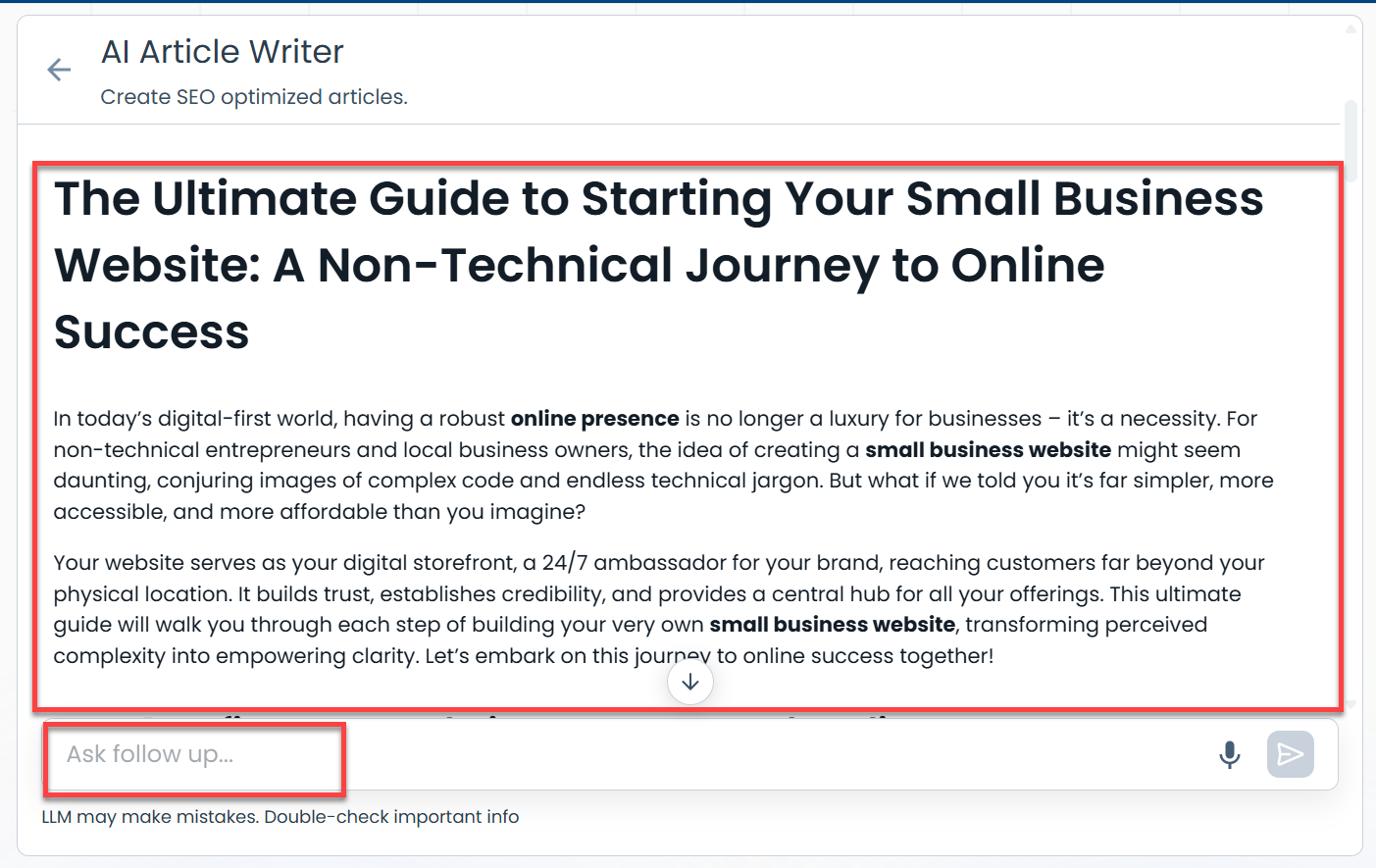
If you think that your draft isn’t the one you need, don’t start over! Use the "Ask follow up" box to tweak, expand, or refine the content until it matches your vision exactly.
Summary
Bluehost AI Article Writer streamlines the process of creating SEO-optimized content, making it easy for anyone to generate high-quality articles directly from their web hosting dashboard. By following the step-by-step workflow accessing the AI Agents suite, preparing a detailed prompt, and refining your draft with follow-up commands—you can produce professional, targeted content in less time.
If you need further assistance, Bluehost Chat Support is available 24 hours a day, 7days a week while Bluehost Phone Support is available 7 days a week from 7 am-12 midnight EST.
- Chat Support - While on our website, you should see a CHAT bubble in the bottom right-hand corner of the page. Click anywhere on the bubble to begin a chat session.
- Phone Support -
- US: 888-401-4678
- International: +1 801-765-9400
You may also refer to our Knowledge Base articles to help answer common questions and guide you through various setup, configuration, and troubleshooting steps.