 ChatGPT,
  Claude,
  Gemini,
  Grok — all four for
 Bluehost AI All-Access Pack: Using the AI Presentation Builder
Bluehost offers the AI All-Access Pack, which includes pre-built agents available in the dashboard. One of these agents is the AI Presentation Builder. The AI Presentation Builder is an intelligent content-generation tool that transforms topics, documents, or online resources into a complete presentation. It allows users to quickly create professional presentations by turning uploaded files or reliable internet sources into slides in minutes. By sharing a topic along with supporting documents or URLs, the AI automatically generates a structured presentation. It's ideal for business proposals, training materials, project updates, product overviews, or educational content, simplifying the process and helping you focus on delivering impactful messages.
We’ve created this short video to help you explore the AI tools available in your Bluehost AI All-Access Pack.
To learn more about the key features of AI All-Access, visit the What are Bluehost AI All-Access Packs? article.
Benefits of the AI Presentation Builder
With the AI Presentation Builder, you can:
- Generate presentations from uploaded files
- Create presentations using content from websites and URLs
- Combine file-based and internet-based sources
- Automatically generate slide titles and content
- Produce structured presentations with logical flow
- Create presentations in minutes
- Convert on-hand information into presentation-ready content while maintaining consistency and organization.
How to Use the AI Presentation Builder
- Log in to your Bluehost Portal.
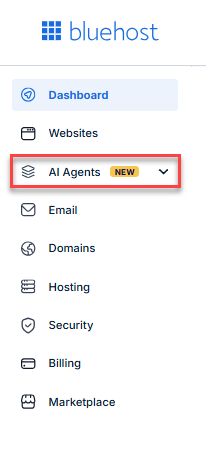
- Click AI Agents in the left menu.
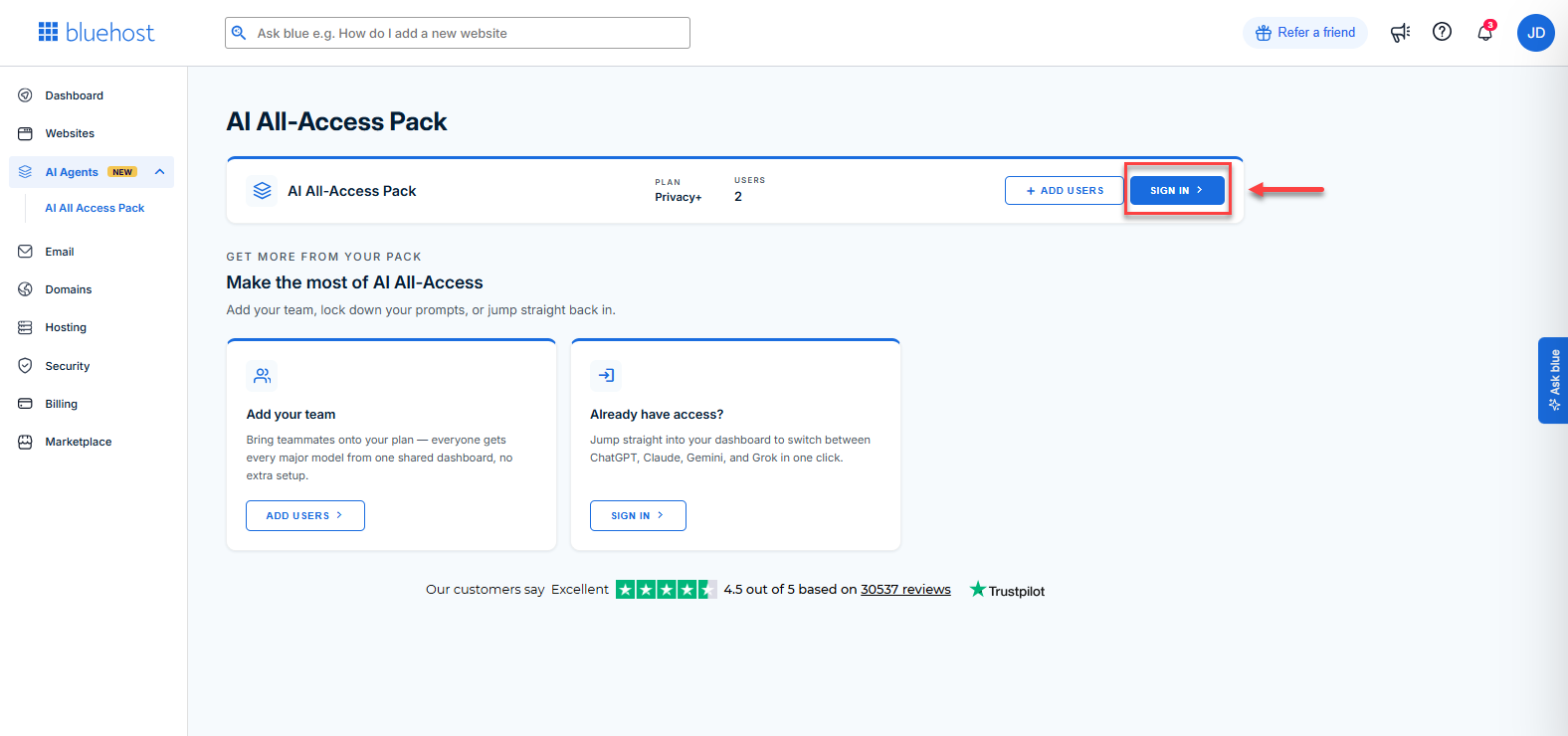
- Click the Sign In button.
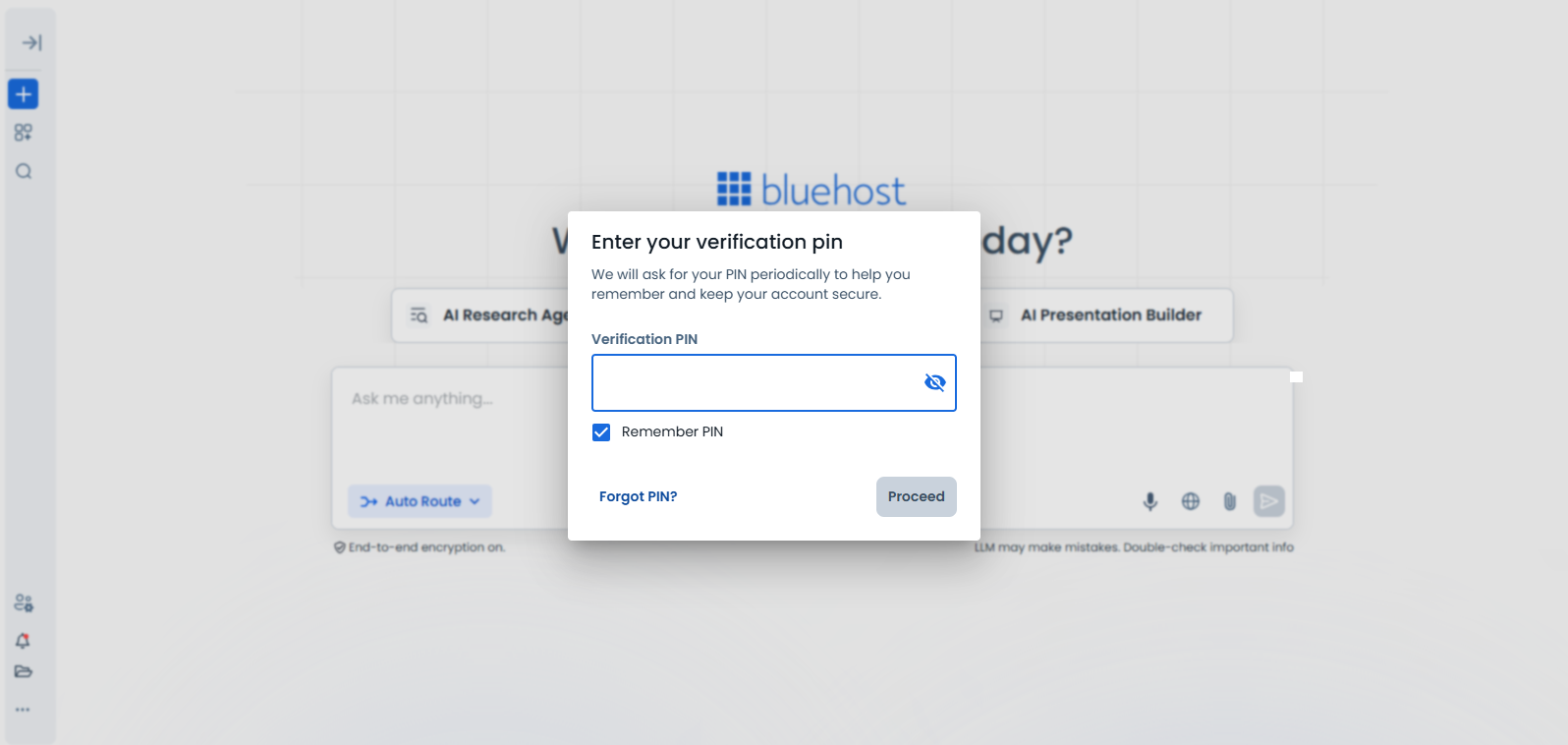
- Enter your Verification PIN when prompted.
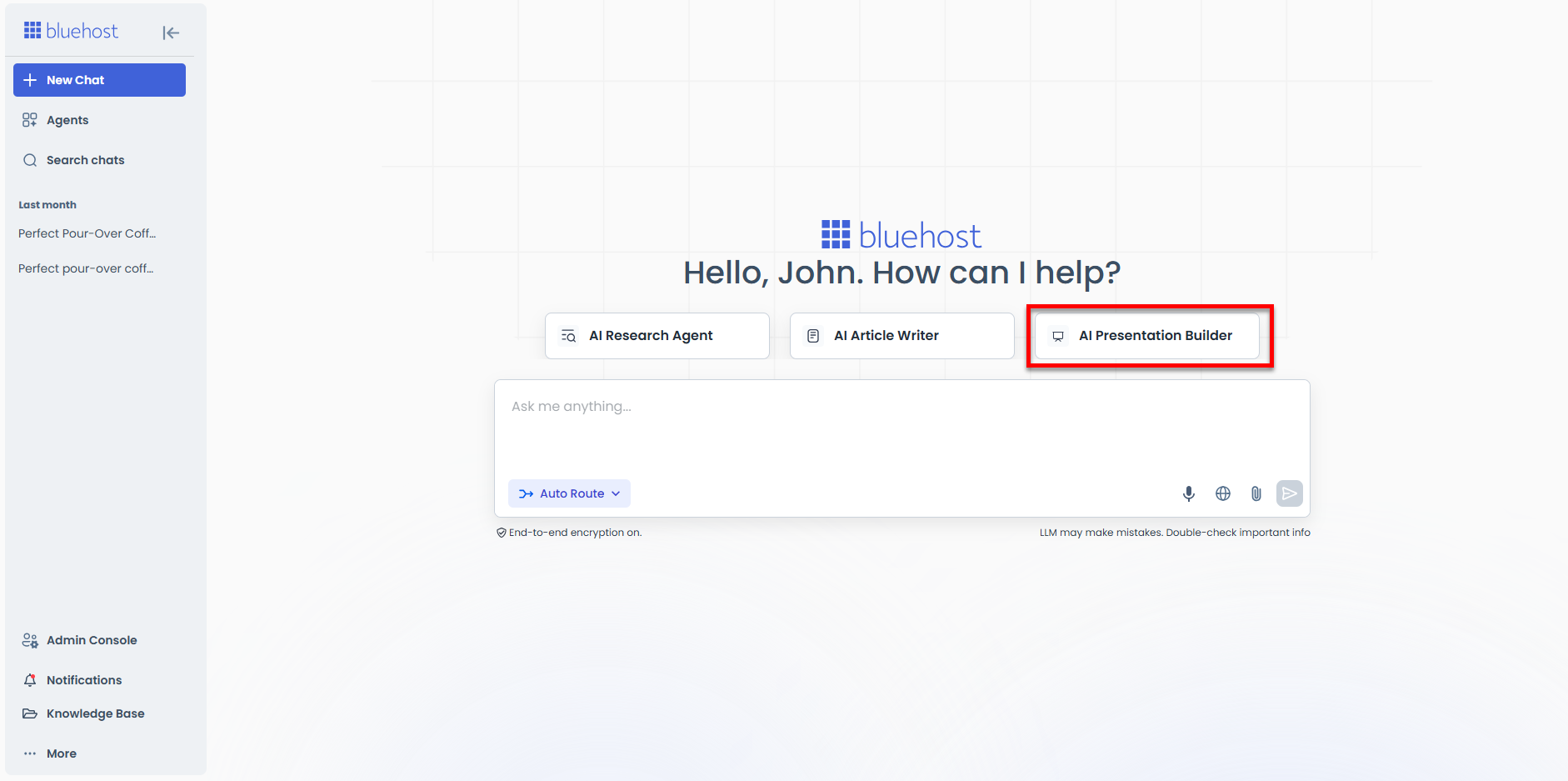
- Once logged in, you'll see the pre-built AI agents. Click the AI Presentation Builder.
Another way is to click the Agents tab in the left menu.
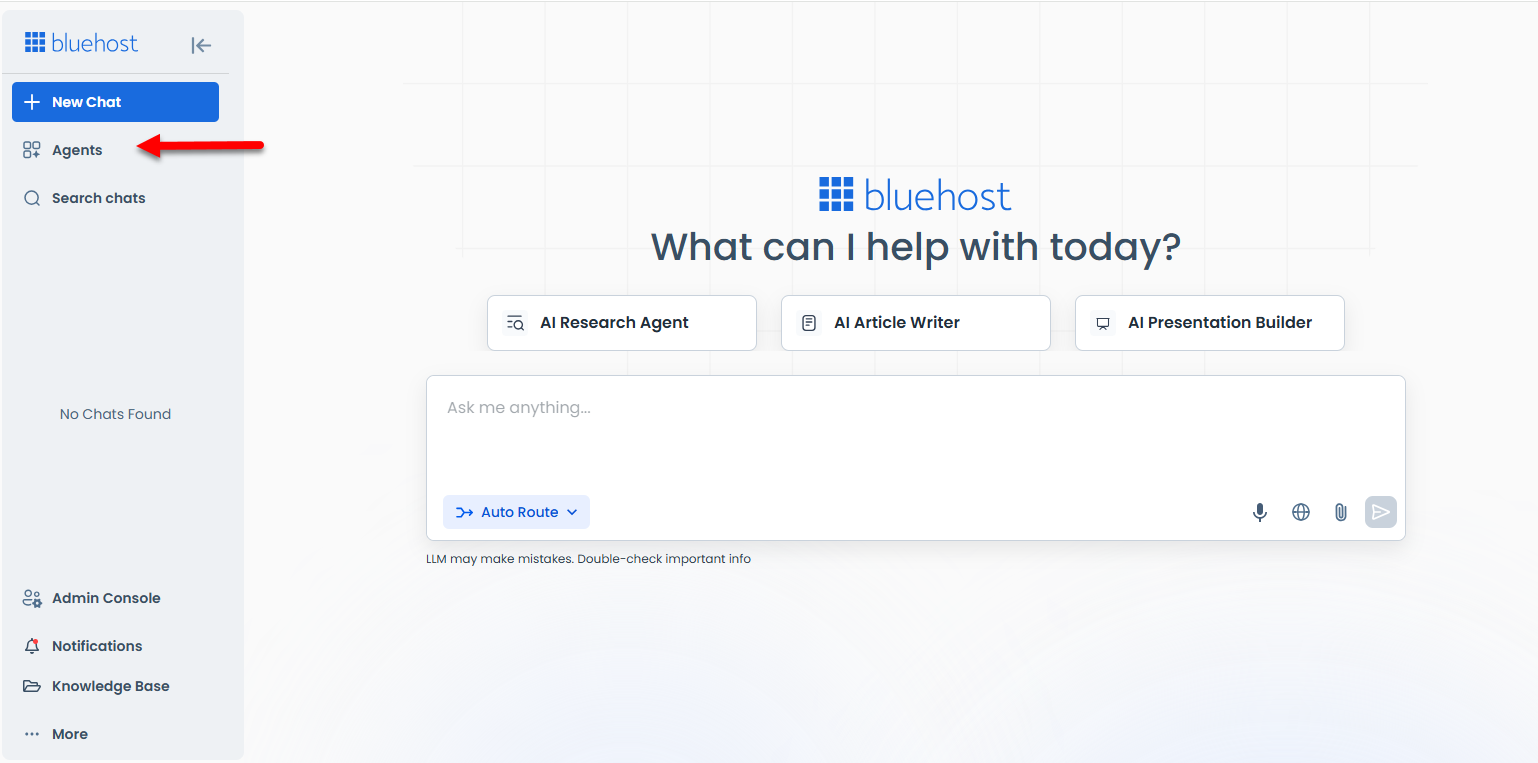
Click Start Chat under the AI Presentation Builder card.
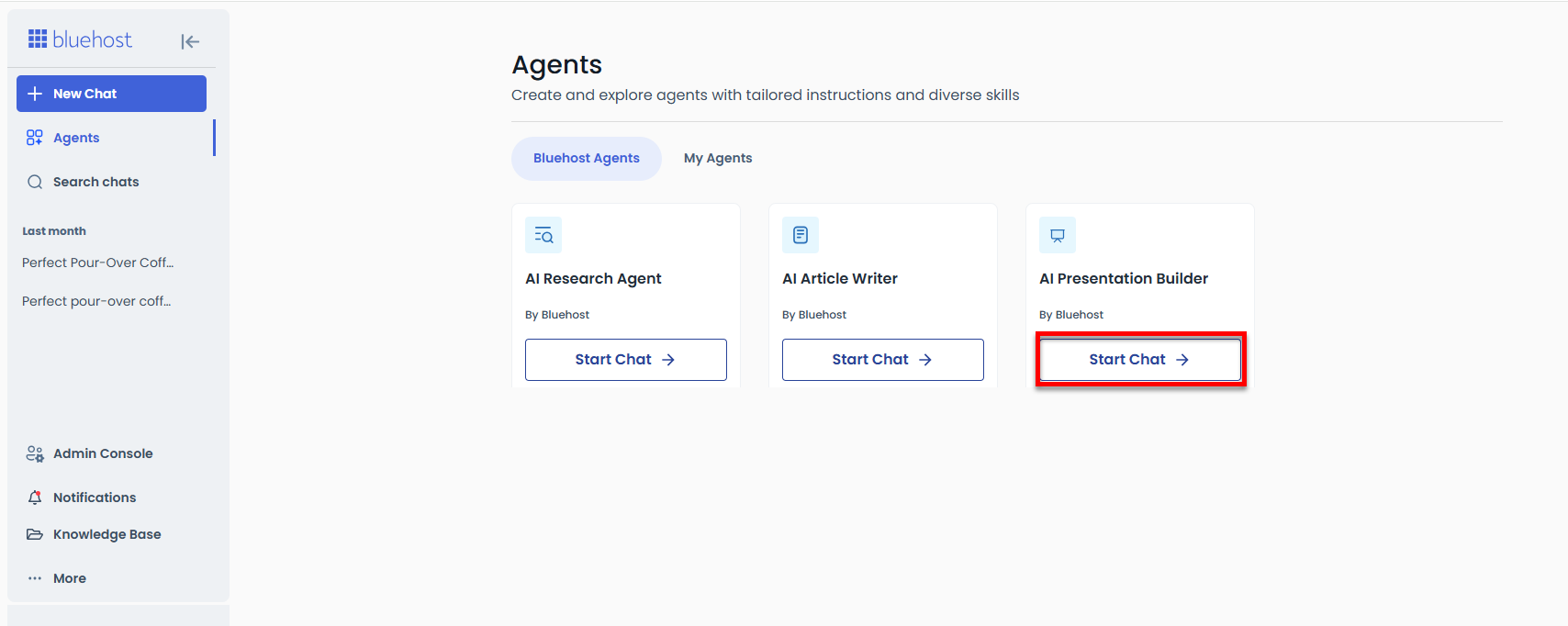
- You can now enter a prompt for the AI Presentation Builder.
-
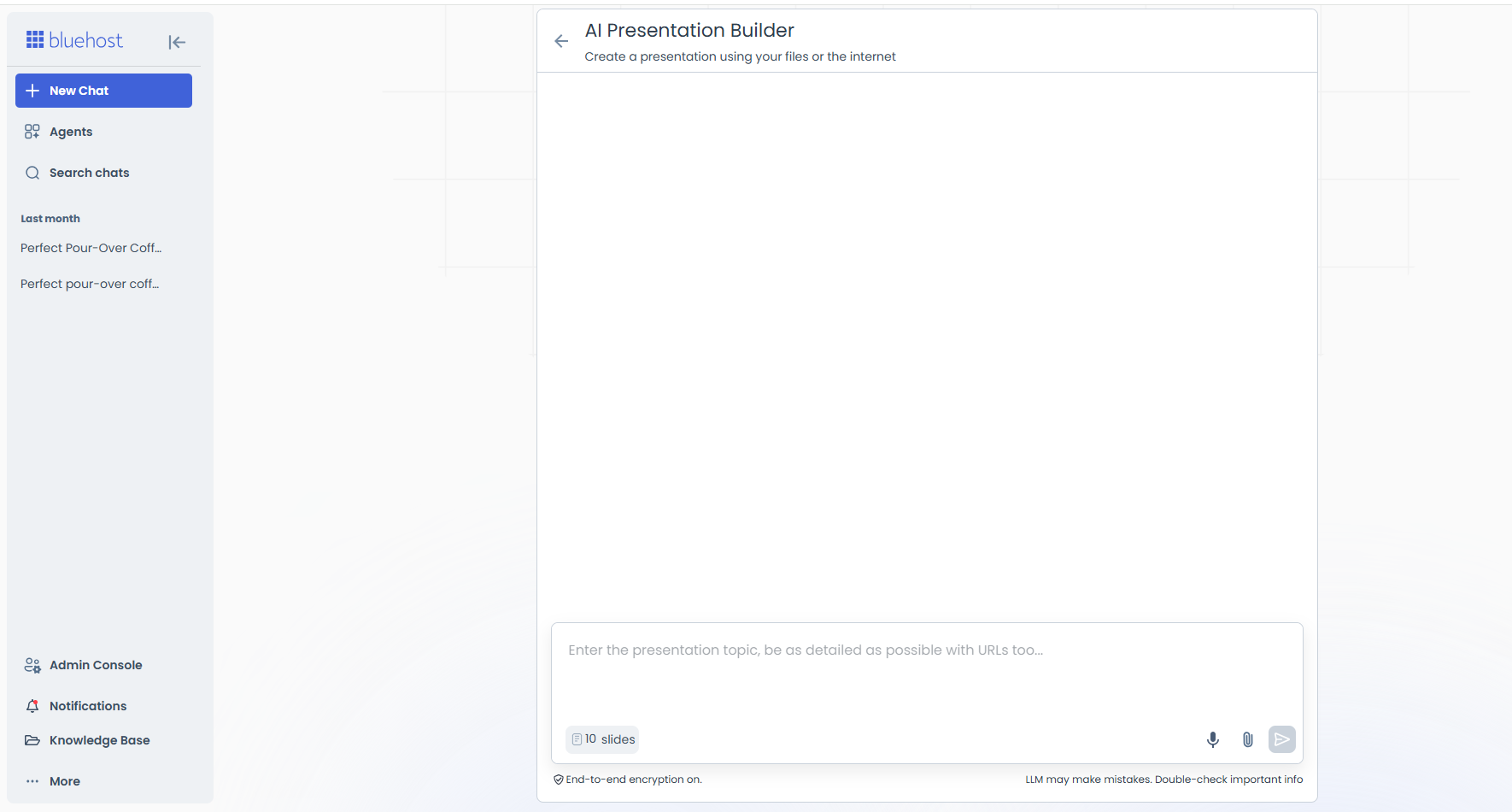
You can also specify the number of slides needed and upload reference files for the presentation.
-
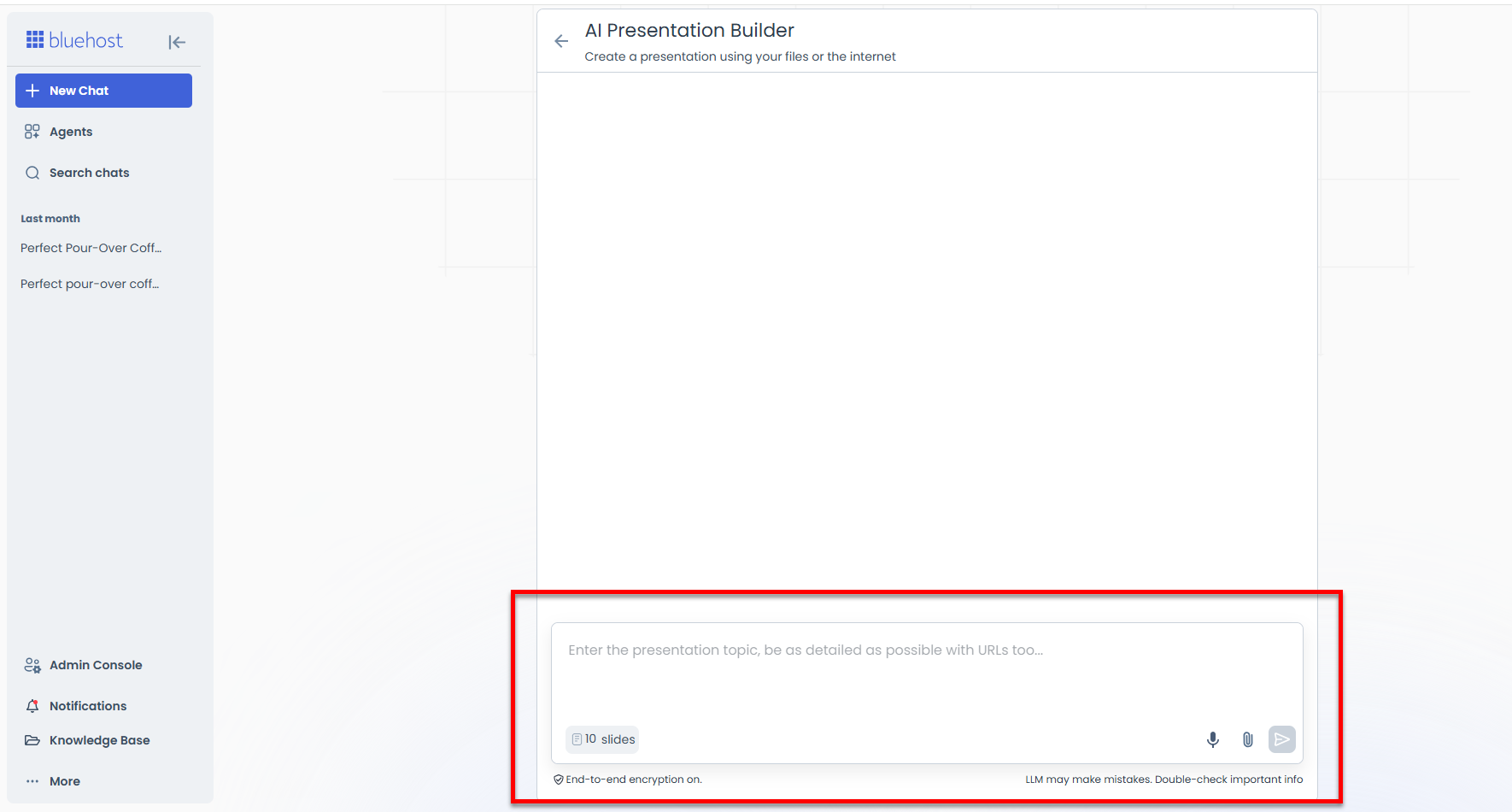
After you enter your instructions and upload a reference file (such as a PDF for the sample image below), the builder will begin crafting your presentation.
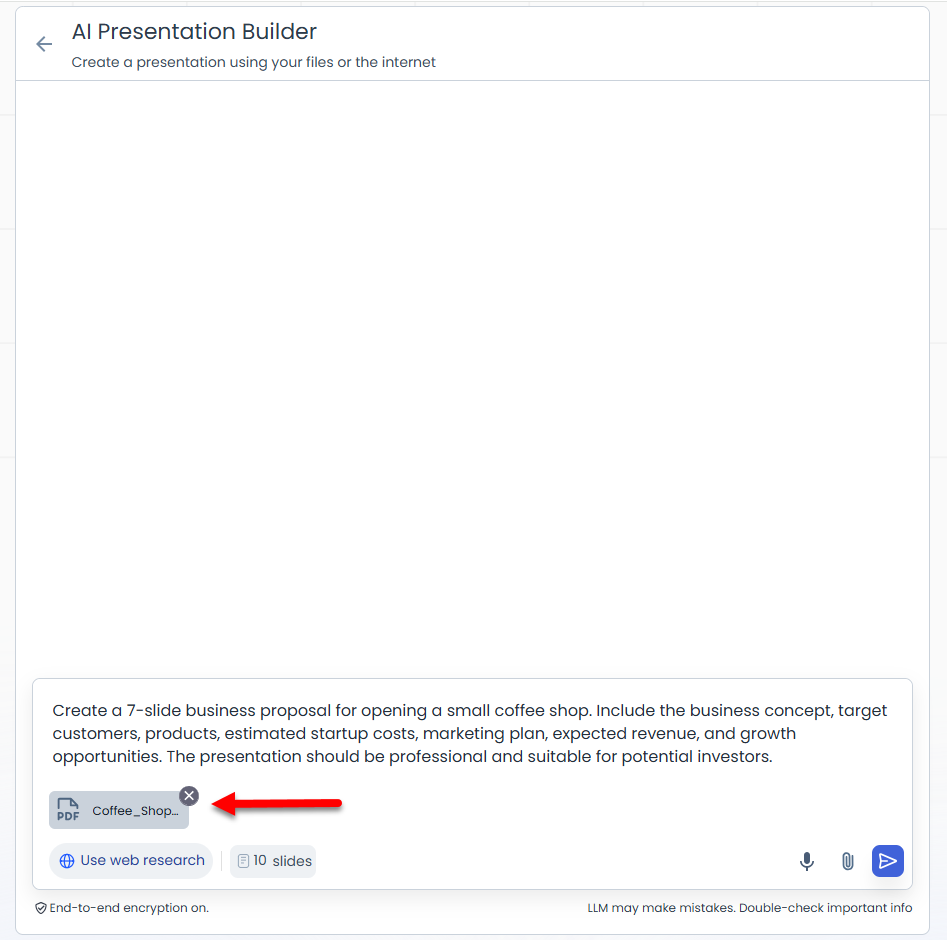
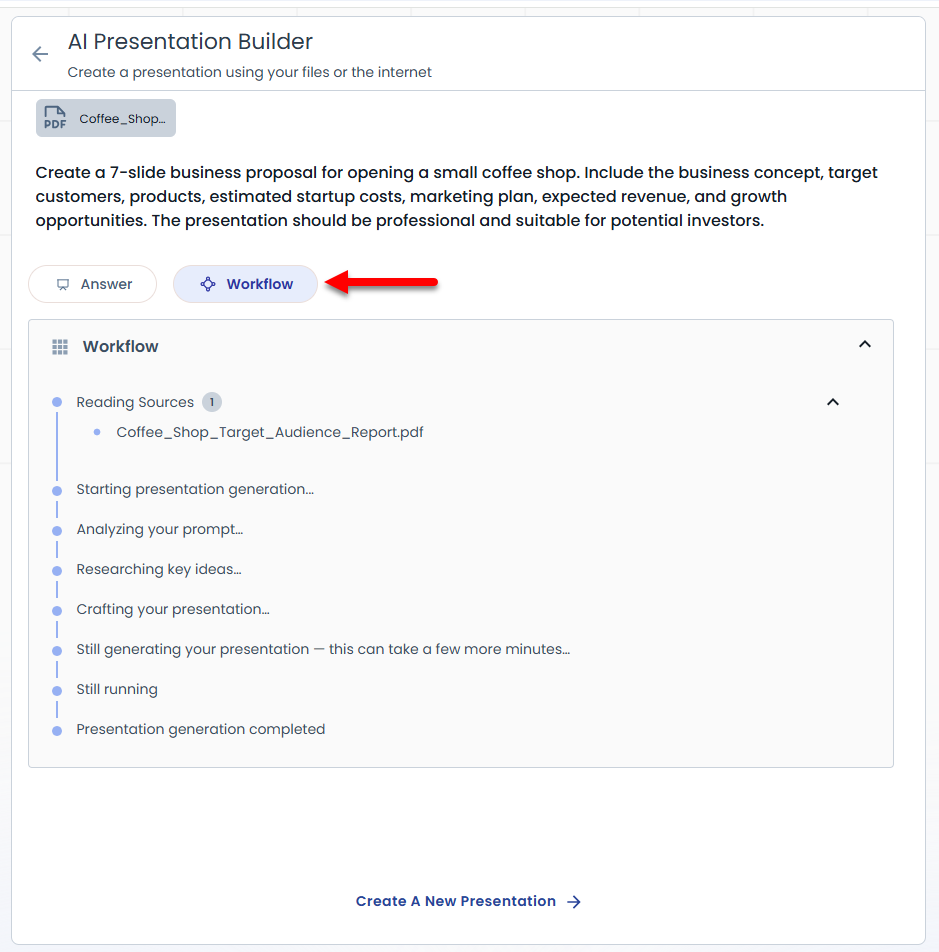
Workflow initiated:
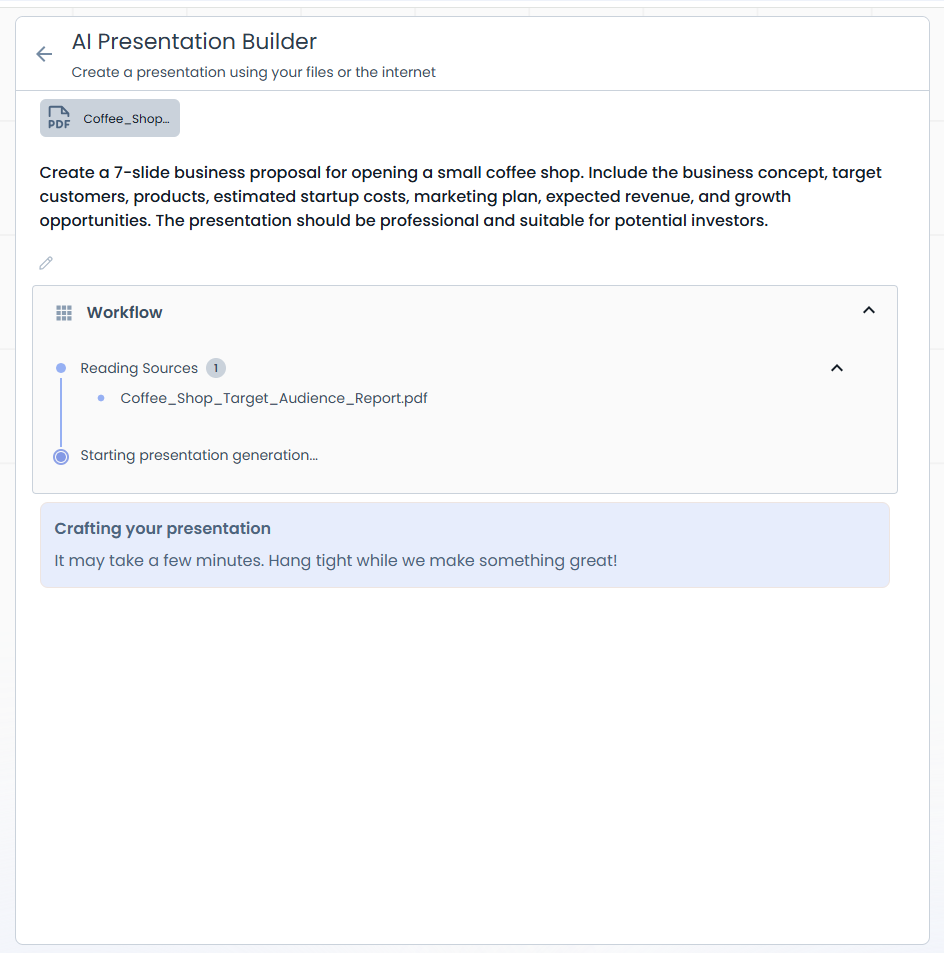
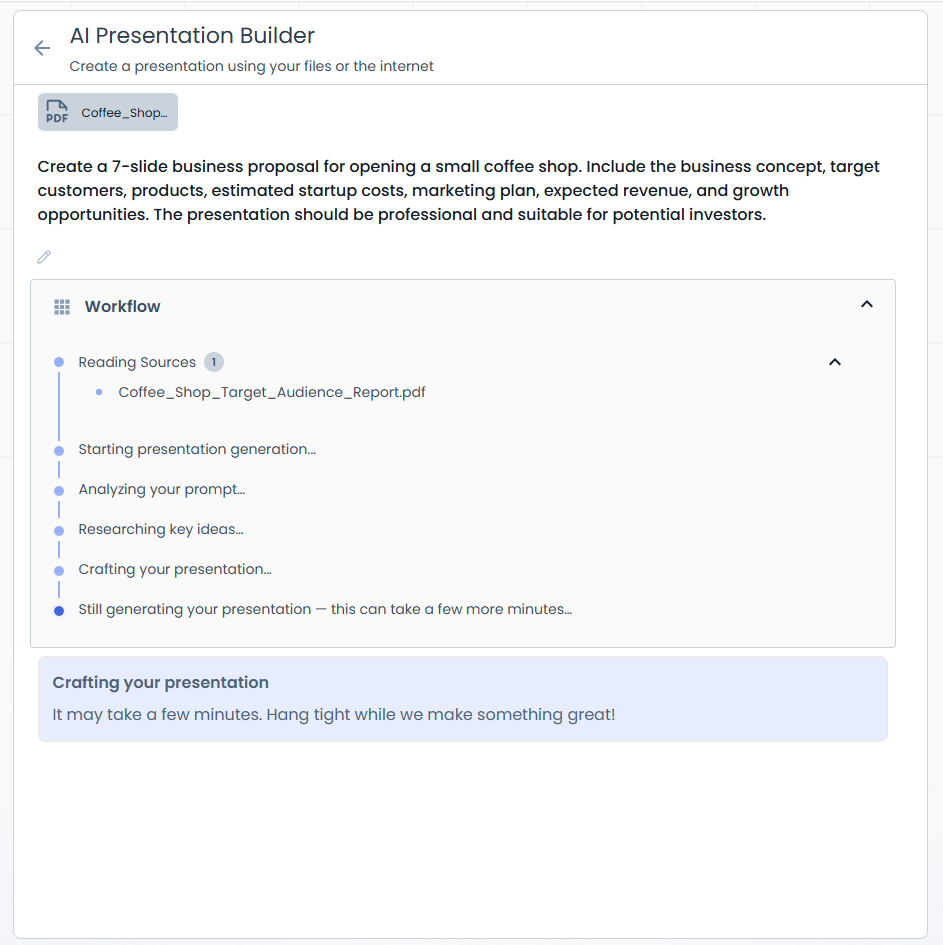
- Give it a few moments for the presentation to be prepared.
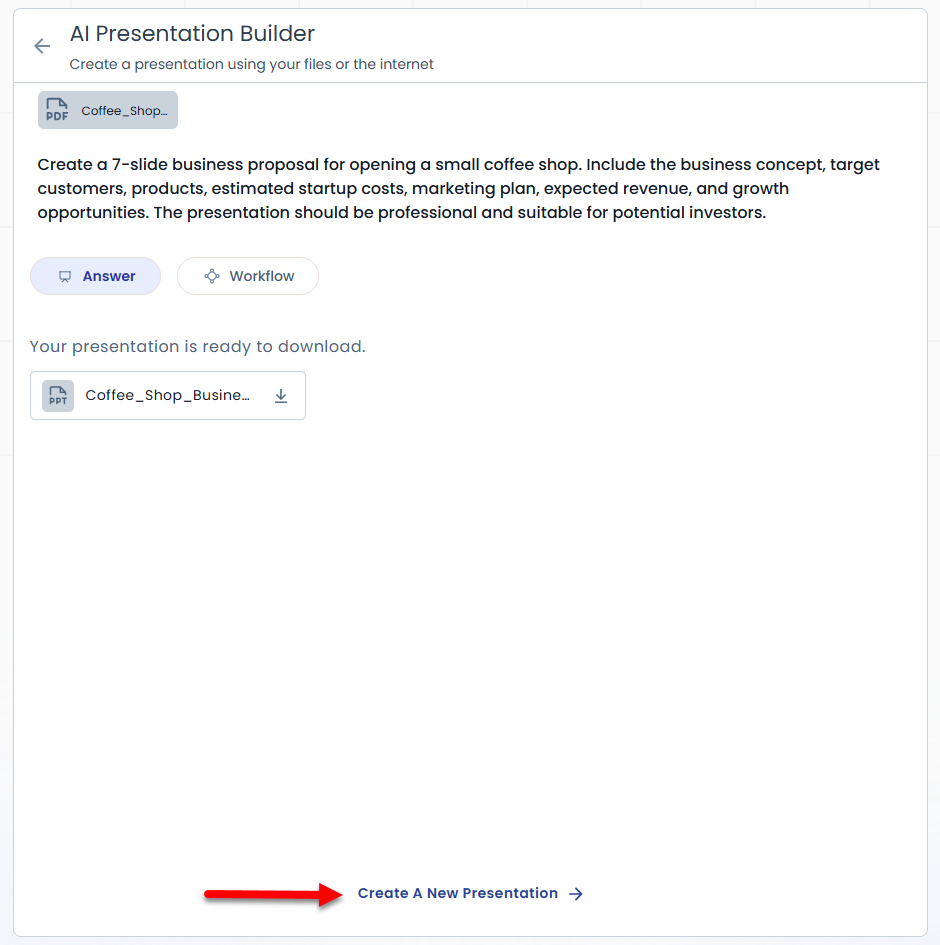
- Once the process is complete, a PowerPoint (PPT) file will be available for download.
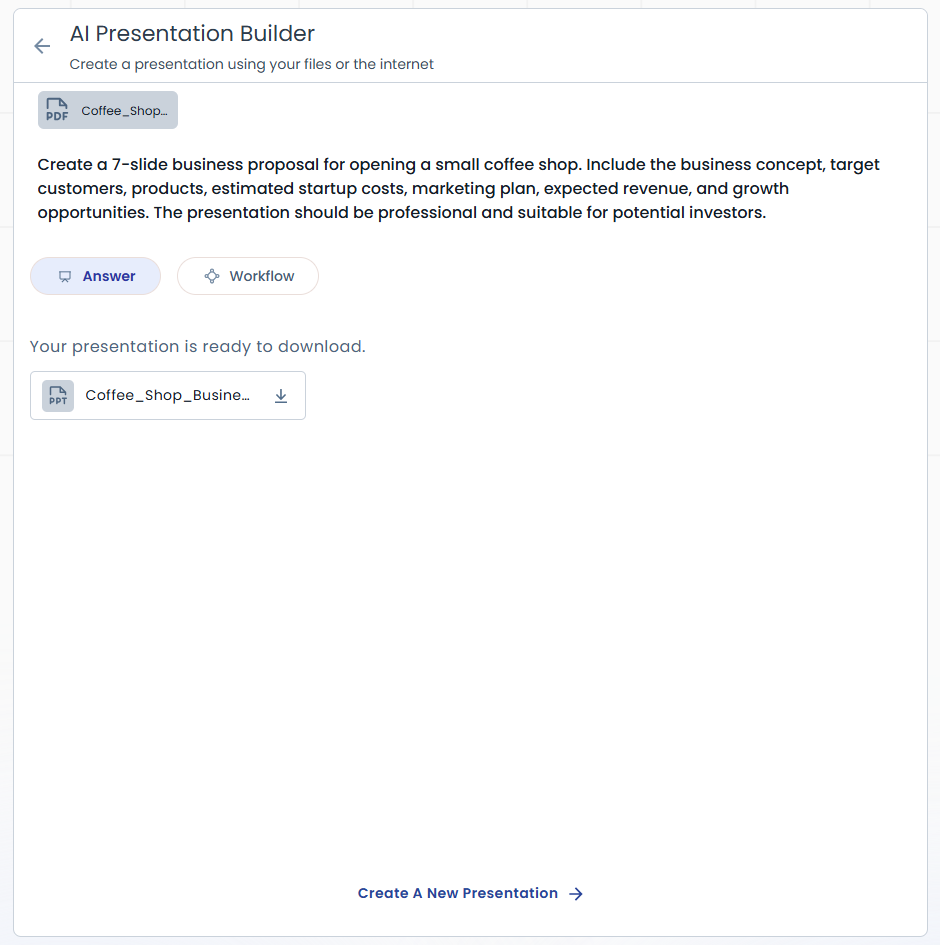
- Download and open the file to view your presentation.
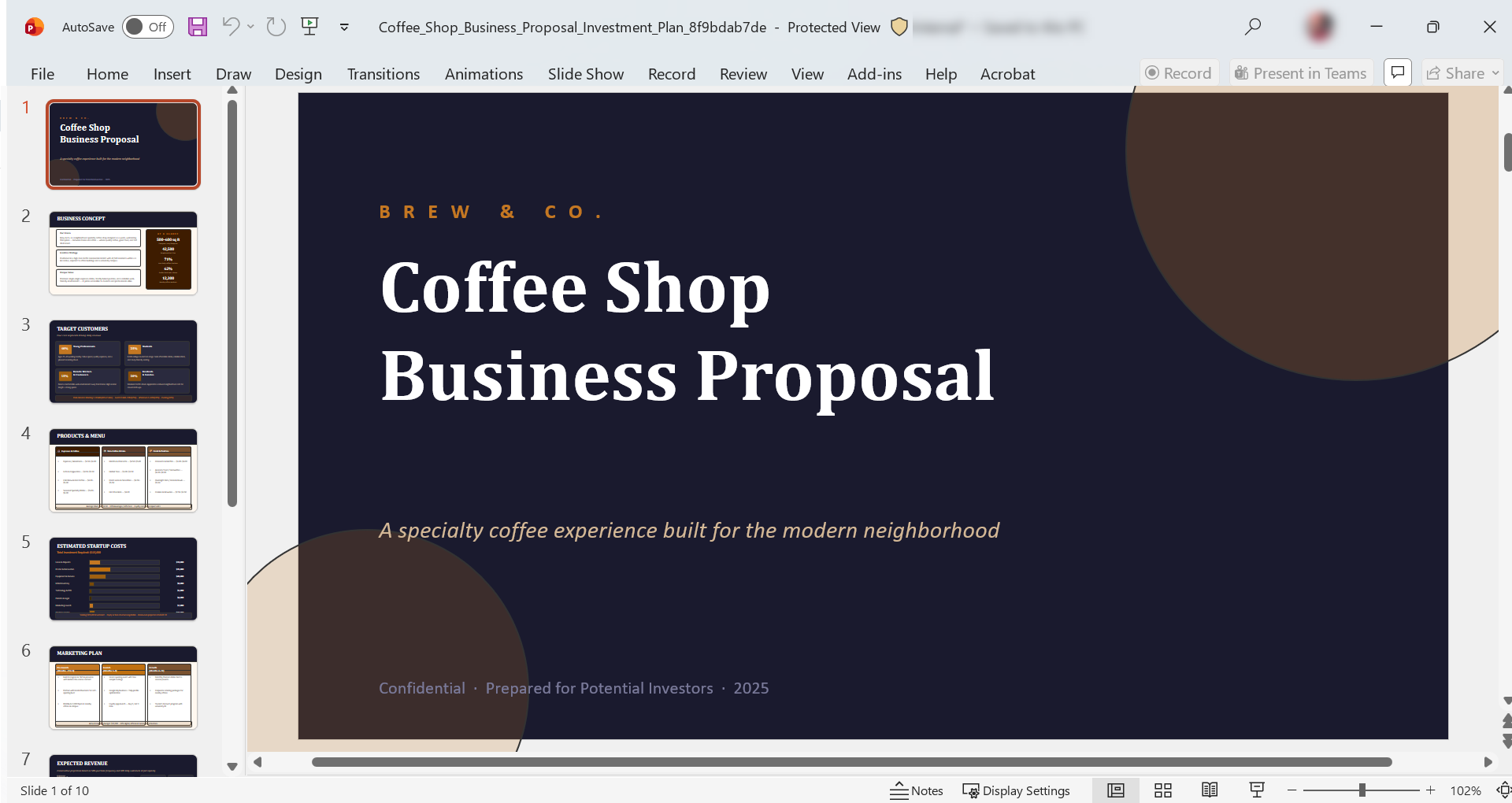
(This is a sample presentation created based on your input and the uploaded reference file.)
- To view the workflow details, click on Workflow.
To create a new presentation, click on the Create a New Presentation link.
Interested in creating your own AI Agent? If so, you can visit the How to Create an AI Agent with AI All-Access article for the detailed instructions. A video is also included in that article to guide you through the steps.
Summary
The AI Presentation Builder is a tool included in Bluehost's AI All-Access Pack that makes creating professional presentations quick and easy. You can use a topic, documents, or website links to help the tool create well-organized slides with clear content. It works great for business proposals, training materials, project updates, product overviews, and educational presentations. Just give it some instructions, choose how many slides you want, upload any reference materials, and you'll get a finished PowerPoint presentation ready to download in no time.
If you need further assistance, Bluehost Chat Support is available 24 hours a day, 7days a week while Bluehost Phone Support is available 7 days a week from 7 am-12 midnight EST.
- Chat Support - While on our website, you should see a CHAT bubble in the bottom right-hand corner of the page. Click anywhere on the bubble to begin a chat session.
- Phone Support -
- US: 888-401-4678
- International: +1 801-765-9400
You may also refer to our Knowledge Base articles to help answer common questions and guide you through various setup, configuration, and troubleshooting steps.