 ChatGPT,
 Claude,
 Gemini,
 Grok — all four for
Bluehost AI Builder: Working with APIs and External Data Sources
By default, your app can only use the information you provide during setup in the Bluehost AI Builder. API keys allow your app to connect securely to external services and access real-time data, such as weather forecasts, product prices, calendars, spreadsheets, and more, depending on the service you connect.
This article explains what an API is, how to connect your AI Builder app to external services using built-in providers or Secrets, and how to keep your API keys safe.
What is an API?
An API, which stands for Application Programming Interface, is a messenger that lets your app ask another service for information and get a response back.
For more information, please visit the following articles:
Tip: When an article, error message, or support agent says "token," check the context. If it's about length, limits, or usage, it means AI tokens. If it's about access, login, or permission, it means an API token.
When Do You Need an API Key?
You need an API key whenever you want your app to use data or features from another service. Common examples include:
- Sending email notifications. Send a confirmation email when a visitor submits a form, or notify yourself about new sign-ups, through a built-in provider like Resend or Postmark.
- Showing live information. Display information that changes often, such as weather forecasts, exchange rates, or product prices.
- Working with data in your other tools. Read from or add to a spreadsheet or calendar you already use.
You don't need an API key if your app only uses the information you provide during setup in the AI Builder.
Before You Start
Before connecting an API to your app, make sure you have the following:
- An active Bluehost account with access to the AI Builder.
- An app that has already been created in the AI Builder. You can use any app from the previous guides.
- An account with the service you want to connect to (many offer a free plan).
- An API key from the service's dashboard. You can usually find it under Account, Developer, or API Keys.
Most of these requirements can be completed in a few minutes, allowing you to connect your app to external data quickly.
AI Builder Built-In Email Providers: Resend and Postmark
Resend and Postmark are both built-in providers in the AI Builder, so you do not need to create a custom API connection for them. Each has its own setup article:
- Bluehost AI Builder: How to Get an API Key from Resend
- Bluehost AI Builder; How to Get an API key from Postmark
After your key is connected, see the Bluehost AI Builder: How to Set Up Email Notifications article to have your app send emails.
Other Services: Use Secrets
For services that don't have their own settings page, save the API key in Secrets. Your app uses the key through the secret's name, so the key itself isn't displayed in your app's prompts or pages. When you prompt the AI Builder to connect the service, refer to the secret by its name. Do not paste the key itself.
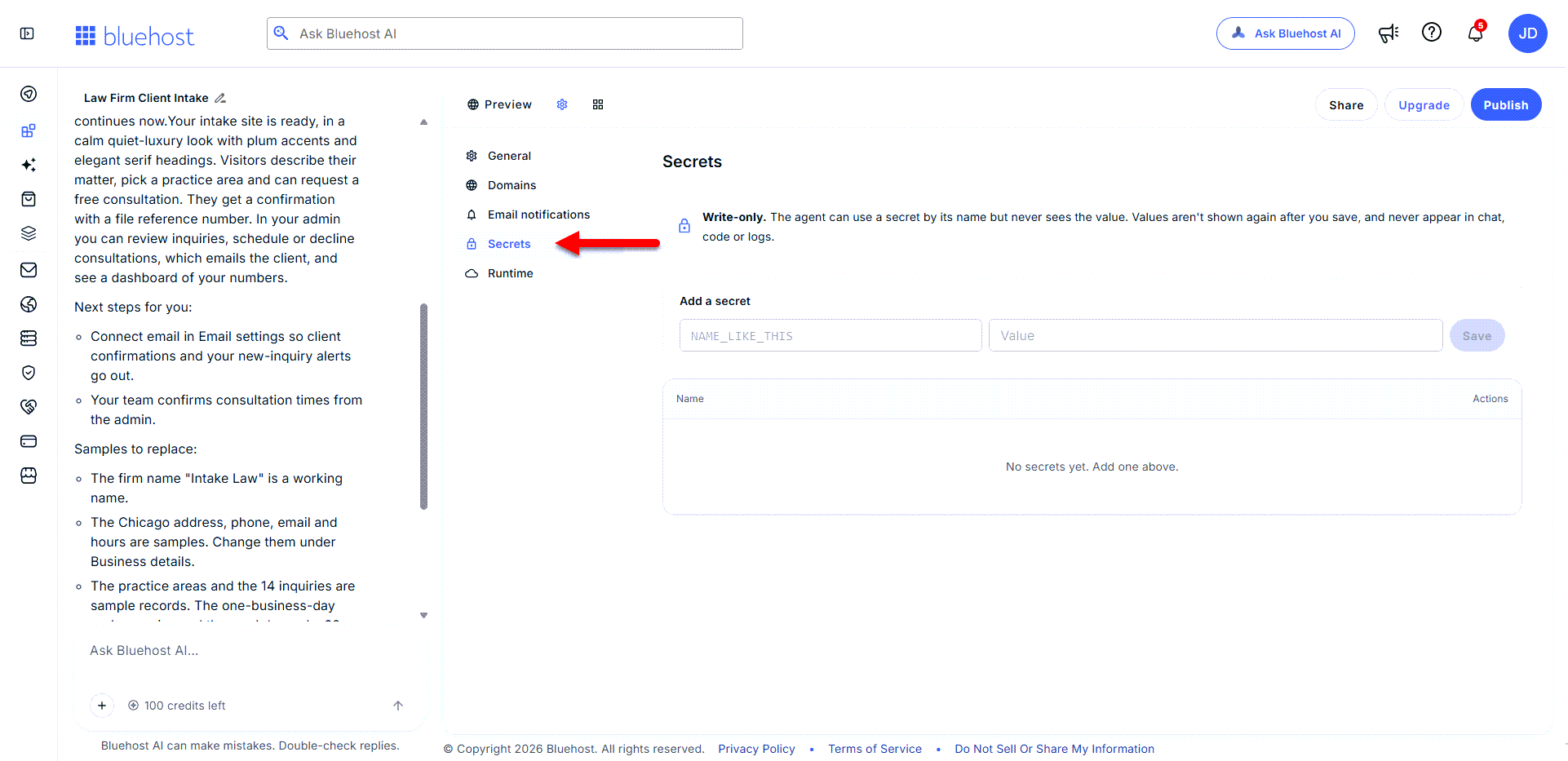
To learn how to store a secret in the AI Builder, see the Bluehost AI Builder: How to Get an API Key from Resend article.
How to Keep Your API Keys Safe
Treat an API key like your online banking password: anyone who has it can use the service as you, and some services bill you for every request.
What To Do
- Store keys in the AI Builder's Secrets tab or your provider's settings page, never in prompts or page text.
- Give each of your apps its own key.
- Set a usage limit in the service's dashboard.
- Replace the keys every few months.
- Delete the keys you no longer use.
What Not To Do
- Type keys into prompts, instructions, or page text.
- Reuse one key across every project.
- Keep the same key forever.
- Leave keys written in email or chat, or take a screenshot.
What Each Key Can Do
Remember, the less a key can do, the less harm it can cause if it is ever exposed. Set up every key with these three habits.
- Set usage or spending limits with the provider where available.
- Create a separate key for each app or integration, so you can revoke one without breaking other apps or integrations.
- Use the narrowest scopes or permissions the provider offers.
What To Do If a Key is Exposed
Don't wait for a scheduled rotation. Revoke the key first, then replace it:
To replace:
- Go to the provider's dashboard and delete or revoke the exposed key.
- Create a new API key.
- Go back to the AI Builder and then click the Settings (gear) icon.
- Click the Secrets tab.
- Edit the secret and paste its new value.
- Test the app again to confirm it still works.
As your app reads the key from the Secrets tab, you only need to update it in one place. There is no need to change anything else in the app.
Troubleshooting a Failed Connection
If your app can't connect to a service, check these common causes:
- The app can't find the secret - Make sure the name in your prompt matches the secret's name exactly, including uppercase letters and underscores.
- The service rejects the key - The key may have been deleted, revoked, or created without the permission your app needs. Create a new key with the right permission, then update it wherever your app uses it, such as the Secrets tab or your provider's API key field.
- The connection worked before but stopped - The service may have a usage limit, such as a daily request cap on a free plan or a spending limit you set. Log in to the service’s dashboard to check your usage, then wait for the limit to reset or raise it.
- Resend or Postmark isn't sending - Follow the troubleshooting steps in your provider's setup guide, such as checking that your sending domain is verified.
Summary
Connecting an API allows your AI Builder app to access real-time data and external services. For built-in providers like Resend and Postmark, follow each provider's setup guide to add your API key. For other services, store API keys securely in Secrets and reference them by name in your prompts. Always protect API keys by using the lowest permissions possible, rotating keys regularly, and revoking exposed keys immediately.
If you need further assistance, Bluehost Chat Support is available 24 hours a day, 7days a week while Bluehost Phone Support is available 7 days a week from 7 am-12 midnight EST.
- Chat Support - While on our website, you should see a CHAT bubble in the bottom right-hand corner of the page. Click anywhere on the bubble to begin a chat session.
- Phone Support -
- US: 888-401-4678
- International: +1 801-765-9400
You may also refer to our Knowledge Base articles to help answer common questions and guide you through various setup, configuration, and troubleshooting steps.