 ChatGPT,
 Claude,
 Gemini,
 Grok — all four for
Bluehost AI Builder: How to Connect Your Website or App to Other Tools
Your Bluehost AI Builder website or app can work with other services. It can email you when someone submits a form, add bookings to your Google Calendar, or use data from a spreadsheet you upload. This article explains what a connection is, which connections are available, and how to set each one up.
What a Connection Is
A connection lets your app send information to, or get information from, another service. For example, when your app is connected to an email service, it can send you an email each time a visitor books an appointment.
To connect, you usually need two things:
- An account with the other service. For example, a free or paid account with an email-sending service.
- A key from that service. Most services give you an API key, a long code that works like a password for your app. You copy the key from your account with that service and paste it into your app's settings.
AI Builder stores your keys in your app’s settings, so your app can use them without showing them to visitors.
Important: Treat API keys like passwords. Don't paste them into the AI Builder chat, share them, or put them in your app's pages or data tables. Enter them only in your app's Settings.
Note: Each prompt that builds or changes a connection uses 1 credit. Once your app is live, the calls it makes to other services don't use credits. The other service may charge for its own usage.
Connections You Can Set Up
| What you want to do | Service | What you need | Where to set it up |
|---|---|---|---|
| Get an email when someone submits a form or makes a request | Resend or Postmark | An account with the provider, an API key, and a sending address set up with the provider | Settings > Email notifications |
| Add bookings to your calendar | Google Calendar | A Google account and your own Google Calendar credentials | Settings > Secrets, then describe what you want in the AI Builder chat |
| Let your app use another service's data or features | Any service that gives you an API key | An API key from that service | Settings > Secrets, then describe what you want in the AI Builder chat |
| Use data from a spreadsheet | No connection needed | A spreadsheet file, such as .xlsx or .csv | Attach the file to your prompt |
Before You Connect
- Create an account with the other service, if you don't have one.
- In that service's dashboard, find and copy your API key. Each service names it differently, such as API key, API token, or server token.
- Keep the key somewhere safe until you paste it into your app's settings.
Note: Some services charge for their accounts or limit how much you can use them for free. Check the other service's plans before you connect.
Set Up Email Notifications
Email notifications let your app email you when a visitor submits a form, makes a booking, or sends a request. Emails are sent through your own Resend or Postmark account, not by Bluehost. SMTP isn't supported.
For step-by-step instructions, see Bluehost AI Builder: How to Set Up Email Notifications.
Important:
- Your sending address must use a domain whose DNS you can manage outside AI Builder. You can't add your email provider's verification records to a domain connected to your AI Builder site or app. Use a domain you manage in your Bluehost Portal or with another provider, such as the one you use for your business email.
- Send a test email after you connect. An incorrect API key isn't rejected when you click Connect, so a test email is the only way to know your key works. If it doesn't arrive, check your spam folder, then check your from address and API key in your provider account. Your key may be wrong, so paste it again and resend.
Connect Google Calendar for Bookings
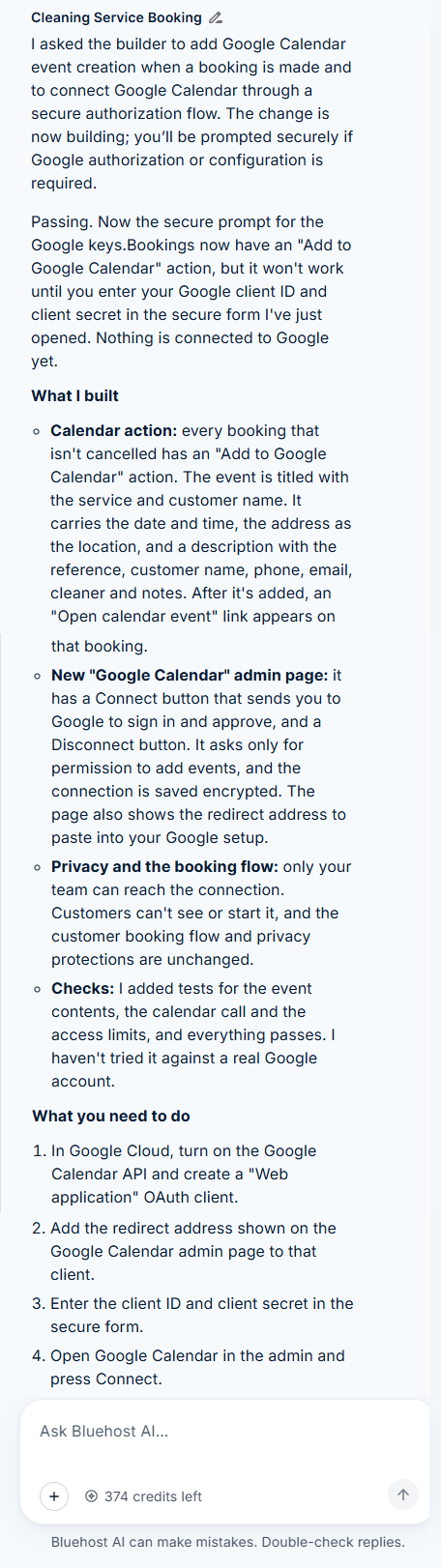
If your app takes bookings, AI Builder can add them to your Google Calendar. You create your own Google credentials, store them in Settings > Secrets, and then tell AI Builder which secret to use.
Step 1: Create Your Google Credentials
- In Google Cloud, turn on the Google Calendar API.
- Create credentials for your own use, then copy the credential value. The credential type depends on how you want AI Builder to reach your calendar. Your Google Cloud documentation explains the options.
Step 2: Store Your Credentials in Secrets
In your app, go to Settings > Secrets and save your credential value under a name such as GOOGLE_CALENDAR_KEY. For step-by-step instructions, see Bluehost AI Builder: How to Store and Use API Keys in Secrets.
Step 3: Tell AI Builder What to Do
In the AI Builder chat, name the secret and describe what you want. For example:
PromptUse the secret named GOOGLE_CALENDAR_KEY to add each confirmed booking to my Google Calendar. Add an “Add to Google Calendar” action to every booking that isn't cancelled, and include the service, the customer's name, the date and time, and the address in the event. Only my team should be able to use this. Customers shouldn't see it.
Important: Treat your Google credentials like a password. Never paste them into the chat message box. Refer to the secret by its name instead.
Step 4: Test the Connection
Make a test booking, use the Add to Google Calendar action on it, and confirm the event appears in your calendar. Then delete the test booking and the test event. Test bookings are saved to your app's live data.
Note: What AI Builder builds depends on your prompt and your app, so your result may differ. Read the builder's summary and its list of next steps. By default, events are added when you use the action on a booking, not automatically. If you want them added automatically as soon as a booking is confirmed, say so in your prompt.
Store API Keys in Secrets
To connect a service that isn't listed above, store its API key in Secrets. Secrets are write-only. They’re designed so AI Builder can use a secret by its name without seeing its value. After you save a secret, its value isn’t shown again in Settings, the chat, your app’s code, or logs.
Once the key is saved, tell AI Builder which secret to use and what to do with it. Refer to the secret by its name, and never paste the key itself into the chat.
For step-by-step instructions, see Bluehost AI Builder: How to Store and Use API Keys in Secrets.
Use Spreadsheet Data in Your App
You don't need a connection to use data from a spreadsheet. Attach the file to your prompt with the Add (+) icon and tell AI Builder how to use it. For example:
PromptUse the attached spreadsheet to fill the Services table. Each row is one service, with its name, description, and price.
You can attach up to 10 files, up to 20 MB each. File types, size limits, and upload restrictions may change.
This is a one-time import. Later changes to your spreadsheet don't update your app automatically. Edit the data in your app's Manage view, or attach an updated file and ask AI Builder to replace the data.
To move data out of your app into a spreadsheet, ask AI Builder to add a CSV export to your admin panel.
What Isn't Available at This Time
| If you want to | Status | What you can do instead |
|---|---|---|
| Send notifications through SendGrid, Mailgun, or SMTP | Not supported at this time | Use Resend or Postmark. |
| Send notifications from a Bluehost email account | Not supported at this time | Connect Resend or Postmark. |
| Accept payments, such as through Stripe | Not supported at this time | To sell online, use Bluehost AI Store. |
Going Further: Working with APIs
The connections in this article cover the most common needs. To connect your app to other tools, such as a CRM, a mailing list service, or a shipping tracker, you'll work with that service's API directly. You store the service's key in Secrets and describe what you want in the AI Builder chat.
To learn how, see Bluehost AI Builder: Working with APIs and External Data Sources.
Frequently Asked Questions
Q: Do I need to know how to code to connect my app to other tools?
A: No. You copy a key from the other service, store it in your app's settings, and describe what you want in the AI Builder chat.
Q: Does Bluehost send my app's notification emails?
Q: Why can't I use my AI Builder domain as my sending address?
A: Email providers verify a sending domain with DNS records, and you can’t add those records to a domain connected to your AI Builder site or app. Use a domain whose DNS you manage in your Bluehost Portal or with another provider.
Q: Are my form submissions lost if email notifications aren't set up?
A: No. Submissions are saved in your app and visible in the Manage view whether or not email notifications are set up.
Q: Can AI Builder see my API keys?
A: AI Builder is designed to use a key stored in Secrets by its name without seeing its value. Don't paste keys into the chat.
Q: Does connecting a service use credits?
A: Each prompt that builds or changes a connection uses 1 credit. Once your app is live, the calls it makes to other services don't use credits.
Q: What if the service I want isn't listed?
A: If the service gives you an API key, store it in Secrets and describe what you want in the AI Builder chat.
Q: Will Bluehost Support set up a connection for me?
A: Bluehost Support can help with the AI Builder platform, such as Settings, publishing, domains, and credits. For help with the other service's account or API key, contact that service.
Summary
Connections let your Bluehost AI Builder website or app work with services you already use. Connect Resend or Postmark in Settings > Email notifications to get notified about new submissions, store your Google Calendar credentials in Secrets to add bookings to your calendar, and attach spreadsheets to bring data into your app. To connect other services, store their API keys in Secrets and describe what you want in the AI Builder chat.
If you need further assistance, Bluehost Chat Support is available 24 hours a day, 7days a week while Bluehost Phone Support is available 7 days a week from 7 am-12 midnight EST.
- Chat Support - While on our website, you should see a CHAT bubble in the bottom right-hand corner of the page. Click anywhere on the bubble to begin a chat session.
- Phone Support -
- US: 888-401-4678
- International: +1 801-765-9400
You may also refer to our Knowledge Base articles to help answer common questions and guide you through various setup, configuration, and troubleshooting steps.