 ChatGPT,
 Claude,
 Gemini,
 Grok — all four for
Bluehost AI Builder: Adding User Accounts and Logins
The Bluehost AI Builder allows you to create users who can access and manage your app's dashboard. User access is assigned on a per-app basis, meaning users can access only the dashboard of the app they were added to. If they need access to another app, you must add them to that app separately. Anyone who has not been added as a user can still use your app, but they cannot access the dashboard or administrative features unless you've configured certain pages to require sign-in through AI Builder.
How to Manage Admin Users for Your App
- Log in to your Bluehost Portal.
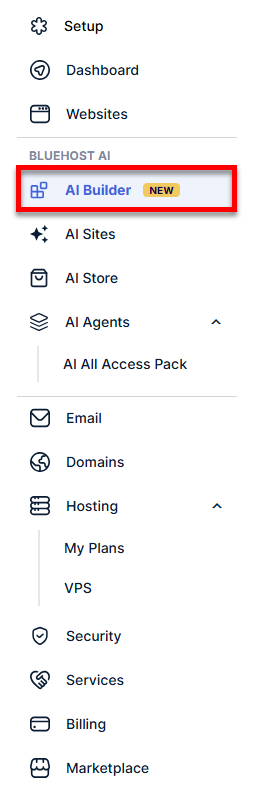
- Click AI Builder in the left-hand menu.
- Select the app you want to manage.
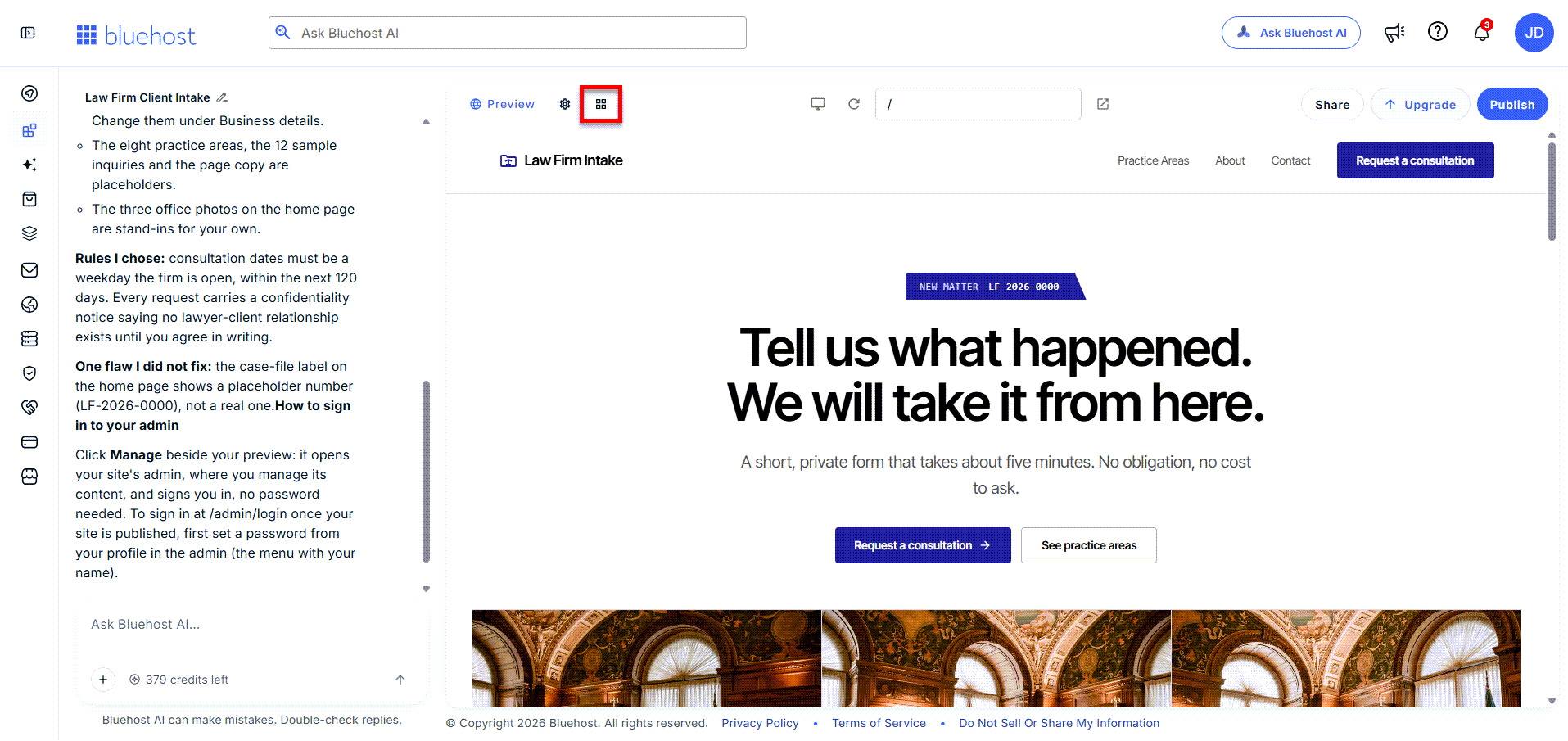
- Click the grid (Manage) icon.
- The app's dashboard will appear.
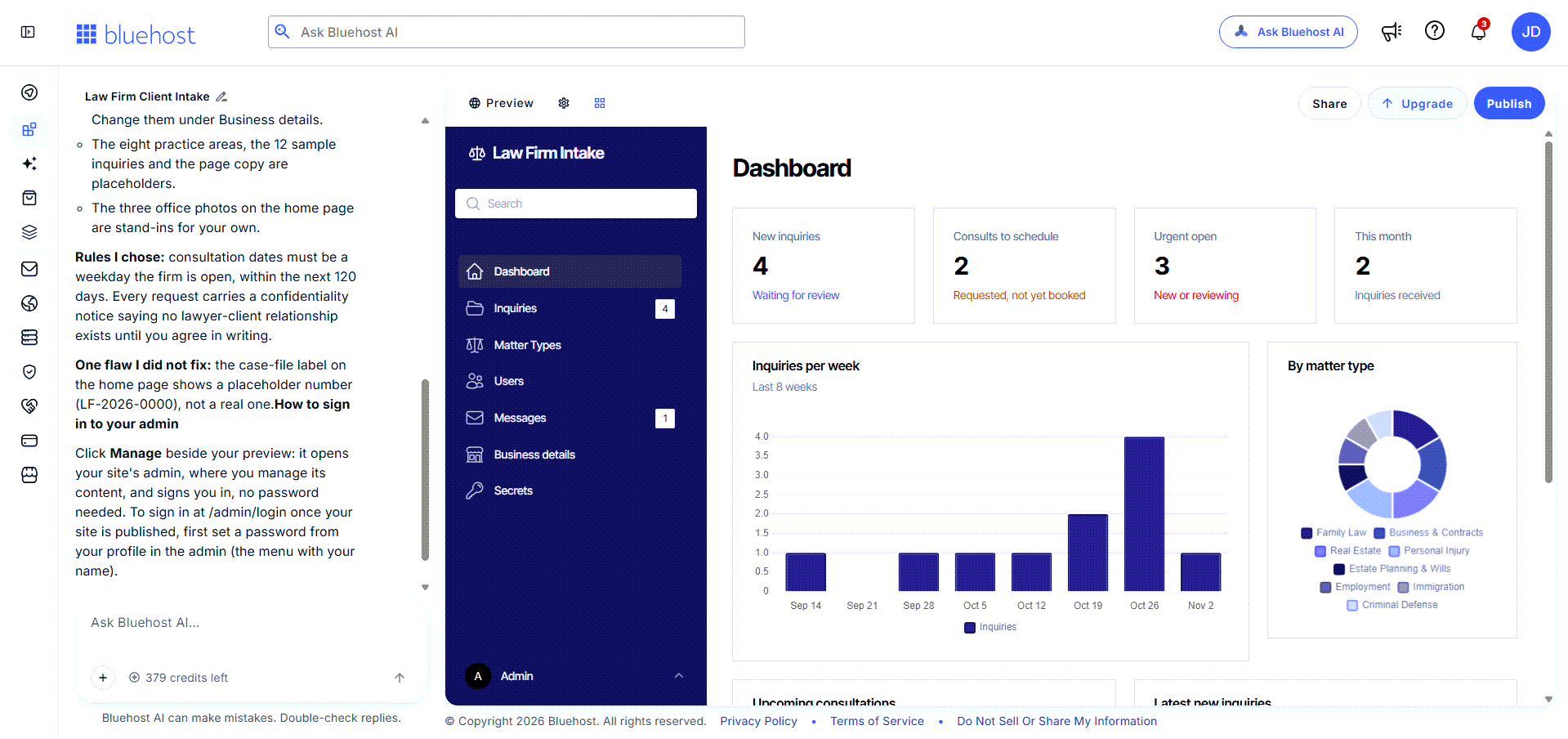
This is an example interface. What you see may look different based on how you built your app and the prompts you used during setup.
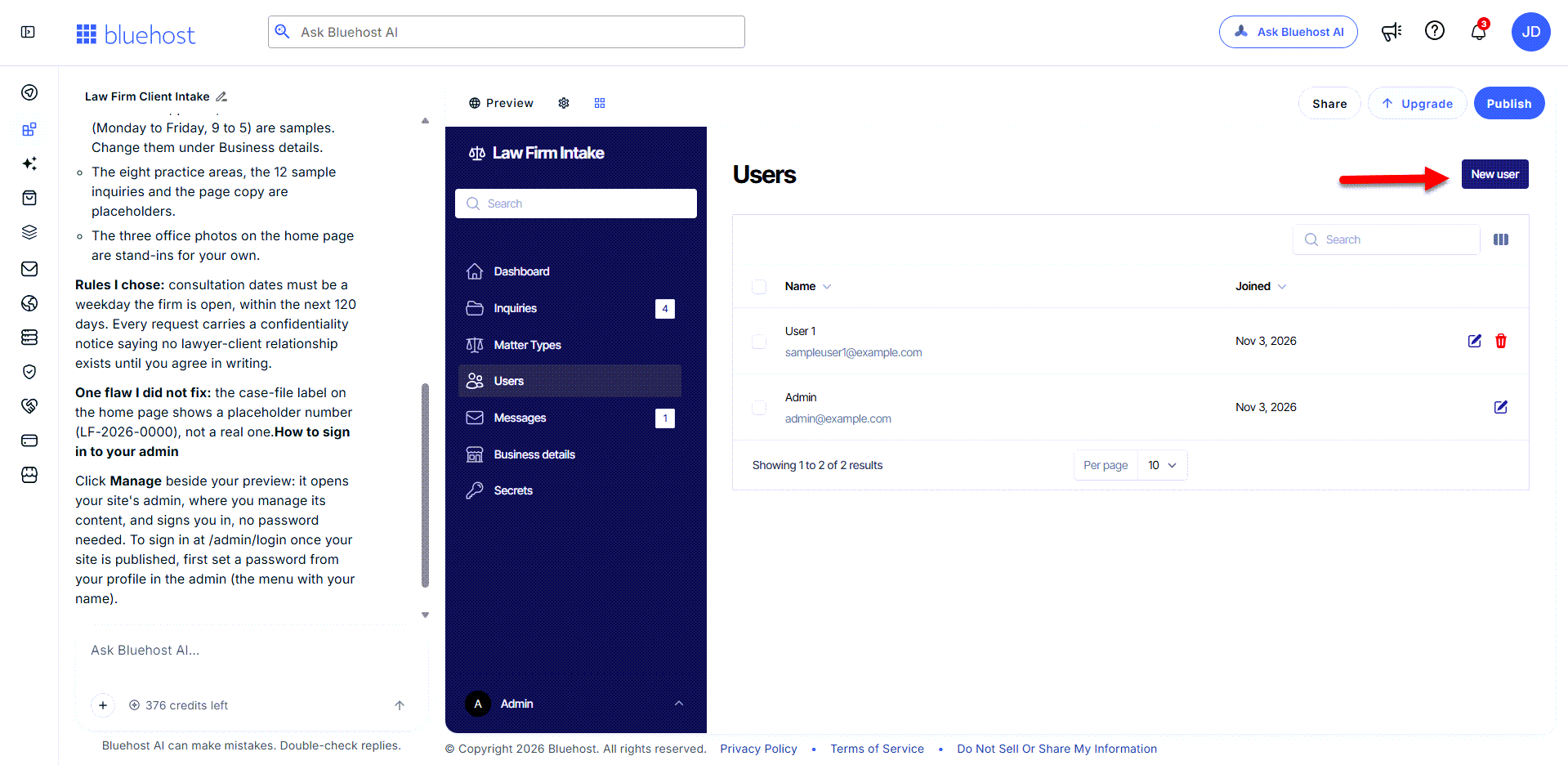
- In the app's dashboard, click Users in the left-hand menu.
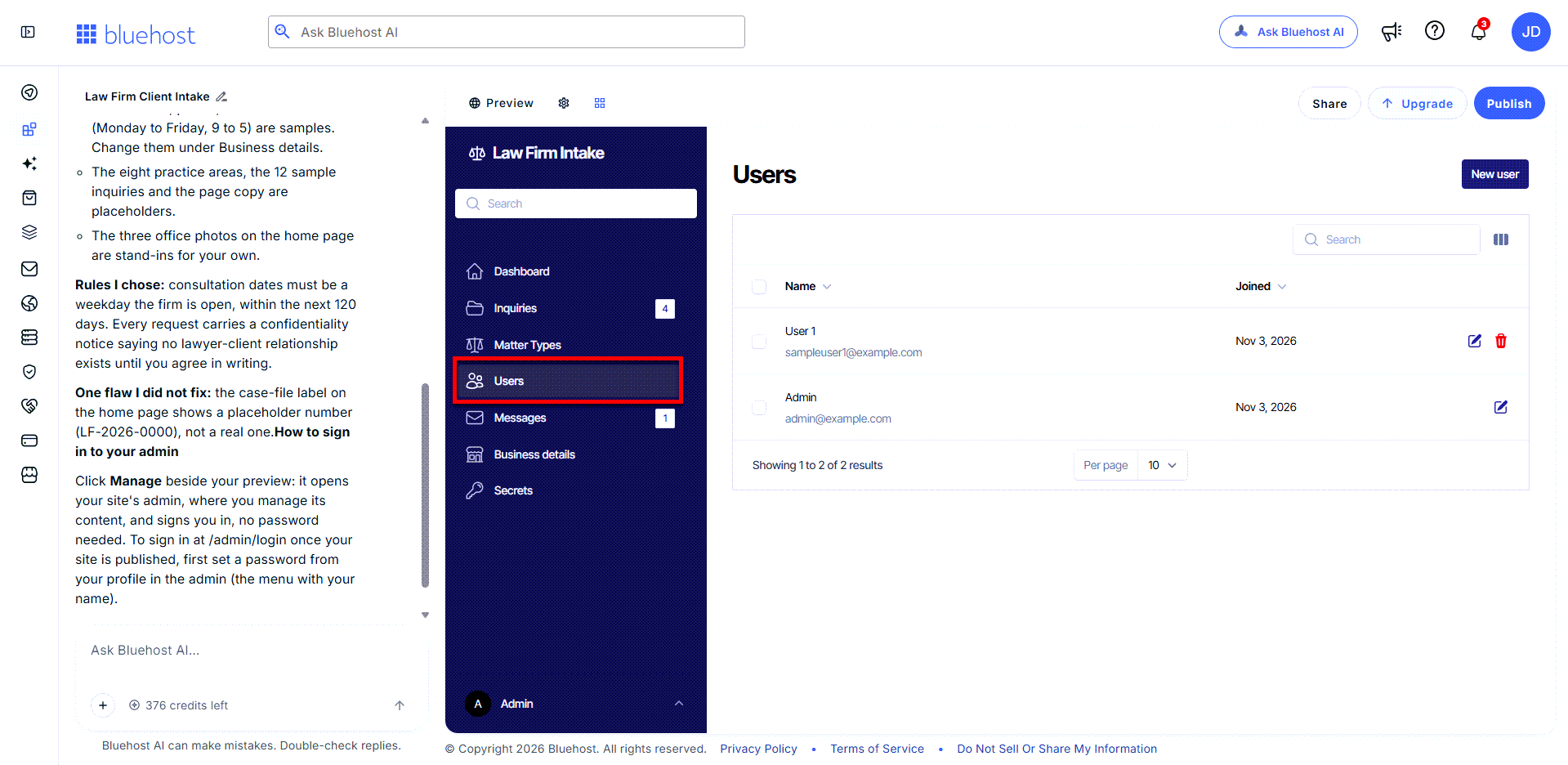
- Click New user.
- Enter the user's details:
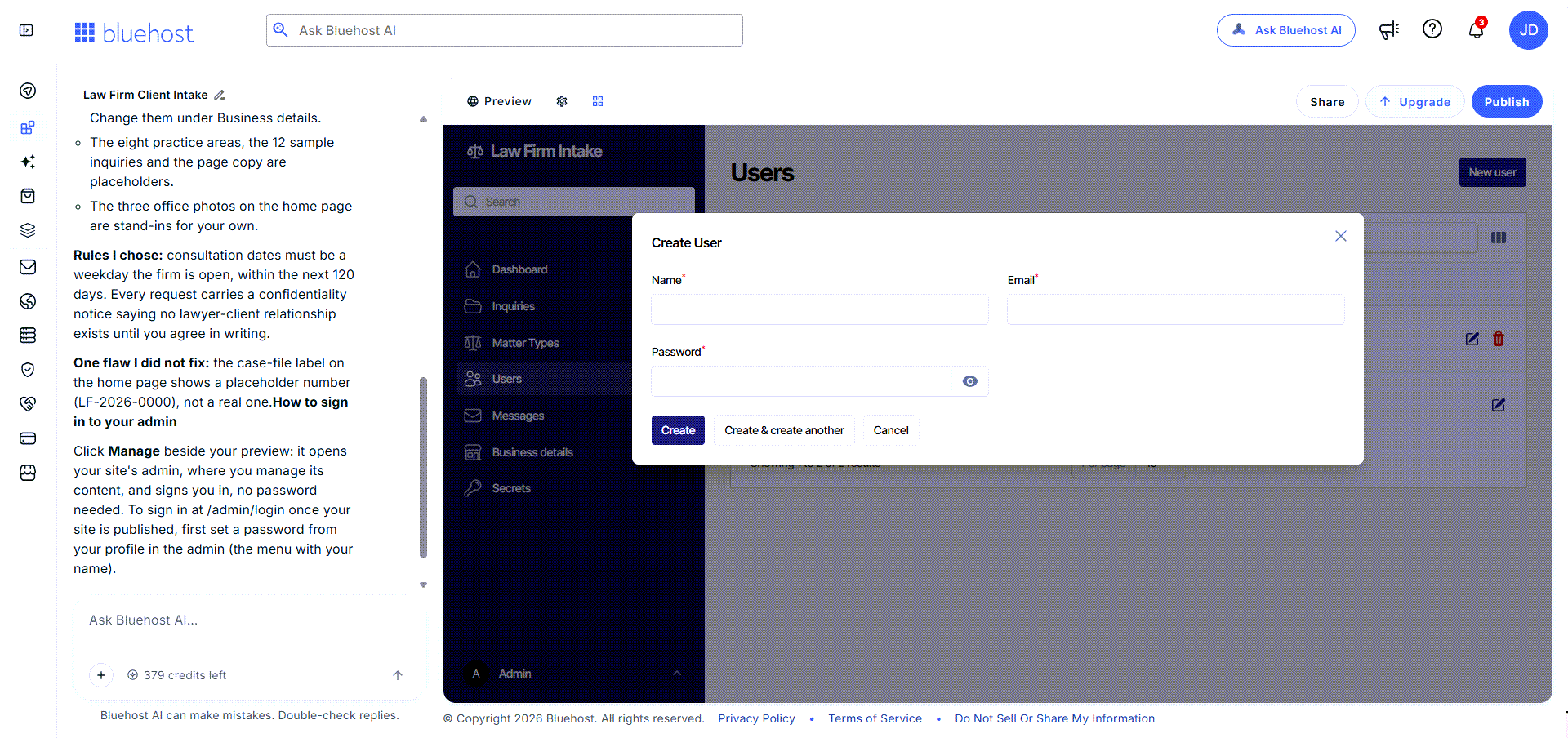
- Name
- Email address
- Password
- Click Create.
- Share the sign-in details with the user securely.
How to Edit User Details
To edit a user:
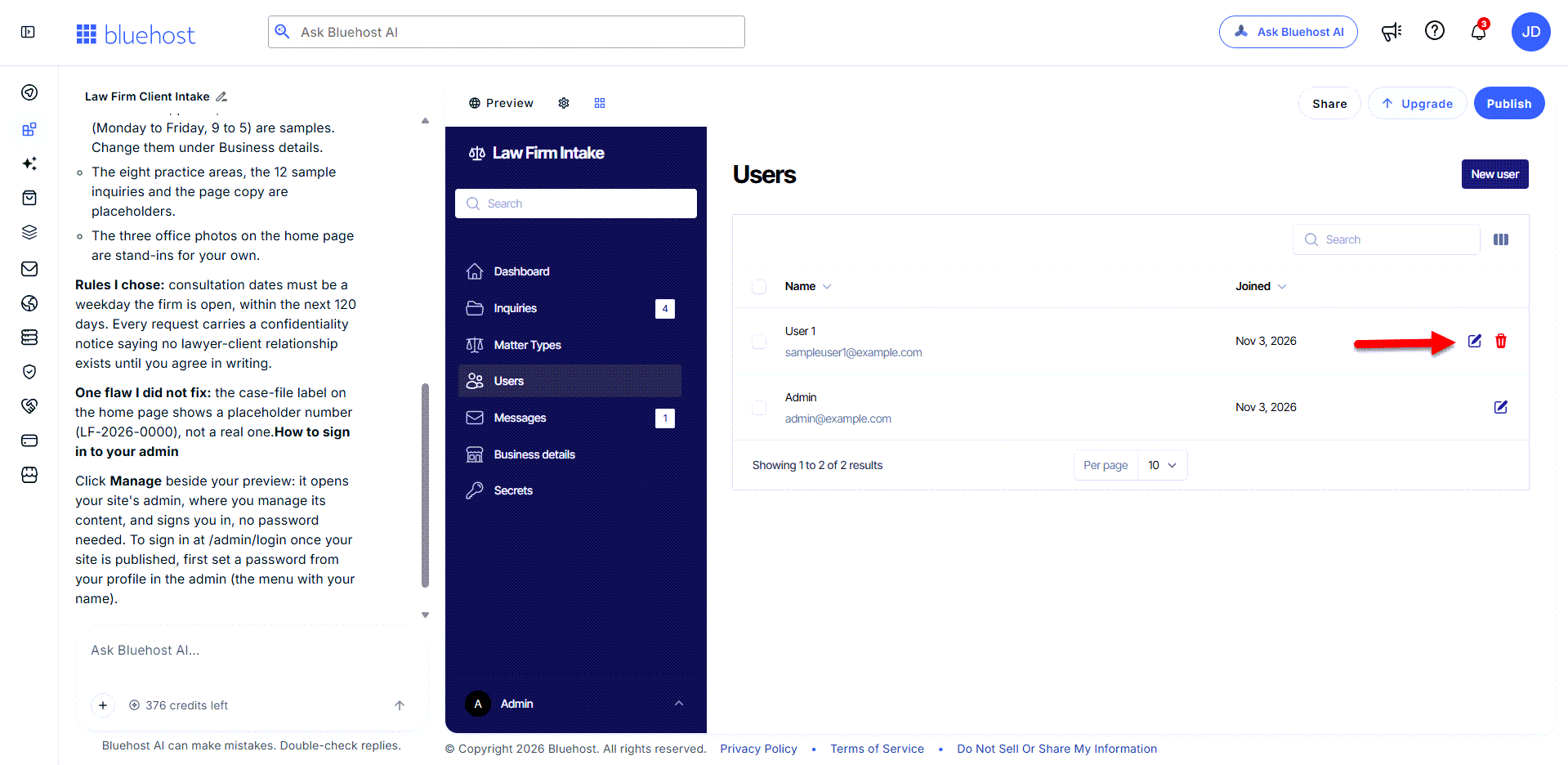
- In the app's dashboard, click Users in the left-hand menu.
- Locate the user you want to update and click the Edit (pencil) icon.
- Make the necessary changes in the pop-up window.
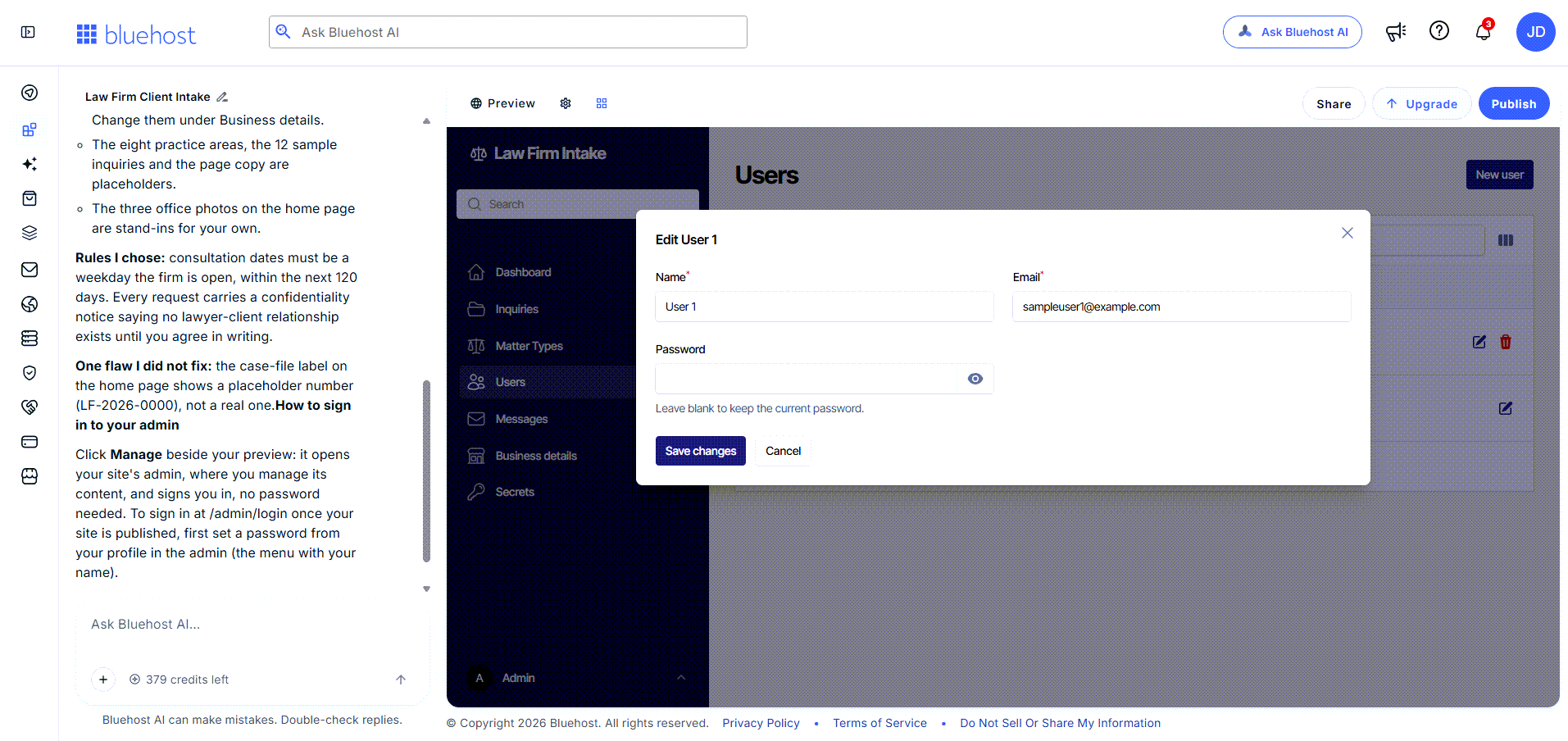
- Click Save Changes to apply your updates.
How to Delete a User
When you delete a user, they lose access to that app's dashboard. They can still use your app like any other visitor, unless a page requires sign-in.
To delete a user:
- In the app's dashboard, click Users in the left-hand menu.
- Find the user you want to remove and click the red Delete (trash) icon next to their name.
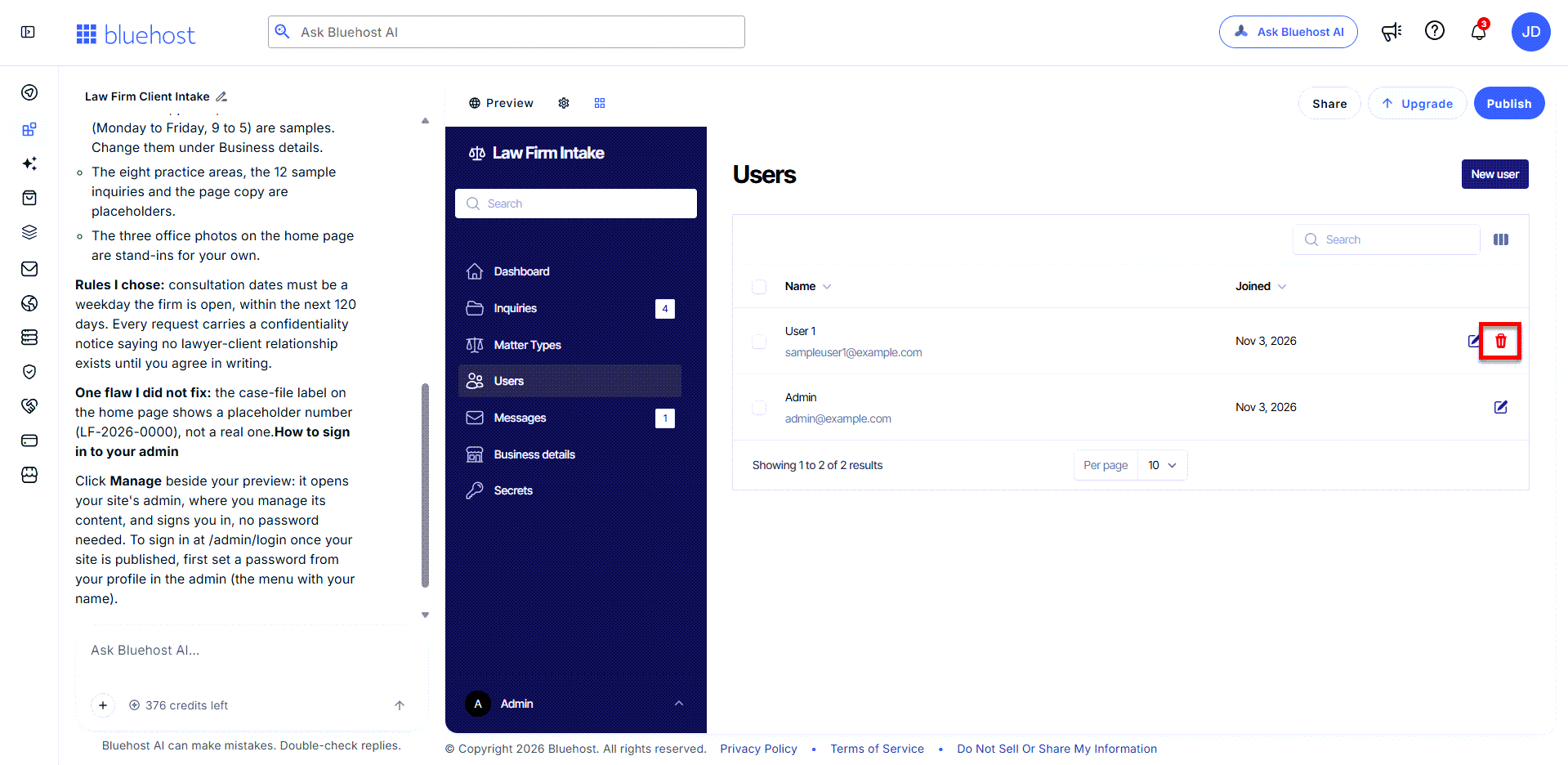
- In the confirmation pop-up, click Delete to remove the user. To keep the user, click Cancel.
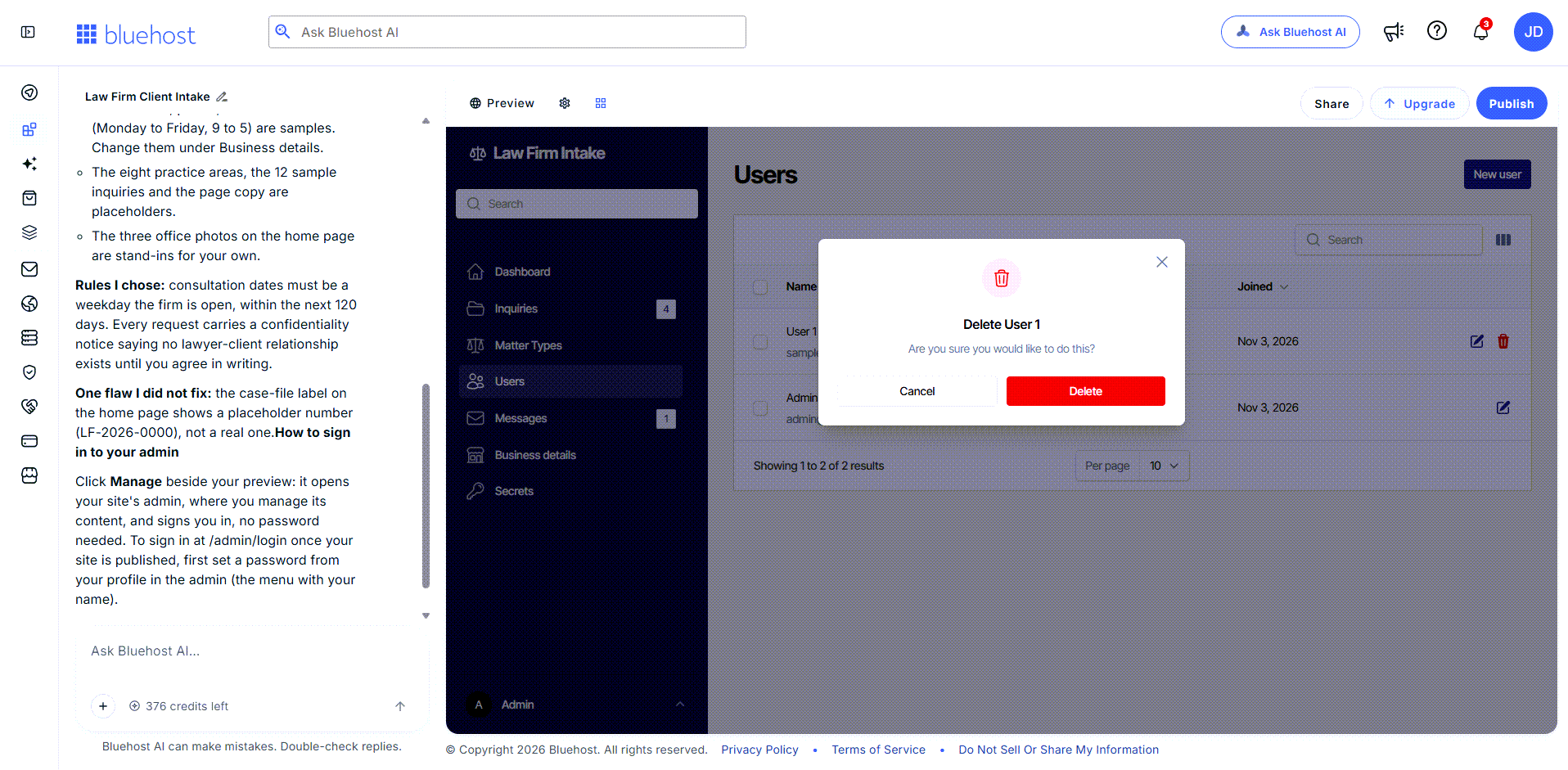
Note: The main Admin account has no Delete icon and can't be removed.
Important: Deleting a user from one app doesn't affect their access to other apps. If they're a user on more than one app, delete them from each app separately.
Summary
Learn how to manage user access in Bluehost AI Builder. This article explains how app-specific permissions work, how to create new users with dashboard access, and how to update existing user details from your app's dashboard. Users can interact with your app without being added as users, but only authorized users can access and manage the dashboard.
If you need further assistance, Bluehost Chat Support is available 24 hours a day, 7days a week while Bluehost Phone Support is available 7 days a week from 7 am-12 midnight EST.
- Chat Support - While on our website, you should see a CHAT bubble in the bottom right-hand corner of the page. Click anywhere on the bubble to begin a chat session.
- Phone Support -
- US: 888-401-4678
- International: +1 801-765-9400
You may also refer to our Knowledge Base articles to help answer common questions and guide you through various setup, configuration, and troubleshooting steps.