 ChatGPT,
 Claude,
 Gemini,
 Grok — all four for
Bluehost AI Builder: How to Create and Validate Forms
Bluehost AI Builder can add a working form to your site or app from a plain-language prompt. The quality of the data you collect depends on what you ask for up front: which fields are required, what format each field accepts, and what happens after someone submits the form.
This article explains how to build forms with AI Builder, add required fields and validation, see where submissions go, and retrieve them. It also covers the most common complaint, submissions that arrive incomplete or malformed, and shows how to prevent it with better prompts.
Build a Form with a Prompt
Describe the form the way you would brief a developer: what it is for, each field, and what should happen after submission. AI Builder writes the form and the code that saves each entry, so the more specific your prompt, the less you have to fix later.
To get started:
- Log in to your Bluehost Portal.
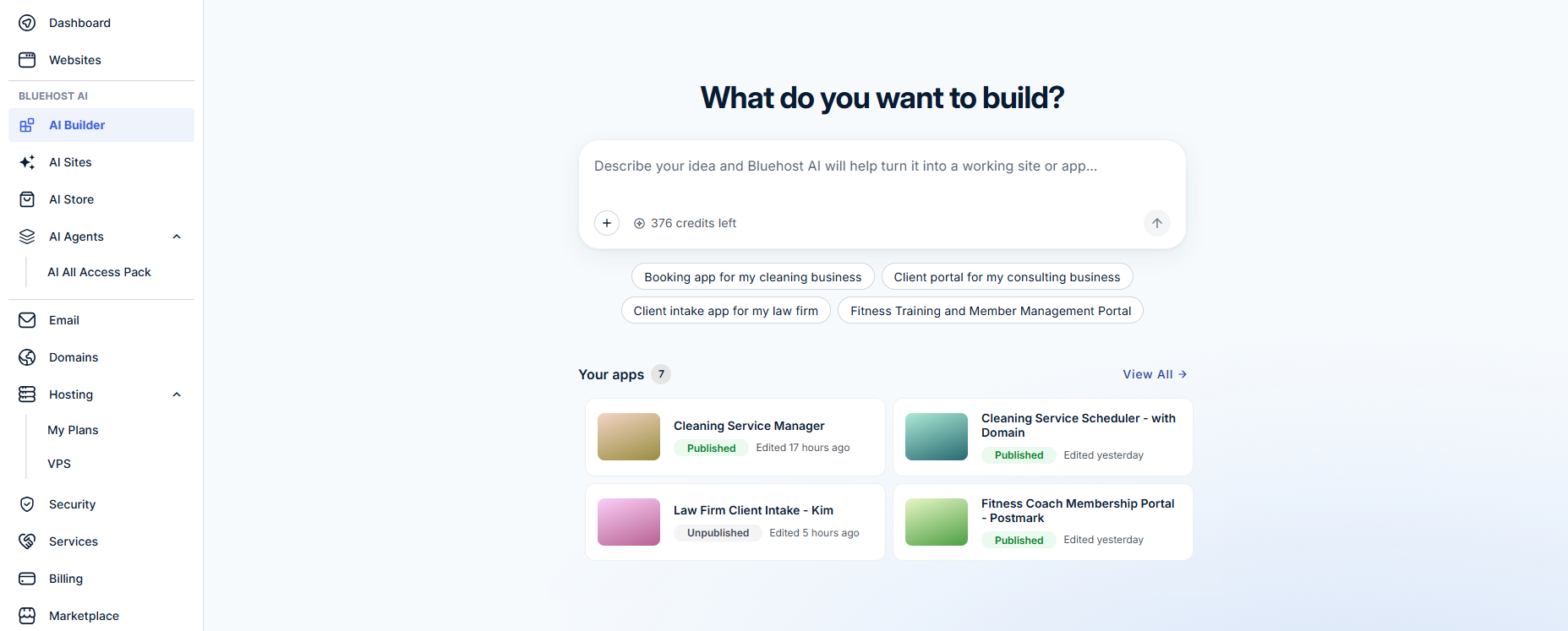
- In the left menu, under Bluehost AI, click AI Builder.
- Open an existing app from Your apps, or describe a new app in the What do you want to build? box.
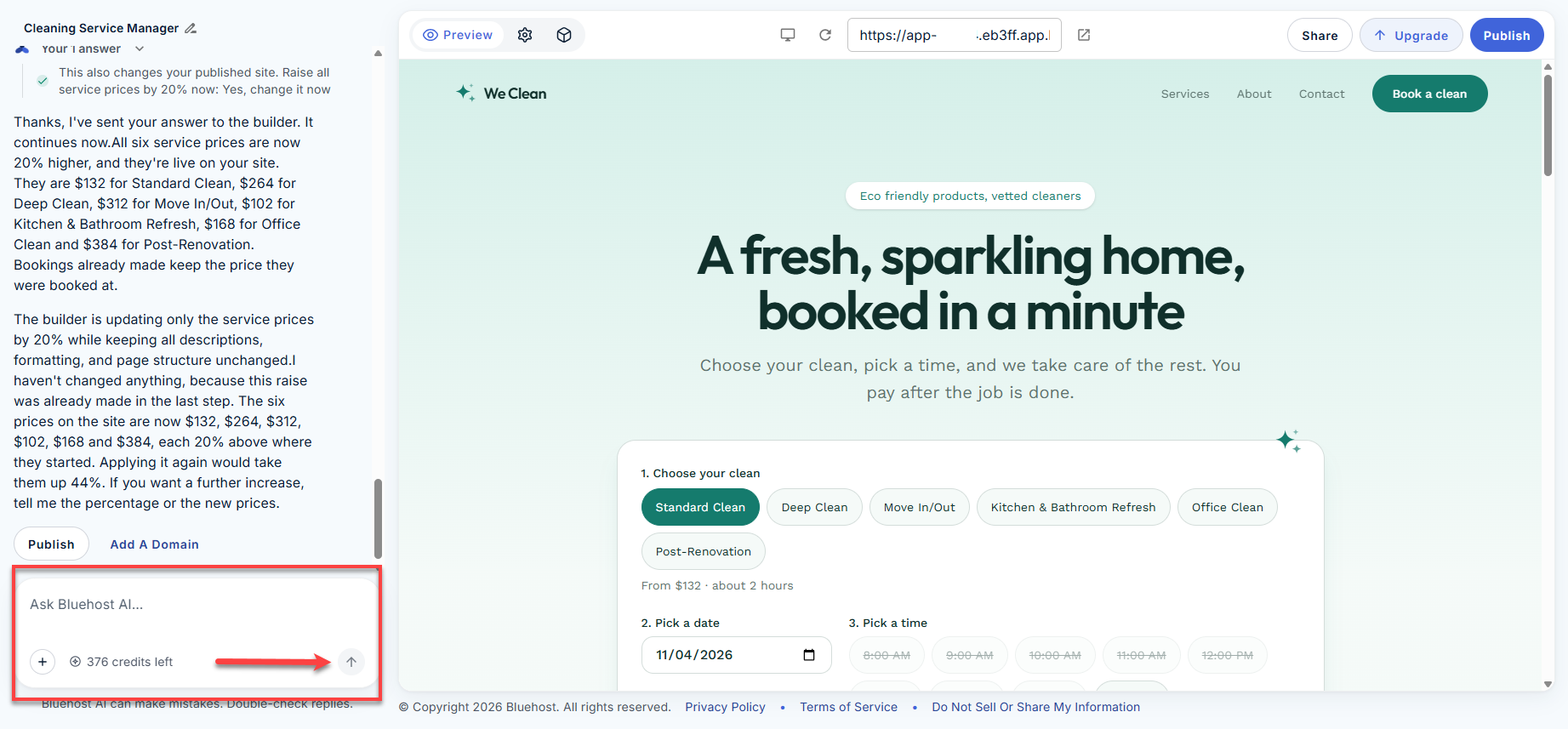
- Type your prompt in the chat box at the bottom of the chat panel on the left side of the editor, then click the send arrow (↑).
A strong form prompt names five things:
- Purpose. What the form collects and who fills it out (for example, quote requests from new customers).
- Fields. Every field, in order, with its type: text, email, phone, number, date, dropdown, or checkbox.
- Required fields. Which fields must be filled in before the form can be submitted.
- Rules for each field. Formats, lengths, and allowed values (covered in the next section).
- After submit. The confirmation message the visitor sees, or the page they go to next.
Weak prompt: "Add a contact form."
Strong prompt: “Add a contact form to the Contact page with these fields: Full name (required, text), Email (required, must be a valid email address), Phone (optional, US format), Reason for contact (required, dropdown: Sales, Support, Billing, Other), and Message (required, 20 to 1,000 characters). After submitting, show ‘Thanks, we’ll reply within one business day.’”
Change an Existing Form
You don't need to rebuild a form to change it. Ask AI Builder for the specific change, and name the form and field so it edits the right one. For example: "On the Contact form, make Phone required and add a field called Preferred contact time."
Preview the form after every change and submit a test entry before you publish. Preview and your live app share the same data, so every test submission is saved as a real record. Delete your test entries in the Manage view or admin when you're done.
Note: Each request that changes your form uses 1 credit. Questions are free. To save credits, combine related changes into one prompt, such as all the validation rules for a form. For current plans and pricing, visit https://www.bluehost.com/ai-builder.
Required Fields and Validation
Validation is the set of rules a form checks before it accepts a submission. If an entry breaks a rule, the visitor sees an error message and can fix it before submitting. Without rules, the form accepts whatever is typed, including blank fields and typos.
AI Builder may not add rules you don’t ask for, so spell them out. The table lists the most useful checks and how to ask for each.
| Check | What it prevents | How to ask for it |
|---|---|---|
| Required | Blank fields | "Make Name, Email, and Message required." |
| Email format | Addresses like jane@gmail or jane.gmail.com | "Email must be a valid email address." |
| Phone format | Missing digits, letters in phone numbers | "Phone must be a 10-digit US number; accept dashes, spaces, or parentheses." |
| Length limits | One-word messages, pasted essays | "Message must be 20 to 1,000 characters." |
| Number range | Impossible values | "Party size must be a whole number from 1 to 12." |
| Date rules | Past dates, dates too far out | "Appointment date must be today or later, and no more than 90 days out." |
| Fixed choices | Inconsistent spellings | "Use a dropdown for State instead of a text box." |
| Matching fields | Mistyped emails | "Add a Confirm email field that must match Email." |
Ask for Clear Error Messages
A rule only helps if the visitor understands what went wrong. Ask AI Builder to show the message next to the field, in plain words, for example: "Show an error under each field that fails, such as 'Enter a valid email address'."
Ask for Checks on the Server, Too
Checks in the browser give visitors instant feedback, but they can be skipped by bots or older browsers. Add this line to your prompt so the app also checks every entry before saving it: “Validate all fields on the server before saving, and reject submissions that fail.”
Tip: Dropdowns, checkboxes, and date pickers often prevent more bad data than typed-in rules. Use them whenever the answer comes from a known list.
What Happens to Submissions
Each submission is saved as a record in your app's database, which AI Builder creates along with your app. Submission handling is built into AI Builder, so your entries stay in your app's own database, not a separate form service.
When a visitor submits a form, the app does the following. The button they click depends on your app; it might say Submit, Send, Book now, or something else.
- Checks every field against the rules you set. If you asked for server-side validation, entries that fail aren't saved.
- Saves the entry as a new record, with the date and time it was submitted.
- Shows the visitor your confirmation message, or takes them to a thank-you page.
- Sends an email notification, if you've connected an email provider for your app.
If you didn't specify a confirmation message, ask for one: "After a successful submission, show a thank-you message."
Note: Submissions are saved and visible in the Manage view whether or not you've set up email notifications. To get an email when someone submits a form, connect your own Resend or Postmark account in Settings > Email notifications.
There's no set limit on submissions; usage is subject to fair use.
Important: Your forms may collect personal information, such as names, email addresses, and phone numbers. You're responsible for telling visitors how you use their information, for example in a privacy policy on your site, and for following the privacy laws that apply to your business. You can ask AI Builder to help, for example: “Add a Privacy Policy page and a link to it below each form.” Don't use forms to collect payment card numbers, health information, or government ID numbers. For more guidance, see Bluehost AI Builder: What You Can Build — And What You Shouldn't.
Retrieve Your Submissions
You can view and manage submissions in two places: the Manage view inside AI Builder, or your app's admin area, which you sign in to from your live site. Both show the same data.
View Submissions in the Manage View
- Log in to your Bluehost Portal.
- In the left menu, under Bluehost AI, click AI Builder.
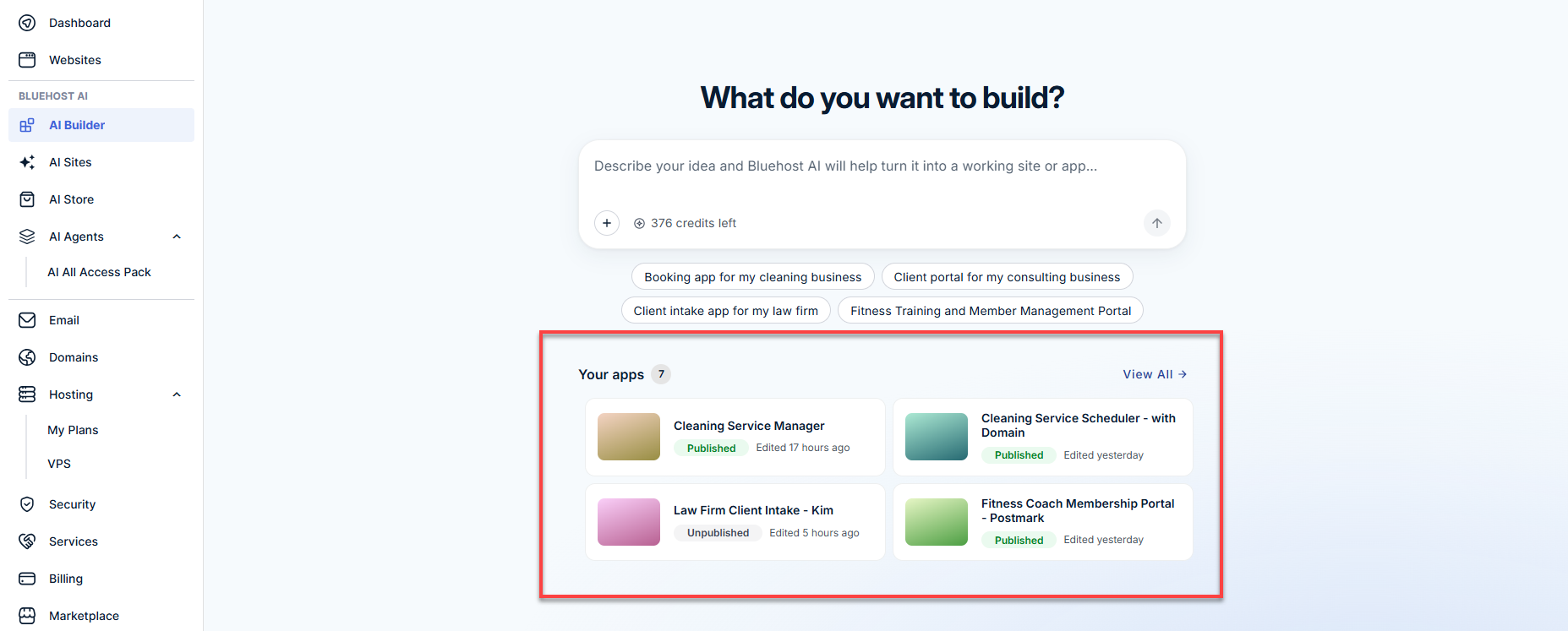
- Under Your apps, click the app whose submissions you want to see.
- Above the preview, click the Manage icon (the cube icon next to Preview and the Settings gear).

- The Dashboard opens with a summary of recent activity, such as entries awaiting a reply and upcoming items.
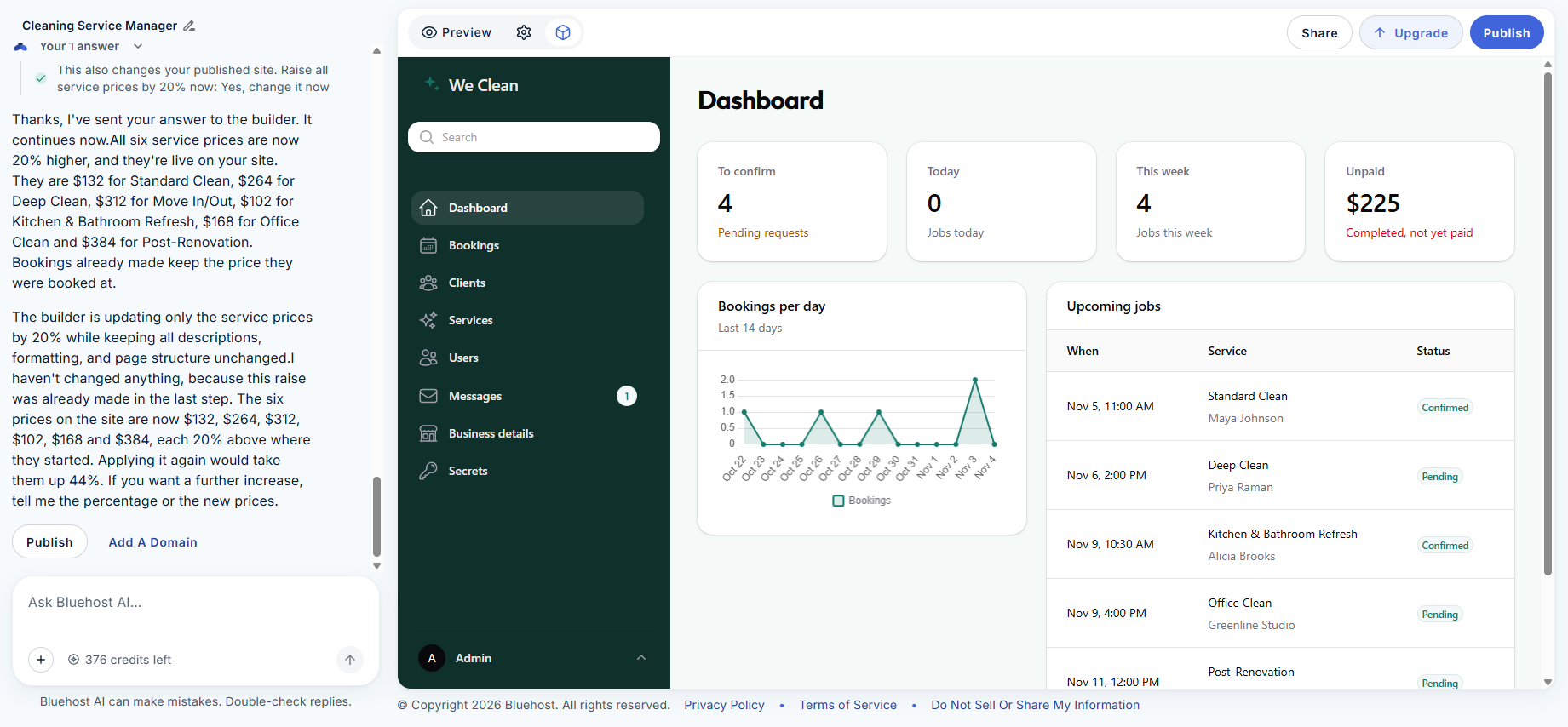
- In the left menu, select the section for your form, such as Bookings or Messages. The sections depend on what your app collects.
- Open an entry to see its details or update its status.
Note: If your app was just created, the Dashboard may show sample data. Your real submissions appear as visitors fill out your forms.
Sign In to Your App's Admin
AI Builder creates a login-protected admin area for your app. When you open the admin from your AI Builder workspace, it signs you in without a password. To sign in at /admin/login on your live site or from another device, set a password first.
To set or change your password:
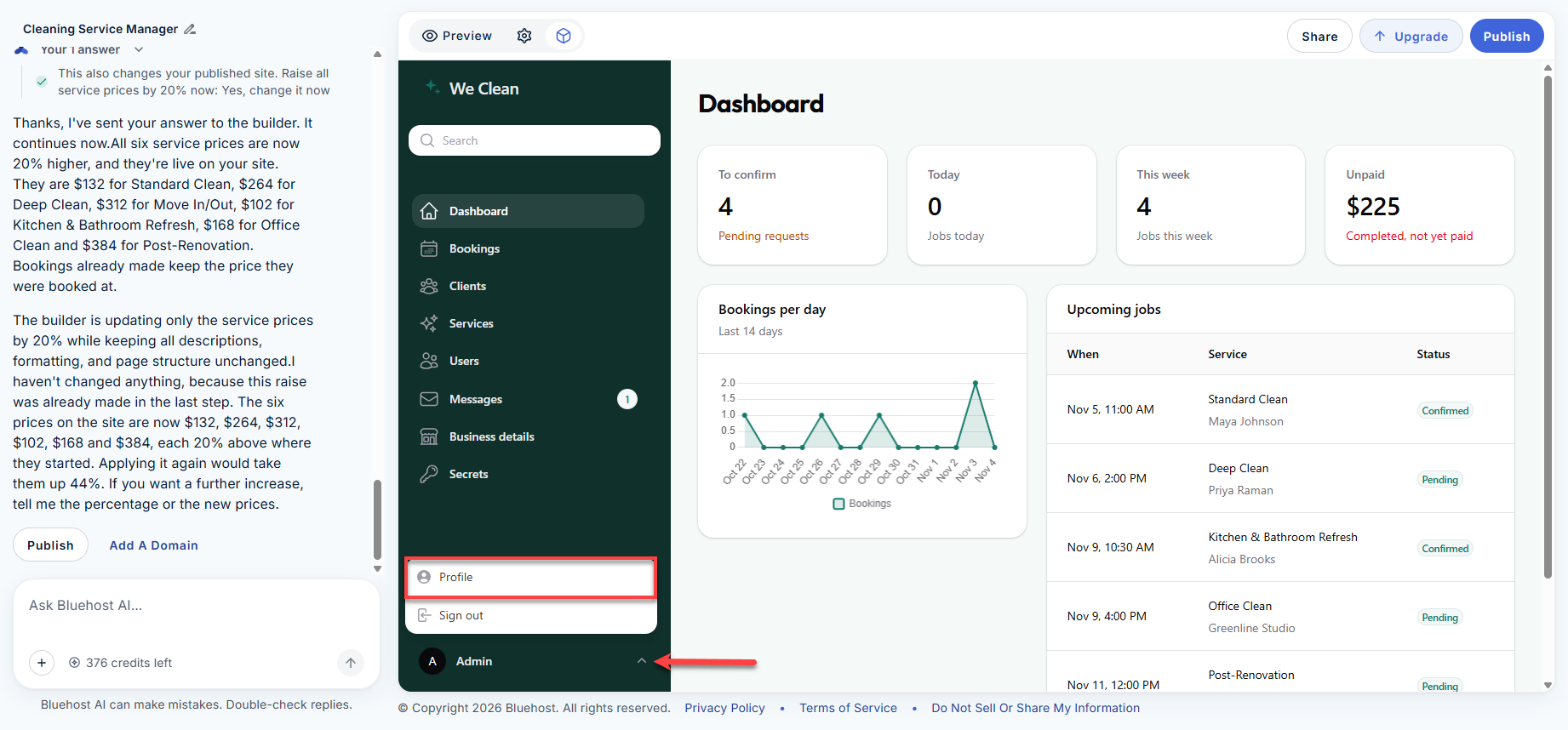
- Open your app’s admin from your AI Builder editor.
- Click your name in the lower-left corner.
- Select Profile.
- Enter your new password in the New password field.
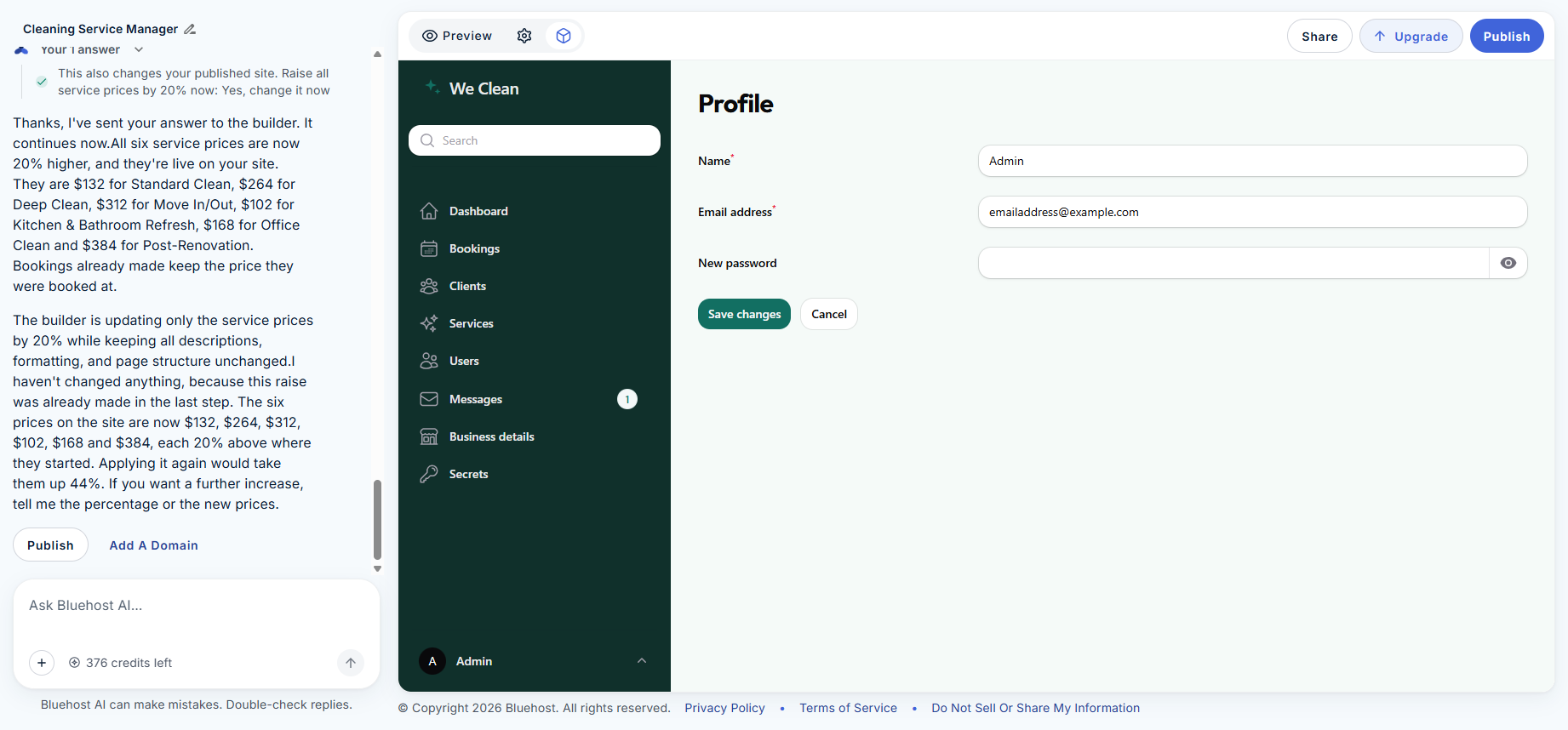
- Click Save changes.
To sign in from your live site:
- Go to /admin/login on your site, for example, yourdomain.com/admin/login. If your app uses its free address, go to yourapp.app.bluehost.ai/admin/login.
- Enter your email and the password you set.
- Click the section for your form, such as Bookings or Messages, to view entries.
Important: Use a strong password and don’t share it. The admin holds your customers’ names, emails, and phone numbers.
Add Tools to Your Admin
If you need more ways to work with submissions, ask AI Builder to add them to the admin. For example: "In the admin, add a search box and a filter by status to Bookings, and a button to export them to CSV."
Export Submissions
There's no built-in export, but you can ask AI Builder to add a CSV export button to your admin, as shown above. You can then import the CSV file into most spreadsheet and CRM tools.
Tip: Submit a test entry right after publishing, then confirm it appears here. That one check can catch many setup problems. Delete the test entry when you're done, since it's saved as a real record.
Fix Incomplete or Malformed Submissions
Many bad submissions trace back to a rule that was never requested. Find your symptom below and send the fix to AI Builder as a prompt.
| What you see | Likely cause | Prompt to fix it |
|---|---|---|
| Blank fields in submissions | Field isn't required | "Make Name, Email, and Message required on the Contact form." |
| Emails you can't reply to | No email format check | "Validate Email as a real email address and show an error if it isn't." |
| Phone numbers in many formats | Free-text phone field | "Accept a 10-digit phone number in any common format and save it as 555-555-5555." |
| Same answer spelled many ways | Text box instead of fixed choices | "Change Service type to a dropdown with these options: …" |
| A field is always empty | Field was renamed or isn't saved | "Make sure every field on the Contact form is saved to the database, including Preferred contact time." |
| Old submissions are missing a new field | Field added after they came in | No fix needed. Earlier records stay as they were submitted. |
| Junk or spam entries | No bot protection | "Add spam protection to the Contact form and reject obvious bot submissions." |
| Duplicate entries | Visitors click the submit button more than once | "Disable the form's submit button after the first click until the form finishes sending." |
| Errors appear, but bad data still saves | Browser-only checks | "Validate all fields on the server before saving, and reject submissions that fail." |
Test Every Fix
After each change, preview the form and try to break it. Submit it blank, enter a bad email, and type letters in the phone field. Each attempt should show an error and save nothing. Then submit one valid entry and confirm it saves correctly. Preview and your live app share the same data, so delete your test entries in the Manage view or admin when you're done.
Note: Validation applies only to new submissions. Clean up existing records by hand, or ask AI Builder to flag records with missing or invalid fields.
Prompt Templates for Clean Data
Copy a template, replace the bracketed parts, and send it to AI Builder. Each one asks for validation up front, so you don't have to fix the form later.
- Contact Form: Add a contact form to the [page name] page with these fields:
- Full name: required, 2 to 80 characters
- Email: required, valid email address
- Phone: optional, 10-digit US number, saved as 555-555-5555
- Reason: required dropdown with [option 1], [option 2], [option 3], Other
- Message: required, 20 to 1,000 characters
Show an error under each field that fails. Validate on the server before saving.
Add spam protection. After a successful submission, show "[confirmation message]".
If a field fails, keep the visitor's other answers in the form. - Booking or Appointment Request: Add a booking form with these fields:
- Name: required
- Email: required, valid email address
- Service: required dropdown with [services]
- Date: required date picker, today or later, no more than [number] days out
- Time: required dropdown with [time slots]
- Notes: optional, up to 500 characters
Validate on the server before saving. Disable the submit button after one click.
After submission, show the booking details. - Quote Request: Add a quote request form with these fields:
- Company name: required
- Contact email: required, valid email address, with a matching Confirm email field
- Budget: required dropdown with [ranges]
- Project details: required, 50 to 2,000 characters
Validate on the server before saving. Add spam protection.
In the admin, list submissions newest first and add a CSV export button. - Add Validation to a Form You Already Have: Review the [form name] form and add validation to every field:
required fields, correct formats for email, phone, and dates,
sensible length limits, and dropdowns where answers come from a fixed list.
Show clear error messages under each field, validate on the server before saving,
and tell me what rules you added.
Frequently Asked Questions
Q: Do I need to know how to code to add validation?
A: No. Describe the rules in plain language and AI Builder writes the code. Use the templates above as a starting point.
Q: Why did my form accept a blank or invalid entry?
A: AI Builder may not add rules you don’t request. Ask it to make the field required or to check its format, then test the form again.
Q: Will adding validation fix submissions I already received?
A: No. Rules apply to new submissions only. You can ask AI Builder to flag existing records with missing or invalid fields so you can review them.
Q: Are my submissions private?
A: Submissions are stored in your app's database. You can see them in the Manage view in AI Builder and in your app's login-protected admin. If you ask AI Builder for another page that displays them, ask for it to require a login too.
Q: Can I get an email when someone submits a form?
A: Yes. Connect your own Resend or Postmark account in Settings > Email notifications. Your submissions are saved in your app either way.
Q: Can I send submissions to my CRM or a spreadsheet?
A: There's no built-in export, but you can ask AI Builder to add a CSV export button to your admin. You can then import the file into your spreadsheet or CRM.
Related Articles
Summary
Clean form data starts with the prompt. When you build a form in Bluehost AI Builder, name every field, mark which are required, set the format and limits for each, and ask for server-side validation and spam protection. Submissions are saved to your app's database, where you can view them in the Manage view or your admin. There's no built-in export, but you can ask AI Builder to add a CSV export button to your admin. If entries arrive incomplete or malformed, add the missing rule with a prompt, then test the form by trying to break it.
Bluehost Support can't change forms for you. Make changes by prompting AI Builder.
If you need further assistance, Bluehost Chat Support is available 24 hours a day, 7days a week while Bluehost Phone Support is available 7 days a week from 7 am-12 midnight EST.
- Chat Support - While on our website, you should see a CHAT bubble in the bottom right-hand corner of the page. Click anywhere on the bubble to begin a chat session.
- Phone Support -
- US: 888-401-4678
- International: +1 801-765-9400
You may also refer to our Knowledge Base articles to help answer common questions and guide you through various setup, configuration, and troubleshooting steps.