 ChatGPT,
  Claude,
  Gemini,
  Grok — all four for
 Bluehost AI Store: How to Create and Configure Shipping Zones
Shipping zones allow you to set shipping rules for different locations. You can create zones to offer specific shipping methods, rates, and delivery options based on your customers' locations.
The Zones tab in the Bluehost AI Store allows you to create, edit, and manage destination groups. It also includes a Default Zone, which is used for any locations that do not match a custom shipping zone.
This article will guide you through managing shipping zones in the AI Store dashboard.
For more information about the Shipping tab in the AI Store dashboard, please see the Bluehost AI Store: Shipping Tab article.
How to Add a Shipping Zone
- Log in to your Bluehost Portal.
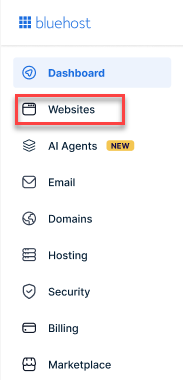
- From the left-hand menu, click the Websites tab.
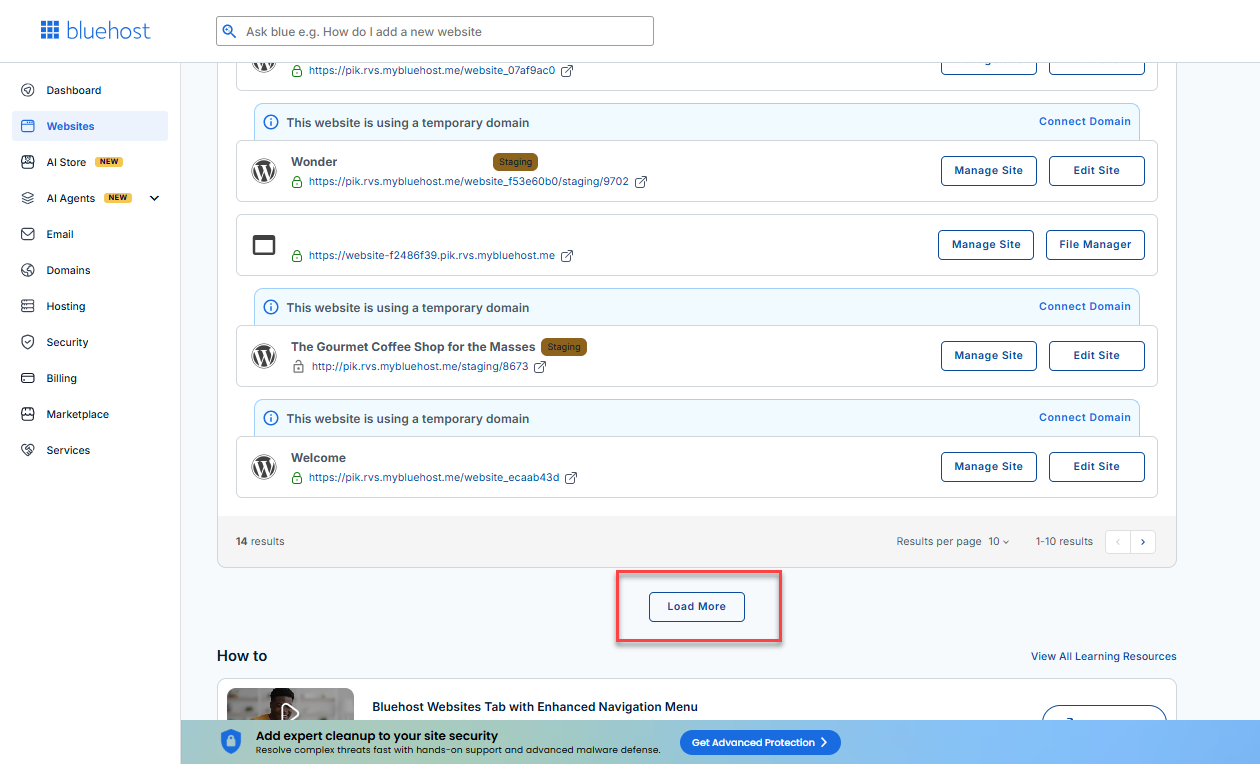
- Locate your Sell Online plan. If you have multiple websites, you need to scroll down and click the Load More link.
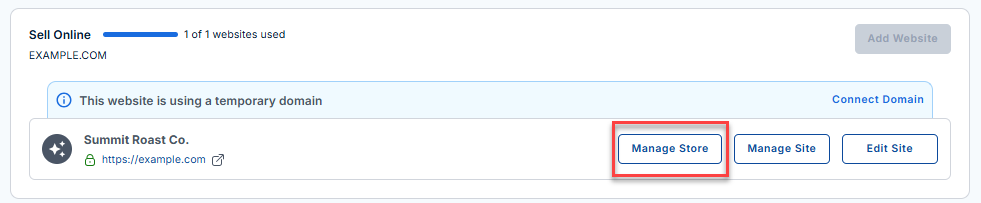
- Click the Manage Store button next to your site.
- You will be redirected to your Bluehost AI Store Dashboard.
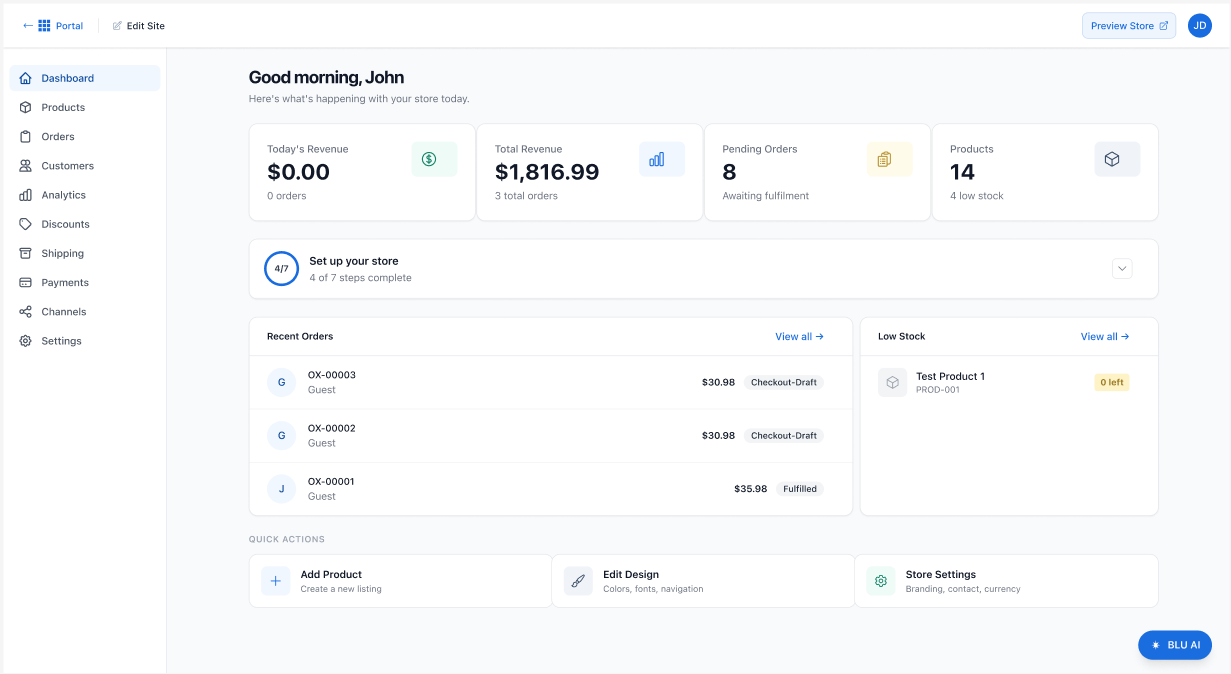
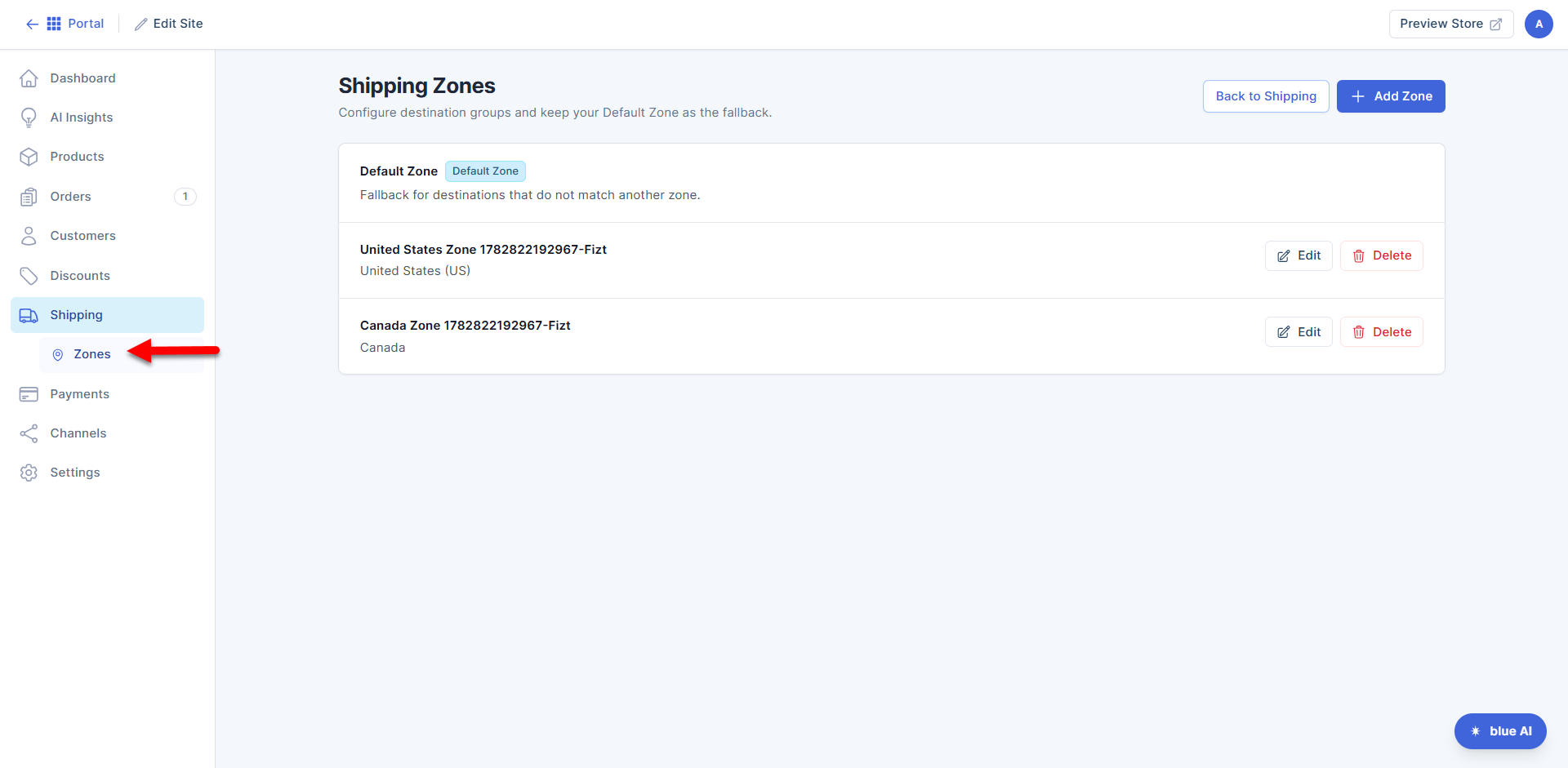
- Click the Shipping tab in the left-hand menu, then select Zones.
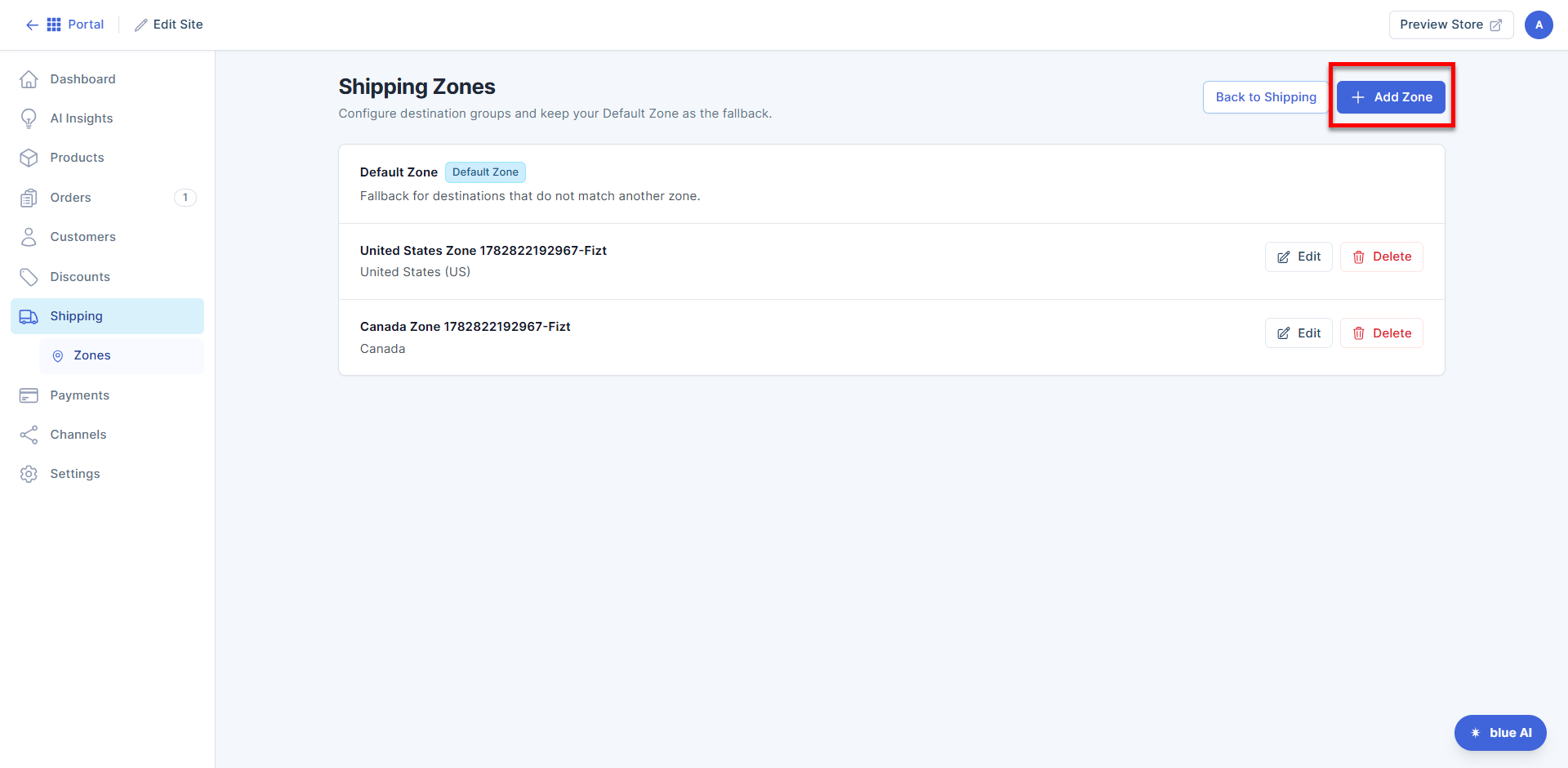
- In the Zones tab, click the + Add Zone button located in the upper-right corner.
- Complete the form.
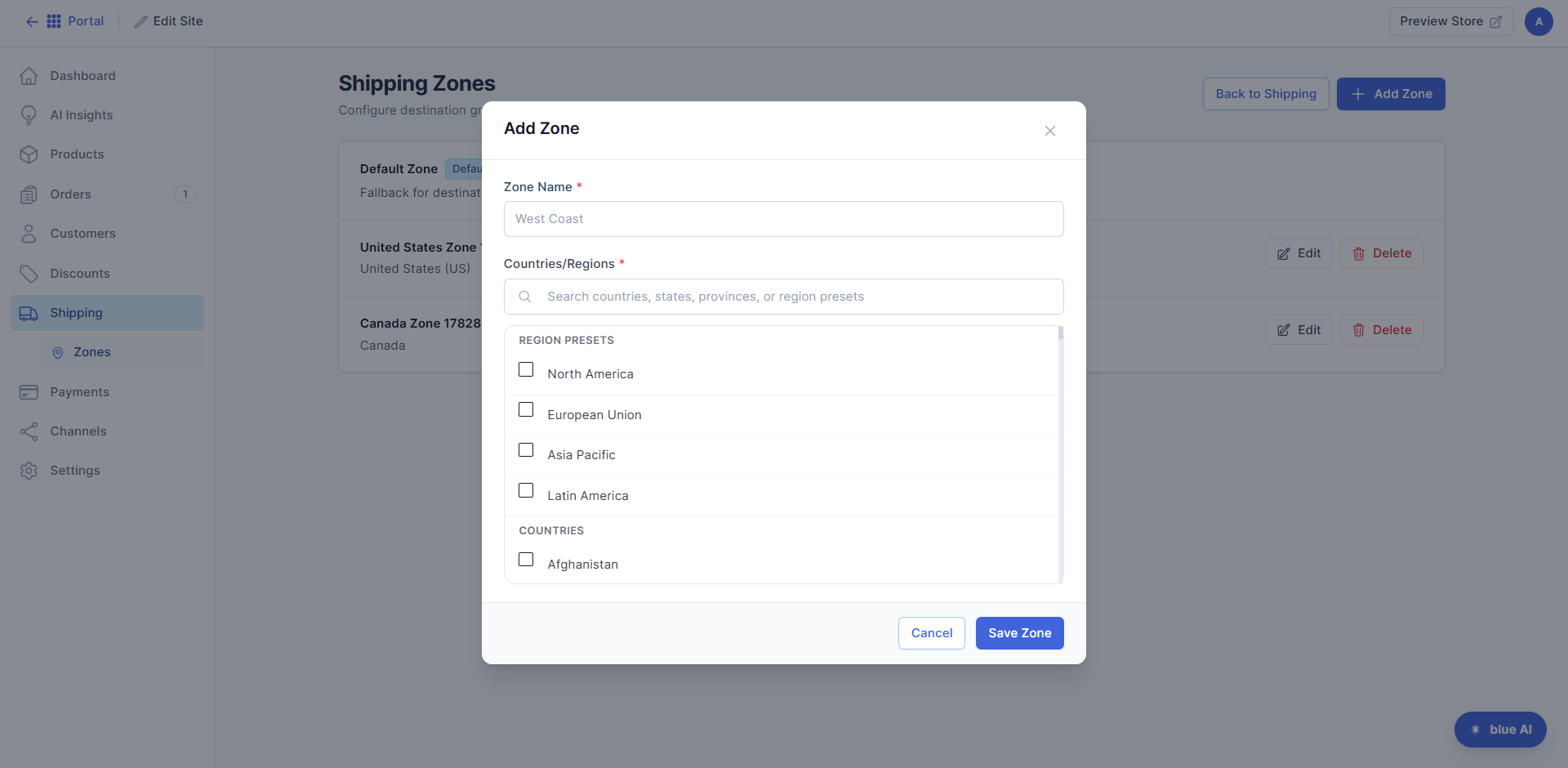
- Enter a Zone Name - Enter a descriptive name for the zone (for example, West Coast or International Shipping).
- Choose the Countries/Regions - These are the destinations that belong to the zone. In the Region Presets list, select the countries, states, provinces, or regions you want to include.
- Click Save.
How to Edit a Shipping Zone
To edit a shipping zone:
- In the Zones tab, click Edit next to the zone name.
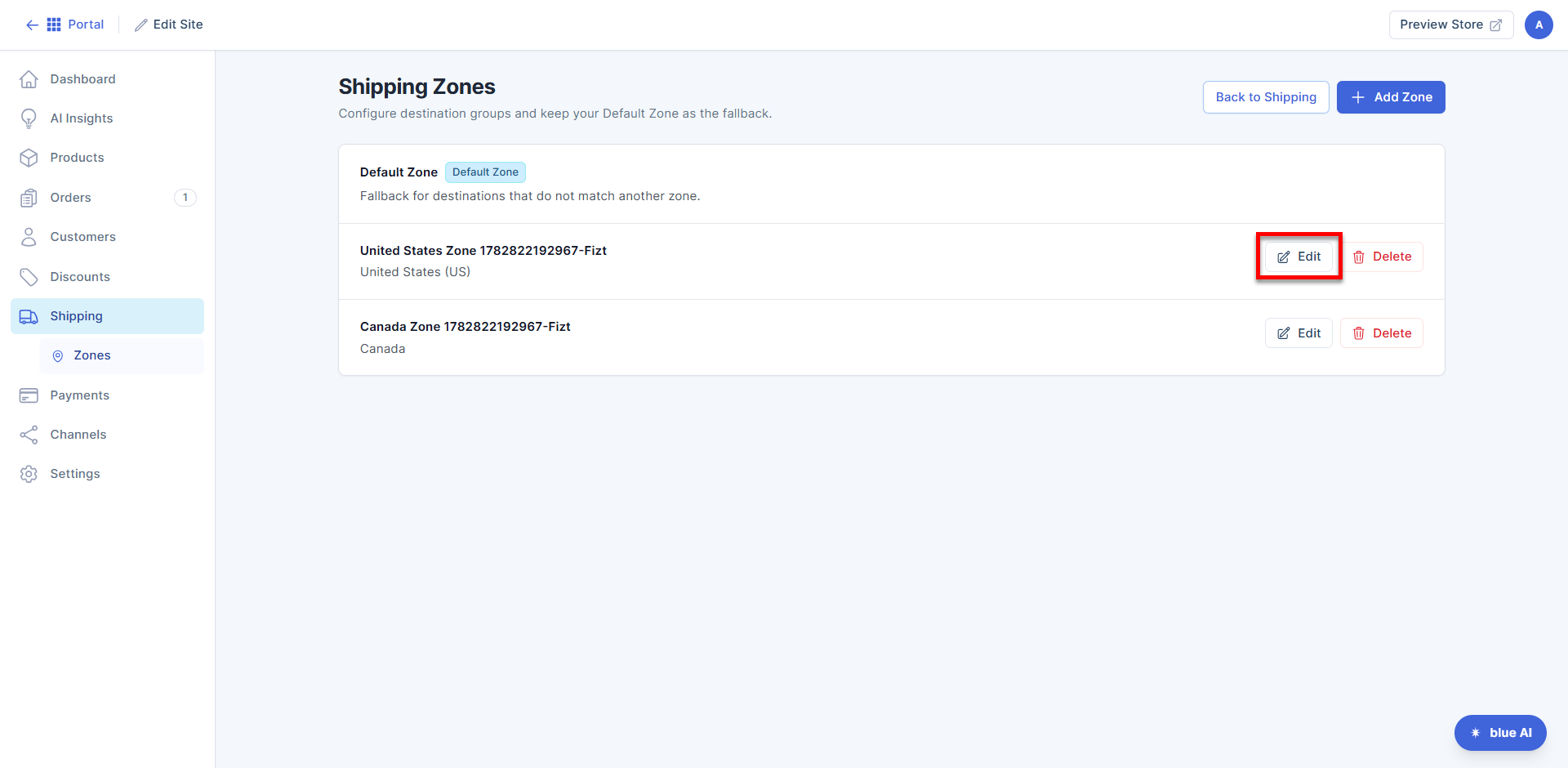
- In the pop-up, make the necessary updates.
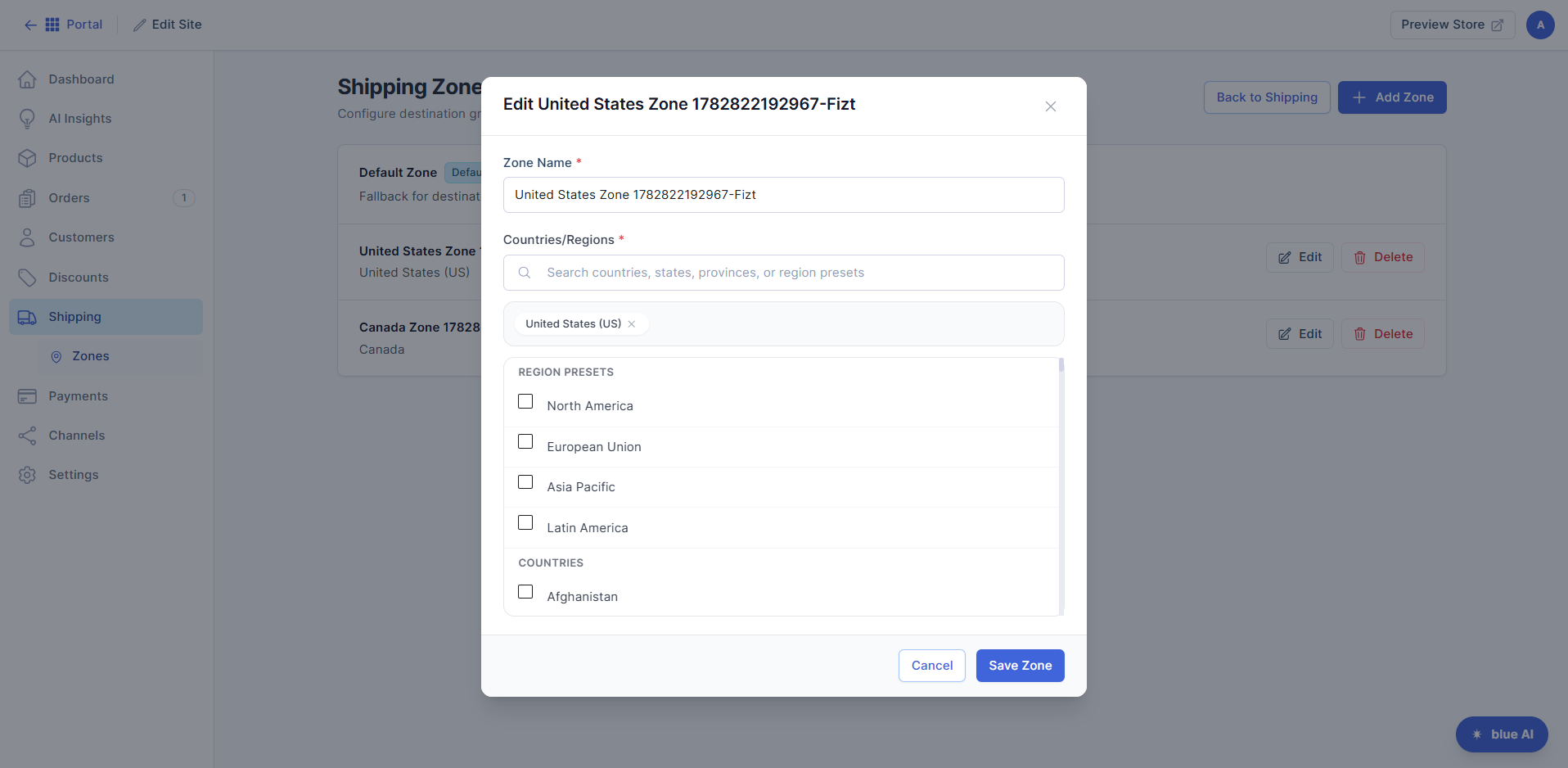
- Click Save to save your changes.
How to Delete a Shipping Zone
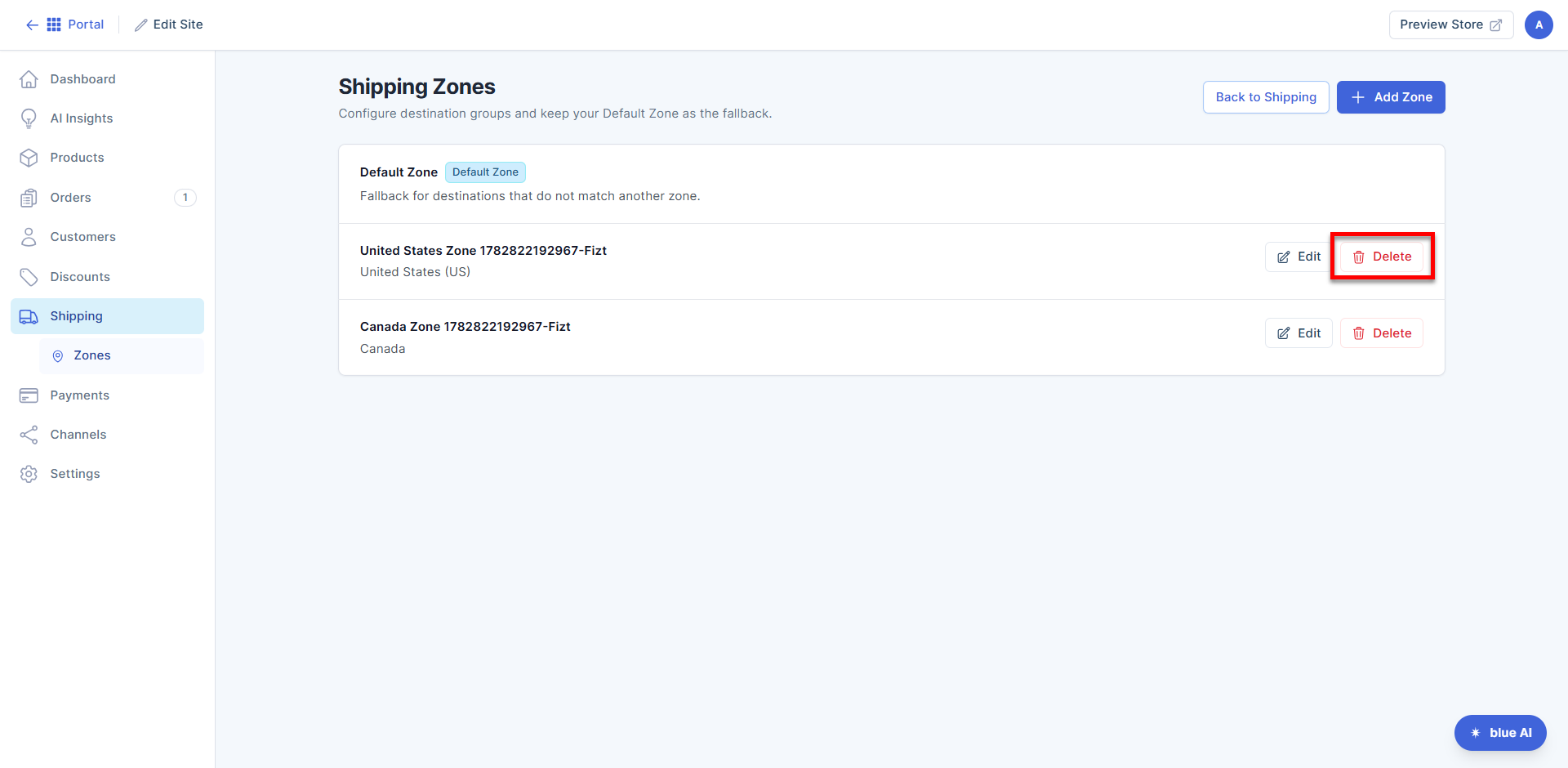
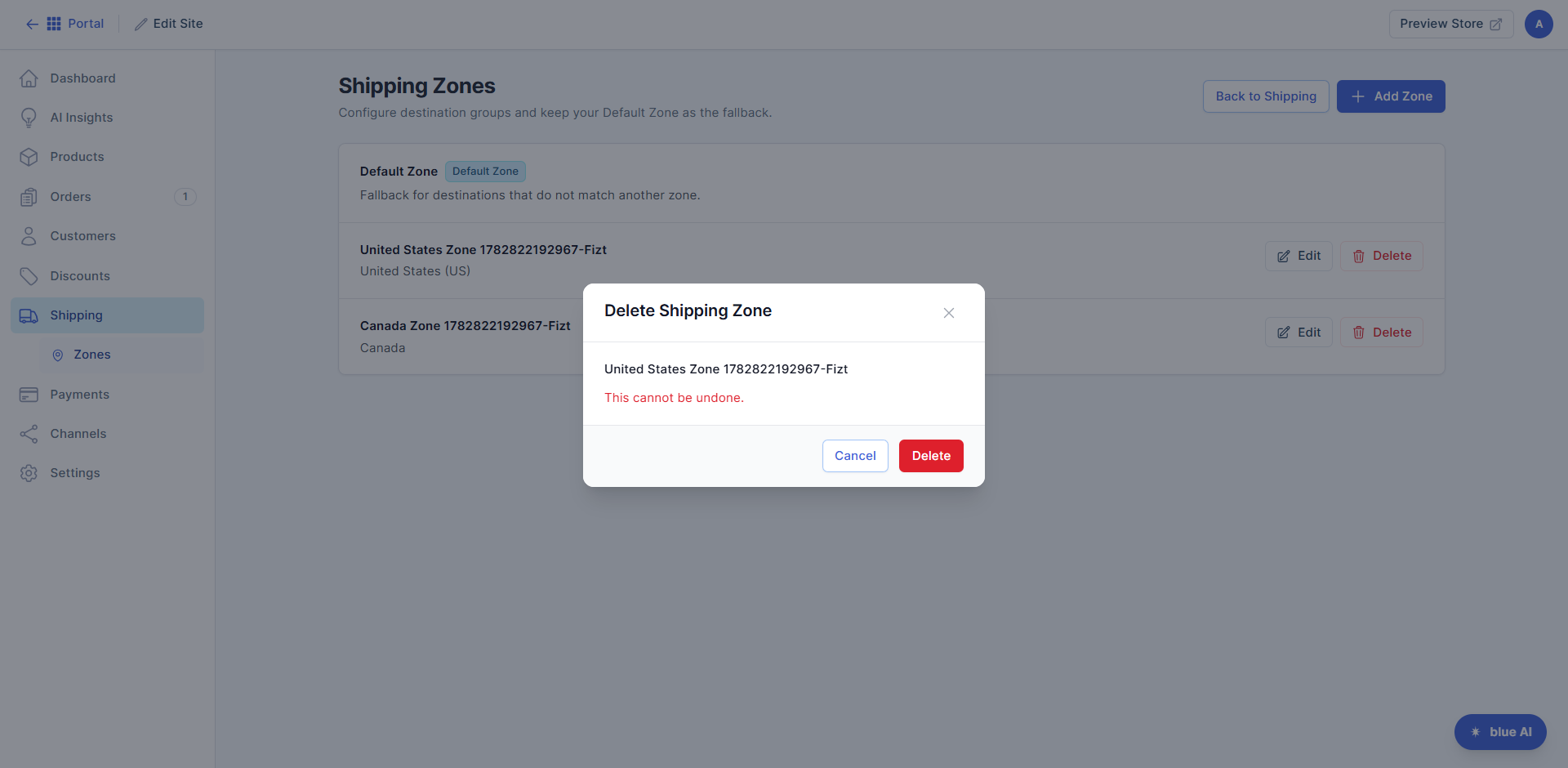
Deleting a zone removes its assigned destinations. Orders from those locations will fall back to the Default Zone unless another matching zone exists.
To delete a shipping zone:
- Click Delete next to the zone name.
- In the pop-up, click Delete to confirm the action.
Need to add a shipping method? Please visit the Bluehost AI Store: How to Add, Edit, and Delete a Shipping Method article.
Summary
The Zones tab under Shipping in the Bluehost AI Store lets you create and manage shipping zones based on customer locations. You can add, edit, or delete zones and assign countries or regions to each one. A Default Zone is also available for destinations that do not match any custom shipping zone, helping ensure accurate shipping options and rates for your customers.
If you need further assistance, Bluehost Chat Support is available 24 hours a day, 7days a week while Bluehost Phone Support is available 7 days a week from 7 am-12 midnight EST.
- Chat Support - While on our website, you should see a CHAT bubble in the bottom right-hand corner of the page. Click anywhere on the bubble to begin a chat session.
- Phone Support -
- US: 888-401-4678
- International: +1 801-765-9400
You may also refer to our Knowledge Base articles to help answer common questions and guide you through various setup, configuration, and troubleshooting steps.