 ChatGPT,
  Claude,
  Gemini,
  Grok — all four for
 Bluehost AI Store: How to Add, Edit, and Delete a Shipping Method
The Shipping tab in the Bluehost AI Store allows store owners to create, manage, and customize shipping methods that customers can choose during checkout. From this section, you can configure flat-rate shipping, apply rates globally or by shipping zone, and control which shipping options are available to customers.
This article walks you through the process of managing the shipping method in the AI Store dashboard. We have also added a video guide to walk you through each step.
For more information about the Shipping tab in the AI Store dashboard, please see the Bluehost AI Store: Shipping Tab article.
How to Add a Shipping Method
- Log in to your Bluehost Portal.
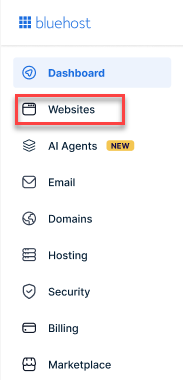
- From the left-hand menu, click the Websites tab.
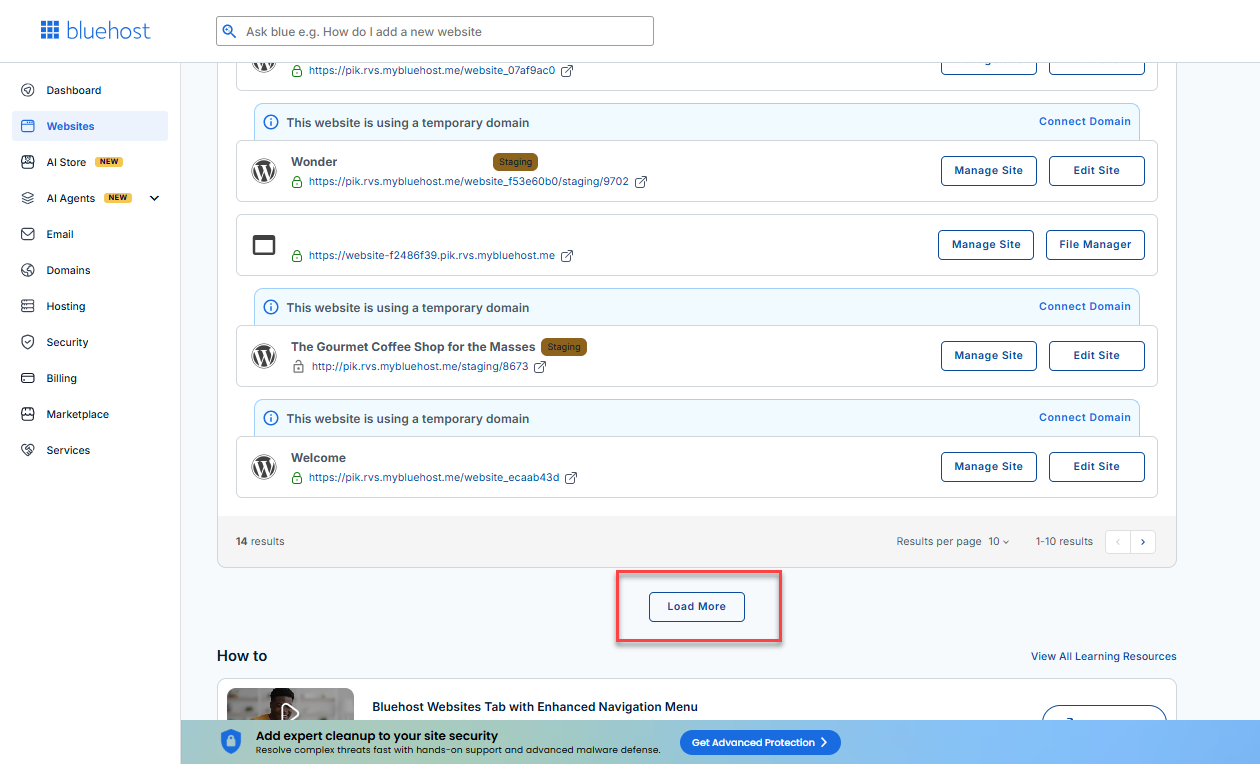
- Locate your Sell Online plan. If you have multiple websites, you need to scroll down and click the Load More link.
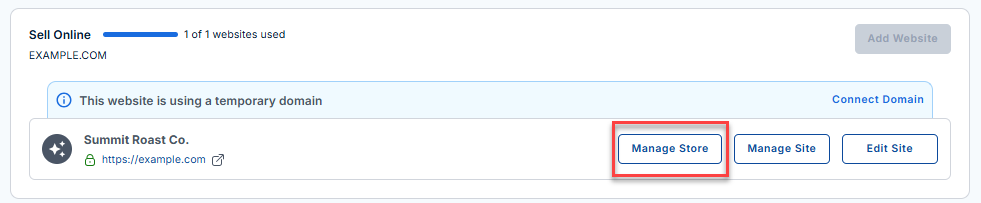
- Click the Manage Store button next to your site.
- You will be redirected to your Bluehost AI Store Dashboard.
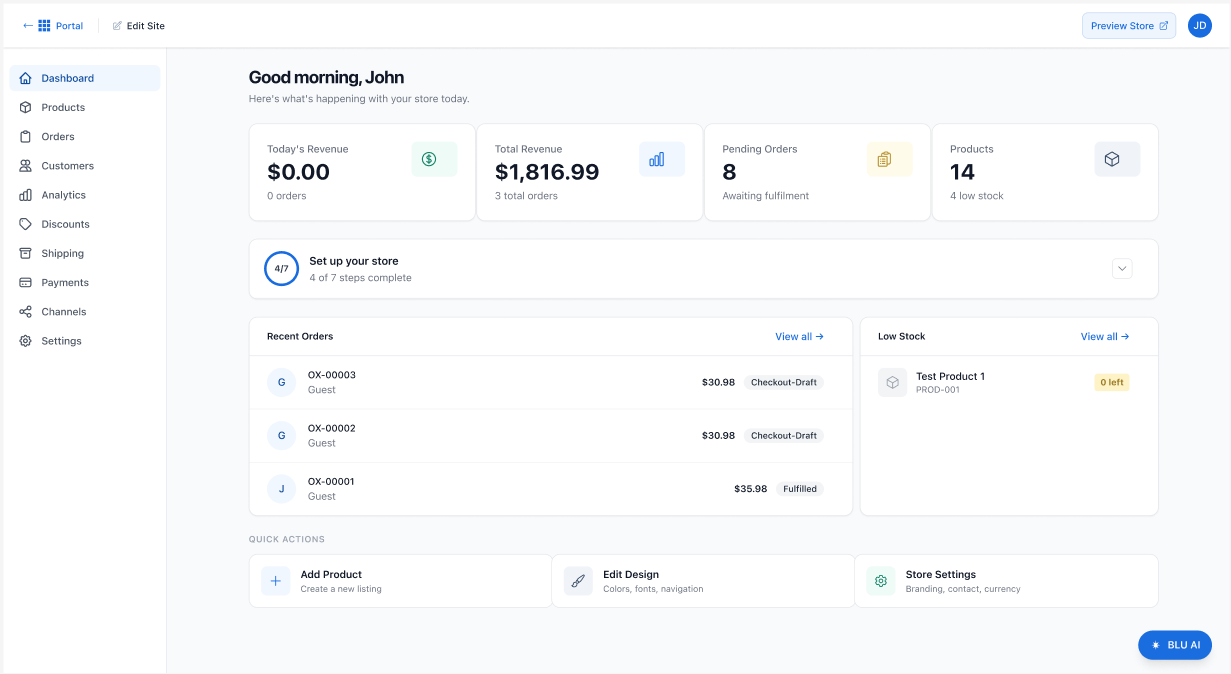
- Click Shipping in the left menu.
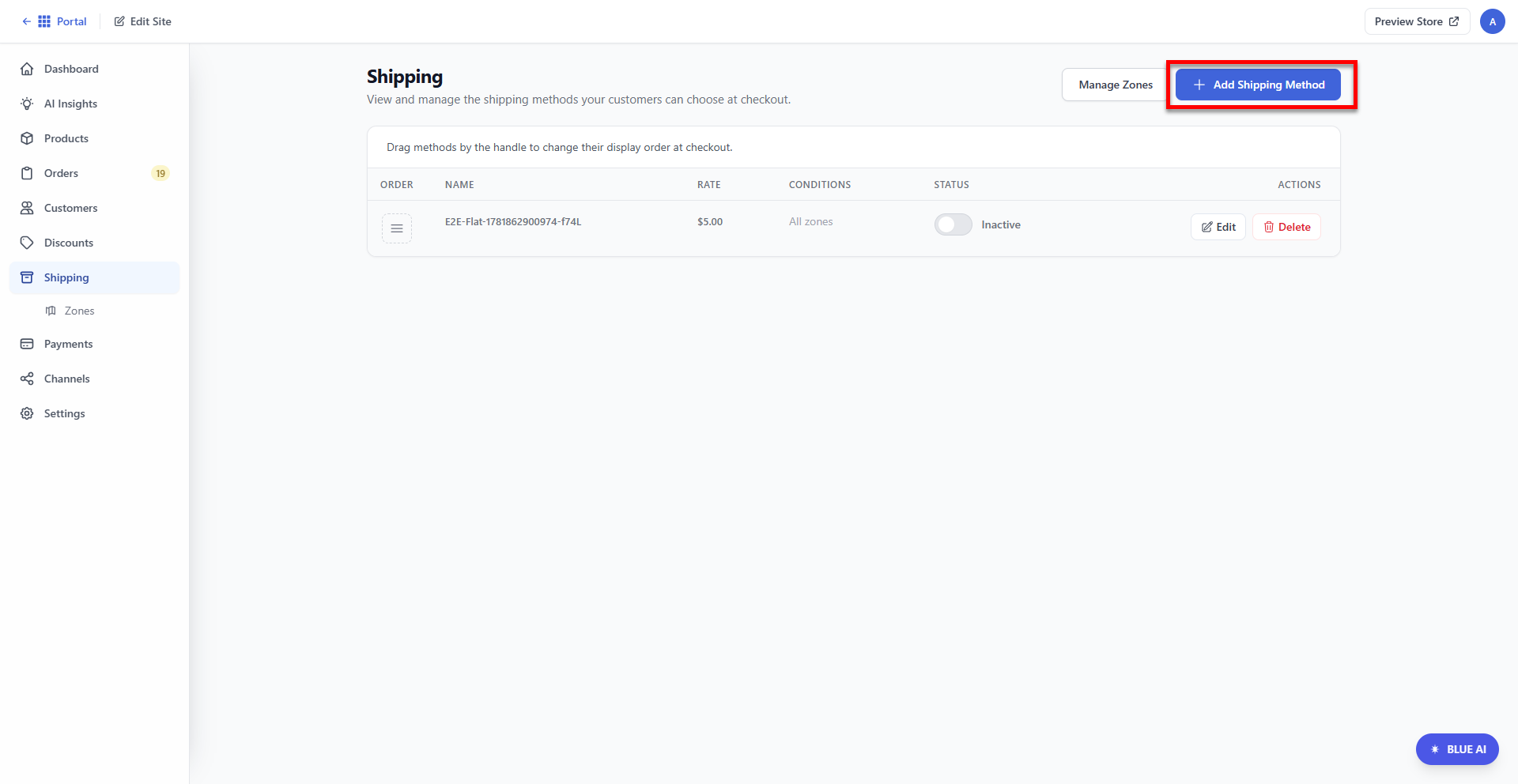
- In the Shipping tab, click the + Add Shipping Method button located in the top-right corner to open the new shipping method form.
- Fill out the form.
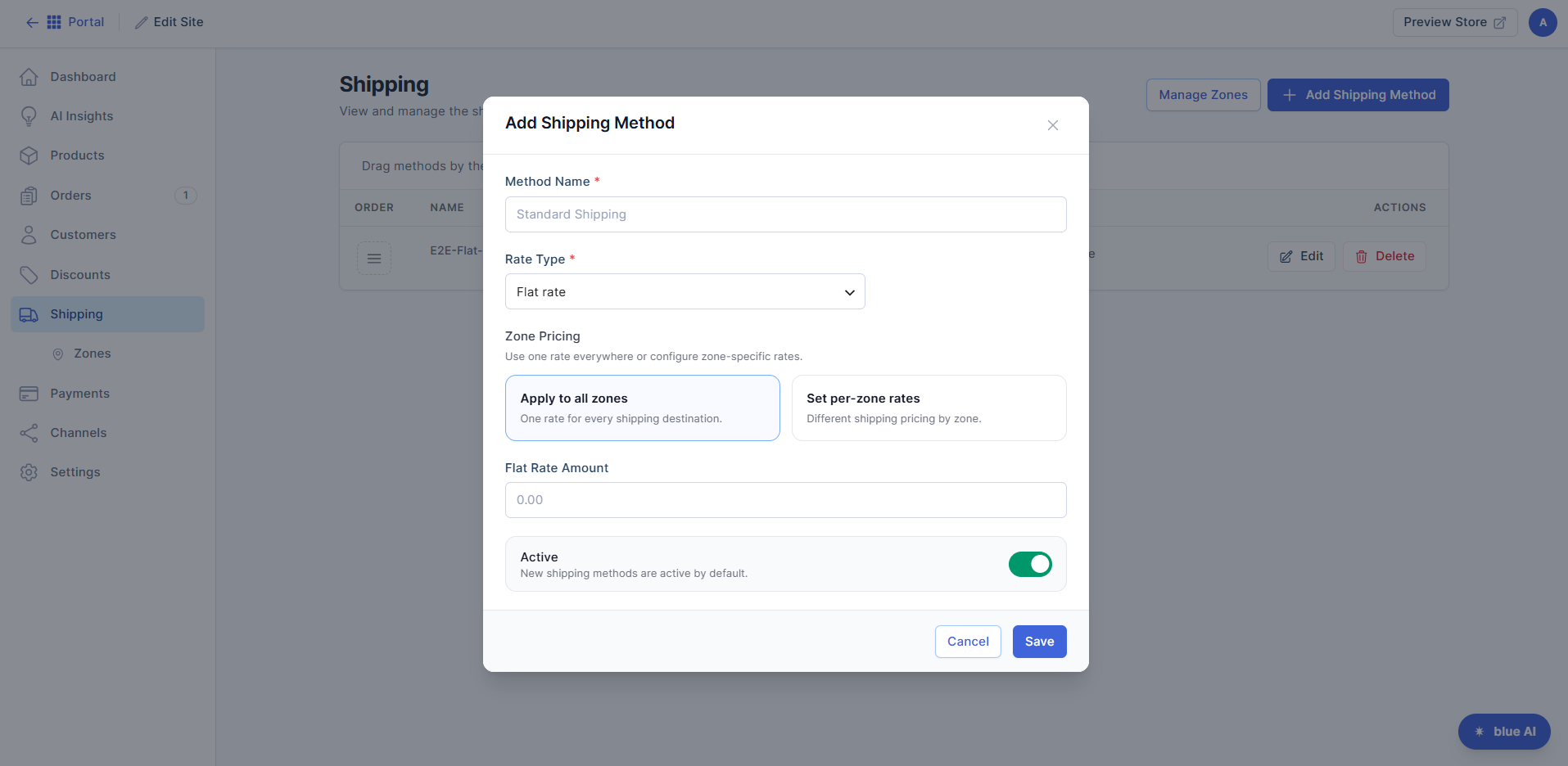
- Enter a Method Name (for example, Standard Shipping, Express Delivery, or Local Delivery). This name is displayed during checkout.
- Select a Rate Type from the dropdown. This is the pricing model for the shipping method.
- Flat rate
- Free
- Free over threshold
- Choose how the shipping rate should be applied.
- Apply to all zones - Select this option if you want the same shipping charge for every destination.
- Set per zone rates - Select this if you want to assign different shipping charges based on the destination. This provides more flexibility when shipping costs vary by region.
- Enter the shipping cost
- New shipping methods are active by default; however, you can use the toggle to enable or disable them.
- Click Save.
How to Edit a Shipping Method
To edit the details of the shipping method:
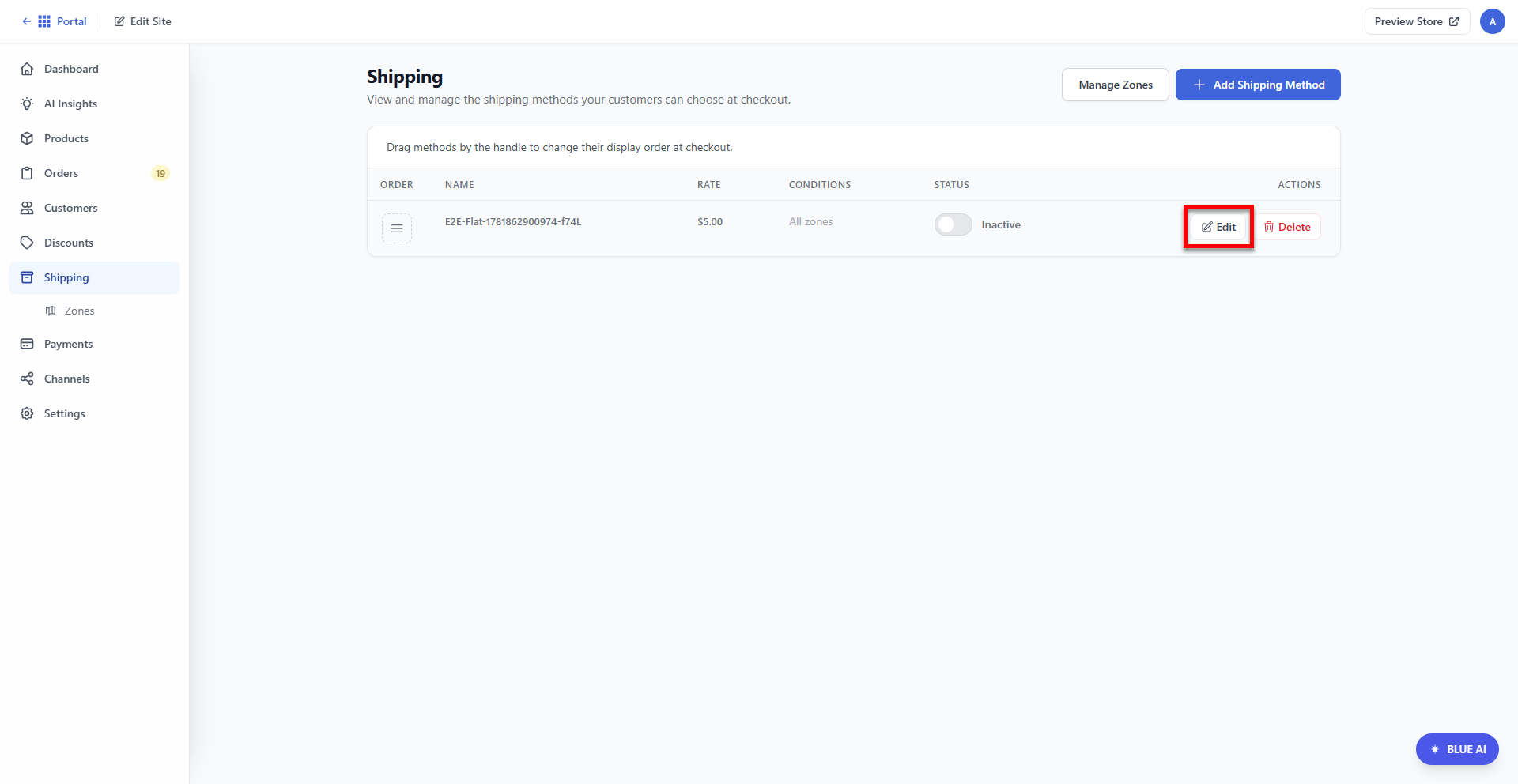
- In the Shipping tab, click Edit next to the shipping method name.
- In the pop-up, make the necessary updates.
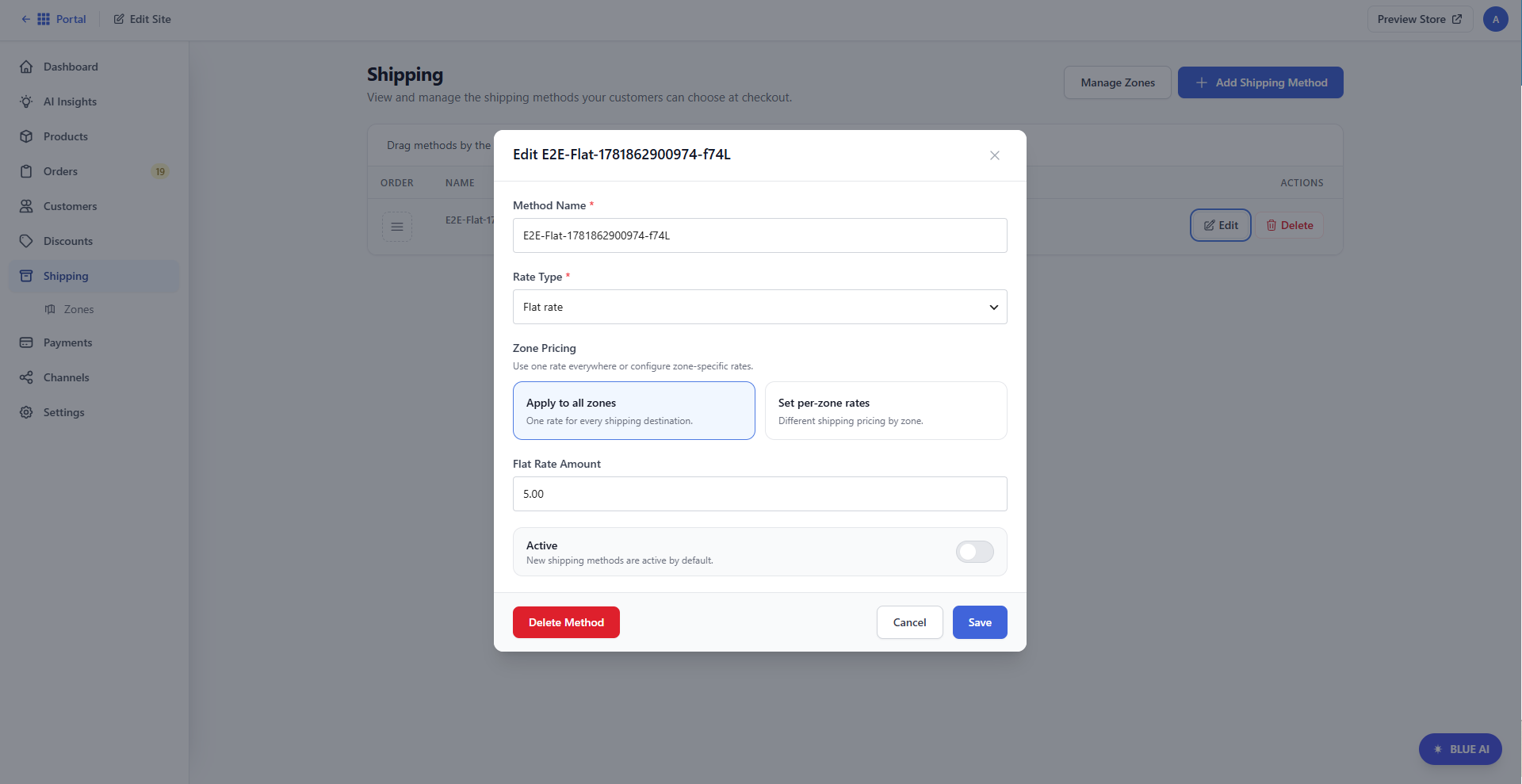
- Click Save to save your changes.
How to Delete a Shipping Method
To delete a shipping method:
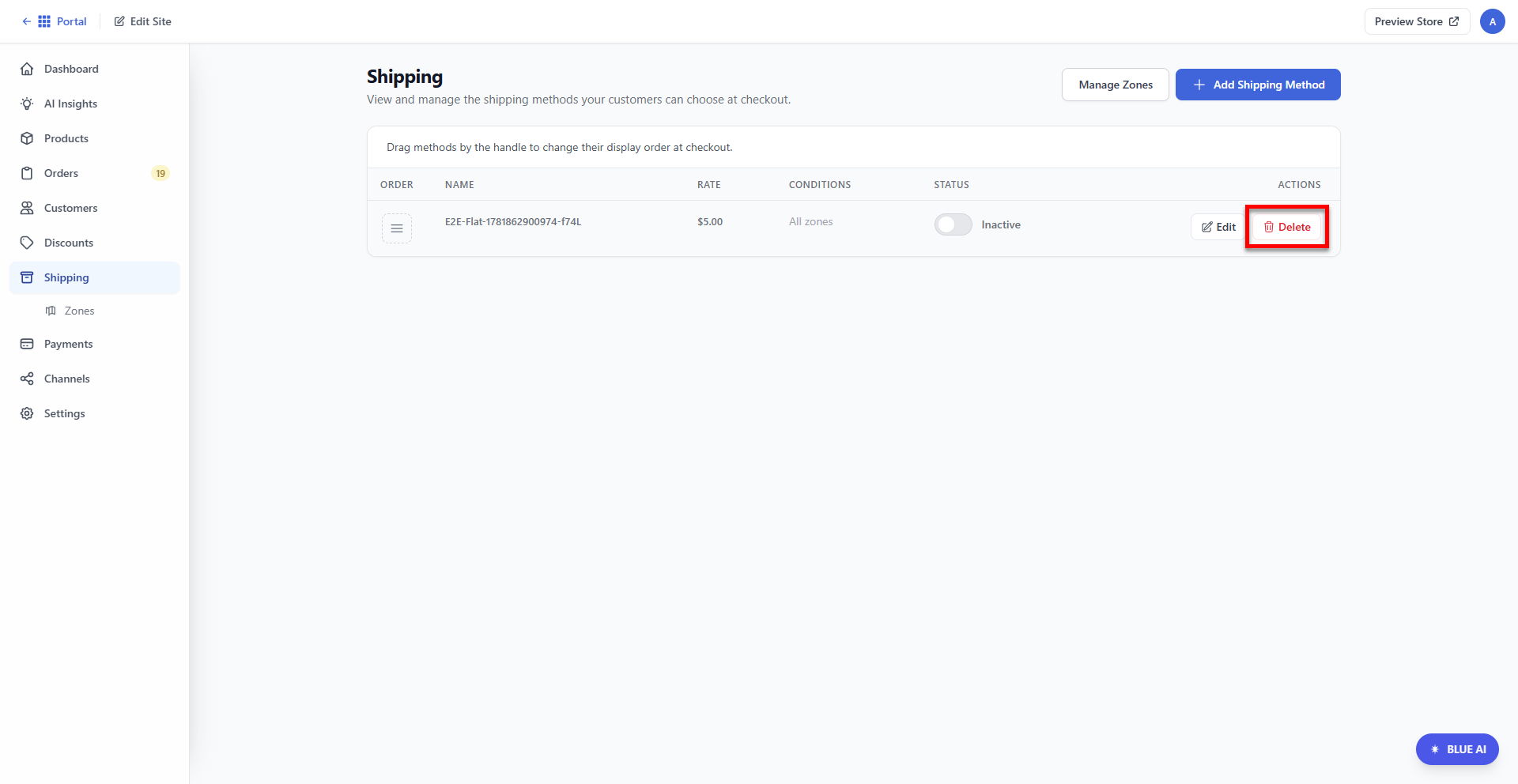
- Click Delete next to the shipping method name.
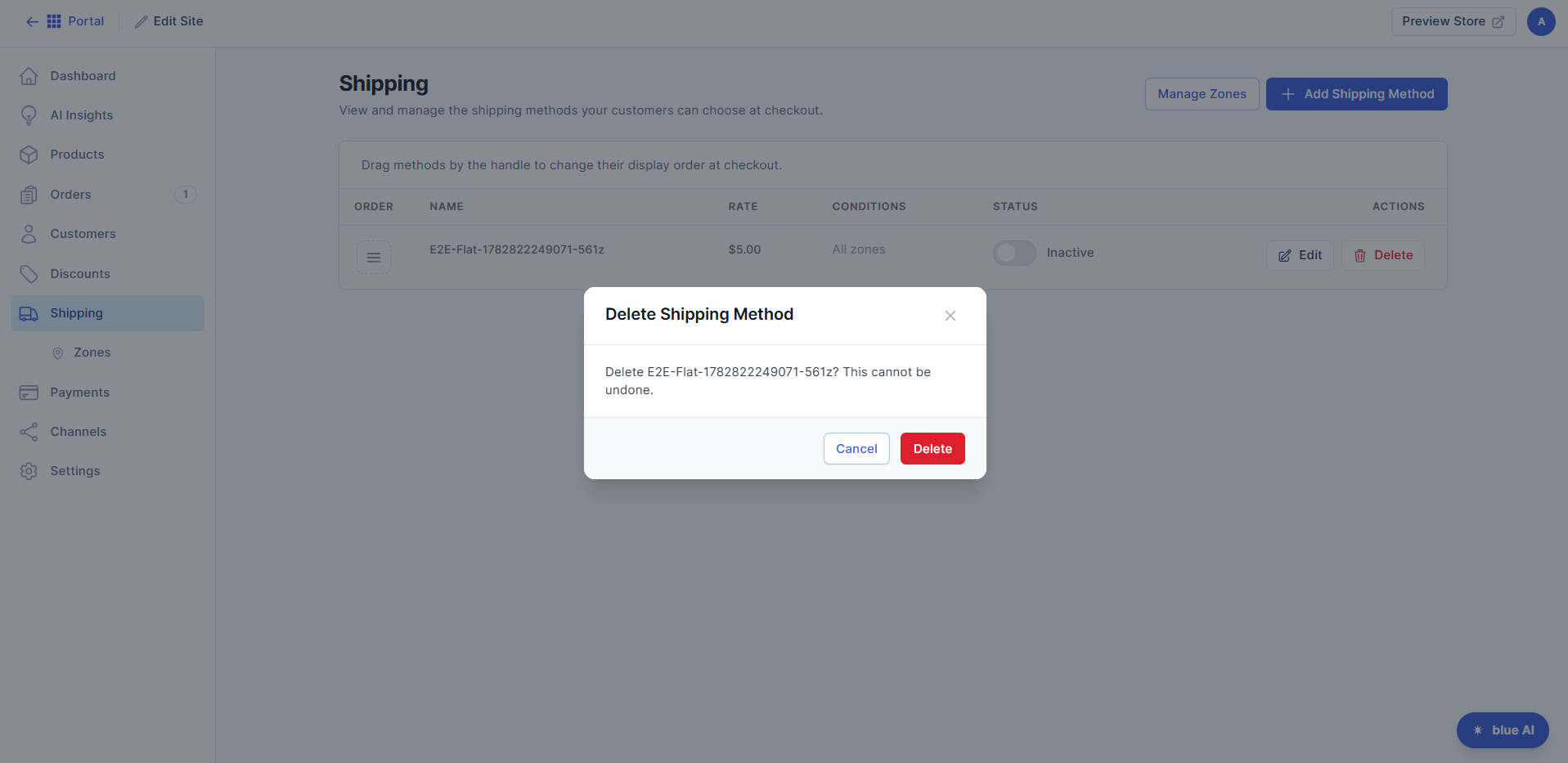
- In the pop-up, click Delete to confirm the action.
Need to manage your shipping zones? Please visit the Bluehost AI Store: How to Create and Configure Shipping Zones article.
Summary
The Shipping tab in the Bluehost AI Store lets you add, edit, and manage the shipping methods available to customers at checkout. You can create flat-rate shipping options and choose to apply the same rate to all destinations or set different rates for specific shipping zones. You can also enable or disable shipping methods at any time and update their settings as needed. If a shipping method is no longer required, you can permanently delete it from the store.
If you need further assistance, Bluehost Chat Support is available 24 hours a day, 7days a week while Bluehost Phone Support is available 7 days a week from 7 am-12 midnight EST.
- Chat Support - While on our website, you should see a CHAT bubble in the bottom right-hand corner of the page. Click anywhere on the bubble to begin a chat session.
- Phone Support -
- US: 888-401-4678
- International: +1 801-765-9400
You may also refer to our Knowledge Base articles to help answer common questions and guide you through various setup, configuration, and troubleshooting steps.