 ChatGPT,
  Claude,
  Gemini,
  Grok — all four for
 This guide walks you through connecting AI Credits to Dify, so you can run models in your apps and workflows without needing a separate account. You'll learn how to install and configure the provider with your AI Credits API key and gateway URL, retrieve your Dify initialization password if you're on a Bluehost Self-Managed VPS or Virtual Dedicated Server (VDS), set a default model, and test the connection to confirm everything is working before you build.
Important — Before You Begin
- You'll need owner or admin access to the Dify workspace. Only these roles can manage model providers, and any provider you connect applies to the whole workspace.
- For AI Credits: you'll need an AI Credits API key. If you haven't created one yet, see How to Create and Manage API Keys first. Your gateway endpoint is
https://gateway.ai.bluehost.com/.
Connect Bluehost AI Credits to Dify
AI Credits reach Dify through Dify's built-in model provider — the same provider you'd use to connect a normal account — except you also fill in its API URL field with the AI Credits gateway address instead of leaving it on Anthropic's default endpoint.
- Log in to your Bluehost Portal.
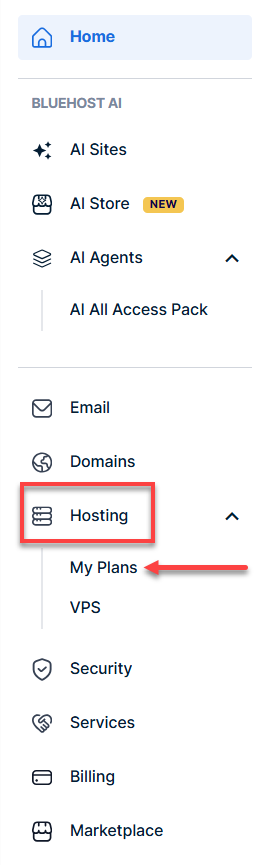
- In the left-hand menu, click Hosting, then select My Plans.
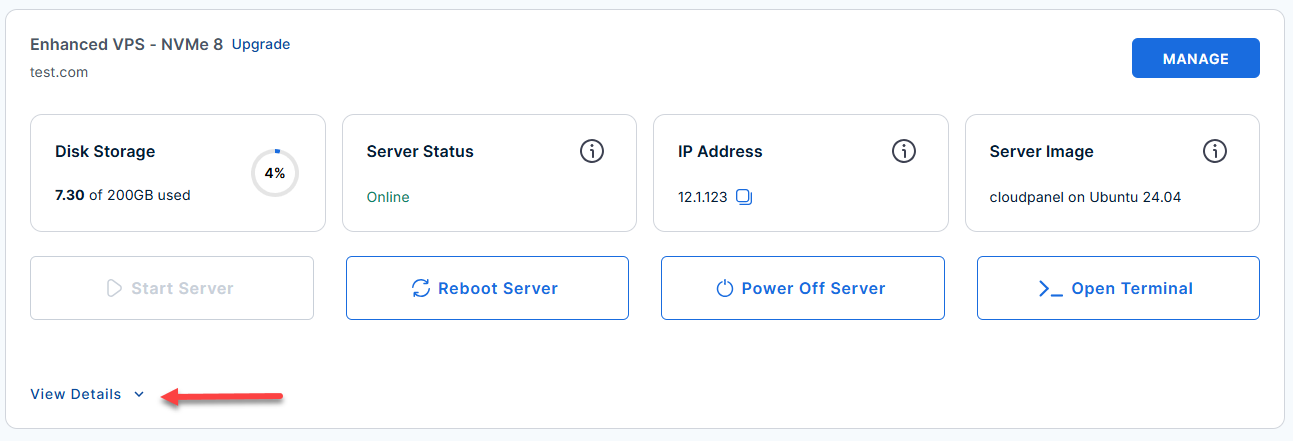
- Locate the server you want to manage, then click View Details in the bottom-left corner to expand the section and access additional server information.
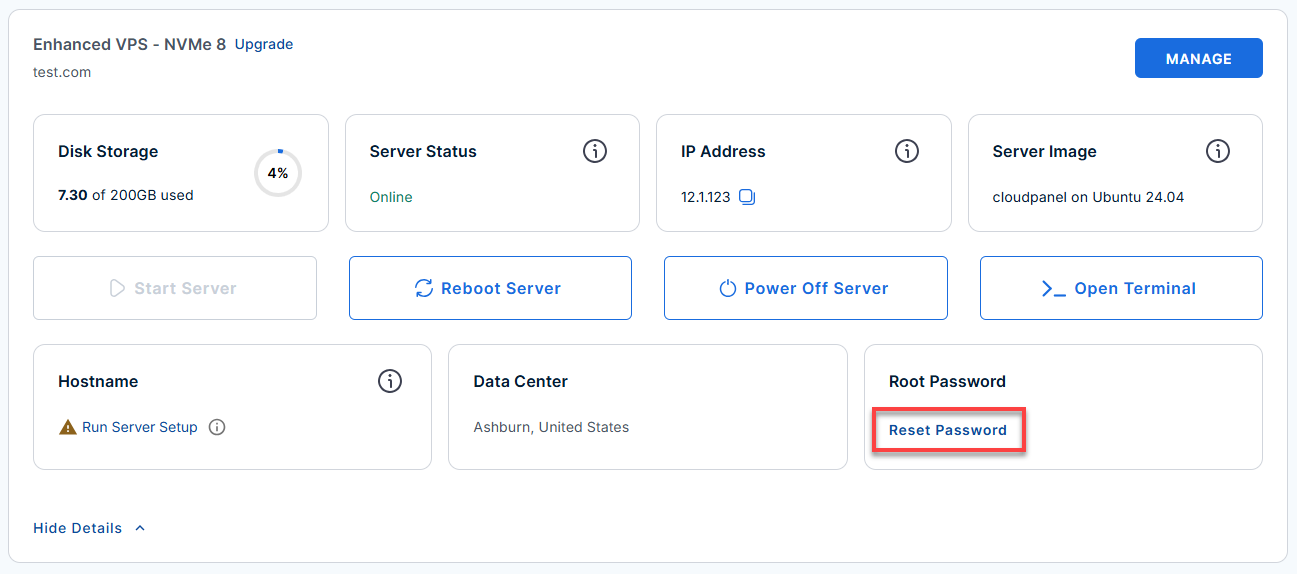
- Click the Reset Password.
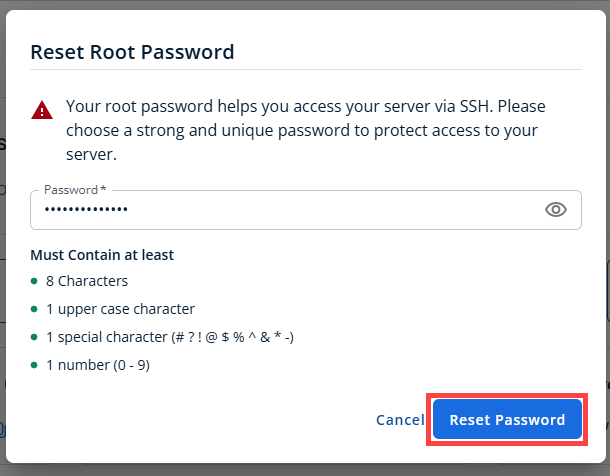
- In the pop-up window, type your new root password, then click Reset Password again to confirm and save the changes.
Run the following command to view the password stored in Dify's environment file:
Example Output:
root@123456:~# cat /opt/dify/docker/.env | grep INIT_PASSWORD
INIT_PASSWORD=test123LMfQhKkW//c4Vdh

- Connect to your VPS via SSH.
Use your VPS IP and credentials with an SSH client, follow the prompts, and enter your root password when asked:
Warning: Replace
your_server_ipwith your actual server IP address.ssh root@your_server_ip - Locate and Retrieve the Initialization Password
- Click the Manage button.

- Log in to your Dify dashboard.

- Open Integrations, then click Model Provider.

- Find the model you want to use under Install model providers (or the Marketplace) and install it if it isn't already added.

- Click Add API Key on the Anthropic provider card.

- Fill in the two fields:
- API Key: your AI Credits API key
- API URL:
https://gateway.ai.bluehost.com/

- Click Save. Dify validates the key against that URL before the models become available.

Once saved, models appear anywhere you pick a model in Dify — building an app, setting a workspace default, or configuring a node in a workflow — and each call is billed against your AI Credits balance rather than a direct Anthropic account.
Tip — Choosing a model: AI Credits give you access to models through the gateway. Credit cost varies by model — check AI Models and Credit Pricing before picking a default for heavier workloads.
Testing the Connection
To test the integrated model in Dify, follow these steps:
- On your current screen, click the Default Models button in the top-right corner.

- Set your primary Anthropic model (e.g.,
claude-sonnet-4-6) as the default system model for System Reasoning or Chat. (Optional)- System Reasoning Model – the default for general LLM tasks
- Embedding Model – indexes and retrieves knowledge base content
- Rerank Model – reorders retrieval results by relevance
- Speech-to-Text Model – turns audio into text
- Text-to-Speech Model – turns text into audio

- Click Studio in the left sidebar menu.

- Click Create from Blank.

- Choose Chatbot or Text Generator, give it a name, and click Create Ctrl.

- Type a message or prompt in the Preview / Debug chat panel on the right and click Send to verify the model responses.

Summary
To connect AI Credits to Dify, install the Anthropic provider under Integrations > Model Provider, then enter your AI Credits API key along with the gateway URL (https://gateway.ai.bluehost.com/) in the API URL field and save. You'll need owner or admin access to your Dify workspace and an AI Credits API key before you start. Once you save the connection, you can set your Anthropic model as the default and test it by sending a message through a new Chatbot or Text Generator app. A working response confirms Dify is now billing your usage to your AI Credits balance.