 ChatGPT,
  Claude,
  Gemini,
  Grok — all four for
 How to Manage Your Bluehost API Keys
API keys enable your applications to securely connect to the Bluehost AI Gateway and access AI models such as GPT, Claude, Gemini, and Grok. This article explains how to generate a new API key, find your Gateway endpoint, and integrate the key with your application's SDK. You'll also learn how to view your current keys and safely remove any that are no longer needed.
How to Manage API Keys in Your Bluehost Portal
API keys provide secure access to AI models through the Bluehost AI Gateway. Once credits have been added to your account, you can create, use, and delete API keys from the AI Tooling dashboard in your Bluehost Portal.
Create an API Key
Follow these steps to generate a new API key and obtain your Gateway endpoint for your applications.
Important:
- You must add AI Credits to your account balance before you can create and manage API keys.
- API keys are shown only once upon creation. If lost, you must generate a replacement key.
- Log in to your Bluehost Portal.
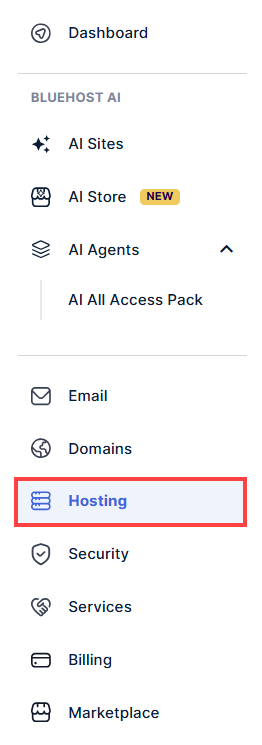
- In the left-hand menu, click the Hosting tab.
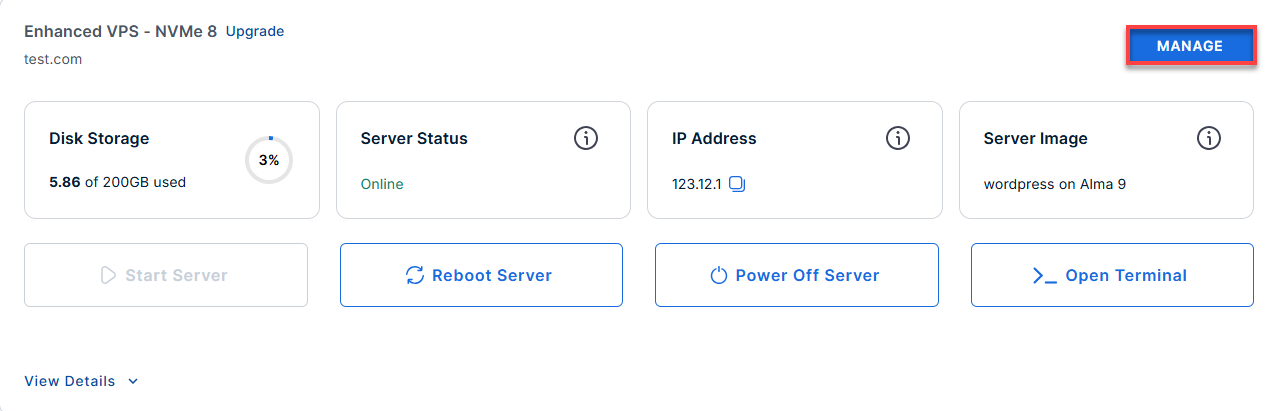
- Click the Manage button on the hosting package where you want to create an API Key.
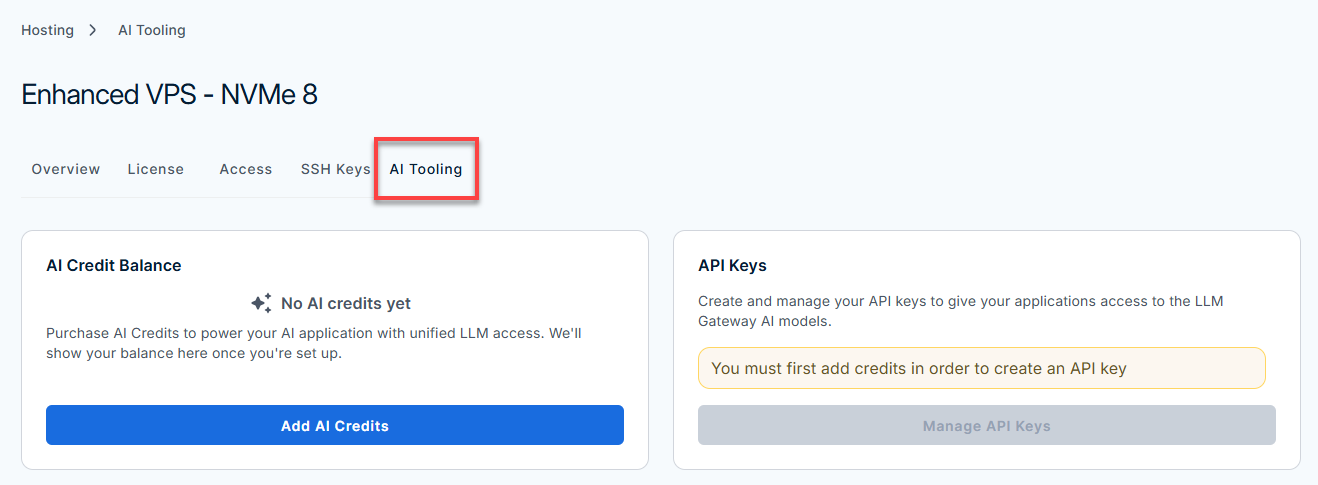
- On the hosting details page, click the AI Tooling button.
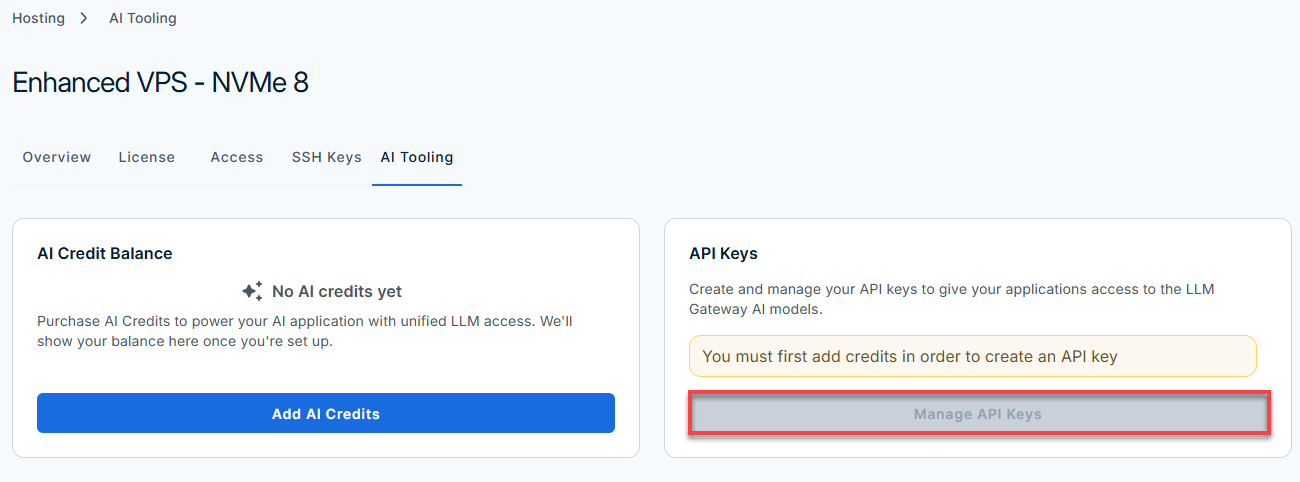
- From the AI Tooling page, select Manage API Keys.
Tip: No credits yet? The Manage API Keys button stays disabled until you've made a purchase. See How to Purchase Bluehost AI Credits for a guide on purchasing AI Credits.
- Note your Gateway endpoint — you'll enter this in your application:
https://gateway.ai.bluehost.com/. Select Copy to copy it to your clipboard.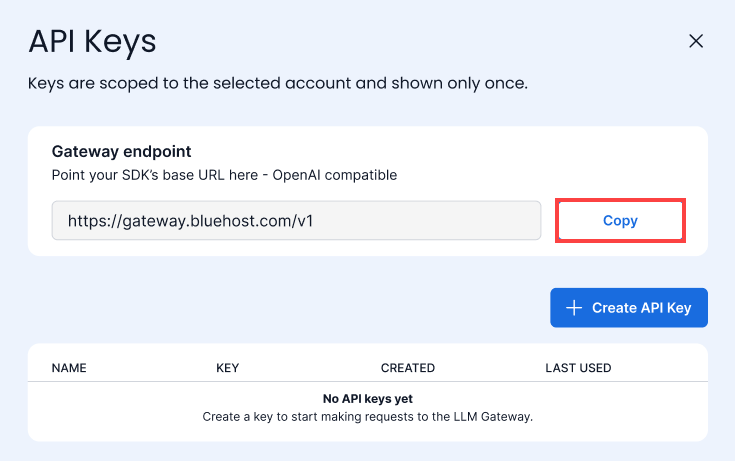
- Click + Create API Key.
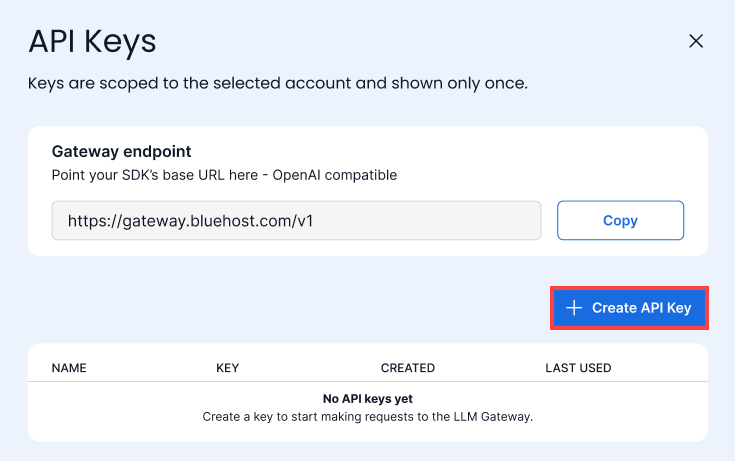
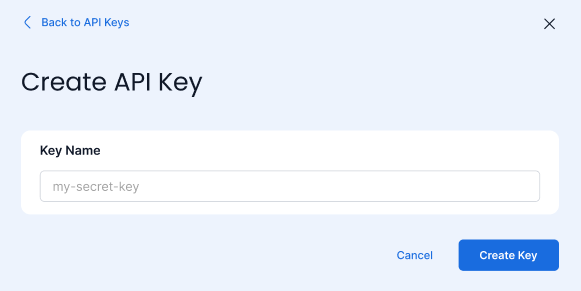
- Enter a Key Name to identify where you'll use the key, then click Create Key.
- On the Save your API key screen, select Copy and store the key in a secure location.
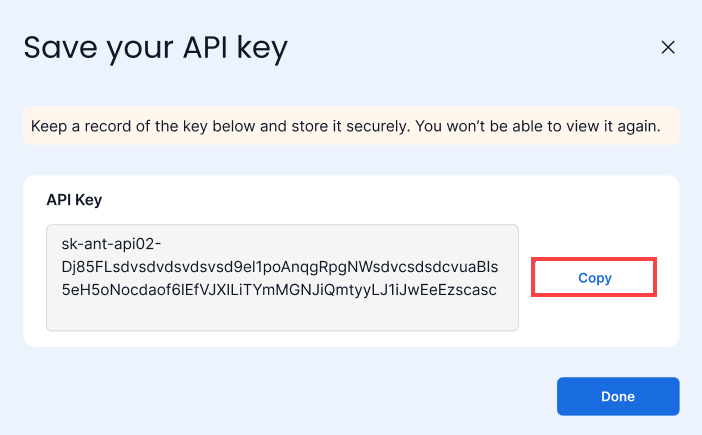
- Select Done.
- Your new key appears in the API Keys table along with its name, creation date, and last-used date.
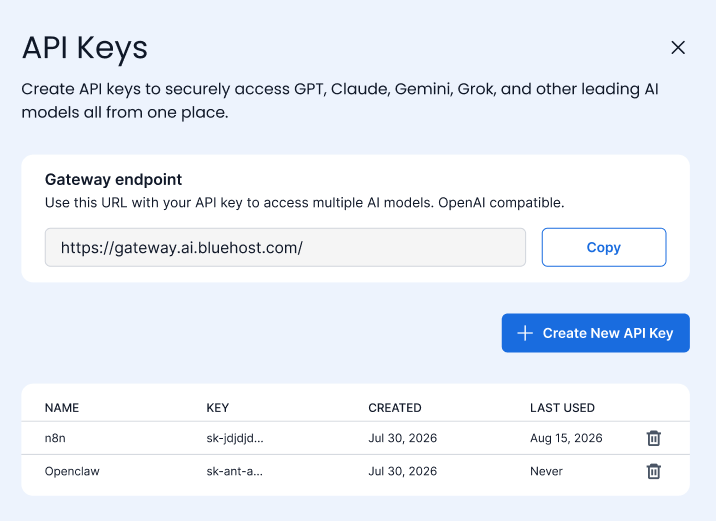
With your new API key generated, you can now connect your application to the AI Gateway and start utilizing your AI credits.
Using Your API Key
Point your application's SDK base URL to your Gateway endpoint, and use your API key to authenticate requests. This connection is OpenAI-compatible, so most existing integrations work with minimal changes.
Tip: See AI Models and Credit Pricing for the full list of supported model IDs.
Deleting an API Key
Revoke access for a compromised or unused key to ensure your account balance remains secure.
Warning: Deletion is immediate and can't be undone. Any application using that key loses LLM access right away. Your credit balance and any other keys are not affected — you're responsible for updating your app's configuration if you delete a key it depends on.
- From the API Keys table, select the key you want to remove.
- Select Delete API key.
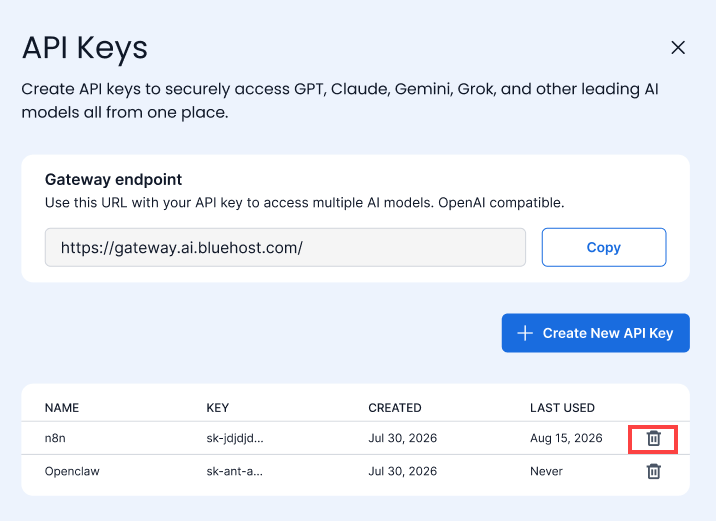
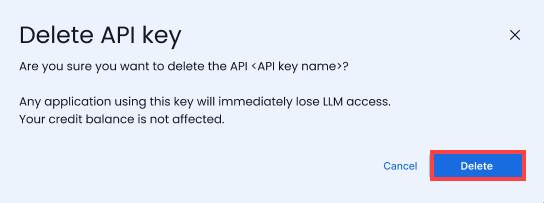
- Click Delete to confirm the removal.
Warning: Any application using this key will immediately lose access to LLM models. Deleting a key will not affect your remaining AI credit balance.
Frequently Asked Questions
Do I need AI Credits before I can create an API key?
Yes. You must have an available AI Credit balance before you can create an API key. See How to Purchase Bluehost AI Credits for more information.
Can I view my API key again after I create it?
No. For security, your full API key is shown only once, at the time you create it. If you lose it, delete the key and create a new one — Bluehost cannot retrieve a lost key for you.
Which AI models can I access with my API key?
The AI Gateway provides access to models from multiple providers — including GPT, Claude, Gemini, and Grok — through a single, OpenAI-compatible endpoint. See AI Models and Credit Pricing for the full list of supported model IDs.
Does deleting an API key affect my AI Credit balance?
No. Deleting a key only removes that key's access to the AI Gateway. Your remaining AI Credit balance and any other keys on your account are not affected.
Can I create more than one API key?
Yes. You can create a separate key for each application or integration, which makes it easier to track usage and revoke access individually if needed.
Summary
Creating an API key takes just a few steps in the Bluehost AI Tooling dashboard, but it requires an active AI Credit balance first. Once generated, copy your key immediately since it's only ever shown once, and pair it with your Gateway endpoint to connect any OpenAI-compatible application. If a key is ever compromised or no longer needed, you can delete it instantly without affecting your credit balance or other active keys.