 ChatGPT,
  Claude,
  Gemini,
  Grok — all four for
 How to Create a Temporary Page
A temporary page—also known as an under‑construction or coming‑soon page—is a simple one‑page website that lets visitors know your full site is coming soon. This page is often used while building a new site and can include helpful information like contact details, business hours, or announcements.
Create a Temporary Page
You can quickly create a temporary page by adding an index.html file in the File Manager within your Bluehost Portal.
- Log in to your Bluehost Portal.
- In the left-hand menu, click Websites.
- Click the Manage Site button located next to the website you want to manage.

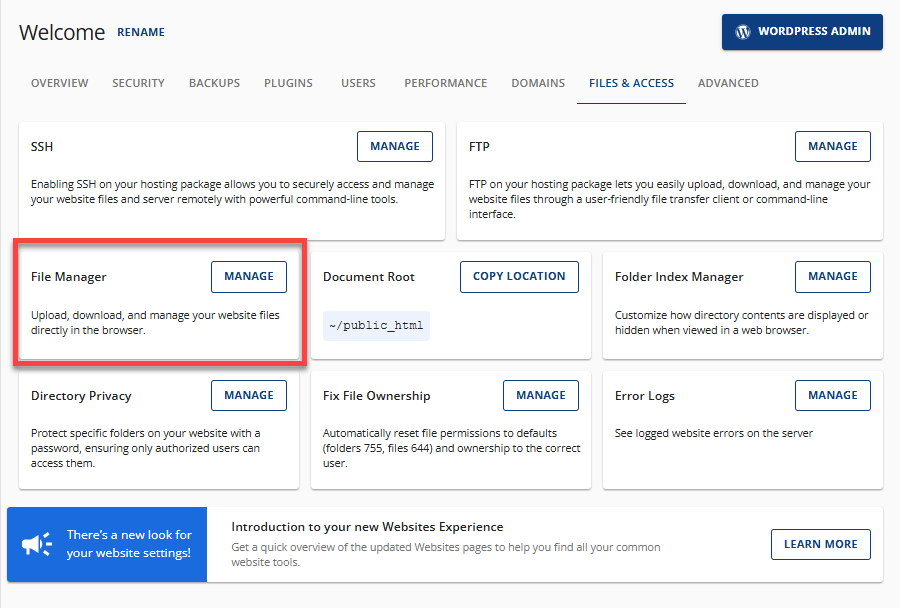
- In the top navigation menu, click Files & Access.

- Click the Manage button located under the File Manager section.
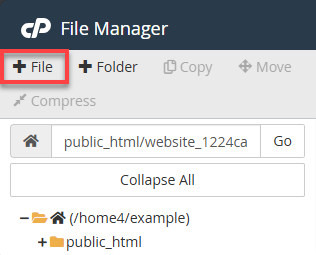
- In the top menu, click + File.
- When prompted, enter the filename:
index.html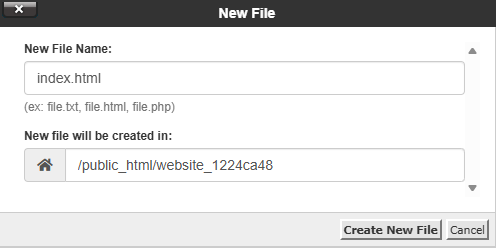
- Click Create New File.
- Locate index.html in the file list.
- Right‑click the file and select Edit.
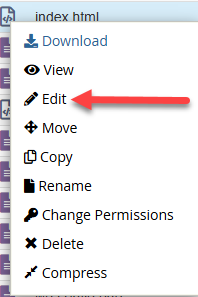
- Confirm the pop‑up to open the code editor.
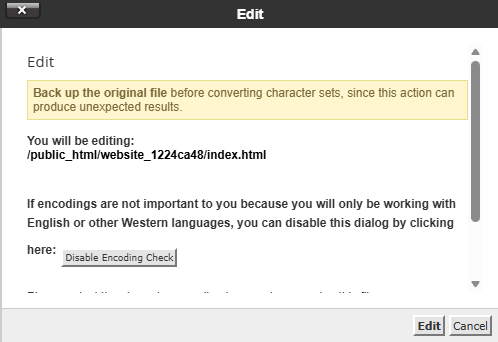
- Add your temporary page content, such as text, images, or simple HTML design elements.
To remove or replace this page later, delete index.html or overwrite it with your new website's main file.
Add Images to a Temporary Page
If you want to include a logo, banner, or other images, upload them first before referencing them in your HTML.
- In File Manager, click Upload at the top of the page.
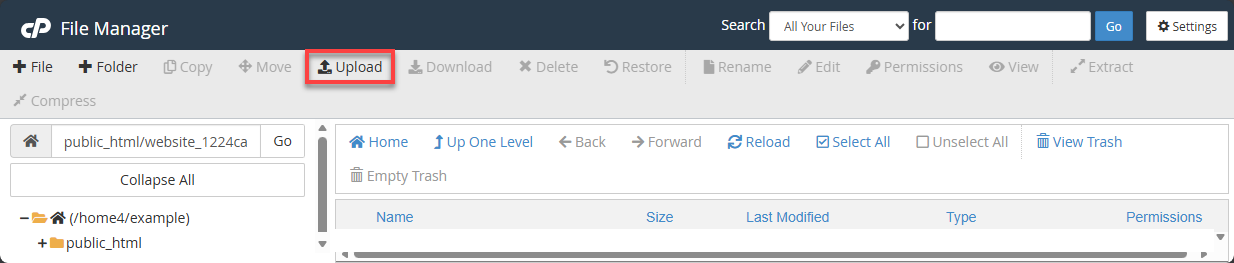
- Drag and drop files or click Select File.
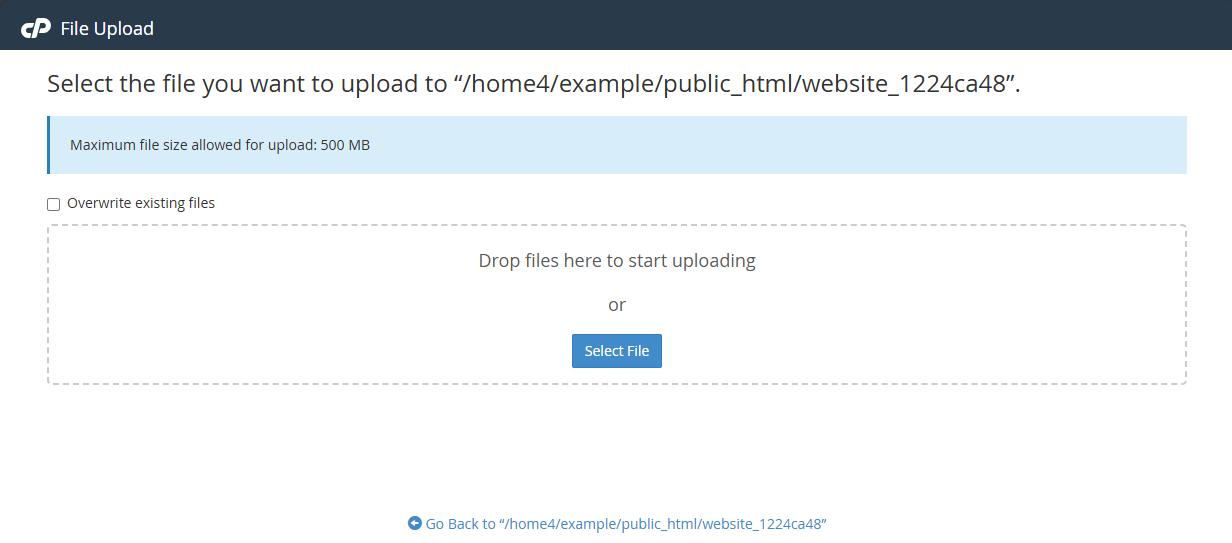
- Choose one or more images from your computer.
- Maximum upload size: 500 MB
- For larger uploads, multiple files, or folders: use FTP
What is FTP? An Introduction to File Transfer Protocol - You may also compress multiple files into a .zip file before uploading.
- If replacing an existing file, select Overwrite existing files.
- Wait until the upload reaches 100% Complete.
- Return to the File Manager to confirm the images appear in your directory.
Once your images are uploaded, you can reference images directly in your index.html file.
- Right‑click the file and select Edit.
- Add HTML image code, such as
<img src="your-image-name.jpg" alt="Coming Soon" /> - Save your changes.
- Preview your temporary page.
Alternative: Enable the Built‑In Coming Soon Page
Bluehost provides a simple Coming Soon feature you can enable without creating your own HTML file.
You can toggle this option in:
- Advanced tab
- Under the Coming Soon section.
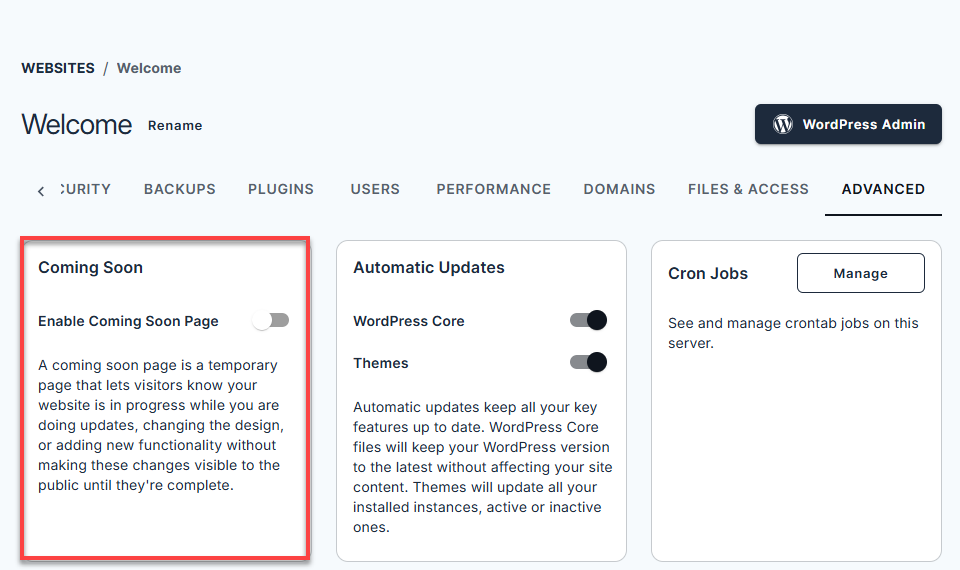
This option instantly displays a clean "Coming Soon" page to visitors while you work on your site.
Summary
A temporary page is a fast way to let visitors know your website is coming soon. Using Bluehost's File Manager, you can create an index.html file, upload images, edit your content, and publish a placeholder page in just a few minutes. Once your new site is ready, simply delete or replace the temporary page.
If you need further assistance, Bluehost Chat Support is available 24 hours a day, 7days a week while Bluehost Phone Support is available 7 days a week from 7 am-12 midnight EST.
- Chat Support - While on our website, you should see a CHAT bubble in the bottom right-hand corner of the page. Click anywhere on the bubble to begin a chat session.
- Phone Support -
- US: 888-401-4678
- International: +1 801-765-9400
You may also refer to our Knowledge Base articles to help answer common questions and guide you through various setup, configuration, and troubleshooting steps.