 ChatGPT,
  Claude,
  Gemini,
  Grok — all four for
 Bluehost: A Beginners Guide to cPanel
If you’re new to web hosting and have chosen Bluehost, you’ll quickly encounter cPanel, the control panel that lets you manage your hosting account easily. Bluehost uses cPanel as the user-friendly interface to access and control all the features of your web hosting server without needing advanced technical skills.
Why Bluehost with cPanel?
Bluehost partners with cPanel because it is the leading hosting control panel trusted by millions worldwide—from beginners to professionals. It offers a consistent, intuitive experience for managing websites, emails, databases, domains, and more. Many of the powerful features you’ll use to grow your website are found right inside the Bluehost cPanel dashboard.
Getting Started with Bluehost cPanel
Once you purchase a hosting plan from Bluehost (generally a Linux-based plan), you can access cPanel from your Bluehost Portal. Bluehost simplifies the login process, so you can start managing your files, domains, email accounts, and databases quickly.
Navigating the Bluehost cPanel Dashboard
At first glance, Bluehost’s cPanel dashboard may look busy with many icons grouped into sections. These sections help you find the tools based on functionality:
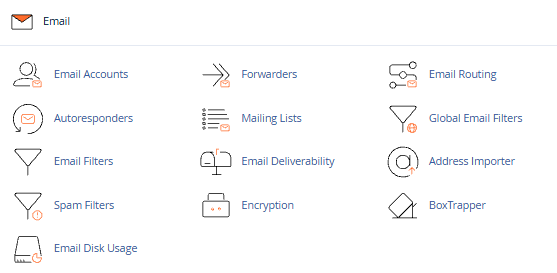
Set up and handle your domain’s email accounts, including applying filters and security controls.
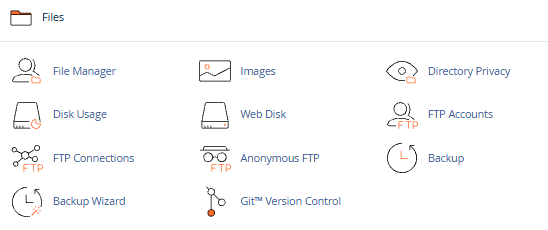
Files
Easily upload and organize your website’s files, manage FTP accounts, and create backups.
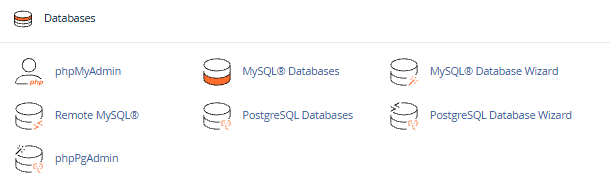
Databases
Administer MySQL databases that support your dynamic website’s content.
Domains
Add new domains or subdomains and manage your DNS settings seamlessly.

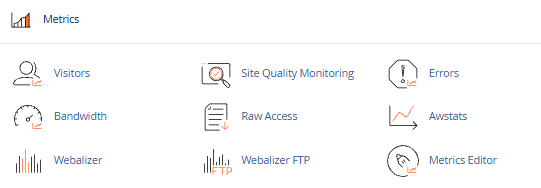
Metrics
Monitor your website’s performance by tracking bandwidth usage and error reports.
Security
Control SSL certificates, password protection, and other security settings.
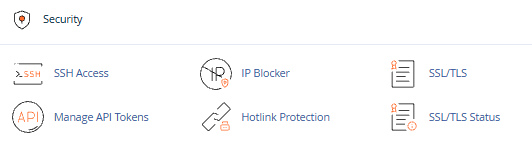
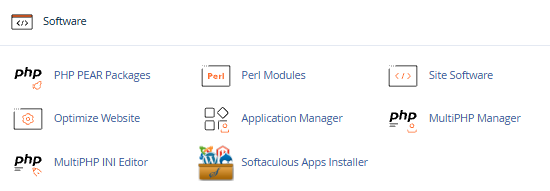
Software
Install CMS platforms like WordPress and manage programming language settings.
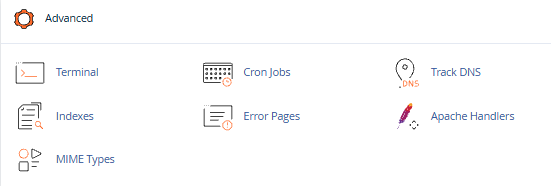
Advanced Tools
For more technical tasks, like cron jobs and error page customization.
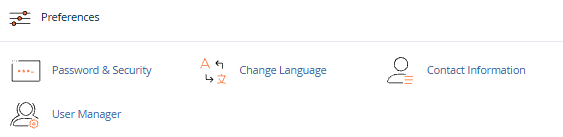
Preferences
Personalize your cPanel interface to match your workflow.
Softaculous Installer
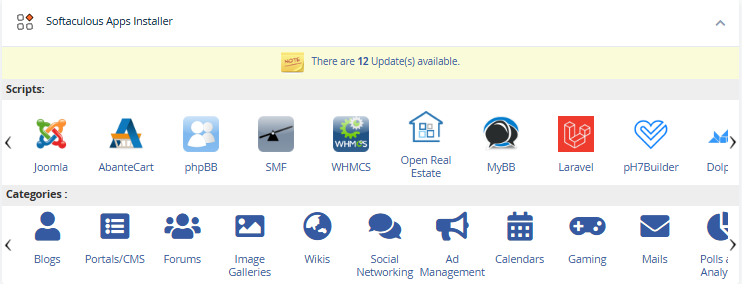
This area lists the scripts or CMS platforms, such as WordPress, Joomla, or Magento, which you can use to quickly install and develop your website.
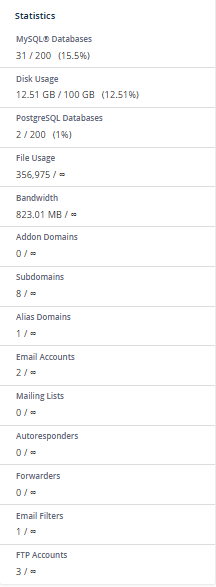
Statics
Provides statistical data about your hosting usage, including the number of email accounts created, total databases, domain and subdomain counts, and more.
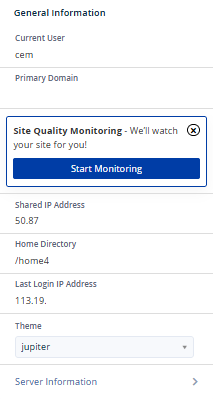
General Information
Displays unique server information such as your current username, IP address, name servers, and other details necessary to connect and identify your hosting environment.
Why Learn Bluehost cPanel?
Understanding Bluehost’s cPanel is key to successfully creating, managing, and securing your website. Whether you want to set up emails, install WordPress, monitor your site’s performance, or troubleshoot issues, cPanel provides centralized control in an accessible web interface.
FAQs
Q: Does Bluehost provide support for cPanel use?
A: Yes, Bluehost’s customer support team is available to help you navigate cPanel and troubleshoot any issues.
Q: Can I add multiple users to my Bluehost cPanel?
A: Shared hosting accounts generally allow a single cPanel user; however, VPS and dedicated hosting plans may offer more advanced user management.
Q: How do I back up my site via Bluehost cPanel?
A: You can generate and download backups directly from the File Backup or Backup Wizard tools in cPanel.
Summary
Bluehost has managed to integrate cPanel and other tools into a single, easy-to-use control panel. Getting familiar with the cPanel dashboard is a vital step and will enable you to have full control over your website’s hosting setup.
If you need further assistance, Bluehost Chat Support is available 24 hours a day, 7days a week while Bluehost Phone Support is available 7 days a week from 7 am-12 midnight EST.
- Chat Support - While on our website, you should see a CHAT bubble in the bottom right-hand corner of the page. Click anywhere on the bubble to begin a chat session.
- Phone Support -
- US: 888-401-4678
- International: +1 801-765-9400
You may also refer to our Knowledge Base articles to help answer common questions and guide you through various setup, configuration, and troubleshooting steps.