 ChatGPT,
 Claude,
 Gemini,
 Grok — all four for
When someone leaves your team or no longer needs access, you can suspend or delete their Google Workspace account from the Google Admin console.
Suspending blocks access but keeps the user's data, so you can restore the account later. Deleting removes the account and its data. You can restore a deleted user for up to 20 days, so transfer anything you need first. This guide helps you choose the right option and walks you through each one.
Before You Begin
If you bought Google Workspace through Bluehost, you manage your users in the Google Admin console. Have these ready before you start:
- A Google Workspace admin account with permission to manage users. To transfer a user's data while you delete them, you need super admin privileges.
- The email address of the user you want to suspend or delete.
- A plan for the user's data, such as who should take over their files and email after they leave.
Note: Google may update the Google Admin console. If the steps in this guide don't match what you see, see Google Workspace Admin Help: Delete or Remove a User.
Suspend or Delete: Which Should You Choose?
Not sure which option fits? Here's how they compare:
- Suspend: The user can't sign in, but their Gmail messages, Drive files, and calendar stay in place. You can reactivate the account anytime. A suspended user still uses a user license, so you continue to pay for it.
- Delete: The account and its data are removed. You have 20 days to restore a deleted user. After that, the data is gone for good. Deleting a user frees up their user license. How this affects your bill depends on your payment plan. For billing questions, contact Bluehost support. For current plans and pricing, visit Bluehost Google Workspace.
Tip: Not sure yet? Suspend the user first. You can delete the account later, after you've moved their data.
Suspend a User
Suspend a user to block their access right away while keeping all their data.
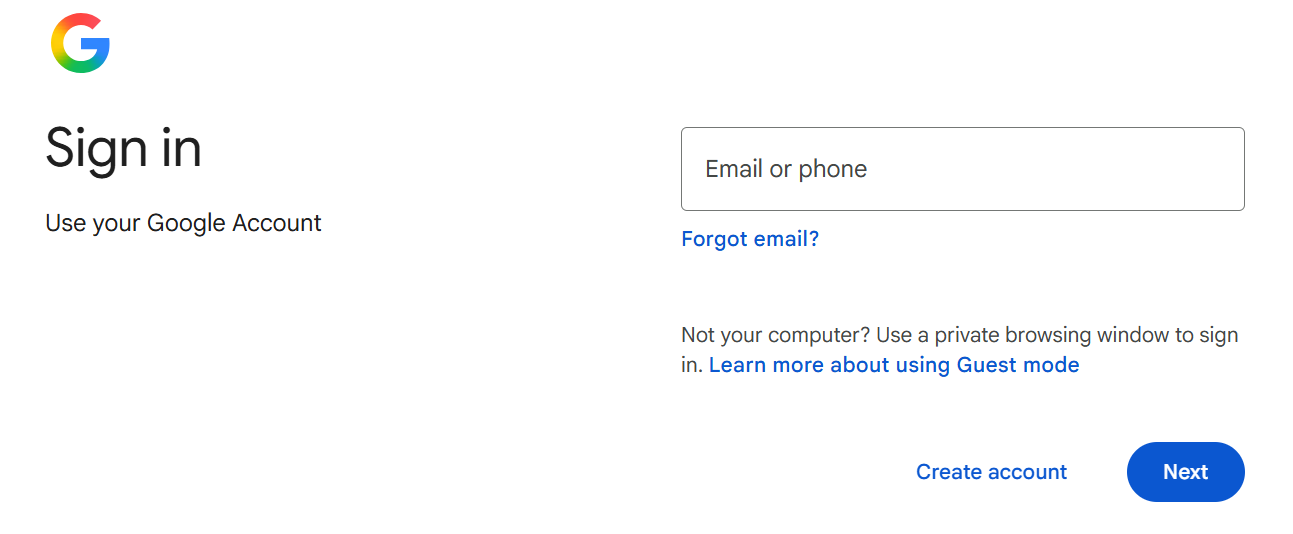
- Sign in to the Google Admin console with your admin account.
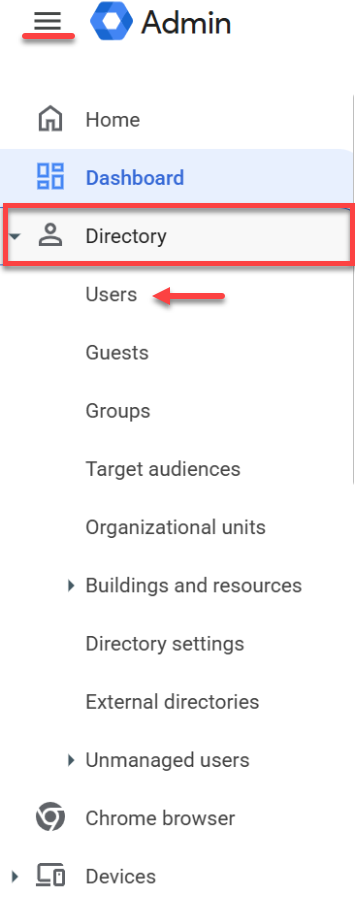
- Go to Menu > Directory > Users.
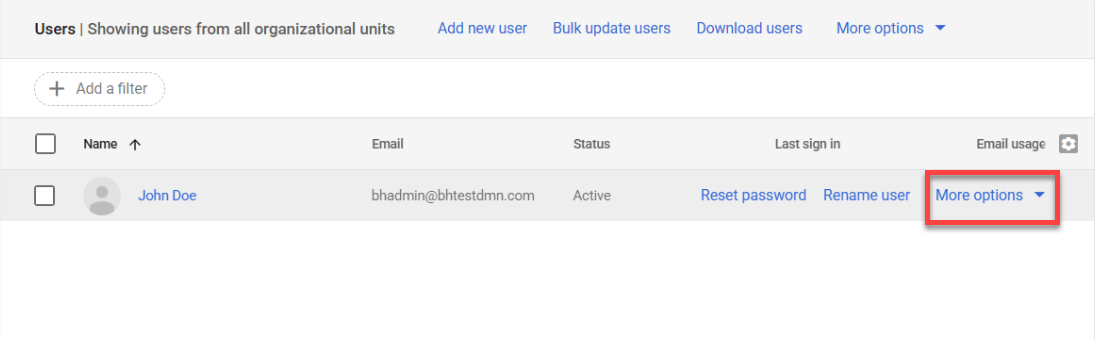
- Point to the user, and then click More options.
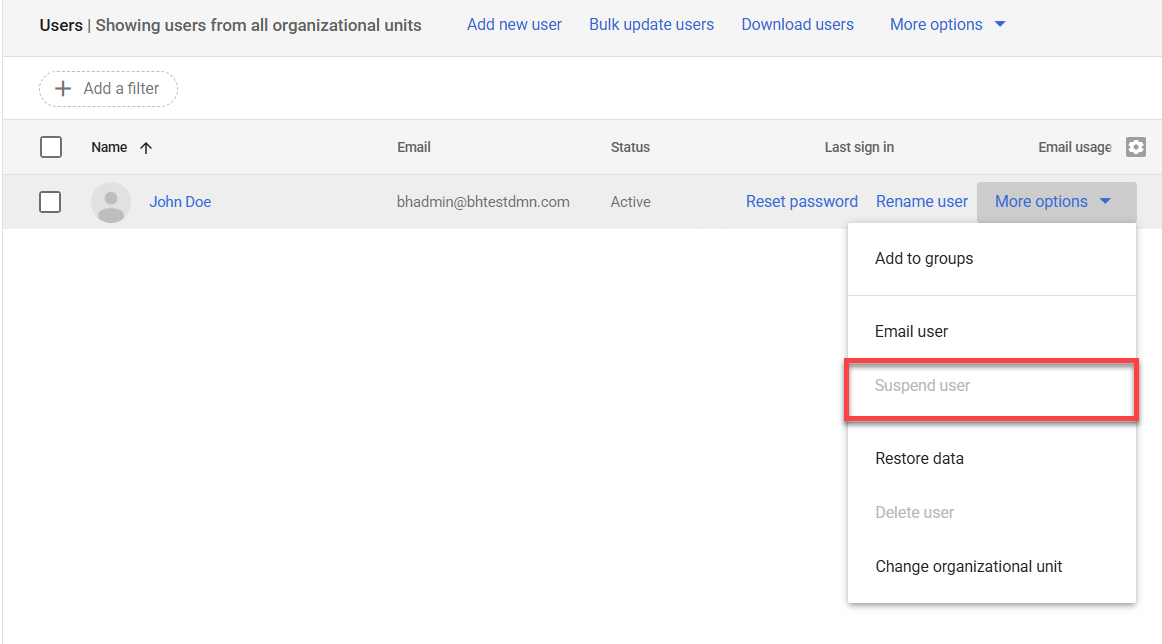
- Click Suspend user.
- Click Suspend to confirm.
Success: The user can no longer sign in, and their data stays in your organization.
Reactivate a Suspended User
Need to give a suspended user access again? Reactivate their account in a few clicks.
- In the Users list, point to the suspended user.
- Click More options > Reactivate.
- Click Reactivate to confirm.
Delete a User
Delete a user when they no longer need their account and you've saved the data you want to keep.
Warning: Deleting a user removes their account and data. You can restore the user for up to 20 days. After that, anything you didn't transfer is permanently lost. Before you delete, transfer the files you need, and export or forward any important Gmail messages.
- Sign in to the Google Admin console with your admin account.
- Go to Menu > Directory > Users.
- Point to the user, and then click More options > Delete user.
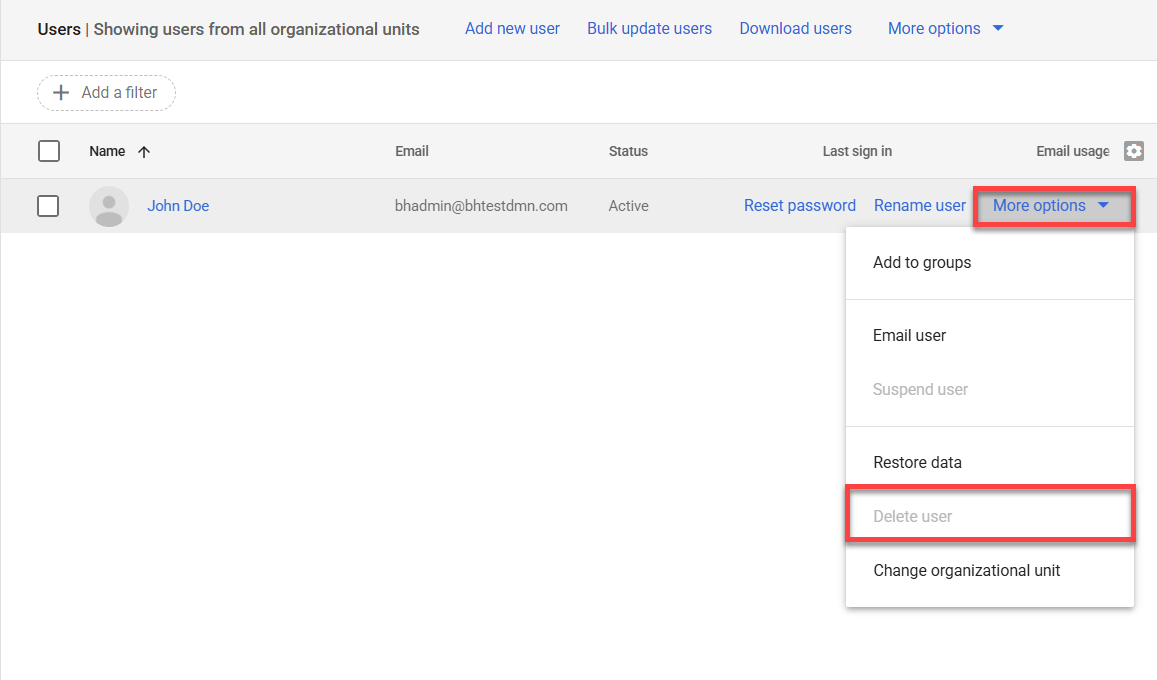
- Choose what happens to the user's data:
- Transfer data: Select the data you want to keep, such as Drive and Docs files or calendar data, and then enter the email address of the new owner.
- Don't transfer data: Delete the user without moving any of their data.
- Click Delete User.
Note: Only super admins can transfer data during deletion. Other admins need to transfer the user's data first, and then delete the user. If you choose to transfer data, the account stays suspended until the transfer finishes.
Frequently Asked Questions
Find quick answers to common questions about suspending and deleting Google Workspace users.
Q: Can I undo a deletion?
A: Yes, within 20 days. You can restore a recently deleted user from the Users list in the Google Admin console. After 20 days, the account and its data can't be recovered.
Q: What happens to the user's email?
A: If you suspend the user, their email stays in place. If you delete the user, their Gmail messages are removed, so export or forward any messages you need before you delete the account.
Summary
To remove a user's access in Google Workspace, open the Google Admin console and go to Directory > Users. Suspend the user to block access while keeping their data, or delete the user to remove the account and free up the license. Before you delete, transfer or export the data you need, since deleted data can only be restored for 20 days.
Related Articles
If you need further assistance, Bluehost Chat Support is available 24 hours a day, 7days a week while Bluehost Phone Support is available 7 days a week from 7 am-12 midnight EST.
- Chat Support - While on our website, you should see a CHAT bubble in the bottom right-hand corner of the page. Click anywhere on the bubble to begin a chat session.
- Phone Support -
- US: 888-401-4678
- International: +1 801-765-9400
You may also refer to our Knowledge Base articles to help answer common questions and guide you through various setup, configuration, and troubleshooting steps.