 ChatGPT,
 Claude,
 Gemini,
 Grok — all four for
How to Export Your Google Workspace Data Before Cancelling
Before you cancel your Google Workspace plan, export the data that you want to keep. This includes email, files, calendars, and contacts. After you cancel, users lose access to core Google Workspace services, and Google deletes the data. It can’t be restored. Deletion timing can vary, so export your data before you cancel. This article shows you how to export your data with the Google Workspace Data Export tool, how to let users download their own data with Google Takeout, and how to check your files before you cancel.
What You Can Export
The Data Export tool exports the same data that users can get with Google Takeout. It also includes some data that only an admin can export. The export covers these Google Workspace services, among others:
- Gmail: email messages.
- Drive: files in My Drive, shared drives, and shared documents.
- Calendar: calendars and events.
- Contacts: your users’ contacts.
- Chat: messages and attachments for spaces that users in your organization created.
- Groups, Keep, and Tasks: group data, notes, and tasks.
- Vault retained data: data that Google Vault retains, for admins only. Google Vault is included with some Google Workspace editions, such as Business Plus, and may be available as an add-on for others. For current plans and pricing, visit the Bluehost website.
A full export includes licensed and active users, users that an admin suspended, and archived users.
Before You Start
Check that these requirements are met before you start an export:
- You are signed in to the Google Admin console as a super administrator. The account must be at least 30 days old, unless your organization was created less than 30 days ago.
- 2-Step Verification is turned on for the admin who starts the export.
- Your Google Workspace subscription is active.
- Your organization signed up with a business email address, or you verified your domain.
- Google Cloud is turned on for the admin accounts that need to access the exported data.
Export All Your Data With the Data Export Tool
Do these steps to start an export:
- Sign in to the Google Admin console as a super administrator.
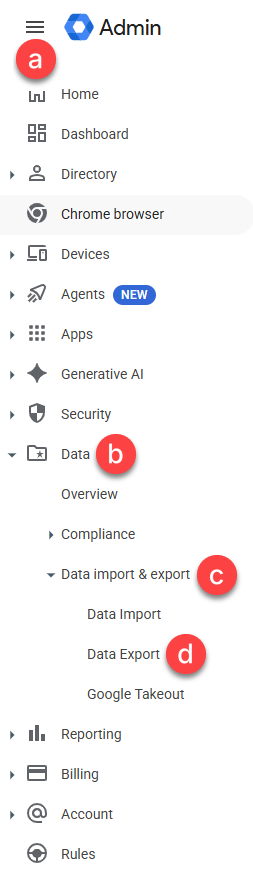
- Go to Menu > Data > Data import & export > Data export.
- Click Set up new export.
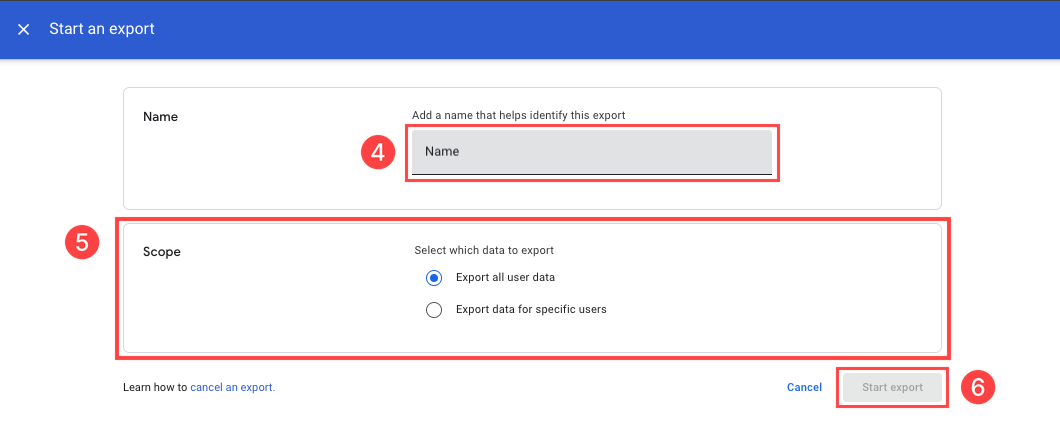
- In the Name box, enter a name for the export.
- In the Scope box, choose one of these options:
- Export all user data: This exports the data for your entire organization, including all users and shared drives.
- Export data for specific users: Use this option to export the data of a single user. Select the user account.
- Click Start export.
How Long an Export Takes
An export is not instant. The export becomes available no earlier than 48 hours after it starts. Most exports take about 72 hours, but a large export can take up to 14 days. Super admins get an email when the export is pending and when it is complete. Start your export well before your plan ends. These timeframes can change. For the latest details, see Google’s documentation.
Download Your Export
Do these steps when you get the email that says your export is complete:
- In the Admin console, go to Menu > Data > Data import & export > Data export.
- Click the name of your export to open its details.
- Check the Status:
- Complete: All data was exported.
- Errors: Some data is missing from the archive.
- Failed: No data was exported.
- Under Scope, check that the export covers your entire organization or the user that you chose.
- Click Actions > View Archive.
The archive is a set of zip files. The main folder has a folder for each user, and each user folder has a zip file with that user’s data. Large amounts of data are split by service and file size, for example Drive (Part 1) and Gmail (Part 2). Data that service accounts own, such as shared drive files, is in a folder named Resource.
The Google Cloud Storage page can download only one object at a time. To download folders or many objects at the same time, use the gcloud storage command-line tool. After you download a file, unzip it to see the data for each Google product.
Let Users Export Their Own Data With Google Takeout
Google Takeout is another way to get data out of Google Workspace. Each user downloads a copy of their own data. Use this option if you only need data for a few users, or if users want to keep their own copy.
Google Takeout is on by default. You can allow or block it in the Admin console under Menu > Data > Data import & export > Google Takeout. For the steps, go to Allow or block Google Takeout. Setting changes can take up to 24 hours to apply. Suspended users cannot use Google Takeout.
Ask each user to do these steps:
- Sign in to the Google Account and go to takeout.google.com.
- Keep the products that you want selected. Clear the check box of any product that you do not want in the export.
- Click Next step.
- Choose a delivery method, an export type, a file type, and a maximum archive size.
- Click Create export.
- When the email from Google arrives, click Download archive and follow the instructions on the screen.
Check Your Data Before You Cancel
After the export, check these items before your plan ends:
- The export Status is Complete, or you fixed the errors.
- You downloaded the files and saved them in a safe place that is not in a Google Workspace account that ends with your plan.
- You unzipped at least one file from each important user and opened it to confirm that the data is there.
- You exported or saved data from any third-party apps that you use with your Google Workspace accounts. Third-party app data may not be deleted when your plan ends, but make sure that you can still sign in to the apps that you want to keep. Check with each app provider for its data policy.
- You told your users about the change and the date.
When your data is safe, you can turn off auto-renewal so that your Google Workspace plan does not renew. For the steps, go to the How to Turn Auto-Renewal On or Off section in Bluehost: How to Renew Your Google Workspace Subscription. For help, contact Bluehost Support.
Troubleshooting
- Problem: You do not see Data export in the Admin console.
- Cause: The account is not a super administrator account.
- Fix: Sign in with a super administrator account.
- Problem: You cannot start an export.
- Cause: One of the requirements is not met. For example, 2-Step Verification is off for your admin account, the admin account is less than 30 days old, or the Google Workspace subscription is not active.
- Fix: Check the requirements in Before You Start, and then start the export again.
- Problem: The export Status is Errors or Failed.
- Cause: Some or all of the data was not exported.
- Fix: If the status is Failed, start a new export. If the status is Errors, go to the Google article Troubleshoot a data export to fix the missing data.
- Problem: The export takes longer than you expected.
- Cause: A large export can take up to 14 days.
- Fix: Wait for the email that says the export is complete. If your plan’s renewal date is close, contact Bluehost Support before that date.
- Problem: A service does not show in Google Takeout for a user.
- Cause: The admin blocked Google Takeout for the user, or the service has no data.
- Fix: Ask the admin to check the Google Takeout settings. A change can take up to 24 hours to apply.
Summary
Export your Google Workspace data before you cancel, because Google deletes user data after cancellation and it can’t be restored. The Data Export tool requires an active subscription. A super administrator can start an export in the Admin console under Menu > Data > Data import & export > Data export. The export can take from 48 hours up to 14 days, and Google deletes it 60 days after it begins. You can also let users download their own data with Google Takeout. Check that your data is saved in a safe place, and then turn off auto-renewal, or contact Bluehost Support for help.
If you need further assistance, Bluehost Chat Support is available 24 hours a day, 7days a week while Bluehost Phone Support is available 7 days a week from 7 am-12 midnight EST.
- Chat Support - While on our website, you should see a CHAT bubble in the bottom right-hand corner of the page. Click anywhere on the bubble to begin a chat session.
- Phone Support -
- US: 888-401-4678
- International: +1 801-765-9400
You may also refer to our Knowledge Base articles to help answer common questions and guide you through various setup, configuration, and troubleshooting steps.