 ChatGPT,
  Claude,
  Gemini,
  Grok — all four for
 How to View Your SSH Key Content on a Self-Managed VPS and VDS
Viewing your SSH key content in the Bluehost Portal is a quick way to verify your public key for your Self-Managed VPS or Virtual Dedicated Server (VDS). Follow these steps to access your SSH key details directly from your Bluehost dashboard.
Your SSH Keys Stay Put
Good news—you don't have to worry about re-adding your SSH keys every time you manage your server. For the root user, your SSH key generally remains securely configured and ready to use during standard server actions.
| Server Action | What Happens to Your Root SSH Key |
|---|---|
| Reboot | Typically remains fully configured and available after your server comes back online. |
| Restart | Stays active and accessible immediately after the restart under normal operations. |
| Reimage | Persists throughout the standard reimaging process and is ready to use when your server is restored. |
Important Note for Non-Root Users: This automatic persistence applies only to the root user. If you have configured SSH keys for additional users, those keys may not be retained if the user account or its configuration is reset. In such cases, you will need to reconfigure them manually.
In short, under normal operating conditions, you can perform standard reboots, restarts, and reimages with confidence—your root SSH key will remain in place.
View Your SSH Key Content via the Bluehost Portal
Follow these steps below to view your SSH key content.
- Log in to your Bluehost Portal.
- In the left-hand menu, click Hosting, then select My Plans.
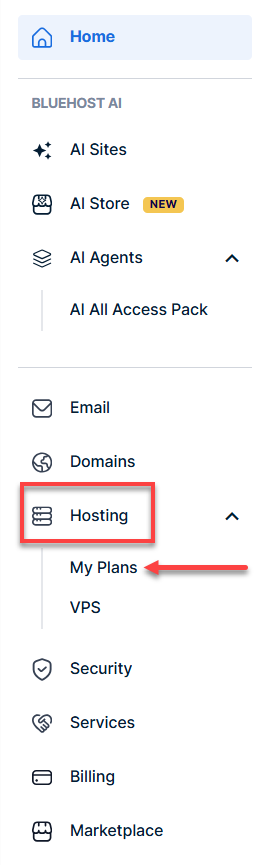
- Click the Manage button on the hosting package where you want to view the SSH key.

- Select the SSH Keys tab.
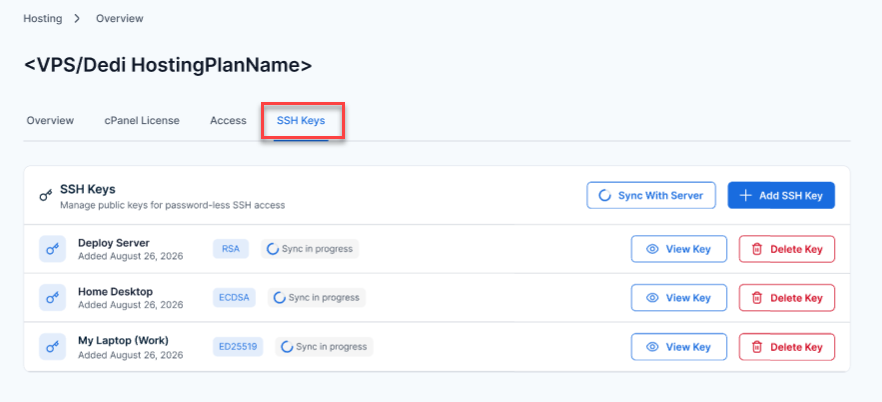
- Click the View Key button next to the SSH key you want to see.
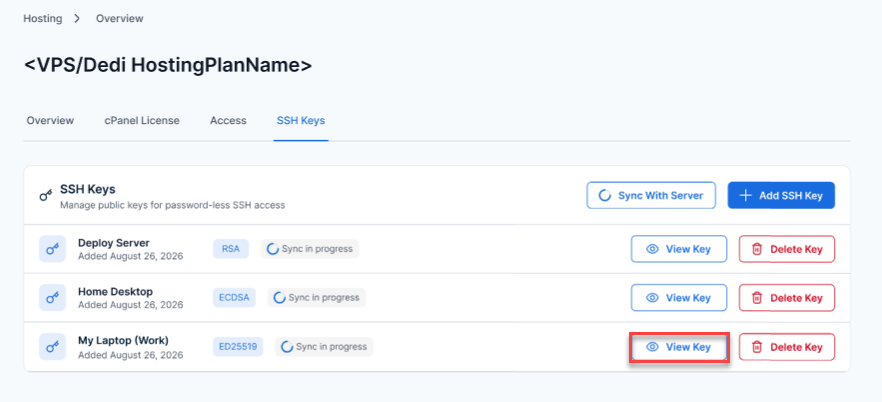
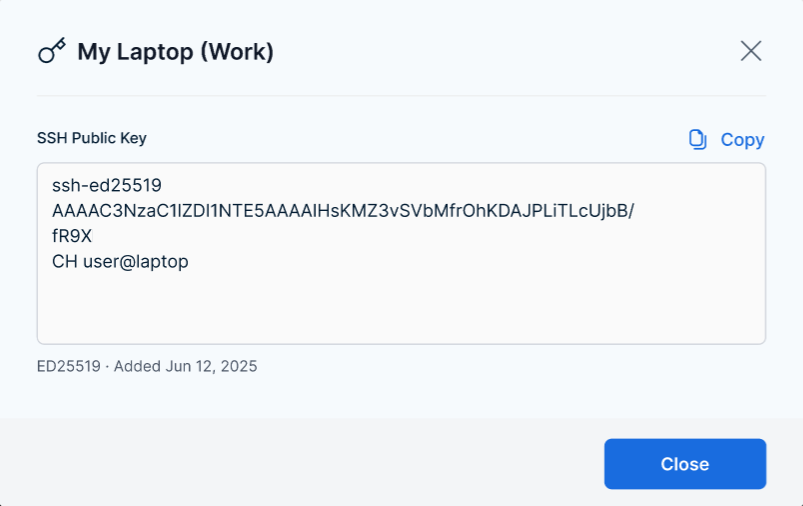
- After clicking the button, you should see your saved SSH key content.
Summary
To view your SSH key content, simply log in to the Bluehost Portal, navigate to your server’s SSH Keys tab, and click the View Key button. Your SSH public key will be displayed for easy access and verification.