 ChatGPT,
  Claude,
  Gemini,
  Grok — all four for
 How to Verify Your Identity Using Jumio
To verify your identity using Jumio, follow this simple guide. Jumio offers a secure and fast way to verify your identity online by uploading a photo of your ID and a selfie. This step-by-step process ensures your verification is completed quickly and accurately.
What You Need Before Starting
- A valid government-issued ID (front and back)
- A device with a camera (desktop or mobile)
- A stable internet connection
Tips for a Smooth Verification
- Ensure your ID is clear and readable.
- Use good lighting for your selfie.
Verify Your Identity Using Jumio
Access Your One-Time Verification Link
- Check your email for the one-time Jumio verification link.
- Copy and paste the link into your browser.
- Review the consent notice, check the 'I consent' box, and click 'Start'.
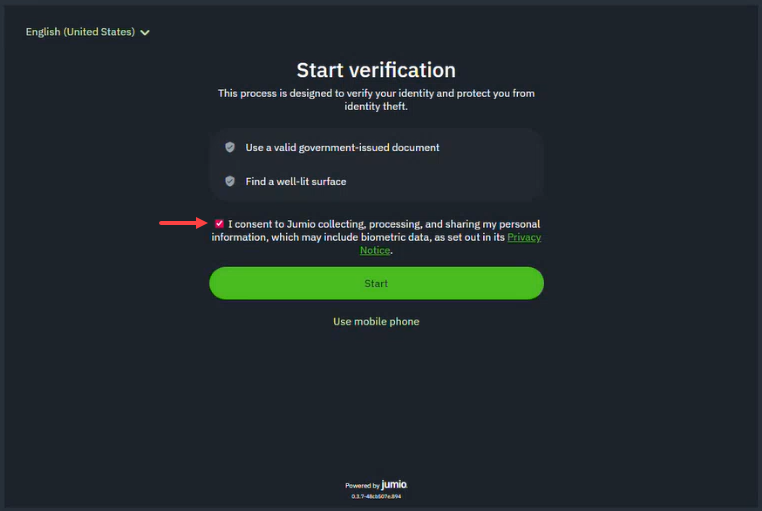
ID Verification Options
You have two ways to complete your ID verification: Desktop or Mobile.
-

- Click Choose issuing country/region.
- Choose your ID type:
- Identity card
- Driver’s license
- Passport
- Visa
-
- At the bottom of the page, click Use mobile phone.
- Choose one of the following:
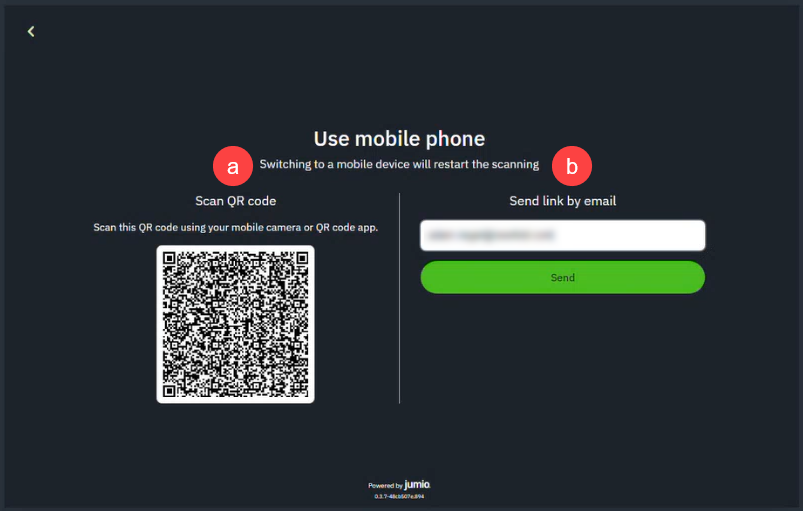
- Scan QR Code: Use your phone’s camera to open the Jumio app.
- Send Link by Email: Enter your email to receive a mobile link.
Upload Your ID and Selfie
- Capture the front and back of your ID.
(The app auto-captures when the ID is in focus.) - Take a selfie for facial verification.
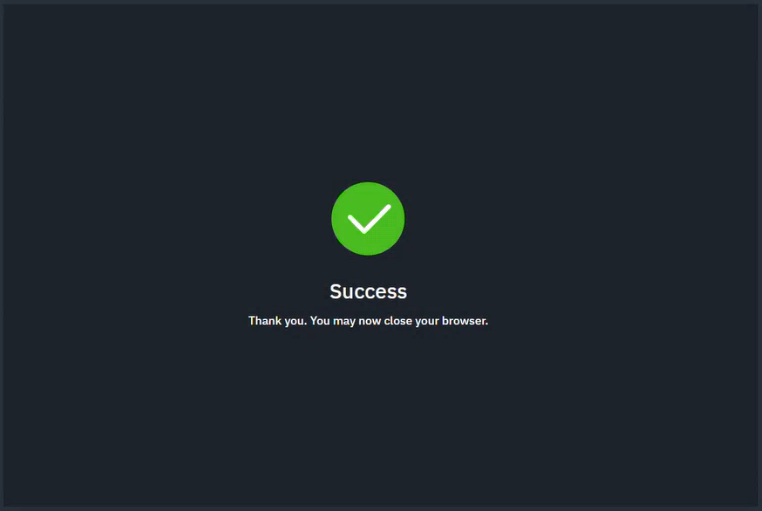
- Submit your images. The system will confirm a successful upload.
Summary
Verifying your identity with Jumio is a quick and secure process designed to protect your information while ensuring accuracy. By preparing your ID, using good lighting, and following the step-by-step guide, you can complete verification in just a few minutes. Remember, your one-time link expires after 15 minutes, so have everything ready before you start. With Jumio, identity verification is simple, fast, and reliable.
If you need further assistance, Bluehost Chat Support is available 24 hours a day, 7days a week while Bluehost Phone Support is available 7 days a week from 7 am-12 midnight EST.
- Chat Support - While on our website, you should see a CHAT bubble in the bottom right-hand corner of the page. Click anywhere on the bubble to begin a chat session.
- Phone Support -
- US: 888-401-4678
- International: +1 801-765-9400
You may also refer to our Knowledge Base articles to help answer common questions and guide you through various setup, configuration, and troubleshooting steps.