 ChatGPT,
  Claude,
  Gemini,
  Grok — all four for
How to Manage Microsoft 365 Users and License Assignments
Microsoft 365 user management has moved to the Microsoft Admin Portal. While the Bluehost Portal remains the place to manage your subscription and purchase additional licenses, user administration, mailbox management, and license assignments are now handled directly through Microsoft's administration tools.
Some areas of the Bluehost interface may still display the name Microsoft Office 365. Microsoft now refers to the service as Microsoft 365, and the administrative portal is commonly known as the Microsoft 365 admin center.
What's Changing?
As part of ongoing improvements to Microsoft 365 administration, certain management functions have been moved from the Bluehost Portal to the Microsoft Admin Portal.
You may notice the following updates:
- User and mailbox management is now handled through the Microsoft Admin Portal.
- Selecting Manage for your Microsoft 365 subscription opens the Microsoft 365 management page where you can access the Go to Microsoft Admin Portal option.
- Bluehost Portal displays your total purchased licenses rather than individual licensed users.
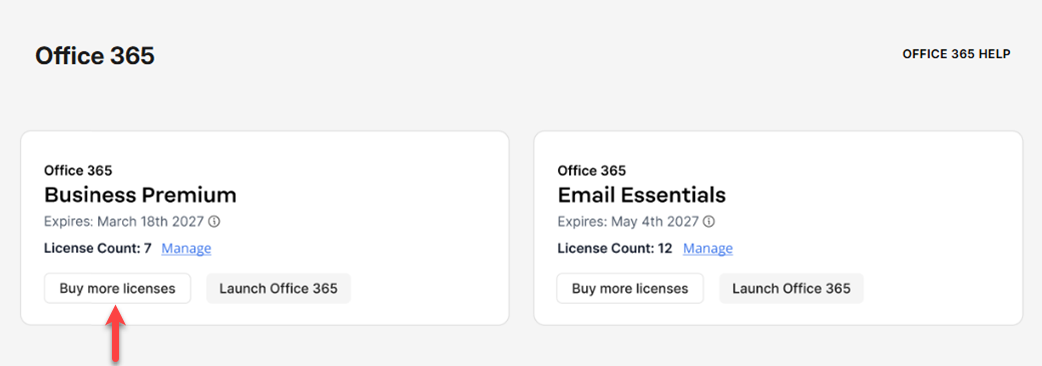
- Additional licenses can still be purchased through the Bluehost Portal using the Buy More Licenses option.
- The previous Microsoft 365 user management page has been retired. Existing bookmarks to that page should be replaced with the Microsoft Admin Portal.
Access the Microsoft Admin Portal
Follow these steps to access Microsoft 365 administration tools:
- Log in to your Bluehost Portal.
- From the left-hand navigation menu, click on the Email tab.
- Choose Microsoft Office 365 from the available options.
- Click Manage or Launch Office 365.
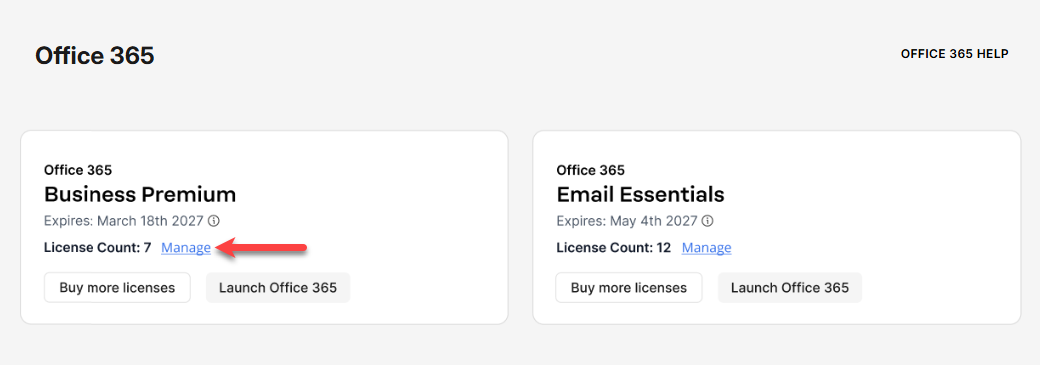
- Select Go to Microsoft Admin Portal.
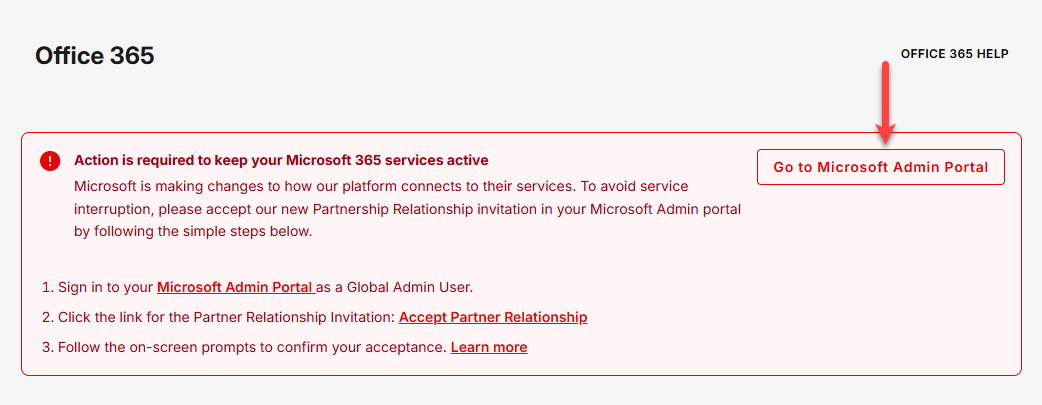
A new browser tab will open, allowing you to manage users, mailboxes, and license assignments directly from Microsoft.
When you first access the Microsoft Admin Portal, you may need to accept a partner relationship invitation to continue receiving Microsoft 365 service and billing through Bluehost. For instructions, see How to Move Your Microsoft Office 365 Service to Ingram Micro.
Manage Users and Mailboxes
Once you are in the Microsoft Admin Portal, you can perform tasks such as:
- Viewing Microsoft 365 users
- Creating new user accounts
- Updating user information
- Assigning or removing licenses
- Managing shared and user mailboxes
- Resetting passwords
- Configuring user settings
All user-level administration is performed directly within the Microsoft Admin Portal.
Purchase Additional Licenses
If you need more Microsoft 365 licenses:
- Log in to your Bluehost Portal.
- From the left-hand navigation menu, click on the Email tab.
- Choose Microsoft Office 365 from the available options.
- Click Buy More Licenses.
 Important
Microsoft 365 licenses are a paid service. For current pricing, available plans, and billing information, visit the Bluehost Portal. Pricing and features are subject to change.
- Complete the purchase process by following the on-screen instructions.
After the purchase is complete, use the Microsoft Admin Portal to assign the newly purchased licenses to users.
Removing a license assignment from a user in the Microsoft Admin Portal does not reduce your subscription's license count or billing. To reduce the number of licenses on your subscription, contact Bluehost Support. To cancel your Microsoft 365 subscription, turn off automatic renewal in the Renewal Center within your Bluehost Portal. Your Microsoft 365 subscription will remain active until the end of the current billing term and will not renew automatically after that date.
Management Responsibilities by Platform
Bluehost Portal
Use the Bluehost Portal to:
- View purchased license counts
- Purchase additional licenses
- Manage subscription-level billing and services
- Cancel subscriptions by managing renewal settings
Bluehost Support
- Request license reductions
Microsoft Admin Portal
Use the Microsoft Admin Portal to:
- View individual users
- Add or remove users
- Manage user settings
- Assign or update licenses
- Manage mailboxes
- Perform Microsoft 365 administrative tasks
For additional Microsoft 365 administration guidance, refer to Microsoft's official Microsoft 365 Admin Center documentation.
Summary
Microsoft 365 user administration, mailbox management, and license assignments are now handled through the Microsoft 365 admin center, while the Bluehost Portal remains the location for subscription management and license purchases. Understanding which platform to use for each task helps ensure accurate administration, licensing, and billing management.
If you need further assistance, Bluehost Chat Support is available 24 hours a day, 7days a week while Bluehost Phone Support is available 7 days a week from 7 am-12 midnight EST.
- Chat Support - While on our website, you should see a CHAT bubble in the bottom right-hand corner of the page. Click anywhere on the bubble to begin a chat session.
- Phone Support -
- US: 888-401-4678
- International: +1 801-765-9400
You may also refer to our Knowledge Base articles to help answer common questions and guide you through various setup, configuration, and troubleshooting steps.