 ChatGPT,
  Claude,
  Gemini,
  Grok — all four for
 Bluehost Professional Email: How to Archive and Unarchive an Email
Keep your inbox tidy by moving emails you want to keep, but no longer need to see, into the Archive folder. Archived emails are not deleted. They stay in the Archive folder until you delete them or move them back to your inbox.
How to Archive an Email
Follow the steps below to move a message from your inbox into the Archive folder.
- Log in to your Bluehost Portal.
- From the left-hand navigation menu, click on the Email tab.
- Optional: In Professional Email, if multiple plans are listed, click Manage for the plan you want to use.

- You’ll be automatically redirected to the Email Management page, where you can manage your email settings and subscriptions.
- Click Email Accounts.
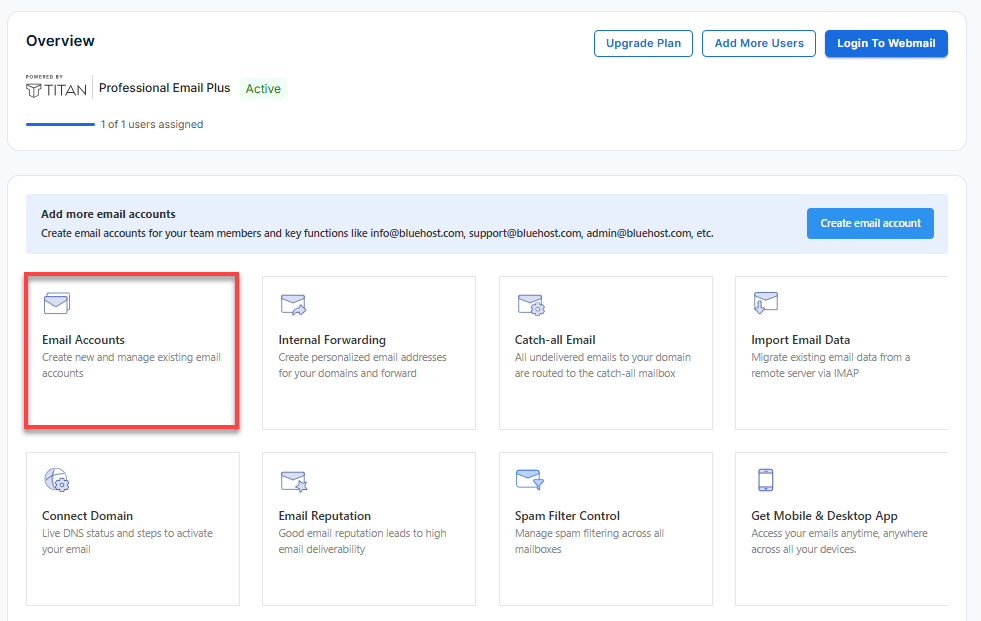
- Find the email account you want to manage.
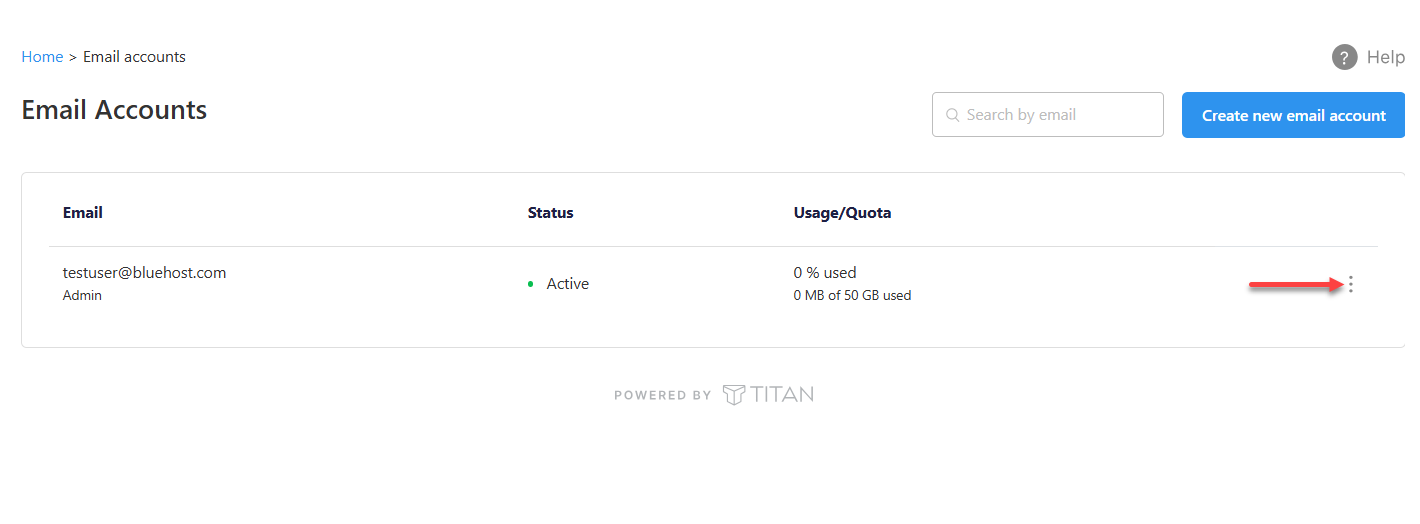
- Hover over the account and click the ellipsis icon (
⋮).
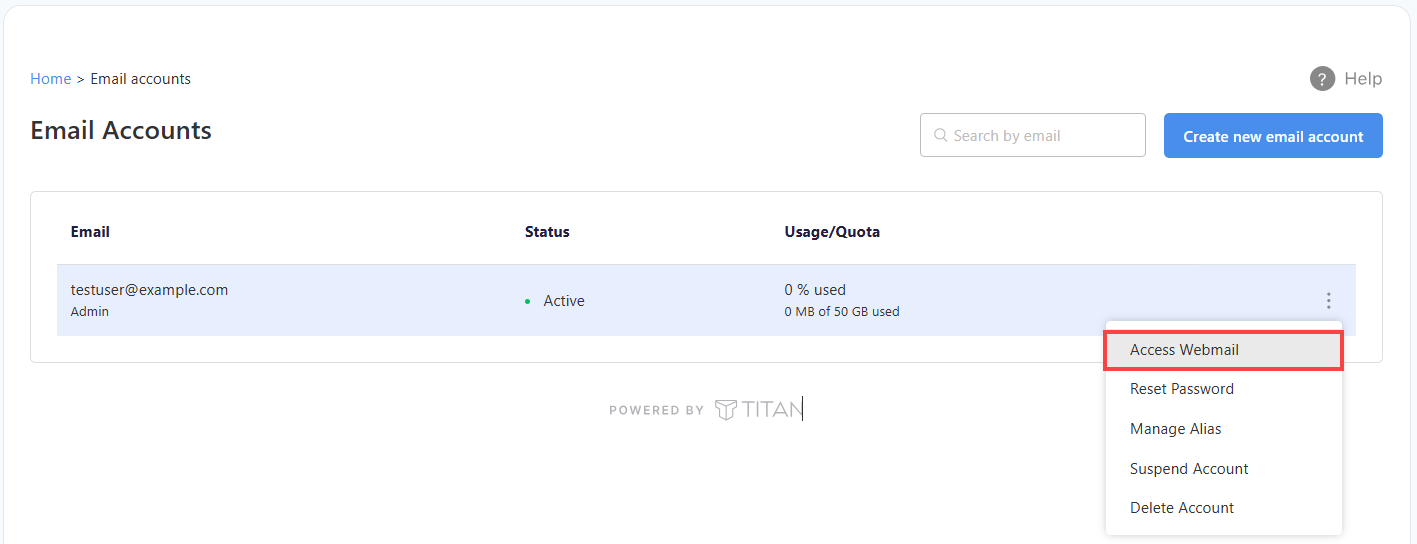
- Click Access Webmail to launch your webmail.
- Enter your email address and click Login. Next, type your password and click Login once more to access your account.
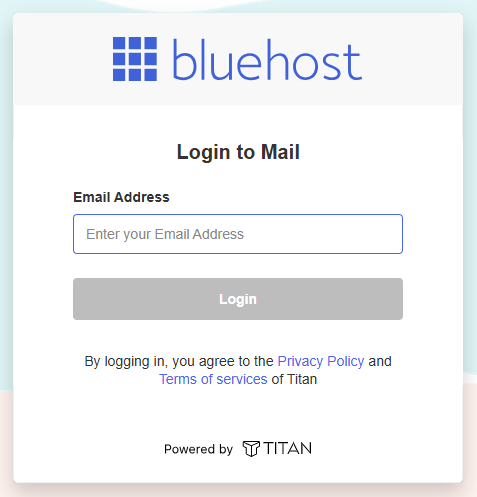
Alternatively, sign in directly at https://bluehost.titan.email/login/ using your full email address and password. - In your Inbox, check the box of the email you want to archive.
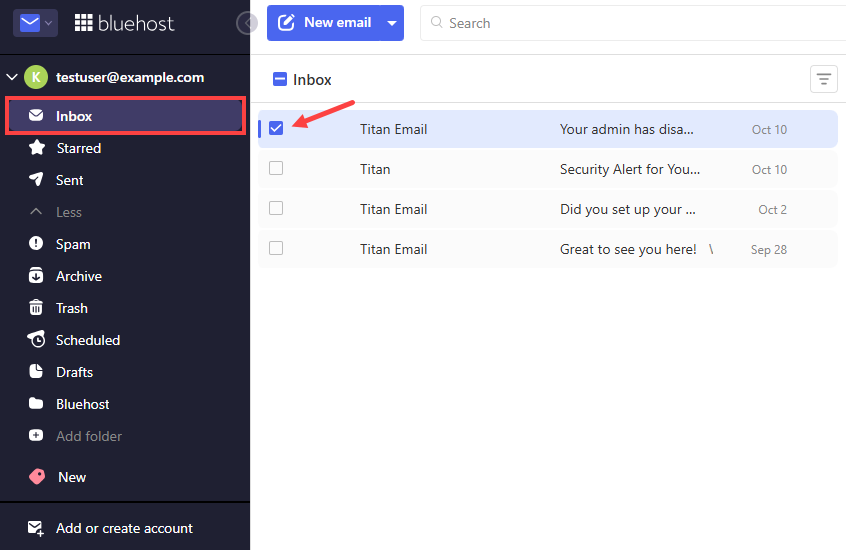
- Above the email, click Archive.
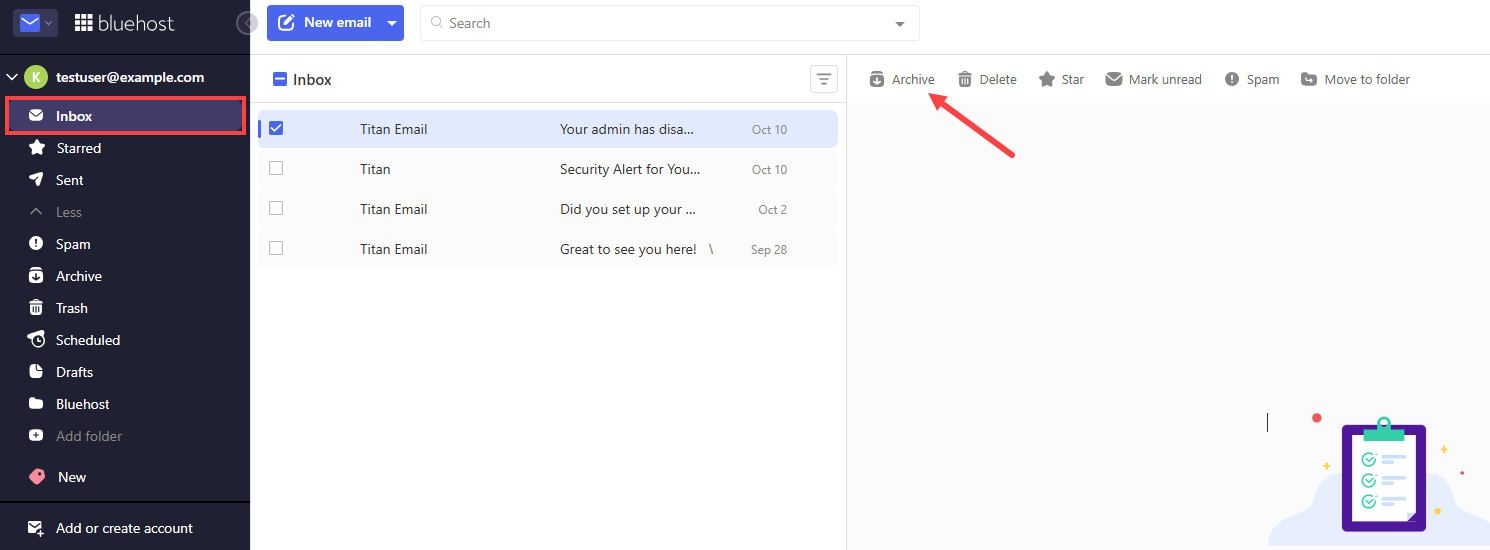
The email is moved to the Archive folder, where it stays until you delete it or move it back to your inbox.
How to Unarchive an Email
To bring an archived message back to your inbox, complete the steps below.
- Log in to your Bluehost Portal.
- From the left-hand navigation menu, click on the Email tab.
- Optional: In Professional Email, if multiple plans are listed, click Manage for the plan you want to use.
- You’ll be automatically redirected to the Email Management page, where you can manage your email settings and subscriptions.
- Click Email Accounts.
- Find the email account you want to manage.
- Hover over the account and click the ellipsis icon (
⋮).
- Click Access Webmail to launch your webmail.
- Enter your email address and click Login. Next, type your password and click Login once more to access your account.
Alternatively, sign in directly at https://bluehost.titan.email/login/ using your full email address and password. - In the left-hand folder list, click Archive.
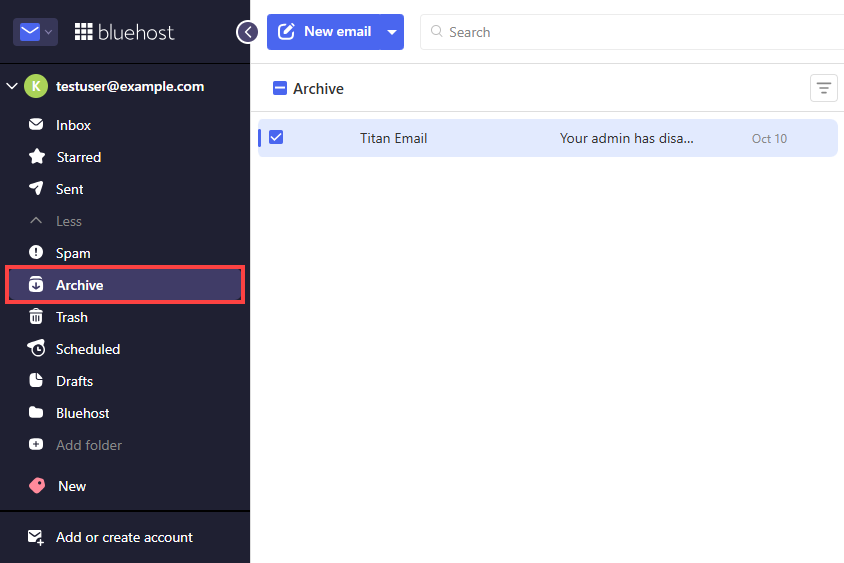
- Check the box of the email you want to restore.
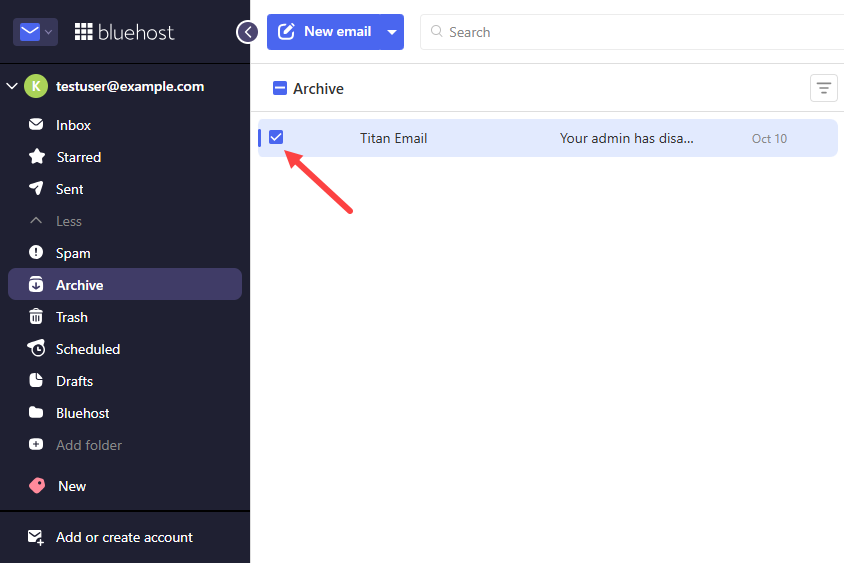
- Above the email, click Move to folder, then select Inbox.
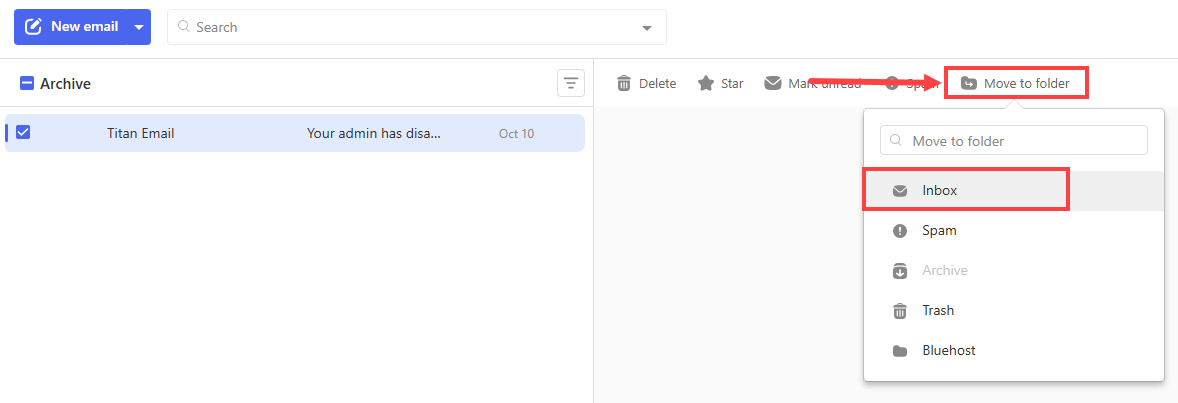
A confirmation message appears, and the email is back in your inbox.
Summary
Archiving in Bluehost Professional Email (Titan) moves emails out of your inbox without deleting them, so you can keep your inbox clutter-free and still find older messages when you need them. Archived emails stay in the Archive folder until you delete them or move them back to your inbox.
If you need further assistance, Bluehost Chat Support is available 24 hours a day, 7days a week while Bluehost Phone Support is available 7 days a week from 7 am-12 midnight EST.
- Chat Support - While on our website, you should see a CHAT bubble in the bottom right-hand corner of the page. Click anywhere on the bubble to begin a chat session.
- Phone Support -
- US: 888-401-4678
- International: +1 801-765-9400
You may also refer to our Knowledge Base articles to help answer common questions and guide you through various setup, configuration, and troubleshooting steps.