 ChatGPT,
  Claude,
  Gemini,
  Grok — all four for
 Bluehost Professional Email: How to Enable Two-Factor Authentication (2FA)
Two-factor authentication (2FA) adds a second layer of security to your Bluehost Professional Email sign-in. After you enable it, signing in to your mailbox requires your password and a 6-digit verification code generated by an authenticator app on your phone. Even if someone learns your password, they'll have a much harder time getting into your inbox without that code.
Bluehost Professional Email is powered by Titan, so you'll complete this setup from your Titan webmail settings.
Why Enable Two-Factor Authentication?
Two-Factor Authentication (2FA) gives your inbox an extra layer of protection by requiring two steps to sign in:
- Step 1: Your password — The password you usually enter.
- Step 2: A security code — A unique 6-digit code from an app on your phone that updates every 30 seconds.
If a hacker steals your password, they generally still can't log into your account through webmail, because they don't have your phone. Keep in mind that application passwords created for email apps skip the verification code, so protect them as carefully as your mailbox password.
Before You Begin
Make sure you have the following:
- Your mailbox password. You'll need to confirm it during setup.
- An authenticator app installed on your phone. Supported options include:
- Google Authenticator
- Microsoft Authenticator
- Authy
- Zoho OneAuth
- A secure place to store recovery codes, such as a password manager or a secondary email address.
How to Enable Two-Factor Authentication (2FA)
Follow the four steps below to set up two-factor authentication for your Bluehost Professional Email mailbox.
Step 1: Open Your Professional Email Webmail
Start by signing in to the webmail account you want to protect.
- Log in to your Bluehost Portal.
- From the left-hand navigation menu, click on the Email tab.
- Optional: In Professional Email, if multiple plans are listed, click Manage for the plan you want to use.

- You’ll be automatically redirected to the Email Management page, where you can manage your email settings and subscriptions.
- Click Email Accounts.
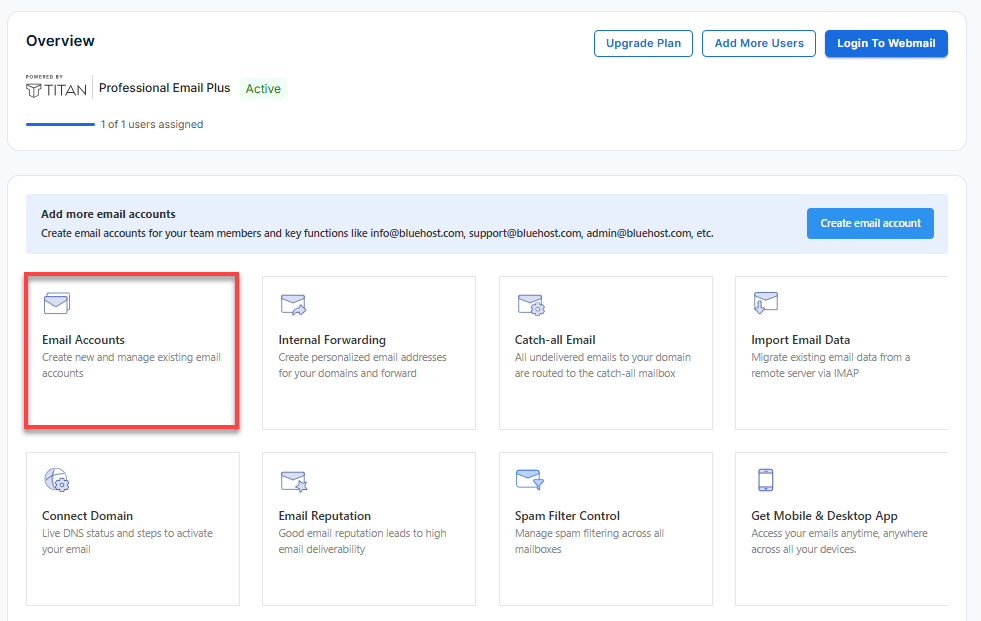
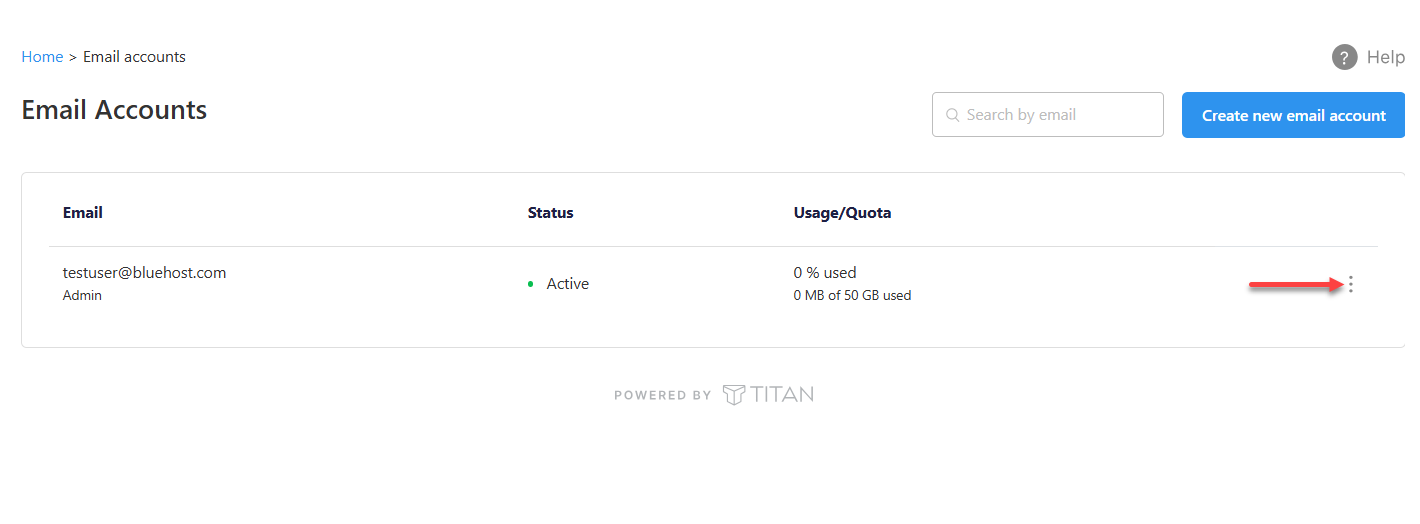
- Find the email account you want to use.
- Hover over the account and click the ellipsis icon (
⋮).
- Click Access Webmail to launch your webmail.
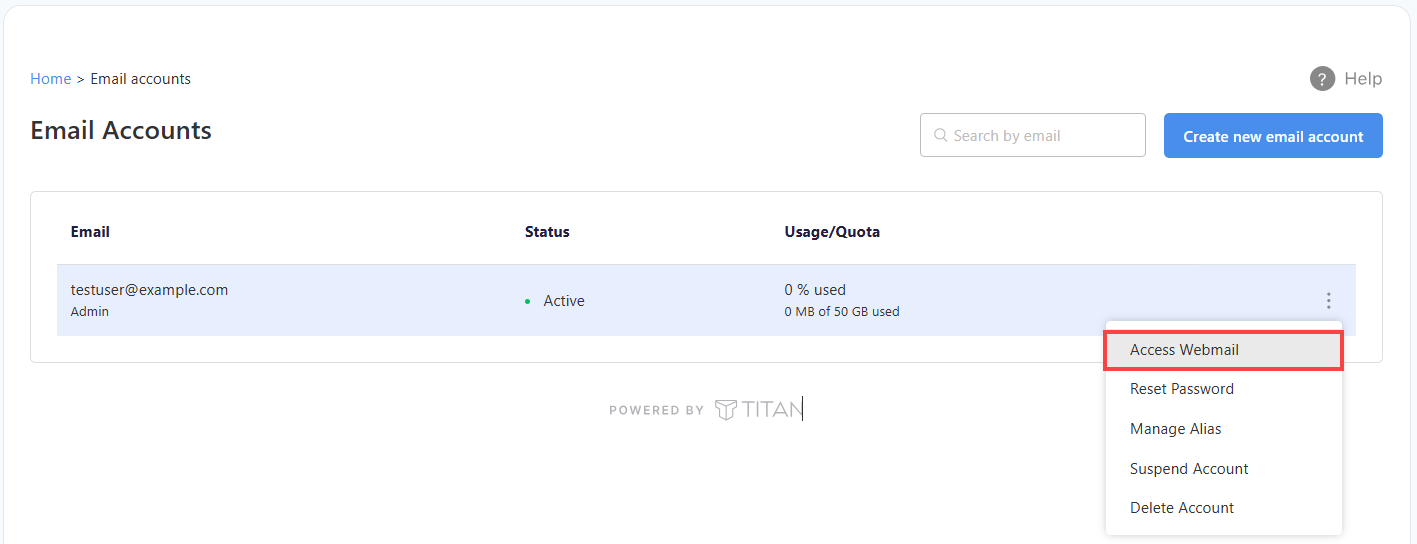
- Enter your email address and click Login. Next, type your password and click Login once more to access your account.
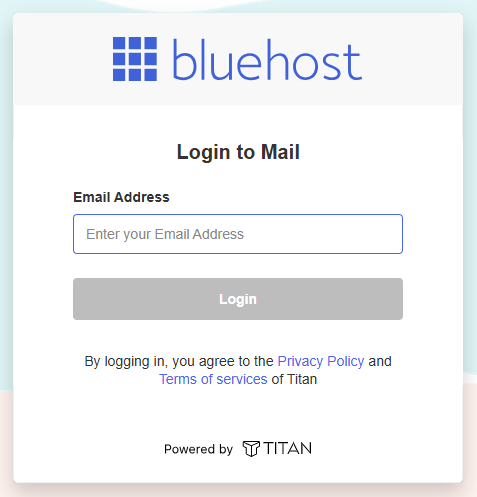
Alternatively, sign in directly at https://bluehost.titan.email/login/ using your full email address and password.
Step 2: Start the 2FA Setup
Next, open the security options in Titan Webmail and confirm it's really you.
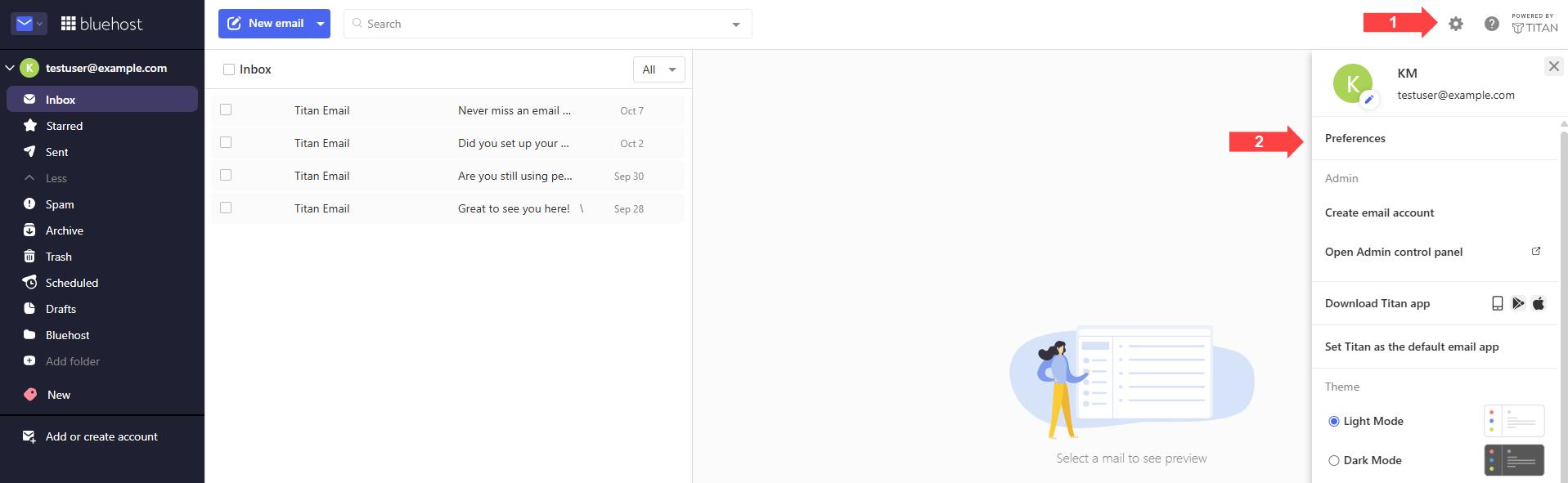
- Once Titan Webmail opens, select the Settings (gear) icon at the top right of the screen and choose Preferences.
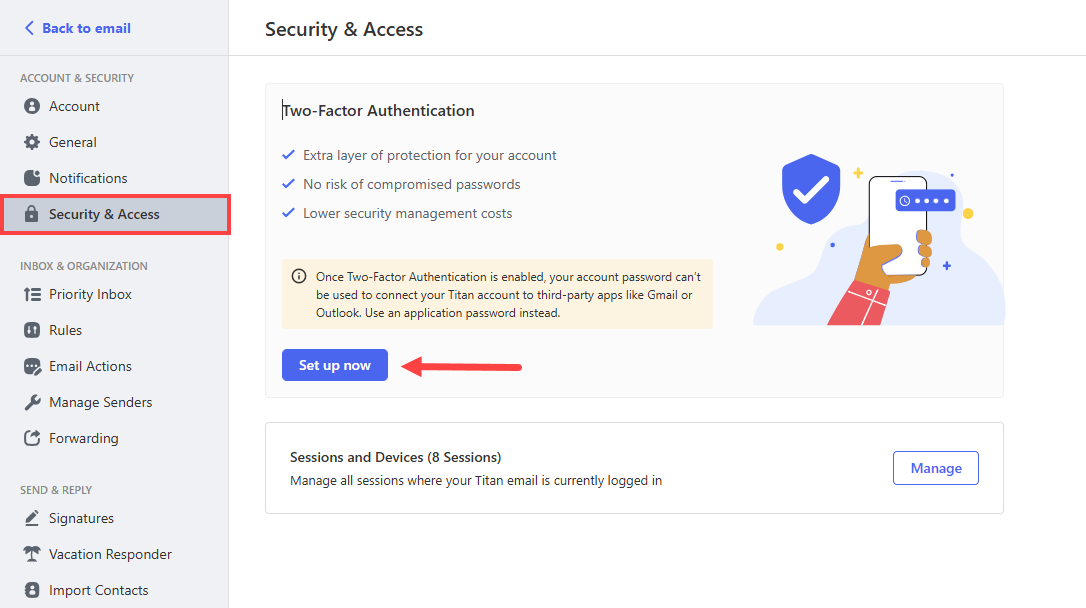
- Click the Security & Access section, then click Set up now.
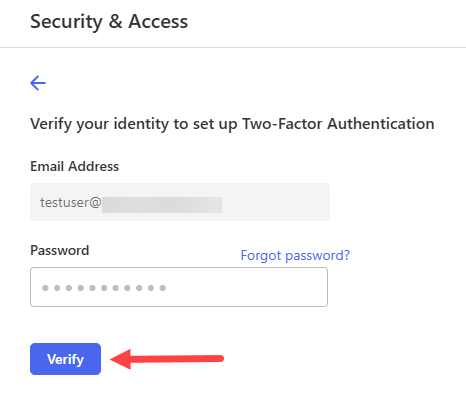
- Enter your mailbox password to verify your identity, then click Verify.
Step 3: Connect Your Authenticator App
Pair your mailbox with your authenticator app so it can generate the codes you'll use to sign in.
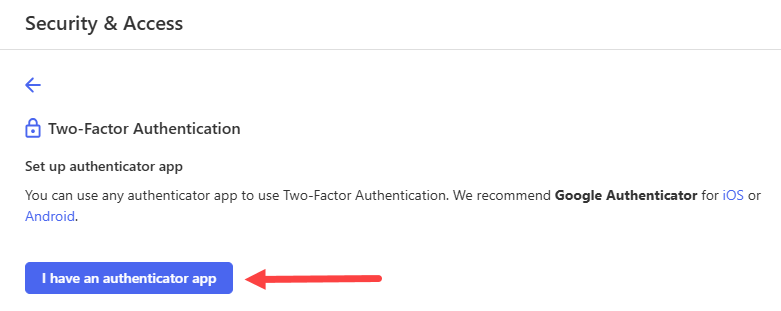
- Click I have an authenticator app. A QR code and setup key will appear.
- Open your authenticator app and add a new account.
- Scan the QR code with your phone's camera, or manually enter the setup key.
- When your Bluehost mailbox appears in the authenticator app, click Next in webmail.
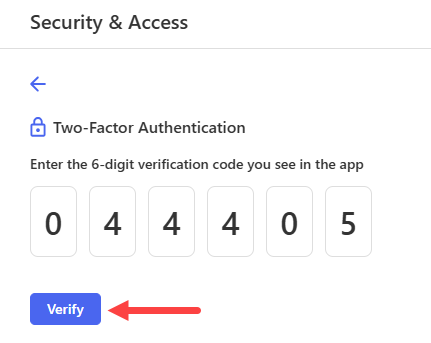
- Enter the 6-digit verification code currently displayed in the authenticator app, then click Verify.
Step 4: Save Your Recovery Codes
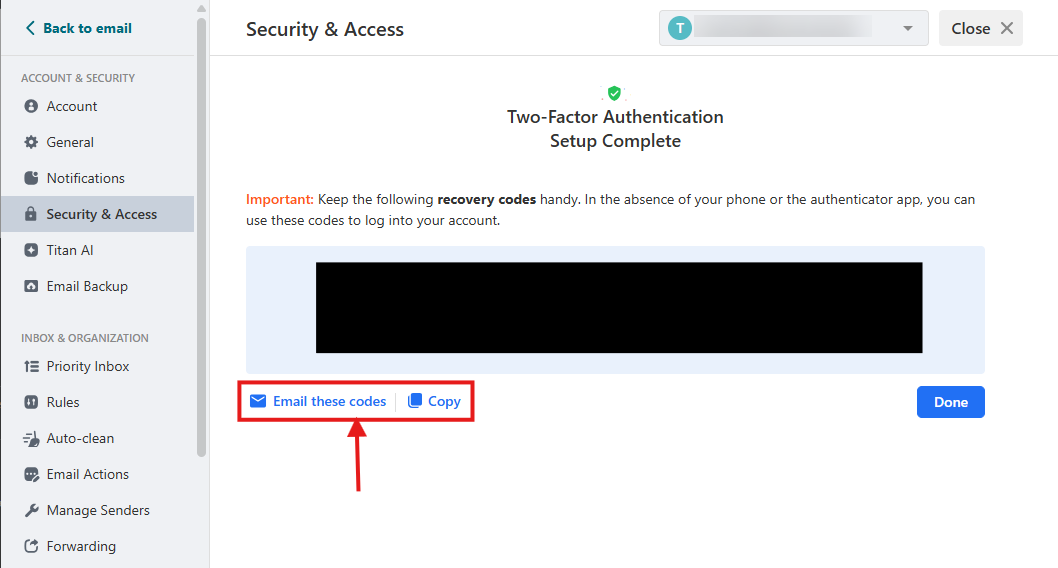
After the verification code is accepted, webmail displays a set of one-time recovery codes.
Choose Email or Copy to save them.
Troubleshooting
If something doesn't go as expected during setup or sign-in, find your issue in the table below.
| Issue | Likely Cause | Resolution |
|---|---|---|
| The QR code won't scan | Poor lighting or camera focus | Enter the setup key displayed next to the QR code manually in your authenticator app. |
| Lost phone or deleted authenticator app | No device available to generate verification codes | Sign in using a saved recovery code, then connect a new authenticator app from Settings > Preferences > Security > Manage. |
| Verification code is rejected | The code expired or your phone's clock is out of sync | Wait for a new code and enter it immediately. Make sure your phone's date and time are set to update automatically. |
| Outlook or another email app stopped connecting | Regular passwords are no longer accepted after enabling 2FA | Generate an application password and use it in the email application. |
| Both your phone and your recovery codes are unavailable | Nothing is left to complete the verification step | Have the Bluehost account owner disable 2FA for the mailbox, then re-enroll with a new authenticator app once you're signed in. |
Regain Access by Disabling 2FA
Losing both your authenticator app and your recovery codes doesn't mean losing your mailbox. The Bluehost account owner can switch off 2FA for the affected mailbox from the Bluehost portal. Mailbox users can't do this themselves.
- Log in to your Bluehost Portal.
- From the left-hand navigation menu, click on the Email tab.
- Optional: In Professional Email, if multiple plans are listed, click Manage for the plan you want to use.
- You’ll be automatically redirected to the Email Management page, where you can manage your email settings and subscriptions.
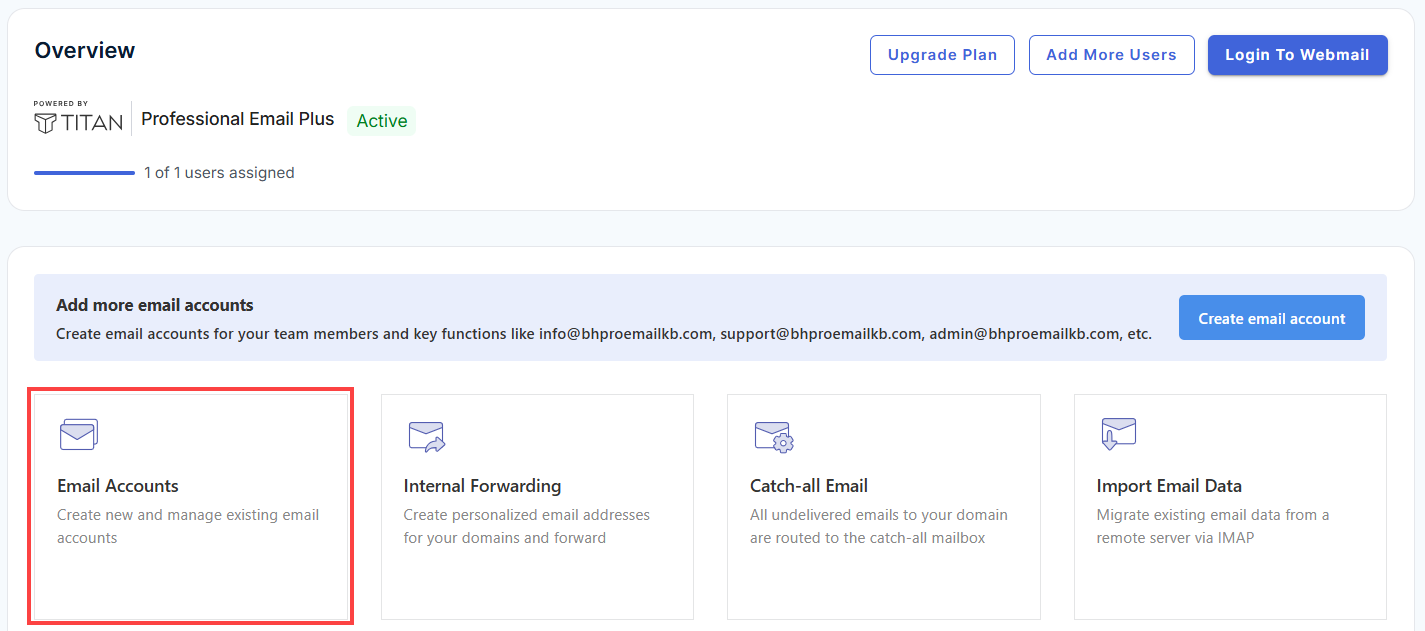
- Click Email Accounts to view your email accounts.
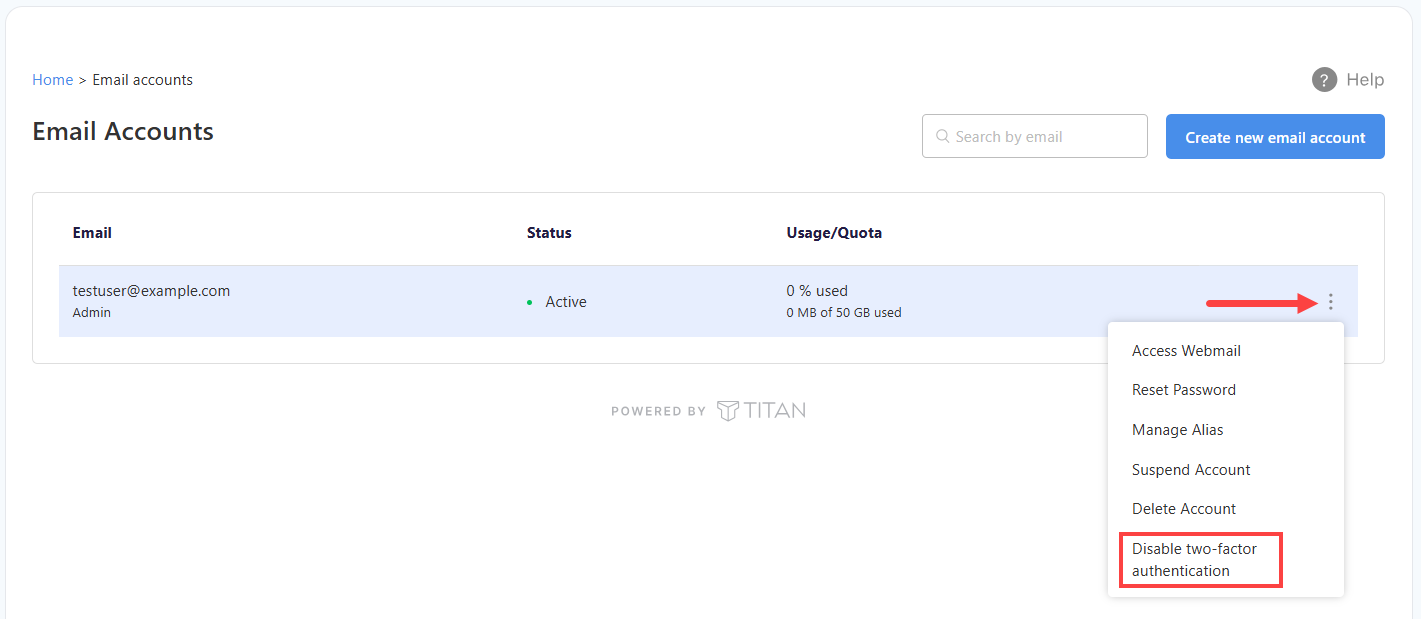
- Locate the mailbox in your list of email accounts.
- Click the ⋮ (more options) menu beside it.
- Select Disable Two-Factor Authentication.
- Click Confirm to completely disable the 2FA.
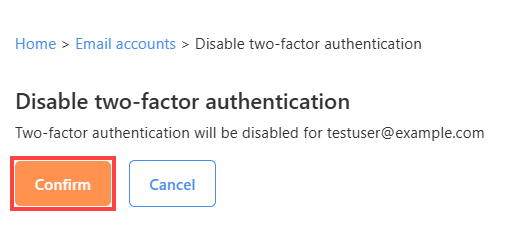
- You'll receive a confirmation message indicating that the action was successful.
The change takes effect immediately. The mailbox user can then sign in with only their email address and password.
If you don't have access to the account owner's login, reach out to Bluehost Support using the contact options at the end of this article.
Frequently Asked Questions
Here are answers to common questions about using 2FA with Bluehost Professional Email.
Q: Does Turning On 2FA Affect Other Mailboxes on My Domain?
A: No. Two-factor authentication applies only to the mailbox where it's enabled.
Q: Will I Need a Code Every Time I Check Email?
A: You'll be asked for a verification code when signing in to webmail or the Titan mobile app. Email applications that use an application password won't prompt for a verification code.
Q: Can I Use the Same Authenticator App for Multiple Mailboxes?
A: Yes. Most authenticator apps support multiple accounts. Each mailbox appears as a separate entry with its own rotating verification code.
Q: What Happens If I Lose My Recovery Codes?
A: If you're already signed in, go to Settings > Preferences > Security > Manage to view your recovery codes and store a fresh copy securely. If you're signed out and have neither your phone nor your codes, the account owner can disable 2FA for your mailbox so you can sign back in.
If you need further assistance, Bluehost Chat Support is available 24 hours a day, 7days a week while Bluehost Phone Support is available 7 days a week from 7 am-12 midnight EST.
- Chat Support - While on our website, you should see a CHAT bubble in the bottom right-hand corner of the page. Click anywhere on the bubble to begin a chat session.
- Phone Support -
- US: 888-401-4678
- International: +1 801-765-9400
You may also refer to our Knowledge Base articles to help answer common questions and guide you through various setup, configuration, and troubleshooting steps.