 ChatGPT,
 Claude,
 Gemini,
 Grok — all four for
Bluehost Professional Email: How to Get Your Email in Gmail
If you use Gmail every day, you may want your Bluehost Professional Email messages to show up there too. Gmail's Check mail from other accounts feature, which fetched mail from other accounts into Gmail, is being retired by Google, so this article covers the methods that still work: forwarding your Professional Email to Gmail, or adding your Professional Email account to the Gmail app with IMAP.
Can Gmail Fetch Bluehost Professional Email?
Not for new setups. Gmail's Check mail from other accounts option used POP to sign in to another email account on a schedule and copy new messages into Gmail. Google has announced that it is removing this feature:
- After the first quarter of 2026, new users can't set it up.
- Existing users can keep using it until January 2027.
- Messages already fetched into Gmail stay in Gmail.
Google recommends automatic forwarding as the replacement. You can also read your Professional Email in the Gmail mobile app using IMAP.
Tip: Gmail features are controlled by Google and may change. For the latest details, see Google's Learn about upcoming changes to Gmailify & POP in Gmail.
Choose a Method
| Method | How It Works | Best For |
|---|---|---|
| Forward to Gmail | Professional Email sends a copy of each new incoming email to your Gmail address. Works in Gmail on your computer and phone. | Reading your business email in Gmail on any device. Replies are sent from your Gmail address. |
| Gmail app (IMAP) | The Gmail mobile app connects directly to your Professional Email mailbox. Your email stays on Professional Email and syncs both ways. | Reading and replying from your Professional Email address on your phone. |
Log In to Professional Email Webmail
Option 1: Use the Login to Webmail Button
- Log in to your Bluehost Portal.
- From the left-hand navigation menu, click on the Email tab.
- Optional: In Professional Email, if multiple plans are listed, click Manage for the plan you want to use.
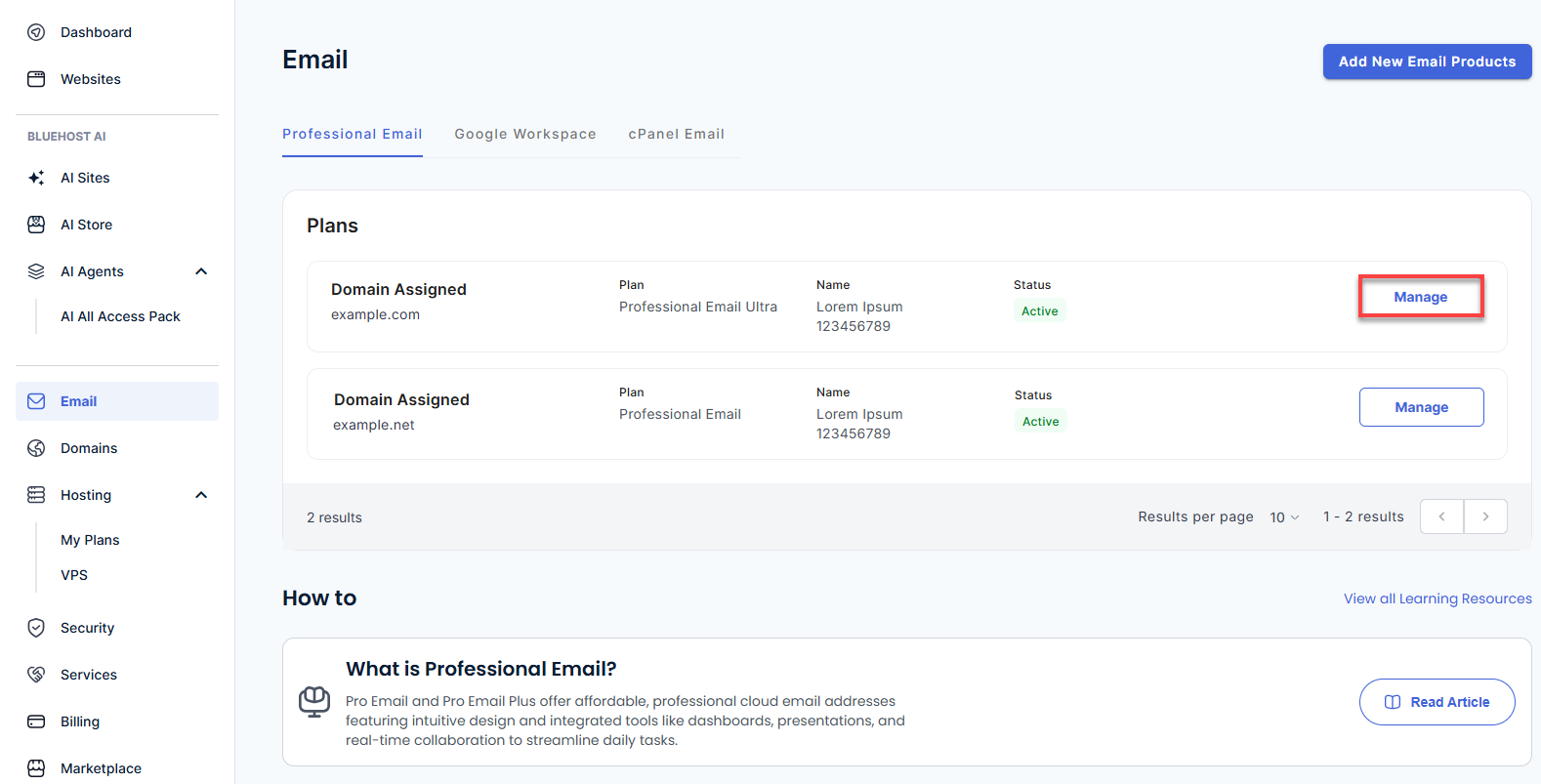
- You’ll be automatically redirected to the Email Management page, where you can manage your email settings and subscriptions.
- Click the Login to Webmail button.
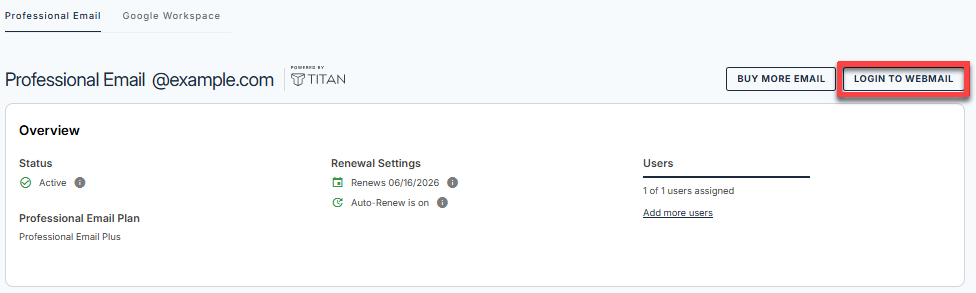
- Enter your Professional Email username and password.
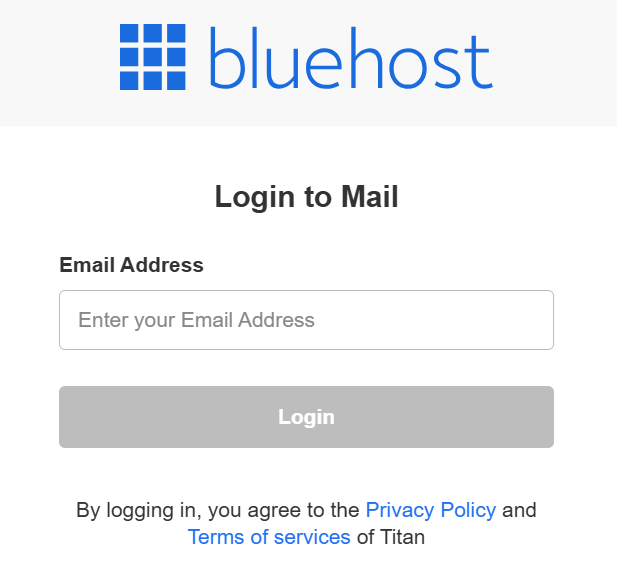
- Click Login.
Option 2: Use the Direct Login Link
- Go to the Professional Email login page.
- Enter your Professional Email username and password.
- Click Login.
Option 1: Forward Professional Email to Gmail
- Once you are logged in, click the Settings (gear) icon in the upper-right corner of the webmail interface, then click Preferences.
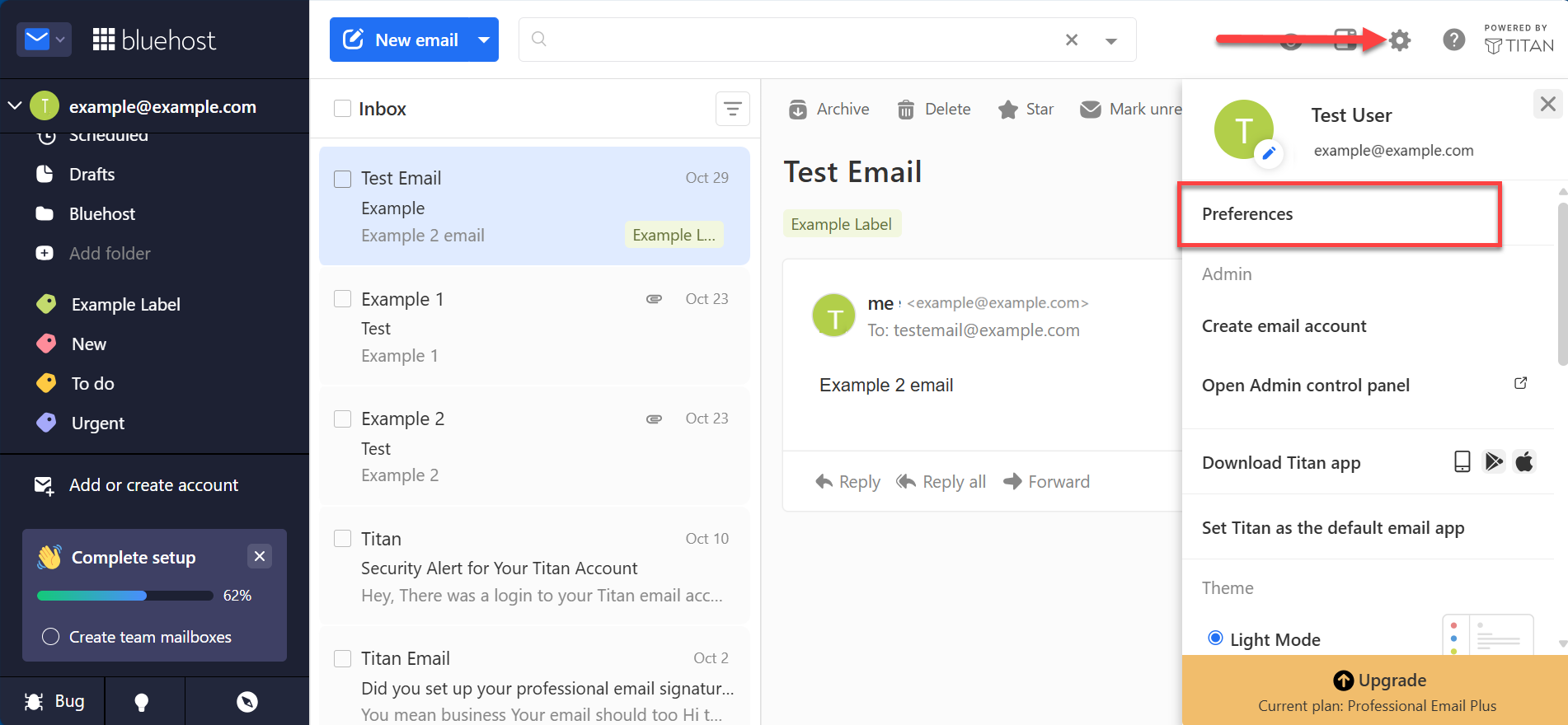
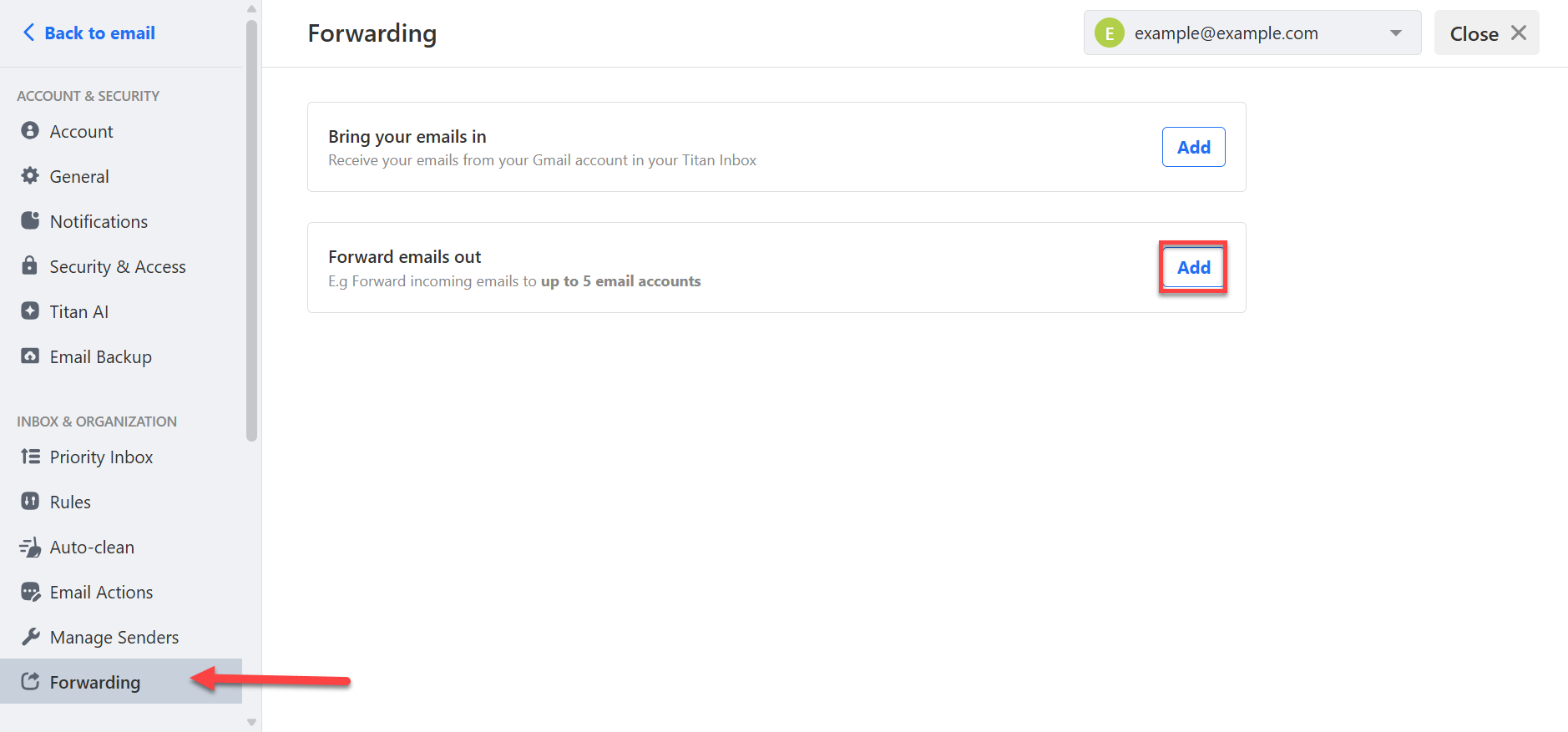
- Click the Forwarding tab, and next to Forward emails out, click Add.
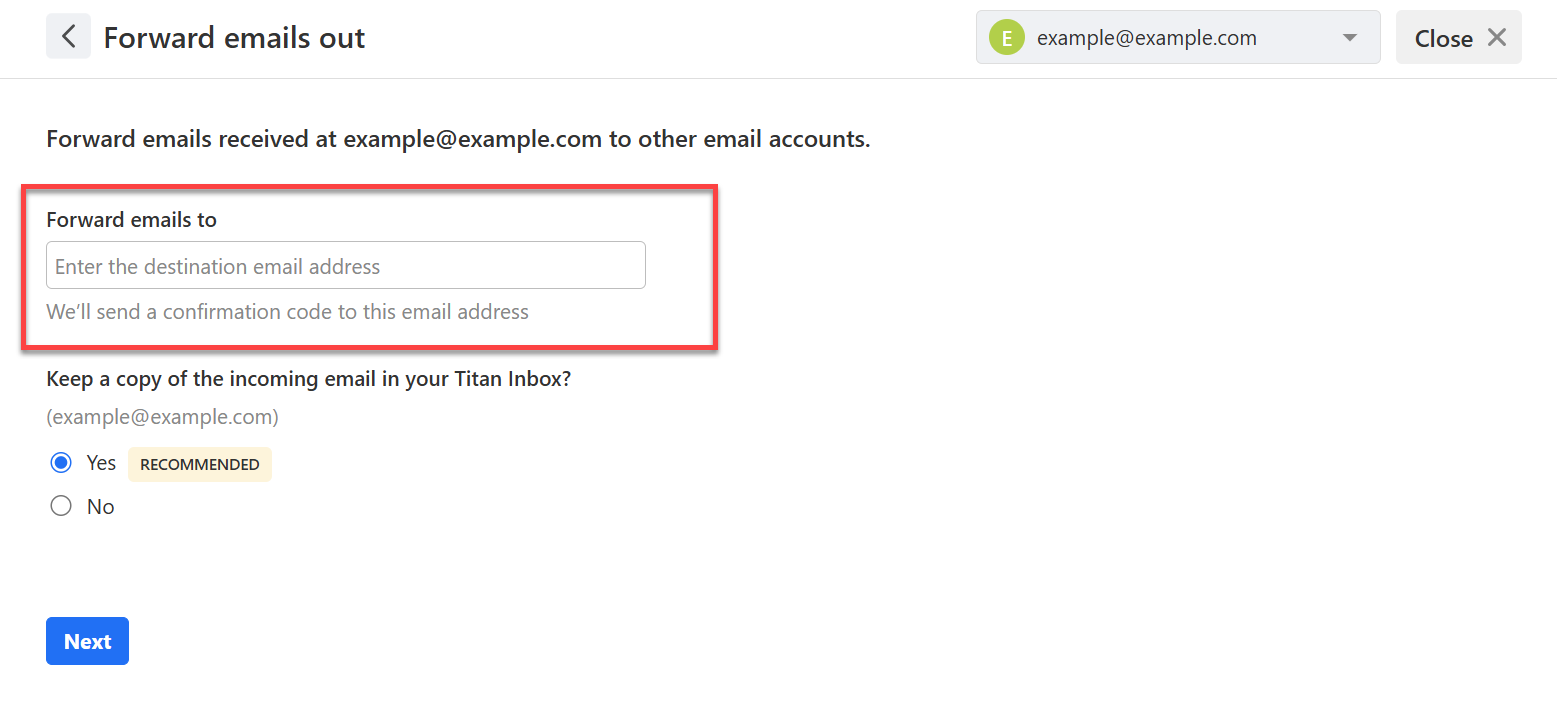
- In the Forward emails to field, enter your Gmail address.
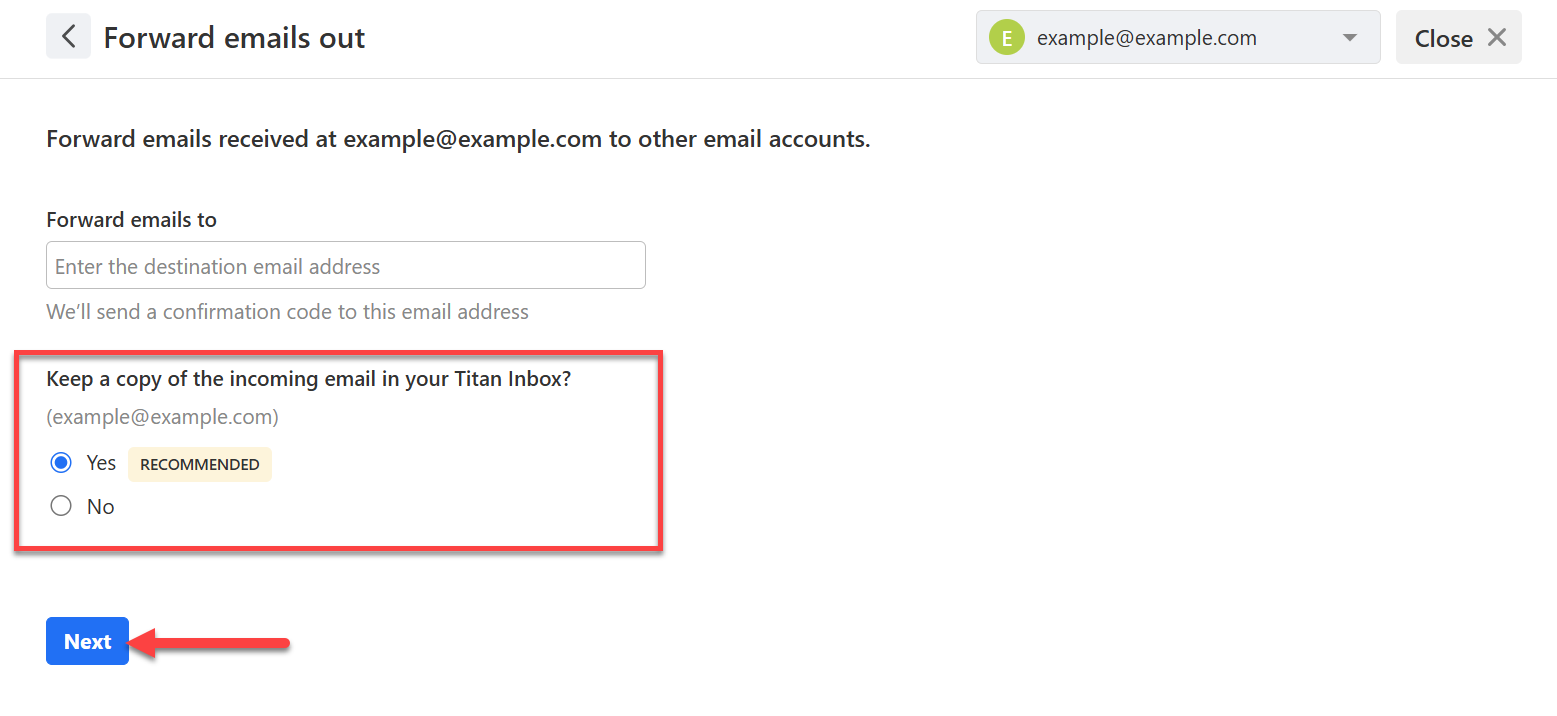
- Choose whether to keep a copy of each email in your Professional Email inbox, then click Next.
- Open your Gmail inbox and find the confirmation email from Professional Email. Copy the 6-digit code.
- Back in webmail, enter the code in the Confirmation code field and click Start forwarding.
New emails sent to your Professional Email address will now also arrive in Gmail. To change or stop forwarding, return to Settings > Preferences > Forwarding.
Important: Forwarding only applies to emails received after you turn it on. Emails already in your Professional Email inbox aren't sent to Gmail.
Tip: We recommend keeping a copy in your Professional Email inbox. That way, you still have your messages if a forwarded email is filtered or delayed.
Option 2: Add Professional Email to the Gmail App
The Gmail app for Android and iPhone can connect to your Professional Email account with IMAP, so you can read and reply from your Professional Email address in the same app as your Gmail.
Important: Before you start, turn on access for third-party apps in your Professional Email settings. See How to Configure Bluehost Professional Email on Other Apps.
- Open the Gmail app and tap your profile picture in the upper-right corner.
- Tap Add another account, then tap Other.
- Enter your full Professional Email address and tap Manual setup.
- Select Personal (IMAP) and tap Next.
- Enter your Professional Email password and tap Next.
- Enter the incoming and outgoing server settings from the table below, then tap Next.
- Choose your sync options, enter the name you want shown on sent emails, and tap Next to finish.
| Setting | Incoming (IMAP) | Outgoing (SMTP) |
|---|---|---|
| Server | imap.titan.email |
smtp.titan.email |
| Port | 993 |
465 |
| Security | SSL/TLS | SSL/TLS |
| Username | Your full Professional Email address | |
| Password | Your Professional Email password | |
Your Professional Email account now appears in the Gmail app. Switch between accounts by tapping your profile picture.
Already Using Check Mail from Other Accounts?
If Gmail currently fetches your Professional Email with Check mail from other accounts, set up forwarding or the Gmail app before Google removes the feature, so you don't miss new emails.
- Set up forwarding to Gmail and confirm a test email arrives.
- In Gmail on your computer, click the Settings (gear) icon, then See all settings.
- Open the Accounts and Import tab.
- Under Check mail from other accounts, click delete next to your Professional Email address, so you don't receive duplicate emails.
Emails Gmail already fetched stay in your Gmail account.
Troubleshooting
Problem: I didn't get the forwarding confirmation code.
Cause: The confirmation email may have been filtered, or the Gmail address was mistyped.
Solution: Check your Gmail Spam and All Mail folders. If it's not there, go back to Forwarding, check the address, and try again.
Problem: Forwarded emails are landing in Gmail's Spam folder.
Cause: Gmail sometimes flags forwarded messages, especially when the original sender's authentication records don't pass.
Solution: Open the email and click Not spam. You can also create a Gmail filter for emails sent to your Professional Email address and select Never send it to Spam.
Problem: The Gmail app can't connect to my Professional Email account.
Cause: Third-party app access may be turned off, or a server setting or password is incorrect.
Solution: Confirm third-party access is turned on, then re-enter the settings from the table above. Check for extra spaces and make sure you're using your full email address as the username.
Problem: My replies show my Gmail address instead of my business address.
Cause: With forwarding, you reply from the Gmail account the email was forwarded to.
Solution: To reply from your Professional Email address, use the Gmail app with your Professional Email account (Option 2) or reply from Professional Email webmail.
Summary
Gmail's Check mail from other accounts feature is being retired, so it's no longer a reliable way to bring Bluehost Professional Email into Gmail. Instead, forward your Professional Email to Gmail to read it anywhere, or add your account to the Gmail app with IMAP to read and reply from your business address on your phone. If you already use Gmail fetching, switch to one of these methods before January 2027.
Related Articles
If you need further assistance, Bluehost Chat Support is available 24 hours a day, 7days a week while Bluehost Phone Support is available 7 days a week from 7 am-12 midnight EST.
- Chat Support - While on our website, you should see a CHAT bubble in the bottom right-hand corner of the page. Click anywhere on the bubble to begin a chat session.
- Phone Support -
- US: 888-401-4678
- International: +1 801-765-9400
You may also refer to our Knowledge Base articles to help answer common questions and guide you through various setup, configuration, and troubleshooting steps.