 ChatGPT,
  Claude,
  Gemini,
  Grok — all four for
 Professional Email: How to use Mentions in Emails
Writing an email often means referring to clients, collaborators, or other important contacts. The Mention feature in Bluehost Professional Email lets you tag a recipient right in the body of your message by typing the @ symbol followed by the contact's name, which keeps your conversations clear and organized.
Say you run a photography business and you're sending a shoot schedule to a client. While writing the message, you realize your assistant needs to be part of the conversation too. Rather than adding them to the recipient list by hand, you can simply mention them in the email, and they are added to the recipient list automatically.
Log In to Professional Email Webmail
Option 1: Use the Login to Webmail Button
- Log in to your Bluehost Portal.
- From the left-hand navigation menu, click on the Email tab.
- Optional: In Professional Email, if multiple plans are listed, click Manage for the plan you want to use.

- You’ll be automatically redirected to the Email Management page, where you can manage your email settings and subscriptions.
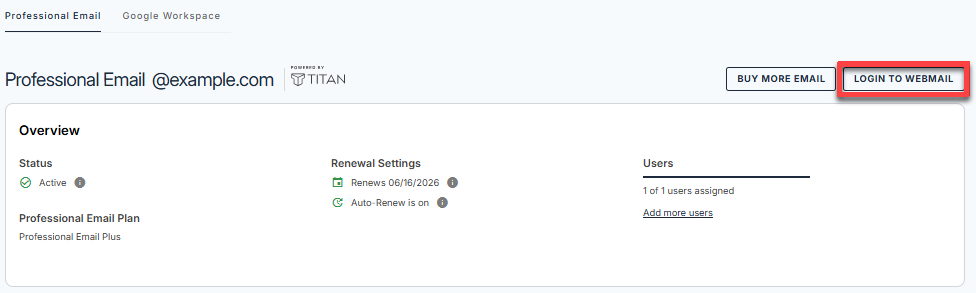
- Click the Login to Webmail button.
- Enter your Professional Email username and password.
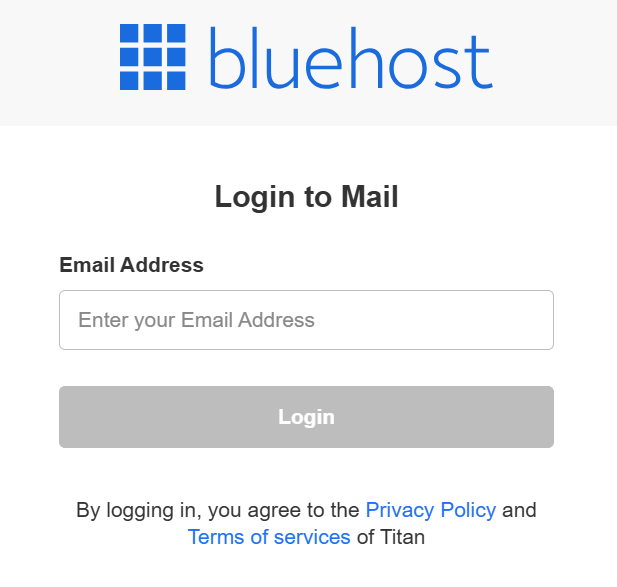
- Click Login.
Option 2: Use the Direct Login Link
- Go to the Professional Email login page.
- Enter your Professional Email username and password.
- Click Login.
Mention a Contact in an Email
Follow these steps to mention a contact while you write an email:
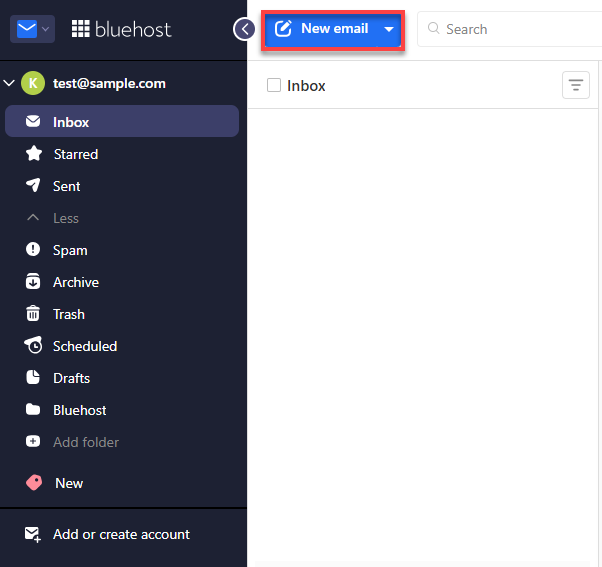
- Open the email composer (New email).
- Start writing your email.
- In the email body, type @ followed by the contact's name.
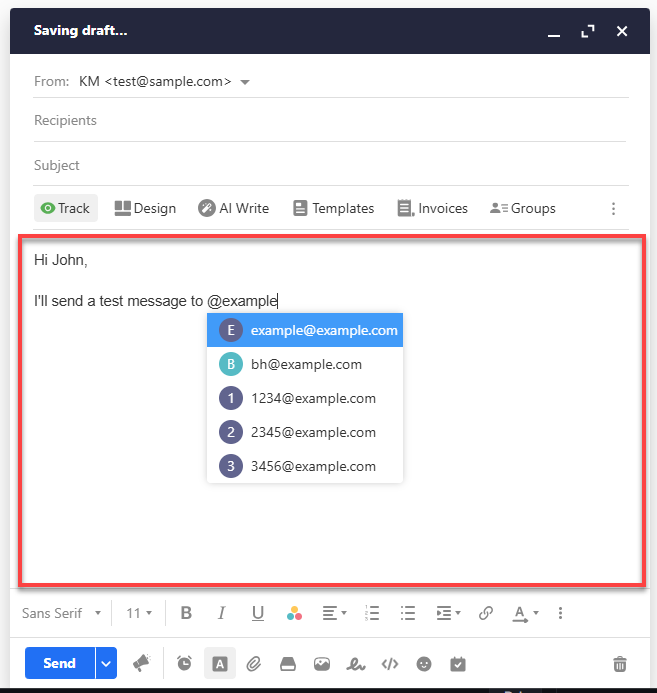
- A list of matching saved contacts appears.
- Select the contact you want to mention.
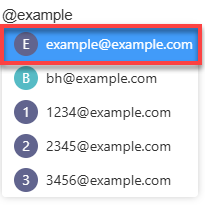
- The contact you selected is added to the recipient list automatically.
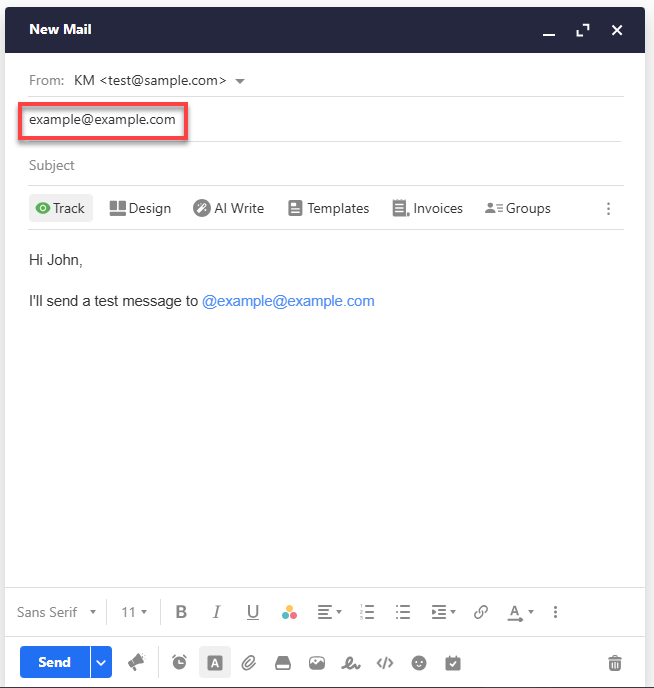
Things to Know
- Contact suggestions appear automatically once you type @ and a letter.
- If no saved contact matches, no suggestions are shown. In that case, type the full email address and press Tab to confirm it.
Summary
The Mention feature lets you add people to an email without leaving the message body. Type @ followed by a contact's name in the email body, select the contact from the suggestions, and they are added to the recipient list automatically. If no saved contact matches, type the full email address and press Tab to confirm.
If you need further assistance, Bluehost Chat Support is available 24 hours a day, 7days a week while Bluehost Phone Support is available 7 days a week from 7 am-12 midnight EST.
- Chat Support - While on our website, you should see a CHAT bubble in the bottom right-hand corner of the page. Click anywhere on the bubble to begin a chat session.
- Phone Support -
- US: 888-401-4678
- International: +1 801-765-9400
You may also refer to our Knowledge Base articles to help answer common questions and guide you through various setup, configuration, and troubleshooting steps.