 ChatGPT,
  Claude,
  Gemini,
  Grok — all four for
 Bluehost Professional Email: How to Share Files and Folders
Bluehost Professional Email Drive provides two ways to send files and folders to recipients: Share and Transfer. While both allow you to send content, they are designed for different use cases.
Share vs. Transfer: Which Should You Use?
Use Share when you want to provide ongoing access to files or folders stored in your Drive. Recipients can continue accessing the content through the same link and will automatically see any updates you make.
Use Transfer when you need to send a one-time copy of files or folders. A transfer creates a snapshot of the content at the time it is created, so recipients won't see changes made afterward.
Share vs. Transfer Comparison
| Feature | Share | Transfer |
|---|---|---|
| Purpose | Give ongoing access to files or folders in your Drive | Send a one-time copy of files or folders |
| What recipients see | Latest available version | A snapshot taken when the transfer was created |
| Live updates | Yes, recipients see updates automatically | No, later changes don't affect the transfer |
| Storage impact | Uses existing Drive storage only | Uses additional storage until the transfer expires |
| Default expiry | Never expires by default | 30 days by default |
| Maximum expiry | Never expires (limits may vary by plan) | Up to 90 days from creation |
| Password protection | Available on supported plans | Available on supported plans |
| Recipient note | Not available | Optional |
| Tracking (views/downloads) | Not available | Optional |
| Folder navigation | Recipients can browse folders | Folder browsing isn't available |
| After expiry | Link becomes inactive and can be reactivated | Link becomes inactive and cannot be modified |
Important: Feature availability, storage limits, download limits, password protection, and expiration settings may vary by Professional Email plan. For the latest plan details and feature availability, visit the Bluehost Professional Email website.
When to Use Share
Use Share if you:
- Want recipients to have access to the latest version of a file or folder.
- Need to collaborate on files that may change over time.
- Want recipients to browse shared folders and their contents.
- Need long-term access without creating duplicate copies of files.
When to Use Transfer
Use Transfer if you:
- Need to send a fixed copy of files or folders.
- Want to add a note for recipients.
- Need to track views and downloads.
- Want files to expire automatically after a specific period.
- Don't want future changes to affect what recipients receive.
Tip: If recipients need ongoing access to the latest content, use Share. If recipients need a downloadable copy that won't change after it's sent, use Transfer.
Log In to Professional Email Webmail
Option 1: Use the Login to Webmail Button
- Log in to your Bluehost Portal.
- From the left-hand navigation menu, click on the Email tab.
- Optional: In Professional Email, if multiple plans are listed, click Manage for the plan you want to use.

- You’ll be automatically redirected to the Email Management page, where you can manage your email settings and subscriptions.
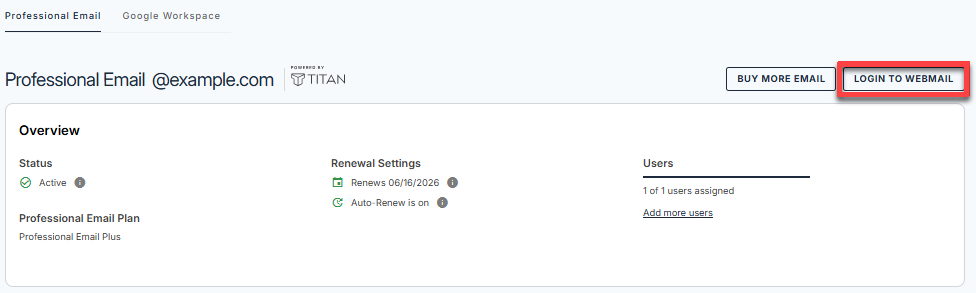
- Click the Login to Webmail button.
- Enter your Professional Email username and password.
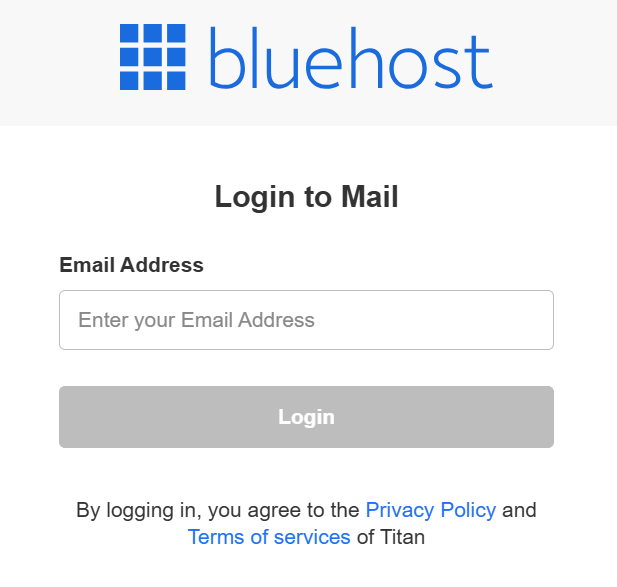
- Click Login.
Option 2: Use the Direct Login Link
- Go to the Professional Email login page.
- Enter your Professional Email username and password.
- Click Login.
Share Files and Folders
Use Bluehost Professional Email Drive's sharing feature to provide ongoing access to files and folders. Unlike Transfers, shared content remains linked to the original item in your Drive, so recipients see the latest version of the content.
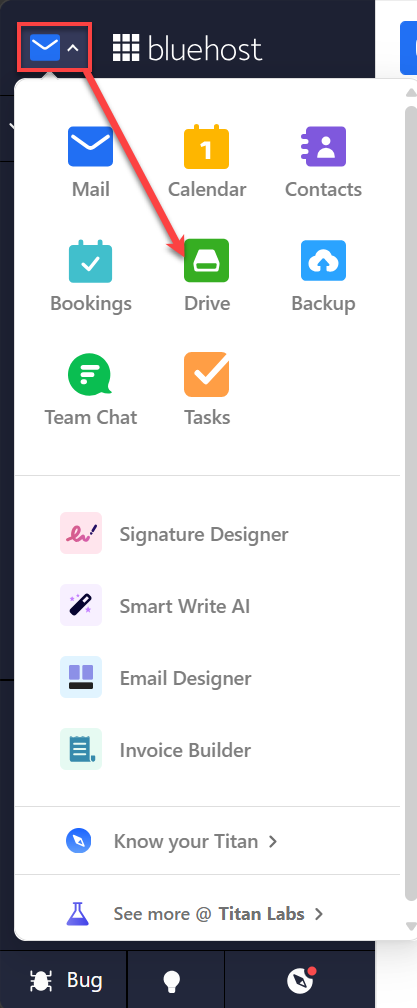
- Click the App Launcher icon in the upper-left corner.
- Select Drive.
- Locate the file or folder you want to share.
- Choose one of the following methods.
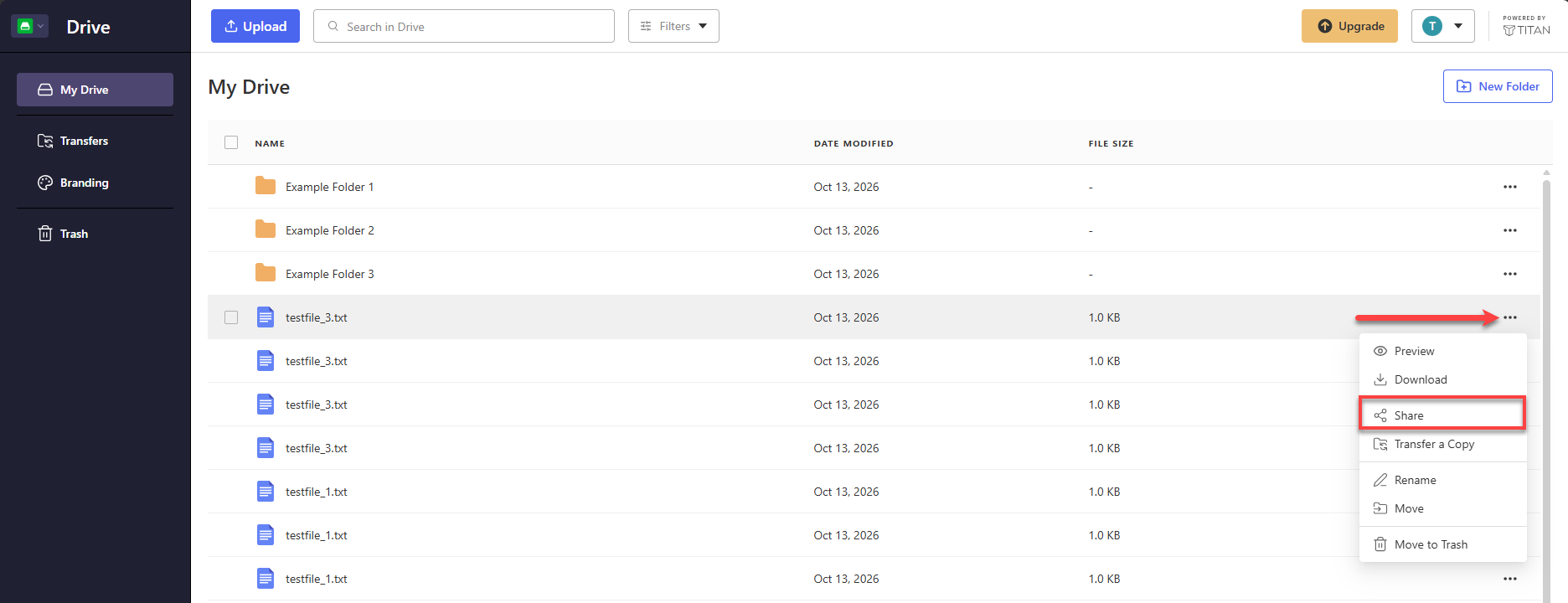
- Method 1: Click the More Actions (...) menu, then select Share.
- Method 2: Hover over the file or folder and click Share.
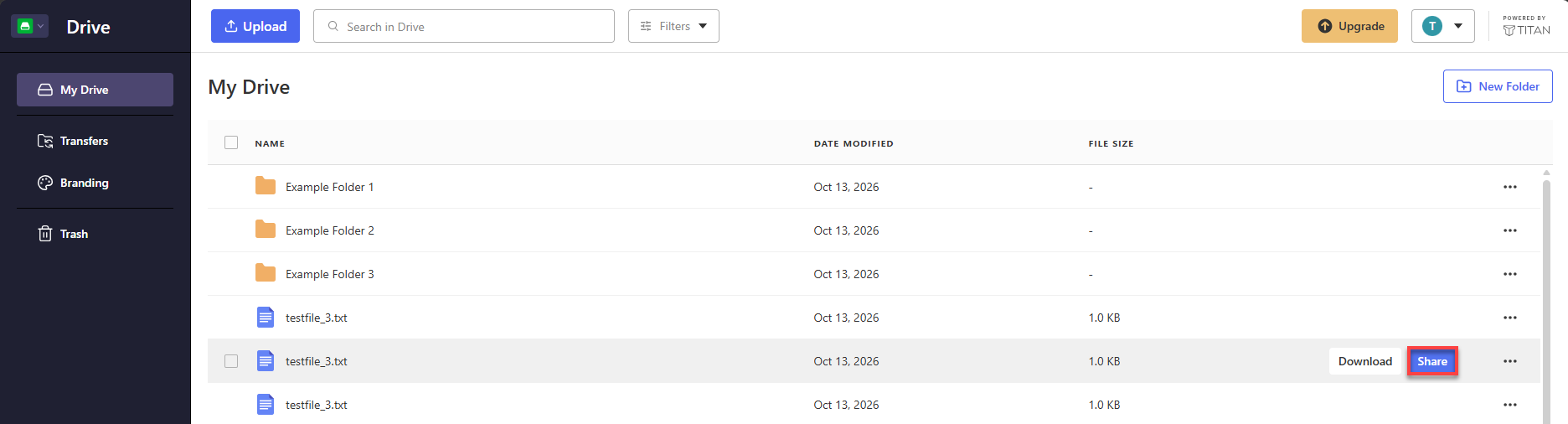 In the Share Link dialog that opens, click Share.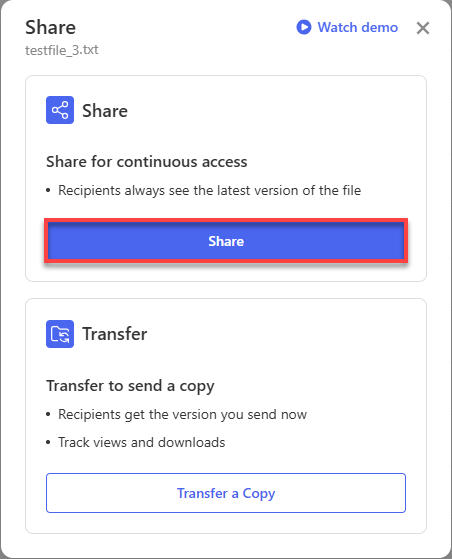
- Method 1: Click the More Actions (...) menu, then select Share.
- Configure the sharing options as needed.
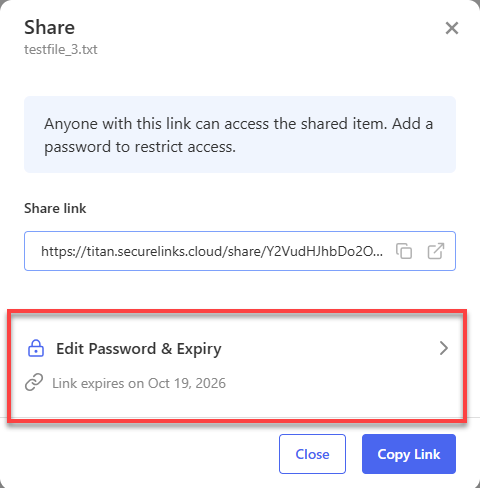
- Password: Protect your shared link with a password.
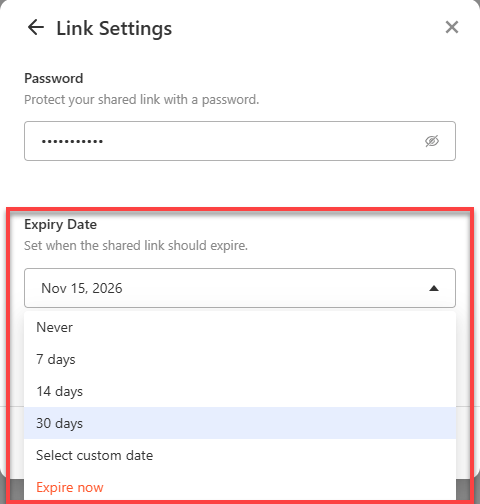
- Expiry Date: Set when the shared link should expire.
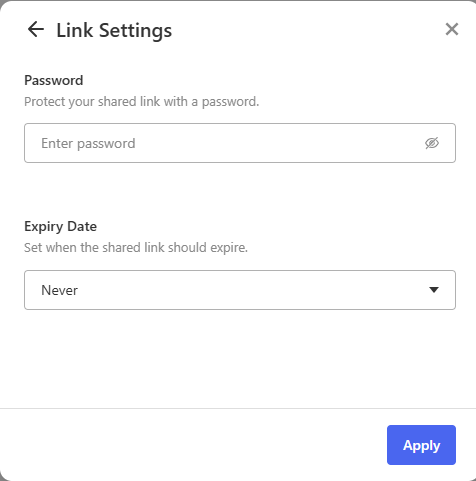
- Click Apply.
- Click Copy Link to copy the generated link and send it to your recipients.
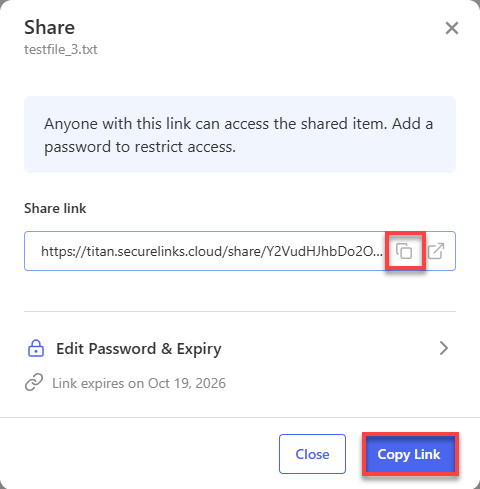
Share Link Dialog
The Share Link dialog allows you to manage sharing settings for a file or folder.
From this dialog, you can:
- Copy the share link.
- Add or remove password protection.
- Configure link expiration settings.
- Edit existing expiration settings.
- Reactivate expired links.
By default, share links remain active and are set to Never Expire.
Password Protection
You can add a password to help protect shared files and folders from unauthorized access.
To password-protect a shared item:
- Open the Share Link dialog.
- Enter a password.
- Click Apply.
- Copy the generated link.
- Share the link with recipients.
Recipients must provide the correct password before they can access the shared content.
Important Information
- Password protection availability may vary by email plan.
- Passwords remain hidden while being entered.
- Entering an incorrect password prevents access and displays an error message.
Link Expiry
You can control how long a share link remains active.
To configure link expiration:
- Open the Share Link dialog.
- Click Expiry Settings.
- Select an expiration option.
Available options include:
- 7 days
- 14 days
- 30 days
- Custom expiry date
- Never Expire
Note: Maximum expiry limits may vary depending on your email plan.
Once the expiration date is reached, recipients can no longer access the shared content unless the link is reactivated.
By default, share links are set to Never Expire.
Reactivate Expired Links
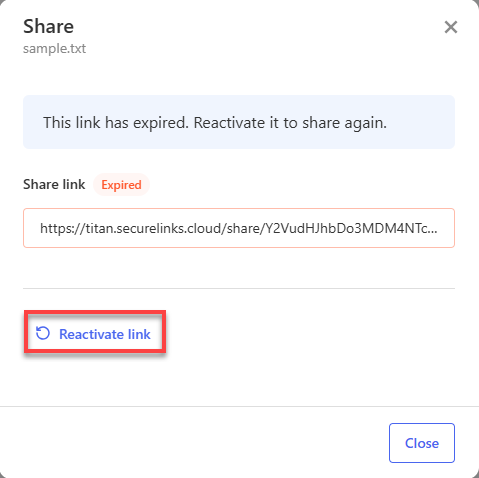
Expired share links can be reactivated from the Share Link settings.
To reactivate a link:
- Open Professional Email Drive.
- Locate the shared file or folder.
- Open the Share settings.
- Click Reactivate Link.
- Set a new date when the shared link should expire.
Once reactivated:
- Access to the shared content is restored.
- The original sharing link may continue to work.
- The same shared content becomes available again.
By default, reactivated links expire after 30 days, unless you choose a different expiration setting.
Note: Share links that remain inactive for more than 6 months after expiration may be regenerated with a new link for security purposes.
What Recipients See
Recipients can access shared files and folders directly from the shared link.
If the Link Is Password Protected
Recipients are first taken to a password entry page.
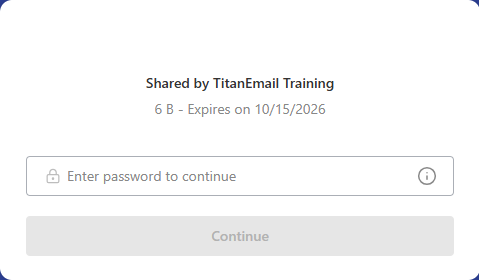
After entering the correct password, the shared content becomes available.
Shared Files Page
The Shared Files page allows recipients to interact with the content that was shared.
Depending on what was shared, recipients can:
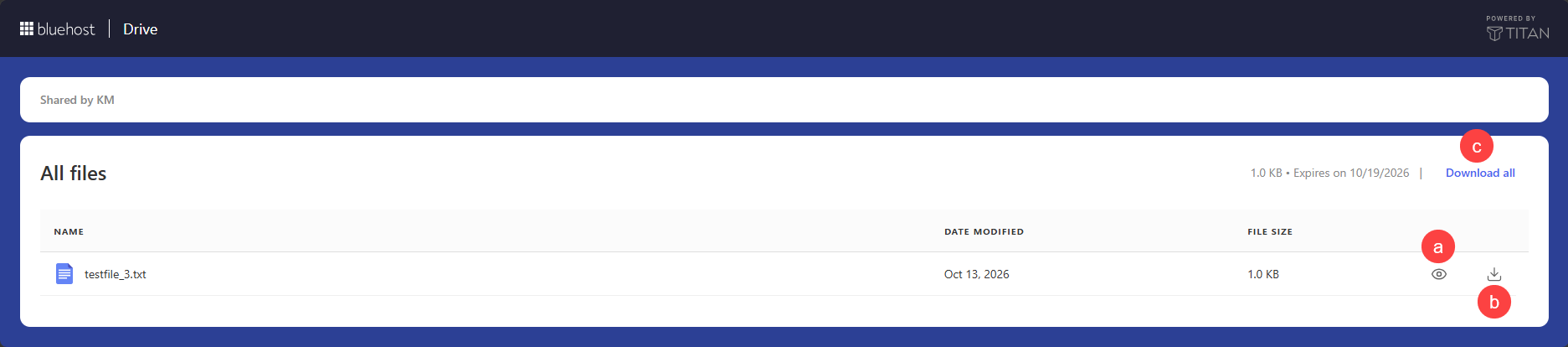
- Preview supported file types.
- Download individual files.
- Download all shared files.
- Navigate through shared folders.
- View updated versions of files using the same link.
Because shared content remains connected to the original file or folder, recipients see the latest available version.
Download Limits for Recipients
Download limits for shared files and Transfers may vary depending on the email plan.
Each time a recipient selects:
- Download
- Download All
it counts as one download.
Note: Once the maximum download limit has been reached, recipients can no longer download the files.
If recipients attempt another download after the limit has been reached, a Download limit reached message is displayed.
Recipients may need to contact the sender for assistance if download limits have been exhausted.
About Branded Sharing Pages
Professional Email Drive supports branded sharing pages that allow organizations to customize the sharing experience.
With branded sharing pages, organizations can present shared content using customized branding elements, creating a more professional and recognizable experience for recipients.
This can help recipients identify the sender and increase trust when accessing shared content.
Summary
Bluehost Professional Email Drive gives you flexible ways to share files and folders based on how recipients need to access your content. Use Share when you want recipients to have ongoing access to the latest version of files or folders, with options such as password protection, link expiration, and link reactivation. Use Transfer when you need to send a one-time copy that remains unchanged, with additional features such as recipient notes, download tracking, and automatic expiration. Understanding the differences between these options helps you choose the most effective method for distributing files with the appropriate level of access control and sharing flexibility.
If you need further assistance, Bluehost Chat Support is available 24 hours a day, 7days a week while Bluehost Phone Support is available 7 days a week from 7 am-12 midnight EST.
- Chat Support - While on our website, you should see a CHAT bubble in the bottom right-hand corner of the page. Click anywhere on the bubble to begin a chat session.
- Phone Support -
- US: 888-401-4678
- International: +1 801-765-9400
You may also refer to our Knowledge Base articles to help answer common questions and guide you through various setup, configuration, and troubleshooting steps.