 ChatGPT,
  Claude,
  Gemini,
  Grok — all four for
 Purchase a Virtual Dedicated Server with OpenClaw Installation
OpenClaw is an open-source, self-hosted AI assistant that you run yourself and connect to apps like WhatsApp, Telegram, Discord, Signal, Slack, and iMessage. You keep full control of your data because everything runs on your own infrastructure instead of someone else's cloud. A Virtual Dedicated Server gives you that control without the cost of buying physical hardware. It gives your assistant a private slice of a server with guaranteed CPU, RAM, and storage, so it runs faster and more reliably than on shared hosting. You also get root access, letting you install Node.js, Docker, and any extra tools your assistant needs, all while it stays online 24/7.
This article explains how to purchase a Bluehost Virtual Dedicated Server (VDS) hosting plan and set up and manage your OpenClaw Assistant.
Why Choose OpenClaw?
You get an AI assistant that runs 24/7 without buying or maintaining physical hardware. You enjoy fast, reliable performance because your VDS gives you dedicated CPU, RAM, and storage that you don't share with other users. You also keep full control over your data, since everything runs on infrastructure you own instead of a third-party cloud.
Uses of OpenClaw
OpenClaw adapts to a wide range of real-world scenarios, giving you the flexibility to automate exactly what you need.
- Customer Support Automation: Deploy AI agents to handle routine customer queries across WhatsApp, Telegram, Slack, and more.
- Team Collaboration: Integrate OpenClaw with internal chat tools to automate reminders, scheduling, and information retrieval.
- Personal Productivity: Use OpenClaw as a personal assistant for task management, notifications, and smart responses.
- Custom Workflows: Build and extend OpenClaw with plugins to automate business processes, monitor systems, or connect to external APIs.
- Secure Messaging: Maintain privacy and control by running your AI agent on your own VPS, keeping all interactions and data in-house.
Whichever use case fits your needs, OpenClaw gives you the freedom to customize and scale your AI agent as you grow.
How to Purchase a Virtual Dedicated Server with OpenClaw Installation
OpenClaw can be installed on a Bluehost Virtual Dedicated Server (VDS). You can choose to have OpenClaw installed during the initial VDS purchase or install it manually at a later time.
- In your browser, go to https://www.bluehost.com.
- Click Hosting in the top menu, then select Virtual Dedicated Server.
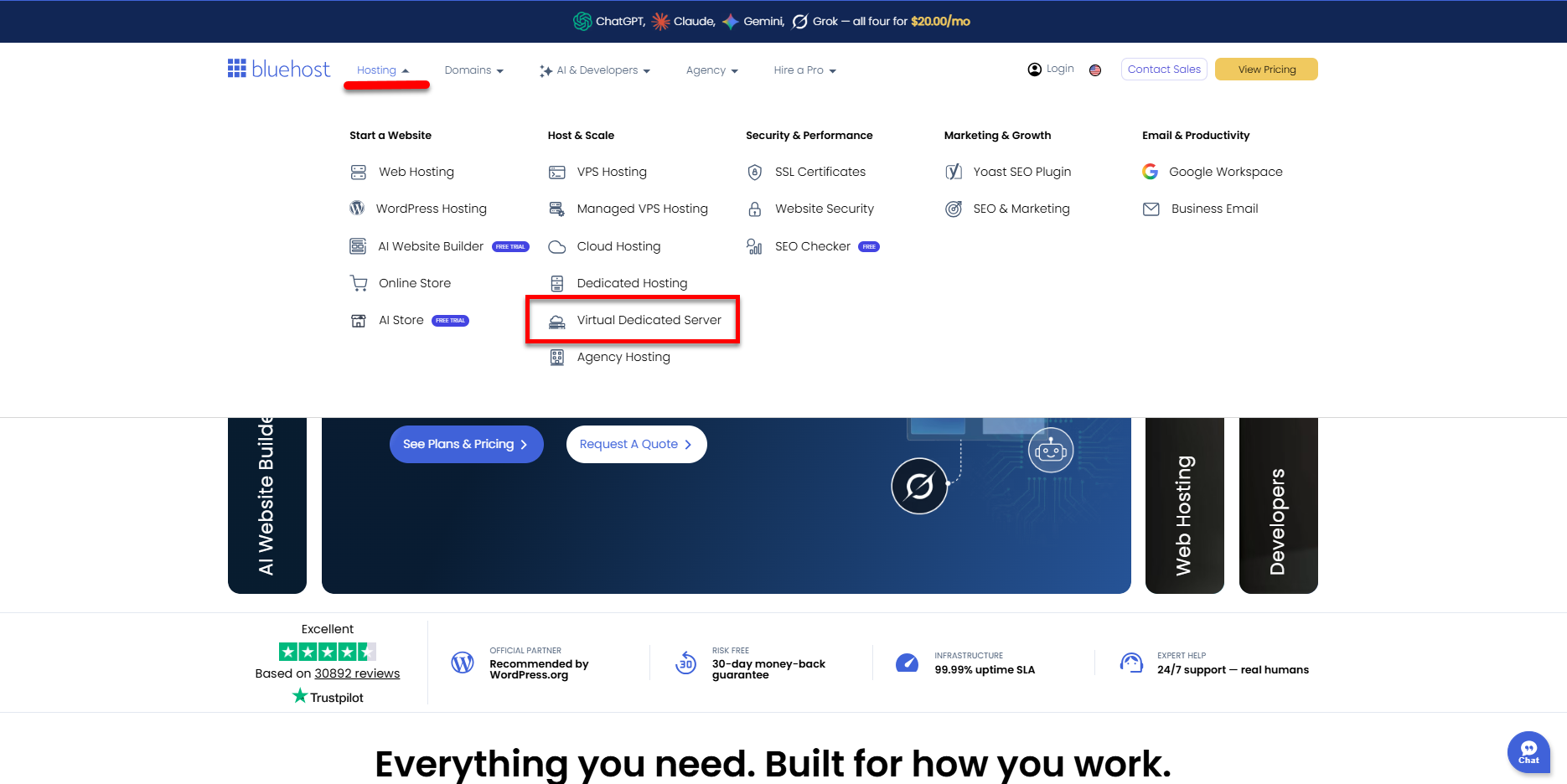
You can also go to this link directly: https://www.bluehost.com/vds-hosting.
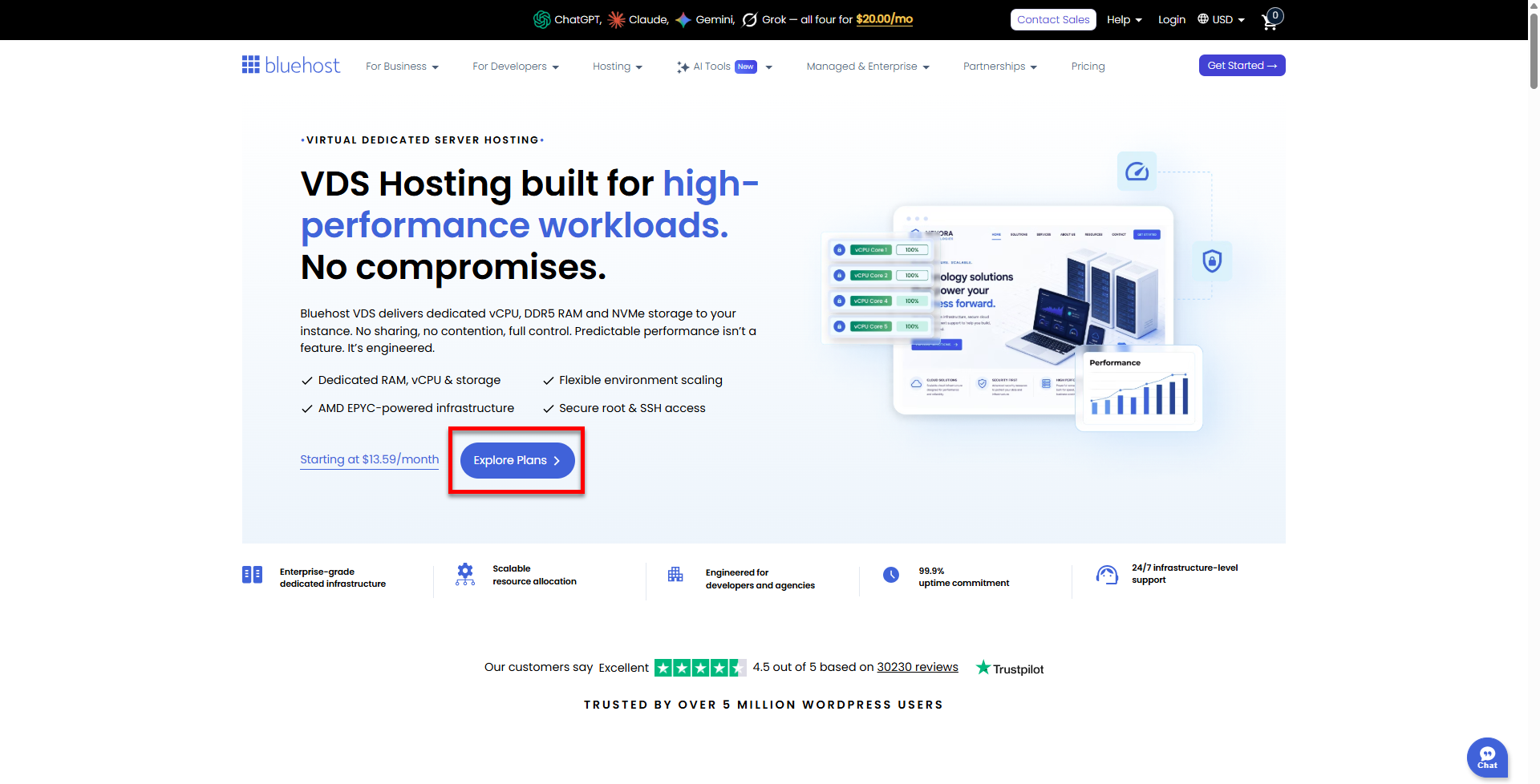
- On the Virtual Dedicated Server Hosting page, click Explore Plans. You can also scroll down to the hosting plans section.
- Choose a plan from either tab — Standard or High Performance — by clicking Choose Plan.
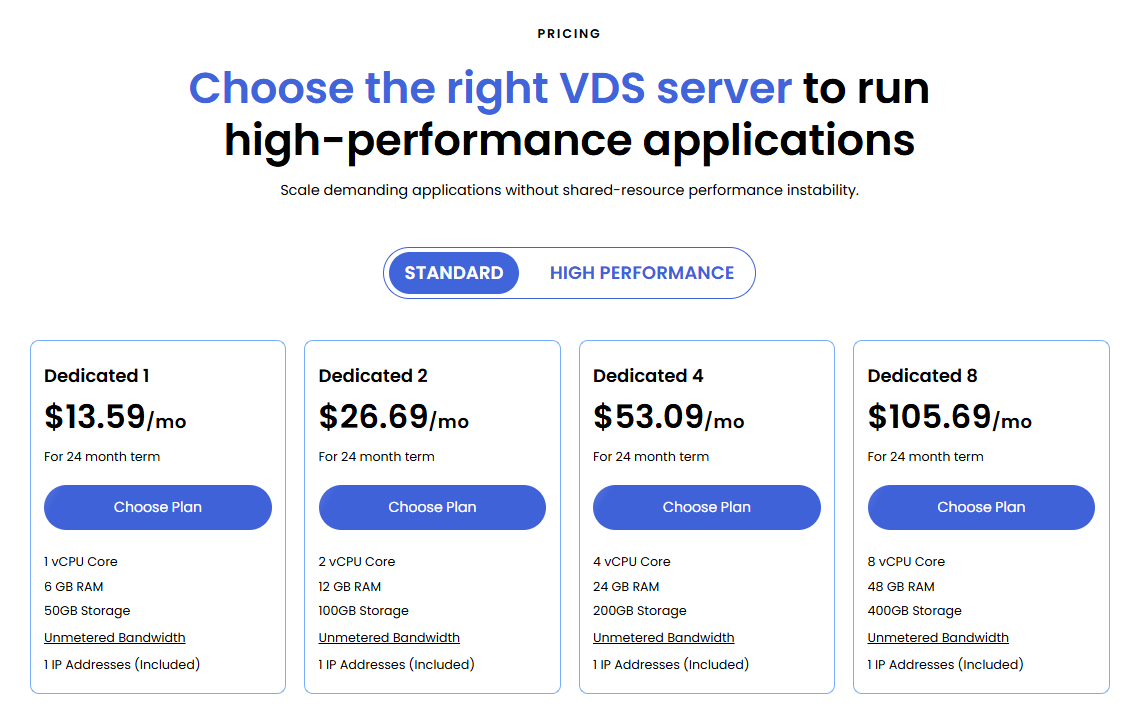
Pricing is subject to change. Please visit https://www.bluehost.com/vds-hosting for the current introductory/sign-up offer for the Bluehost Virtual Dedicated Server hosting. For the most up-to-date renewal pricing, visit your Bluehost Portal's Renewal Center. - On the next page, configure your VDS hosting to meet your requirements. The configuration options are divided into the following sections:
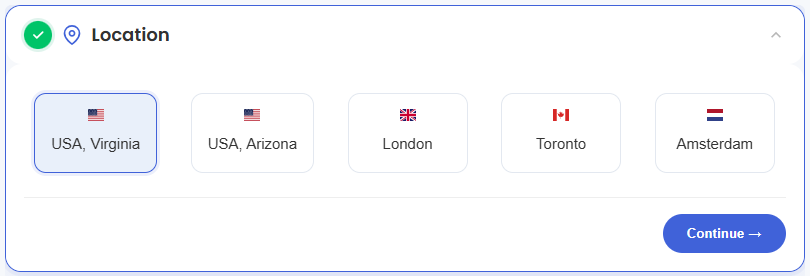
- Location: Select your data center in this section.
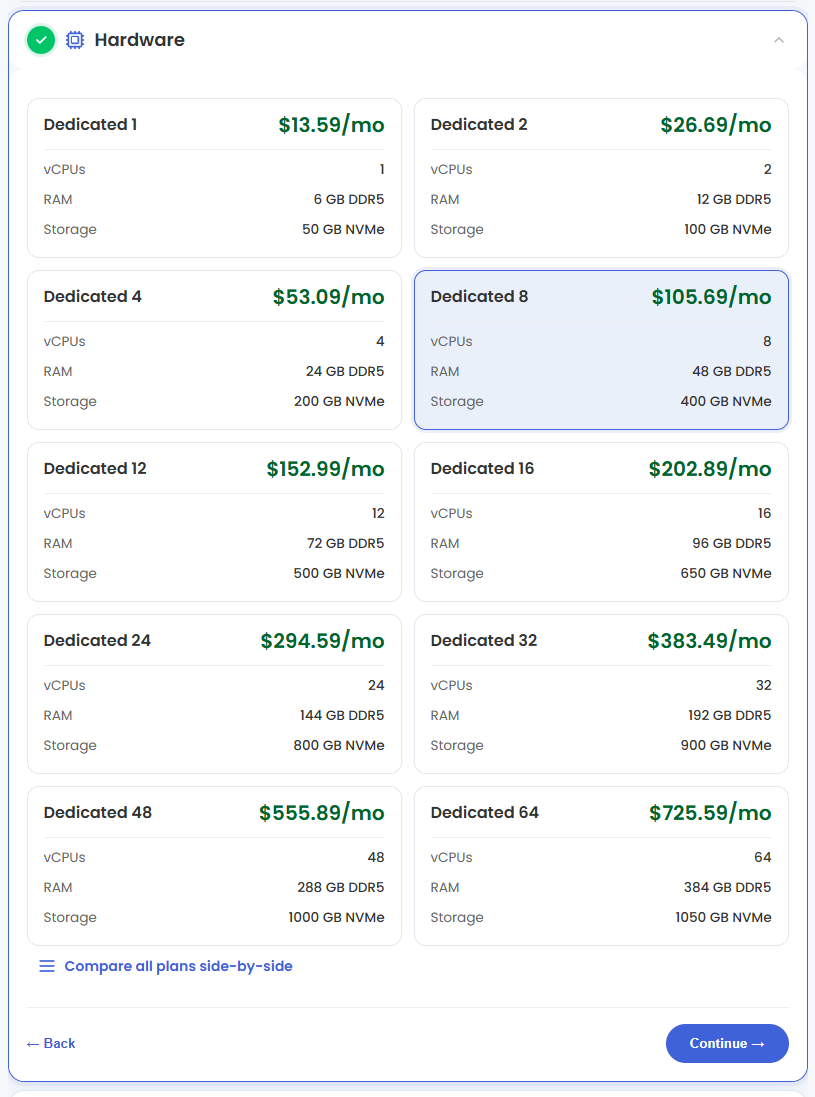
- Hardware: This section shows your pre-selected plan. You can also switch to another Virtual Dedicated Server plan in this section
- Software:
If the selected plan does not meet the app's minimum requirements, the app will be grayed out.
- Under the Application tab, click on OpenClaw.
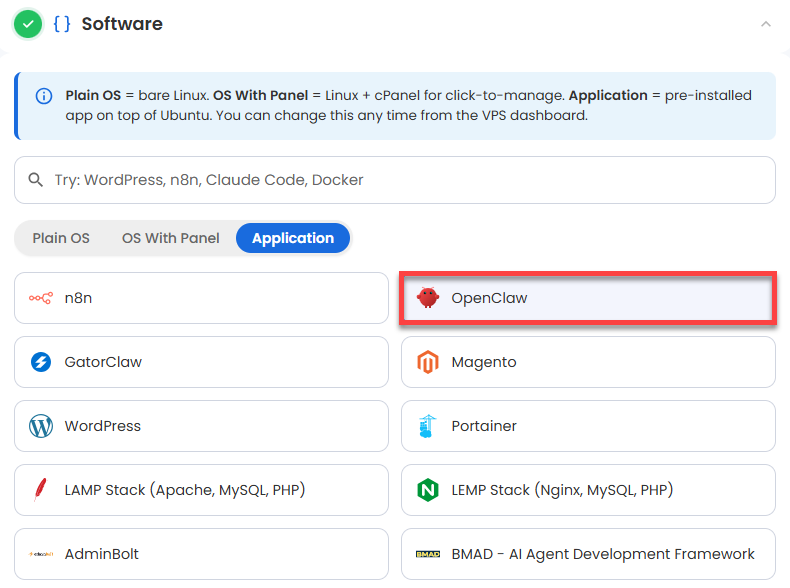 You can install only one application per purchase; the system will automatically select the best operating system for it.
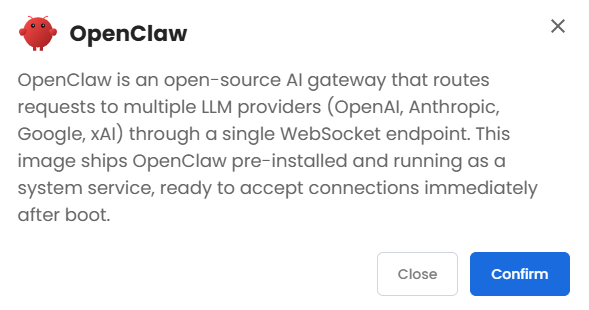
 - In the pop-up, click Confirm.
- Under the Application tab, click on OpenClaw.
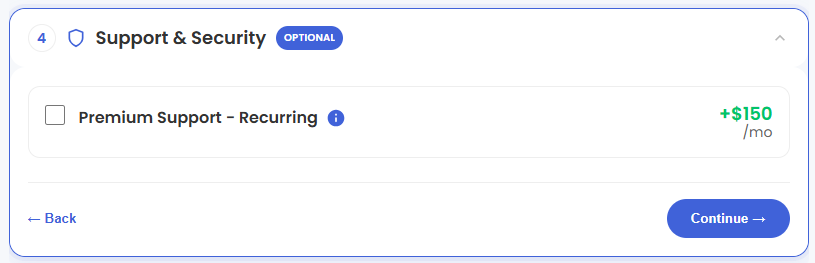
- Support & Security: You can add Premium Support - Recurring, which provides priority access to expert assistance and faster response times.
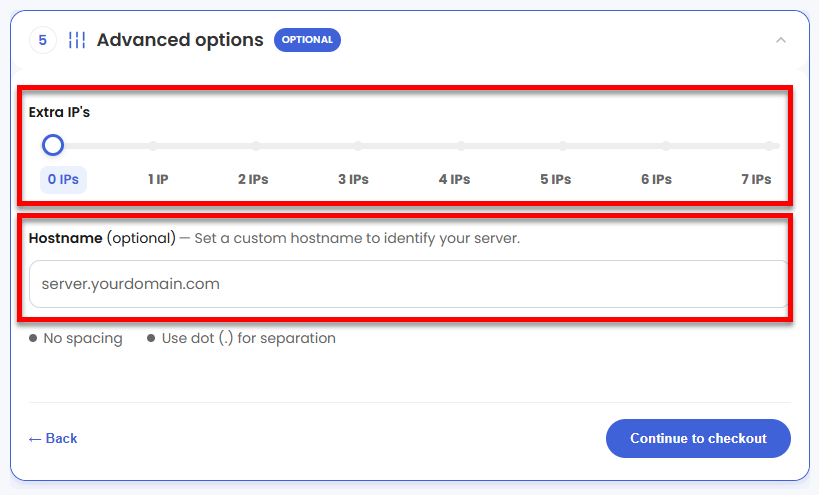
- Advanced Options:
- Extra IP's: You can add IP addresses for an additional fee. Pricing changes based on how many IPs you add.
- Hostname: Assign a custom hostname to identify your server. This is optional.
- Location: Select your data center in this section.
- Select your billing term and review your selected items on the right pane, along with the summarized total cost.
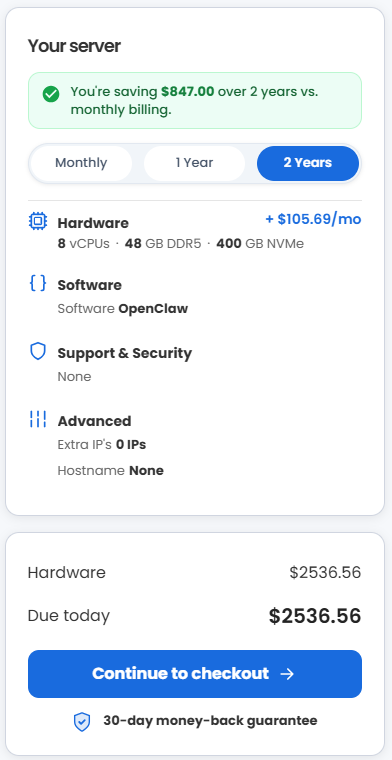
- Click Continue to checkout.
- Do the following on the Checkout page:
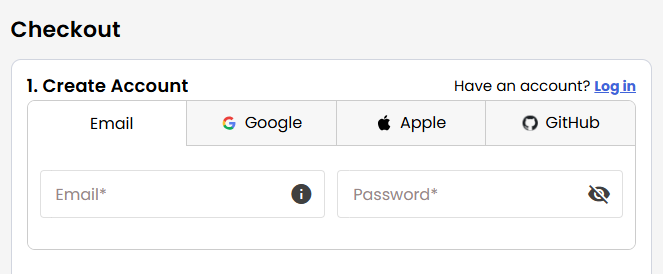
If you're new to Bluehost:- Create your Bluehost account by using your email address or by connecting with your Google, Apple, or GitHub account — whichever you prefer!
- Select your preferred payment method: credit card, Google Pay, or PayPal. Enter your billing information.
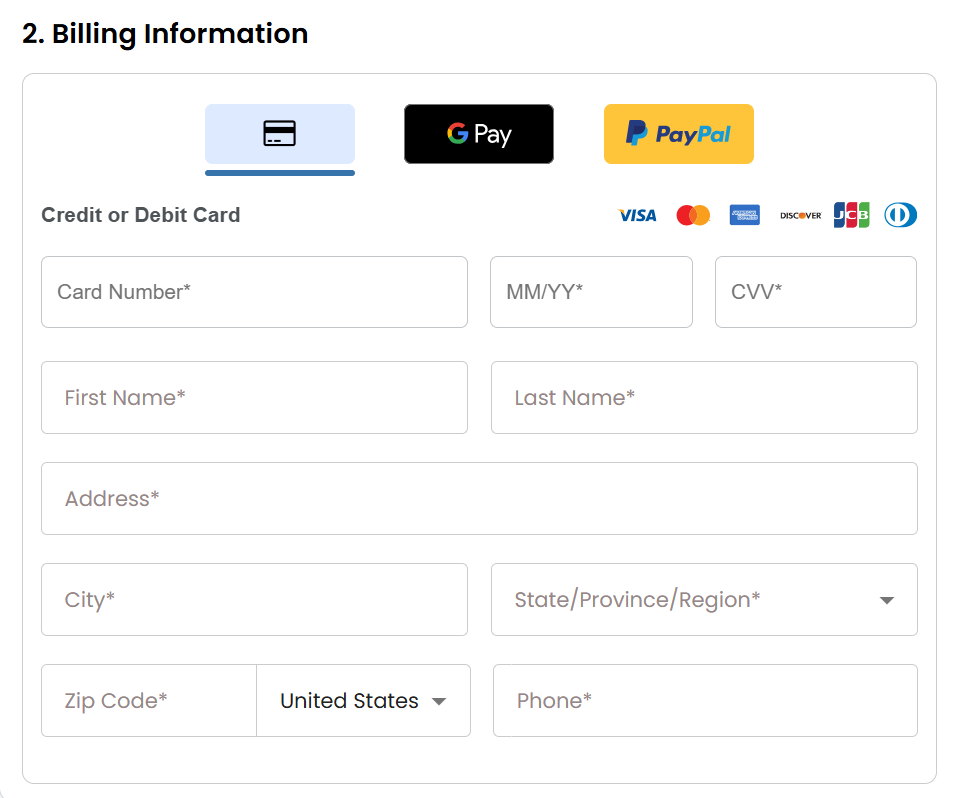
If you have an account with us, you will see your Bluehost login details when you are logged into your Bluehost Portal. If you are not logged in, please click the Log In link.
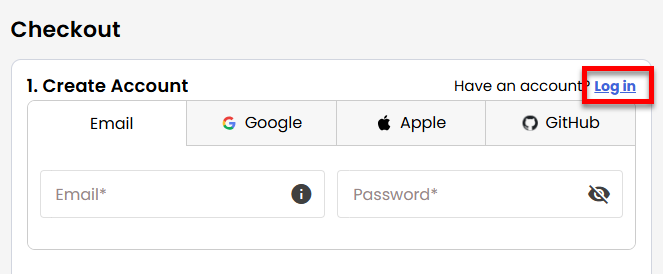
- Create your Bluehost account by using your email address or by connecting with your Google, Apple, or GitHub account — whichever you prefer!
- In the Shopping Cart, choose your billing term if you did not choose one on the previous page.
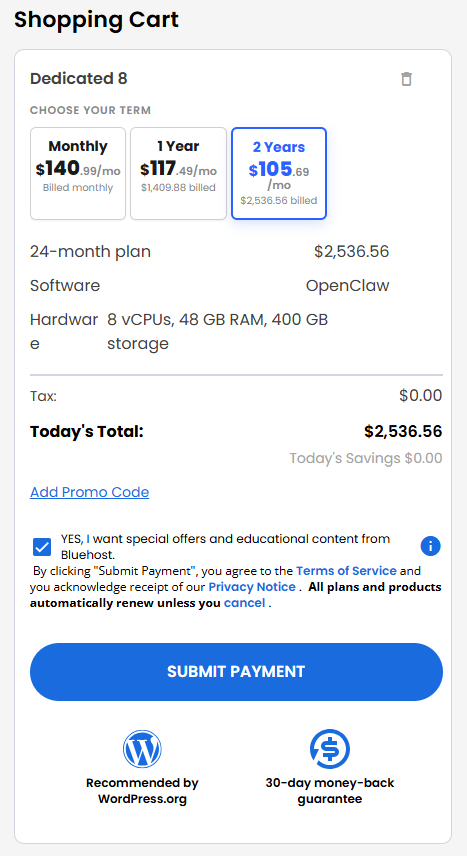
- Add a Promo code if you have one, and then click Submit Payment to complete your purchase.
After completing the purchase, your VDS hosting will begin provisioning. You can access and manage your new VDS hosting in the Hosting tab of your Bluehost Portal.
Summary
OpenClaw is an open-source, self-hosted AI assistant that connects to apps like WhatsApp, Telegram, Slack, and more, while keeping your data fully under your control. Running it on a Bluehost Virtual Dedicated Server (VDS) gives your assistant dedicated CPU, RAM, and storage for fast, reliable, always-on performance. You can use OpenClaw for tasks like customer support automation, team collaboration, personal productivity, and secure messaging, all customizable to your needs. This article walks you through purchasing a Bluehost VDS plan with OpenClaw, from choosing your server configuration to completing checkout and accessing your new hosting.