 ChatGPT,
  Claude,
  Gemini,
  Grok — all four for
 Purchase a Virtual Dedicated Server Hosting from Bluehost
Bluehost's Virtual Dedicated Server (VDS) hosting offers dedicated CPU, RAM, and fast storage for reliable performance. It combines the benefits of VPS and Dedicated hosting, making it ideal for growing businesses, SaaS platforms, and resource-intensive websites.
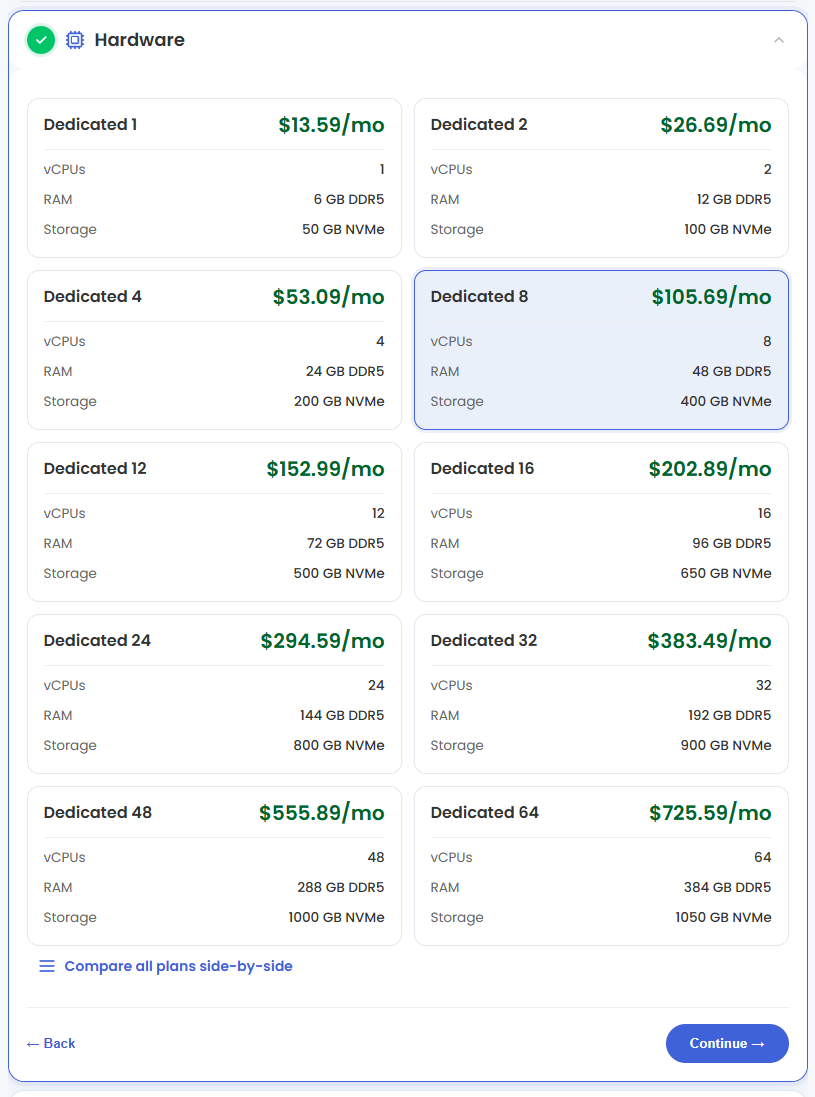
Here at Bluehost, we offer the following VDS hosting plans:
- Dedicated 1
- Dedicated 2
- Dedicated 4
- Dedicated 8
- Dedicated 16
- Dedicated 32
- Dedicated 64
This video will walk you through purchasing a Virtual Dedicated Server hosting plan at Bluehost.
How to Purchase a Virtual Dedicated Server Hosting
- In your browser, go to https://www.bluehost.com.
- Click the For Developers tab in the top menu, then select Virtual Dedicated Server.
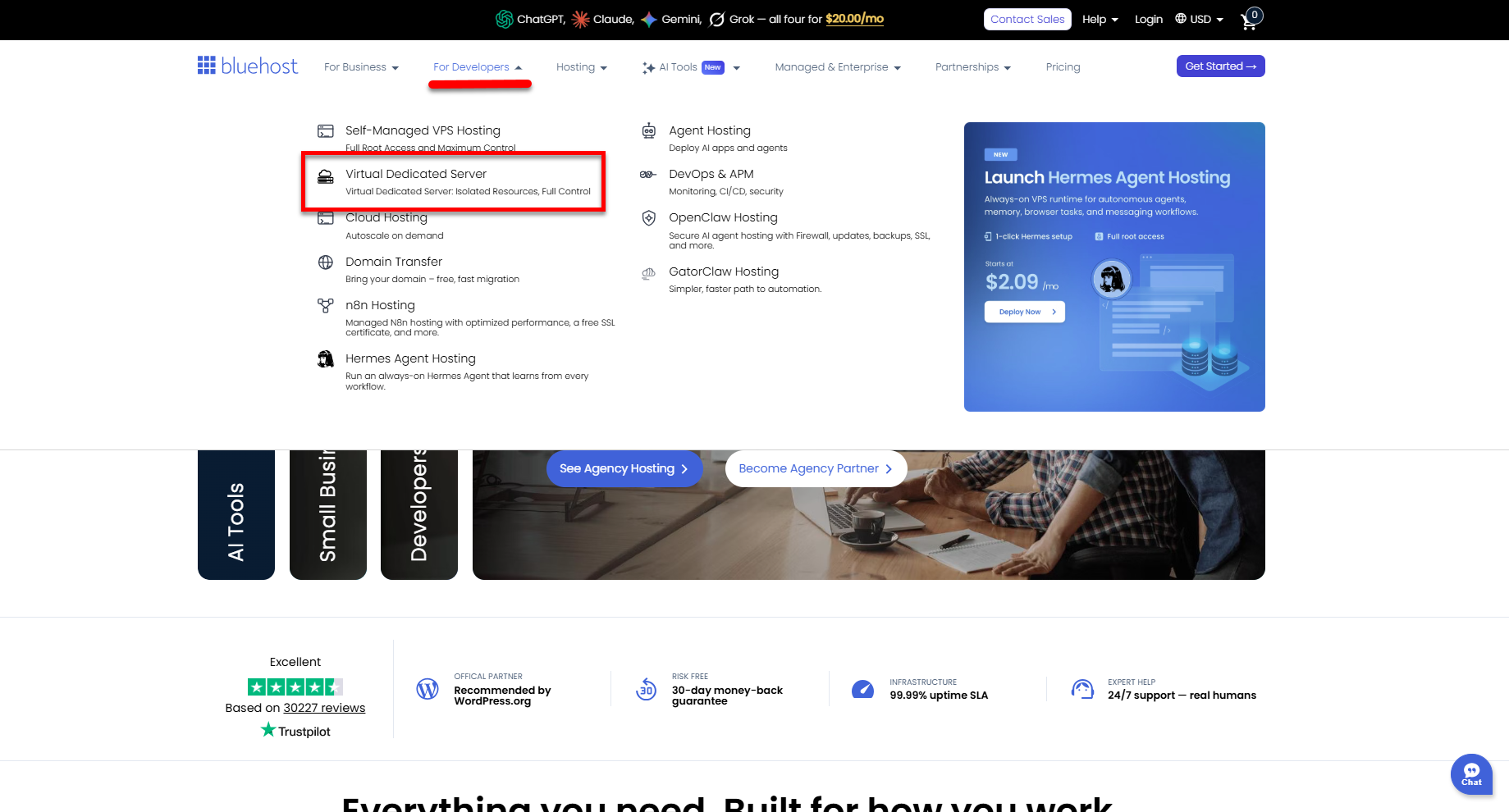
You can also directly go to https://www.bluehost.com/vds-hosting.
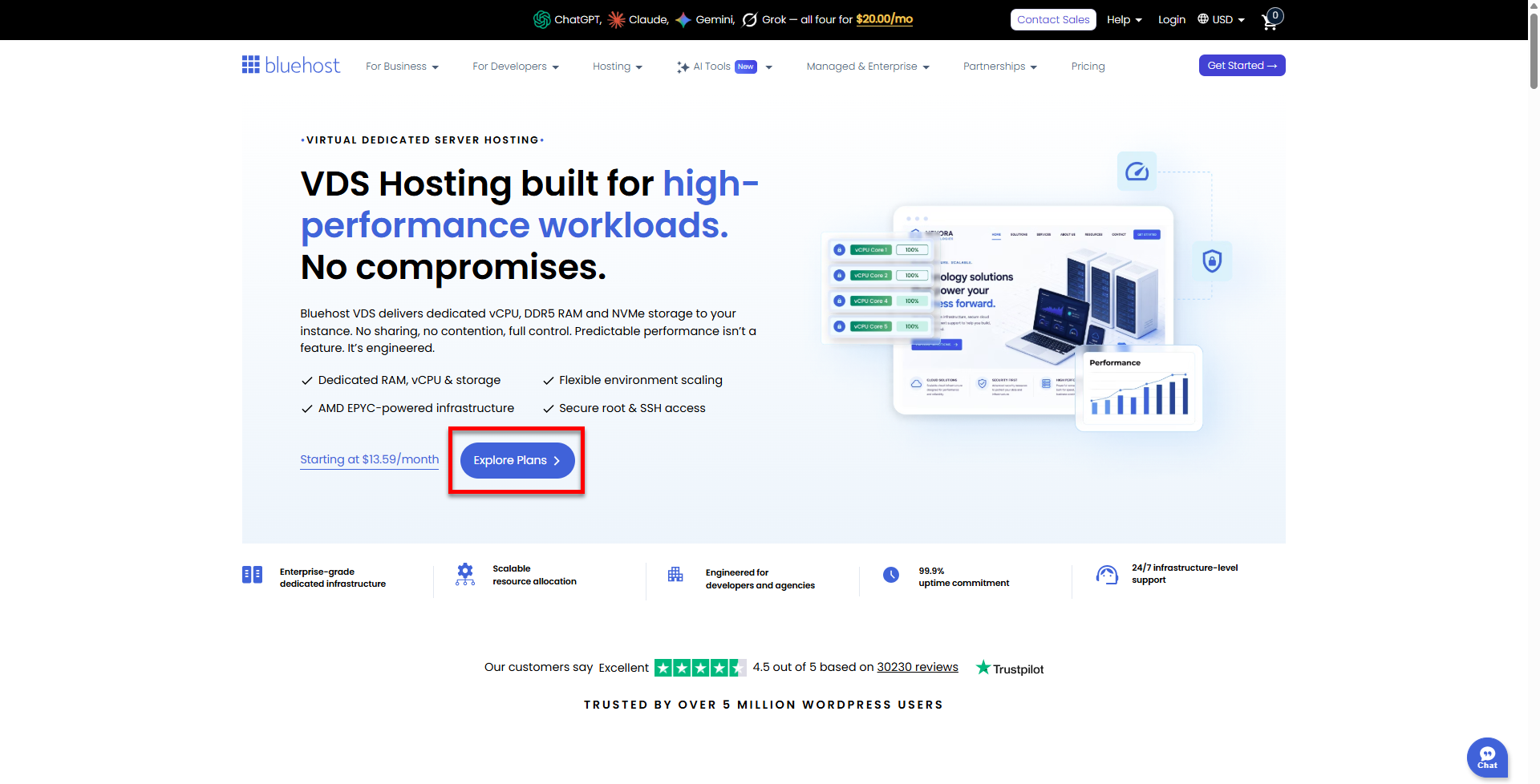
- On the VDS page, click on the Explore Plans button or scroll down to the VDS hosting plans section.
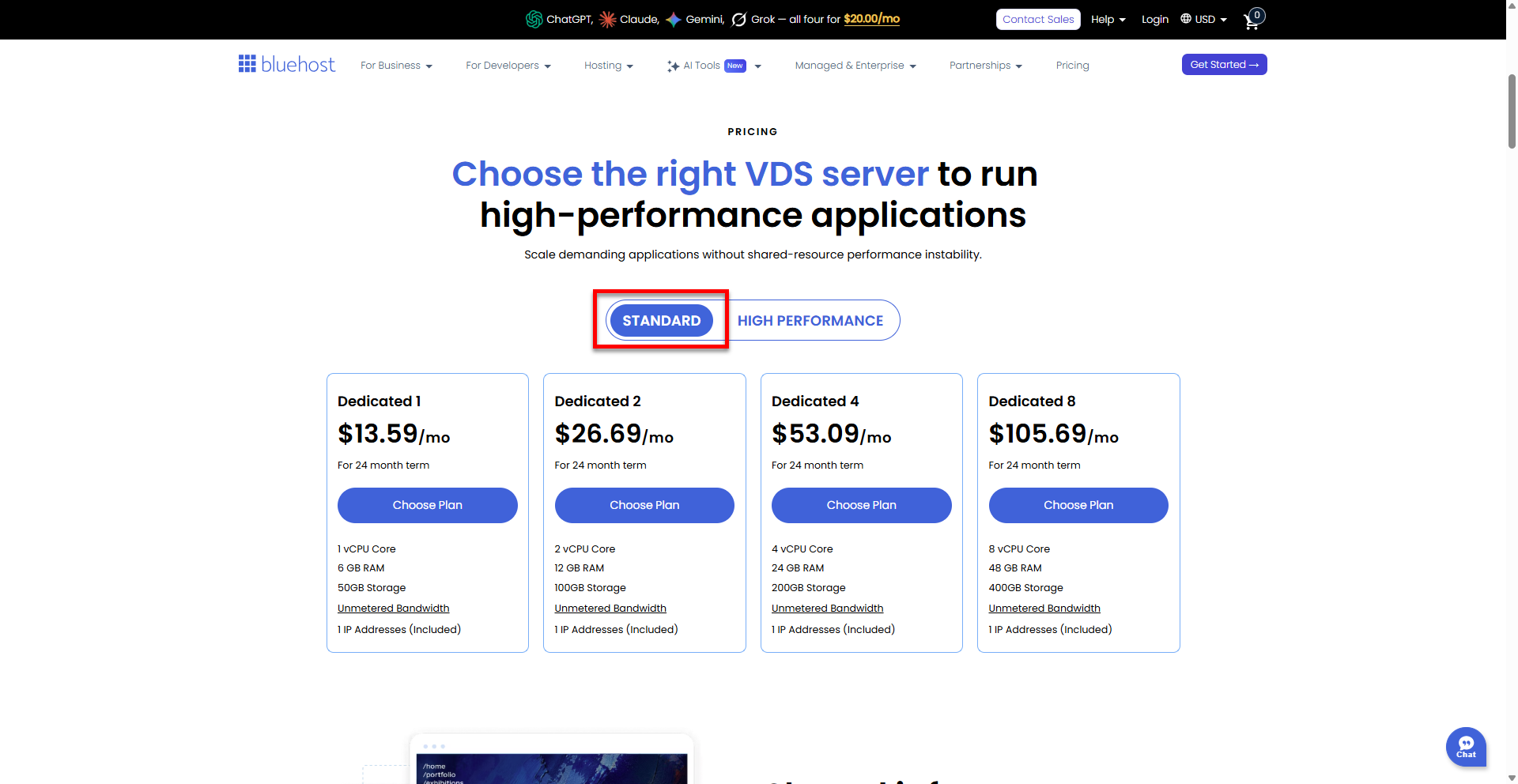
- The VDS hosting plans are divided into two tabs.
Under the Standard tab, you have the following VDS plans:
- Dedicated 1
- Dedicated 2
- Dedicated 4
- Dedicated 8
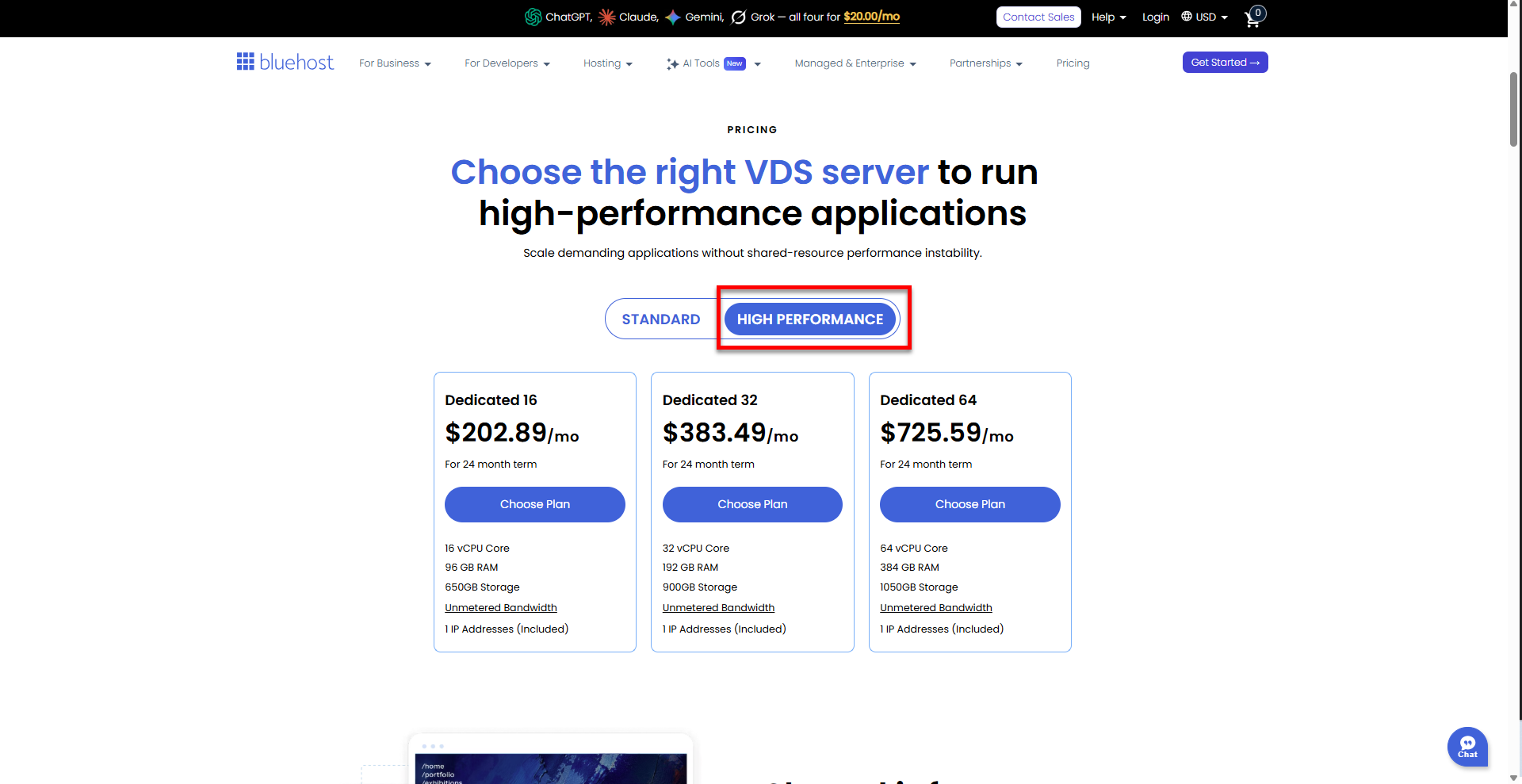
Under the High Performance tab, you'll see the following VDS plans:
- Dedicated 16
- Dedicated 32
- Dedicated 64
Select your preferred VDS hosting by clicking the Choose Plan button.
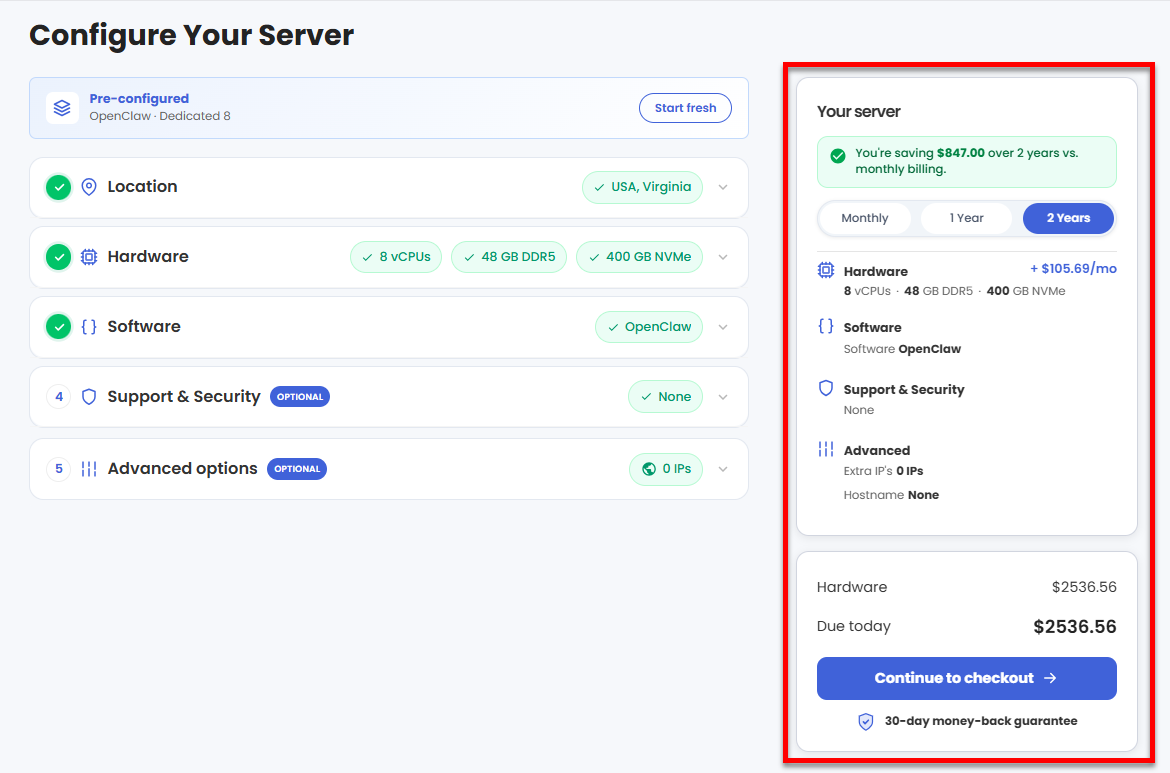
Pricing is subject to change. Please visit https://www.bluehost.com/vds-hosting for the current introductory/sign-up offer for the Bluehost Virtual Dedicated Server hosting. For the most up-to-date renewal pricing, visit your Bluehost Portal's Renewal Center. - On the next page, you can configure your VDS hosting server to fit your hosting needs. They are divided into the following sections.
- Location: Select your data center in this section.
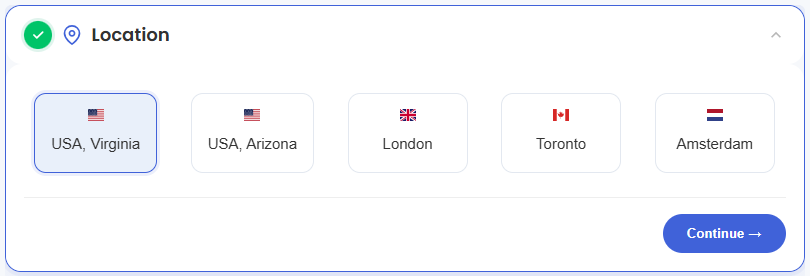
- Hardware: This section shows your pre-selected plan. You can also switch to another Virtual Dedicated Server plan in this section.
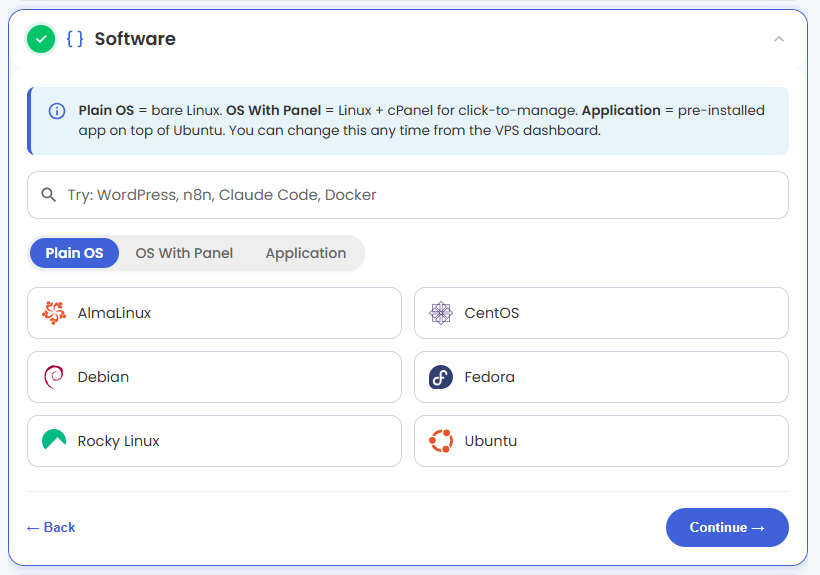
- Software: You can further customize your VDS server from the three tabs: Plain OS, OS With Panel, and Application.
- Plain OS:
- AlmaLinux: A free, open-source Linux distribution designed to be a stable and community-driven alternative to CentOS, ideal for enterprise use.
Available Versions: 8,9, and 10 - Debian: One of the oldest and most stable Linux distributions, known for its reliability and vast software repository, great for servers and desktops.
Available Versions: 12 and 13 - Rocky Linux: Created as a community-driven successor to CentOS, focusing on stability and compatibility for enterprise environments.
Available Versions: 8, 9, and 10 - CentOS: A free, enterprise-class Linux distribution initially derived from Red Hat Enterprise Linux (RHEL), widely used in servers; now shifted focus to CentOS Stream.
Available Versions: 9 and 10 - Fedora: A cutting-edge Linux distribution sponsored by Red Hat, known for incorporating the latest features and technologies, popular among developers and tech enthusiasts.
Available Versions: 41, 42, and 43 - Ubuntu: A user-friendly and popular Linux distribution based on Debian, great for beginners and widely used on desktops, servers, and cloud environments.
Available Versions: 22.04, 24.04, 25.04, and 25.10
- AlmaLinux: A free, open-source Linux distribution designed to be a stable and community-driven alternative to CentOS, ideal for enterprise use.
- OS With Panel:
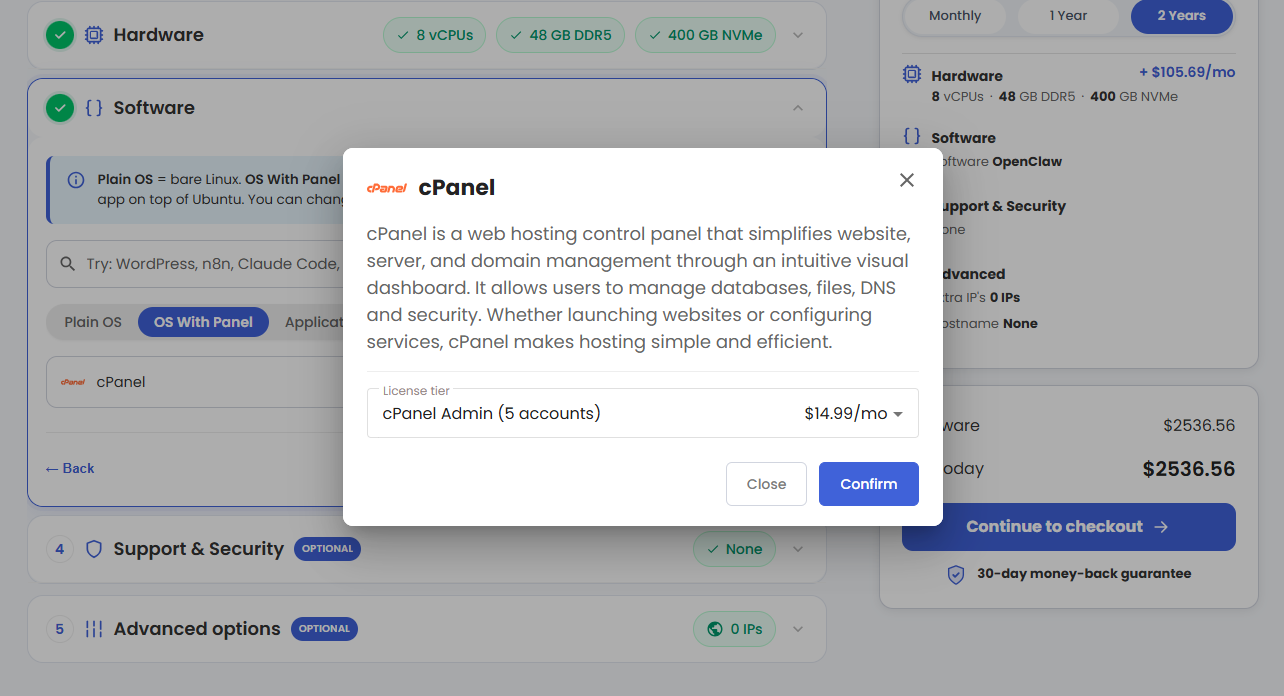
Click cPanel to add up to 100 cPanel accounts to your server with an additional fee.
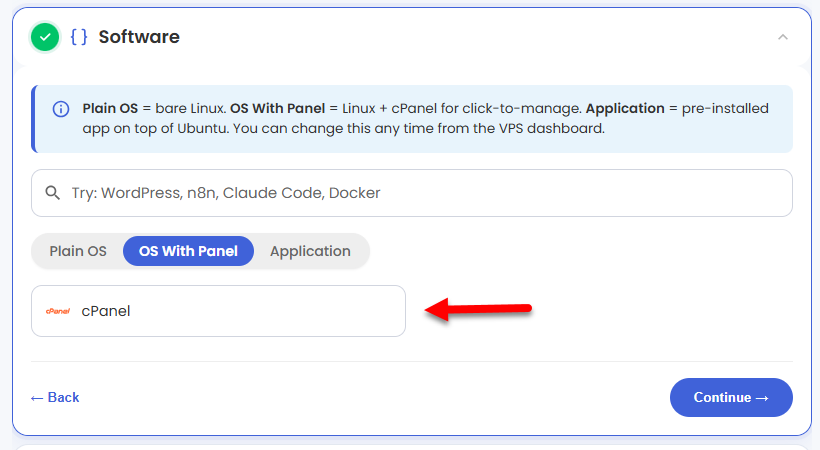
In the pop-up, select our preferred cPanel licensed tier, then click on Confirm.
- Application:
Select the preferred application for your VDS hosting.
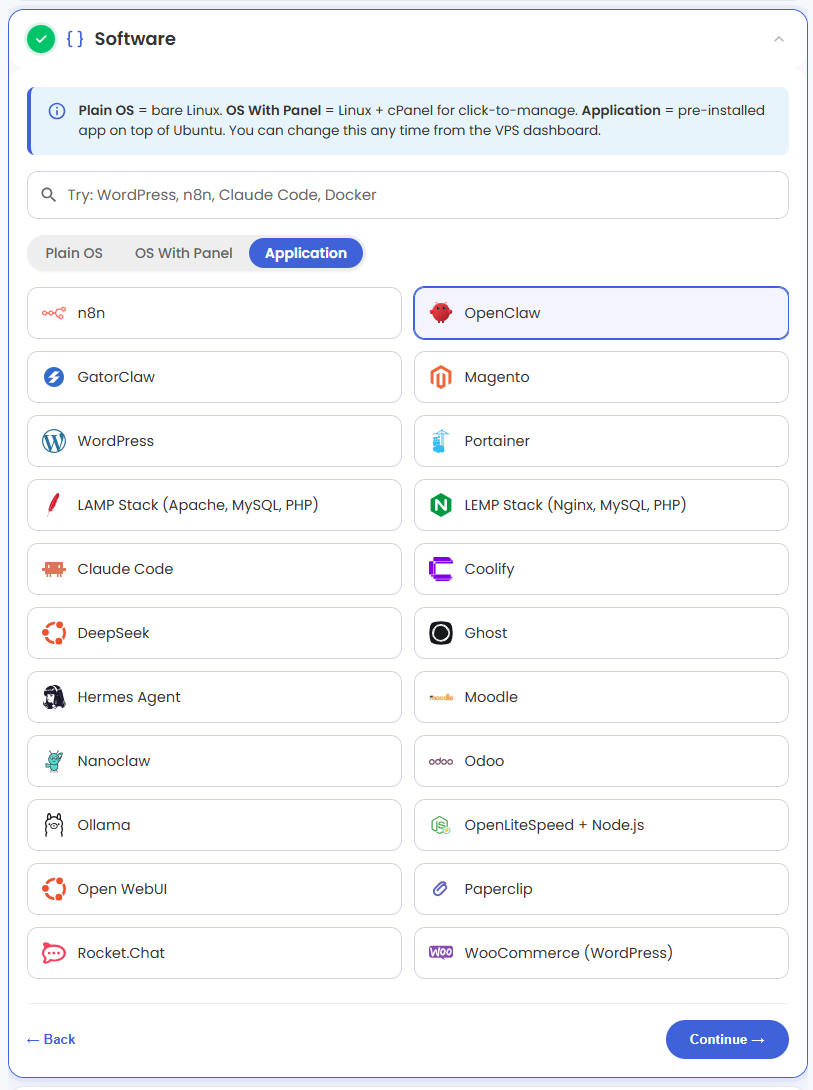 You can install only one application per purchase; the system will automatically select the best operating system for it.
In the pop-up, click on Confirm.
- Plain OS:
- Support & Security:
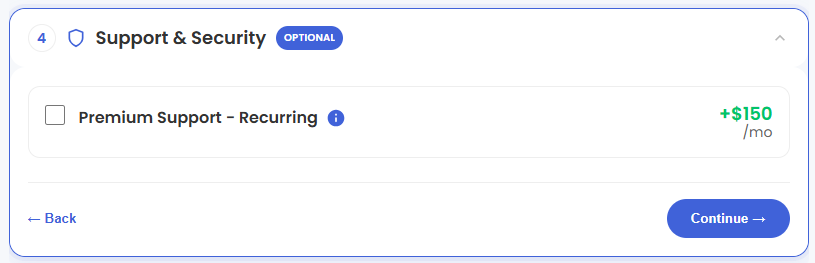
- Support: Selecting cPanel brings you cost-effective support for all cPanel services, so you have all the help you require at a great value.
- Premium Support: Opting for any software other than cPanel grants you access to Premium Support. This service provides you with priority access to our expert team for faster responses and personalized assistance whenever you need it.
- Advanced Options:
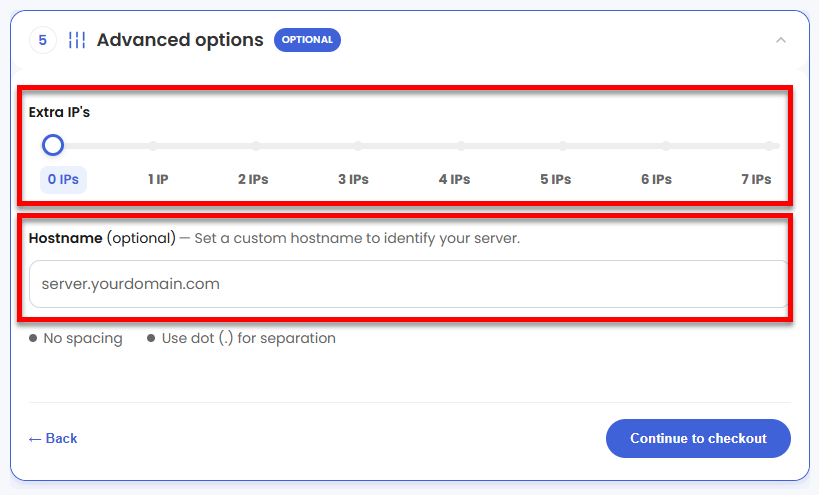
- Extra IP's: You can add IP addresses for an additional fee. Pricing changes based on how many IPs you add.
- Hostname: Assign a custom hostname to identify your server. This is optional.
- Location: Select your data center in this section.
- You can review your selected items in the right pane, along with the summarized total cost. Click Continue to checkout.
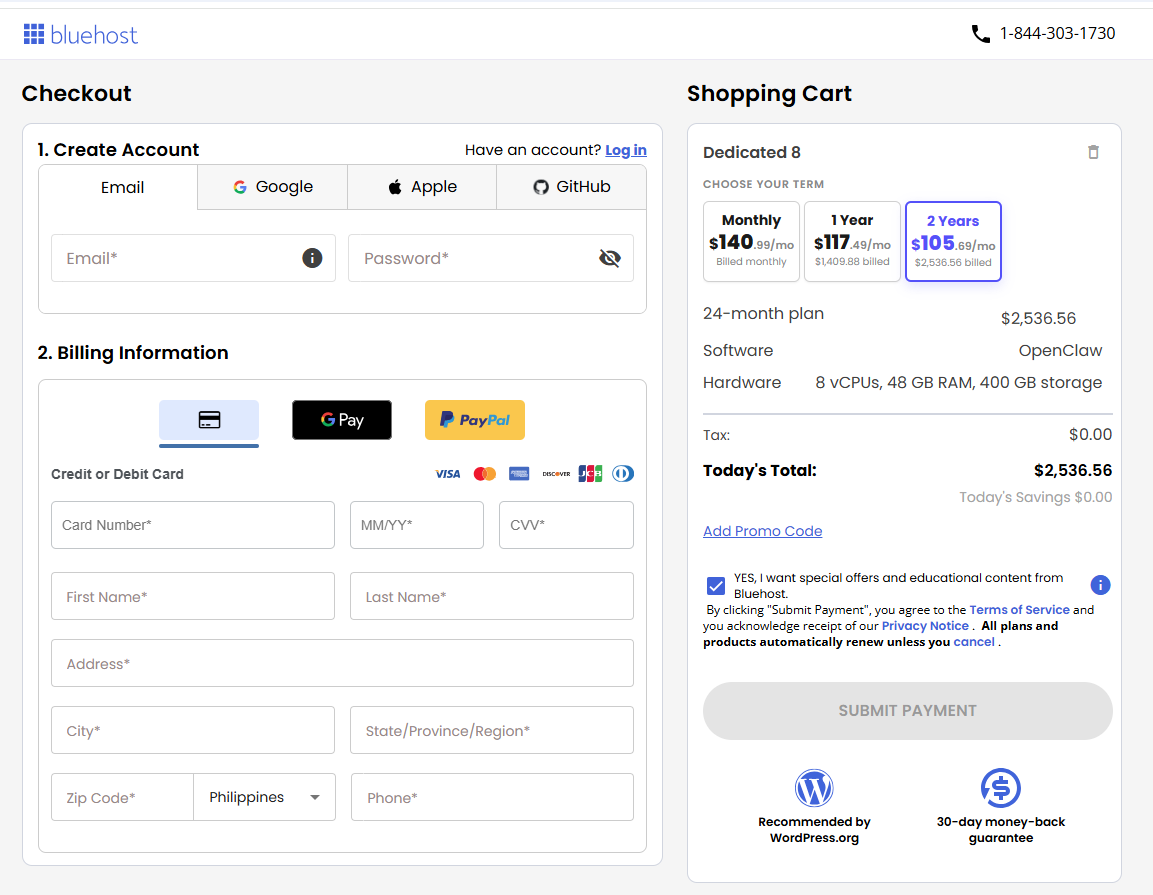
- Do the following on the Checkout page:
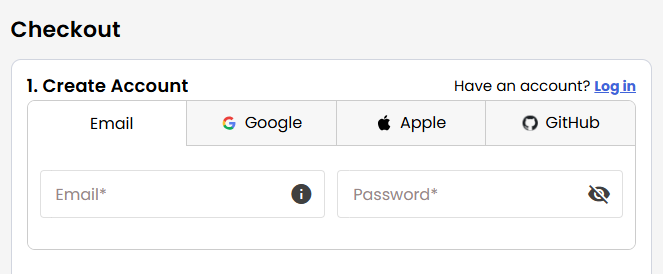
If you're new with Bluehost:
- Create your Bluehost account by using your email address or by connecting with your Google, Apple, or GitHub account — whichever you prefer!
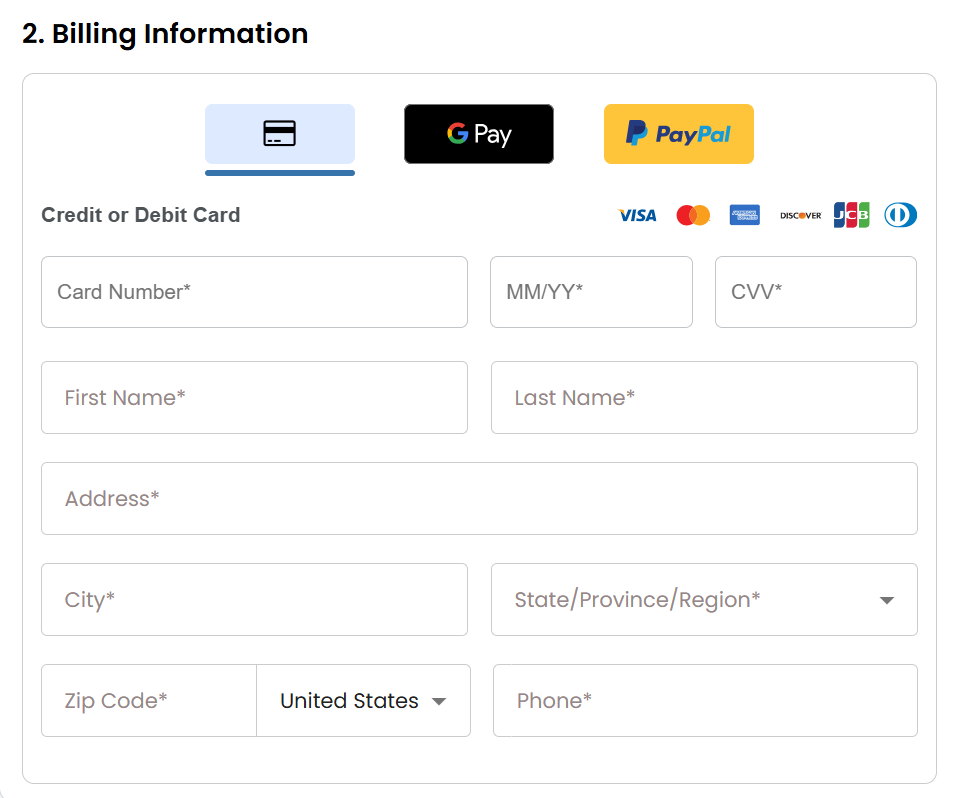
- Select your preferred payment method: credit card, Google Pay, or PayPal. Enter your billing information.
If you have an account with us, you will see your Bluehost login details when you are logged into your Bluehost Portal. If you are not logged in, please click the Log In link.
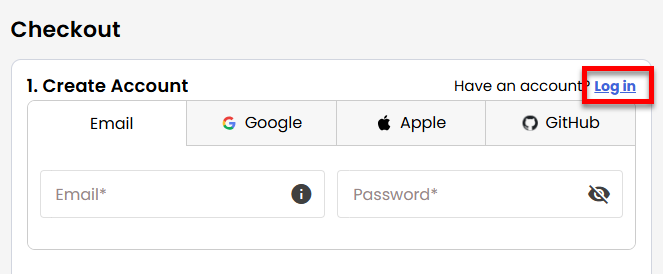
- Create your Bluehost account by using your email address or by connecting with your Google, Apple, or GitHub account — whichever you prefer!
- In the Shopping Cart section, choose your billing term.
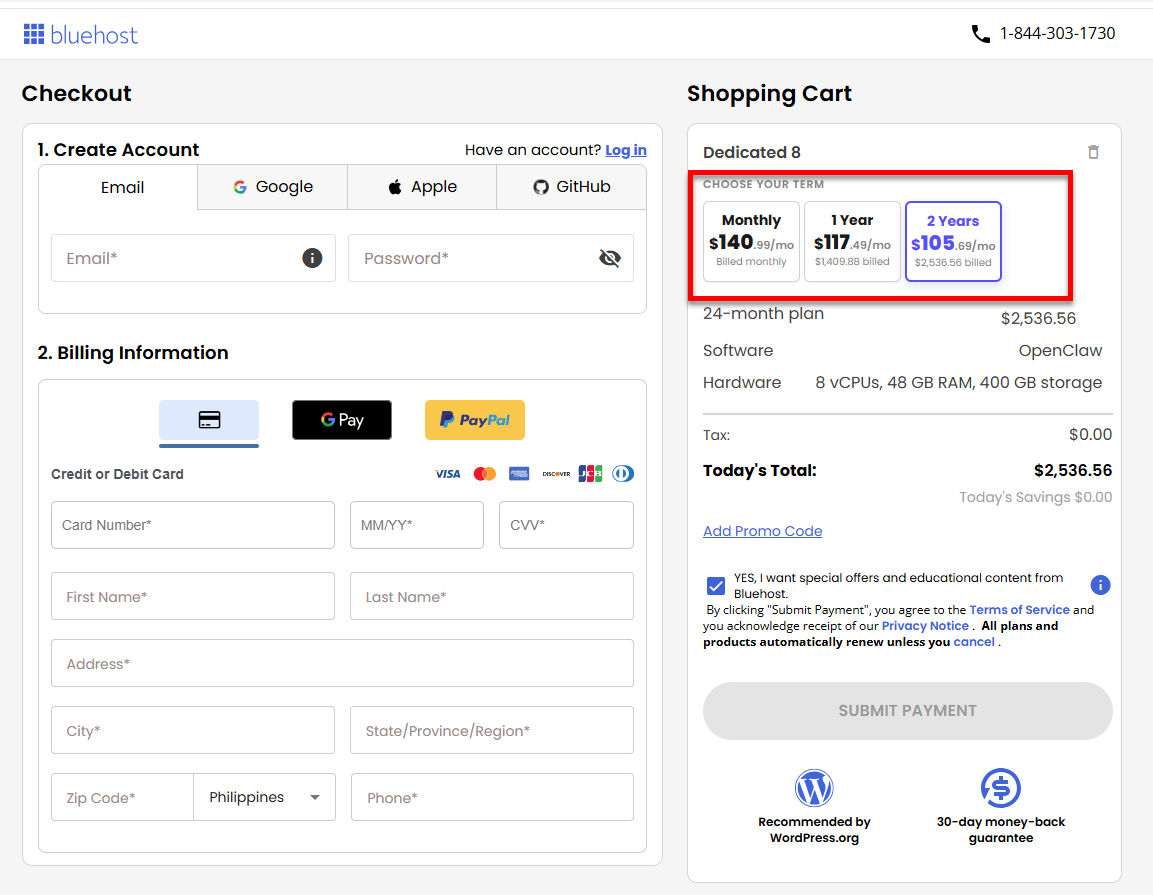
- Review the items in your cart, add a Promo Code if you have one, and then click Submit Payment to complete the purchase.
After you complete your purchase, your VDS hosting will begin provisioning. You can access and manage your new VDS hosting in the Hosting tab of your Bluehost Portal.
Summary
Learn how to purchase Virtual Dedicated Server hosting from Bluehost and choose the right plan for your needs. Bluehost’s VDS hosting delivers dedicated CPU, RAM, and high-speed storage, combining the flexibility of VPS with the power of dedicated servers—ideal for growing businesses, SaaS platforms, and resource-heavy websites. This article walks you through selecting from multiple Virtual Dedicated Server hosting plans, configuring server location, hardware, operating system, and applications, and completing checkout. It also covers customization options such as cPanel, security, and additional IPs to help you fully optimize your Virtual Dedicated Server environment.