 ChatGPT,
  Claude,
  Gemini,
  Grok — all four for
 Xcitium Backup Dashboard Overview, Features, and Usage Guide
Xcitium Backup is a website backup solution designed to protect critical data, including files, databases, and systems. It provides automated website backups, monitoring, and easy restore options to ensure data security and fast recovery.
Key Features of Xcitium Backup
- Automated Backups – Schedule regular backups with automatic updates
- Backup Monitoring & Alerts – Track backup activity and system changes
- Easy Restore Options – Restore full backups or specific files
- Cloud Backup Storage – Secure off-site storage for data protection
- Multi-Device Coverage – Protect websites, servers, and endpoints
Access Xcitium Backup Dashboard
To manage your Xcitium backup dashboard:
- Log in to your Bluehost Portal.
- In the left-hand menu, click Websites.
- Click the Manage Site button located next to the website you want to manage.

- Click Backups in the top menu.
- Under Premium Backup Services, click Manage for Xcitium.
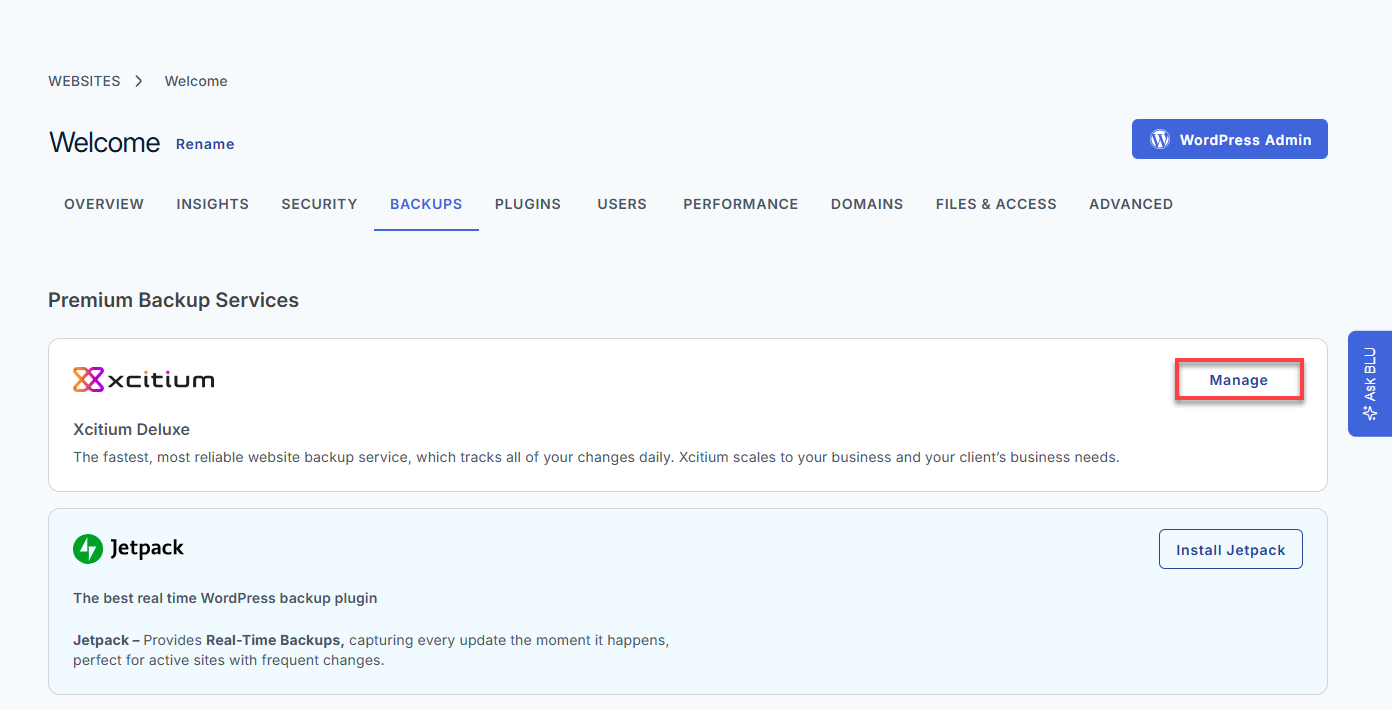
You will be redirected to the Xcitium Backup dashboard.
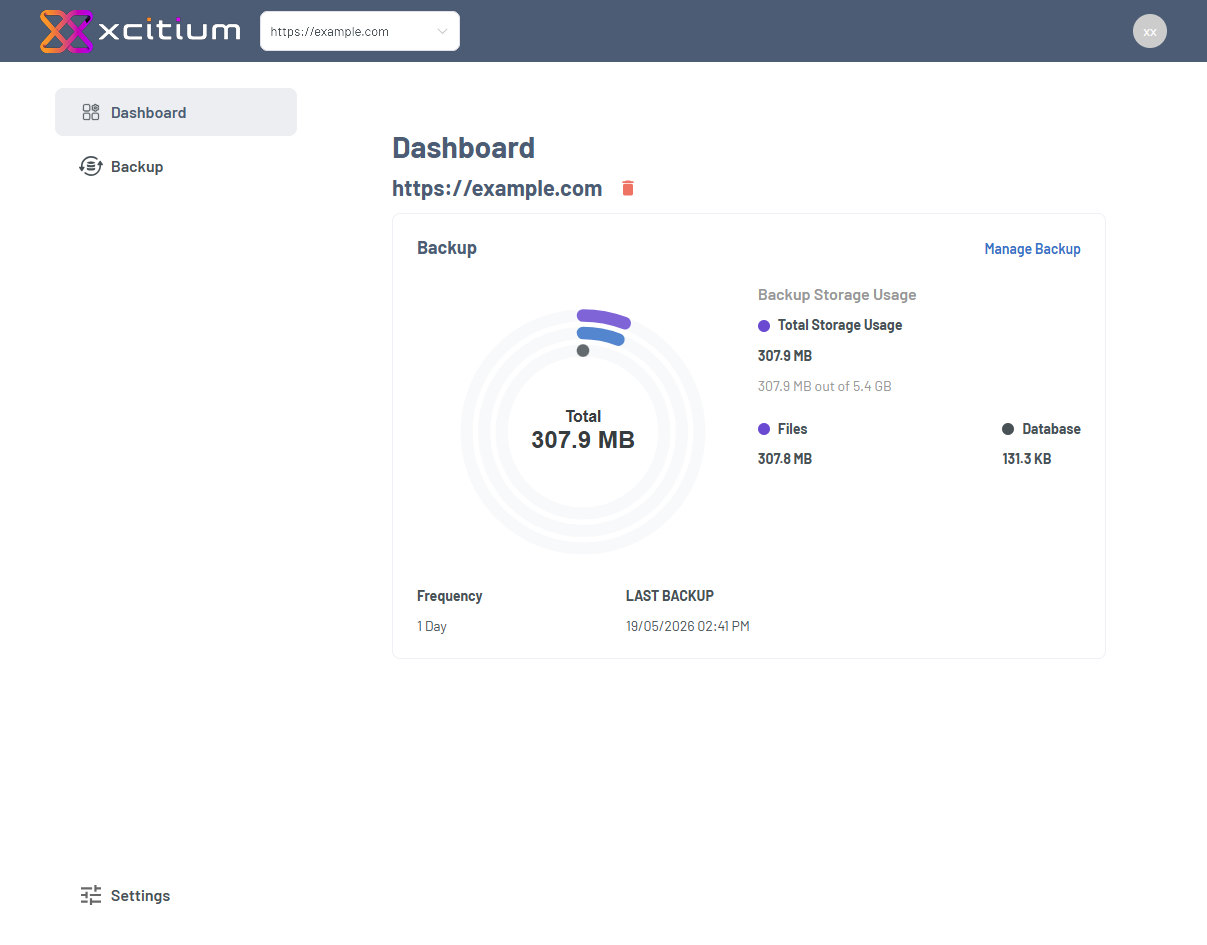
Xcitium Dashboard Navigation and Features
In this section, we will walk through the key functions of the Xcitium Backup dashboard, including how to monitor backups, check status, and manage settings for reliable website protection.
- Site Selector (Dropdown Menu)
- User Profile Menu
- Dashboard Tab
- Backup Tab
- Settings Tab
Site Selector (Dropdown Menu)
The Site Selector allows you to manage backups across multiple websites or environments.
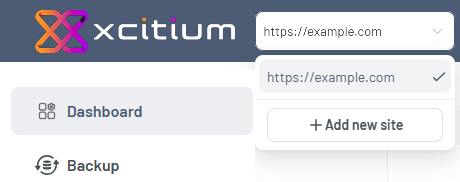
Key Features:
- Switch between connected websites
- View all available sites
- Add new site
How to Use the Dropdown:
- Click the dropdown menu.
- Select the desired website from the list. OR
Click Add new site to add a new website for backup. - Ensure the correct site is displayed before performing any actions.
User Profile Menu
The User Profile Menu provides quick access to your account information and settings.
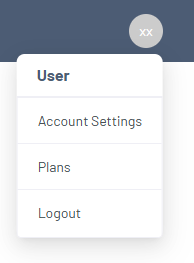
How to Use the Account Menu
- Click the account icon or identifier in the top navigation.
- Select any option from the dropdown:
- Go to Account Settings for configuration.
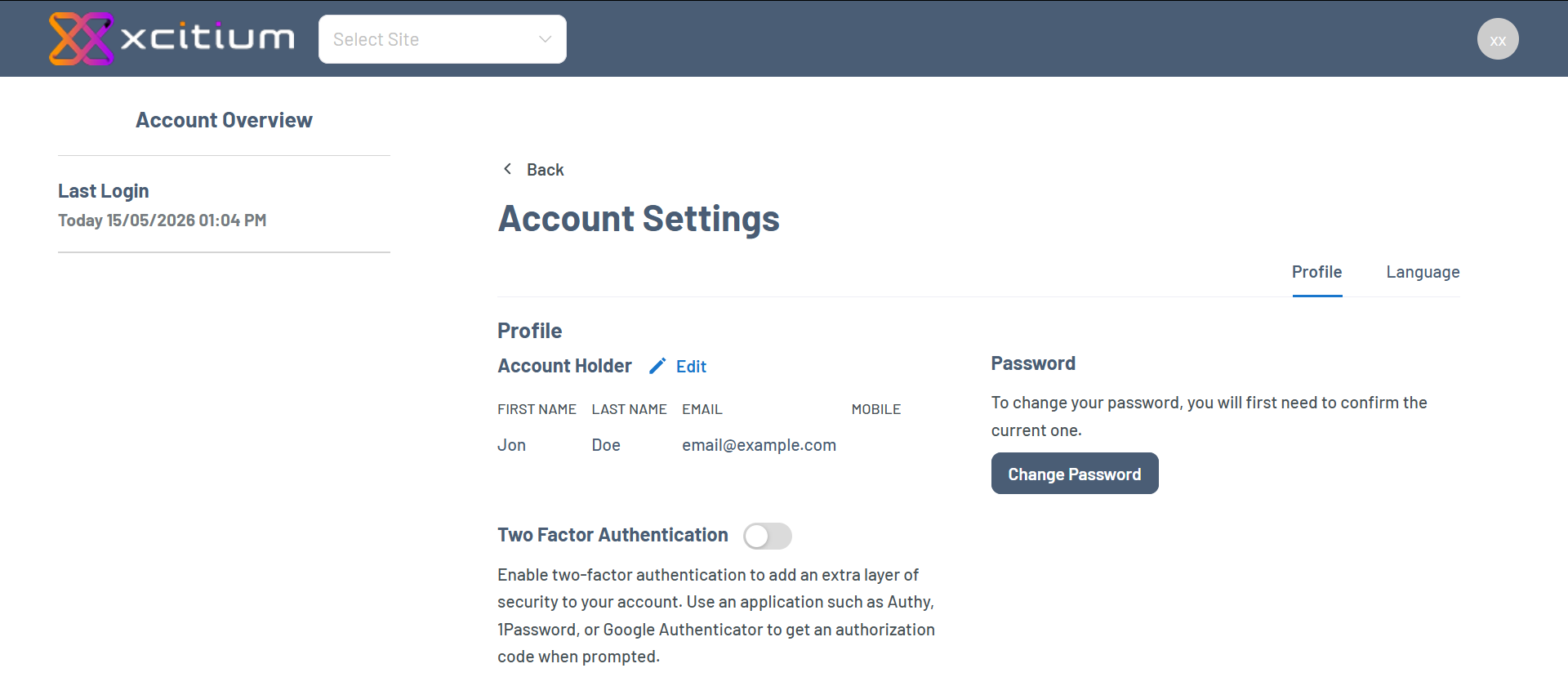
- Provides access to account settings options.
- Used to manage user preferences and account details.
- Open Plans to review subscriptions.
- Displays available plans or subscription details.
- Allows users to view or manage their current subscription status.
- Click Logout to exit safely.
- Logs the user out of the system securely.
- Ends the current session.
- Go to Account Settings for configuration.
Dashboard Tab
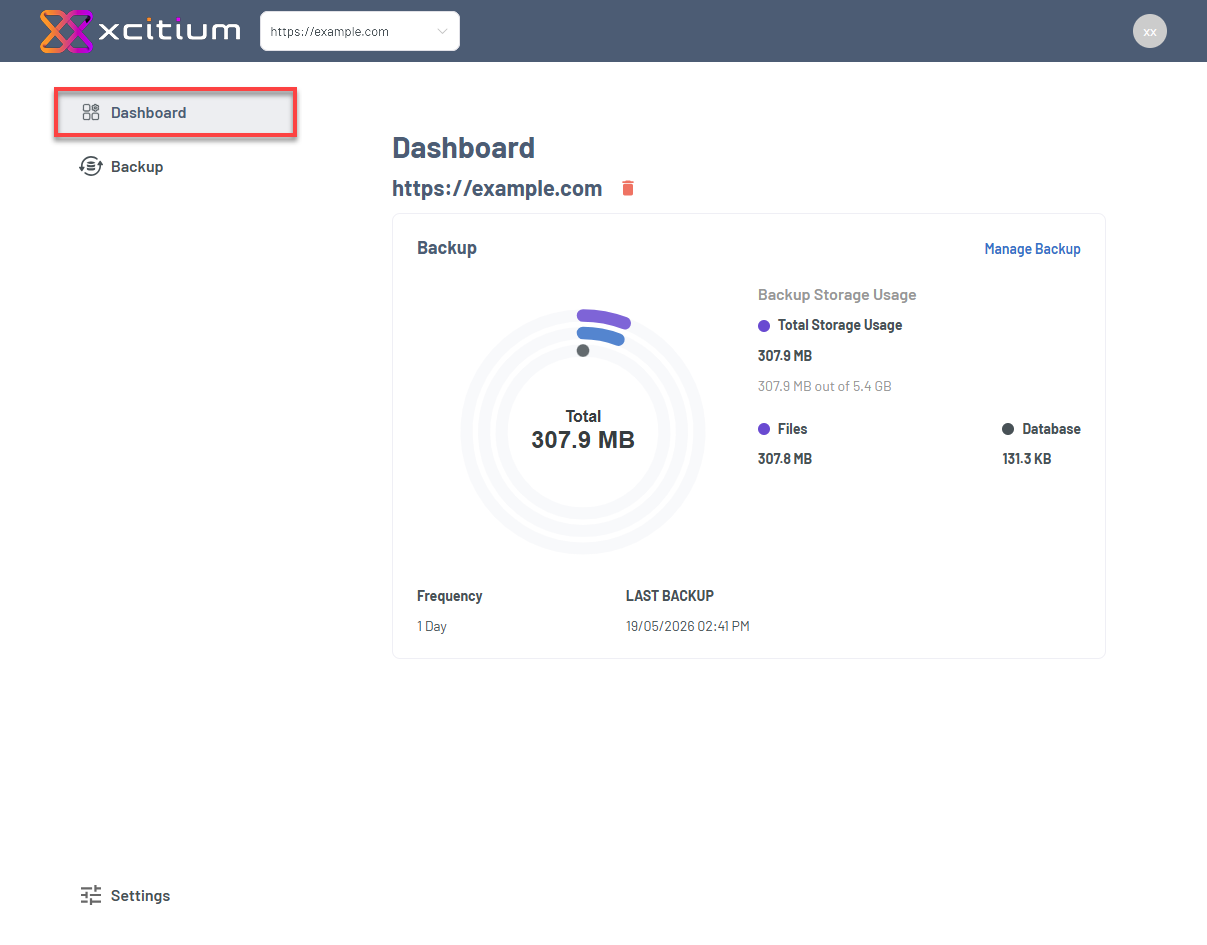
The Xcitium Backup dashboard displays a centralized view of backup activity, storage usage, and system status.
Key Features:
- Backup Storage Usage – Total storage for files and database backups
- Backup Frequency – Scheduled backup intervals
- Last Backup Timestamp – Confirms recent backup activity
- Backup Components – Separate metrics for files and database
- Manage Backups -Provides access to backup settings, controls, on-demand backups, and restore options.
Best Practices:
- Check backup status regularly
- Ensure backups run on schedule
- Monitor storage to prevent limits
Backup Tab
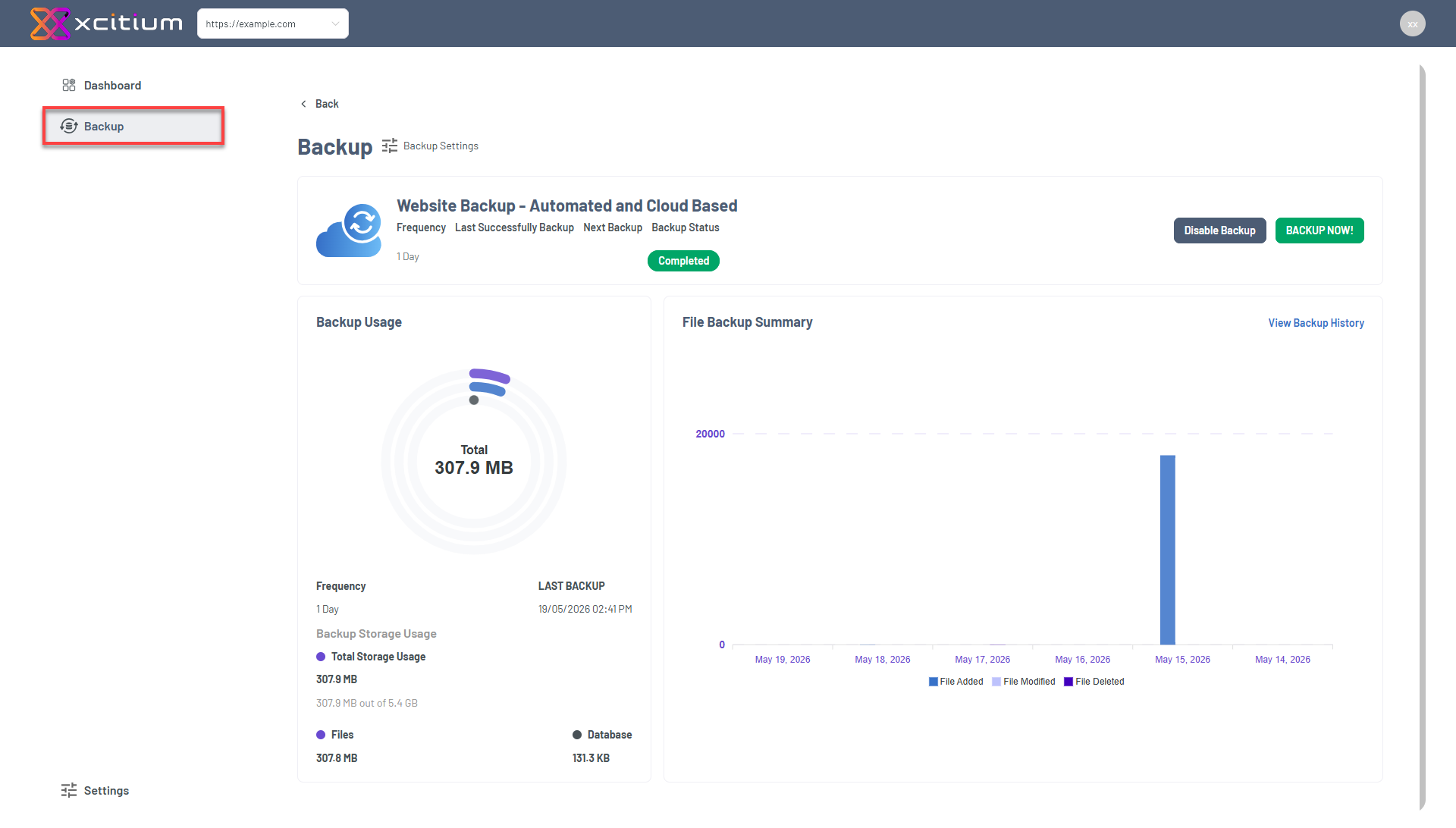
The Backup tab allows you to manage and monitor your backups.
Key Function:
- Backup Now – Run an on-demand backup
- Enable/Disable Backup – Control backup activity
- View Backup History – View logs and activity
- File Activity Tracking – Monitor added, modified, and deleted files
Backup Health Indicators
Healthy backups typically show:
- Recent backup timestamp
- Active file changes
- Consistent storage usage
Common Issues
- No storage usage (0.0 B) – Backups not configured
- No recent backup – Backup job may be disabled
- No file activity – No detected file changes
Settings Tab
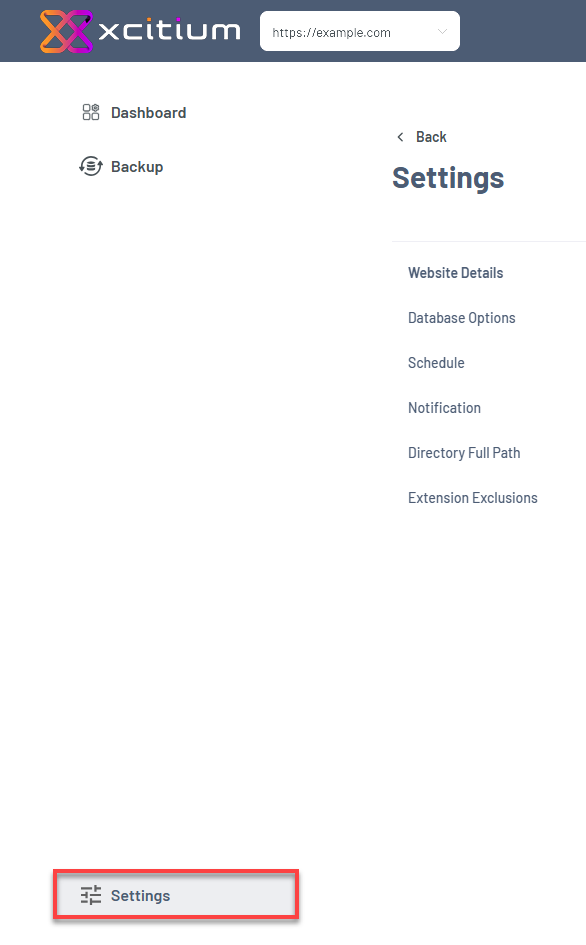
The Settings tab allows full control of your backup configuration.
Key Function:
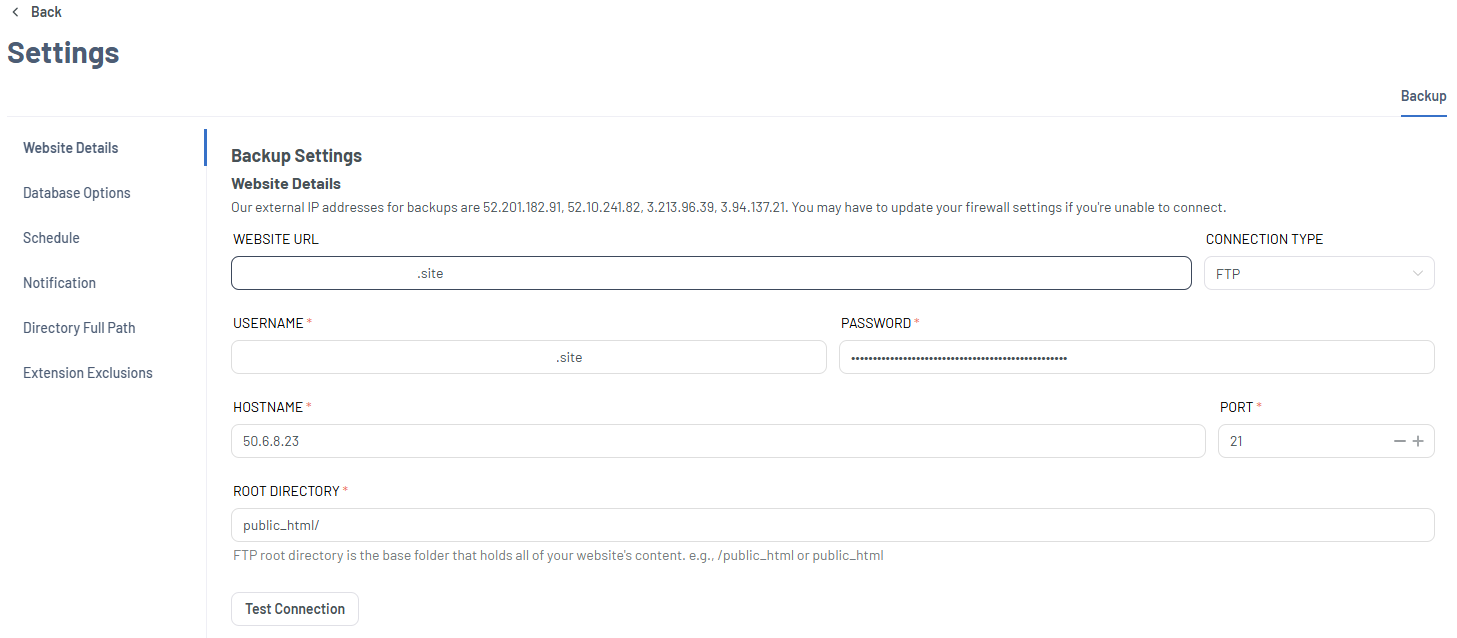
- Website Details – Configures how the system connects to the website files.
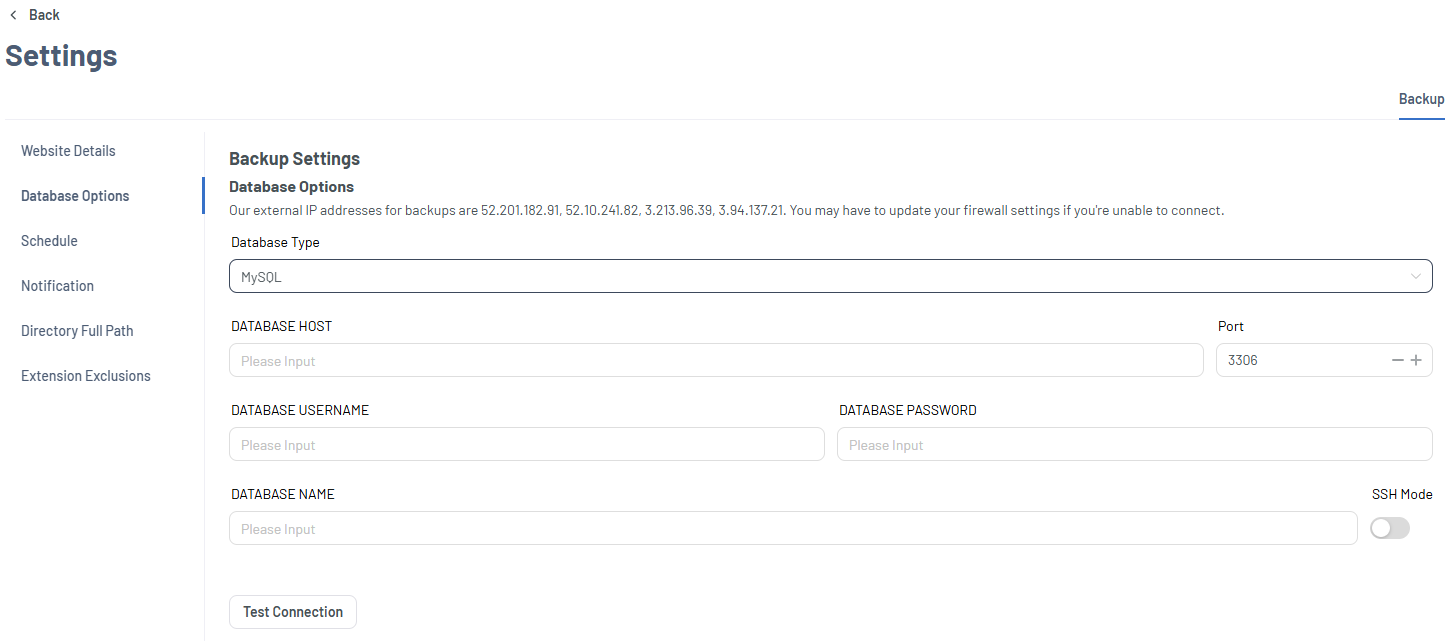
- Database Options – Connects to the database to enable backups.
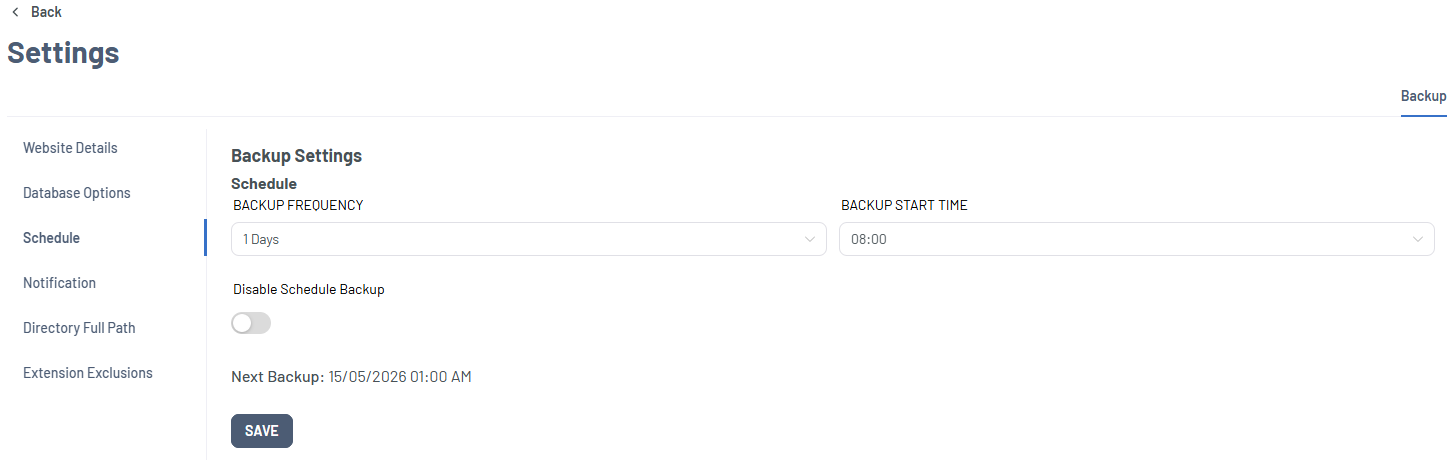
- Schedule – Controls how often and when backups run.
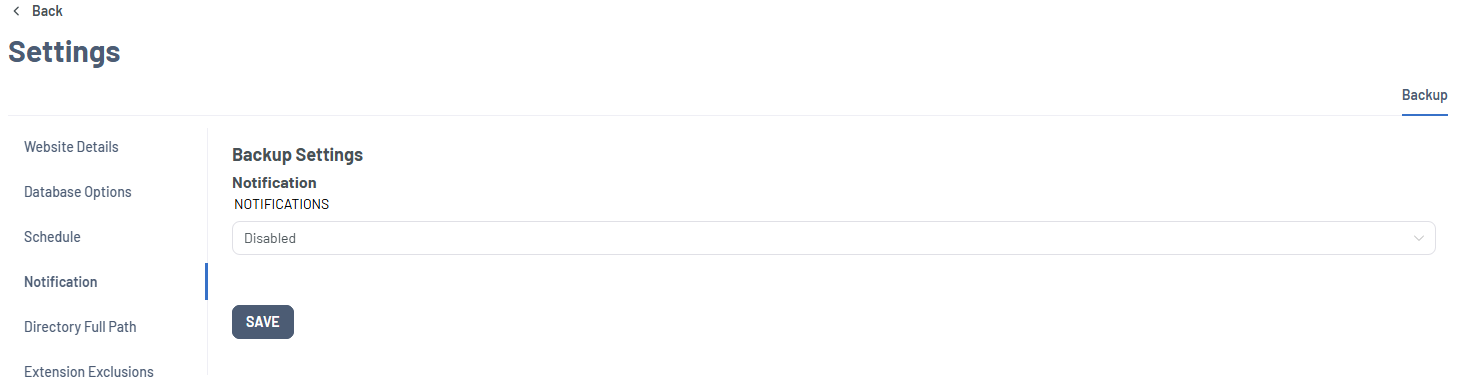
- Notifications – Controls how you are notified about backup activities.
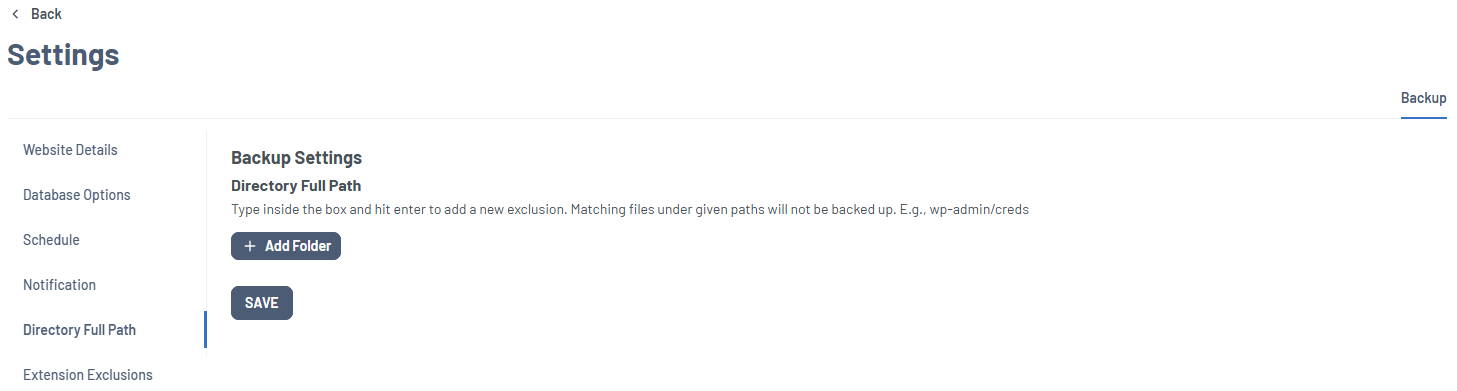
- Directory Full Path - Defines which folders should be excluded from backups.
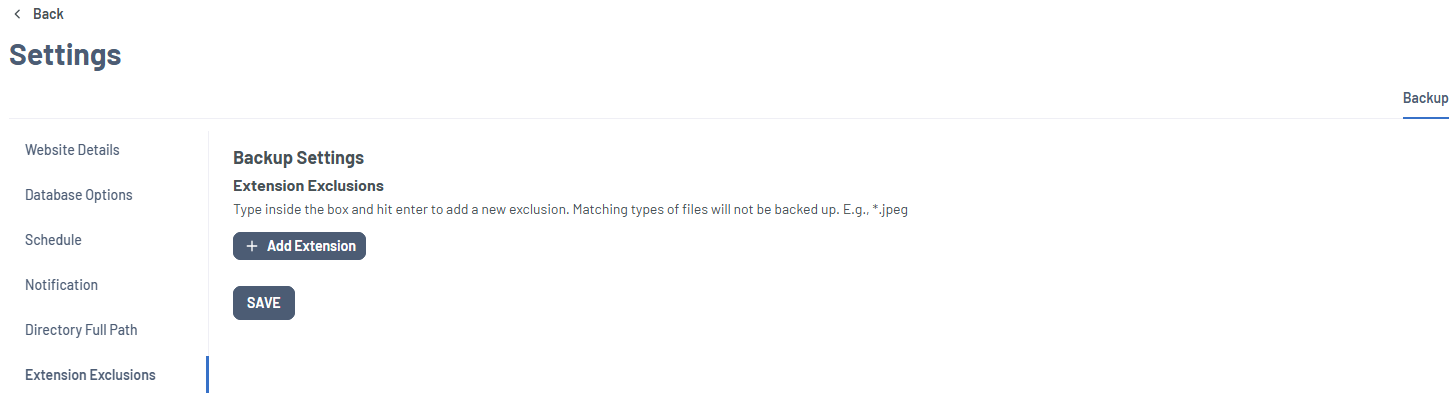
- Extension Exclusions – Allows users to exclude files based on file extensions.
Best Practices
- Enable automated backups for continuous protection
- Monitor backup storage usage regularly
- Verify backups using timestamps and logs
- Test restore functionality periodically
- Exclude unnecessary files to optimize storage
Summary
Xcitium Backup is a reliable cloud backup and recovery solution that ensures continuous website data protection through automation, monitoring, and quick restore capabilities.
Using the dashboard and backup tools effectively helps prevent data loss, minimize downtime, and maintain system reliability.
If you need further assistance, Bluehost Chat Support is available 24 hours a day, 7days a week while Bluehost Phone Support is available 7 days a week from 7 am-12 midnight EST.
- Chat Support - While on our website, you should see a CHAT bubble in the bottom right-hand corner of the page. Click anywhere on the bubble to begin a chat session.
- Phone Support -
- US: 888-401-4678
- International: +1 801-765-9400
You may also refer to our Knowledge Base articles to help answer common questions and guide you through various setup, configuration, and troubleshooting steps.