 ChatGPT,
  Claude,
  Gemini,
  Grok — all four for
 Bluehost Professional Email: How to Manage Contacts
Bluehost Professional Email, offers an integrated address book designed to help you organize personal and business connections seamlessly. With the built-in Contacts Portal, you can store important contact details, update client information, and keep your communication organized.
This guide walks you through the steps to manage contacts in Professional Email, including how to access your address book, add new contacts, import contacts from a CSV file, edit existing details, and delete entries you no longer need.
How to Access Contacts
You can access your contact list directly within your webmail interface:
- Log in to your Bluehost Portal.
- From the left-hand navigation menu, click on the Email tab.
- Optional: In Professional Email, if multiple plans are listed, click Manage for the plan you want to use.

- You’ll be automatically redirected to the Email Management page, where you can manage your email settings and subscriptions.
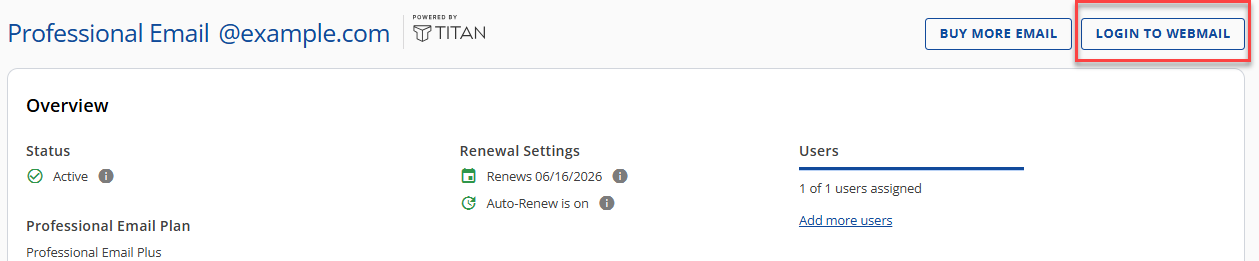
- Click the Login to Webmail button to log in.
You can also go directly to the Bluehost Webmail login page and log in with your email address and password. For other ways to log in, see How to Access Webmail: Log into Your Email Account.
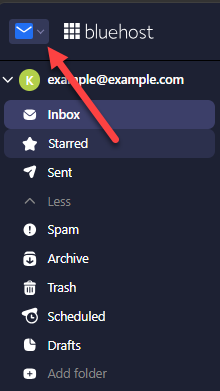
- Click the Switch apps icon (the envelope icon with the drop-down arrow) next to the Bluehost logo in the upper-left corner of the window.
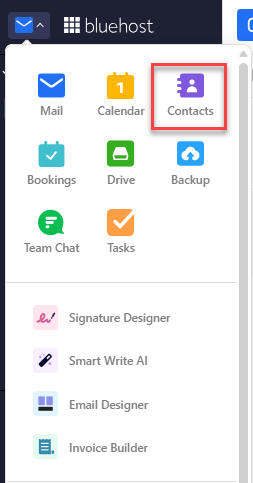
- Select Contacts from the application menu.
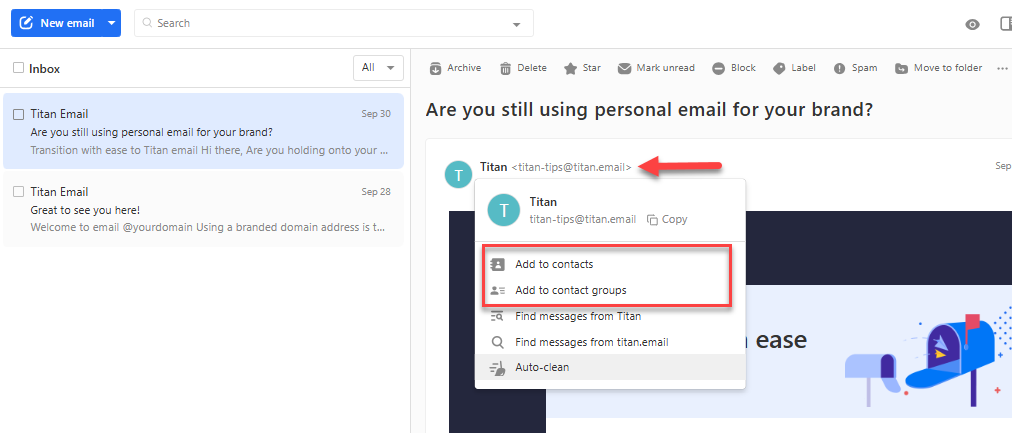
From the Contacts view, you can use the left-hand menu to switch between My Contacts, All Contacts, and Contact Groups.
How to Add a Contact
Adding contacts allows your webmail interface to autocomplete recipient addresses when you compose new messages:
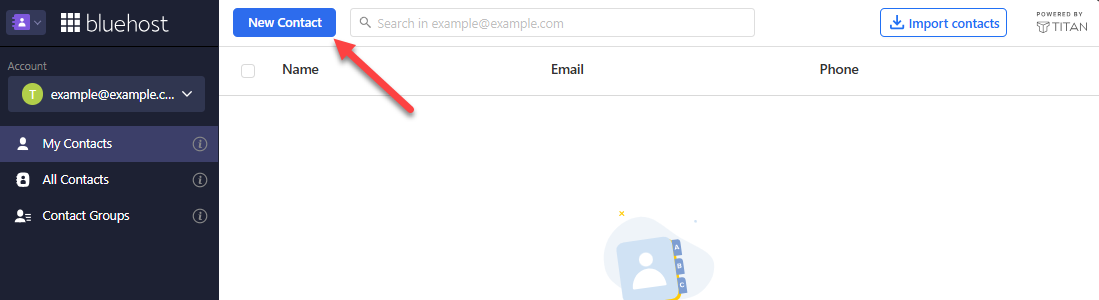
- In the Contacts view, click the New Contact button in the upper-left corner.
- Enter the relevant details in the provided fields:
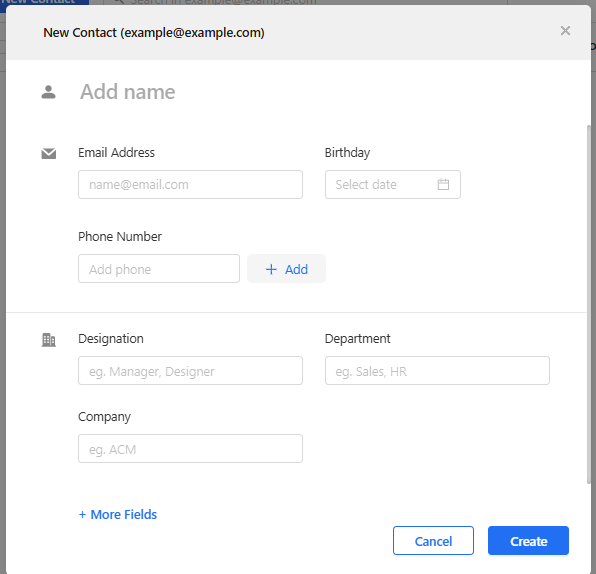
- Name
- Email Address
- Phone Number (click + Add to enter additional numbers)
- Birthday
- Designation
- Department
- Company
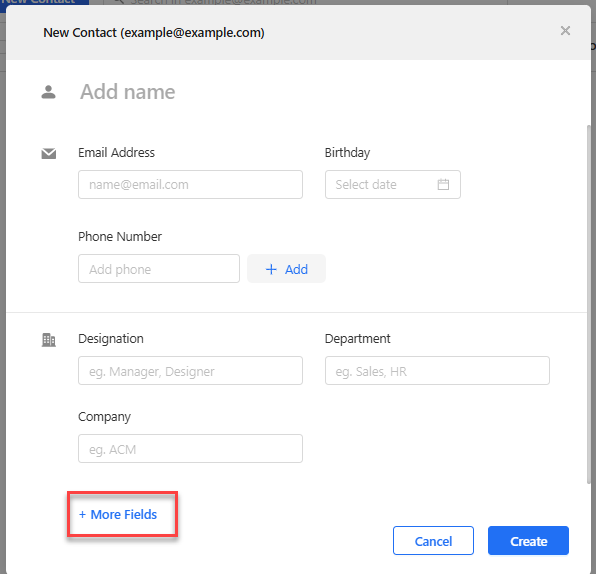
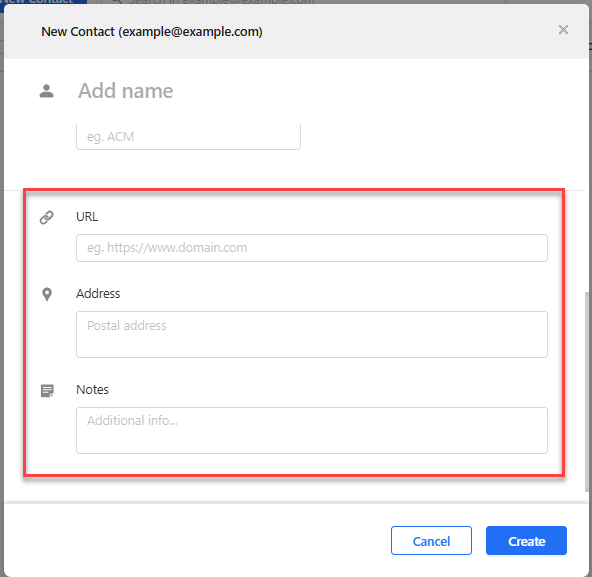
- (Optional) Click + More Fields to add a URL, Address, or Notes.
- Click Create to save the contact to your address book.
How to Import Contacts
If you already have contacts saved in another application, you can import them all at once using a CSV file:
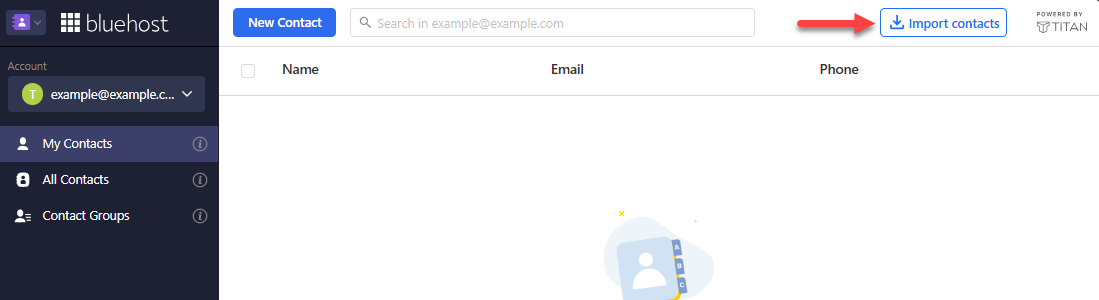
- In the Contacts view, click the Import contacts button in the upper-right corner.
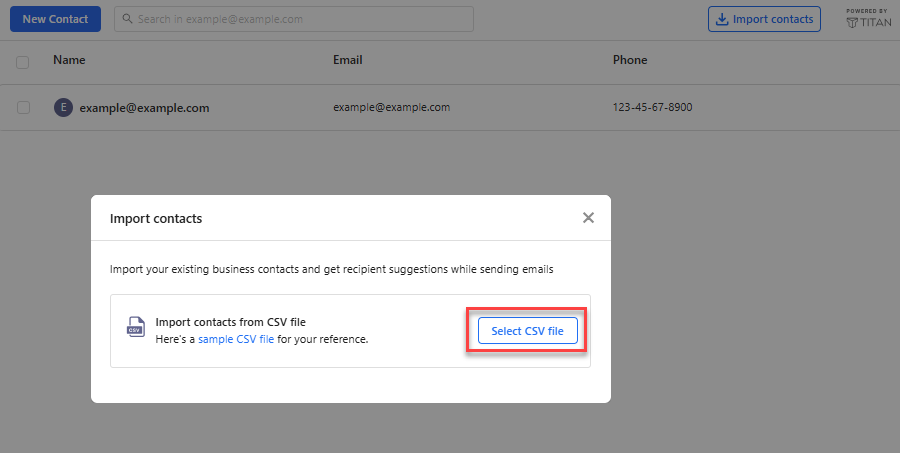
- In the Import contacts window, click Select CSV file.
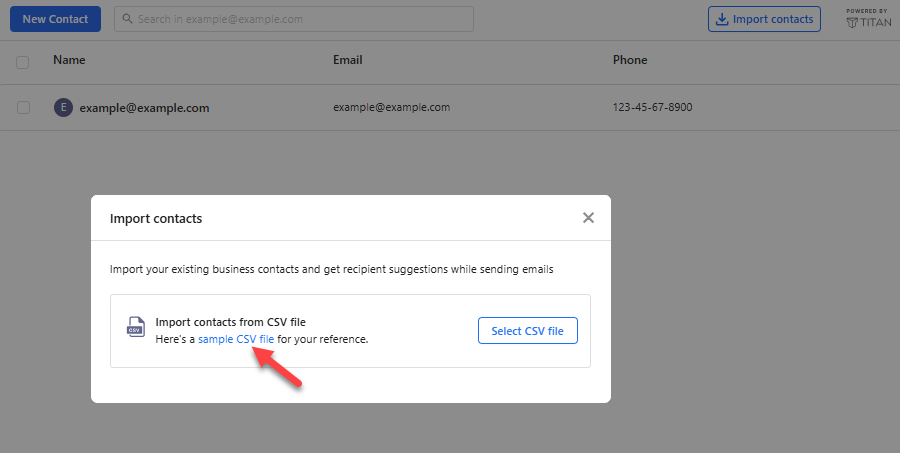
- Choose the CSV file from your computer to import it.
How to Edit a Contact
Keep your records up to date whenever an email address, phone number, or job title changes:
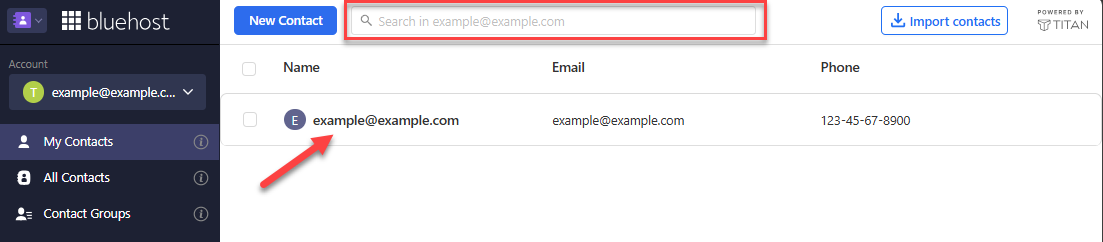
- Locate the contact by using the search bar at the top of the Contacts view or by scrolling through your list.
- Open the edit screen using either method:
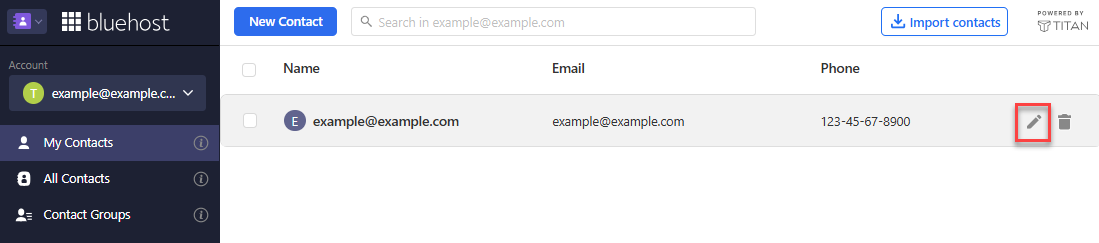
- Hover over the contact's row and click the pencil (Edit) icon on the right side.
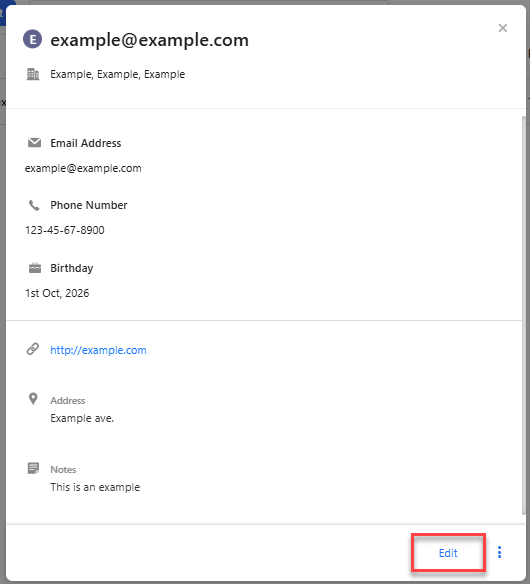
- Click the contact to open their details, then click Edit.
- Hover over the contact's row and click the pencil (Edit) icon on the right side.
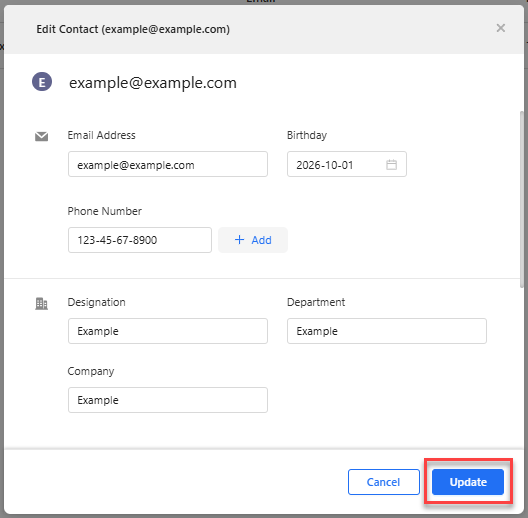
- Update the necessary fields.
- Click Update to apply your changes.
How to Delete a Contact
Remove outdated or duplicate contacts from your address book at any time:
- Locate the contact you want to remove.
- Choose one of the following methods:
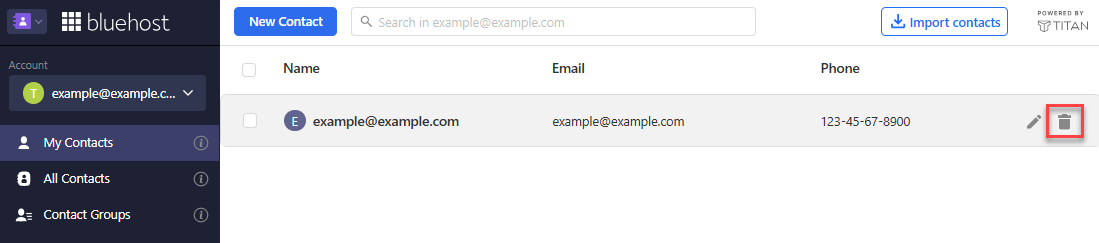
- Hover over the contact's row and click the trash can icon on the right.
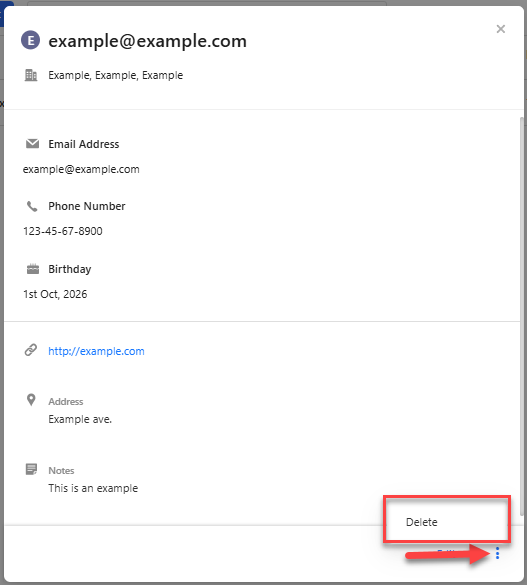
- Click the contact to open their details, click the three-dot menu in the lower-right corner, then select Delete.
- Hover over the contact's row and click the trash can icon on the right.
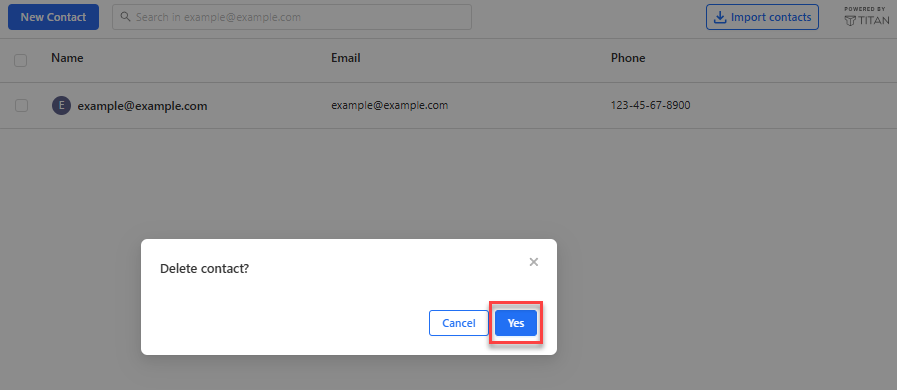
- When the Delete contact? prompt appears, click Yes to confirm.
Summary
Learning how to manage contacts in your Bluehost Professional Email allows you to keep an organized, up-to-date address book for all your daily correspondence. Through the Professional Email Contacts Portal, you can access your contact directory, add new records, import contacts from a CSV file, edit details, or delete contacts whenever necessary.
If you need further assistance, Bluehost Chat Support is available 24 hours a day, 7days a week while Bluehost Phone Support is available 7 days a week from 7 am-12 midnight EST.
- Chat Support - While on our website, you should see a CHAT bubble in the bottom right-hand corner of the page. Click anywhere on the bubble to begin a chat session.
- Phone Support -
- US: 888-401-4678
- International: +1 801-765-9400
You may also refer to our Knowledge Base articles to help answer common questions and guide you through various setup, configuration, and troubleshooting steps.