 ChatGPT,
  Claude,
  Gemini,
  Grok — all four for
 An email alias is an extra email address that sends messages to your main inbox. For example, you can create [email protected] or [email protected] and read those emails alongside your regular mail. You don't need to set up, pay for, or check a separate mailbox. Aliases make your business look more organized and help you sort emails by purpose.
Follow the steps below to add an alias to your Bluehost Professional Email account.
Create an Email Alias in Your Bluehost Portal
Set up your new alias in just a few clicks from your dashboard:
- Log in to your Bluehost Portal.
- From the left-hand navigation menu, click on the Email tab.
- Optional: In Professional Email, if multiple plans are listed, click Manage for the plan you want to use.

- You’ll be automatically redirected to the Email Management page, where you can manage your email settings and subscriptions.
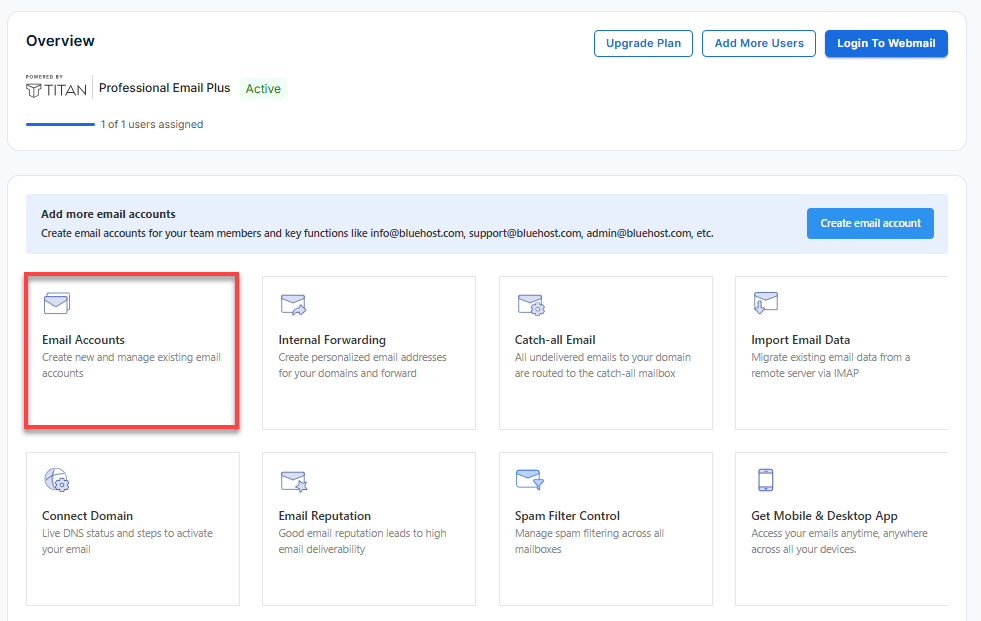
- Click Email Accounts.
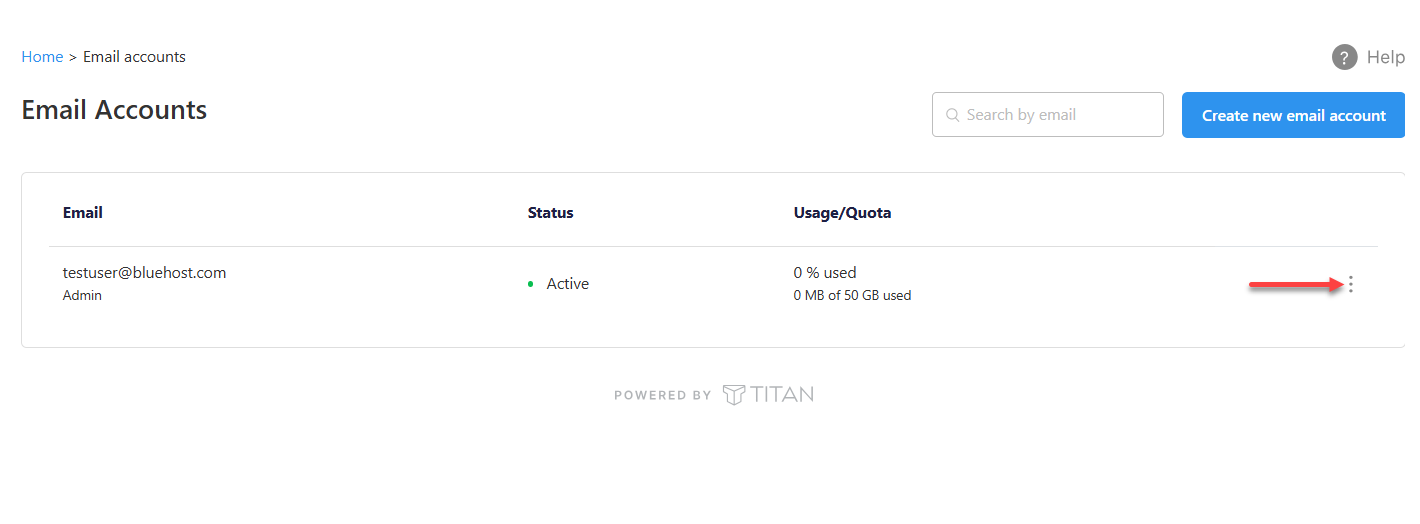
- Find the email account you want to add an alias to.
- Hover over the account and click the ellipsis icon (
...).
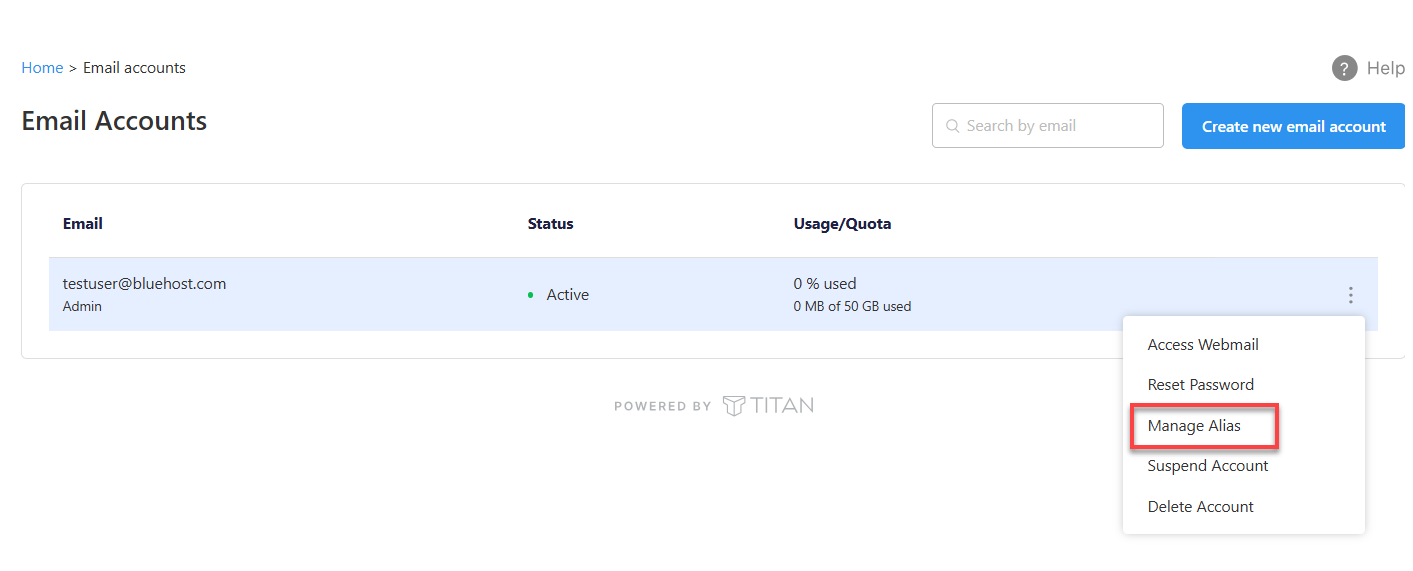
- Click Manage Alias.
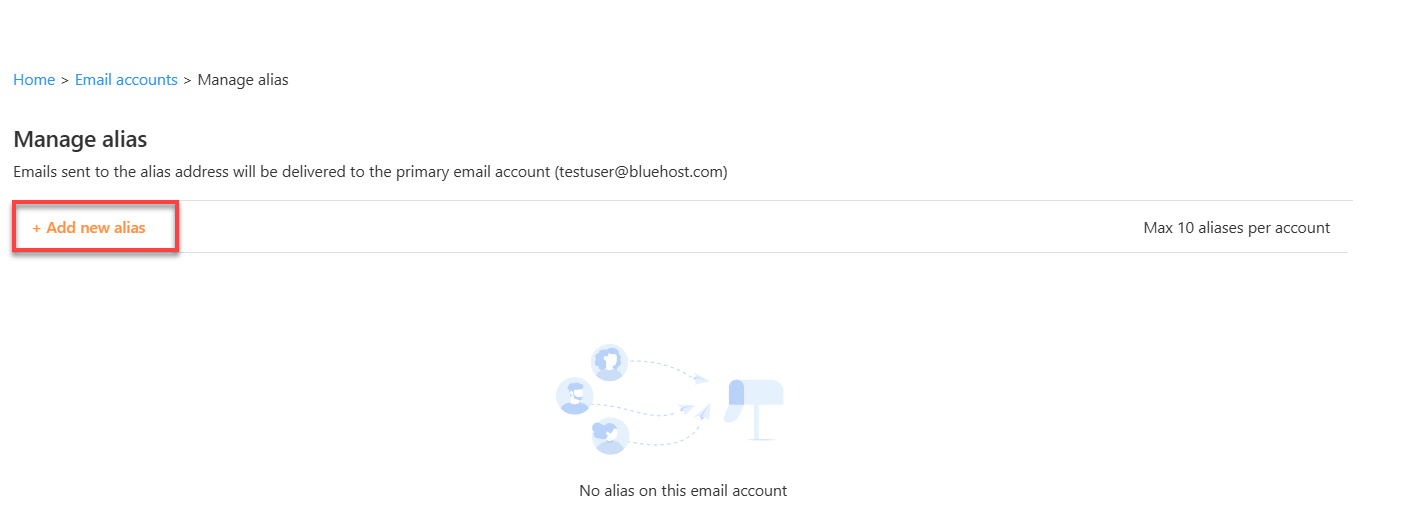
- Click + Add new alias.
Note: You can create a maximum of 10 aliases per account.
- Fill in the following fields:
- Display Name: Enter the name you want to appear for this alias.
- Email address: Enter the username you want to use before your domain (for example,
infoorsupport).
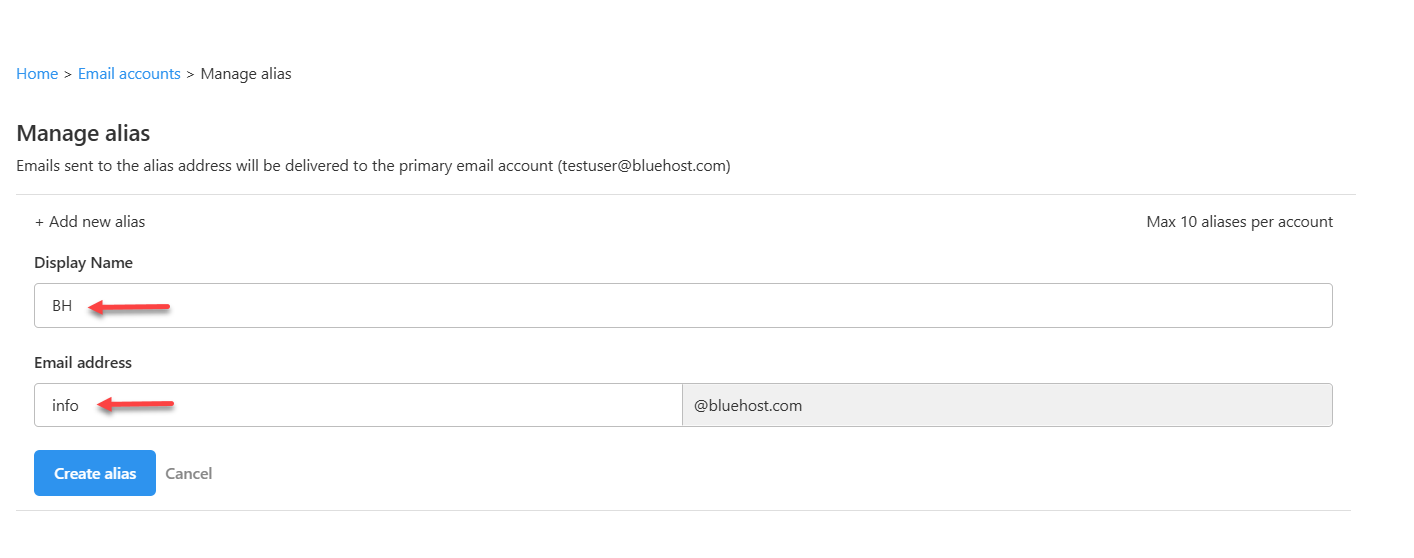
- Click Create alias.
Your alias is now active.
Tips for Using Your Email Alias
Once your alias is set up, keep these points in mind to get the most out of it.
- Where alias emails go: Emails sent to your alias arrive in your main Bluehost Professional Email Mail inbox.
- How many aliases you can add: You can add up to 10 aliases per email account.
- Sending from your alias: To send emails from your alias, log in to Bluehost Professional Email Webmail, go to Settings > Preferences, and turn on Send as Alias.
With these tips, you can manage all your addresses from one inbox and reply from the right one every time.
Summary
An email alias gives you an extra address without an extra inbox. You can add one in a few clicks from Professional Email in your Bluehost Portal. Emails sent to the alias arrive automatically in your main inbox, so there's no separate mailbox to check or manage. You can also turn on Send as Alias to reply from that address, and you can create up to 10 aliases per account to keep every part of your business organized.
Related Articles
If you need further assistance, Bluehost Chat Support is available 24 hours a day, 7days a week while Bluehost Phone Support is available 7 days a week from 7 am-12 midnight EST.
- Chat Support - While on our website, you should see a CHAT bubble in the bottom right-hand corner of the page. Click anywhere on the bubble to begin a chat session.
- Phone Support -
- US: 888-401-4678
- International: +1 801-765-9400
You may also refer to our Knowledge Base articles to help answer common questions and guide you through various setup, configuration, and troubleshooting steps.